

Forum Replies Created
-
AuthorPosts
-
George
ParticipantHey Jeanine,
Thanks for your update here. To address things in reverse order, no, we do not have any phone support at this time.
In regards to your issue, yes the first CSS I shared will hide the date and time for ALL events.
To specify that on a per-event basis is, unfortunately, a bit tricky.
One thing you could do is make an Event Category whose sole purpose is for your own internal use, like maybe “No Date” or something a bit more public-friendly and generic like “Content Events”.
A Demonstration of This Method
To demonstrate the approach I am recommending here, let’s start with a screenshot of a “normal” event that is in a category called “Content Events”:
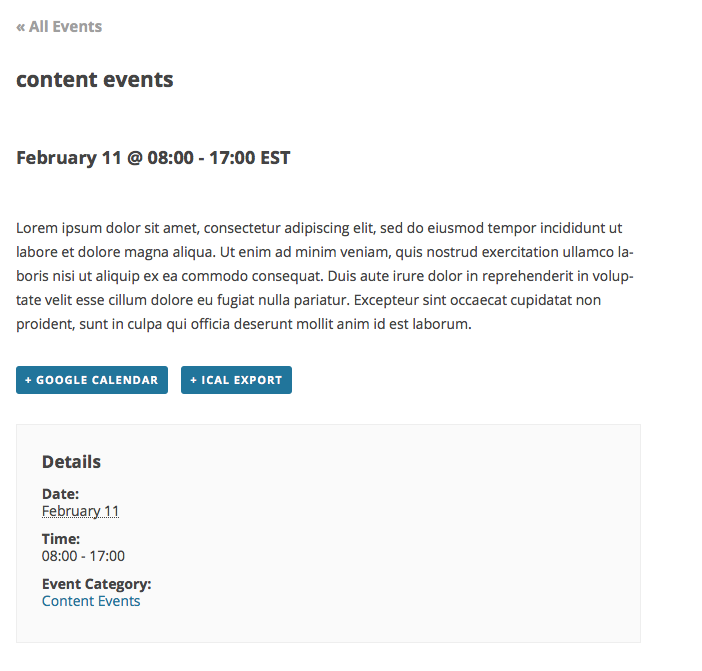
To hide the “date” on events like this that are in the “Content Events” category, but leave all other events displaying normally, add this snippet of code to your theme’s functions.php file:
add_filter( 'tribe_events_event_schedule_details', 'tribe_hide_date_if_in_category', 10, 2 );function tribe_hide_date_if_in_category( $schedule, $event_id ) {
if ( $event_id && is_object_in_term( $event_id, Tribe__Events__Main::TAXONOMY, [ 'content-events' ] ) ) {
return tribe_get_start_time( $event_id ) . ' - ' . tribe_get_end_time( $event_id );
}return $inner;
}
Here’s an example of how that originally-shared event would now look:
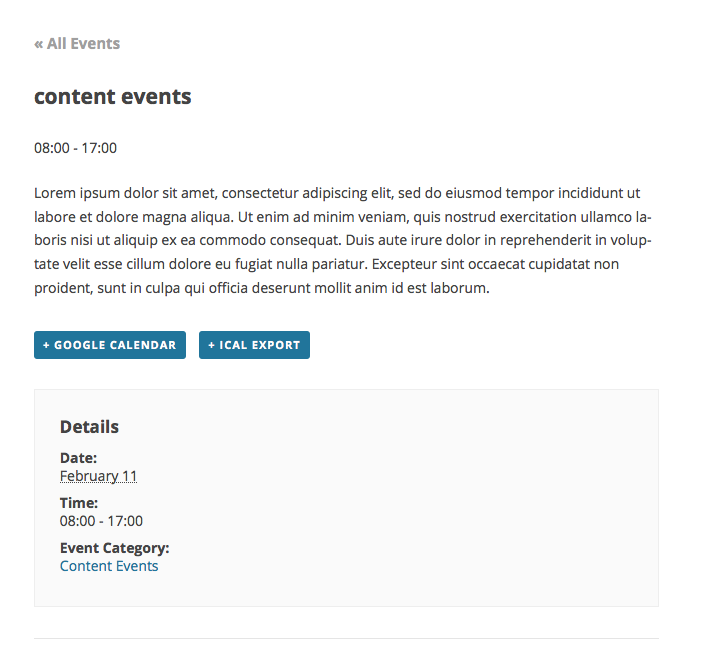
For any other tweaks or customizations you want to make, you will have to take the reins on implementing those because we do not support customizations. So I unfortunately cannot provide any other custom code. Please see this article for more information on our lack of support for customization questions: https://theeventscalendar.com/knowledgebase/what-support-is-provided-for-license-holders/.
Despite that policy I have written custom code above, of course, and hope it helps you get started on this!
Best of luck with your customizations,
GeorgeParticipantHey @Igor,
Glad to hear that helped!
When it comes to your first and third questions, regarding customizing the page header and/or adding images to it and all of that, these are indeed things that would require custom CSS or even more complicated template-level coding inside your theme. Both things are outside the scope of support here, unfortunately, so you’ll have to take the reins on any further header customizations and tweaks, but contacting your theme author for more theme-specific support may be a helpful step too.
—
As for your second question, you ask:
I know I can switch between the Page template and Event Page templates in Settings – but how do I control them, aside from choosing the Skeleton, Full and Native Tribe styles?
When you ask, “how do I control them?”, this unfortunately sounds like you are trying to make more customizations and tweaks to these templates. Is this correct? If so, then unfortunately the response here is similar to the response above, in that you would have to implement such customizations with CSS and/or template changes.
We cannot help with custom code but we DO have an excellent guide to getting started with theme customizations in general, which can be found here: https://theeventscalendar.com/knowledgebase/themers-guide/.
I hope this helps!
Let me know if you mean something else in your second question than what I interpreted, or if there’s anything else at all that I can help with.
Thank you,
GeorgeParticipantHey Gregy,
Sorry to hear that issues are persisting!
To be sure, have you installed and activated both Event Tickets AND Event Tickets Plus?
If not, try doing this and see if things improve.
If the above steps do not help, then I’m wondering if you can check the “Screen Options” drawer on your edit-event screens? This draw is accessible with the “Screen Options” tab in the top-right corner of the page, and will reveal a set of checkboxes associated with metaboxes. There’s a checkbox for “tickets” that should be checked – if it is not checked, check it and see if this helps reveal the “Tickets” section.
Here’s a screenshot of the expanded “Screen Options” drawer and the tickets checkbox to look for within it:
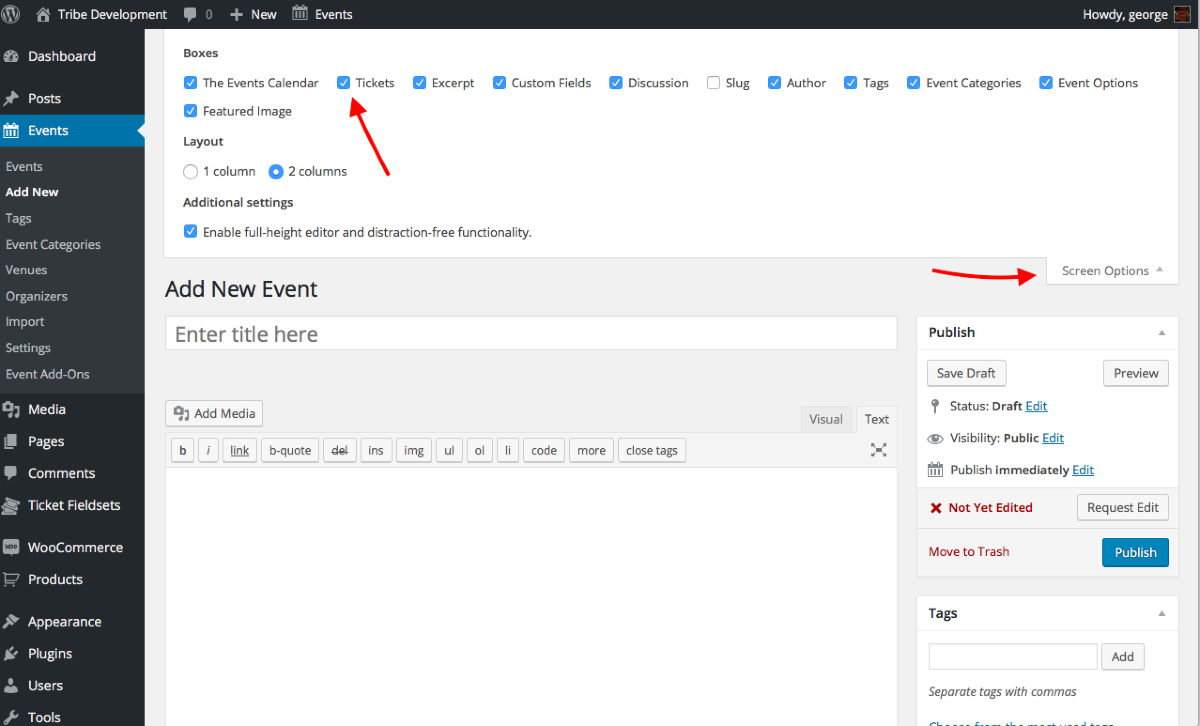
This draw is closed by default on page load, of course, so you will have to click the “Screen options” tab itself to reveal this as shown in the screenshot.
If neither thing I recommend here helps at all, then in your response can you please share your “System Information” with us? Here’s how to do that: https://theeventscalendar.com/knowledgebase/sharing-sys-info/.
Thank you so much for your patience with these issues! I’m sorry that they’re persisting but am determined to help find the root cause here.
Sincerely,
GeorgeParticipantThank you for this information, @OngKar! It reveals quite a few plugins on your site, which could be a part of the problem here; to be specific, there could be a plugin code conflict on your site and the number of plugins you have on your site is high enough to make this quite likely.
I would recommend going through the complete set of troubleshooting steps found on this page: https://theeventscalendar.com/knowledgebase/testing-for-conflicts/.
After each step in that process, try to recreate the issue and see if it continues to happen.
Does the issue stop happening anywhere along in this process? If so, let us know!
Thank you,
GeorgeParticipantGlad to hear it! Thank you for sharing your solution.
Best of luck with your project,
GeorgeParticipantHey @gaylenevandusen,
While Events Calendar Pro has never had the community-submission features of Community Events, we indeed have a detailed breakdown of the features of each plugin.
You can find a detailed feature breakdown for Events Calendar Pro here: https://theeventscalendar.com/product/wordpress-events-calendar-pro
When it comes to Community Events, basically if you just have Community Events and the core plugin you will have NONE of the Events Calendar Pro features listed above. You will have the core calendar features, and then the “community submission” features where users can submit events to your calendar.
You can learn more about Community Events here: https://theeventscalendar.com/product/wordpress-community-events/.
Finally, as for getting a “renewal” rate, this depends on how long ago your license expired. It seems like it expired in May 2015, so a renewal discount is unfortunately not valid anymore 🙁
Thank you,
GeorgeParticipantHey @Serena,
Really sorry for the trouble here! You can absolutely get a refund and should follow the steps here as soon as possible so that we can refund your order: https://theeventscalendar.com/knowledgebase/refund-policy/.
Thank you for giving the plugin a try!
Sincerely,
GeorgeFebruary 10, 2016 at 11:35 pm in reply to: WP3 Total Cache causing my events page to not show up #1071193ParticipantI’m sorry to hear this @Robin! W3TC may not be compatible with The Events Calendar on your site, unfortunately 🙁
If you’re interested in further investigation on this, you might find the steps here helpful: https://theeventscalendar.com/knowledgebase/testing-for-conflicts/.
Otherwise, you might be able to ask the W3TC folks if they have further recommendations about disabling features in their plugin that might be affecting the functionality of The Events Calendar.
I’m sorry to disappoint, @Robin!
Sincerely,
GeorgeParticipantHey @Leia,
Sure thing, you should be able to get some more control over this process by doing a few things in your Community Events settings.
So, first go to Events > Settings > Community in your wp-admin.
Then, find this option and make sure it is un-checked:

Next, set the “default submission status” for submitted events to “Draft” or “Pending Review”. This will ensure that events from the community have to be manually approved before being visible on your site:
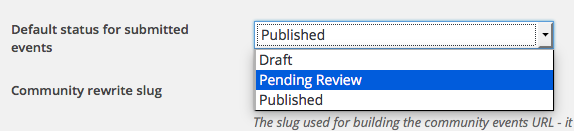
Finally, make sure the “Edit their submissions” option is un-checked as shown here:
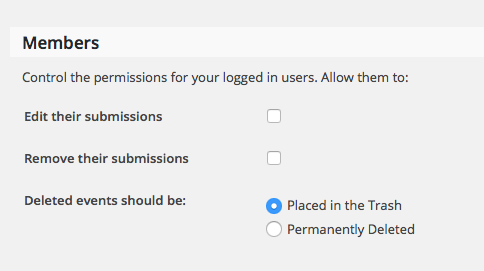
I hope this helps!
Cheers,
GeorgeParticipantThank you for the update @James! I appreciate you sharing your solution.
Be sure to keep good backups of all custom code like this, if you’re not doing that already! 🙂
Best of luck with your project,
GeorgeFebruary 10, 2016 at 11:20 pm in reply to: Submissions with Errors Create Duplicate Organizer Details Fields #1071186ParticipantThis reply is private.
ParticipantHey Jeanine,
Thanks for your information here. To keep date and time hidden I would recommend adding the following CSS to the bottom of your theme’s style.css file:
.tribe-events-schedule {

    display: none !important;

}
If this does not help, then can you share a link to an Event on your site? Not a “Post”, like you’ve shared thus far; but an event that you create in The Events Calendar, which has the date and time on it that you are trying to hide….
Thank you for your patience,
GeorgeParticipantAwesome – glad to hear some progress here. Thanks for the update Robert, and best of luck with your site!
Cheers,
GeorgeParticipantHey @Cristina,
This is an issue that we are definitely investigating a bit more closely, especially based on your comments like this one:
this issue did not happen with previous version, and if I deactive the pro plugin, it works fine. So it’s definitely an issue with the events calendar pro.
Usually the problem is related to limits imposed by your web host, and at this time there are no findings in our code that would cause this. If that changes, and we do find something inside our plugin code responsible, then a fix will be published in a future update or written about on our release notes on http://theeventscalendar.com/blog
Thank you,
GeorgeParticipantThanks for your input, @Smith.
I will close up this thread for now but I wish you the best of luck with your theme-searching, @Christian!
Thank you,
George -
AuthorPosts