

Forum Replies Created
-
AuthorPosts
-
March 28, 2016 at 5:03 pm in reply to: Events Calendar Pro Previous-Next-Click on Month features not working #1095059
George
ParticipantThanks for this information!
I’m curious, do you have a “page” in your site’s wp-admin that is called “Events”? If so, DELETE this page—if it’s titled “Events” then it is probably trying to use the slug /events on your site. But The Events Calendar is trying to use /events too, so only one thing can exist that URL slug, so the conflict could be causing some of the issues you face here.
Also, the events page cannot exist at a sub-folder in URL. example.com/wordpress/events will not work and is not supported; the events slug has to be right at the root, e.g. example.com/events.
Thank you!
GeorgeMarch 28, 2016 at 5:00 pm in reply to: The month-calendar in mobile view shows full weekday-names #1095058ParticipantThank you for this, Jürgen—I’m sorry to ask again, but would you mind sharing your new system information here? (as per https://theeventscalendar.com/knowledgebase/sharing-sys-info/)
I’m just curious to examine any possible settings changes and will take a look through that before making a further recommendation.
Thank you!
GeorgeParticipantHey Paul,
I’m sorry to hear that our plugins weren’t right for the job, but appreciate your considering them at all. We indeed have a refund policy and you should check it out here to request a refund right away! → https://theeventscalendar.com/knowledgebase/refund-policy/
Thank you!
GeorgeParticipantHey @Alpay,
Thanks for this!
I could not identify any problems on your site, so I’m wondering—while The Events Calendar and Events Calendar Pro are still activated on your site, do any errors pop up on your site if you head to your site’s wp-config.php file and change this line of code:
define('WP_DEBUG', false);to this:
define('WP_DEBUG', true);That will display PHP errors if any exist, which might be quite useful here.
Let me know if you do this testing and, if so, what you find!
Also, can you post your system information here? Here’s how to do that → https://theeventscalendar.com/knowledgebase/sharing-sys-info/
You entered “http://imgur.com/a/rwx3i” as your site’s system information, but when I go to that URL it is a “404 not found” page. 🙁
Thank you for your patience!
GeorgeMarch 28, 2016 at 4:51 pm in reply to: PIN is not showing and the event on Map view don't stop loading #1095054ParticipantThanks for this, @Jon. The information reveals that you’re using 4.1.x versions of The Events Calendar and The Events Calendar: Filter Bar plugins, but are still using the outdated 4.0.3 version of Events Calendar Pro.
So the first order of business here is ensuring that Events Calendar Pro is up-to-date. You can get version 4.1 of that plugin from your account’s downloads page on this site → http://theeventscalendar.com/my-account/downloads
Upgrade to 4.1 so that all of your plugins are the same consistent version, and let me know how things behave!
Thank you,
GeorgeMarch 28, 2016 at 4:46 pm in reply to: Something odd and messed up is happening in my footer on my Submit Event Page #1095051ParticipantI’m sorry about the less-than-ideal outcome here, Gregory, but am glad to hear about some progress with hosting and such.
Best of luck with your project!
GeorgeParticipantThanks for this information!
It is, bizarrely, missing the “EventsSlug” option in the system information—which would explain the issues you have with accessing the events page to begin with!
If you head to Events → Settings → General in your site’s wp-admin, what are the “Events URL Slug” options set to? As shown in this screenshot:
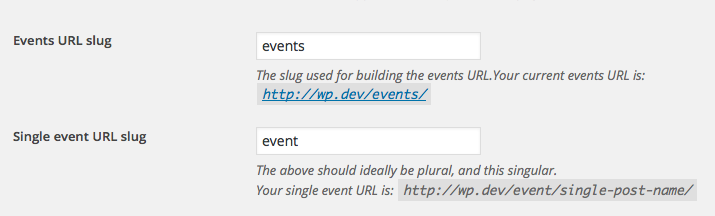
Now, if the value for the Events URL Slug in those options on your site is /events/ then your events page should indeed be at pubclub.com/events. If the value is /calendar, then pubclub.com/calendar, and so on.
Whatever the value is for that option, the behavior of this issue on your site is odd and is behavior that I cannot reproduce. It seems like a theme or plugin code conflict. To investigate this, I would recommend performing EACH of the steps here: https://theeventscalendar.com/knowledgebase/testing-for-conflicts/.
After EACH STEP in that process, check on pubclub.com/events; or pubclub.com/calendar; or whatever your events page is supposed to be. Does any thing improve anywhere along the way in this process?
In closing, I noticed a WP Engine plugin on your site. So, not to be too obvious, but it seems like you’re running your site on WP Engine? Can you confirm this?
If so, then unfortunately WP Engine does lots of non-standard things with WordPress on their platform. If the above troubleshooting steps yield no progress, then the next thing to investigate is perhaps some WP Engine-specific problems here….
But let us know what you find with those troubleshooting steps first! 🙂
Thank you,
GeorgeParticipantHey Jeff,
You do not need to build out a whole other store section on your site or anything at all for WooCommerce to work with selling our tickets. WooCommerce can be all but invisible to your site visitors, and basically will be by default.
Cheers,
GeorgeParticipantHi @James,
You cannot have the events slug as a submenu item in the slug URL at this time. /artist-resources/events will not work and is not supported at this time.
I’m sorry to disappoint!
GeorgeParticipantHey @Anthony,
Thanks for reaching out. What you describe here is unfortunately a limitation of our products at this time:
however if they add additional tickets on the cart page by changing the quantity they can’t change the meta information
There is no way to work around this at this time. 🙁 Attendee information can only be entered on product pages.
Sorry to disappoint!
GeorgeParticipantHey Rory,
Sorry to hear about this!
This is an issue that I’ve seen arise occasionally with specific themes and page templates. The only tried-and-true way to fix this for the time being is to add CSS like the following to the bottom of your theme’s style.css file:
body.tribe_community_edit #tribe-events-pg-template > .tribe-events-before-html {

    display: none !important;

}
I hope that helps!
GeorgeMarch 28, 2016 at 4:25 pm in reply to: Adding star rating / favorites / reviews to events, venues, and/or organizers #1095026ParticipantGlad to help! 🙂
March 28, 2016 at 9:20 am in reply to: Adding star rating / favorites / reviews to events, venues, and/or organizers #1094827ParticipantHi Corey!
Unfortunately there is no built-in way to add favorites/reviews/ratings to events, venues, or organizers. A third-party plugin or some custom development would be required.
If your theme has these features for some post types already, then I would recommend reaching out to the theme developer to see if those options can be added to other post types on the site. If so, then it might be possible to add the theme features to events, venues, and organizers….
Otherwise, while we don’t have a specific third-party plugin recommendation, if you search for “ratings” on the WordPress.org free plugins repository I’m sure you’ll find something good! → https://wordpress.org/plugins/
Best of luck with your searching,
GeorgeParticipantThank you for confirming that my suggestion from earlier helped!
As for removing your site’s “System information”, yes, I will do that right now.
Cheers!
GeorgeMarch 27, 2016 at 3:24 pm in reply to: / being added after the events slug instead of before it #1094628ParticipantHey Alex,
I’m sorry to hear about this! I cannot recreate any of this behavior, so for now I would recommend two things:
1. First, share your system information with us. Here’s how → https://theeventscalendar.com/knowledgebase/sharing-sys-info/
2. Next, do the complete set of troubleshooting steps outlined here → https://theeventscalendar.com/knowledgebase/testing-for-conflicts/. After EACH STEP in that process, go to Settings → Permalinks in your site’s wp-admin. Click “Save changes” without actually changing anything, which is a weird little “hack” in WordPress to get the permalinks to refresh. Then check on your events URL and see if anything improves. Be sure to do this after EACH step—let us know what you find!
Thank you,
George -
AuthorPosts