

Forum Replies Created
-
AuthorPosts
-
December 4, 2017 at 2:32 pm in reply to: Recurring events duplicating over and over again after editing, removing expired #1398160
Jaime Marchwinski
KeymasterHi Todd,
Thanks for reaching out!
I’m sorry to hear that you are experiencing this issue! To start off, you can go to Events Settings < General and alter the “Clean up recurring events after” setting and the “Create recurring events in advance for” setting in order to better control your previous and future events.
In addition, you may be interested in our Recurring Event Cleanup Tool:
https://theeventscalendar.com/extensions/recurring-event-cleanup-tool/
Does this issue only happen with one event or all recurring events? Does this occur with old recurring events, or with a brand new recurring event as well? If you haven’t done so already, please test the same scenario with a new test recurring event and let me know the results.
Also, could you please take a screenshot of your recurring events rules for an event where this issue occurs so that I can try to replicate?
Please let me know if you have any other questions along the way!
Thanks,
Jaime
KeymasterHi George,
Thanks for reaching out again!
Depending on your settings, your events will be cleaned up after 24 months (by default). You can choose to extend or shorten that time to any custom length.
In terms of viewing events, as long as you have a compatible view, you will still be able to see old events. For example, if you have Month View enabled, you will still be able to view those events for the rest of the month. And you can also go back to previous month and view the events. They will remain visible until you remove them.
If you are using a category shortcode, or viewing a category page, the category name will be appended to the URL.
You can explore your permalink options to customize URLs by going to Settings < Permalinks and creating custom permalinks.
As far as SEO goes, I personally would suggest allowing your Venue and Organizer pages to be indexed and optimized. Those pages also display events and since all the content is relevant and properly linked, it can only do good for increasing the visibility of your events.
I’m not exactly an expert on using the Yoast SEO plugin, but I can say that, as you use the configuration wizard, you can allow Events, Venues, and Organizers to all be visible in that process.
Each one is a custom post type and making them Visible will instruct Yoast SEO to make those indexable by search crawlers.
In addition, the following links might help to display your events in a Google search:
- https://theeventscalendar.com/support/forums/topic/display-events-in-google-search/
- https://theeventscalendar.com/support/forums/topic/how-do-i-get-my-event-listing-data-to-show-up-on-google-search/
I hope this helps, please let me know if you need any further clarification!
Thanks,
Jaime
December 4, 2017 at 2:09 pm in reply to: Any chg in Event ticket details , woo prod inv defaults to Event orig stock qty #1398135KeymasterHi Anne,
Thanks so much for reaching out!
I’m sorry to hear that you are experiencing this issue with WooCommerce and Event Tickets Plus.
What is your method for manually updating product inventory?
If you aren’t already doing this, one thing you can do is to alter the total_sales custom field on the WooCommerce Product page that is associated with the ticket that you are trying to edit. You can change that number to reflect the actual number of attendees that you have, which will then change what you see in your Attendees tab.
You can also alter the ticket stock on the Edit Event page, where you edit your ticket.
What are your WooCommerce Ticket Settings? I can try to replicate this issue if I have a bit more information.
https://theeventscalendar.com/knowledgebase/woocommerce-specific-ticket-settings/
Please let me know if you have any other questions in the meantime!
Thanks,
Jaime
KeymasterHi Marco,
Thanks so much for reaching out!
There are a few places where a timezone can be set, which can affect your events. You can set the WP timezone in Settings < General, so that is a good place to start.
You can also alter your timezone settings in Events Settings < General and scroll down to timezone settings.
Lastly, you can check out the timezone of the imported event by going to the Edit Event page and looking next to the Start/End date/time of the event:

Here is more information on working with timezones:
https://theeventscalendar.com/knowledgebase/working-with-timezones/
If you are still experiencing the issue after running through this information, please provide me with a URL that you are importing where the timezone is import incorrectly, so that I can run some tests on my end.
Let me know how it goes!
Thanks,
Jaime
December 4, 2017 at 11:05 am in reply to: Events Calendar/Events Calendar PRO & Smart Coupons #1398002KeymasterHi Jenna,
Thanks so much for reaching out!
As a first step, would you mind updating all of your Events Calendar related plugins, as well as your WordPress version and WooCommerce plugin to the most recent version?
Also, I cannot find Smart Coupons on your plugin list in your system information, but please make sure that the plugin is also updated to the most recent version.
Let me know if this helps!
Thanks,
Jaime
December 4, 2017 at 10:53 am in reply to: Event pages are exceeding execution time when updating #1397997KeymasterHi James,
Thanks so much for reaching out!
The best/simplest way to solve this timeout issue is by increasing the max_execution_time in php.ini (the default value is 30 seconds):
max_execution_time = 60If increasing the max_execution_time to 1 minute is still not enough, you can adjust/increase it more to ensure that the server will have time to process your requests before it hangs.
It seems as if you have already contacted your host to do this, however I am not seeing the change reflected in your system information. Would you mind resending your system information in a private reply or checking with your host provider if the change has taken effect?
I hope this helps, let me know how it goes!
Thanks,
Jaime
KeymasterHi Benjamin,
Thanks so much for reaching out!
As a first troubleshooting step, could you please provide us with your complete system information in a private reply using the instructions found in the following link?
https://theeventscalendar.com/knowledgebase/sharing-sys-info/
And just to clarify, is the issue that you are seeing this message pop up, and/or are you looking to customize that message?
Let me know!
Thanks,
Jaime
KeymasterThanks so much for reaching out!
In order to extend the “Near Location” search, you can go to Events Settings < General and scroll down to Map Settings. From there, you can adjust the Map view search distance limit and Save Changes.
Let me know how it goes!
Thanks,
Jaime
KeymasterHi Neville,
Welcome and thanks so much for reaching out!
Did the URL to the feed you shared get cut off? It seems to not have the whole URL included. If you could repost that full URL, I could run some tests on my test site.
Let me know if you have any other questions in the meantime!
Thanks,
Jaime
KeymasterHi Thomas,
Thanks so much for reaching out!
I personally would suggest allowing your Venue and Organizer pages to be indexed and optimized. Those pages also display events and–since all the content is relevant and properly linked–it can only do good for increasing the visibility of your events.
I’m not exactly an expert on using the Yoast SEO plugin, but I can say that, as you use the configuration wizard, you can allow Events. Venues and Organizers to all be visible in that process:
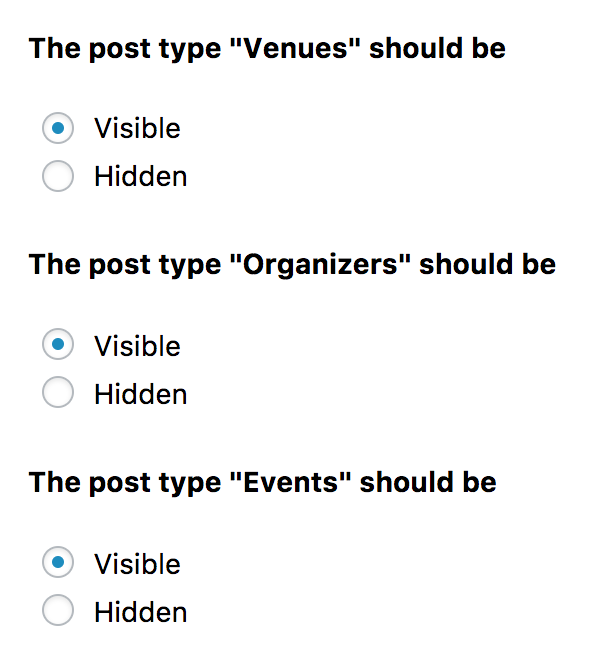
Each one is a custom post type and making them “Visible” will instruct Yoast SEO to make those indexable by search crawlers.
In addition, the following links might help to display your events in a Google search:
- https://theeventscalendar.com/support/forums/topic/display-events-in-google-search/
- https://theeventscalendar.com/support/forums/topic/how-do-i-get-my-event-listing-data-to-show-up-on-google-search/
I hope this helps, let me know how it goes!
Thanks,
Jaime
KeymasterHi Greg,
Thanks so much for reaching out!
Unfortunately we are limited by our Support Policy in how much we can help with customizations. Though I will try to point you in the right direction. I’d recommend starting off by taking a look at our Themer’s Guide, which can show you how to safely edit and copy our templates and views:
https://theeventscalendar.com/knowledgebase/themers-guide/
If you are simply looking to add our widgets to other pages and posts, you can take a look at the following article, which can give you instructions as to how to make that happen:
https://theeventscalendar.com/knowledgebase/inserting-calendar-content-posts-pages/
If this functionality is a requirement for your intended project, I’d suggest that a third-party developer would be the best way to make this feature happen on a short timeline. ? We maintain a list of developers who work with our plugins on our Knowledgebase here:
https://theeventscalendar.com/knowledgebase/find-a-customizer/
I hope this helps! Let me know how it goes and if you have any other questions!
Thanks,
Jaime
December 4, 2017 at 10:05 am in reply to: Clicking + New Ticket only shows RSVP form – WooCommerce integration #1397947KeymasterGlad to hear it, you are welcome back in our support forums any time!
For now, I am going to close this thread.
Have a great week!
KeymasterHi Tak,
I am not seeing any attached PDFs, but I did find some more information that might be helpful in pointing you in the right direction. Here are some links that I think might help you to achieve the results you are looking for:
– http://www.wpallimport.com/tour/scheduled-imports/
– http://www.wpallimport.com/documentation/custom-fields/theme-plugin-fields/I hope this helps! Let me know how it goes!
Thanks,
Jaime
KeymasterHi Aniko,
One thing that you can try is to adjust the import limit type settings to “Do Not Limit”. Sometimes, a server or a calendar service or app will overwrite this rule no matter what, but it is worth trying to see if you are able to achieve the results you are looking for.
Here is our Import Settings article for your reference:
https://theeventscalendar.com/knowledgebase/event-aggregator-import-settings/
Also, would you mind translating the message you shared in your screenshot into English for me?
Let me know how it goes!
Thanks,
Jaime
KeymasterHi Rodrigo,
Yes, I understand that your WP timezone is set to Sao Paulo, but what I also see is that you have a setting that events have their timezone set individually. This is where I am seeing this in your system information:

You can find this setting by going to Events Settings < General and scrolling down to Timezone Settings. Here is more information about how those settings work:
https://theeventscalendar.com/knowledgebase/working-with-timezones/
You can also view the timezone that is set for each event by going to your Edit Event page and looking at the start/end date and time of the event, like this:
You may want to investigate the individual timezones for the events that have the incorrect date/time.
Are the events that don’t have the correct time all off by the same amount? In other words, can you tell if there is a pattern of any kind? Would you mind taking a screenshot of the way you have one of those events set up on the back end, so that I can try to replicate things on my end?
Let me know how it goes!
Thanks,
Jaime
-
AuthorPosts