

Forum Replies Created
-
AuthorPosts
-
George
ParticipantHey Mark,
Thanks for reaching out!
The Events Calendar indeed has search functionality, and there are two basic layers of this functionality that work on your site once the plugin is installed.
There is first the general WordPress search functionality on your site – events are included in search results so that if someone searches for things like the examples you gave, events that match those terms will be included in the results.
There is also a “Tribe Bar” included that lets you apply specific filters by date and search time, too. And if you have Events Calendar Pro, you can even filter by location. You can see this in action and play around with it yourself on our demo site at http://wpshindig.com/events, and here’s a screenshot of the bar specifically:

I hope that answers your question! Let me know if it does and/or if you have any followup questions 🙂
— George
ParticipantHey @holmfirthevents,
Sorry you’re having trouble here!
We do pass location data for the Event, hEvent, and hCalendar formats, so things should be working in theory here. For example, if you use the Google Structured Data tool that you linked to with an event from our official demo site at http://wpshindig.com, the location data shows up fine – here’s a screenshot for example/proof:
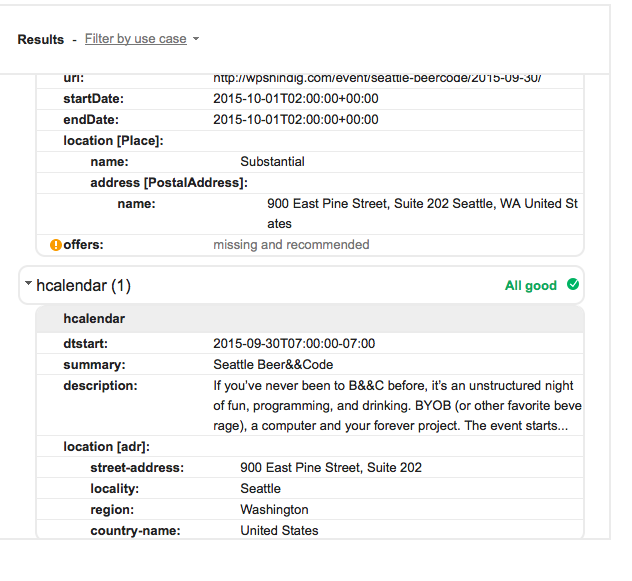
That’s the data for this event specifically, which I encourage you to try with that Structured Data testing tool yourself just to ensure that it works for you, too → http://wpshindig.com/event/seattle-beercode/2015-09-30/
So with that in mind, then, there may be a theme or plugin issue that is preventing your data from being properly displayed. To get started on investigating this, can you send over a copy of your System Information as described here? → https://theeventscalendar.com/knowledgebase/sharing-sys-info/
One thing to note as well, which I’m sure you already know but I just want to note it, is that Google can take some time for its results to update and propagate – i.e. if you make a change on your site, it’s not going to immediately start showing in Google Search results. It could take weeks for your site to be re-indexed and have its events feeds parsed accordingly. And there is unfortunately nothing we can do to speed up that process 🙁
Just wanted to note this disclaimer – let us know your “System Information” and hopefully that reveals some information we can take for further troubleshooting here.
Thank you!
GeorgeParticipantHey @smalldogcreative,
Thanks for reaching out!
Just to be 100% clear, when you talk about “1” and “0”, you mean for the front-end ticket quantity selectors, right? For example, the left-most quantity selectors in the following screenshot of a tickets list that users can buy tickets from:
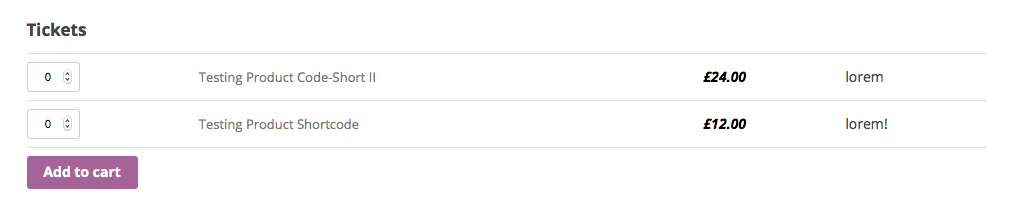
If I understand your goals correctly, then there is unfortunately only one way to achieve what you’re looking for which is to use JavaScript on page load to set the quantity field’s value to either “1” or “0” (or any other number, I guess).
However, the tricky thing here is that you couldn’t really have code that dynamically knows which ticket to set to 1 or 0, so it would have to set both tickets to the same value: either both to 1, or both to 0 🙁 I’m sorry about this, but it just an inherent limitation in the way things work.
@oniregoc’s recommended solution may work, and your chiming in is much appreciated @oniregoc! The only alternative I can think of would be the JavaScript solution I described above which, of course, comes with its own limitations.Sorry to share that news, @smalldogcreative. If you’re still interested in the JavaScript despite its limitations, let me know, I can share how to do that here.
On a side note, thanks a ton for the kind words about the plugin 🙂 I’m glad that, aside from this quantity behavior specifically, it’s working well for your project!
Cheers,
GeorgeSeptember 14, 2015 at 6:23 am in reply to: Woo Commerce Shortcodes don't work in – Display Settings #1004790ParticipantHey @laughmasters,
Sorry you’re having trouble here – much of these problems stem from things that are in our plugin by design, and within WooCommerce by design too.
Our “tickets” aren’t really meant to stand on their own as WooCommerce products, even though they are technically WooCommerce Products. They’re meant to be displayed pretty much only in the context of Events from The Events Calendar, so by default we have their WooCommerce “Catalog Visibility” option set to “Hidden”.
This will prevent them from showing up as a result of that [products] shortcode.
I’m sorry if this wasn’t clear information on our site, and I think writing a tutorial about this or something would be helpful for a number of users.
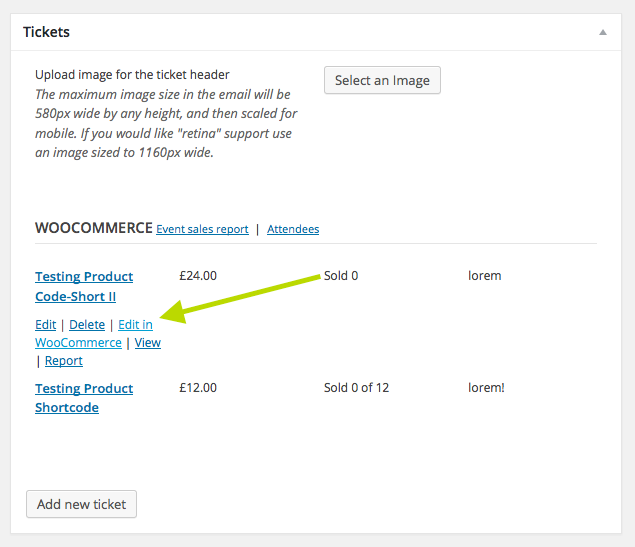
For now, you can fix this by navigating to the various Product Edit screens for the tickets. You can access these edit screens by going first to the event these tickets are on; then mousing over the ticket in the metabox and looking for the “Edit in WooCommerce” link, as shown in this screenshot:
Once you click that, you’ll be brought to the edit screen for the Ticket, i.e. the “Product”, where you’ll see a “Catalog Visibility” option like this one:
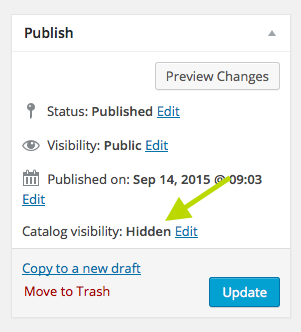
Click the “edit” link next to “Hidden”, which should reveal a set of options like this:
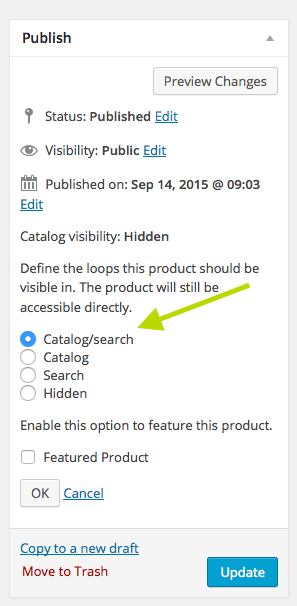
As in the screenshot, choose “catalog/search”, then click “Ok” and update the ticket.
Do this for any ticket you’d like to use in a [products] shortcode, it should hopefully do the trick!
To override our setting for all tickets going forward, so that any ticket you publish from now on will automatically have its visibility set to “visible” so that it shows in the shortcode results, add this code to your theme’s function.php file:
add_action( 'wootickets_after_save_ticket', 'tribe_set_wootickets_to_public_visibility' );function tribe_set_wootickets_to_public_visibility( $ticket_id ) {
update_post_meta( $ticket_id, '_visibility', 'visible' );
}
I hope this all helps – let me know if it does!
George
ParticipantHey Martin,
Sorry you’re having trouble with these views. Unfortunately, the problems and layout seem mostly theme-related in nature. To test this, can you activate a default theme like Twenty Twelve or Twenty Fourteen or something, and check out these views in that theme?
If that alone does not fix your problems with these views, I’d recommend leaving this default theme active and then trying to deactivate other plugins on your site one at a time – check on the issues after each plugin deactivation, and see if anything changes.
This process may sound tedious but is actually pretty quick to work through, and immensely helpful in ruling out (or revealing!) plugin or theme conflicts.
Let us know what you find!
Thanks,
GeorgeSeptember 14, 2015 at 5:52 am in reply to: Calendar Month view not displaying correctly on smaller screens #1004778ParticipantHey @bluesteelsolutions,
I’m sorry you’re having some issues here, especially because I took a look at your site and found that these issues are mostly arising from your theme 🙁
Step One: Getting Up-to-Date
The very first step in this process is for you to make sure that your Tribe plugins are at the most recent version:
• The Events Calendar: 3.12.1
• Events Calendar Pro: 3.12If your plugins are not at these versions on your site, you must update them to these versions before we can offer further assistance here.
Step Two: Further Troubleshooting
If updating the plugins does not help, then I’d first recommend taking another look at our official demo page of the “Month View” here → http://wpshindig.com/events/month/
You’ll notice that, on smaller browser/device sizes, the full weekday names compress to three-letter versions of the names; e.g. “Sunday” becomes just “Sun”.
This is being prevented by your theme, and the odd filter bar styles are from your theme, too. We do not offer support for themes, officially, but I only mention this as a “disclaimer” and to hopefully set your expectations early in case we can’t figure this one out ourselves – with that all being said, I’d like to at least try and help pinpoint the origin of these problems specifically.
To get started on that process, I’m curious if you can first confirm whether or not you’ve written any custom CSS on your site, or any custom JavaScript as well?
If so, then first make a back up of all your custom code. Then: try removing it from your site, and have another look at things.
Do your issues persist?
If so, then leave your theme in this state (i.e. with all your custom code removed, temporarily) and then head to Events > Settings > Display in your wp-admin. Look for the option here called “Events template”, and check out all the different options that you have on your site; here’s a screenshot of this option on my site, for example:
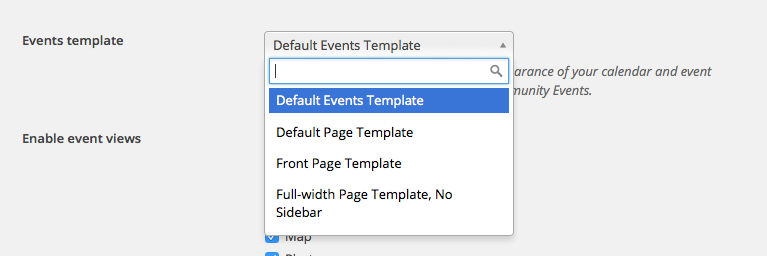
Try each option on your site – simply try one page template, save your settings, and then see if the Month View problems on your site behave a little better. If not, then go back to the settings panel and try the next template in line, and so on until you’ve tried them all. This may or may not make a difference, but is worth trying because a template from your theme may work better than one of our plugin-provided ones.
I hope all this information helps! Let us know how updating The Events Calendar and Events Calendar Pro on your site goes; and if problems persist after doing so, let us know what the “Step Two” steps reveal, if anything 🙂
Cheers!
GeorgeParticipantHey @Sönke,
I’m really sorry you’re having trouble here!
I can’t recreate problems with the week view URL, so I’m curious if you have any plugins on your site that are translation-related? If so, try deactivating them and then see if that improves your URL problem at all.
If not, then I’m curious: how specifically have you made “week” become “woche”? What is the method you are using to translate that word?
In the meantime, if my first suggestion doesn’t help, then I’d also suggest you run through the 404-related troubleshooting steps here → https://theeventscalendar.com/knowledgebase/fixing-http-404-errors/
Your answers to my questions here and your results from doing these first two steps should give us a solid foundation for further troubleshooting – let me know what you find! 🙂
Thanks,
GeorgeParticipantHey @Gadswil,
The things @Oliver mentioned above don’t seem to apply to your site, as it does not seem that you are using a non-English translation of things on your site…is that correct?
With that in mind, then, I’m curious about three things:
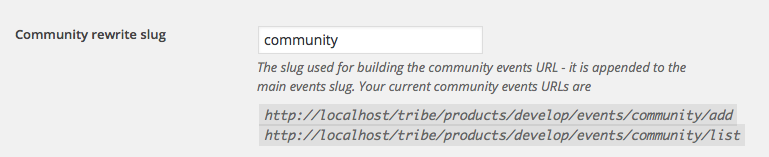
First, head to Events > Settings > Community in your wp-admin. Scroll down until you find the “Community rewrite slug” option there.
1. What is the current value of this option?
2. If you reset this option to its default “community”, as in the screenshot below, and then Save Changes, does anything improve?
3. If steps 1 and 2 don’t help, then even though it’s early on in the troubleshooting process I’d recommend doing the plugin-based steps in our official troubleshooting guide here → https://theeventscalendar.com/knowledgebase/testing-for-conflicts/. I recommend this because in the system information that you included – which we greatly appreciate by the way! – there is a significant number of plugins on your site. This is totally fine, but just increases the chances of code conflicts and I think it’s smartest to check this item off the list before we dive deep into any other troubleshooting.
Let me know what you think, @Gadswil, and also what you find if you do those troubleshooting steps!
Cheers,
GeorgeParticipantHey @overtmc,
Sorry you’re having some trouble here!
Recurring events don’t quite have a true “maximum”, but Events Calendar Pro does try to handle huge batches of recurring events with some creative scheduled event creation to try and minimize the impact of having tons of events on a site.
In other words, there is no maximum – but for recurring events with too many instances, Events Calendar Pro constrains them to only create instances within a configured time based on the current date. Then, a daily cron job is used to to add/remove instances on a rolling basis.
So what this all means is that, as time goes on, the events for Nov 7 2016 and after will be added in batches as the current date gets closer to those events.
Does this information help? If you have any other followup questions, let me know – and I’m curious, if you do post for some followup support, would you be able to take a screenshot of your recurring event details in your admin and post that screenshot here? (you can just share a link to the image on Imgur.com or Flickr.com, for example).
Thank you!
GeorgeParticipantHey Leonid,
Thank you for the update! I’m glad you found the source of the plugin conflict. I hope that you’re able to find another plugin that serves the same purpose as Post Type Order if you need that functionality, and that your site works well going forwards 🙂
Cheers,
GeorgeParticipantI’m glad progress has been made, thank you for the update!
As for the shortcode issue, I checked out the link you provided and it seems that the shortcode itself is entered in a place called “Hero Description” or somethin – it’s HTML with the class “hero__description”.
So it seems that this field itself is not applying WordPress’ do_shortcode() function to the content it is filtering, so I’d recommend contacting the theme developer for help with adding that functionality there so that shortcodes will be processed in that field.
Cheers!
GeorgeSeptember 12, 2015 at 10:01 am in reply to: Venue name and City are required after update….when they're in the Saved Venue #1004582ParticipantHey @Mad Dog,
Do you mean that with this code present on your site, the issues you started this thread about are not present? And then only when this custom code is active on your site, you have the problem with the “Venue Name is required. Venue City is required.” error?
Sorry about my confusion, trust trying to be 100% clear on how everything is related here! 🙂
If even without this custom code on your site, you still have that error, I’d recommend the steps outlined in my reply before this one to help reveal or rule out a theme or plugin conflict.
Thank you!
GeorgeParticipantThanks for sharing this Douglas! I have created a ticket for our developers to improve upon these features and your information here definitely helps.
Thank you, and sorry that a better solution is not in place for handling this at the moment.
Stay tuned to plugin updates for the hopeful arrival of a fix for this!
Tom – I will close up this support for thread now based on all the feedback in the thread. I hope you’ve made progress with your venues and/or have at least been able to determine that they are being “restricted” by Facebook and hence not working very well with our importer plugin. If other issues arise, open a new thread here any time and link back to this one for reference if it’s related! 🙂
Cheers,
GeorgeSeptember 12, 2015 at 9:53 am in reply to: The word "Shop" appearing above calendar, not added by us #1004578ParticipantAwesome! 🙂 Be sure to back up that code so you can restore it if it gets lost in a theme update or something.
Best of luck with your site,
GeorgeParticipantHey David,
I’m glad that my suggestion helped a bit. As for alternatives and more customizations here, I unfortunately cannot help with further custom coding – you may indeed be able to overwrite and customize this AJAX call and others, but that is relatively complex and outside the scope of our forum support 🙁
Please let me know if you have any other questions, comments, concerns, etc. – I will try to help as much as possible!
Thanks,
George -
AuthorPosts