
If you’re seeing 404 errors related to The Events Calendar, the right solution depends on what kind of 404 you’re dealing with. This article covers three distinct situations:
- Event pages that are broken and returning 404 errors to real visitors
- 404 errors appearing after importing events with WP All Import
- 404 and soft 404 flags appearing in Google Search Console or other SEO tools
👋 If your entire site is returning 404 errors — not just event pages — contact your hosting provider. That’s a server-level issue outside the scope of this article.
Fixing 404 Errors on Event Pages
If visitors to your site are seeing 404 – Not Found when they try to view event pages, work through the steps below in order. Most people are back up and running after step one.
1. Flush Your Permalinks
This resolves the vast majority of event page 404 errors. Re-saving your permalink settings forces WordPress to regenerate its URL rewrite rules, which TEC depends on.
- Log in to your WordPress admin area.
- Go to Settings → Permalinks.
- Select the Post Name option (or any non-default option if you’re already using one).
- Click Save Changes.
Visit your main events page and check that event pages, calendar views, and single event pages all load correctly. If so, you’re done.
2. Re-Save the Affected Event
Open the event in the WordPress editor, make a minor change, and click Update. This can regenerate missing slug or metadata that’s causing the 404. If it’s a recurring event, select Save for all events when prompted.
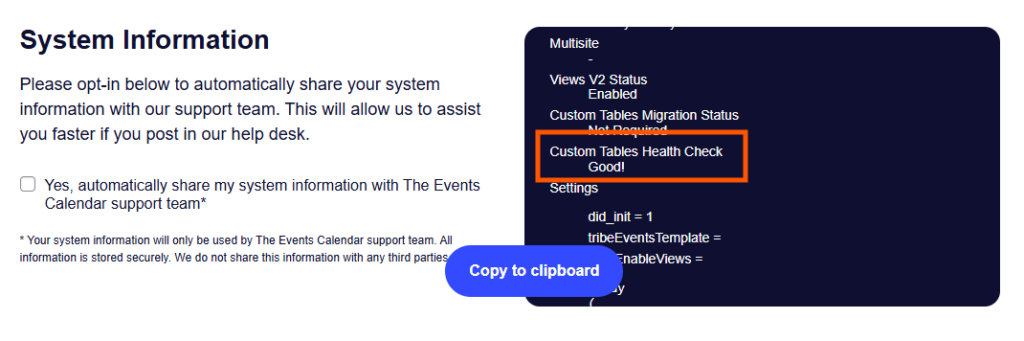
3. Check Your Custom Tables Health
Since The Events Calendar 6.0, event data is stored in custom database tables. A failed or incomplete migration can cause 404 errors on event pages. In your WordPress dashboard, go to Events → Troubleshooting and check that the Custom Tables Health Check shows a Good! status.
4. Check Your Default View Setting
If the view set as your default under Events → Settings → Display is not actually enabled, the calendar page will return a 404. Make sure the default view you’ve selected is active.
5. Try This Conflict-Fix Snippet
Some plugin and theme combinations cause WordPress to search for a media attachment instead of an event, producing a silent 404. Paste this snippet into your child theme’s functions.php to correct this:
<?php

/*
 * Possible solution for Single Event page 404 errors where the WP_Query has an attachment set
 * IMPORTANT: Flush permalinks after pasting this code: http://tri.be/support/documentation/troubleshooting-404-errors/
 * Updated to work with post 3.10 versions
 */
function tribe_attachment_404_fix () {
	if (class_exists('Tribe__Events__Main')) {
		remove_action( 'init', array( Tribe__Events__Main::instance(), 'init' ), 10 );
		add_action( 'init', array( Tribe__Events__Main::instance(), 'init' ), 1 );
	}
}

add_action( 'after_setup_theme', 'tribe_attachment_404_fix' );
6. Test for Plugin or Theme Conflicts
Another plugin or your active theme may be interfering with TEC’s URL routing. Follow the steps in our Testing for Conflicts guide, then re-save your permalinks once you’ve completed it.
Still Not Fixed?
If none of the above resolved the issue, gather the following before contacting support:
- Try switching your permalink structure to the default setting. Does that clear the 404s? Note this when you open a ticket.
- Add this diagnostic snippet to your child theme’s functions.php. Then visit any 404-returning event URL with
?tribe_query_debug=trueappended to it. This outputs detailed query information. Share it with our support team, then remove the snippet once the issue is resolved. - Open a support ticket and include your System Information from Events → Settings → Troubleshooting.
404 Flags in Google Search Console and SEO Tools
If you use Google Search Console or a similar SEO tool and are seeing 404-related flags on your calendar pages, this is a different situation from a broken event page. In most cases, nothing is wrong with your site — but it helps to understand what you’re actually looking at.
Hard 404s vs. Soft 404s
There are two things Google Search Console can flag as a “404,” and they have very different causes and implications.
A hard 404 is a genuine not-found error: the page doesn’t exist, and your server returns a 404 HTTP status code. If your event pages are returning hard 404s in Search Console, follow the troubleshooting steps in the first section of this article.
A soft 404 is different. It’s a page that returns a 200 (success) HTTP status code — so the page technically exists and loads — but Google has judged the content to be too thin or empty to be worth indexing. According to Google’s own definition, a soft 404 occurs when “a URL returns a page telling the user that the page does not exist and also a 200 (success) status code.” Crucially, you cannot cause or prevent a soft 404 from your end — it exists only within Google’s own logic, and the exact criteria change over time.
Why Event and Calendar Pages Get Flagged
Venue and organizer pages with no upcoming events. When you create a venue or organizer in TEC, an archive page is automatically generated for them. If that venue or organizer has no events currently assigned — either because none have been added yet, or because all their events are in the past — the page exists but contains very little content. Google may flag these as soft 404s. This is not an error on your site. Once you add events for those venues and organizers, the pages will have enough content and the flags will resolve on their own.
Empty day view pages. Day view URLs like /events/2024-11-15/ return a hard 404 by design when no events exist on that date. The page shows a “no events on this day” message, but the HTTP status code is 404 because no matching events were found. This was the original behavior across all empty event views in TEC, and was changed to return 200 OK for most views in response to user feedback — but day views with no events retain the 404 behavior. Google may flag these.
What to Do About It
For soft 404s on venue and organizer pages: in most cases, nothing immediate is required. Adding events for those venues and organizers is the natural resolution. If you want to be proactive, you can use an SEO plugin such as Yoast or Rank Math to set individual venue or organizer pages to noindex, which tells Google not to crawl them. Keep in mind that you’ll need to remove the noindex setting once those pages have enough content and you want them indexed again.
For hard 404s on empty day view pages: if these are causing a specific SEO concern, you can force day view pages to return a 200 status code instead by adding this snippet to your child theme’s functions.php:
php
add_action( 'wp', 'tribe_no_event_day_404s' );
function tribe_no_event_day_404s() {
    if ( ! tribe_is_event_query() ) return;
    status_header( 200 );
}
Note that this forces a 200 response for all event queries without matching events, not just day views. Before using it, consider whether the 404s are actually affecting your search rankings — check your traffic metrics and search referral data first. A long list of 404 flags in Search Console looks alarming, but its real-world impact on rankings is often minimal. Search engines are generally good at distinguishing between broken pages and intentionally empty archive pages.
Fixing 404 Errors After Importing with WP All Import
If your 404 errors appeared specifically after importing events using WP All Import (or WP Export Pro), the cause is slightly different from a standard permalink issue. The import process doesn’t always trigger WordPress’s rewrite rule generation, so event URLs may not be properly registered after the import completes.
1. Install the WP All Import Add-On for The Events Calendar
This is the most important step. The WP All Import Add-On for The Events Calendar is a dedicated extension that bridges All Import Pro with TEC’s data model. Without it, event metadata, slugs, and internal URL rewrites may not map correctly during import. Install and activate it, then re-run your import following the instructions on the extension’s page. This alone resolves the 404 issue in most cases.
2. Flush Your Permalinks
After the import, go to Settings → Permalinks and click Save Changes without making any changes. This forces WordPress to regenerate its rewrite rules for the newly imported events.
3. Re-Save Affected Events
For any events still returning 404 after flushing permalinks, open each one in the editor, make a minor change, and click Update. This triggers the slug and rewrite metadata regeneration that the import may have left incomplete.
4. Exclude Calendar Assets from Caching and Minification
If you’re using a caching plugin or CDN, make sure TEC’s JavaScript and CSS files are excluded from minification. Re-minifying assets that are already minified can introduce conflicts that surface as broken pages. See our caching best practices guide for details.
👋 WP All Import is one of several ways to import events. The Events Calendar also has a built-in CSV importer and Event Aggregator for importing from iCal feeds, Google Calendar, Meetup, Eventbrite, and other sources.