

Forum Replies Created
-
AuthorPosts
-
George
ParticipantThanks for testing @Corrado – once plugins deactivated, did you try creating a new yearly-recurring event?
I just want to confirm, because I unfortunately cannot recreate your issues 🙁
Thank you!
GeorgeParticipantHey Mike,
Thank you so much for your patience here, especially over the weekend as well while we were offline.
I totally understand your concerns and will do what I can to work with them; a simple thing here might be to just not have to rely on me period – in other words, if you’re familiar with your browser of choice’s JavaScript console, you can do the steps I recommended and then just look at the problematic pages with your console open. Are there any JavaScript errors when you do this? If so, can you report both the error AND the file URL that the error is reported to be coming from?
If you need me to check things out, I unfortunately can’t think of a way to truly coordinate a perfect three-hour window or something – I’m sorry about this! And if you have to do this, as long as you let me know in this topic as soon as you’ve done the steps on your site, I will get to this as fast possible and check in on this thread as much as possible.
With that urgency in mind, do you think it would still be possible to do with perhaps a warning on your site to users like “We are working on some features of the of the site at the moment, apologies if you experience any odd behavior!”
Just an idea – let me know what you think @Mike!
— George
ParticipantHey Suzie,
Thanks for reaching out!
Unfortunately, while these features are all possible, they are unfortunately not things that could at all be done “out of the box” with The Events Calendar. You would have to use Gravity Forms add-ons, or eCommerce add-ons, or custom coding, or some combination of these things to realize these actual features as you’ve described them 🙁
I’m sorry to disappoint! Let me know if I can help with anything else.
Sincerely,
GeorgeParticipantHey @Wee Hang,
The current method for getting the Event ID from a ticket’s ID is to use the get_event_for_ticket method on the Tribe__Events__Tickets__Woo__Main class.
So, for example, let’s say you have a ticket ID stored in a variable $ticket_id – you could get the event ID like this:
$tribe_woo      = Tribe__Events__Tickets__Woo__Main::get_instance();

$ticket_product = class_exists( 'WC_Product_Simple' ) ? new WC_Product_Simple( $ticket_id ) : new WC_Product( $ticket_id );
$event = $tribe_woo->get_event_for_ticket( $ticket_product );
At this point in the code above, $event is now the WP_Post object for the event. So to get the ID of it, just call $event->ID.
Cheers!
GeorgeParticipantHey Hans,
I’m sorry to hear about these issues – the Photo View’s excerpts should be the same as those in List View, so I”m curious about what could be causing this discrepancy…to get started here, can you share your “System Information” with us? Here’s how → https://theeventscalendar.com/knowledgebase/sharing-sys-info/
That’ll give us a good place to start in terms of troubleshooting here.
Thank you!
GeorgeNovember 9, 2015 at 11:17 am in reply to: How can I have the event website open in a new tab? #1023363ParticipantHey @Pompanotoday,
Thanks for reaching out! This will unfortunately take some custom code, but you can pull this off by adding the following code to your theme’s functions.php file:
I hope that helps!
Cheers,
GeorgeParticipantThanks for confirming this!
The only way to pull this off in the case of your site is to add custom code like the following to your theme’s functions.php file:
Add that code and see if it helps – cheers!
— George
ParticipantHey @Adage!
Thanks for reaching out, just to be clear by “counter widget” do you mean the count-down widget? This may seem like a small difference, but I just want to be 100% clear that I understand what you’re referring to, because for me the Event Countdown widget’s title is not clickable to begin with. See this screenshot:
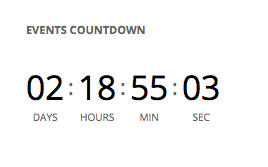
—
If this is the widget you mean, but your widget title is clickable, then can you share a link directly to the page on your site where there is an example of this widget live? I will need that to be able to help. If you don’t have an event for the widget currently, create a test event for now that you can delete once this issue is resolved 🙂
Thank you!
GeorgeParticipantHey @Thibault,
Sorry that this isn’t documented clearly somewhere on our site – we should fix that promptly.
In the meantime, the thing you have to do here is actually call upon the global $wp_query variable and use its get_queried_object_id() method to, well, get the ID queried object [the event].
I wrote up code that demonstrates this and that adds Event Category terms to the body_class for you here: https://gist.github.com/ggwicz/fdee77d7d8f54ba0da4b
Check that out! Try adding that snippet to your theme’s functions.php file and it should do the trick.
For example, let’s say you have these three categories on a given event:
• Private Event
• Concert
• Free FoodThis code, if added in functions.php, will add these three HTML class names to the <body> tag:
• tribe-events-cat-private-event
• tribe-events-cat-concert
• tribe-events-cat-free-food—
I hope this helps!
Cheers,
GeorgeParticipantHey @Knight,
The processing of payments through either EDD or WooCommerce will not be affected by our plugins at all – in either case, you’d have to buy the “Stripe Gateway” add-on for that plugin.
You can learn more about these plugins’ add-ons at these links, respectively:
• EDD → https://easydigitaldownloads.com/downloads/stripe-gateway/
• WooCommerce → http://www.woothemes.com/products/stripe/—
As for formatting various emails into a nicer “newsletter” layout something, this is possible but would unfortunately require editing custom code. We cannot help with custom code, so if you’re not familiar with customizing code then I would recommend against making these customizations yourself. But if you’re interested regardless, you can learn about the process required to customize the Email templates here in our Themer’s Guide → https://theeventscalendar.com/knowledgebase/themers-guide/
You would then apply the principles from that Themer’s Guide article to this file in your The Events Calendar plugin files: src/views/tickets/email.php
Cheers!
GeorgeParticipantHey @Tobias,
I’m really sorry about these issues, and for your time and frustration resulting from them. We’re happy to issue a refund and will issue a 100% refund immediately – to act on this, please follow the exact steps listed on this page and we’ll get this sorted immediately → https://theeventscalendar.com/knowledgebase/refund-policy/
Really sorry for the trouble @Tobias!
— George
ParticipantHey Patrick,
Thanks for reaching out! I checked your PasteBin but it unfortunately seems to be empty or deleted or something:
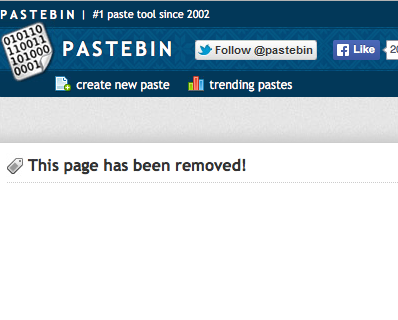
Can you try uploading that again and link to the new version of that code? Curious what you’ve tried already.
—
Next, can you confirm what versions of both The Events Calendar and Events Calendar Pro are active on your site?
Thank you!
GeorgeNovember 6, 2015 at 10:10 am in reply to: change color of list widget(theevents calendar pro) #1022617ParticipantHey @Sotiris,
It’s possible to change just about everything on your site with custom code – we unfortunately can not help with custom code here, however, so the best I can recommend is to check out a [free!] tool like Firebug if you use FireFox, or the Developer Tools for either Safari or Chrome.
They have “Inspector” tools that let you zoom right over the element whose styles you would like to change; then, just use those styles in your theme’s style.css file and customize away!
Research online for CSS tips and instructions if you’re not familiar with CSS – there are fortunately many great resources out there for free.
Also – make good backups of your custom code! 😉
Best of luck with your customizing,
GeorgeParticipantP.S. One more thing!
—
I forgot to mention this, but in the PHP code I shared, you’ll notice a comment like this:
// Change 13 to the term ID of your "Hidden Events" to the proper ID for your site.To find the number you will need to use instead of 13, first just go to “Event Categories” in your admin:
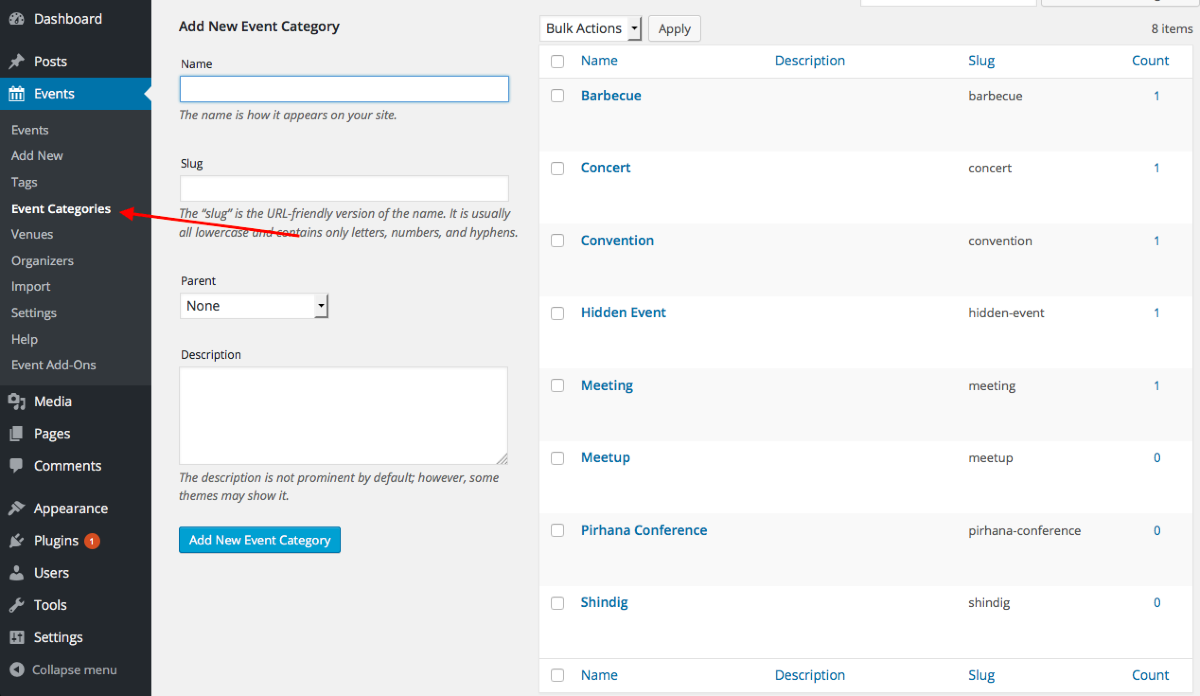
Then, click the specific “Hidden Event” category on your site.
It should bring to you a page that looks like this:
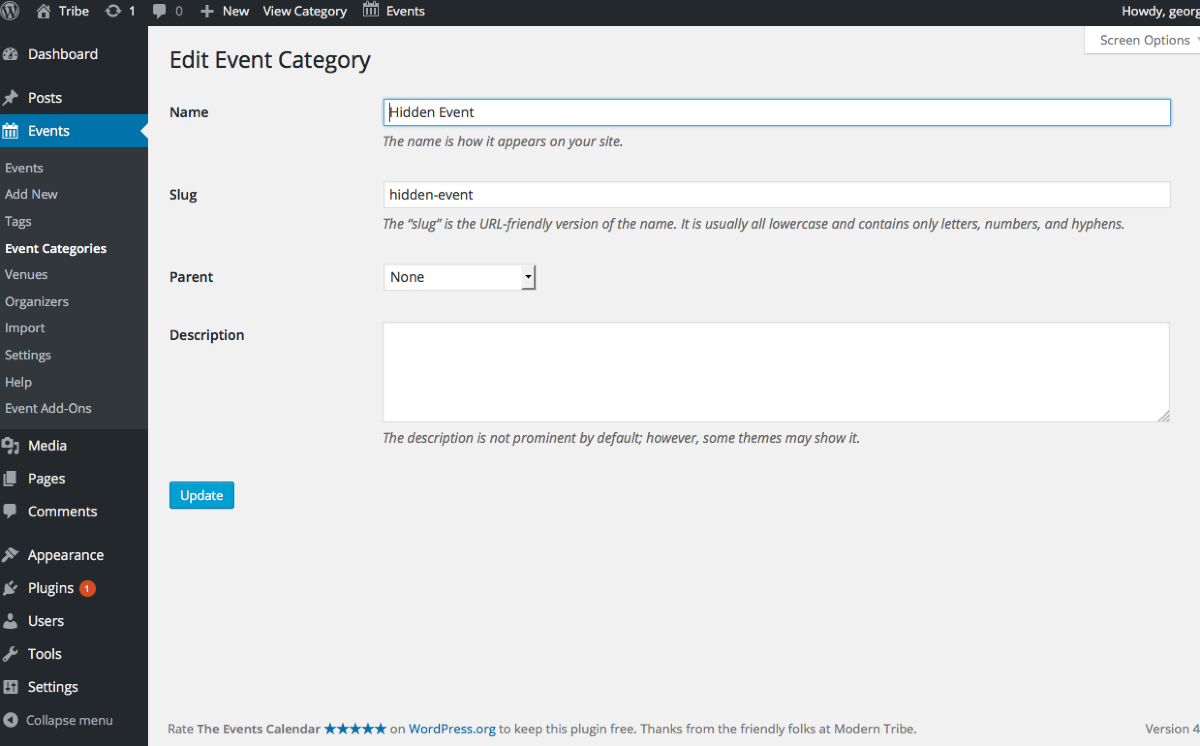
Look in the URL of this page!
It should be something like this:
/wp-admin/edit-tags.php?action=edit&taxonomy=tribe_events_cat&tag_ID=13&post_type=tribe_event
Notice the part that looks like this:
&tag_ID=13
For you, it might be something like tag_ID=88675, in which case you would replace the 13 in the code I shared above with 88675.
And that’s it!
ParticipantOkay, cool @Leanne – I can help with some general advice, which should help get you started. You’ll have to take the reins from there to fully implement this and such, but the general idea is to use Event Categories to signify which events should not show up in the month view grid.
This category can be for “Internal use only”, you know? It doesn’t have to be displayed anywhere in public; just an admin tool for you and your client, et cetera, to say “this event should not show in month view”.
—
Get started by making a category for this feature. I’ll just use “Hidden Event”, as shown here:
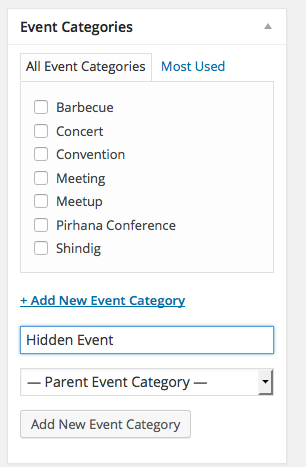
Now, this will unfortunately show up on the single-event views and such, which we do not want:
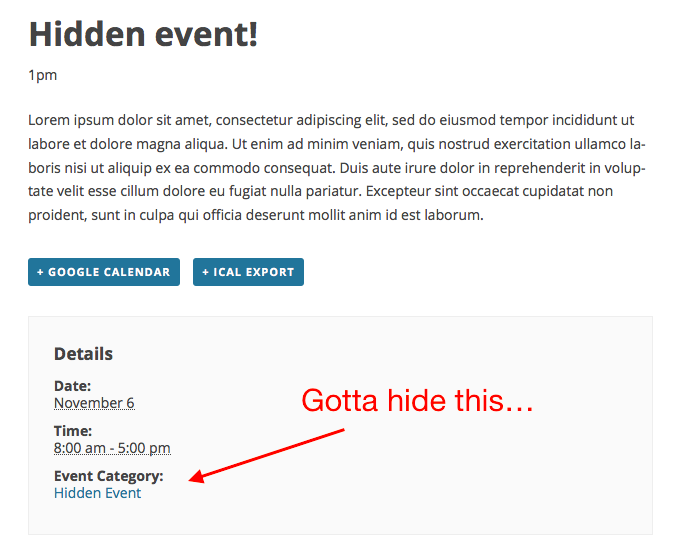
To make sure that other categories show up normally and stuff, but that the “Hidden Events” category name does not show up, add PHP like this to your theme’s functions.php file:
if ( function_exists( 'tribe_get_events' ) ) {
function tribe_support_1021590( $terms, $post_id, $taxonomy ) {
if ( ! tribe_is_event() || ! is_singular() )
return $terms;if ( ! is_array( $terms ) )
return $terms;foreach ( $terms as $key => $term ) {
// Change 13 to the term ID of your "Hidden Events" to the proper ID for your site.
if ( isset( $term->term_id ) && 13 == $term->term_id ) {
unset( $terms[ $key ] );
}
}return $terms;
}add_filter( 'get_the_terms', 'tribe_support_1021590', 10, 3 );
}
—
Now, to actually hide events that are in this category on the Month View ONLY, but preserve it on other views, you would CSS like the following to the bottom of your theme’s style.css file:
#tribe-events-content.tribe-events-month .tribe-events-category-hidden-event {

    display: none !important;

}
And there you go – this should events that are in that category on the month view, but not in other views.
Just put any events that you want to behave this way in that “Hidden Events” category, and add the code above, and it’ll work well. At least, I tested it locally and it works well for me 🙂
Cheers!
George -
AuthorPosts