

Forum Replies Created
-
AuthorPosts
-
August 3, 2016 at 8:07 am in reply to: Not seeing all the sections needed to set up tickets #1147058
George
ParticipantExcellent! Is there anything else we can try to help with?
If not, let me know and I will go ahead and close up this thread (although you can open a new thread any time if other issues or questions arise).
Cheers,
GeorgeParticipantHey Matt,
Thanks for the thorough clarification of things here. I am a bit confused as to why the single-event template override isn’t working here; I can confirm now with your clarification and screenshots that the single-event.php template is the right tool for the job here.
I know that the Divi theme does break some WordPress Coding Standards and has a whole ton of functionality included within it. That’s a lot of surface area for potential problems here, and so perhaps there is just some theme-level issue with the loading of the template overrides?
Question #1
1. Also, do you happen to be using a Divi Child Theme on your site, by any chance? Or are you just using the main Divi theme, and no child theme?
Question #2
2. Are you willing to forego a template override, and use a combination of action hooks and CSS instead?
If #2 is “Yes”
If you say “yes” to Question #2, then while we cannot help with customizations and you’d have to take the reins on truly fleshing this out, here is a basic process for achieving the customizations you want that is both safe (i.e., it won’t be erased every time you update The Events Calendar plugin or its add-ons!) and flexible. (In my personal opinion, these methods are even better than a template override and what I would personally use, because you can put all of the following custom code into a custom plugin and never have to worry about a theme update or plugin update erasing it!)
- Step One: Hide the default stuff with CSS — The first step is to hide the default venue, date, and organizer info metabox that you mention wanting to hide, because you are going to show it in the content directly. This is easiest to do with just some simple css, like the following:
.tribe-events-event-meta.tribe-events-single-section {

    display: none !important;

}
- Step Two: Use Action Hooks to Add Content Before or After the_content — Now that the default stuff is hidden, let’s add the new stuff where you want. To do this, use the action hook tribe_events_single_event_before_the_content to add stuff before the content, and tribe_events_single_event_after_the_content to add stuff after.
Here are two example snippets using these hooks. This first example adds the venue name above the post content:
function tribe_add_venue_name_above_single_content() {

	$event_id = get_the_ID();
printf( 'Venue name: %s', tribe_get_venue( $event_id ) );
}add_action( 'tribe_events_single_event_before_the_content', 'tribe_add_venue_name_above_single_content' );
This second example adds the organizer name below the event content:
function tribe_add_organizer_name_below_single_content() {

	$event_id = get_the_ID();
printf( 'Organizer name: %s', tribe_get_organizer( $event_id ) );
}add_action( 'tribe_events_single_event_after_the_content', 'tribe_add_organizer_name_below_single_content' );
Here’s the outcome when both actions are in place:
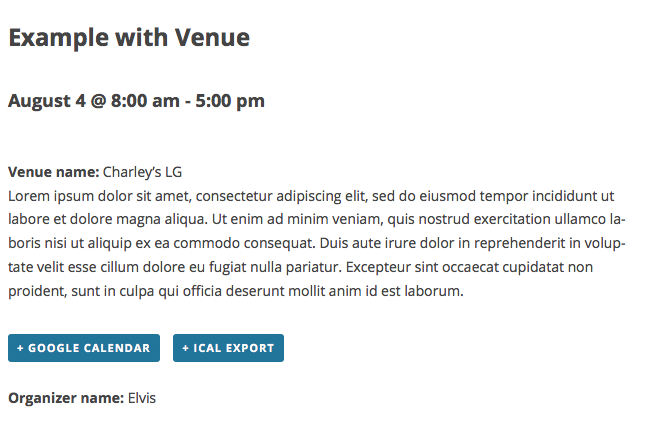
☝️ But wait! The “Organizer name” field is below the iCal and gCal links, which is not what we want. What gives?
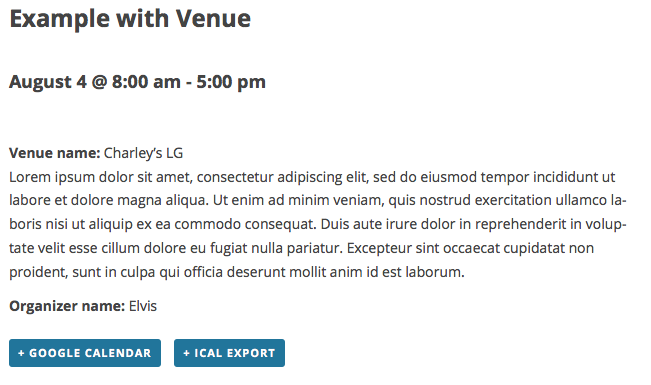
No worries—the iCal and gCal links actually use this same tribe_events_single_event_after_the_content action with a priority of 10, so to ensure that your custom additions display ABOVE those links, just make sure your action calls have a priority higher than 10 (which is represented by number lower than 10. So, a priority of 1 is highest-priority, followed by priority 2, 3, and so on…).
So you would just change this:
add_action( 'tribe_events_single_event_after_the_content', 'tribe_add_organizer_name_below_single_content' );To this:
add_action( 'tribe_events_single_event_after_the_content', 'tribe_add_organizer_name_below_single_content', 5 );☝️This sets our custom action call’s priority to 5, so it will now show earlier than the iCal and gCal links. Here’s a screenshot proving this in action:
I hope this all helps!
Cheers,
GeorgeParticipantThank you for this information, Marylu!
This is an odd issue, because I see the events showing up fine in your events widgets on the home page.
1. If you head to the “Pages” list in your site’s /wp-admin, do you find any Pages whose title is “Events”? Click this link to see a screenshot of the specific “Pages” menu item I am referring to → https://cldup.com/LKTXJy2r3B-3000×3000.png. Click that “Pages” link in your admin, look through all the pages (there be multiple pages of pages!), and see if any are titled “Events”. If any page is titled “Events”, DELETE the page. This could be causing a conflict because if the title is “Events”, then it will try to use the /events/ URL slug, which The Events Calendar is trying to use. Just like physics, two things cannot occupy the same space: two separate pages cannot occupy the same URL slug. 🙂
2. If step #1 above does not help at all, then since I cannot recreate these issues, at this point I would recommend that you run the complete set of troubleshooting steps outlined here ? https://theeventscalendar.com/knowledgebase/testing-for-conflicts/
☝️ After EACH STEP in that process, have a look at your site’s /event page and see if the issues persist. If the issues persist, then continue with the troubleshooting process through completion….
3. If even step #2 does not reveal anything, then in your reply can you be sure to include your FULL system information? I’m sorry to request this again! But the system information you posted is not complete and cuts short after a few plugins are listed. If you look in the “System Information” pane in your wp-admin, you’ll notice there is a whole bunch of other info that did not make it into your forum post–try to highlight ALL of that information and paste the WHOLE block of information into your reply. Here is how to do that again, just for reference → https://theeventscalendar.com/knowledgebase/sharing-sys-info/
Thank you for your patience here! These issues are a bit odd so are taking some time to figure out, but I am determined to help resolve these issues.
Sincerely,
GeorgeAugust 3, 2016 at 7:29 am in reply to: Minicalendar shortcode vs widget generated code and CSS: formatting behavior #1147022ParticipantHey Riccardo,
There is only a minute difference in the HTML output, but if your CSS uses selectors in a way that unfortunately targets these minute differences, then the CSS won’t apply.
However, I found that adjusting your CSS slightly resolved the issue.
All I had to change was the first two style rules.
To start with, you had this:
/** Change the background colour of the grid header area */

.tribe_mini_calendar_widget thead,

.tribe_mini_calendar_widget .tribe-mini-calendar-nav td {

	background: #82a344;

	border: none;

}
/** Change the colour scheme of the days of the week */
.tribe_mini_calendar_widget .tribe-mini-calendar-dayofweek {
background: #9ac150 /* rgb(255, 182, 6)*/;
color: white;
padding: 3px;
}
I changed this to target the grid wrapper generally, which exists in both types of output, and it worked well for me:
/** Change the background colour of the grid header area */

.tribe-mini-calendar-grid-wrapper thead,

.tribe-mini-calendar-grid-wrapper .tribe-mini-calendar-nav td {

	background: #82a344;

	border: none;

}
/** Change the colour scheme of the days of the week */
.tribe-mini-calendar-grid-wrapper .tribe-mini-calendar-dayofweek {
background: #9ac150 /* rgb(255, 182, 6)*/;
color: white;
padding: 3px;
}Your list styles worked fine in both cases for me as-is, so I did not change those.
Another possible hindrance here is that I noticed your opening comment in the CSS is not valid, which could be breaking the CSS file in a some way. To clarify, you have this:
******************** THE EVENTS CALENDAR ***********************************/But there is no “/” character at the beginning of the comment before the “*” characters, which is required for CSS comments:
/******************** THE EVENTS CALENDAR ***********************************/☝️ That might seem like a very slight difference, but it matters!
I hope these changes help, Riccardo. You will have to take the reins any further CSS modification and tweaking, but hopefully this information is useful. One more tip that should help is that if you need to write custom CSS on your site, definitely check out a [free!] tool like Firebug if you use FireFox, or the Developer Tools for either Safari or Chrome. They have “Inspector” tools that let you zoom right over the element whose CSS you want to modify, so you can figure out the best CSS selectors to use for any specific item on your pages.
Best of luck with your site!
GeorgeParticipantHey Joshua,
Thank you for the screenshots. On the homepage, you are using the “Mini Calendar Widget”, so this is NOT the main calendar — I’m sure you’re aware of this, but just wanted to highlight the differences because the styles of these two separate calendar instances won’t be exactly the same.
With that being said, though, I understand what you mean now and can confirm that it seems like, on the events page, the responsiveness is attempting to fully take effect but is being hindered by your theme’s own styling.
To help see if this is the case, I would recommend doing the following steps:
1. Head to Events → Settings → Display in your site’s /wp-admin and locate the Events Template option, which is shown in the following screenshot:

2. Try out every single template option here—after EACH selection, check the responsiveness on the /events/ page. Does the responsive styling styling seem to improve with any specific template?
3. If there isn’t any specific template that seems to work better than others, I would recommend temporarily activating a default theme on your site like Twenty Sixteen or Twenty Twelve. Once this theme is activated, take a look at the /events page responsiveness and see if anything is improved.
4. With a default theme activated, pay close attention to what happens when you click a “day” in the responsive /events calendar. What I mean by this is that, when the responsive calendar is activated, a day with events is symbolized with a dot in the corresponding grid item. This screenshot shows how this works—Saturdays the 6th, 13th, and 20th all have events, for example:
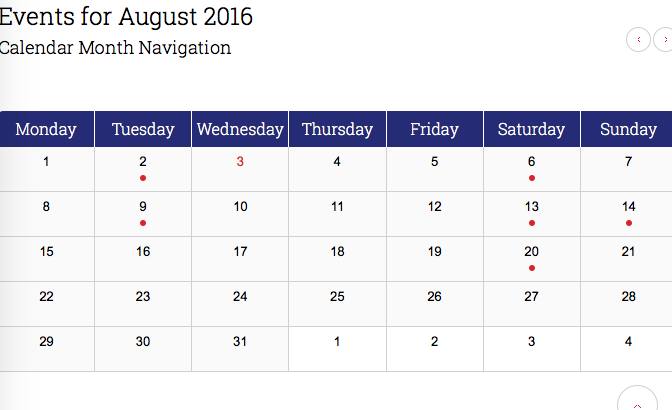
When you click on one of these dots, a list under the calendar of the actual events is supposed to appear (similar to the widget on your home page). This is not happening in your current theme—does it happen in a default theme like Twenty Twelve or Twenty Sixteen?
I’m sorry for the lengthy reply here, but wanted to provide you with a number of steps to try on your own to make for a more efficient conversation with a speedier resolution. Go through each of the four things above if possible, and let me know what you find for each point!
Thank you,
GeorgeParticipantNo problem, @Math! I appreciate the kind words and wish you the best of luck with your project.
Feel free to open a new thread any time if other questions or issues ever arise.
Cheers,
GeorgeAugust 3, 2016 at 7:01 am in reply to: Dev trying to submit issue for a client's paid plugin #1146999ParticipantSure thing! 😀
August 2, 2016 at 11:46 am in reply to: Minicalendar shortcode vs widget generated code and CSS: formatting behavior #1146742ParticipantHey Riccardo,
Sorry to hear about this!
There are definitely some differences in the output of both things, but there should mostly be parity in their output and thus the styles should mostly be applicable to both things.
We cannot help with customizations, so I won’t be able to take a super-close and specific look here, but can you post your custom CSS into a Gist at http://gist.github.com? Then, share a link to that Gist in your reply and I will take a look at it and test it out.
Also, in your reply can you please post your site’s System Information? Here’s how → https://theeventscalendar.com/knowledgebase/sharing-sys-info/
Cheers!
GeorgeParticipantHey @Joshua,
The Events Calendar is indeed responsive. I checked out your site and found the responsiveness working fine. There is some tight spacing because of your theme’s design, and so to further refine the responsive styles you would need to tweak your theme styles, but the responsiveness is indeed working there.
You can see responsiveness on our official demo site, too → http://wpshindig.com
Is there anything more you’re hoping to see in terms of responsiveness? Let me know what you think, and even consider sharing screenshots of areas that seem to lack responsiveness if possible. (You can do so by uploading the screenshots to this thread. If you have issues with that, you can upload to Imgur.com, Flickr.com, CloudUp.com, or any similar image-hosting site; then just share the links to those images here and I’ll take a look.)
Cheers!
GeaorgeAugust 2, 2016 at 10:52 am in reply to: My license key says expired but I have until May 2017 #1146703ParticipantHey @Roberto,
Thanks for reaching out!
You can totally disconnect your license key from the old domain, then head into the wp-admin of your new domain and add the license key there.
This will not cause any issues and will certainly not erase or affect any calendar data! 😀
I hope this helps—let me know if there is anything else I can try to help with.
Sincerely,
GeorgeAugust 2, 2016 at 10:44 am in reply to: Dev trying to submit issue for a client's paid plugin #1146699ParticipantHey Nowell!
Thanks for reaching out.
The most straightforward way to do this is to literally just request account credentials for their license and get permission to post from their account. If you do this, you can post in our premium forums where we are able to provide support.
Let me know if this is a workable solution and/or if there any other questions I can try to help with!
Sincerely,
GeorgeParticipantThis reply is private.
ParticipantSounds good, Erik—there is definitely lots of tinkering to do, and WordPress and its underlying technologies in general are quite flexible so there are many options for pulling off what you describe here…
I will close this thread to help keep things organized, but if you want to open a new thread any time for a support question or to share a solution to your problems or anything, please do so any time.
I wish you the best of luck with your project!
Sincerely,
GeorgeParticipantHey Math,
Only users on your site who have an account will be able to access their “My Events” page.
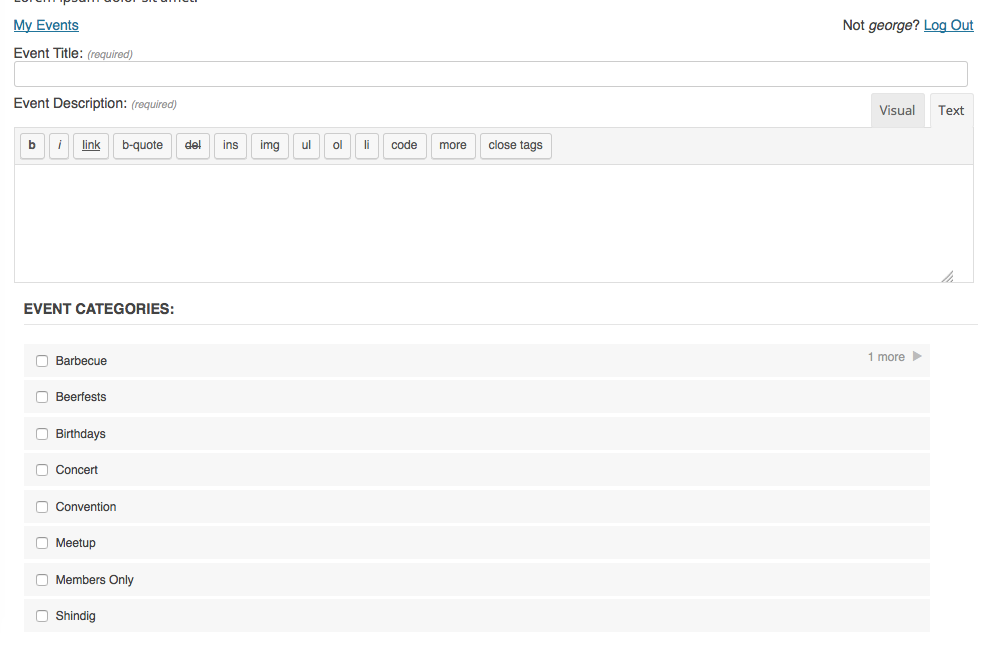
When they are logged into their account, if they go the community submission page, the “My Events” link is in the top left of the submission form as seen in this screenshot:
This link will NOT appear if:
• they do not have a user account on your site
• or if they do have a user account on your site, but are not logged in to it.I hope this helps!
— George
ParticipantHey Matt,
Thanks for your follow-up. I am not sure if this is just a typo, but in your reply you do mention making a copy of this file, which does not actually exist in our plugins:
wp-content/plugins/the-events-calendar/single-event.phpThe full path is:
wp-content/plugins/the-events-calendar/src/views/single-event.phpI’m sure that is what you meant, but just wanted to touch on this in case you duplicated the wrong file.
Anyways, I’m wondering if you can take a screenshot of a screen on your site that shows what layout are you trying to alter? Maybe I am making the mistake here by not understanding what exact layout you are trying to change.
To help with that, can you share screenshots of the existing layout on your site that you want to change? You can do so by uploading the screenshots to this thread. If you have issues with that, you can upload to Imgur.com, Flickr.com, CloudUp.com, or any similar image-hosting site; then just share the links to those images here and I’ll take a look.
Thank you!
George - Step One: Hide the default stuff with CSS — The first step is to hide the default venue, date, and organizer info metabox that you mention wanting to hide, because you are going to show it in the content directly. This is easiest to do with just some simple css, like the following:
-
AuthorPosts
