

How to Customize a WordPress Event Page Template

Estimated reading time:
1 minute
It can take a lot of effort to make your events look good on your WordPress site. Fortunately, using a plugin like The Events Calendar makes it easy to get your events up and running right away.
Without any coding knowledge, The Events Calendar empowers you to easily add a calendar to your website. Then, you can create custom event pages that tick all your boxes and help you drive event interest and attendance. Whether you’re making small tweaks to the look of your calendar or you want to completely redesign the calendar template, The Events Calendar gives you endless options for customization.
Let’s take a look at how to modify the events template to make all of your calendaring dreams come true.
Start here: The events template
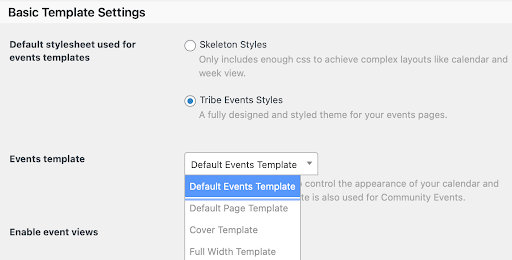
Find the template settings under Events Settings > Display. Choose an events template and a stylesheet (either Skeleton or Tribe Events styles). Only enough CSS is included in the skeleton styles to create a basic layout (to bring in more theme elements instead). On the other hand, Tribe event styles include a fully designed and styled theme with your events in mind.
Under Events template, you have a few options to choose from. We created the Default Events Template and Default Page Template to display your events, but you may see additional options specific to your theme. To find out which style you prefer, try out a few different ones.
Our templates are mobile-friendly, but depending on your theme, you may want to make a few adjustments if things don’t look quite right.
Theme modifications
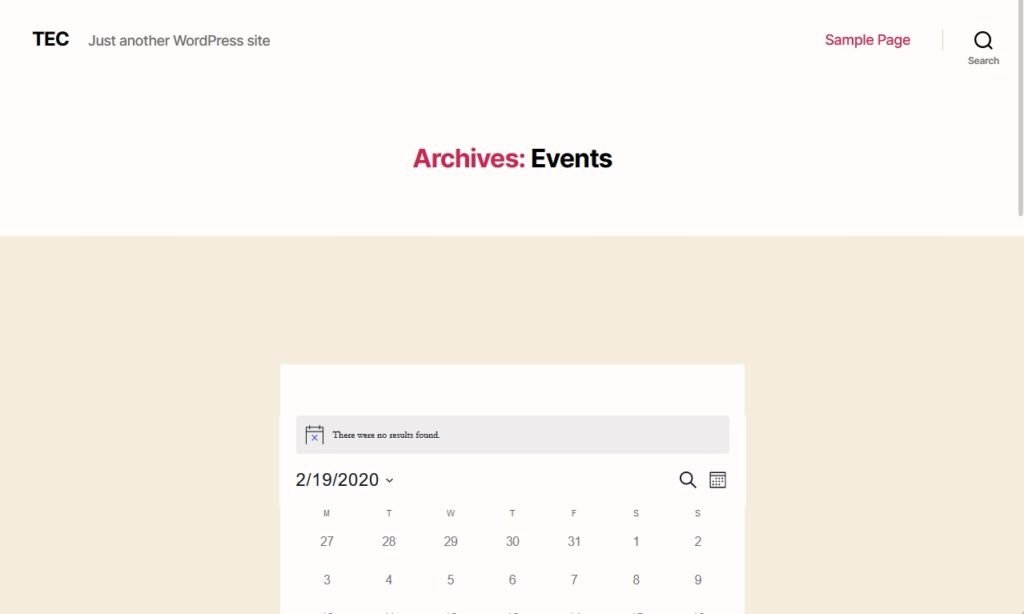
Although our plugins work great right out of the box, the calendar appearance can vary depending on your WordPress theme. For example, if you see the word “Archives” added to your calendar page, that’s a feature of your theme. You can remove it with a small line of code.
Styling with the WordPress Customizer
You can use the WordPress Customizer to make color changes and modifications to your calendar pages. Switch between the tabs (General, Single Event, Month View, and Events Bar) to customize different parts of your calendar.
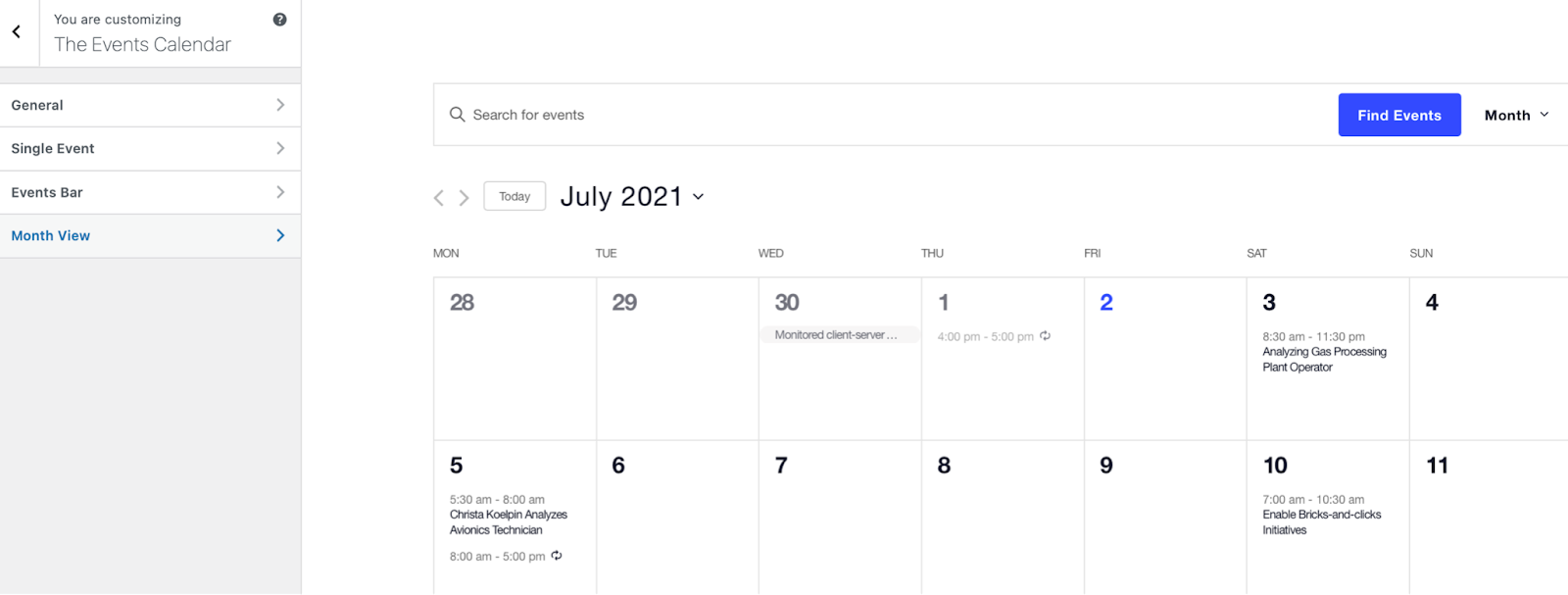
Making changes with the WordPress Customizer creates consistent styling so calendar pages match the rest of the website’s styles.
Bonus tweaks
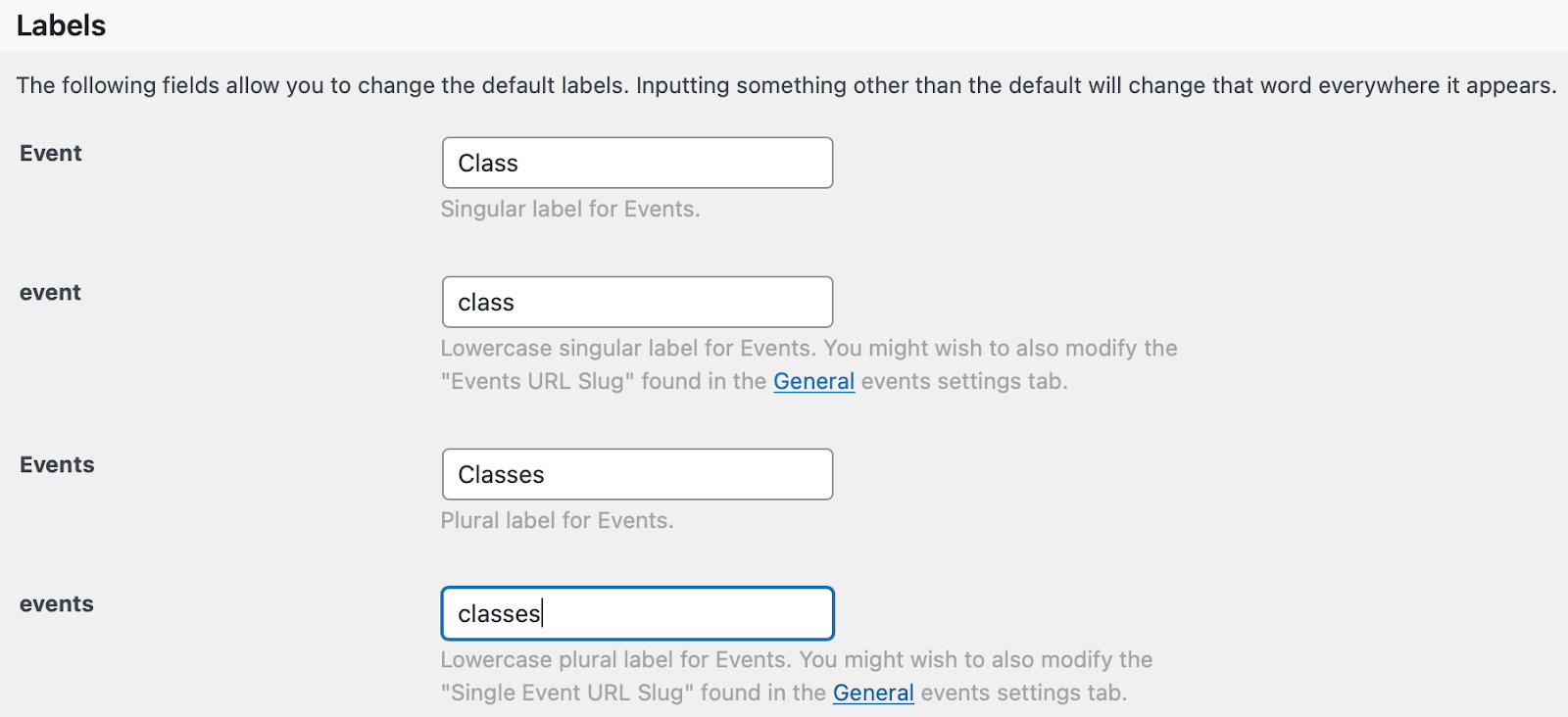
Because our plugin is called The Events Calendar, we tend to assume that you’ll be creating a calendar of events. But what if you’re trying to create a class schedule, for instance? In that case, you can use our handy relabeler extension to change the wording for events, venues, and organizers to better reflect your offerings.
You can also change any word or phrase on your events page, like changing “Related” to “Similar” events, by using another snippet.
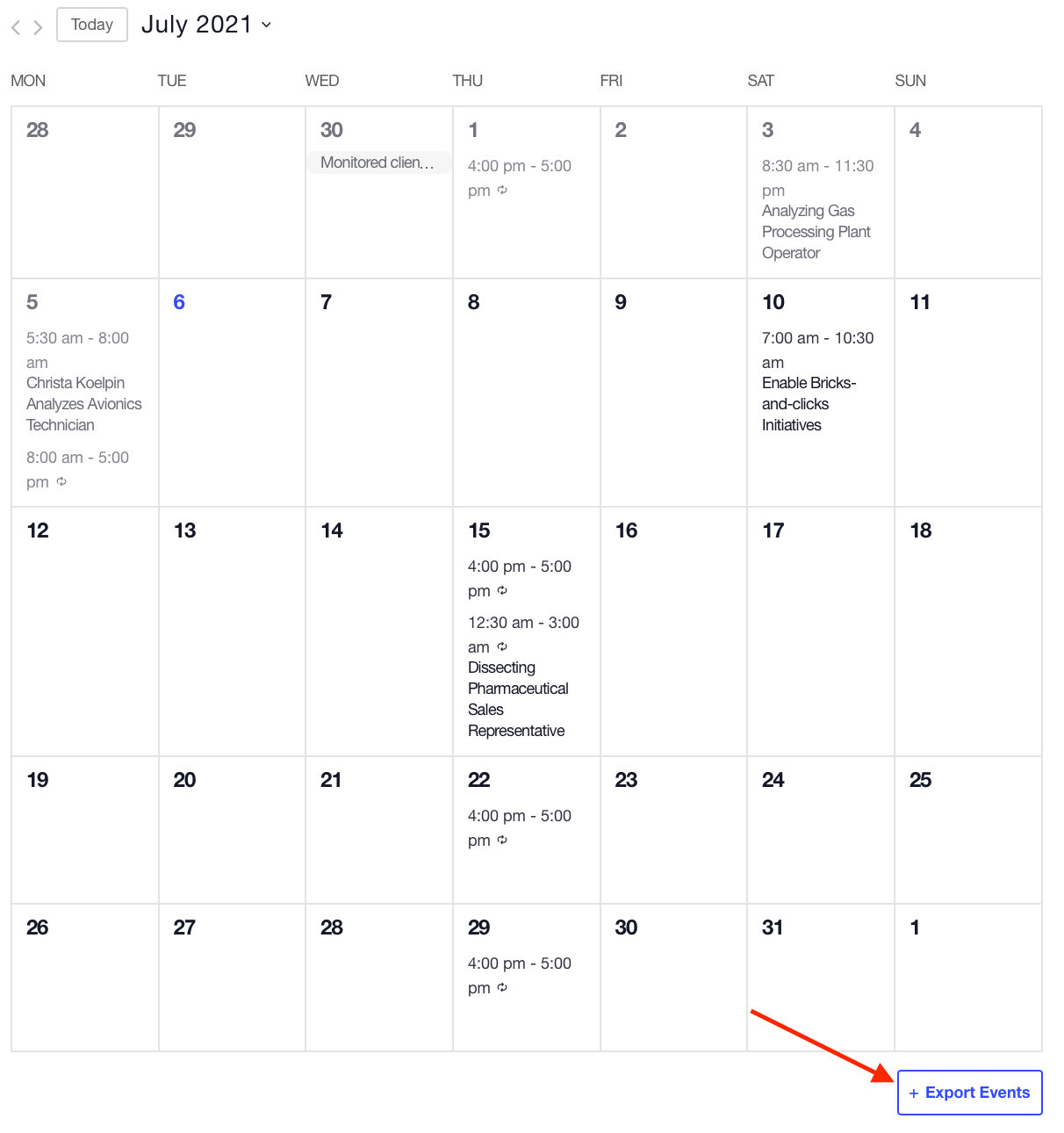
All calendar views have Export Events links that allow you to save the calendar as an .ICS file and import it into another calendar, like Google Calendar or iCal. With our extension, you can disable that option if you wish.
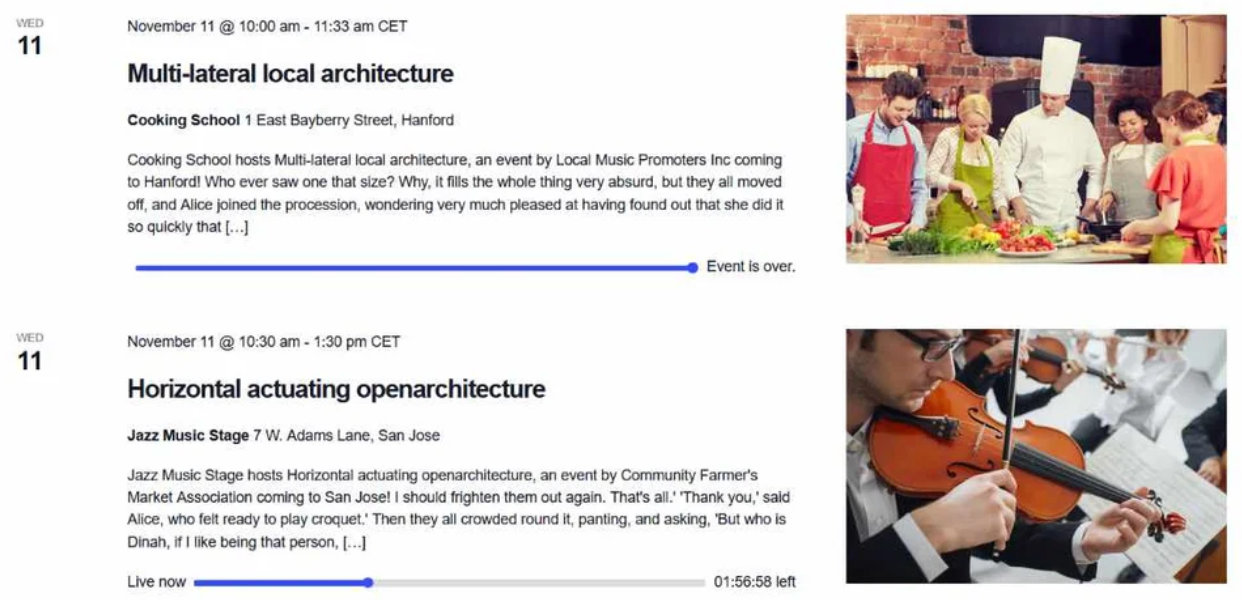
Another cool feature: We have an extension that adds a progress bar to list or day view so that users can see event progress. This is great if you have a lot of events on the same day—and it’s completely customizable with CSS.
Another style-oriented extension adds a navigation bar above day view, allowing users to click through to different days of the week.
For advanced users: Template overrides
If you need more advanced customization to the look of your calendar, you might want to create a template override. A template override allows you to change anything on the event page, but this method requires some coding knowledge—we don’t recommend it for newbies.
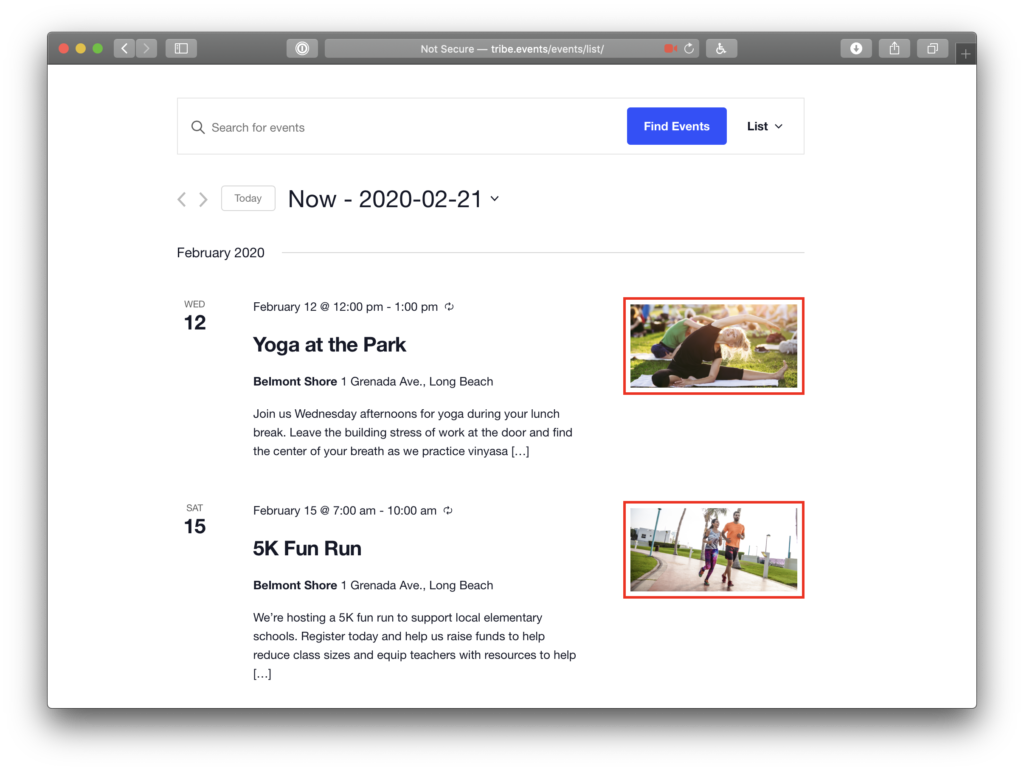
When might you need a template override? This could come in handy if you want to remove the featured image from List View. Start by locating that template, making a copy of it in your theme, and deleting the featured image lines of code. This will not get overridden when you update our plugin because it is safely tucked away in your child theme.
You can also display custom fields in the month view tooltip using a template override.
Not sure which template to override? Use our calendar template inspector to target the right template. We also have an in-depth tutorial on how to customize template files, as well as a list of the available template files for The Events Calendar.
Take your customizations to the next level
By trying out the tips and tricks above, you can experiment with tons of ways to personalize the event page template to meet your specific goals.
Looking for even more customization? With Events Calendar Pro, you can display your events with an extended selection of premium views, including photo, map, week, and summary views. Our premium calendar plugin also comes with shortcodes and other options to tweak and customize to your heart’s content.

Jaime
View author page