

Forum Replies Created
-
AuthorPosts
-
George
ParticipantHey Robert,
Apologies for the delayed response here!
Yes, your understanding is spot-on here and describes things precisely: only “child” posts are deleted in the cleaning process, the “parent” event is preserved.
I hope this helps!
— George
September 3, 2015 at 8:58 am in reply to: Get info from additional fields with php-function #1001668ParticipantHey Tommy,
Apologies for the delayed response here!
The simplest way to only retrieve the “additional fields” meta is to use this code:
ob_start();

tribe_get_template_part( 'pro/modules/meta/additional-fields', null, array(

    'fields' => tribe_get_custom_fields(),

) );
$html = ob_get_clean();
If you then echo the $html it should just be the additional fields content:
echo $html;I hope this helps!
Cheers,
GeorgeParticipantAmong those options, I saw “Events,” “Venues,” and “Organizers.” I noticed that neither “Venues” nor “Organizers” was checked. Checking them seems to have solved the problem.
Hey @Lance,
Not a dumb question at all, and it’s actually my fault for not being more clear about that! Yes, Sharedaddy is mostly a part of Jetpack these days, but the text of yours that I quoted above is indeed the right way to solve this.
Events Calendar Pro itself doesn’t add code to Sharedaddy – what happens is basically Jetpack only loads on “Post” and “Page” post types by default. For any other post types, it doesn’t load unless you manually activate it. This is actually a nice feature can lead to some confusion like we indeed ran into here.
Apologies for not being as clear as I could’ve been – glad you’ve got things working though.
Best of luck with your site! 🙂
GeorgeParticipantHey Jenn,
I’m really sorry about the impact of this in your organization. I appreciate your clarification about what file you’re testing – I tested that same exact file, downloaded direct from morningside-alliance.org directly, and it worked fine for me on my site:

One of the things I noticed you asked for in that thread with Brook is an advance copy of our new 3.12 version of the iCal importer – I cannot guarantee that this will help, of course, but I’m happy to share this with you. Please note that it will require you to also install the 3.12 “release candidates” for your other tribe plugins too, The Events Calendar and Events Calendar Pro.
In other words, you’d have to first delete your existing versions of all three Tribe plugins, and then install the new 3.12 Release Candidates for all three plugins. Your data will not be lost by deleting the plugins. (However, it’s recommended to backup your site before any plugin, theme, or WP Core update – not just tribe plugins! 🙂 )
You should be able to find these items by going to https://theeventscalendar.com/my-account/downloads/ – scroll down to the “Early Access” section which should be there for you, and download the 3.12 release candidates there.
I hope this helps Jennifer – thank you for patience and for your politeness despite these issues causing some serious hangups for your staff. I’m sorry about that and eager to help you get things working again!
Thank you,
GeorgeParticipantI’m sorry to hear it’s still not applying, Kerry. The only things that I could think of as causing this would be either code conflicts from things on your site, or an aggressive caching configuration from your server itself.
Before jumping to conclusions about the server itself, I’d recommend trying to deactivate each plugin on your site one at a time – after every single deactivation, take another look at things on your site and see if things are improving at all, if the CSS seems to be taking effect…
You should do this all the way until through your plugins list until only The Events Calendar, Events Calendar Pro, and WooCommerce Tickets (if you have it installed on this site) are active.
This may seem tedious but is actually a much quicker process to work through than it sounds, and you won’t lose any data that you’ve saved on your site or in options panels and such.
Let us know what you find! And P.S. – thanks for your patience with this thus far 🙂 It’s a bit of an odd issue but I’m confident we’ll get to the bottom of this soon.
Cheers,
GeorgeParticipantCool, thanks for the update Christina – best of luck with your site! 😀
ParticipantAwesome!
Thanks for the update Chris – be sure to keep backups of all custom code you write on your site 🙂
Cheers,
GeorgeSeptember 3, 2015 at 8:24 am in reply to: Add custom field data to specific ticket meta after checkout #1001639ParticipantThanks for the kind reply Erico, I appreciate your respecting of our custom-code limitations!
As for your next questions:
if someone were to buy multiple tickets in one checkout process, each ticket would have a unique product id?
Great question! There are a few things at work during a WooCommerce order with WooTickets.
Each different ticket would indeed have a different ID. So, for example, if you have tickets like “Movie: Adult Full Price” and “Movie: Senior Discount”, then these two separate tickets indeed have different IDs. If a person buys one of each, there will be different ticket IDs.
However, if you have one person who buys two of the same type of ticket – to continue our example, one person buying two “Adult Full Price” tickets – then there’d only be one ticket ID.
Is there a way to access the ticket ids after someone has checked out and the cart is empty?
Yes, and this is a great way to see what I’m talking about above in action.
You have a few different options. If you want to explore all the possible ways of getting this data, your best bet is to dive into the WooTickets code itself and just read through how various things work, try removing things and var_dump()-ing things along the way and then make test purchases to see how specific code blocks actually effect things on the front-end of your site, and so on.
The simplest way of getting this info, though, is to find the Order ID of the order you want more information on. This is accessible by viewing “Orders” in your wp-admin. When you see the labels like “Order #221”, then 221 is the Order ID for that Order.
You’d get info like this:
$order = wc_get_order( 221 );// Dump info about the whole order.
var_dump( $order );// Dump info just about the items in the order.
$items = $order->get_items();
var_dump( $items );
That should hopefully be a good start on things.
If you’d like to get tickets by the Event ID, and not by WooCommerce order, than you can do so like this – assuming that $event_id is indeed an ID for an event that has tickets:
$tickets = Tribe__Events__Tickets__Tickets::get_all_event_tickets( $event_id );var_dump( $tickets );
Cheers!
GeorgeParticipantHey Mark!
Really sorry to post a third time here!
I wanted to follow up though because I’ve been testing this issue really hard, and neither I nor our developers can recreate these problems.
As evidence of that, here’s my “attendees” list on event I tested, where some orders I used your auto-complete code and some I used manual completion:
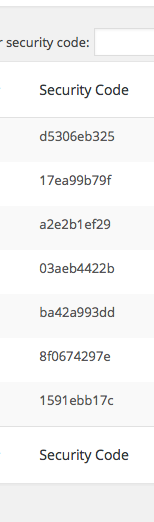
Why is this important? Well, because we have these key pieces of information:
1. You have customizations on your site.
2. We are unable to produce this problem.
3. We do not have all the information about your site that we could have.All three ingredients point to a huge potential for there being a theme, plugin, and/or custom-code conflict underlaying all of this.
To help test for this, I’m unfortunately about to recommend some steps that sound tedious 🙁 I will assure you, in all honesty, that they are generally much faster to work through than it seems, but despite the tedium of some of these tasks they are essential to helping rule out (or discover) a code conflict on your site, and there is no troubleshooting we can do until we investigate these things first.
So, on to the steps themselves:
1. Share your “System Information” with us as shown in this article here → https://theeventscalendar.com/knowledgebase/sharing-sys-info/
2. Make a backup of all custom code you’ve made on your site – you will be temporarily removing it in step #4.
3. Go back to your site and leave your auto-completing code in place. Run through each of the troubleshooting steps outlined here → https://theeventscalendar.com/knowledgebase/testing-for-conflicts/
4. After literally every step in that process, which means after each plugin deactivation, each removal of custom code, and after your theme deactivation, do a test order and see if the auto-completion code works any better.
You should get to the point where a default theme like Twenty Twelve is active on your site, and the only active plugins are these ones:
- The Events Calendar
- The Events Calendar: WooCommerce Tickets
- WooCommerce Tickets
You can just add the auto-completion code to the functions.php file of your default theme, too, and again run the test of purchasing a test ticket and see what happens. You should also try outright creating a new test event and test ticket for it in this state, then try buying that, and see what happens with the auto-completion code.
Again, I’m sorry to recommend such a seemingly-daunting amount of troubleshooting steps. But these steps will be extremely helpful for figuring out if there’s a conflict here, which appears to be the case.
Thank you in advance, Mark. Your patience here means a ton.
Sincerely,
GeorgeParticipantSorry Mark, I actually don’t think my above solution will help here at all – sorry about the mixup!
It’s still true that we’ve at least boiled down the source of things to be the auto-completion of orders. I’m just not sure why this is causing things to break.
I’m going to reach out to some of our awesome developers and see if they can weigh in, here. Stay tuned!
ParticipantHey Mark,
Thanks for testing this out! It seems that we’ve at least now isolated the issue to the auto-completion code itself.
I’m aware that this is a snippet that is found on the WooCommerce site itself, so it’s not necessarily “bad” or “broken” code, but I’m trying to figure out exactly why it’s preventing the security code from being generated.
I have one idea which relies on the the third argument of the very update_order() method you’re using already. Basically, in your custom code where you have this:
$order->update_status( 'completed' );
Change it to this and run the same tests to see if the security code is genereated:
$order->update_status( 'completed', '', true );
This will change the $manual argument, the third one, from its default state of “false” to “true”. Let us know what you find by doing this!
Thank you,
GeorgeSeptember 2, 2015 at 2:43 pm in reply to: No image options, sign in issues, and pending review #1001475ParticipantHey Dan,
Thanks for elaborating on things and being patient with us (and polite, too! 🙂 ). Each thing is much appreciated.
At core here, I think most of your issues can be solved by using the “Access Control” features of Community Events. Head to Events > Settings > Community Events in your wp-admin and look for these access control options which look like this:
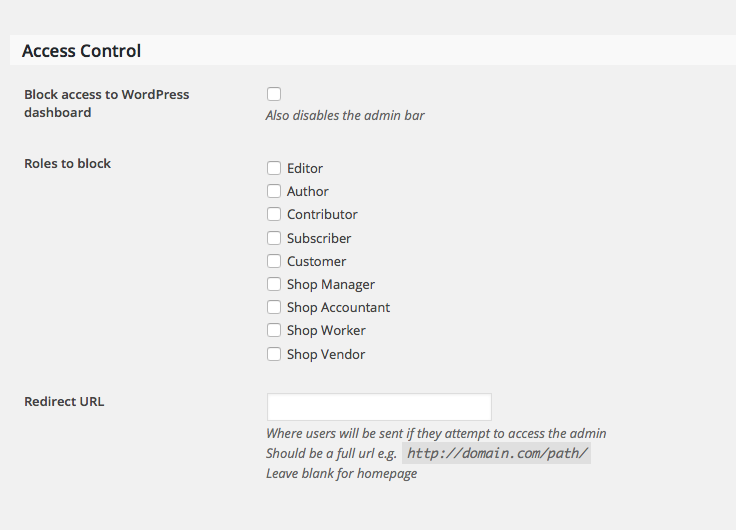
Check the “Block access to dashboard” option, and block the roles “Subscriber” and “Contributor” (and anything else you’d like).
This should keep them on the front-end submission form where I believe you want them to remain – let me know if my assumption is accurate here and if what I recommended above helps at all!
Cheers,
GeorgeSeptember 2, 2015 at 2:36 pm in reply to: Important display problem with prices on mobile & desktop (homepage price form) #1001470ParticipantHey Gael,
Yes there is a way to do this, though it would again require custom code. I’ve shared a ton of custom code here and unfortunately cannot continue doing so in this thread, but in general you can get the set of attendees registered to an event by calling the function Tribe__Events__Tickets__Tickets::get_event_attendees( $event_id )
So, something like this oughtta work:
$attendees = Tribe__Events__Tickets__Tickets::get_event_attendees( $event_id );foreach ( $attendees as $attendee ) {
// display info as you wish...
}
I will close up this thread for now – best of luck with your site, and be sure to keep good backups of all custom code you write! 🙂
Cheers,
GeorgeParticipantHey Jordan,
Thanks for looking into this and for sharing that information here – my interest is piqued by your comment here:
To touch back on the styling issue, when I check “All-Day Event” It still lets the user input a time of day, which it used to not do.
This, unfortunately, seems indicative of a JavaScript conflict on your site.
I’d recommend first temporarily disabling your CDN to test this – once it’s disabled, does this “All-Day” input issue change at all? How about the issue with dates from submitted events?
If no progress is made after disabling the CDN, then leave the CDN disabled and proceed with the troubleshooting steps here again → https://theeventscalendar.com/knowledgebase/testing-for-conflicts/
Yes – you have done these steps already 🙁 And I’m genuinely sorry about recommending them yet again. The reason I’m doing so, however, is that if your CDN was active in your previous tests, then that could’ve muddied the results of those tests and it is worth looking into all of this again with your CDN disabled.
I’m really sorry about the duration of the thread here – your patience is supremely appreciated. I can still not recreate these issues and so we’re left with the CDN test and the troubleshooting steps tests as the most useful things to do from here.
Let us know if you do these tests and, if so, what you find!
Thank you,
GeorgeParticipantHey Nicholas,
There is unfortunately not a way to do that – at least, no method for it that our plugin will handle on its own, like with our /views/ templating system 🙁
One of the simplest things that MIGHT work is to simply proceed with adding the file in your theme anyway, and using the same name as the “official” class – Tribe__Events__Query.
This is because the “official” does a class_exists() check first before defining itself:
if ( ! class_exists( 'Tribe__Events__Query' ) ) {

	class Tribe__Events__Query {
So that might work, but it’s still far from “endorsed” and not quite recommended.
I hope that helps!
— George
-
AuthorPosts