

Forum Replies Created
-
AuthorPosts
-
George
ParticipantHi Douglas,
This thread seems to be getting off topic. In the interest of making sure I help @stephaneperrine, will you please open a new thread? That will allow us to directly support you without interfering the current thread.
Thanks for your understanding!
@stephaneperrine, I’m looking forward to continue to help you out here and Douglas, we’ll see you in the other thread.
Thanks,
GeorgeParticipantHi Benjamin,
You can do this with custom CSS. To write CSS on your site, check out a [free!] tool like Firebug if you use FireFox, or the Developer Tools for either Safari or Chrome. They have “Inspector” tools that let you figure out what CSS to write to achieve something like this.
For example, if you want events that are in the Event Category of “barbecue” to be hidden on the calendar, add CSS like the following to the bottom of your theme’s style.css file:
.type-tribe_events.tribe-events-category-barbecue {

    display: none !important;

}
Thank you!
I noticed you don’t have a premium license here, which is fine! However, please note that this is our “pre-sales forum.” So, if you do have a premium license tied to another email address, log into that account on this site and post any further technical support questions in a premium forum. If you indeed do not have a license, please post any further technical support questions in our free support forums here → http://wordpress.org/plugins/the-events-calendar
Thanks,
GeorgeFebruary 29, 2016 at 12:37 pm in reply to: Site w Events Calendar Pro License Continues to Not Update Properly #1083532ParticipantOnce you’ve backed things up, I would recommend the following steps:
- Go to Events → Settings in your wp-admin and remove your license key.
- Go to http://theeventscalendar.com/license-keys and use the “Disconnect Now” link there to disconnect your site’s license key.
- Go back to your site’s wp-admin and Delete The Events Calendar, Events Calendar Pro and any other Events Calendar add-ons you might have on your site.
- Once things are deleted, check your site’s version of WordPress. If it is not the most current version, which as of this moment is 4.4.2, then update your site’s WordPress version to 4.4.2.
- If your site is at WordPress version 4.4.2, then go to wordpress.org/plugins/the-events-calendar and download a fresh copy of The Events Calendar 4.0.6 on your site.
- Once The Events Calendar 4.0.6 is installed, activate it and then install Events Calendar Pro 4.0.6 on your site. You can get files for this version here → https://theeventscalendar.com/my-account/downloads/
- Activate Events Calendar Pro 4.0.6 and enter your license key.
These steps should bring your site up-to-date.
Cheers!
GeorgeFebruary 29, 2016 at 12:33 pm in reply to: Site w Events Calendar Pro License Continues to Not Update Properly #1083530ParticipantHi Craig,
I am not sure why things aren’t changing despite what you try, and am sorry to hear about these issues. At this time, it sounds like the only viable step forward is to manually delete all Modern Tribe plugins off of your site and then re-upload fresh new copies of the most up-to-date versions.
Deleting plugins will not erase site data.
However, it is still recommended to backup your site and database before doing the following steps just as an added precaution. This is important, and I do not recommend performing any of the following steps without a good backup of your site and database. If you do so without a backup that is your own will and against my recommendation—you should backup your site before any plugin/theme/WordPress Core update, not just stuff related to The Events Calendar! 🙂
ParticipantHey @Jacopo,
Version 3.12.6 is outdated and we unfortunately provide no support for old versions. The first step here is to update all of your Modern Tribe plugins to their most recent version:
• The Events Calendar — 4.0.6 (http://wordpress.org/plugins/the-events-calendar/)
• Event Tickets – 4.0.5 (http://wordpress.org/plugins/event-tickets/)
• Event Tickets Plus – 4.0.5 (http://theeventscalendar.com/my-account/downloads)Please ensure that “WooCommerce Tickets” is not on your site, and in its place is the combination of both Event Tickets and Event Tickets Plus. Then, ensure The Events Calendar is at version 4.0.6.
In this state, what issues still happen? If any issues still happen, please share your “System Information” with us. Here’s how to do that → https://theeventscalendar.com/knowledgebase/sharing-sys-info/
Thank you,
GeorgeParticipantHey Adrian,
We would be happy to help with this!
Can you send a copy of your original order receipts over email to support at theeventscalendar dot com, with a link back to this thread for reference?
I will match that information to our records and issue a license extension from there.
Thank you,
GeorgeParticipantHi Dan,
None of our plugins have a “wait list” feature as I understand that, but can you elaborate on your specific goals there? With that information I might be able to offer some more insight here.
I would like to note, as well, that the core plugin Event Tickets (which Event Tickets Plus is just a premium add-on to! but Event Tickets itself is free) has the “RSVP” feature. These are free “reservations” for events, with not charge or checkout process…and since it’s free, you should play around with it firsthand if this sounds like a useful thing → http://wordpress.org/plugins/event-tickets
—
You mention a trial version of software, and unfortunately at this time we do not have any such program 🙁 We have a 100% no-questions-asked 30 day refund policy, which is the closest we get to a trial period—if you try our code and it doesn’t meet your needs, follow the steps here within 30 days of purchase and we will issue a 100% refund immediately → https://theeventscalendar.com/knowledgebase/refund-policy/
I hope this information helps!
Thanks,
GeorgeParticipantHi Lionel,
I just wanted to share an example of the above methods. For example, try pasting the following CSS into the bottom of your theme’s style.css file:
.tribe-mini-calendar-nav td,

.tribe-mini-calendar th {

    background: #cc9900 !important;

    border-color: #cc9900;

}
.tribe-mini-calendar td.tribe-events-has-events {
background: #cc9900 !important;
}.tribe-mini-calendar-event .list-date .list-daynumber {
color: red !important;
}
See how this code affects the colors of things on your site; try removing bits of it temporarily to see the affect of each line. I hope this helps and serves as a good example for all further CSS tweaks you might want to make
Cheers,
GeorgeParticipantHi Lionel,
Changing these colors will require several CSS customizations. We cannot help with code customizations. Please see the “Product Support” section of this page for more information on that → http://theeventscalendar.com/terms
If you do not know how to to write custom CSS on your site, you can learn by first checking out a [free!] tool like Firebug if you use FireFox, or the Developer Tools for either Safari or Chrome. They have “Inspector” tools that let you zoom right over the element whose colors and such you would like to change.
Spend some time tinkering and researching anything you’re not familiar with, and you should be good to go.
Best of luck with your styling!
GeorgeFebruary 29, 2016 at 12:03 pm in reply to: Let events remain in shortcode widget after their past #1083513ParticipantHey @Johan,
Thanks for reaching out!
This will require custom coding to achieve; we unfortunately cannot help with custom coding, but I will try to help regardless and might be able to share some useful code here.
To help with that, can you just clarify the exact shortcode you are using? Is it tribe_events_list? If possible, please copy and paste your entire exact shortcode here just so I can be 100% certain in addressing your issues.
Thank you!
GeorgeParticipantHey Jamie,
Thanks for reaching out, and for doing all of that testing!
The culprit here is that last error you mention, the one that says “Cross-Origin Request Blocked”.
Cross-Origin Request issues are somewhat common on the web. Essentially, some resources on your site are secured and are loaded over HTTPS, while some, like that http://www.kcdtn.org/wp-admin/admin-ajax.php file reported in the error, are using HTTP. The mismatch in protocols will shut down things like AJAX requests for security purposes.
This is unfortunately not something caused by / handled by The Events Calendar, or by any plugin on your site in fact. This is an issue you should take up with your web hosting provider, for example, to work with them to either make your site all HTTPS or all HTTP.
Making it all HTTPS may require getting an SSL certificate….
I hope this information is helpful, despite being a bit disappointing!
Sincerely,
GeorgeParticipantHey @Piotr,
Thanks for reaching out. You say, “I could not do this in similar way”—what do you mean by this, specifically?
Thank you!
GeorgeFebruary 29, 2016 at 7:56 am in reply to: Visual Editor does display when clicked and other related issues #1083341ParticipantHey @Reynaldo,
Thank you for sharing this screencast!
There is a theme or plugin code conflict that is at the root of this problem. Before getting into a full set of troubleshooting steps, I’m wondering if you could first clarify where the edit-screen elements in the following screenshot from your video come from?
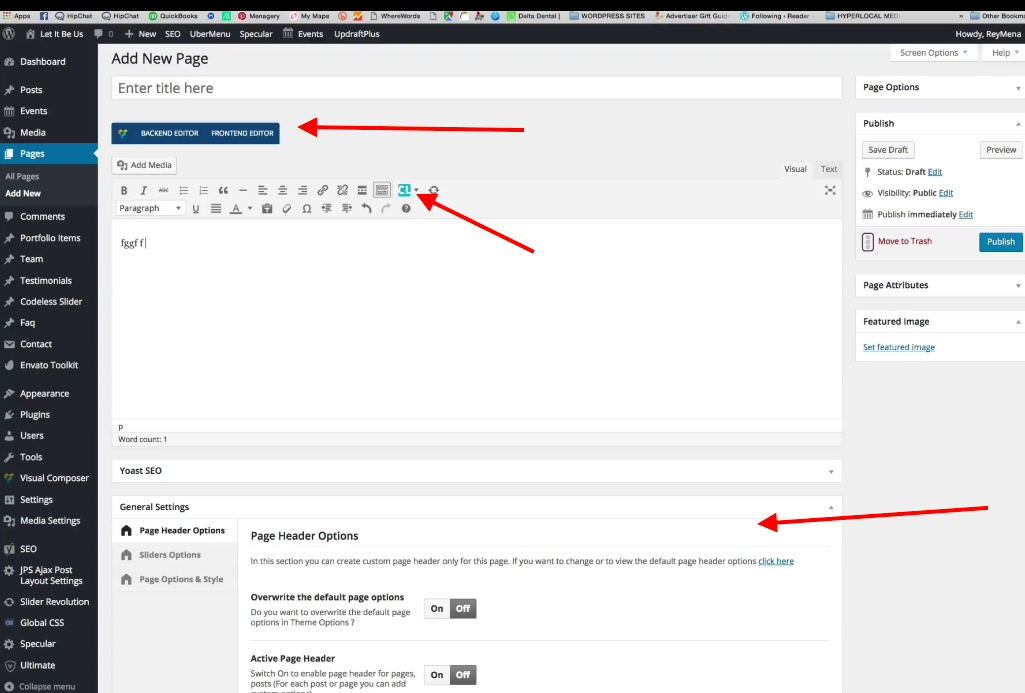
If these all come from the “Visual Composer” plugin, for example, then is there any requirement within that plugin to “register” the features of that plugin on specific post types? That might be the case: “Pages” are a default post type, of course, so it would make sense for those features to automatically load on default types. “Events” are a custom type, so perhaps it takes extra settings—or even code—to register those features on that post type? I would recommend investigating this, and reaching out to the Visual Composer support team for assistance if you think is relevant.
Next, we cannot log into customer sites for any reason, but if you’re comfortable with using your browser console, would you be able to open the console and view an “edit-event” screen? If there are JavaScript errors, which there definitely appears to be, they will be displayed in the console. If possible, and you see these errors, could you then share the text of the errors and the file locations from where they emerge?
If you’re not familiar with using a browser console, I would recommend simply Googling “how to use the console in {browser name}”, for whichever browser you use. (It appears to be Chrome browser in your video, but I cannot 100% tell.)
I hope these steps lead to the revealing of some more information here—let us know what you find!
Thank you,
GeorgeFebruary 29, 2016 at 7:33 am in reply to: Adding topic-specific Community Calendar separate from main Events Calendar #1083317ParticipantHey Laura,
Thanks for reaching out and for your interest in our plugins!
Unfortunately, having separate calendars in the way you describe is not possible at this time 🙁
The closes way to approximate this behavior would be to have an “Event Category” that you/other site admins manually add to events submitted from the community—then, at least, the main calendar could be filtered to only show events in this category or to show all events….
I’m sorry about these limitations! Please let me know if there’s anything else I can try to help with.
Sincerely,
GeorgeParticipantHi Sheena,
Thanks for reaching out and for your interest in our plugins!
Unfortunately, while some features you listed are possible, these following features are not possible out-of-the-box with any of our plugins:
2. Keep registrant information indefinitely
3. Keep record of what classes taken (event attended)
4. Past user registration info available for export
5. Group Registration: A manager can register for a group but all registrants must be named during registration.
8. Need group pricing capability. E.g. 20% discount for group of 10+Sorry to disappoint! Let me know if there’s anything else I can try to help with.
Sincerely,
George -
AuthorPosts