

Forum Replies Created
-
AuthorPosts
-
December 15, 2016 at 11:55 am in reply to: [tribe_events] Shortcode Limit option not Working #1206611
Geoff
MemberHi Nick, thanks for reaching out!
I think the issue is that there actually is no “limit” filter available for the shortcode.
Looking at our documentaiton for shortcodes, the only filter available for limiting the number of events that might display is to set a date range, like:
[tribe_events view="list" category="featured-events" date="2016-08-21"]Does this help answer your question? Please let me know.
Cheers!
GeoffDecember 15, 2016 at 11:28 am in reply to: Event Aggregator not pulling featured image from Facebook #1206591MemberHi Yvette,
Thanks for getting in touch and welcome to the forums — I hope you’ve been enjoying Event Aggregator so far. 🙂
That’s super odd! Is the image not pulling for one specific Facebook event, or for any event that Event Aggregator attempts to import?
Would you be willing to send me the URL for one of the Facebook events that has an image that is not being picked up in the import? I’d like to try importing it on my test site to see if I get the same result.
Thanks so much!
GeoffMemberHi Helena, and welcome to the forums!
Well, that’s not good. Let’s dig into this together and see what’s happening.
First off, would you be willing to share your system information with me? You can get it by heading to Events > Help, copying the “System Information” and pasting here for me as a private reply.
This will provide me with some additional information on your settings and I’m hoping it will show me what’s causing the information in the Additional Fields tab to disappear like that.
Thanks!
GeoffMemberHi Mike,
Welcome to the forums! I hope you’ve been enjoying Events Calendar PRO so far. 🙂
You can add the full Month View with the search bar to any page or post using the following shortcode:
[tribe_events view="month" tribe-bar="true"]All the available shortcodes and options are outline here in this guide:
https://theeventscalendar.com/knowledgebase/embedding-calendar-views-tribe_events-shortcode/
Also please let me know how can I change the color of selected cell?
Are you referring to the color of the current day header in Month View? If so, you can change it by navigating to Appearance > Customize > The Events Calendar > Month/Week View from the WordPress dashboard.
Or, if you’d prefer, you can add something like this to your theme’s style.css file:
.tribe-events-calendar td.tribe-events-present div[id*=tribe-events-daynum-] {
background: #000; /* or whatever color you would like */
}
Here’s a screenshot of how that looks when I tested it out on your site.
Cheers!
GeoffMemberHi Shaw,
Thanks for getting in touch and welcome to the forums!
It looks like you’re pretty well set up! There are two things you can do to make your calendar more like the one on the demo though:
- Navigate to Events > Settings > Display and make sure that both the search and location search options are enabled by unchecking the settings (screenshot)
- Purchase the Filter Bar add-on. That will add the extra search options that you see above the calendar on the demo.
And, if you are looking to use the exact same style as the demo, we actually have made the theme it uses free for anyone to download and use:
http://wpshindig.com/download-mt-demo-theme/
Does this help answer your question? Please let me know. 🙂
Cheers!
GeoffMemberHi Lisa,
Welcome to the forums!
Great question. The truth is that The Events Calendar is not totally ideal to be used as a private calendar in the way you’re describing it. Events can be published “private” and you can use a shortcode to embed the full calendar on a private page, but differentiating between logged in and non-logged in visitors is something it was not intentionally designed to do outside those options.
One idea you might consider is to remove the “All Events” link, which you can do by adding the following CSS to your theme’s style.css file:
.tribe-events-back {
display: none;
}
Another idea might be to only display tickets to logged in members. You can do that by wrapping the code for the ticket for in a conditional statement that checks whether someone is logged in before displaying the tickets. For example:
if ( is_user_logged_in() ) {
// The ticket form code
} else {
echo 'Please log in to purchase tickets.';
}
?>
Sorry I don’t have a concrete solution for you here, but I hope these options at least help get you started in the right direction.
Cheers!
GeoffMemberHi Jens,
I looked at this with one of my colleagues on the team who is an avid user of Divi and he had a couple of suggestions.
First off, will you please remove all of the custom pages you created for events? This includes the pages that use /schedule and /events as the slug.
Once you remove those pages, will you please navigate to Events > Settings and make sure that the slug setting for your calendar is set to /events?
Then, I would suggest clearing your permalinks again for good measure.
Once you’ve done those, you should be left with the default calendar and it should be displayed on /events.
My colleague tested the default calendar in Divi and found that everything works as expected without any issues. I’m hoping that following these steps will get your calendar back to a default state without any issues as well.
Thanks,
GeoffDecember 15, 2016 at 7:49 am in reply to: Delete "All Events" Link at the top of individual event page #1206429MemberHi Katie,
Welcome to the forums!
Hey there,
Try pasting this snippet to your theme’s style.css file or using the Simple Custom CSS plugin:
.tribe-events-back {
display: none;
}
This seemed to do the trick when I tried it on my test site, so I hope it works for you as well.
Cheers!
GeoffMemberHi David,
Sorry for the trouble here!
I tried renewing one of the my test licenses on the My Account > Licenses screen and it seemed to add the correct level license to the cart.
Just to confirm: are you clicking the blue “Renew License” button next to the license key number?
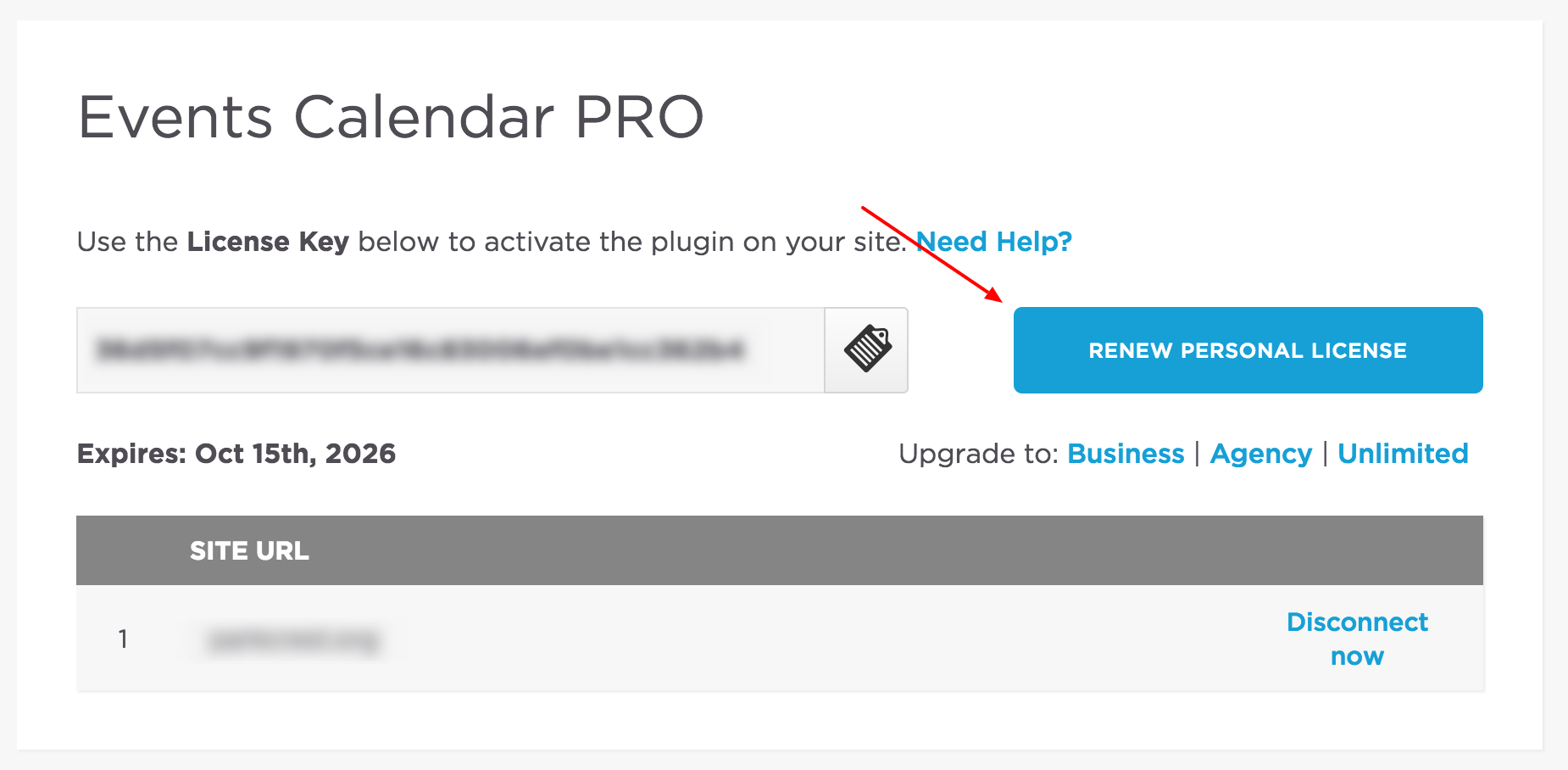
The reason I ask is because there are upgrade links right below it and I know it is easy to mistake those as the renewal. In fact, I’ve seen other threads posted in the past regarding the same thing.
Please let me know and I’d be happy to keep looking into this with you.
Cheers,
GeoffMemberHi Juanjo,
Thanks for contacting us! I’m glad to hear you are interested in using The Events Calendar.
The good news is that there is no username or password needed to start using it. You can download The Events Calendar for free on WordPress.org:
And then you can install it to your WordPress site like you would any other plugin. Once it has been activated, it will create a calendar page for you. 🙂
Does this help answer your question? Please let me know.
Cheers!
GeoffMemberRight on! I’m so glad to hear everything is working smoothly and I appreciate you following up to let us know. Definitely keep us posted if any other questions come up and we’d be happy to help. 🙂
Cheers!
GeoffDecember 14, 2016 at 1:03 pm in reply to: Why can't I add Multiple Facebook Events to Calendar of my choosing anymore? #1206115MemberHi @ctaintsobad, and thanks for following up!
The CSV option is not specific to Facebook URL, but allows you to import events based on the data you extract from Facebook. In other words, it will not distinguish between where an event is being imported from because the source of the import is the CSV file itself and it contains all the data it needs to create the events.
And, to be a little more clear, importing from CSV is not a scheduled import but meant for one-time imports.
Cheers!
GeoffMemberYou bet — happy to help as best I can and hope I’ve helped make your decision a little easier.
Do note that we have a great refund policy that allows you to return any products within 30 days of purchase, should you decide you want to try Event Tickets Plus and give it a test drive.
In the meantime, I’ll go ahead and close this thread but let us know if any other questions come up and we’d be happy to help. 🙂
Cheers!
GeoffMemberHi David,
Good question! I’m sorry to say that tags are not an available filter in the shortcode. The currently available filters are:
- view (determines which calendar view to use)
- category (determines which event categories should be displayed)
- date (determines the date range for which events to display)
- tribe-bar (determines whether the calendar header is displayed)
Sorry for the bad news, but does this at least help answer your question? Please let me know.
Cheers!
GeoffDecember 14, 2016 at 8:33 am in reply to: Why can't I add Multiple Facebook Events to Calendar of my choosing anymore? #1205859MemberHi @ctaintsobad,
Thanks for writing in — these are great questions, so let’s dig in!
Event Aggregator is built around the idea that you can create scheduled imports for each source you are importing from. So, while the previous Facebook Events add-on did indeed allow you to specify multiple Facebook feeds at a time, it was not very conducive for creating scheduled imports and we found that importing from multiple URLs at a single time did not scale very well, causing crashes and timeouts.
That said, you can still import from multiple Facebook URLs in Event Aggregator. The difference is that you will set each one up as a separate scheduled import.
Now I have to put one Facebook URL at a time and then there’s no way to select individual events with a checkmark.
Checkboxes are only displayed for one-time imports. The idea here is that if you are importing from Facebook on a one-time basis, then you are likely interested in importing specific events from that Facebook account. Here’s a screenshot of a one-time import where the checkboxes are displayed.
However, if you are doing a scheduled import, the idea there is that you want to import all events on a regular basis. As such, there is no checkbox for selecting specific events. Even if a checkbox was displayed, Event Aggregator would still be unable to determine which events you want to import on a scheduled basis because the list of events would change as new events are added to the Facebook account.
What you can do instead is set scheduled imports to be set as Draft before being published. That would allow you to remove any imported events before they are published to the calendar.
Is there a way through CSV/Excel?
Absolutely! It’s the first option in the Import options:
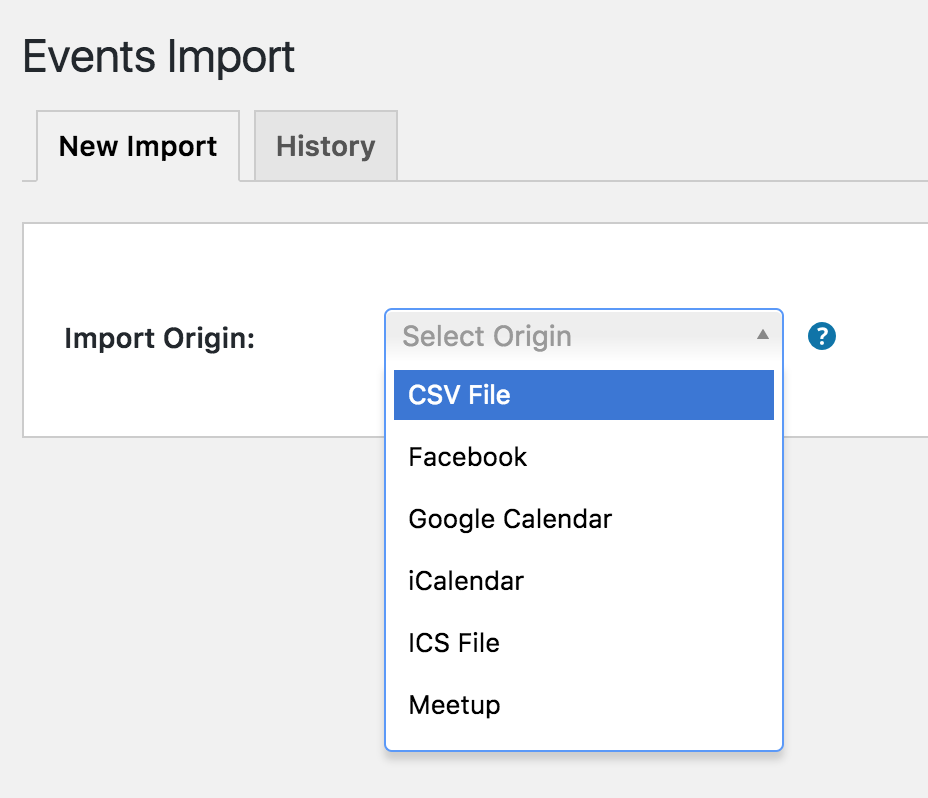
Does this help answer your questions? Please let me know. 🙂
Cheers!
Geoff -
AuthorPosts