
Category Colors Now Included in The Events Calendar!
Estimated reading time:
1 minute
We’re excited to announce that our popular Category Colors extension is now included directly in The Events Calendar!
Color-coding is a fundamental aspect of productivity design for a reason, it works. By adding color-coding to event categories, users will discover the events they’re interested in more easily, and you’ll enjoy higher community engagement.
Let’s take a look at what’s included in the Category Colors update to The Events Calendar.
What’s New
We didn’t just take an old plugin and merge it with The Events Calendar, we also took the opportunity to improve that plugin’s functionality. So even if you’re an existing user of the Category Colors plugin, there’s reason to be excited.
The new category colors feature comes with:
- Simplified category management: the old plugin required 14 different settings. The new category colors feature of The Events Calendar only adds five settings under Event > Settings > Display, and three color options when creating event categories.
- Improved color picker interface: you can now set your category colors in Events > Event Categories as you create or edit categories there. No need to create a new category and then go to another part of the admin to assign it a color!
- Better performance through modern storage methods: you’ll experience faster load times, automatic updates, and smooth performance whether you have 10 categories or 1,000.
- Enhanced legend customization options: the color legend now doubles as a smart visual guide, showing color-coded circles for the first five categories and updating in real time. It helps users instantly connect colors to calendar content.
How to Migrate
If you use the Category Colors plugin, you’ll see a migration notice in your WordPress admin after updating to the latest version of The Events Calendar.
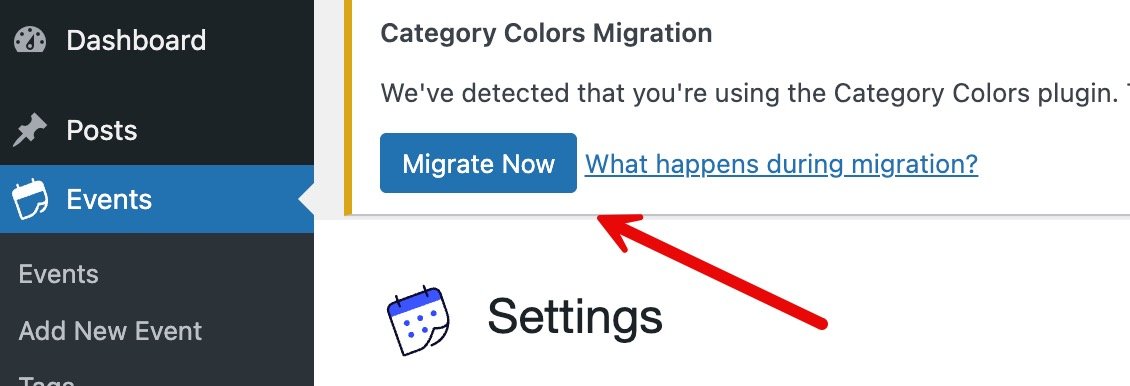
The migration process is simple:
- Click the “Start Category Colors Migration” button
- Wait for the process to complete
- Start using the new integrated features
Important Notes:
- Migration is one-way and cannot be undone. We recommend backing up your site before doing the migration.
- Your existing color settings will be preserved. No need to re-do work you’ve already done!
- The standalone plugin will be automatically deactivated. Once you’re happy with the migration, feel free to delete the old Category Colors plugin completely.
- The migration typically takes less than a minute. It’s simple, easy, and fast.
How to Use Category Colors in The Events Calendar
To get started, navigate to Events > Settings > Display > Category Colors in your WP Admin.
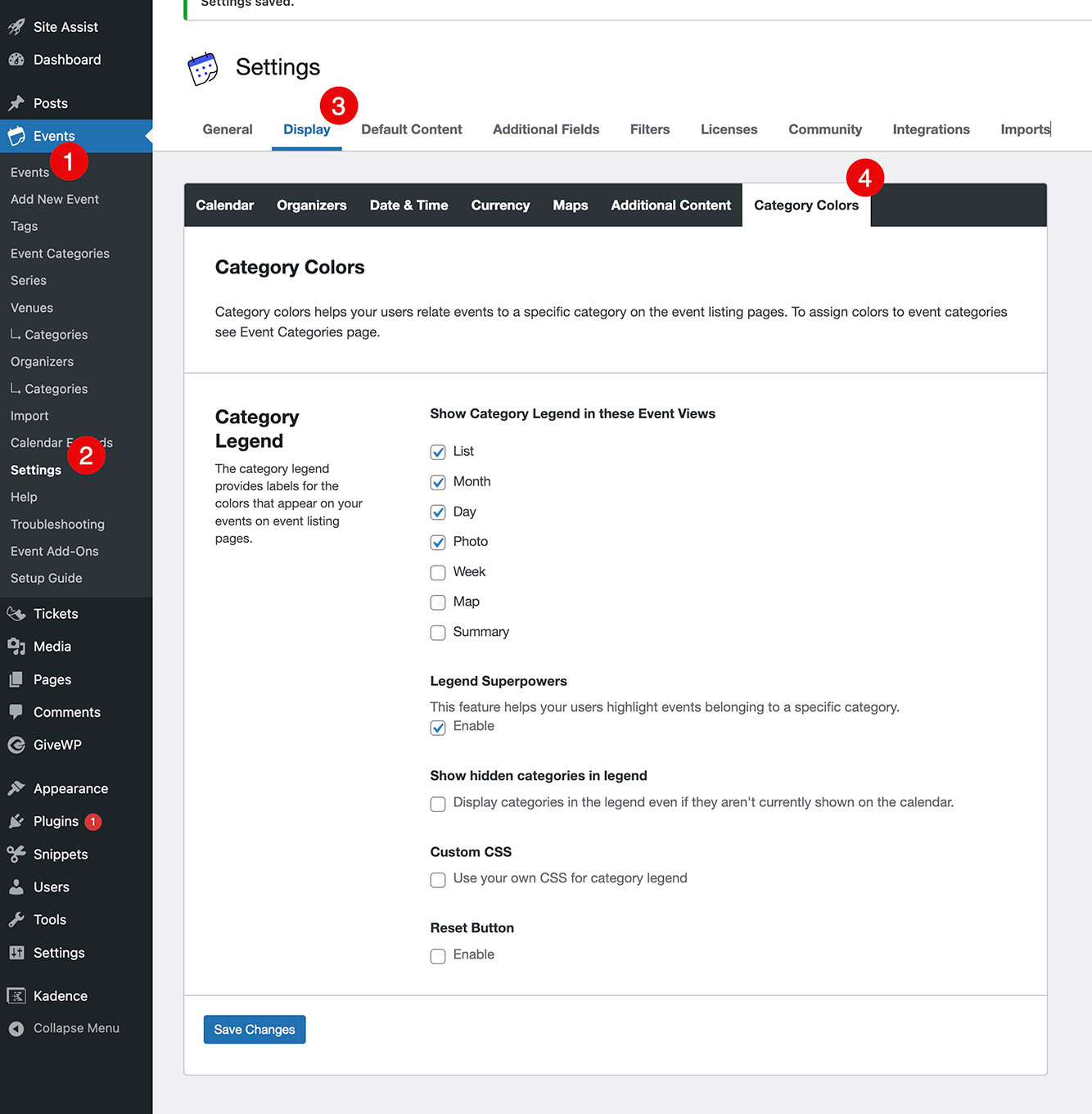
This screen is where you’re able to choose which calendar views category colors appear on, whether or not to add color indicators to the calendar legend, and configure a few other essential settings. But to actually assign colors to categories, you’ll need to go to Events > Event Categories.
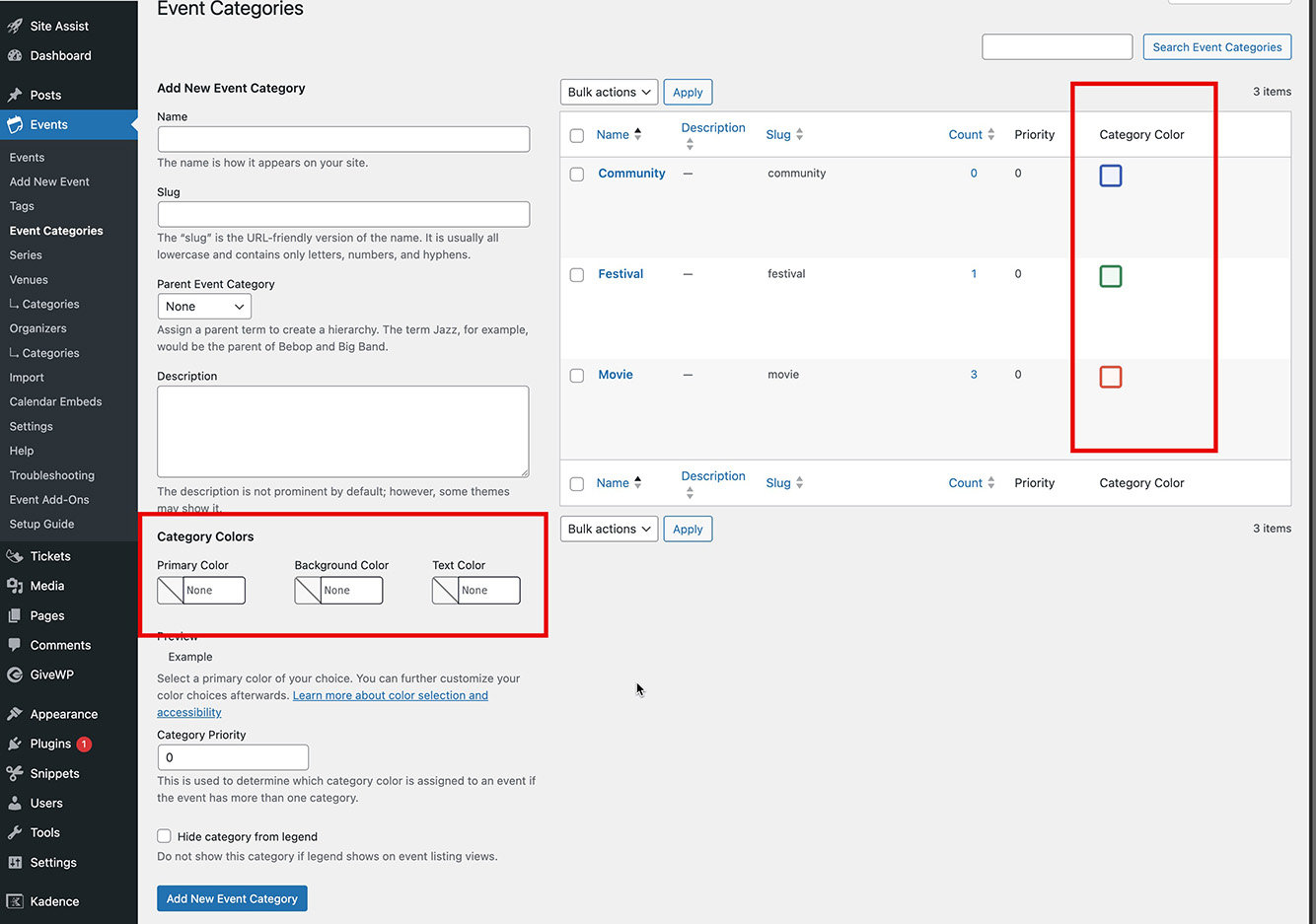
Here you’ll notice that you can assign colors as you create new categories and see the colors you’ve already chosen for existing categories.
If you want to assign colors to an existing category, there are color settings on each category’s edit screen.
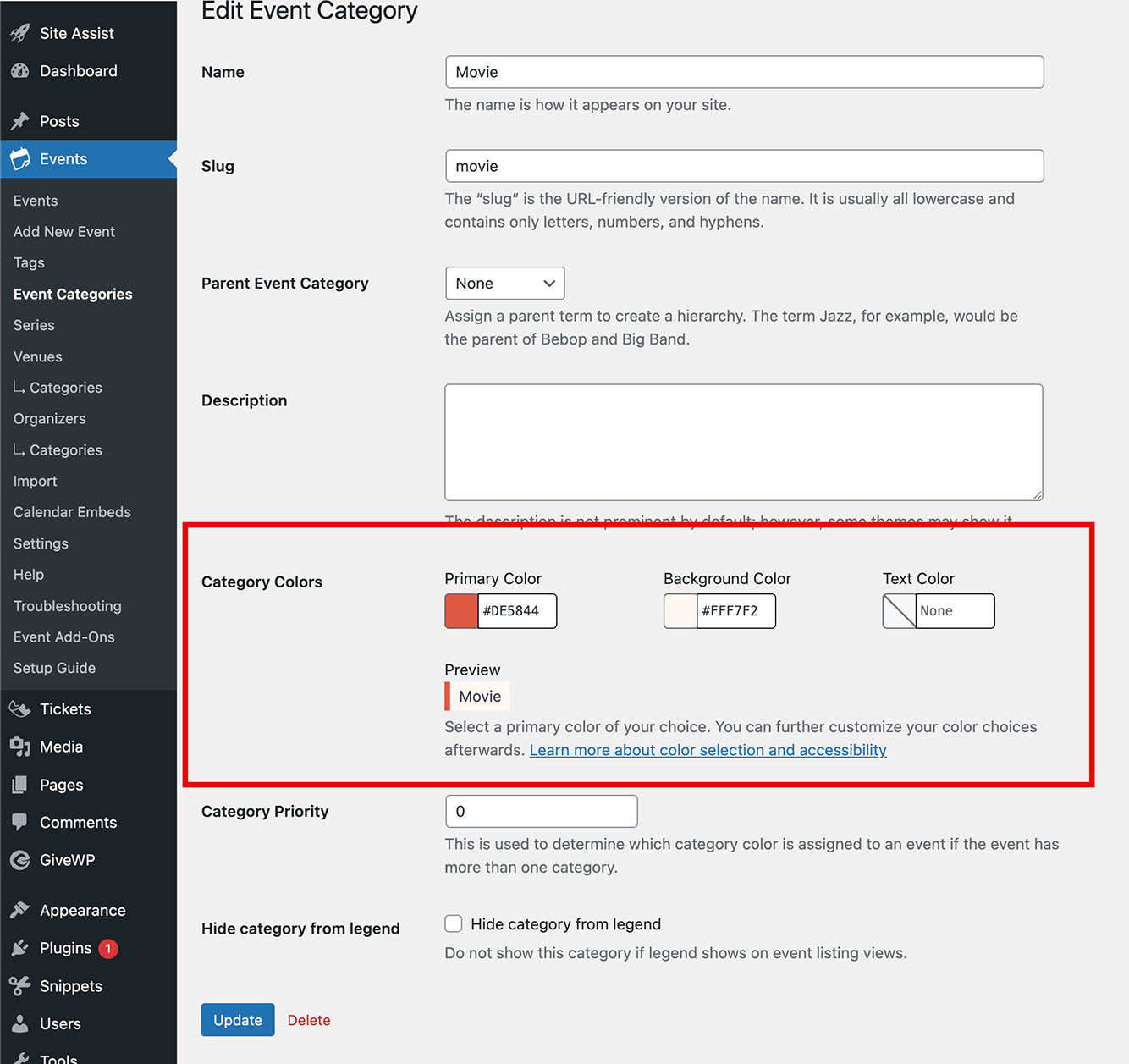
In most cases, I recommend choosing a darker color for the primary color (left border), a lighter color for your background, and simply keeping the text color default. Notice the little preview below the color pickers! As you experiment with color choices you can quickly see if they work or not.
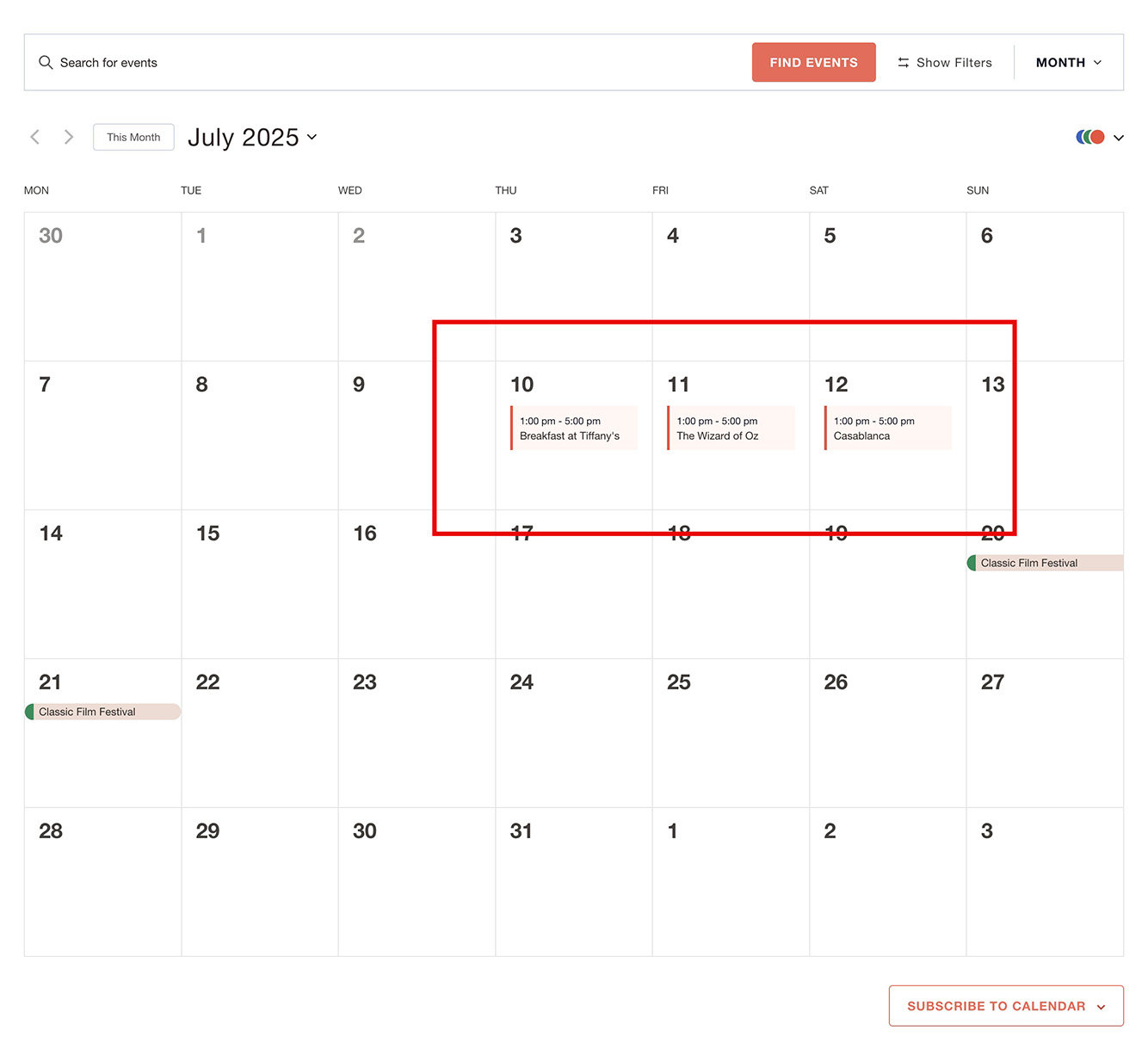
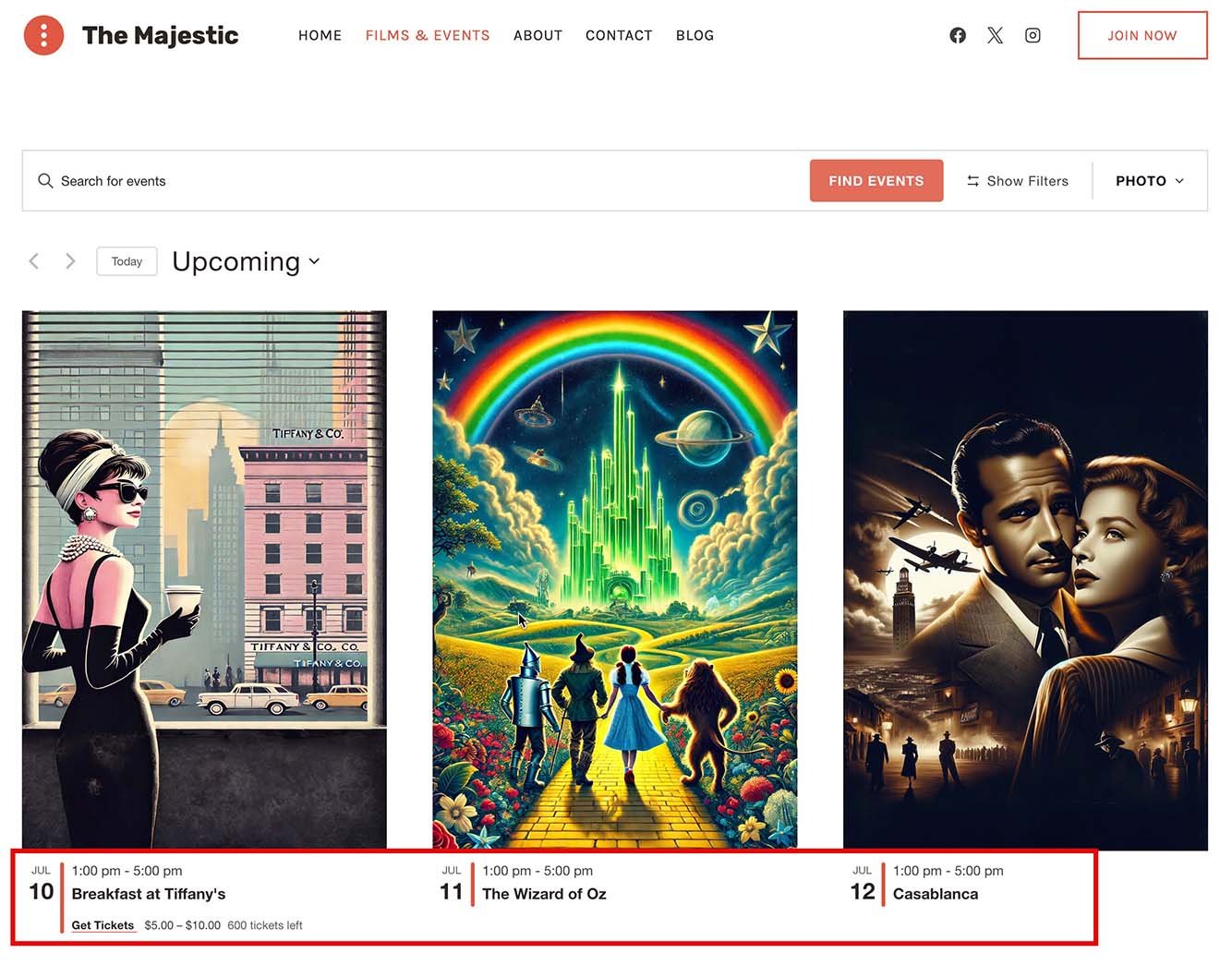
Here’s what my example looks like on the front end. I’m only showing a few views here, but the category colors feature works across all views–including the additional views in Events Calendar Pro.
Month view:
List view:
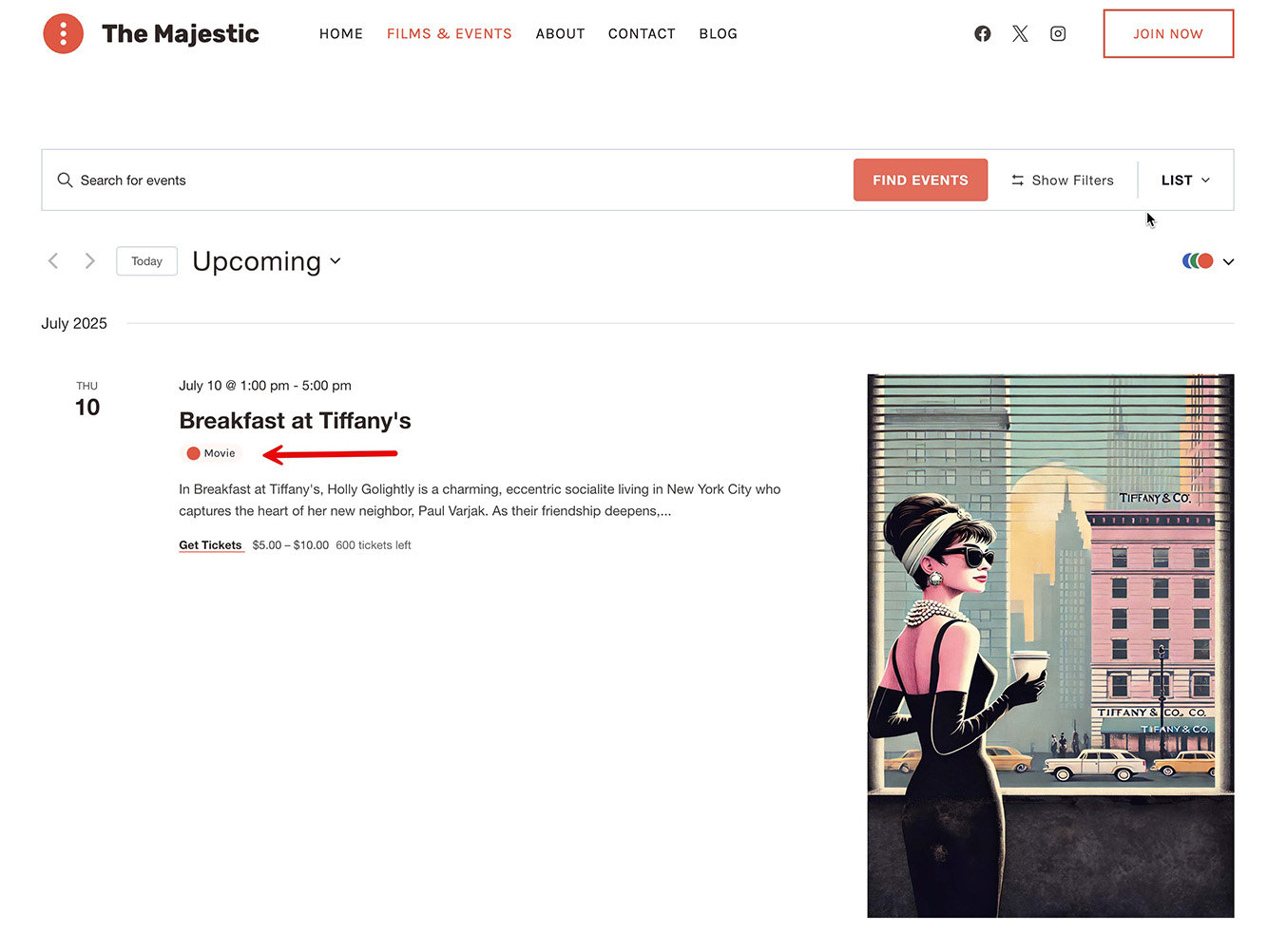
Photo view:
Add a Splash of Color to Your Calendar Today!
With The Event Calendar’s new and improved Category Colors, you can quickly and easily improve the discoverability of your events and the navigation of your calendar. Enjoy!
In Case You Missed It 🔍 👀
We’re always working to make our product suite better for you. Below are just three, recent examples, of new features we’ve released that bring new functionality to our products while making your life easier. To see all major feature and product releases, check out our full news feed. If you’d like to see all product updates, including maintenance and security releases, you can find that information in our release notes.
Ticket Presets Have Arrived! Save Time, Reduce Errors, & Improve Consistency with this New Event Tickets Plus Feature
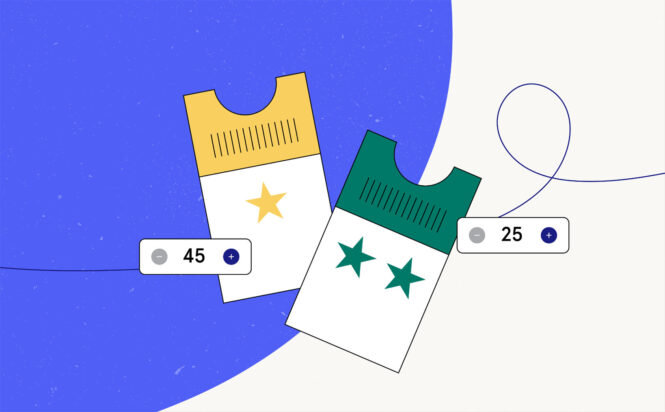
Ticket Presets make it easy to streamline your event setup by letting you save and reuse ticket configurations. Instead of building the same ticket types from scratch every time, you can create presets once and apply them to future events with just a few clicks, ensuring consistency and saving valuable time.
Announcing Our New Event Tickets Square Integration!

With our Event Tickets Square Integration, you can sync your online ticket sales with your Square point of sale system. Tickets sold online through our platform will automatically reflect in your Square system, and vice versa.
Event Tickets Update Delivers New Onboarding Wizard and Settings Design

With these updates, we aim to provide a more streamlined and intuitive experience for all users, whether setting up Event Tickets for the first time or managing their existing settings.

Nathan
View author page