
Event Tickets Update Delivers New Onboarding Wizard and Settings Design

Estimated reading time:
1 minute
We’ve got another exciting product update to share with you this week. On Monday, we released a new version of Event Tickets that provides new users with a seamless onboarding experience and existing users with a settings design refresh we think you’ll love.
Let’s take a look!
An Overview of Event Ticket’s New Onboarding Wizard
Upon activation of Event Tickets, new users are now met with the welcome screen below. You can take four actions here:
- Select your location: this is where you sell your tickets. It’s important that this information is accurate because it impacts which payment gateways you can use.
- Proceed to next screen: this will initiate the onboarding process. However, you may want to opt into sharing information about your plugin usage so we can use it to make improvements in the future (see 4).
- Skip guided setup: this allows you to skip the onboarding process altogether. You might find this process unnecessary if you’ve already set up Event Tickets many times.
- Opt in to data sharing: this checkbox permits us to collect data on plugin usage to improve it in the future. It’s a free and easy way to make your own and the rest of the community’s experience better.

Once you click the “Setup your tickets” button, the onboarding process begins. At this stage, you select your currency and connect to Stripe. PayPal is also available once you get to the settings area (after the onboarding process), and more payment gateway options are coming soon.

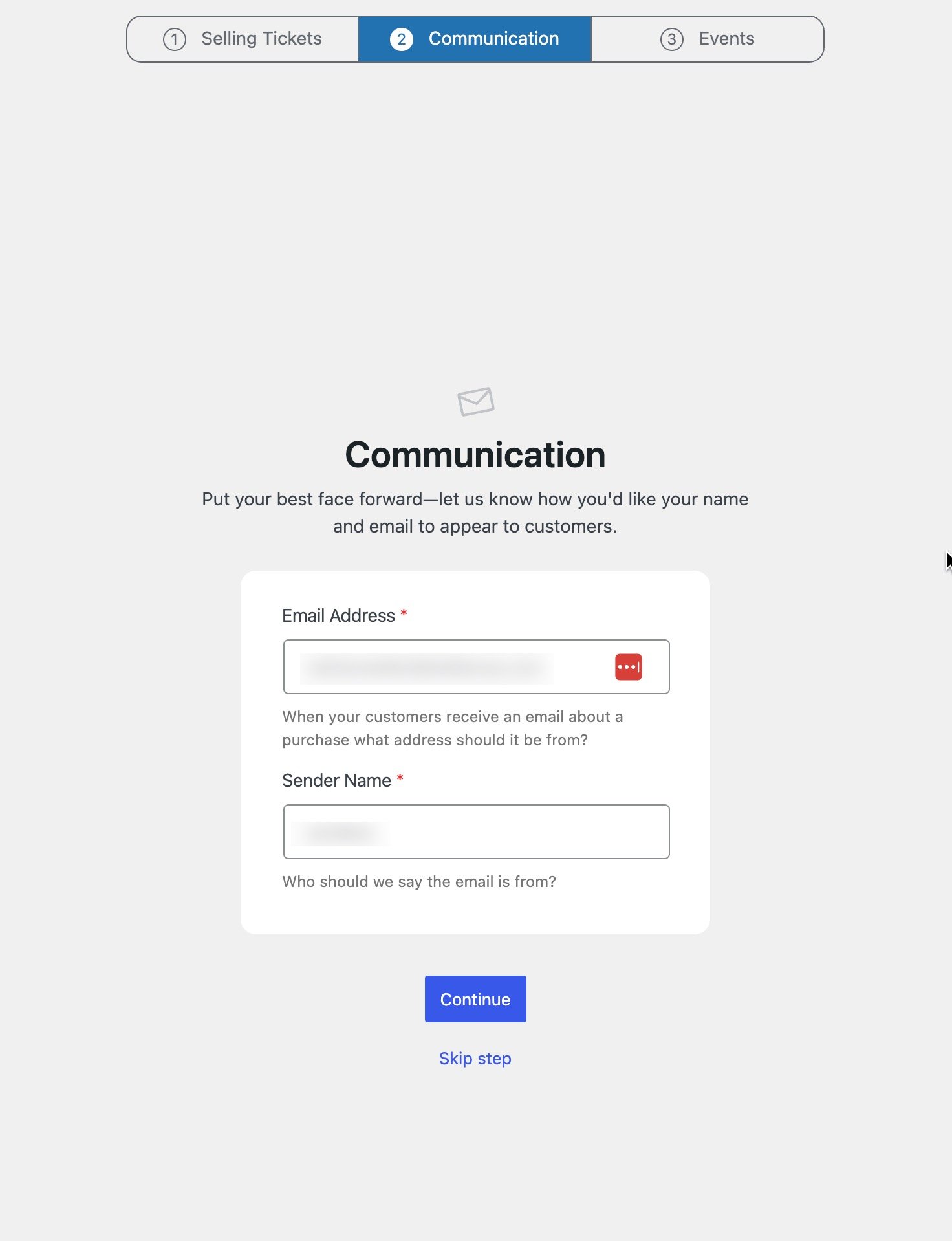
Next up is the Communication screen. This is where you set the email address and sender name for the emails your website sends to customers.
Finally, we have the Events screen. This screen will look different depending on whether you have already installed The Events Calendar. If you do not have it installed, you will be prompted to install it, which the wizard will do for you.

If The Events Calendar is installed, you will be prompted to go through its onboarding wizard or to finish configuring the Event Ticket settings in the WP Admin.

Which brings us to Event Tickets’ new settings design!
Event Tickets Settings Design Refresh
This is an update we’ve been excited about for a long time. The Events Calendar got its settings design glow-up back in September, and we’ve been eager to do the same for Event Tickets, too. Let’s take a look at the before and after.
The Old Look

The old design above was meant to align closely with the standard WordPress backend user interface, maintaining a consistent user experience from screen to screen in the WP Admin. Since then, however, both WordPress and users’ design expectations have changed a lot. We knew we needed to update our settings to provide a cleaner design and simpler, more accessible user experience.
The New Look

Our new design removes a lot of visual clutter and offers improved responsiveness. The most significant structural change was removing the help links and resources from the top of the main settings page and placing that content in a sidebar. This keeps those resources present regardless of your settings tab while simplifying the visual hierarchy on the general settings screen. It’s now also much easier for anyone using accessibility mode to navigate the WP Admin to tab through Event Tickets settings.
More Product Updates Coming Soon!
With these updates, we aim to provide a more streamlined and intuitive experience for all users, whether setting up Event Tickets for the first time or managing their existing settings. Stay tuned for even more enhancements and features in the upcoming releases as we continue to improve and refine our products.
In Case You Missed It 🔍 👀
We’re always working to make our product suite better for you. Below are just three, recent examples, of new features we’ve released that bring new functionality to our products while making your life easier. To see all major feature and product releases, check out our full news feed. If you’d like to see all product updates, including maintenance and security releases, you can find that information in our release notes.
QR Code Generations Now Built-in to The Events Calendar
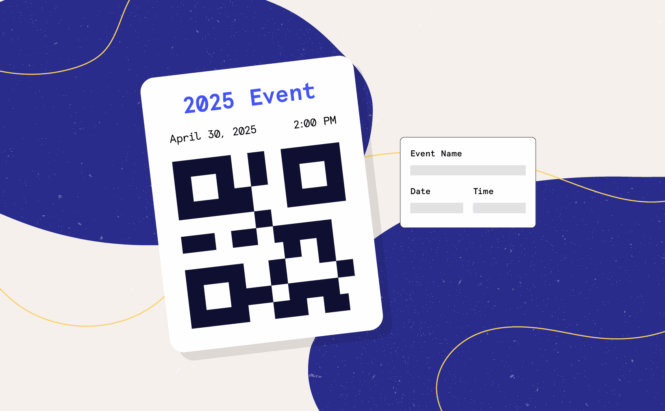
This feature automatically generates QR codes for every event you publish. These codes can be downloaded and used across digital and physical marketing materials (think posters, flyers, jumbotrons, and more.) No long URLs or confusion, just instant access.
Embed Your Events Calendar on Any External Website
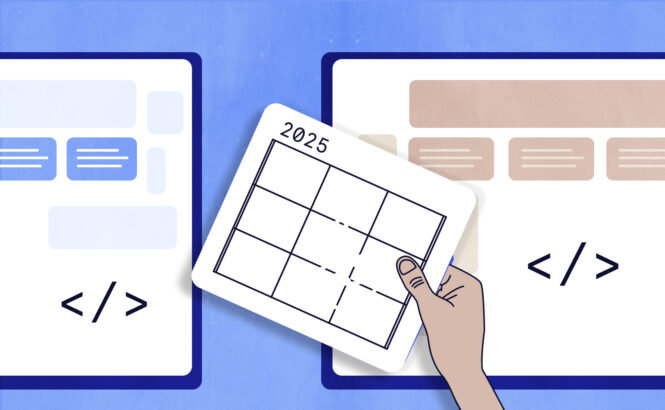
You can now easily share your full events calendar beyond your main site! With our new embed feature, you can place your calendar on any external website to boost visibility.
Offer Discounts and Increase Sales with Event Tickets Coupons
Give your attendees a little extra incentive to click “buy.” Our Event Tickets Coupons feature lets you create and manage discount codes directly within your dashboard. It’s a great way to drive ticket sales and reward your audience.

Nathan
View author page