

Forum Replies Created
-
AuthorPosts
-
Hunter
ModeratorHey, Libby!
I’m sorry to hear about the unfortunate series of events you’re now having to deal with! Luckily, there’s an easy way to get previous versions of Events Calendar PRO. Visit your Downloads page – right at the top you’ll see “Products”. Select the dropdown under “Version” and select the one you need. We’ve got as far back as 3.2 🙂
Let me know if you have any additional questions and good luck getting everything back up and running!
ModeratorHey Natalie 🙂
Would you mind opening a new thread in regards to the issue you’re experiencing? Having separate topics allows us to resolve problems much quicker and helps avoid confusion all around.
Thanks so much and I’ll keep an eye out in the new threads queue. Have a great remainder of your week!
ModeratorHey Justin,
My apologies for not recognizing you had shared your system information with me in the original thread creation. Are are you currently running versions 3.10.1 for both The Events Calendar and Events Calendar PRO?
Those versions are fairly old, so my first recommendation would be to update to the latest versions available. Let me know if the time cut-off issue still occurs after updating.
Thanks for being patient as we work to resolve this issue. Have a good week 🙂
ModeratorThanks for the response,
We don’t have any logged bugs in regards to the issues you’ve described and it sounds like a theme conflict based on the information you’ve provided, so unfortunately there is not much we can do in this situation.
Every site has a different environment, from hosting to themes and plugins. We test our plugins on the default WordPress theme and occasionally with other themes, but it would be impossible to test for compatibility with every theme. With that said, if the speed and permalink issues were caused by a newly released version on our end, we would most definitely be concerned and work quickly to resolve the known issues.
You may want to try and contact your theme author or look at the theme’s most recent changelog. There may be some information in there that points you in the right direction.
I really wish there was more I could do and I hope this clears up any misunderstandings. Please let me know if you have any more questions or concerns. Thank you for choosing PRO 🙂
January 19, 2016 at 12:22 pm in reply to: Removing extraneous "day" "number" from event list #1058815ModeratorHey Kathleen,
Welcome back 🙂
To remove, or “hide” the “day” “number” in the Events list widget, try inserting the following code into your theme’s style.css file:
.tribe-mini-calendar-event .list-date {

display: none;

}
The CSS class associated with the Events widget title can also be altered by inputting the following code into your theme’s style.css file:
.panel-grid-cell .widget-title {

font-size: 40px;

font-family insert_font_name_here;

}
Let me know how it goes 🙂
I would like to point out that theme customizations extend beyond the reach of support we are able to typically provide on the support forums, but a helpful hint to identifying CSS classes is to right-click on your mouse and open up “Inspect” or “Inspect Element” – you can enter desired style changes right in your browser and see immediate results. You can then use that information when applying styles in your theme’s style sheet.
Thanks for being an amazing customer and have a wonderful week!
ModeratorWelcome back,
Themes can most definitely have an impact in regards to speed and permalinks. Unfortunately, theme support extends beyond the scope we are able to provide through our forums.
I would recommend contacting the theme author about the issues you are experiencing – I wish I could be more help. Thanks for choosing PRO and good luck with getting your site running properly.
Have a good week 🙂
ModeratorHey liamrabbitt,
Thanks for letting us know you’ve addressed the issues! If you’ve got any more questions, please feel free to open a new thread. I’ll go ahead and close this one out 🙂
Have an excellent week!
ModeratorWelcome to the forums, Jameson!
You can hide the button via CSS by inserting the code into your theme’s styles.css file:
.single-tribe_events .booking-button {

display: none;

}
Let me know if this does the trick!
January 19, 2016 at 11:33 am in reply to: Community Events add page not formatting correctly #1058785ModeratorChris,
Thanks for letting me know you’ve got it all addressed! Feel free to open a new thread should you have any more questions – I’ll go ahead and close this one out. Have a great week 🙂
ModeratorWelcome back, Allyson!
To display the entire image rather than a cropped image, you will need to create a template override; information on how to create custom templates can be found here. Our plugin uses the WordPress media_handle_upload function. Image sizes are usually defined in your theme’s functions.php file. Your best bet would be to contact the theme author for that information.
The line of code you’ll need to alter is around line 58 in single-event.php (located in plugins/the-events-calendar/src/views):
<?php echo tribe_event_featured_image( $event_id, 'full', false ); ?>And since we use the community plugin, can I assume that event photos are automatically reduced before saving so our system doesn’t have to host enormous image files?
Photos uploaded via the Community Events submission form are not compressed any further than the default WordPress compression.
That makes me also wonder what happens to these images? Where are they stored? And are they removed when the event is older than 6 months (as an example)?
Images are stored in your wp-content/uploads folder. Additionally, they are not removed when recurring events clean up takes place. However, our plugin does use wp_delete_post, so technically you could use something like this to ensure attachments are deleted along with recurring events.
Thanks for choosing PRO and have a great week 🙂
ModeratorHello, Ramon 🙂
It appears you are still using WooCommerce Tickets – which has been replaced with Event Tickets and Event Tickets Plus. We have written a helpful tutorial on how to transition from WooCommerce Tickets to Event Tickets and Event Tickets Plus.
Once you’ve made the conversion, you should be able to delete the WooCommerce Tickets plugin from your site. Let me know if you have any more questions and please keep me posted on the status of your issue.
Have a great week!
ModeratorHey Antonio 🙂
Thank you for the compliments! From what I’ve gathered, it sounds like you want to display a page containing only tickets, correct?
One way I can think of going about accomplishing this is by creating a specific category or tag – possibly called “Tickets”. You could then add a menu item linking to the WooCommerce taxonomy page in your Appearance > Menus.
Another quick solution would be to use WooCommerce shortcodes.
Again, I hope I understood your original question clearly. If not, please feel free to provide more information and I’d be glad to continue troubleshooting.
Thanks for choosing PRO and have an excellent week!
ModeratorWelcome back to the forums, Adam 🙂
Sorry to hear you’re having troubles displaying the Google Maps. Have you tried adjusting the Basic Template Settings found under Events > Settings > Display?
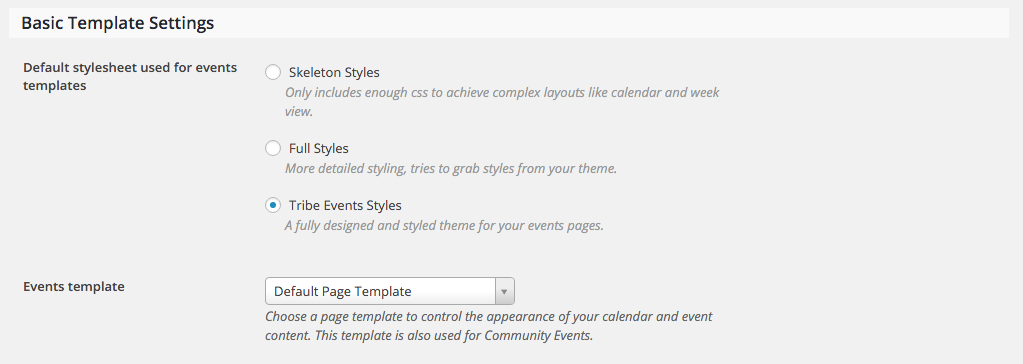
It seems as if you have a template override issue, but it’s hard for me to tell without having more information. I recommend reading through our Themer’s Guide and also Testing for conflicts. I’m confident your answer lies in either one (or both) of these Knowledgebase articles.
Let me know if either helps address the Google Maps issue 🙂
ModeratorHey Michael,
Welcome back to the forums 🙂
Weird, indeed! Would you mind updating to The Events Calendar version 4.0.5 (released today) and let me know if the problem still occurs? I just tried replicating the issue on versions 4.0.3, 4.0.4, and 4.0.5 but was unable to reproduce the errors described. More information on the latest version can be found here.
Next, I would recommend running through our Testing for conflicts article. Keep me posted with any new information and have a great weekend!
ModeratorHey Marina,
Welcome back! I’d start by visiting Events > Settings > Display. Try adjusting the settings provided and see if you’re able to accomplish your desired date/time format.
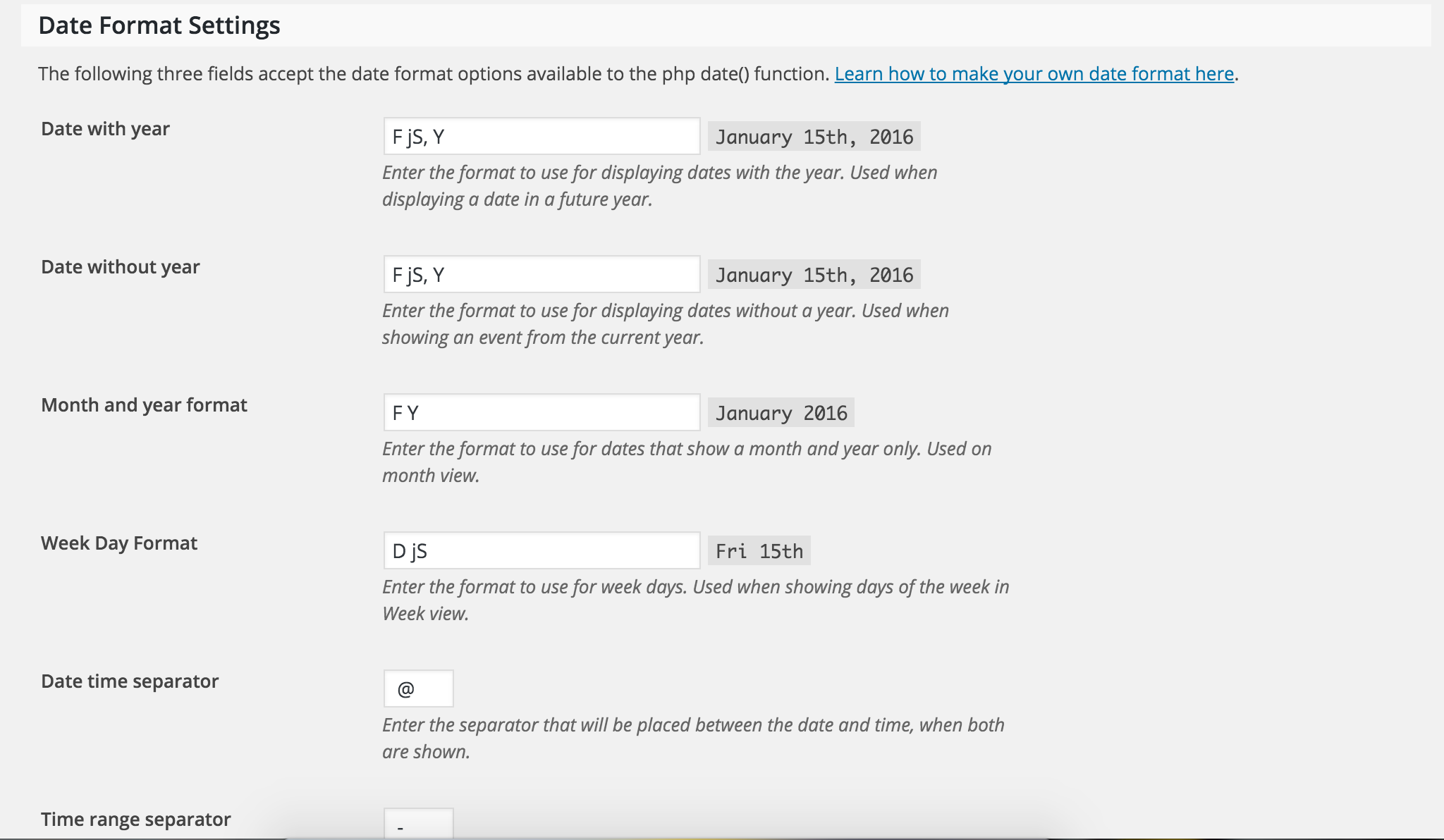
If that doesn’t work, read through this Knowledgebase article – Setting the time format. Let me know if this does the trick. If not, we’ll continue troubleshooting.
Have a good weekend!
-
AuthorPosts