

Forum Replies Created
-
AuthorPosts
-
Geoff
MemberHey Ross,
Thanks for getting in touch!
We do offer discounts when multiple plugins are purchased together. We call those Bundles and you can see all of the available bundles listed here:
https://theeventscalendar.com/bundles/
I’m afraid that we do not have a specific bundle for Events Calendar PRO and Event Ticket, so I think that purchasing each one individually is the best bet.
That said…while I do not know the specifics of it, I have heard a rumor that we’ll be offering a Black Friday deal this year and that it should be coming soon — well, it would have to be here by Friday.
Not sure if you are in a rush to purchase the plugins, or if you would prefer to wait to see what sort of deal is being offered, but wanted to throw that out there. 🙂
Cheers!
GeoffMemberHi James,
Good question!
I’m afraid that any field added to the Event Tickets Plus registration form will be asked for each individual ticket.
Another idea might be to incorporate those fields in the cart or checkout screen instead. It looks like you’re using WooCommerce as the e-commerce plugin and this tutorial on the WooCommerce support site gives a nice overview of how to do that. It looks like this premium extension offered by WooCommerce will help accomplish a similar thing.
Does this help answer your question? Please let me know. 🙂
Cheers!
GeoffNovember 22, 2016 at 9:43 am in reply to: Changing Font Color of Tickets Module on Event Detail Page #1195985MemberHi Kenneth,
Welcome to the forums!
You can try adding something like this to your theme’s style.css file or by using the Simple Custom CSS plugin to change the font color:
.fusion-widget-area h2 {
color: #fff !important; /* or whatever color you would like! */
}
Here is a screenshot of how that looks when I tested it on your site.
Cheers!
GeoffNovember 22, 2016 at 9:33 am in reply to: Required Event Organizer and Venue Filter examples do not seem to work. #1195975MemberHello @Sunanna,
Oh man, so sorry for the trouble here! Looks like the snippets are a little off in the examples — at least, when I gave them a look.
Where they are using this:
tribe_events_community_required_venue_fields…you can use this instead:
tribe_events_community_required_fieldsSo, for example, the require venue fields ought to work using this as an example instead:
add_filter( 'tribe_events_community_required_fields', 'my_venue_community_required_fields', 10, 1 );

function my_venue_community_required_fields( $fields ) {

if ( ! is_array( $fields ) ) {
return $fields;
}

$fields[] = 'Phone';
$fields[] = 'URL';

return $fields;
}
I am going to update that post now, so I appreciate the heads up!
Cheers,
GeoffNovember 22, 2016 at 9:19 am in reply to: The Events Calendar Category Colors is not showing #1195962MemberHi Armando,
So sorry to hear about the trouble with Category Colors!
Would you be willing to open a support thread in the Category Colors forum?
That plugin is actually by another plugin author and is not supported by us — though we do love it and have worked with the developer before. 🙂 And, of course, I’d be happy to keep this thread open in case ant questions come up in the process that I can help answer.
Sorry I don’t have an answer for you right off the bat, but I’m hoping the plugin developer will be able to tackle it.
Thanks so much!
GeoffMemberHi @dogsmn,
Good question! The venue image is not shown on the event post by default, but I think it would be possible to accomplish with some custom development.
First off, you can use a template override so you can adjust the layout of the post. It looks like your layout might already be using a template override because it’s quite different from the layout that ships right out of the box, but here’s how template overrides work:
- Make a copy of the template file: /wp-content/plugins/events-calendar-pro/src/views/modules/meta/venue.php — at least, this appears to be the template you are looking for
- Make a new folder in your theme called tribe-events
- Make a new folder in that one called pro
- Make a new folder in that one called modules
- Make a new folder in that one called meta
- Add your copied <i>venue.php</i> file to that last folder
Now that the template is in your theme, it can be modified to suit your needs. In this case, while I do not have the exact coding you’ll need here, it will likely be something like this:
<?php echo tribe_event_featured_image( tribe_get_venue_id() ); ?>Add that (or some variation of it) to where you’d like the image to be displayed.
Cheers!
GeoffMemberHi Rory,
Thanks for writing in!
I’m afraid that The Events Calendar does not support post hierarchies right out of the box. In other words, one event cannot be made the “parent” of another event and so on.
What you can do is create parent and child pages/posts in WordPress and then use the shortcode functionality included in <u>Events Calendar PRO</u> to embed events on pages/posts that support hierarchy. Not sure if that’s exactly what you’re looking for, but is just an idea.
Cheers!
GeoffMemberHi Chris,
Welcome back and nice to see you again!
In reading through your feedback, it certainly does sound like you have bumped into some theme and plugin conflicts while using both Community Events and Tickets.
I do have good news in that we are in the process of updating the design interface for Community Events and hope to have that in one of our upcoming major feature releases — it won’t be in the very next one (4.4) but it is on our roadmap. And, when it does release, it will use a lot more unique IDs and classes that sound like would benefit you as far as running into the styling and jQuery conflicts you mentioned.
As far as the other items you mention, these sound like legitimate feature requests and we’d be happy to consider them. For example, adding a WooCommerce category to a ticket is possible after the ticket has been created, but it would be a feature enhancement to make that happen in the ticket creation process. It’s a good idea, and it (along with the others) would be awesome to see added to our feature request forum.
Some of the other things you mention sound like possible bugs:
- Tickets area breaks in a thousand ways
- orders don’t automatically complete (big problem) and script given doesn’t work consistently.
- ‘List’ of events link disappears when you’re adding an item.
…but it’s honestly hard to (1) troubleshoot them without additional details and (2) to troubleshoot them all together in the same thread. Would you be willing to open separate threads for each issue? That will allow us to focus on each issue separately and get multiple folks on the team here to look at them.
And, when you do open the threads, it would be awesome if you could re-confirm whether the issue(s) persist in the default WordPress Twenty Sixteen theme. I realize you mentioned having tested it in your first reply, but doing so again in each thread will help isolate whether each issue is related to a specific theme conflict or something in the core plugin files.
For what it’s worth, I know that dealing with theme conflicts are frustrating and I deal with them myself in the projects I work on as well. I do want to respectfully remind you at the same time that conflicts are often a two-way street and, while we are unable to guarantee compatibility with each and every third-party theme and plugin, we do make sure that our plugins work with default WordPress components because those are the closest examples available for a baseline of how something should work right out of the box. That doesn’t mean we will not attempt to build compatibility for other third-party components, but even then, that often require changes by both us and the third party component.
Let me know if you’re willing to open those threads for us and I’ll be sure to flag them for the team right away.
Thanks,
GeoffMemberHi Kerry,
No, that is actually not needed. I checked my settings (screenshot) and confirmed that it is not there and that emails send successfully.
I still think the best route for testing at the moment is to try making a purchase on the site to see whether you get both the order confirmation and the ticket emails together.
Thanks!
GeoffMemberHi Christopher,
Thanks for following up!
Yes, Event Aggregator is a service and purchasing a license will grant you one year of access to using it, plus access to the support forums here on this site. Once the year has past, you may choose to renew the license or let it expire — we do send an email reminder a few weeks ahead of expiration date.
Cheers!
GeoffNovember 22, 2016 at 7:47 am in reply to: Important question about Subdomains, login, and city seperation #1195794MemberHi Ronald,
Thanks for following up!
I’m sorry to say that none of our supported shortcodes currently offer the ability to filter events when embedding them.
Thanks a ton for the links. If you have a link to the thread in out feature request forum that best fits what you’re looking for, I’d be happy look into it more and see whether any other details would be helpful in that thread.
Thanks!
GeoffMemberAwesome, I am so happy to hear all is working well! Thanks a ton for following up to let me know. 🙂
Cheers right back at you and here’s to an awesome holiday week!
Geoff
MemberHi Mike,
Thanks for following up!
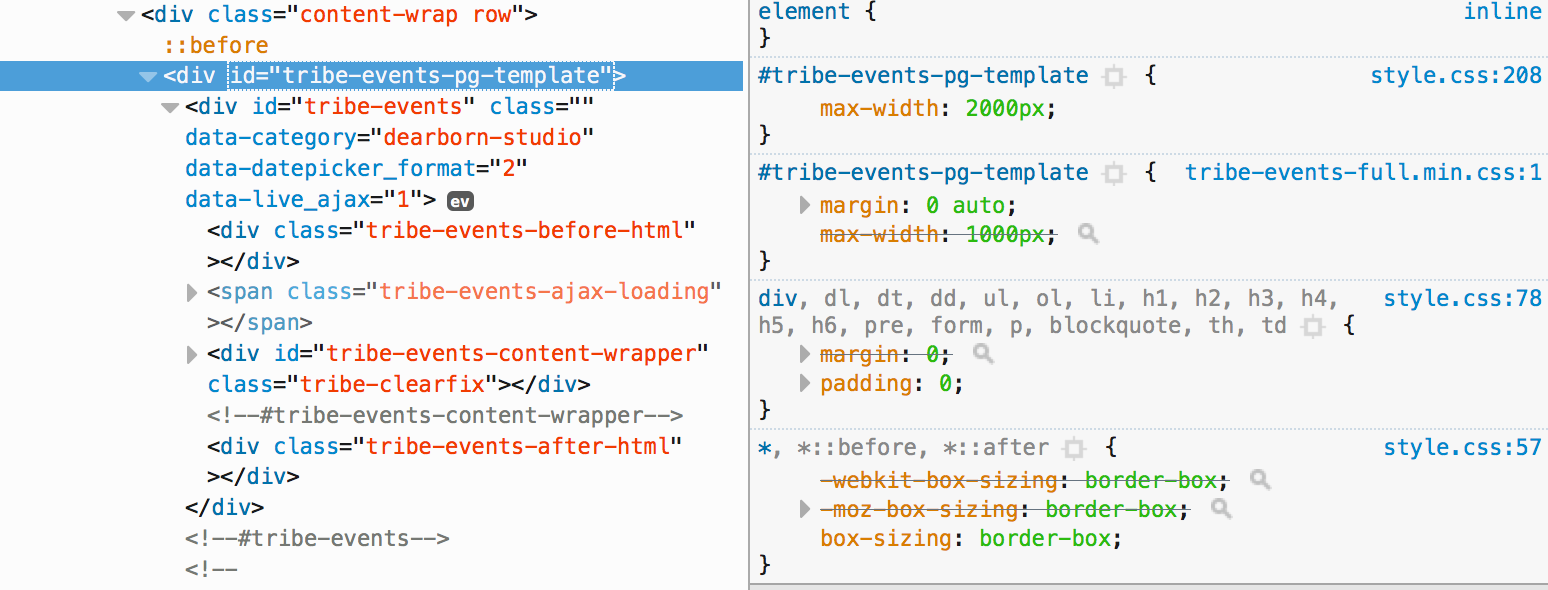
You know, I am not sure why Chrome is not reading that change.
I see that DevTools picks it up:
…but Chrome’s does not:
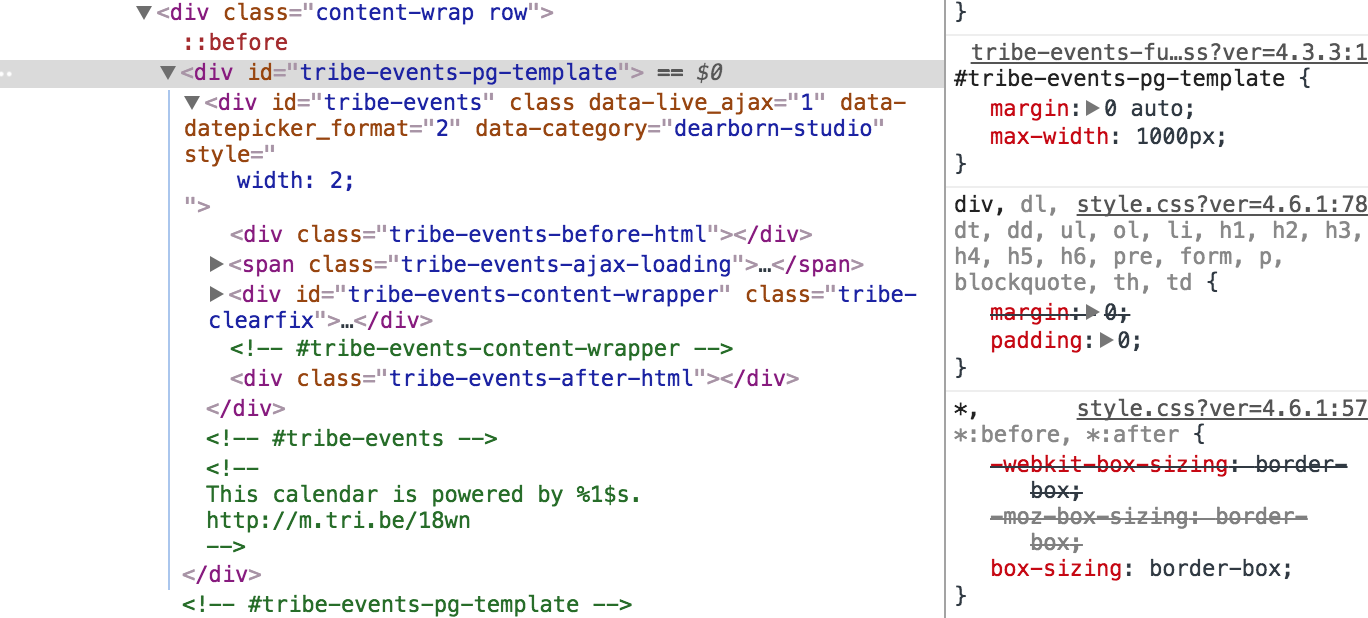
It’s not so much that the snippet doesn’t work, but likely more that there is something with how CSS is served by your site that is preventing it from working the same on all browsers. One other method you might consider is using the Simple Custom CSS plugin to enter the snippet instead.
2. How do I add additional potential columns, so that when a user is viewing the calendars from a larger viewport, it will add columns to accommodate their screen size?
I’m afraid that the plugin does not support adding or removing columns from Photo View, even with template overrides. The layout depends on a Javascript framework called Isotope that does the calculations automatically. In other words, it’s possible you could make the adjustment, but it would require quite a bit of custom development touching core plugin files:
That said, the source files for Isotope can be found here if you’re interested in digging into them further:
/wp-content/plugins/events-calendar-pro/vendor/isotope/Sorry I don’t have a concrete solution or snippet to provide here, but I hope this at least helps get the ball rolling in the right direction!
Cheers,
GeoffMemberHi Kerry,
Thanks so much for following up!
Question? The order needs to be in the completed mode to send a ticket, correct?
Absolutely. The order must be marked “Complete” (either by you or automatically by WooCommerce) in order for the ticket email to be sent.
Just to confirm: your orders are marked “Complete” and the emails are still not going out, correct?
The other telling thing for me is this:
not sure if the tickets sending is generated by woocommerce or The new order notifications to admin are not being sent either.
Tickets are indeed generated by Event Tickets, but they are triggered and sent by WooCommerce. So, in other words, if WooCommerce is not sending its emails, then it will unlikely send the ticket emails either. That means we need to confirm whether customers are receiving the order receipt/confirmation emails in addition to tickets.
Would you be willing to test this out? One way would be for you to complete a purchase on your site, but it would also be super helpful to confirm with a customer that they received their WooCommerce order confirmation email even if they did not receive the ticket email.
Thanks!
GeoffMemberHey there!
I’ve been thinking of a good way to make this happen, but everything that comes to mind requires quite a bit of custom development.
You mentioned the idea of displaying the attendees on the event post itself so organizers can see who attended an event. Event Tickets Plus actually has that feature available right out of the box. While it does not provide the names/usernames of the attendees, it does display the Gravatar of each registered attendee for the event. Here’s a screenshot of what that looks like on the event post.
You’ll notice it does not include the attendee’s name. However, you should be able to get that by editing the attendees-list.php template. You can do that by:
- Creating a new folder in your theme called tribe-events
- Make a copy of the following file: /wp-content/plugins/event-tickets/plus/src/views/attendees-list.php
- Move the copied file to the tribe-events folder
Now that the template is in your theme, it can modified to suit your needs. In this case, you can replace the code in the file with the code in this example and it should add the name of the attendee below their Gravatar (screenshot).
Will this work for you? Please let me know. 🙂
Cheers!
Geoff -
AuthorPosts