

Forum Replies Created
-
AuthorPosts
-
Geoff
MemberHi Laith,
Thanks for following up!
I see you already have other threads open for the second and third questions you mentioned.; That’s great because it allows us to keep the conversation focussed on a single topic at a time.
So, going back to your first question:
1) The same issue with the title.
This should work:
.fusion-events-single-title-content {
background-color: blue !important; /* or the color of your choice */
}
As you can see from the name of that class, it is coming straight from Theme Fusion’s stylesheet in the Avada theme. I would highly suggest reaching to them if the code I provided does not work, or if you have additional questions about the styling of the calendar — they will be much more knowledgeable about the code they wrote.
Thanks so much!
GeoffMemberAwesome, glad that helps and I appreciate you following up to let me know!
I’ll go ahead and close this thread but let us know if any other questions come up and we’d be happy to help. 🙂
Cheers!
GeoffMemberHi Laith,
Great question!
I mentioned this in another one of your earlier threads, but Avada has customized many of our plugin’s templates and, in many cases, the Theme Fusion support team will be better suited to help guide with their code.
That said, their custom sidebar layout is definitely beautiful. What they’ve done is create their own sidebar template, which is located here:
wp-content/themes/Avada/templates/sidebar-1.php…which includes this file from our plugin:
wp-content/plugins/the-events-calendar/src/views/modules/meta.phpTo change the order of those details in the sidebar, you will need to make a copy of the meta.php file, then:
- Navigate to the following folder in the theme: wp-content/themes/Avada/tribe-events/
- Make a new folder in there called modules
- Move your copied meta.php file into that folder
Now that the file is in your theme, you can modify it to suit your needs. In this case, move the code for Details, Venue and Organizer in the order you would prefer.
That should do the trick, but it’s possible that there’s a customization in the theme that will get in the way. If that is the case, then I wold suggest reaching out to Theme Fusion support for additional guidance.
Thanks!
GeoffMemberHi Michelle,
Great question!
You can automatically import events using our Event Aggregator service. That would allow you to enter a link to a calendar feed that automatically imports events on a recurring schedule.
For example, here is a site that provides links and files for national holidays that you could use with Event Aggregator:
http://www.calendarlabs.com/ical-calendar-holidays.php
It’s worth noting a couple of things about Event Aggregator:
- Event Aggregator will import those as events like any other event. In other words, they wold be clickable events rather than the notations you mentioned
- Event Aggregator is already included in The Events Calendar. You simply purchase a license for it, enter the license in the Events > Settings > Licenses screen and is instantly activated — there’s nothing to install.
Does this help answer your question? Please let me know. 🙂
Cheers!
GeoffMemberHi Paul,
Thanks for getting in touch!
You can absolutely use the same license for a development and live site. There are some restrictions on how that works, but here’s more information on how that works:
https://theeventscalendar.com/knowledgebase/using-one-license-live-dev-sites/
It’s also worth noting that it is not necessary to enter the license in order for the plugin to work. The license only activates automatic updates and provides you with access to support. Otherwise, the plugin will be fully functional.
Does this help answer your question? Please let me know. 🙂
Cheers!
GeoffMemberHey there, @first4websites
Thanks for getting in touch! I’m more than happy to help you with this.
I went ahead and removed your inactive licenses so that the only ones listed should be active and in use.
Please let me know if that’s not the case and I’d be happy to check it out more. 🙂
Cheers!
GeoffMarch 9, 2017 at 7:38 am in reply to: Change the event time options to include quarter hours #1251742MemberHey Hoey,
Great question! You can actually type the time directly into the field rather than selecting one of the pre-populated options:
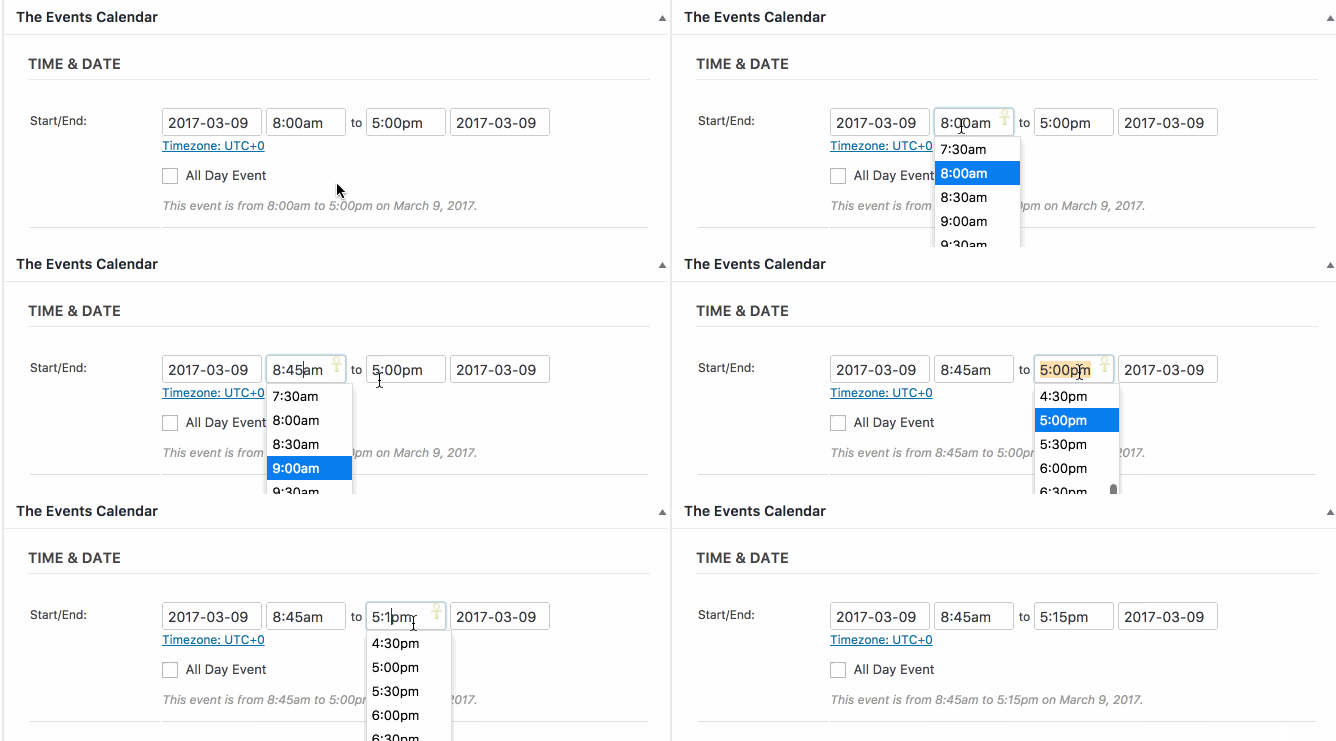
Does this help answer your question? Please let me know. 🙂
Cheers!
GeoffMemberHi Stephanie,
Thanks for getting in touch and for the kind words about The Events Calendar! I’m so glad to hear you’ve been enjoying it and I really appreciate you supporting it by using it for your project. 🙂
Yes, I am afraid you are correct about the lack of support for tickets in our recurring events feature. You would be able to create a ticket for a series, but that ticket would appear on all events in the series and would not count toward the correct event on which it was purchased.
We are indeed working on building support for tickets in recurring events. What we’ve realized in the process is that it requires a complete overhaul of the recurring events feature which, as you know, is a key feature of Events Calendar PRO. As such, we’re treading carefully and making sure we get this right. It’s going to take some time, but we are absolutely working on it.
Sorry for the bad news, but does this at least help answer your question? Please let me know.
Thanks,
GeoffMemberRight on! I’m so glad to hear everything is working smoothly and I appreciate you following up to let us know. Definitely keep us posted if any other questions come up and we’d be happy to help.
As a heads up, this pre-sales forum is used to answer questions about purchasing our premium plugins. If you’re looking for technical support, it would be awesome if you could post your questions to our WordPress.org support forum. Or, if you already have an active license for one of premium plugins, log into your account and post your topic to our premium support forum.
Cheers!
GeoffMemberHi Laith,
Thanks for getting in touch!
Ah yes, I see what you mean. It’s worth noting that Avada has customized the default styling and templates that are included with our plugins. As such, the specific styling you are referring to here come directly from the theme.
I’d be happy to help you as best I can. That said, I do think it might be better to reach out to Theme Fusion support, as they will have a much better understanding of the customizations that have been made than we do.
In any case, here is how I would approach changing the green background of the Event Title and the Month Title. Try navigating to the Appearance > Customize > Additional CSS screen in WordPress and adding this:
.tribe-events-list-separator-month,
.fusion-tribe-primary-info .tribe-events-list-event-title a,
.fusion-tribe-events-headline {
background-color: blue !important; /* or whatever color you would like */
}
Here is a screenshot of how that looks when I tested it on your site. I really hope this works for you as well but, like I said, it might be best to reach out to the Theme Fusion team since they will have a better idea of the customizations that have been made to the styles.
Thanks so much!
GeoffMemberHi Kindra,
Thanks for following up!
Looks like that snippet is based on a slightly outdated version and was only set to work in Photo View. Give this a try instead:
add_action( 'pre_get_posts', 'exclude_events_category' );
function exclude_events_category( $query ) {
if ( $query->query_vars['post_type'] == Tribe__Events__Main::POSTTYPE && $query->query_vars['eventDisplay'] == 'photo' || $query->query_vars['eventDisplay'] == 'list' || $query->query_vars['eventDisplay'] == 'month' || $query->query_vars['eventDisplay'] == 'week' || $query->query_vars['eventDisplay'] == 'day' || $query->query_vars['eventDisplay'] == 'past' && !is_tax(Tribe__Events__Main::TAXONOMY) && empty( $query->query_vars['suppress_filters'] ) ) {
$query->set( 'tax_query', array(
array(
'taxonomy' => Tribe__Events__Main::TAXONOMY,
'field' => 'slug',
'terms' => array('spa'),
'operator' => 'NOT IN'
)
)
);
}
return $query;
}
This one looks for events in the Spa category and attempts to hide those events in all views. It seemed to work when I gave it a quick test, but I did not test it extensively. I hope it does the trick for you, or at least helps give you something new to work with and modify further.
Cheers!
GeoffMemberHi Matt,
I’m happy to look into this with you!
I checked your account and see that there were two orders made on Dec. 31, 2016:
- Order #1212093 (Completed)
- Order #1212094 (Cancelled)
I see that the canceled order (#1212094) was an attempt to pay suing PayPal and, when searching our transaction records, I did not see a completed charge for it. In other words, it does not appear you were charged twice, but only for the successful order (#1212093).
Does this help answer your question? Please let me know.
Cheers!
GeoffMemberHi Josh,
Great question! We are not currently planning a feature where a variable to hide the calendar would be available in all shortcodes.
Sorry for the bad news, but does this help answer your question? Please let me know.
Thanks,
GeoffMemberHi Patrick,
Thanks for getting in touch!
Community Events allows you to accept anonymous event submissions or choose to only accept submissions from registered members. Registered members are those who are registered users in WordPress and Community Events allows you to decide which level of user role can submit events.
Does this help answer your question? Please let me know. 🙂
Cheers!
GeoffMemberYou bet, Mark! Our system does automatically close threads after 3 weeks of inactivity, but I am happy to leave this thread open in the meantime. If you think you will be cutting it close, feel free to post a quick check in as a reply and that will reset the time. 🙂
Cheers,
Geoff -
AuthorPosts