
Ticket Presets Have Arrived! Save Time, Reduce Errors, & Improve Consistency with this New Event Tickets Plus Feature
Estimated reading time:
1 minute
One of the things we pride ourselves on is how easy we’ve made it to create tickets for events, but sometimes even a simple task repeated too frequently can become a burden. Many users have reported frustration at having to create the same ticket types over and over again for each event. They want to be able to save a “ticket template” as a starting point and only edit the information that needs to change. And we listened! That’s why we’ve added ticket presets to Event Tickets Plus.
What are Ticket Presets?
Ticket Presets make it easy to streamline your event setup by letting you save and reuse ticket configurations. Instead of building the same ticket types from scratch every time, you can create presets once and apply them to future events with just a few clicks, ensuring consistency and saving valuable time.
Key benefits:
- Efficiency—create a ticket once and reuse it infinitely with no extra time or effort.
- Consistency—mistakes can happen when doing the same thing over and over by hand. Remove inconsistencies by eliminating tedious manual labor.
- Collaboration – standardized ticket presets help your team stay in sync.
Who is Ticket Presets For?
There are a lot of Event Tickets Plus users who are going to love our new presets feature. Here are some users we kept in mind while creating it:
- Museum Coordinators – Apply standard ticket types (Adult, Child, Senior, Member) across rotating exhibits, with the flexibility to adjust capacity and pricing.
- Events Venue Managers – Reuse consistent ticket categories (VIP, General Admission, Early Entry) for various performers, while tailoring pricing per event.
- Cinema Owners – Quickly apply standard ticket options (Adult, Child, Student, Senior) across multiple movies and screenings.
- Coffee Shop Owners – Use the same ticket setup for recurring weekly events like comedy nights, without rebuilding each time.
- Theater Directors – Maintain consistent seating tiers (Orchestra, Mezzanine, Balcony) across seasonal productions with quick setup.
- Festival Organizers – Create reusable ticket categories for multiple venues and stages, allowing adjustments per performance.
- Community Center Coordinators – Streamline setup for classes and events using standard ticket types (Member, Non-Member, Senior).
- Conference Series Producers – Standardize ticket tiers (Early Bird, Regular, VIP) across locations while allowing for local customization.
How to Create a Ticket Preset
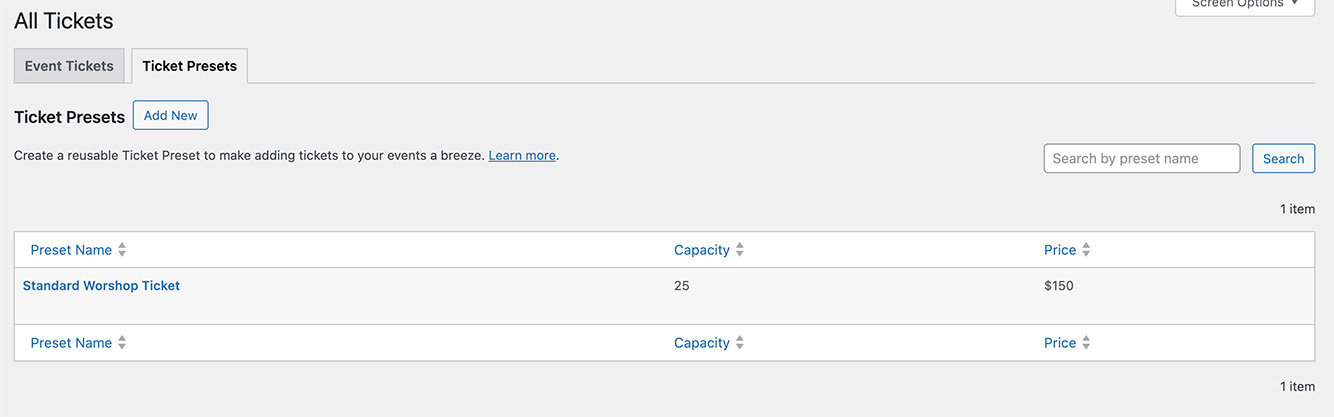
There are two ways to create a new ticket preset. The first is to create a ticket preset from scratch by going to WP Admin > Tickets > All Tickets > Ticket Presets Tab and clicking “Add New.”
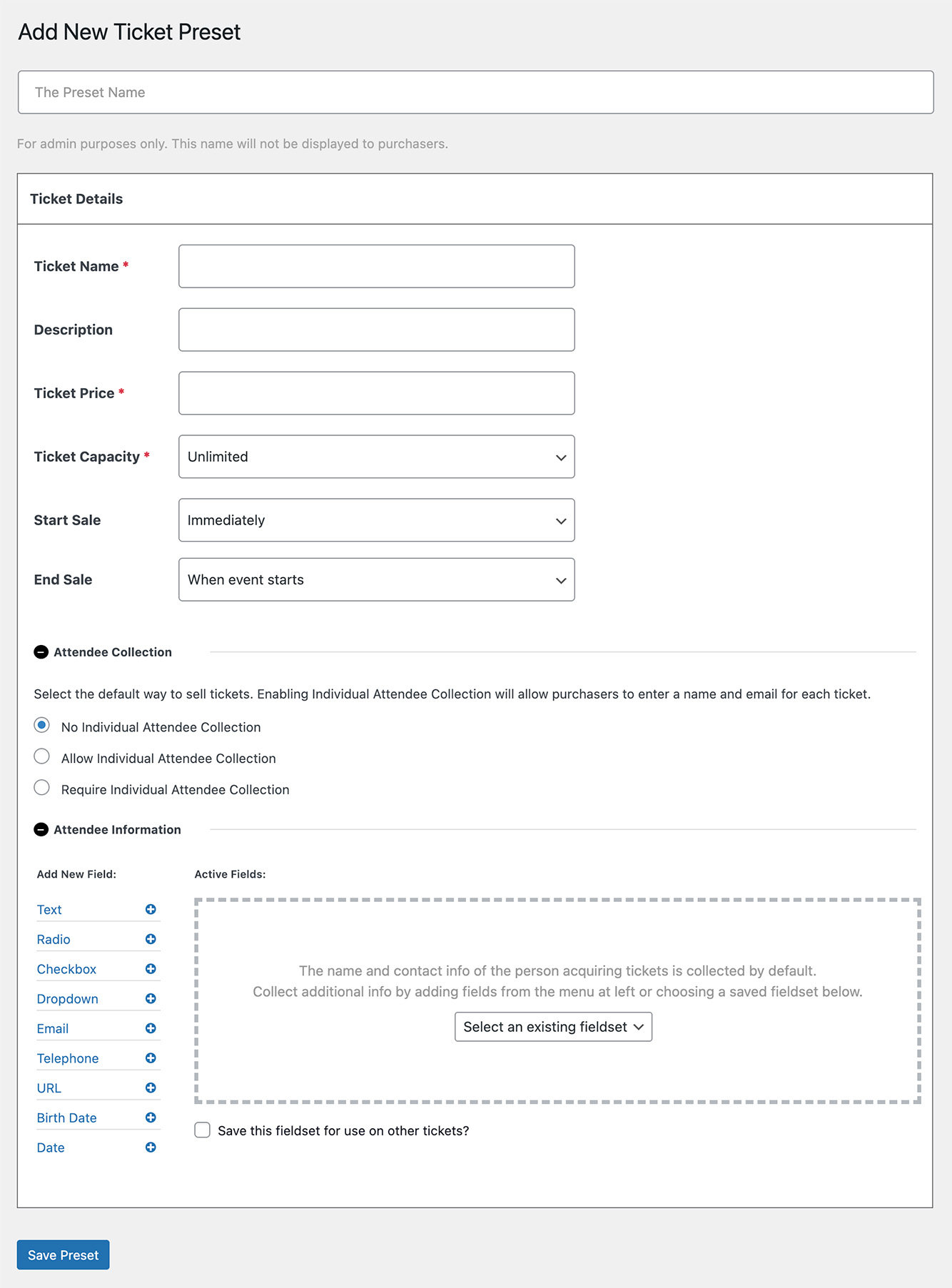
Each ticket preset looks like a regular ticket, with a few key differences.
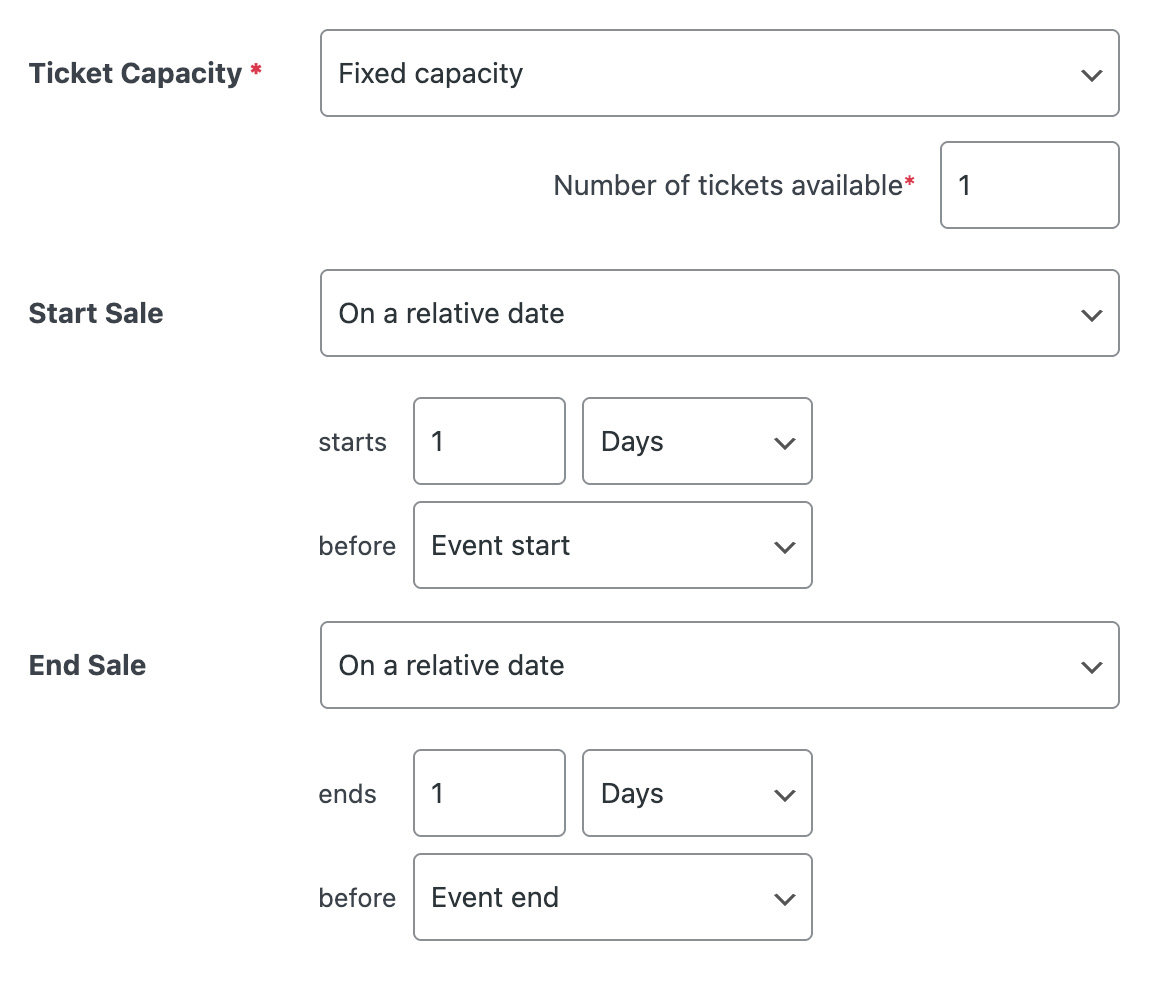
- Ticket Capacity – there are two options: “unlimited” and “fixed.” Ticket presets cannot be used with shared capacity right now, but support for it is planned for the future.
- Start Sale date – There are two options here: “immediately” and “on a relative date.” Immediately refers to the moment the event or ticket is published. The relative date functionality, on the other hand, allows you to maintain consistency in ticket availability, regardless of the event’s actual date.
- End Sale date—The two options here are “when event starts” and “on a relative date.” Again, choosing a relative date allows you to standardize when ticket sales end, regardless of an event’s actual date (i.e., we always start selling tickets 30 days before an event).
Note: You may be using Event Tickets Plus without The Events Calendar. In that case, you will add tickets directly to posts or pages instead of within The Events Calendar event post-type user interface. In those instances, the relative date functionality will have no event start or end dates to reference. Instead, it will be relative to the time the ticket is created.
Once you’ve configured your ticket preset, simply click “Save Preset,” and it’s ready to use. You can see a list of all presets under All Tickets > Ticket Presets.
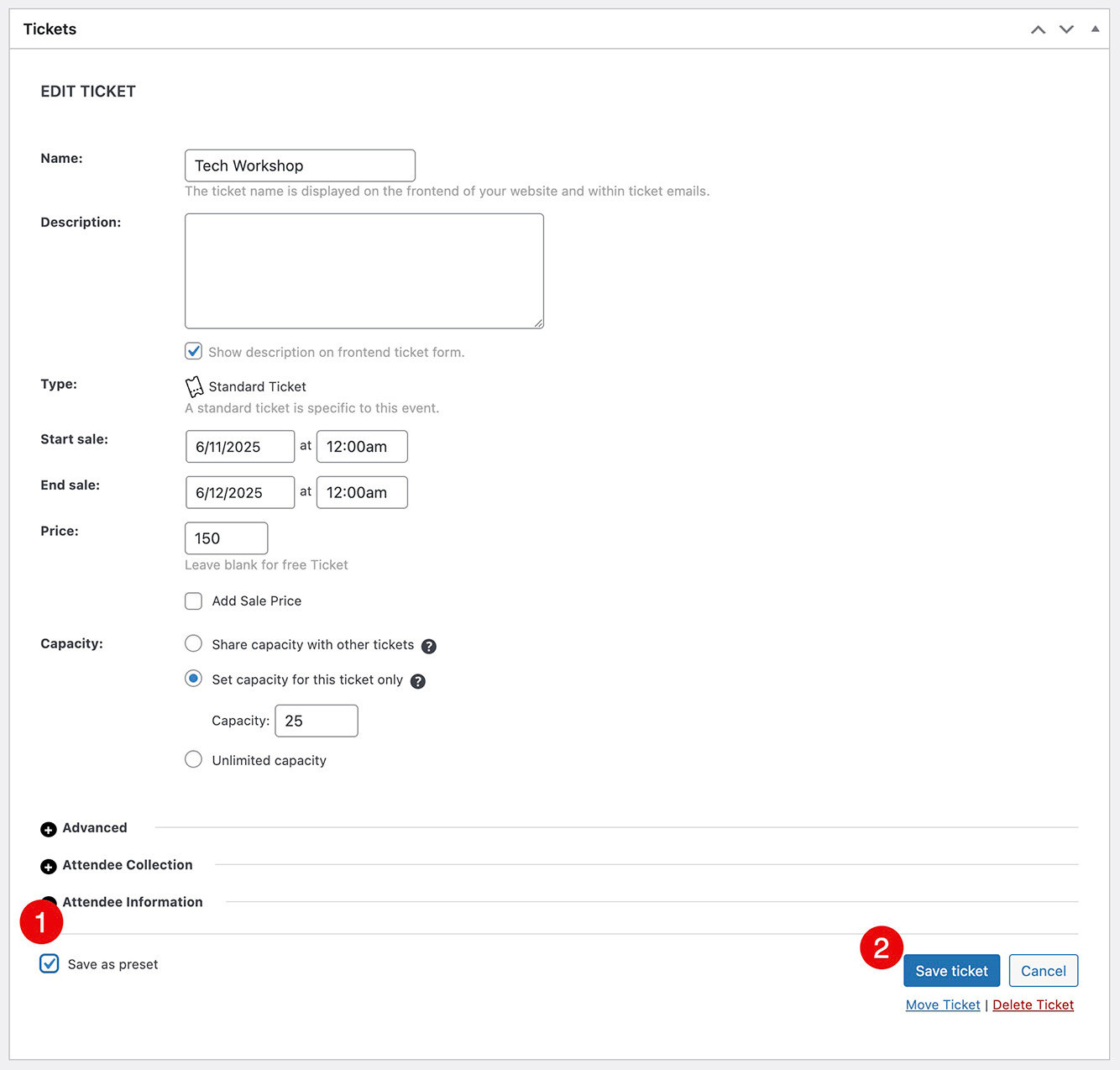
Another way to create a new ticket preset is from an existing ticket. All you need to do is find an existing ticket you’d like to turn into a preset for future events, open its settings, check the box next to “Save as preset,” and click “Save.”
That ticket will now have been converted into a ticket preset you can edit or use as you see fit.
Note: Currently, you can only save an existing ticket as a preset in the classic editor. We will bring that functionality to the block editor in the future.
How to Use a Ticket Preset
Using ticket presets couldn’t be easier. Once you’ve created a preset, every time you add a new ticket to an event, you will see the option to “Select a ticket preset.”
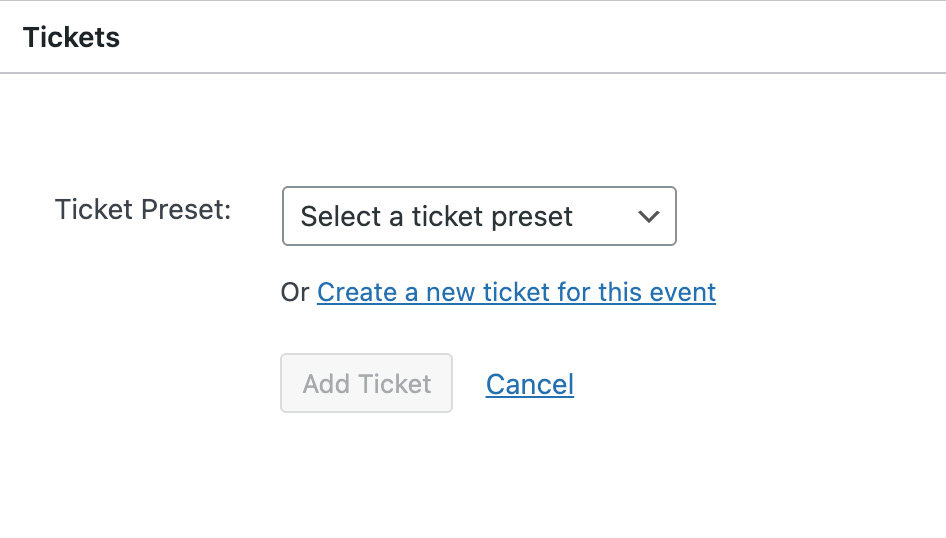
Select the preset you want from the drop-down menu and customize it to suit your needs. Changes at this stage will not affect the preset, so you don’t need to worry about messing up your saved template.
Event Ticketing Has Never Been Easier!
With ticket presets, the days of tedious manual re-creation of ticket types are gone. Now, you can save once, use often, and enjoy all that time you just got back!
In Case You Missed It 🔍 👀
We’re always working to make our product suite better for you. Below are just three, recent examples, of new features we’ve released that bring new functionality to our products while making your life easier. To see all major feature and product releases, check out our full news feed. If you’d like to see all product updates, including maintenance and security releases, you can find that information in our release notes.
Announcing Our New Event Tickets Square Integration!

With our Event Tickets Square Integration, you can sync your online ticket sales with your Square point of sale system. Tickets sold online through our platform will automatically reflect in your Square system, and vice versa.
Event Tickets Update Delivers New Onboarding Wizard and Settings Design

With these updates, we aim to provide a more streamlined and intuitive experience for all users, whether setting up Event Tickets for the first time or managing their existing settings.
QR Code Generations Now Built-in to The Events Calendar
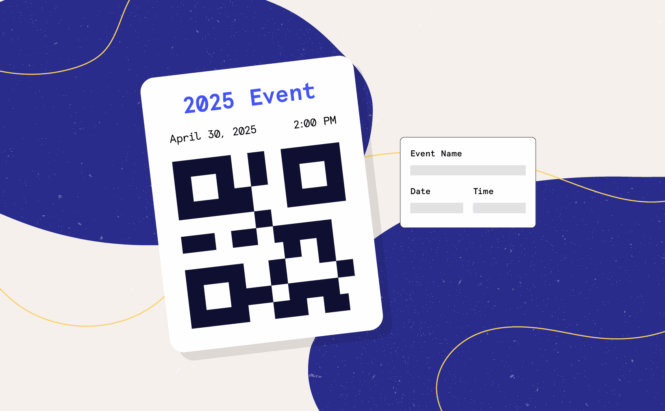
This feature automatically generates QR codes for every event you publish. These codes can be downloaded and used across digital and physical marketing materials (think posters, flyers, jumbotrons, and more.) No long URLs or confusion, just instant access.

Nathan
View author page