

How to Connect the Meetup API to a WordPress Site

Estimated reading time:
1 minute
Here, we’ll show you how to connect the Meetup API to a WordPress site. You can import your Meetup.com events to your WordPress site with Event Aggregator. You can activate your Event Aggregator license under Events Settings > Licenses.
Now that you’ve activated your EA license, you’re ready to connect to the Meetup API. Don’t worry, this is super simple to set up and you’re just a few clicks away from having all of your Meetup events right on your website!
Once you have The Events Calendar and Event Aggregator on your WordPress site, you’ll want to head over to Events Settings > Integrations from the WordPress Dashboard. The first item there is the Meetup API.
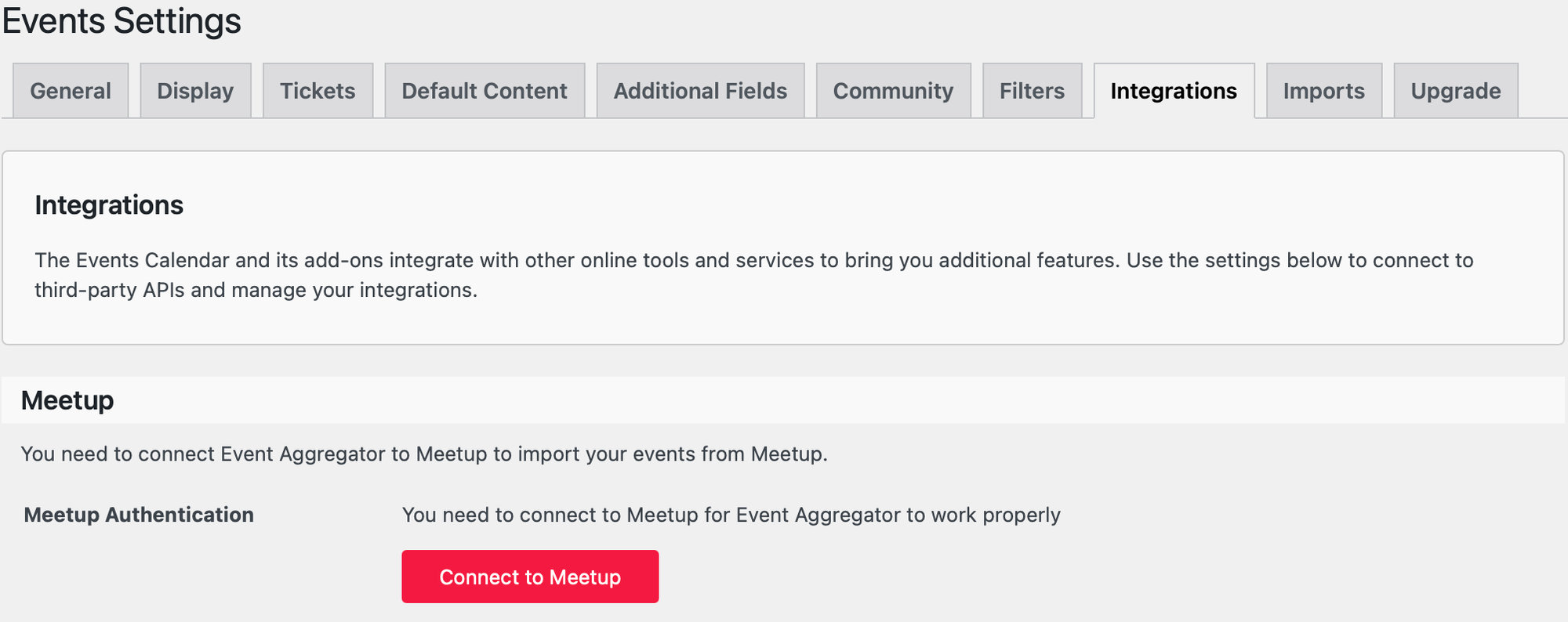
To connect the Meetup API to your WordPress site, then click on Connect to Meetup and you’ll be prompted to Log into Meetup.
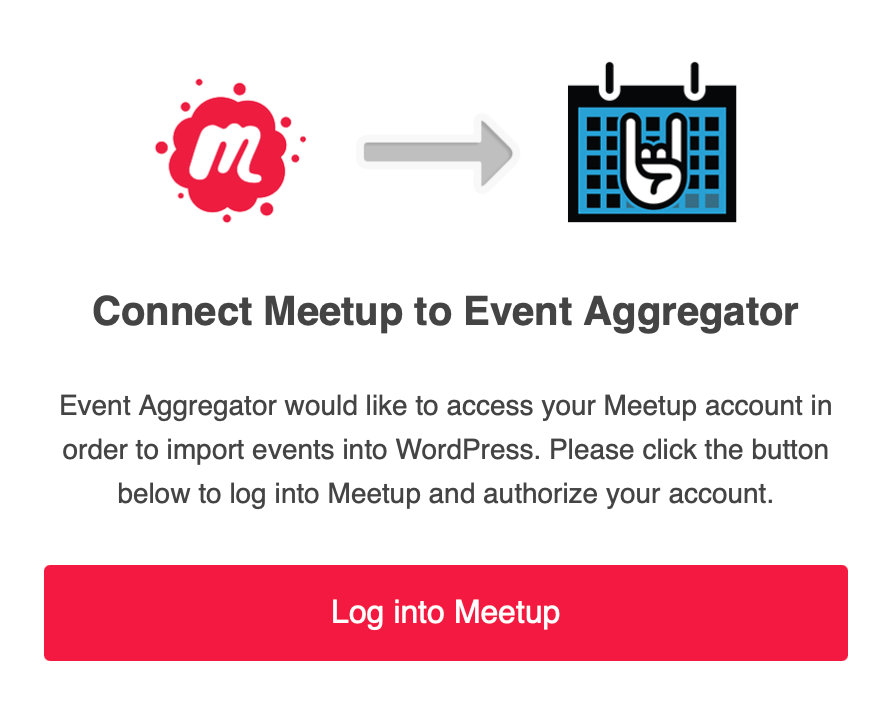
Once you click that button, you’ll be prompted to enter your Meetup username and password. Once your information is confirmed, you’ll be redirected to your WordPress site. Now you can begin using Meetup to import your events with Event Aggregator.
Select Meetup from the dropdown menu of choices next to Import Origin. Choose whether you’d like to create a one-time import or a scheduled import. The latter will import your events from Meetup on the scheduled interval of your choice.
Lastly, enter the Meetup URL where you’d like to import your events from. Click Preview to see your events and then import them. And that’s it, now you’ve easily connected the Meetup API to your WordPress site!

Jaime
View author page