
💡 The ability to create virtual events is included within our Events Calendar Pro plugin.
In order to create a virtual or hybrid event, start the same way you do when you create any other event with The Events Calendar. Click New → Event from the WordPress admin bar at the top of the screen or select Add New → Events from the WordPress admin menu when logged in.
The page will look exactly as it does with your other events, so fill in all of the information that you need, like the event title, description, dates, and times.
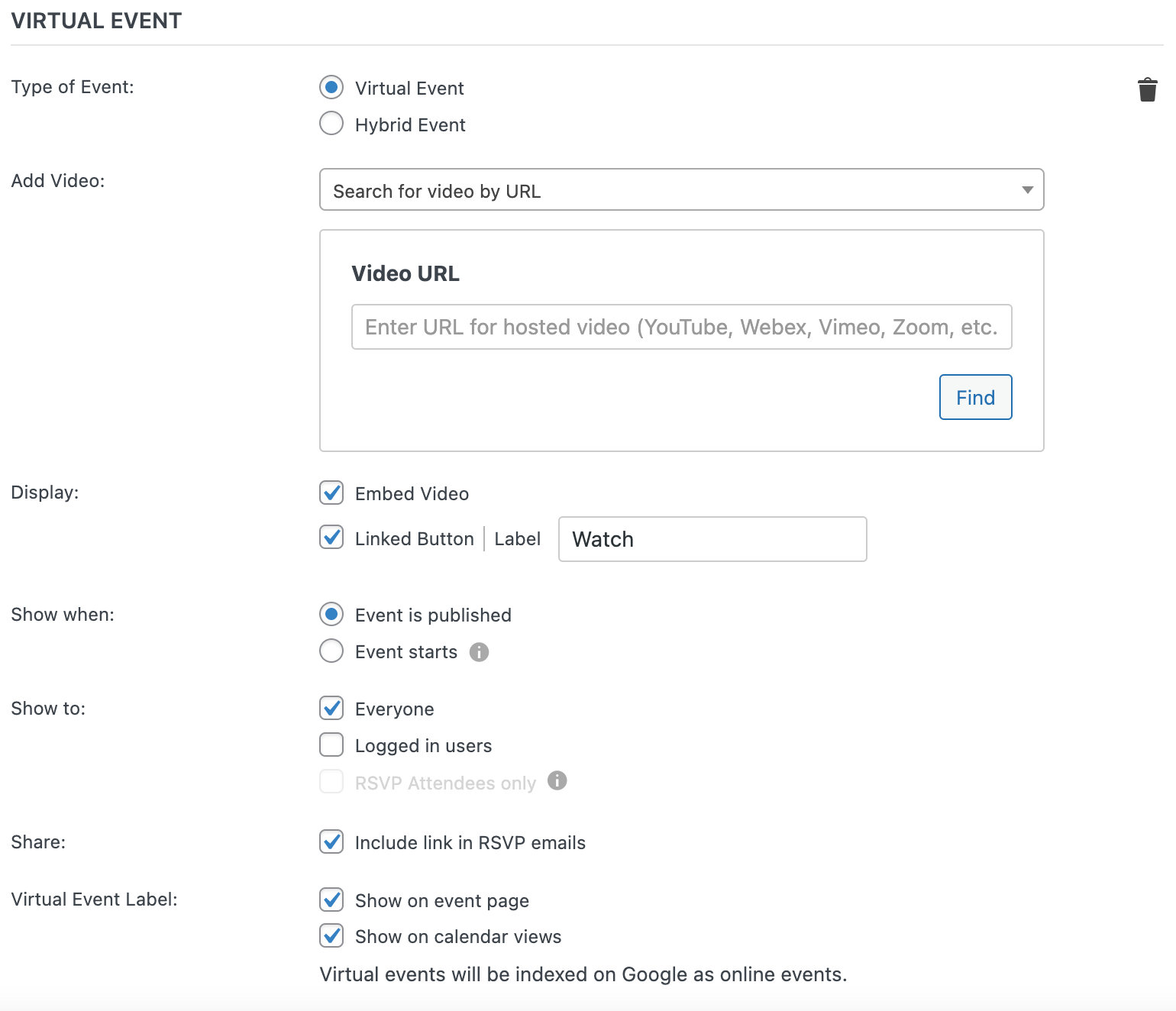
Keep scrolling down the editor screen and you will find a section called Virtual Event. Click “Configure Virtual Event.”
Your first option is to choose whether this is a strictly virtual, or hybrid event.
💡 If you are using Community Events with Events Calendar Pro, Virtual Events will display as an option when submitting an event as well. Zoom connection and link generation are disabled for all non-admins on the front, but you can generate links as an administrator from the front or within the Event Editor itself.
Add or Create Virtual Event Source
You have the option to attach a video to the event by adding a link to the “Add Video” field. You can also search for a video by URL to locate it. If you want to embed the content on your event page, you’ll want to use one of these WordPress-supported sources. Supported sources include YouTube, Facebook videos, Vimeo, and more. If your event source is not one of the supported options, you can still enter the URL in the field, but embedding may not work as expected. In that case, you can use a button that links to the video source instead (which we’ll cover in the next section).
You also have the option of generating a meeting or webinar, once you’re connected to your source under Events Settings > Integrations. Supported video sources include Zoom, Webex, YouTube Live, and Google Meet. Once that’s done, you’ll have the option to create unique links right from the Virtual Event editor with the click of a button.
You can also protect your meeting links from public viewing and create more secure links. Read more about how to do that here.
Supported Sources
Learn more about each of our supported video sources here:
Virtual Event Settings
Display
Once you’ve added a URL or a meeting link, you can decide how to display the video content on your event page.
If you have added a video source, you will see the option to display the embedded video or use a Linked Button… or both. Choosing the “Linked Button” option will display only a button that will, when clicked, open the embedded video in a new window for your users. The field next to the option allows you to change the button label, which is “Watch” by default.
If you have added a generated meeting link, you will only see the Linked Button option. In this case, a button that connects to your link is added to the event page, which you can either use instead of the meeting ID or display it in addition to the link. Clicking this button will launch the meeting for your users. You are also able to change the default button label next to the option. Below that, you can check or uncheck the option that displays the link with the conference details as well.
Show When
This option allows you to either show the video source or the link right away or hide them until the start time of the event. Note that if you choose the latter option, the video or link will display 15 minutes before the event start time to give your attendees a chance to join on time.
Show To
This option allows you to choose who can see the content for your virtual events. The first option will show your content to “everyone” regardless of whether they have registered for your event or not. You can select the “logged in” option if you’d only like your registered users to see your content. If you have Event Tickets, then you can opt to only allow users who have an RSVP or ticket to see the content. You can read more about security and protected content for Virtual Events here.
Share
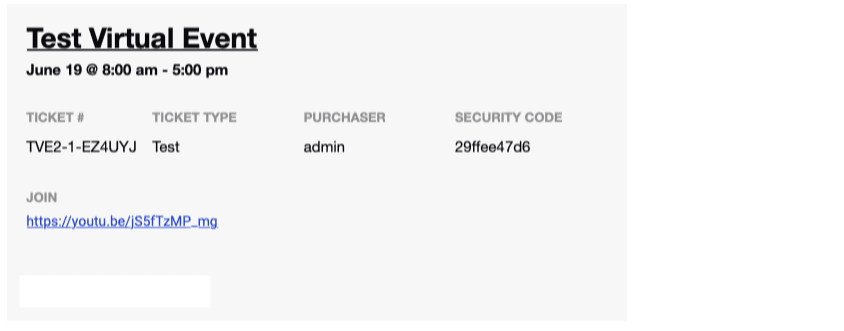
If you are using our free Event Ticket plugins to sell tickets or create RSVPs for your event, then you check the “Include link in RSVP emails” option to display the link for your virtual event in the ticket emails that an attendee receives after registering for the event.
The email that your users receive will look something like this:
Virtual and Hybrid Event Labels
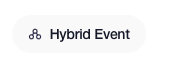
This option lets you decide whether to display a label on the event that identifies it as a virtual or hybrid event. This can be especially useful if your calendar has physical, virtual, and hybrid events allowing your users to see the difference between them. The options here are to display the label on your event page and on the calendar views.
The labels look like this:

Working with Recurring Events
You can use the Virtual Events options on a recurring event. The virtual event elements (e.g. video or links) will show on all occurrences of that event. If you add a Zoom or WebEx meeting to a recurring event, only one meeting will be created in your account. That meeting will match the date and time of the first instance of the recurring event. The link to that meeting will then show on all occurrences of the event.
Note: If you have a series pass ticket with a virtual event element (e.g. Zoom connected), the link would not appear in the ticket email. Our development team is aware of this and is actively working on integrating the feature into future updates.