

Forum Replies Created
-
AuthorPosts
-
juanfra
KeymasterHi Bekee,
Thanks so much for stopping by and checking out our plugins!
You can create an account directly by following the “Register” Link below the “Log In” button (Please check the image below)
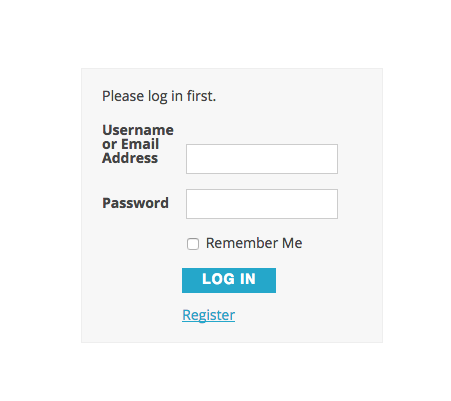
Once there, you’ll need to fill in your desired username and e-mail. You’ll get an email confirmation with a link to choose your password.
After you pick your password, you can log in and check the community add-on by going to this page: https://wpshindig.com/events/community/add
I hope that helps to clarify things a bit–let me know if you should have any other questions here! Cheers, and thanks again for your interest!
Juan.
KeymasterHi Gonzalo,
Thanks for reaching out! If you need to display multiple calendars with specific sets of events on your site, you can use the category functionality built into The Events Calendar to achieve this easily. Category views will display by default using the same view that the main calendar is set to, so it’s a great way to have multiple calendars with unique events on each one. You can see an example of a category-specific calendar on our WP Shindig demo site here!
If you’d like to go a step further and embed category-specific calendar views into specific posts or pages, the [tribe_events] shortcode available in Events Calendar PRO will let you do just that. You can read more about this shortcode and how to use it on our Knowledgebase here.
I hope that helps to get you started here! Thanks again, and let me know if you should have any other questions!
Best,
Juan.
KeymasterHi Josh,
I hope you are doing well. Thank you for reaching us!
We’ve just released a new version of the extension, you can find it here.
In case you’d like to use the 0.1.5-alpha version, you can find it in the Github repository by following this link.
Best,
Juan.
KeymasterHey Ryan,
Thank you for reaching out! The featured image size is really dependent upon the layout of your event pages, largest available size of image available, etc. You can use the default WordPress image sizes by calling in ‘thumbnail’ or ‘medium’ for example. (see screenshot below)
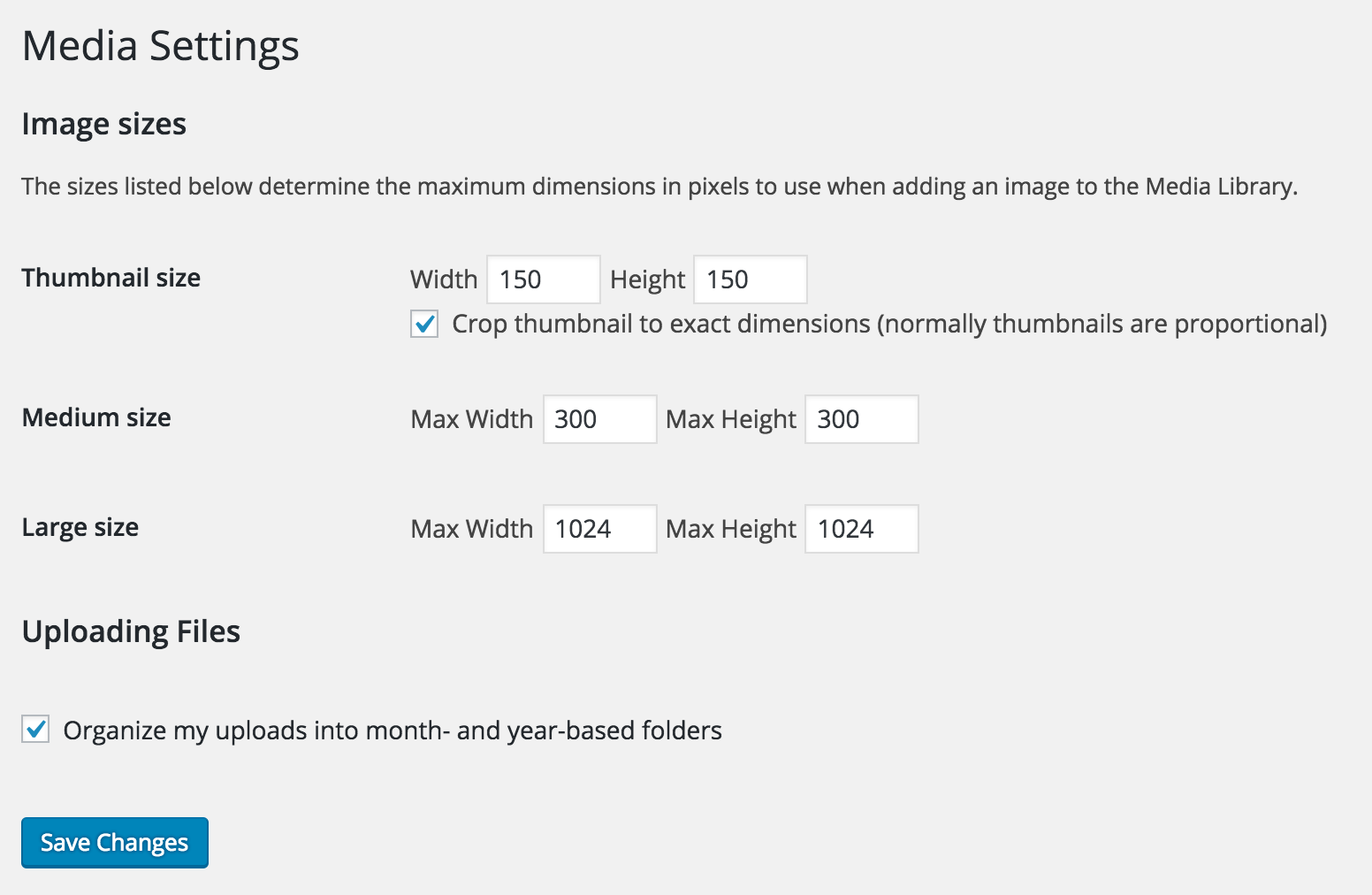
If you need to create a custom size for your event featured image, you could do that in your theme’s functions.php file and call that size for all your event’s featured images. More info on that can be found here.
I hope this helps answer your question and let me know if you have any additional comments. Have a great Friday and thanks again for contacting us.
Best,
Juan.KeymasterHi Heidi,
Thank you for writing. I hope you are doing well.
That’s actually possible once you install the “List Venues and Organizers” extension. You can find a list of the features included in this extension on this article: https://theeventscalendar.com/extensions/list-venues-and-organizers-shortcodes/
Please have in mind, that for these shortcodes to work you will need to install the extension. You can learn how to install the extension on this article.
Best,
Juan.
KeymasterHi Heather,
Thank you very much for the follow-up.
Please let us know if anything else comes up.
Have a nice day,
JuanApril 5, 2018 at 2:37 pm in reply to: Next Previous Link Location – Moving to Top of Single Event View #1497994KeymasterHi Christopher,
Thank you for writing. I hope you are doing well.
Unfortunately, the position of the next/previous links cannot be changed via the plugin settings. With that being said, we’d love to help point you in the right direction.
I’d recommend starting off by taking a look at our Themer’s Guide, which can show you which templates can be edited and copied in order to attempt the results that you are looking for.
The file where the navigation links are located in /wp-content/plugins/the-events-calendar/src/views/single-event.php
Please have in mind that this is a custom development task and so is outside of our stated scope of support. If you feel that this is something that you’re not comfortable working with, you may instead wish to consider working with a suitably skilled developer or designer who can offer the additional level of support you require.
Thank you very much,
Juan.
KeymasterHi Heather,
Thank you for writing. I hope you are doing well.
Unfortunately, it’s not possible to sort events by the city with the plugin as is. However, you can use our “Filter Bar” plugin to make that possible. You can read more about how it works here: https://theeventscalendar.com/product/wordpress-events-filterbar/
If you check the video or the screenshots you’ll see that there are some filters added to the bar and those are totally customizable. You can have a preview of how the filter bar can be configured on this article: https://theeventscalendar.com/knowledgebase/configuring-filter-bar/
Best,
Juan.
KeymasterHi Ozkan,
Thank you very much for the follow-up and letting us know that the issue has been resolved.
Please let us know if anything else comes up!
Have a nice day,
JuanKeymasterThanks.
KeymasterThanks for your response, Casey.
Oh, what a pity… It is a bit disappointing to know that I’ve purchased something that it actually doesn’t work for me 🙁
Best,
Juanfra.KeymasterHi, I posted two questions 3 days ago and still had no answer.
-
AuthorPosts