Forum Replies Created
-
AuthorPosts
-
Courtney
MemberHey Mai
You can see all of our plugins activated on WP Shindig Demo Site https://wpshindig.com/events/.
Please let me know if you have more questions.
Thanks
Courtney 🙂MemberHey Roberta
Thanks for the update. Glad you found the fix. I’ll close out this ticket for now.
Thanks
Courtney 🙂MemberHey Becca
Unfortunately, we aren’t able to provide you with a phone number. https://theeventscalendar.com/knowledgebase/phone-support/
You can expect a response from us for each ticket within 24 – 48 hours per our Scope of Support / Terms. We hope to exceed that goal for you.
Thanks
Courtney 🙂MemberHey Warren
You can apply for our non-profit discount by completing the form at https://theeventscalendar.com/apply-for-npp.
⚠️Please Note: Licenses granted through this program do not include access to support.
If you need in-depth support,
please consider purchasing a regular license.
Is there anything else I can help you with?
Thanks
Courtney 🙂MemberHey there
Can you share which CSS code isn’t working, even with !important?
Our general CSS tips are:
- Start by modifying what you can at Appearance » Customize » The Events Calendar.
- You can add additional settings to Appearance » Customize » The Events Calendar. by installing our Customize Calendar extension https://theeventscalendar.com/extensions/calendar-customizer/.
- We generally don’t recommend that you change the theme or plugin’s CSS files directly, as they will be overwritten. To avoid this, follow the steps outlined in Themer’s Guide
- Use overriding CSS files, or add CSS to your site using Appearance » Customize » Additional CSS.
- Use !important before a semicolon to override every css rule. It’s a brute force method, but works for quick fixes.
- Please check out this Customizing WordPress #2 – Using Chrome Developers Tools YouTube video in addition to our Using Chrome Developer Tools tutorial on how to easily make changes using CSS.
Thanks
Courtney 🙂MemberHello Becca
First, can you check for updates at Dashboard » Updates.
Once you verify you’re on the latest versions, please test to see if the issue is still happening for you.
You might also see if you can spot any console errors at your site. (If needed, you may reference our KB article Using Google Chrome Developer Tools.)
Whenever troubleshooting, it’s best to enable WP_DEBUG and WP_DEBUG_LOG (which will create a file on your server at /wp-content/debug.log if there are any WP_DEBUG messages) and share any debug messages you see while trying to replicate this issue and doing other things on your site relevant to this ticket (such as visiting your site’s home page, events page, single-event pages, and anything else you can think to do).
If there’s nothing obvious (such as a console error or WP_DEBUG message) pointing you to what might be the problem, please follow our Testing for Conflicts Guide https://theeventscalendar.com/knowledgebase/testing-for-conflicts/.
You might find your plugin conflict quickly by using Plugin Detective https://wordpress.org/plugins/plugin-detective/.
We recommend conducting these tests on a staging server (https://theeventscalendar.com/knowledgebase/creating-using-wordpress-staging-site/).
If you are unable to do so, please install the Health Check plugin so that you can effectively disable all plugins without website visitors noticing any changes. See https://make.wordpress.org/support/handbook/appendix/troubleshooting-using-the-health-check/#troubleshooting for how to do this.
Please share or reshare in your System Info https://theeventscalendar.com/knowledgebase/sharing-sys-info/ as well after your tests so that we can better diagnose the issues you are having.
Please let me know if the issue still persists after these tests.
Thanks
Courtney 🙂MemberHey Mitchel
100 imports is the number of schedules run, not the number of events. https://theeventscalendar.com/knowledgebase/event-aggregators-import-limits-work/ can help clear up some of this more as well.
Is there anything else I can help you with?
Thanks
Courtney 🙂MemberHi there
So sorry for the confusion. We sent an email containing a link to download Events Calendar Pro and the license key.
Can you go to My Account » Downloads https://theeventscalendar.com/my-account/downloads/ and download the Events Calendar Pro plugin. Head over to Plugins » Installed Plugins » Add New next and select the Upload Plugin at the top of the screen. This should be a .zip file. If your browser has unzipped the file automatically, please check your browser settings to alter that and try downloading again.
You’ll need to keep the free The Events Calendar https://theeventscalendar.com/product/wordpress-events-calendar plugin active as well. Go to Plugins » Add New » Upload Plugin. Then activate your plugin.
After that, get your license key https://theeventscalendar.com/license-keys/, and go to Events » Settings » Licenses to enter it (though very likely it’s already entered when you activate your plugin).
Let me know if this works now.
Thanks
Courtney 🙂MemberHi there Walt!
Thanks so much for getting in touch! I’m afraid that we’re not equipped to provide technical support for current plugin users here in our pre-sales forum. We’d be more than happy to assist you at one of the following locations:
• If you’re using one or more of our free plugins such as The Events Calendar and Event Tickets, you can request assistance on the WordPress.org support forum for the affected product.
• If you’re a current license holder for one of our premium offerings, please log in to your account and submit a post to the appropriate forum for the affected product. Please include your System Info https://theeventscalendar.com/knowledgebase/sharing-sys-info/ so we can better help you.If you can, please take the time to confirm in your post that you’ve run through our Testing for Conflicts steps prior to contacting us–this will save us a step and help us to get your issue resolved that much quicker! 🙂
Thanks again, and we’ll see you in the forums!
CourtneyMemberHey Roberta
Glad you got it all sorted out. Thanks for sharing your fix. I’ll close out this thread for now, but let us know if you have future questions.
Courtney 🙂
MemberHey there
You can apply for our non-profit discount by completing the form at https://theeventscalendar.com/apply-for-npp.
⚠️Please Note: Licenses granted through this program do not include access to support.
If you need in-depth support,
please consider purchasing a regular license.
Is there anything else I can help you with?
Thanks
Courtney 🙂MemberHi William
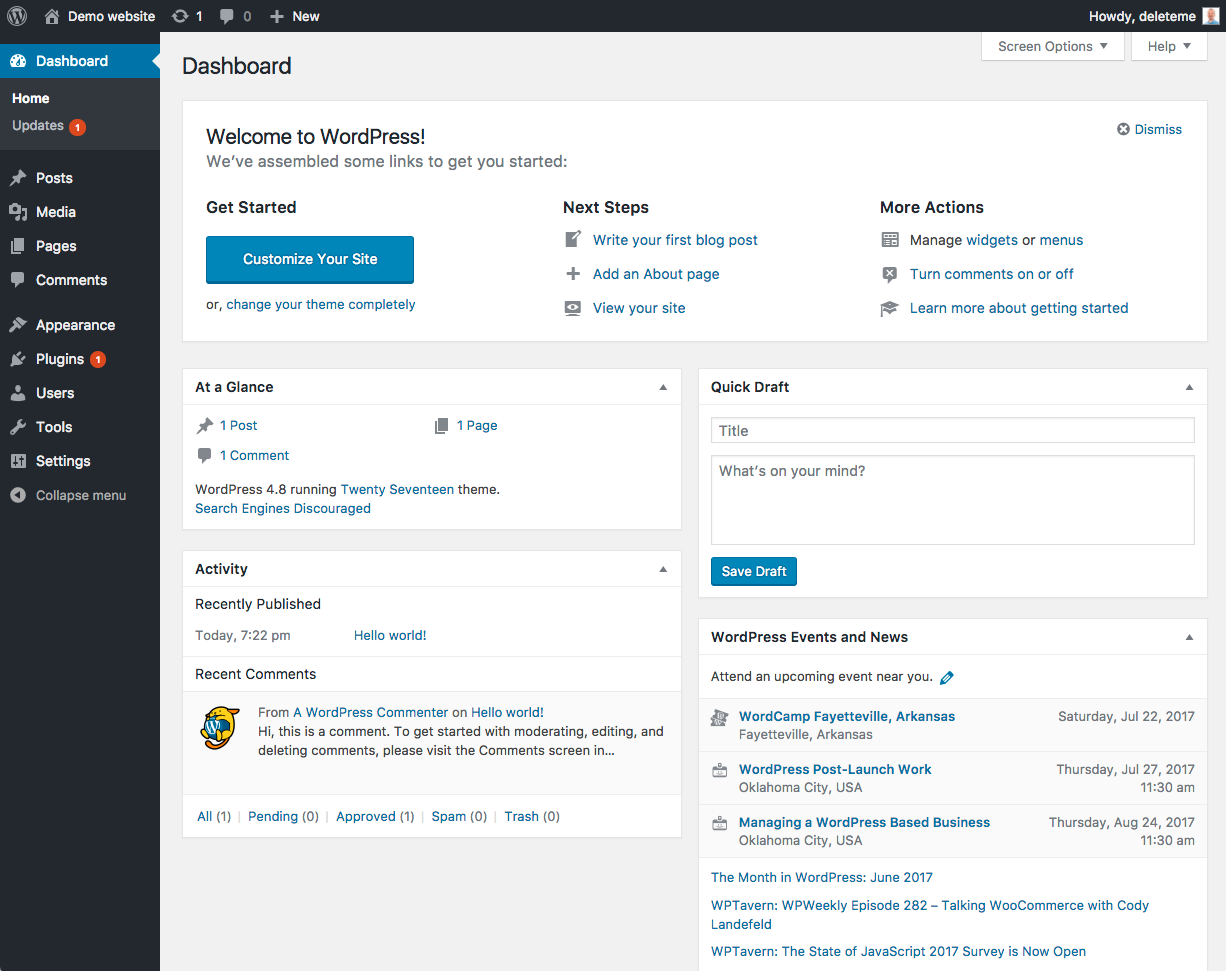
Is there any chance that somehow you are limited from accessing this? Occasionally developers will limit even what clients can access as a means of “helping” or simplifying the client experience. Do you see the left-hand admin dashboard? It should look like the left side of this: https://codex.wordpress.org/images/3/30/dashboard.png
Your screenshot isn’t revealing that left area at all.
Another option, do you have a smaller screen? Most laptop screens should be able to see the left side quite well.
While logged in, can you add this to your website address?
wp-admin/edit.php?post_type=tribe_events&page=tribe-helpThanks
Courtney 🙂MemberHey Hazel
I’m not sure why 30boxes appears on your computer.
https://theeventscalendar.com/knowledgebase/how-to-import-facebook-events-into-event-aggregator/ is our new guide for the only ways we know of to import Facebook events at this time.
Thanks
Courtney 🙂MemberHey Sam
Glad that worked for you. I’ll close this thread out for now.
Thanks
Courtney 🙂MemberHey Jennifer
Glad that was an easy fix for you. I’ll close out this thread for now.
Thanks
Courtney 🙂 -
AuthorPosts