The Community plugin lets users submit events to your site. When paired with Event Tickets, those users can also sell tickets for their events — with you, as the site admin, optionally collecting a fee from each sale and splitting payments with the organizer via PayPal.
This guide walks through the full lifecycle: setting up the plugin, configuring ticket fees, and tracking sales and payouts.
Setup
Like all premium Events add-ons, Community requires The Events Calendar installed on your site. The ticketing functionality additionally requires Event Tickets installed and active. Install and configure those plugins before continuing.
- Download and install the Community plugin.
- If you’ve just purchased Community, your license key is added automatically. Otherwise, see Finding and Inputting Your License Key. The plugin works without the license, but the key is required for automatic updates. If you need updates on both dev and live sites, see Using One License for Live and Dev Sites.
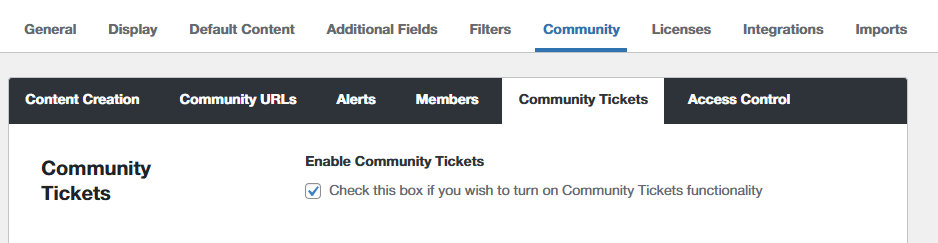
- Enable Community Tickets: go to Events → Settings → Community → Community Tickets and check Enable Community Tickets. See Configuring Community Tickets for the full settings reference.
- Configure your payment gateway. Make sure Tickets Commerce or WooCommerce is set up to meet your needs. If you’ll be using split payments to divide sales between organizers and site admin, complete the PayPal setup and enter those settings into Community Tickets.
- Configure your Ticket Fees (covered below) and your Split Payments.
Once setup is complete, community organizers can add events and tickets, and you can track sales and get paid. See Community Events Shortcodes for frontend tools that let organizers track their own sales and manage attendee registration.
Configuring Ticket Fees
Ticket fees let you handle processing costs and distribute payments to event organizers. You can configure fees based on your preferences and decide whether to display them to ticket buyers.
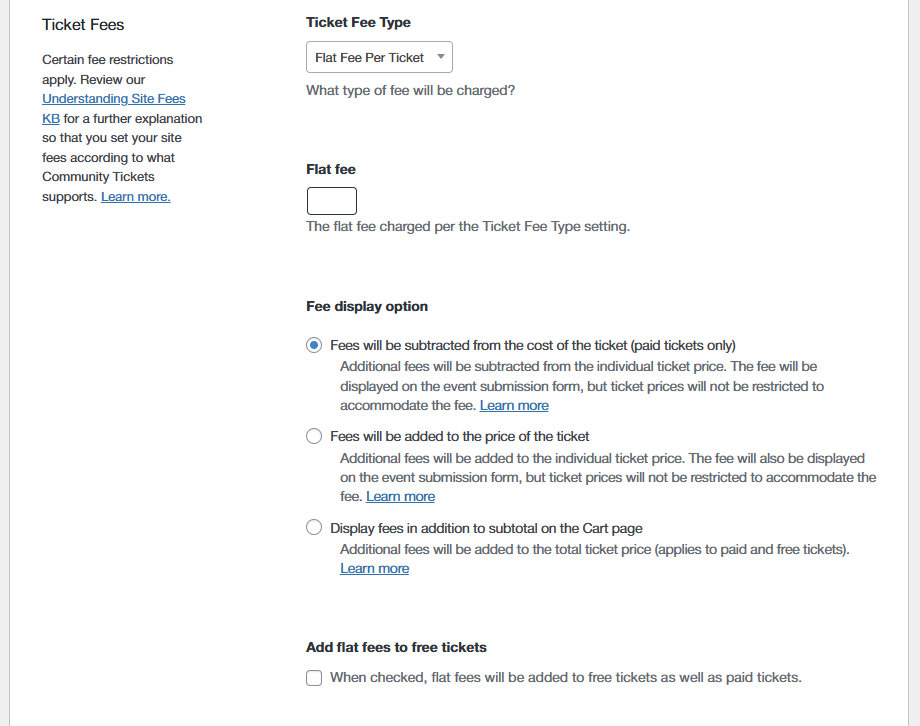
Once Community Tickets is enabled, manage fees at Events → Settings → Community → Community Tickets → Ticket Fees.
Ticket Fee Types
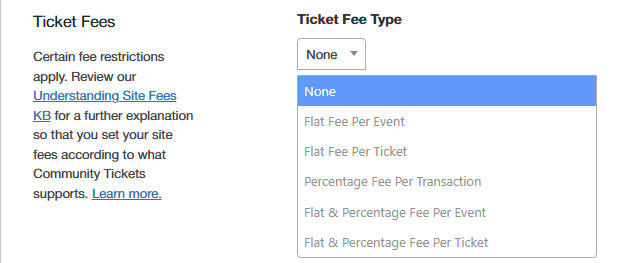
Flat Fee
Define the flat fee collected by the site admin per event in an order (e.g., $2 per event in an order).
When any option that includes a Flat Fee is selected, the option to Add flat fees to free tickets will be displayed below.

Percentage Fee
Define the percentage of ticket sales money collected by the site admin (e.g., 10% of every ticket sold). You can charge a percentage fee per event, transaction, or ticket.
Fee Display Options
You can customize how fees are displayed to ticket buyers using the following options:
Subtract
Fees are subtracted from the cost of the ticket (paid tickets only). Additional fees are subtracted from the individual ticket price. The fee is displayed on the event submission form, but ticket prices are not restricted to accommodate the fee.
Where the flat fee is greater or equal to the value of the ticket(s) in the cart, the expected event organizer payout is $0. For example, if a ticket price is set as $1 and the flat fee is $1, the payout will be $0.
💡 Fees will not be subtracted from free tickets. Free tickets have nothing to subtract.
Add
Fees are added to the price of the ticket. Additional fees are added to the individual ticket price. The fee is also displayed on the event submission form, but ticket prices are not restricted to accommodate the fee.
💡 Flat fees cannot be applied to free tickets — free tickets cannot have a fee associated.
The following fee options do not work with the Add mode: Flat Fee Per Event, Flat Fee + Percentage Fee Per Event, and Percentage Per Transaction. Use Subtract or Display instead.
Display
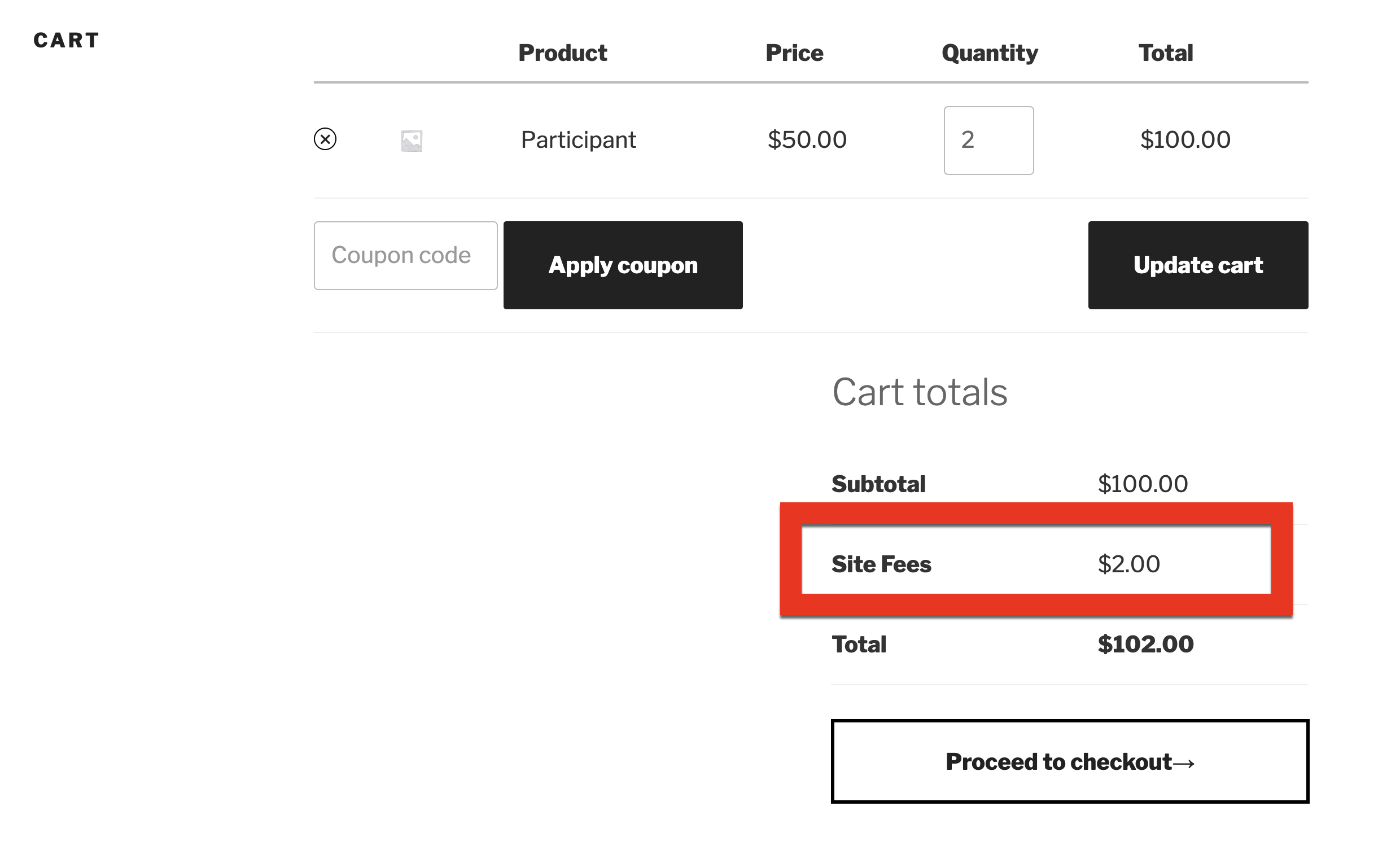
Fees are displayed in addition to the subtotal on the Cart page. Additional fees are added to the total ticket price. Applies to paid and free tickets.
Coupons
Coupons are not functional or supported for payouts based on the PayPal Payments API.
Split Payments
There are three ways to collect fees from ticket sales. The default option is to have all ticket sales collected via your e-commerce engine (WooCommerce, Easy Digital Downloads, or Tickets Commerce). You can then divide up the money as needed. With this method, it is your responsibility as the site admin to pay event organizers – by whatever method you prefer. You can use the sales data for each event to track how much is owed to the organizer and how much you have earned in fees.
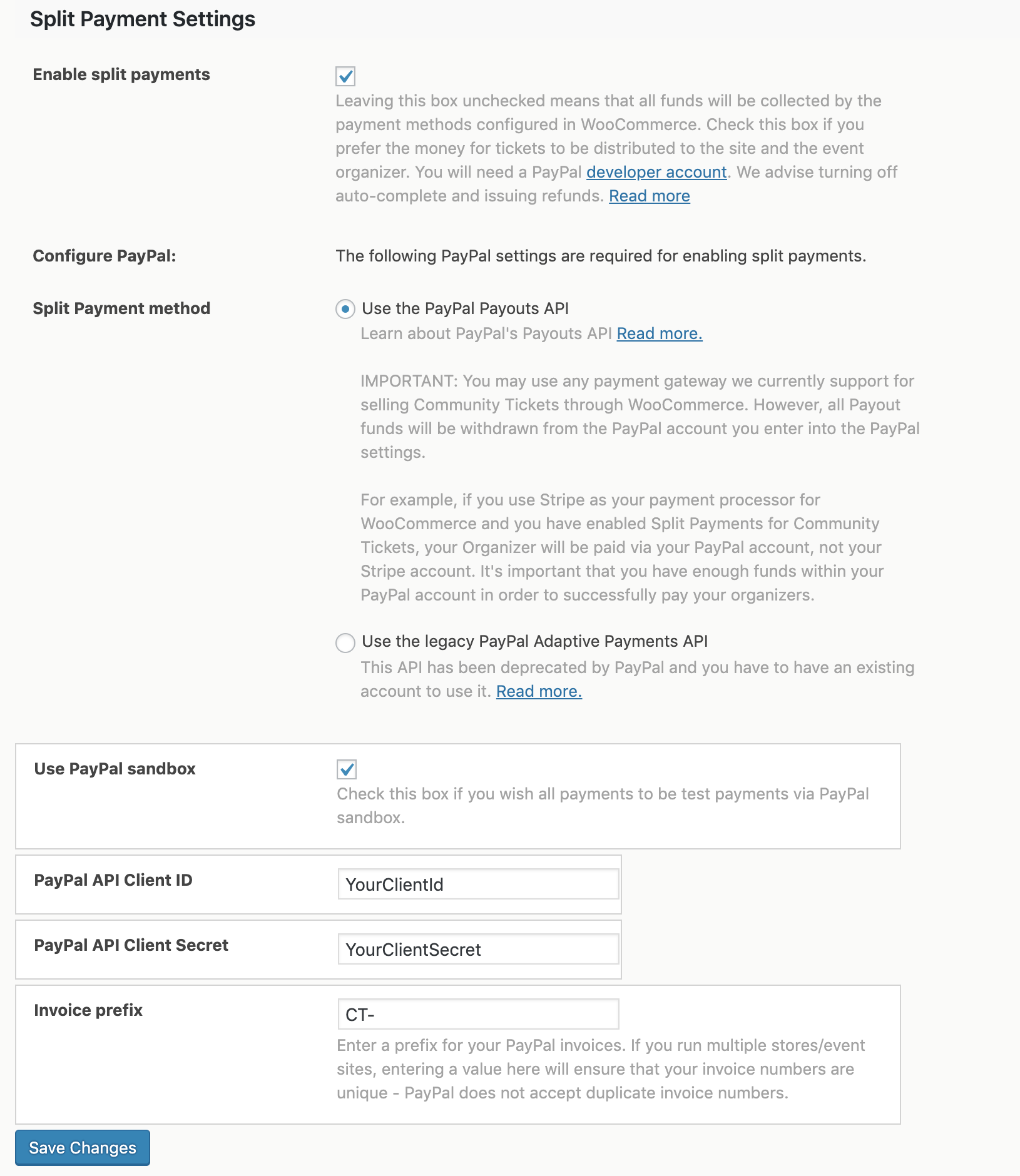
The other two options are to enable split payments, which divide up each ticket sale according to your fee settings and immediately pays the site admin and the event organizer via PayPal.
When tickets are sold, you will automatically receive payments to the PayPal address defined in settings. The amount you receive depends on the fees you’ve defined in the main Community Tickets fee option settings.
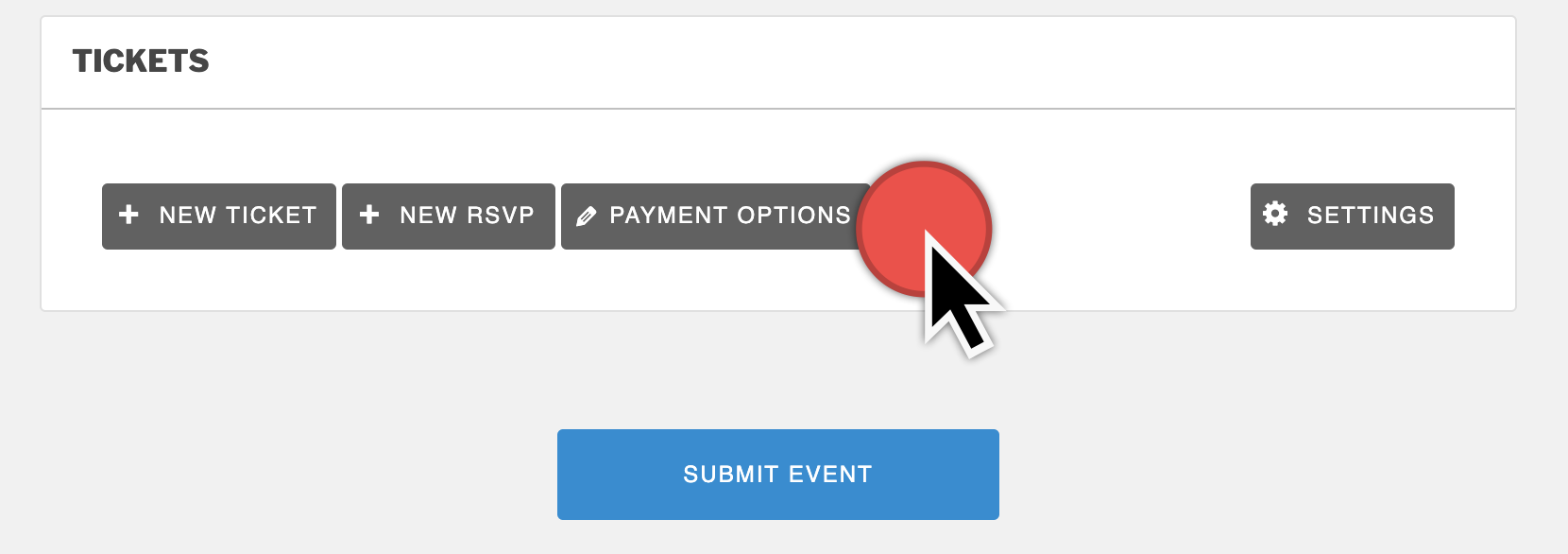
The event organizer will also receive automatic payments for their part of the sales. With split payments enabled, the organizer will be required to fill in a PayPal address as part of submitting an event. Selecting Payment Options here will take you to a link similar to http://yoursite.com/events/community/payment-options.
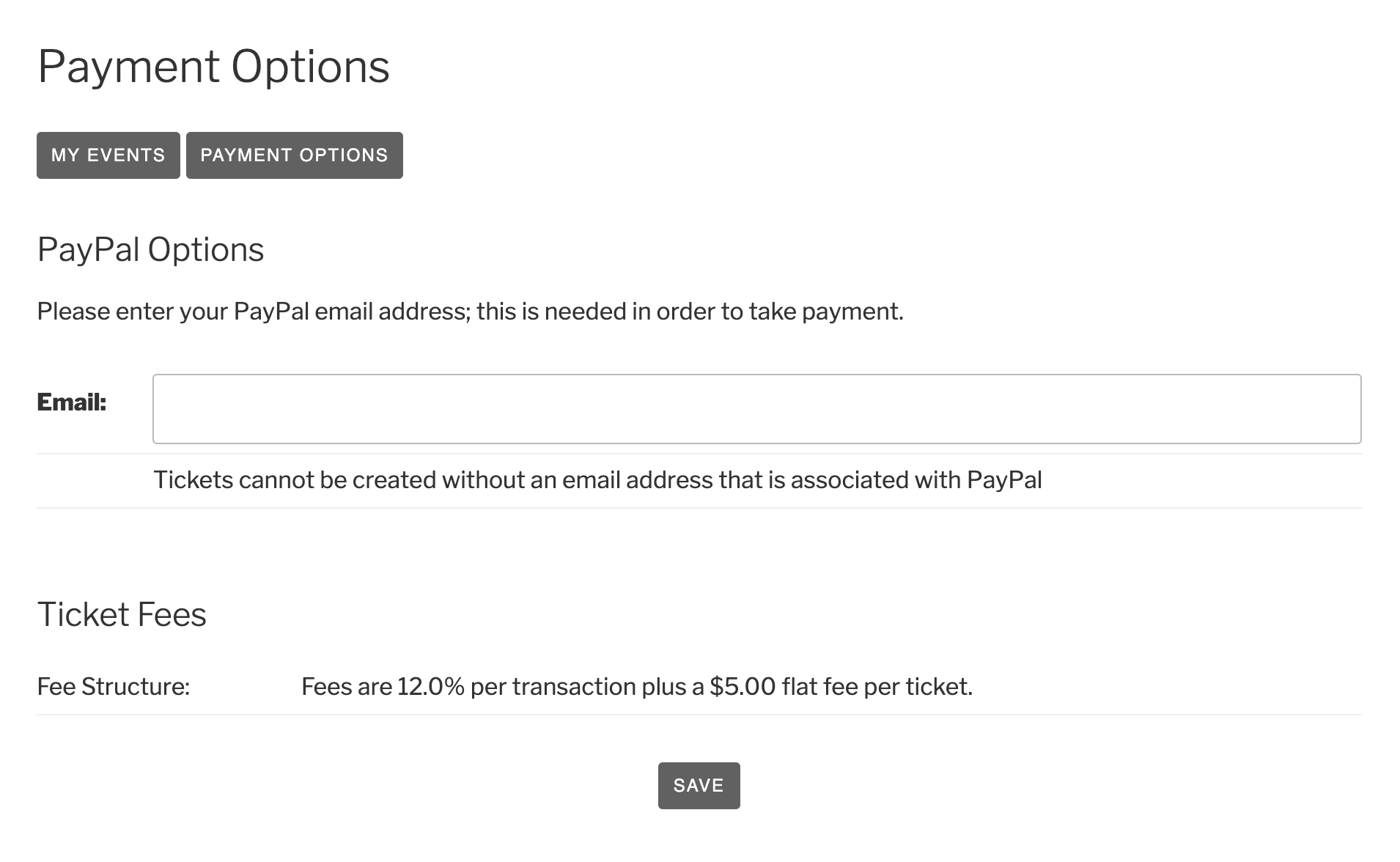
The organizer will then fill in their email address tied to their PayPal account and view the site fees as set by the administrator.
Note: If you have enabled Split Payments but haven’t finished configuring your PayPal settings, links to reports won’t show on My Events
PayPal Payouts API
This is processed separately from your payment gateway. You can use any WooCommerce payment gateway. When the order proceeds to completed status, you will get a payout created and queued up to be paid via PayPal while the remainder of transactions remains with your preferred payment gateway.
To learn more on configuring your Payouts API, please see PayPal’s support. It is worth noting, PayPal doesn’t implement rate limits unless they suspect abusive traffic.
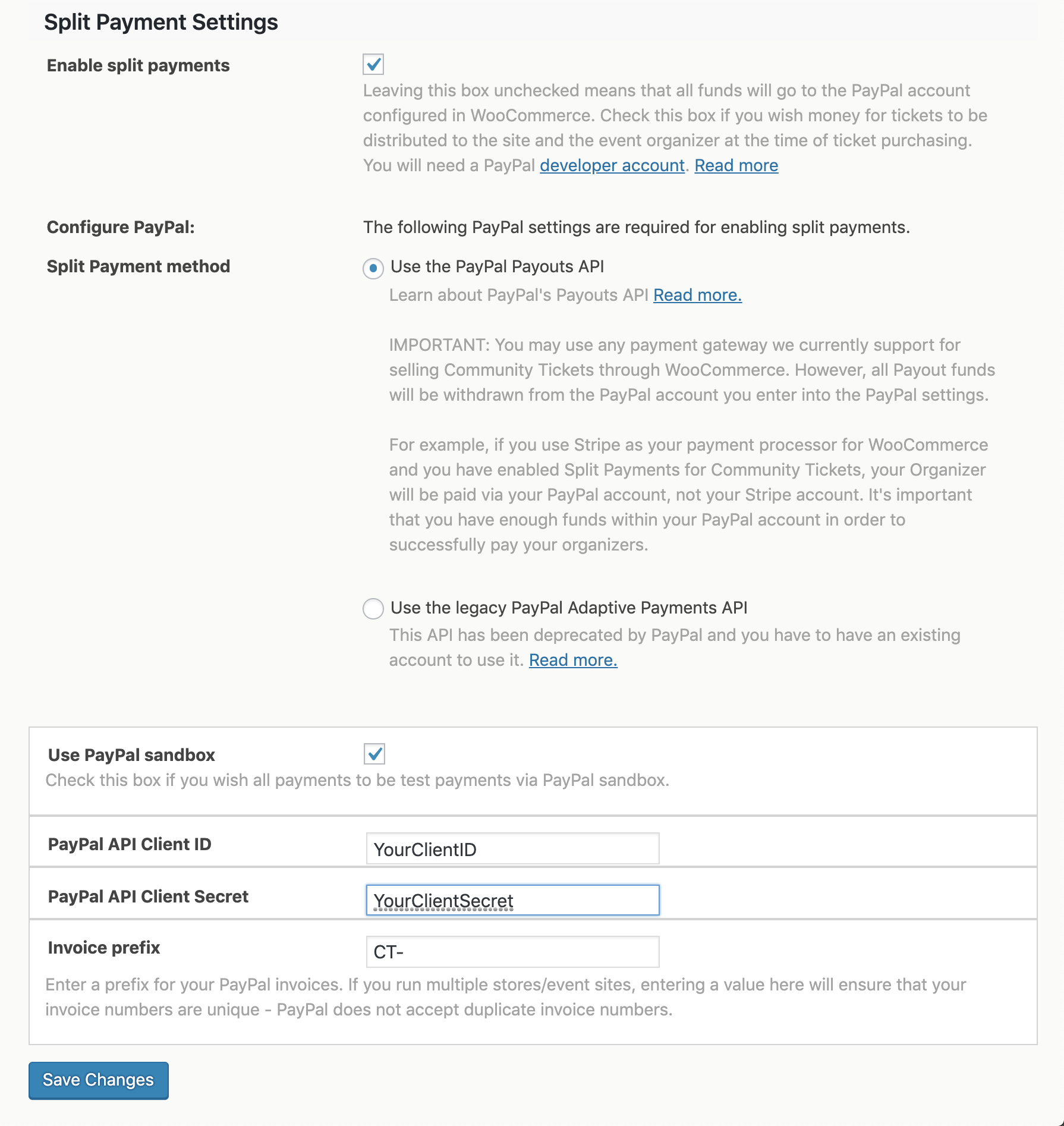
Payouts API Order Flow
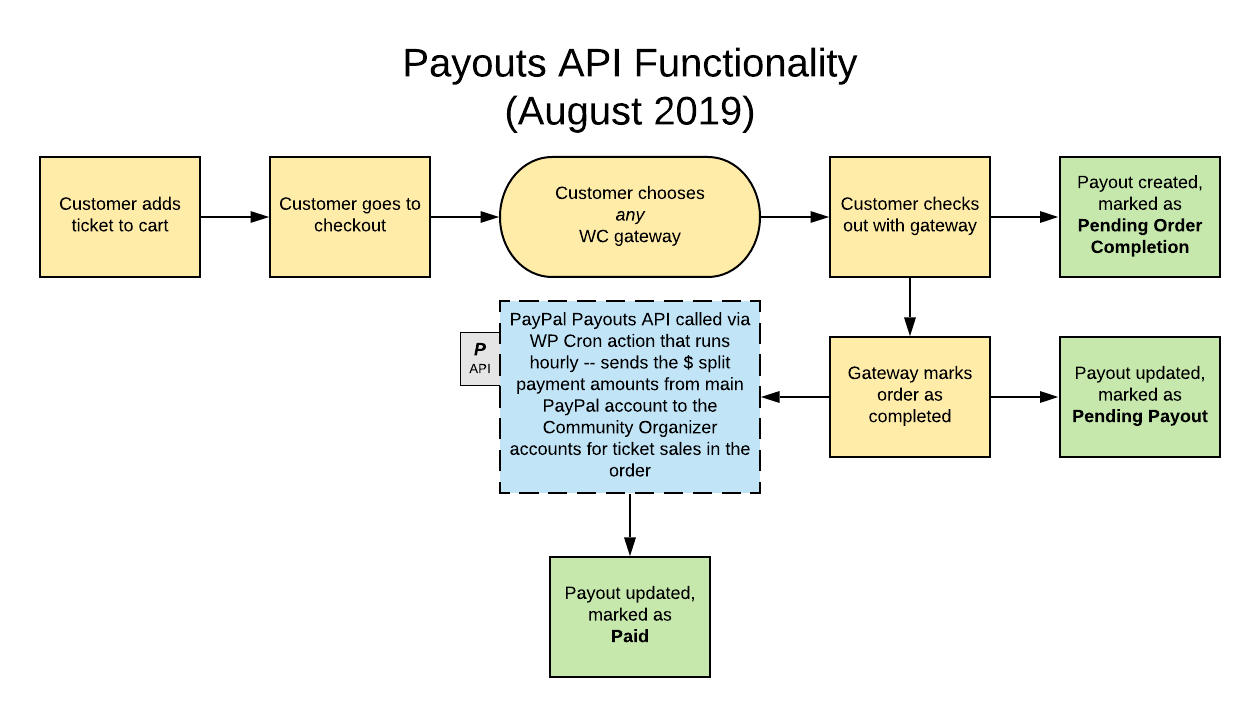
Triggering the Payouts API
You can trigger the queue processing on-demand by using this WP-CLI command:wp cron event run tribe_community_tickets_payouts_process
Handling Refunds
To be able to issue refunds, we recommend that you do not mark orders as complete until the event occurs. Once an order is marked as complete, payments are sent to organizers. Refunding tickets will not recover the payouts already sent to organizers. You could try to dispute that specific transaction with PayPal and say you did not receive what was paid for. However, we are unable to assist further with this step.
Deprecated PayPal Adaptive Payments
It’s important to note that this functionality is currently based on PayPal’s Adaptive Payments API which was recently deprecated. If you do not already have a live, approved Adaptive Payments account then you may no longer be able to acquire one. Paypal is deprecating Adaptive Payments in favor of the Payouts API method.
If you already have a live, approved account however then you can enable split payments on the Community settings page. You will need to use a WooCommerce payment gateway that the customer would use to make their purchases. For more help, please refer to our overview on Adaptive Payments and also PayPal’s support.
Are Split Payments Right For You
We can help you decide.
Pros:
- As a site admin, you have no responsibility to handle or distribute funds
- Community organizers get paid immediately with no action from the admin
Cons:
- Split payments are more work to set up and require a PayPal developer account
- Refunds and canceled events are significantly more difficult to handle. Refunds are deducted from the site admin’s total, with nothing taken from the community organizer’s profits.
Tracking Sales and Payouts
Once Ticket Fees and Split Payments are configured, you can track ticket sales and organizer payouts from your dashboard.
Orders
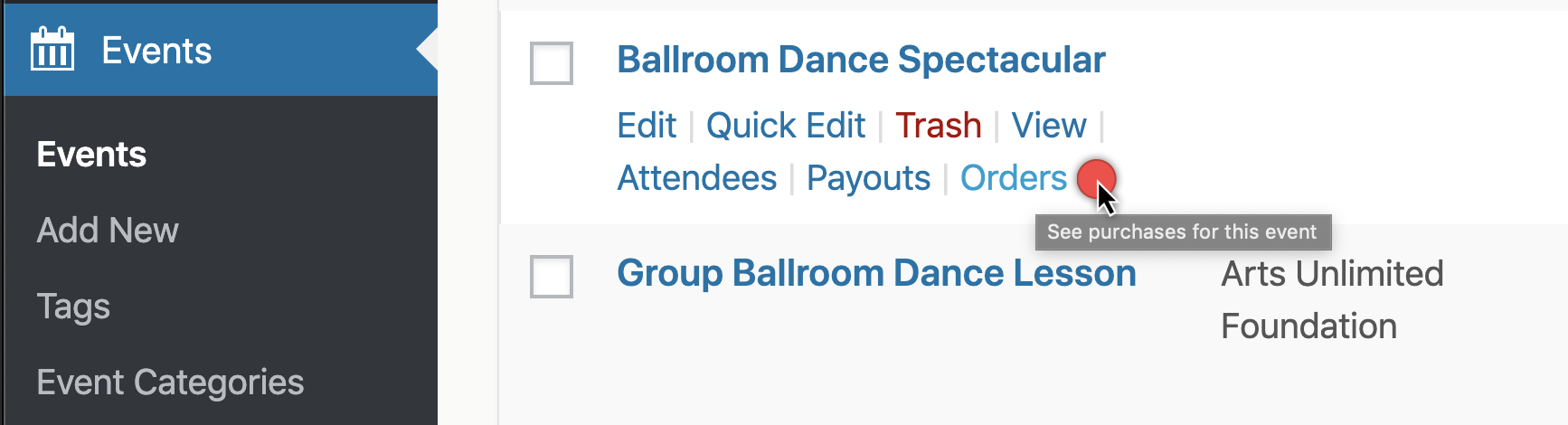
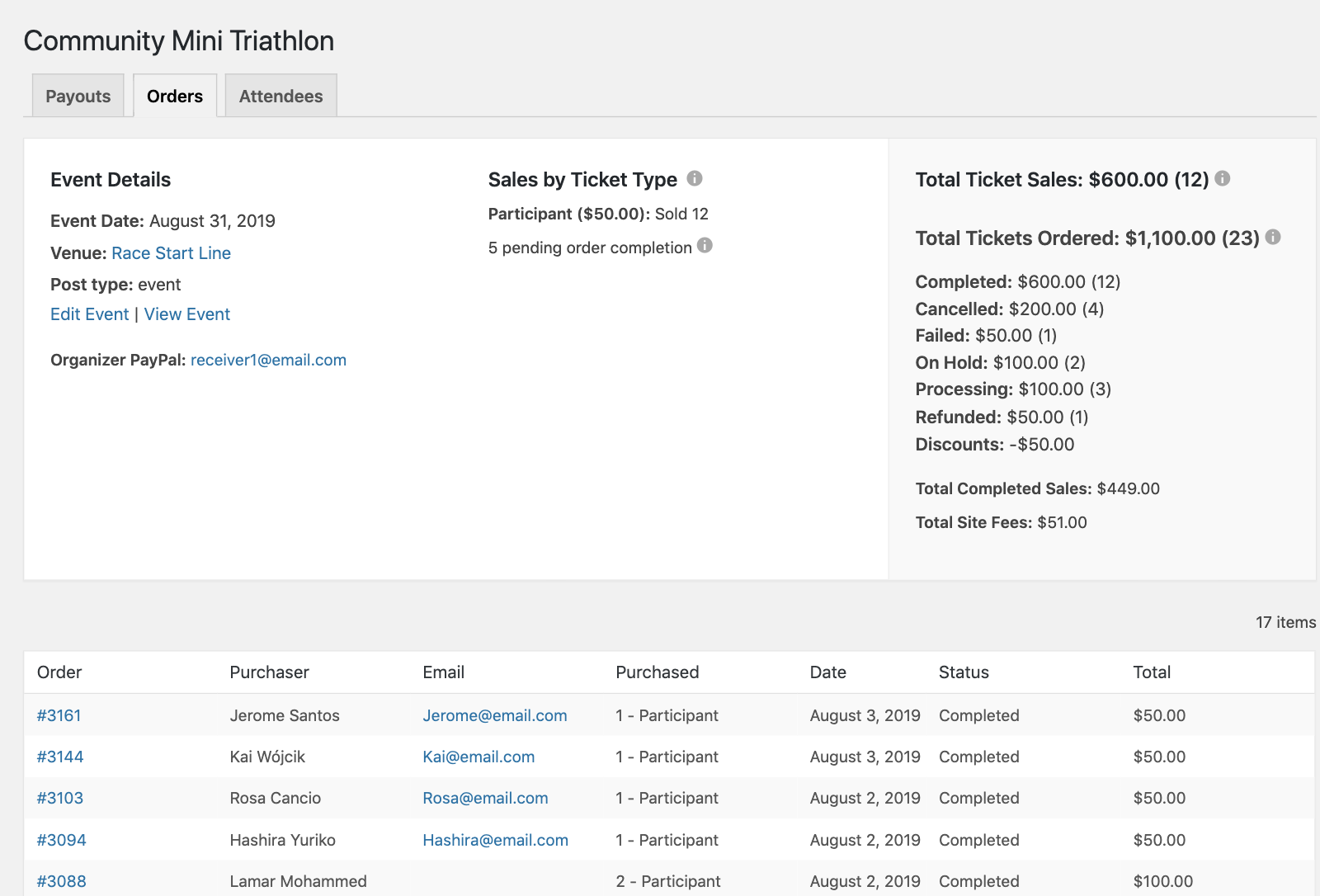
Site admins can view ticket sales for an event in two ways. From the main Events listings, hover over an event and select Orders:
Alternatively, click the Sales Report link in the ticket section of the Edit Event screen:
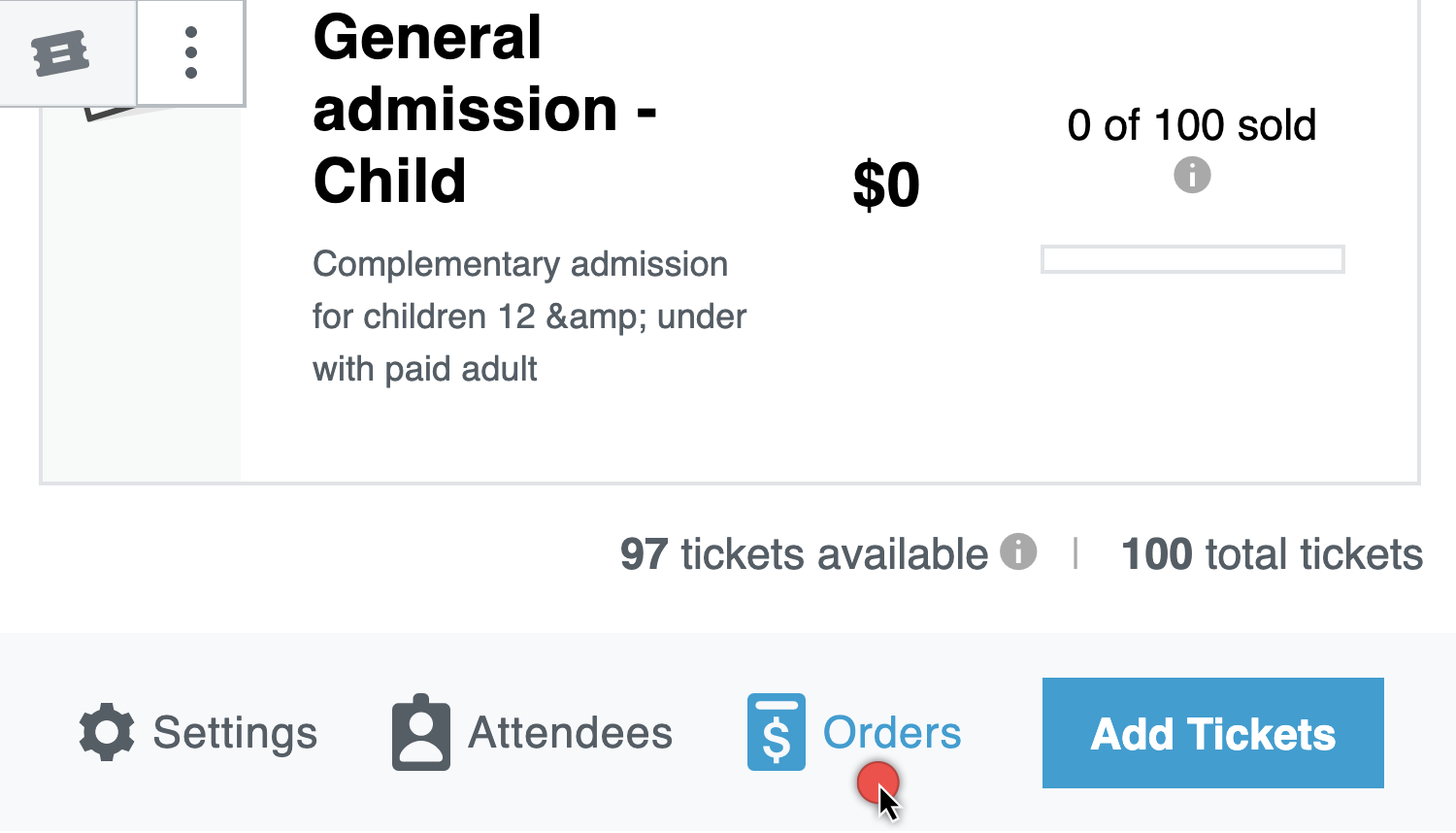
Both links open the event’s order report, which shows all tickets sold along with total revenue, ticket sales, and site fees.
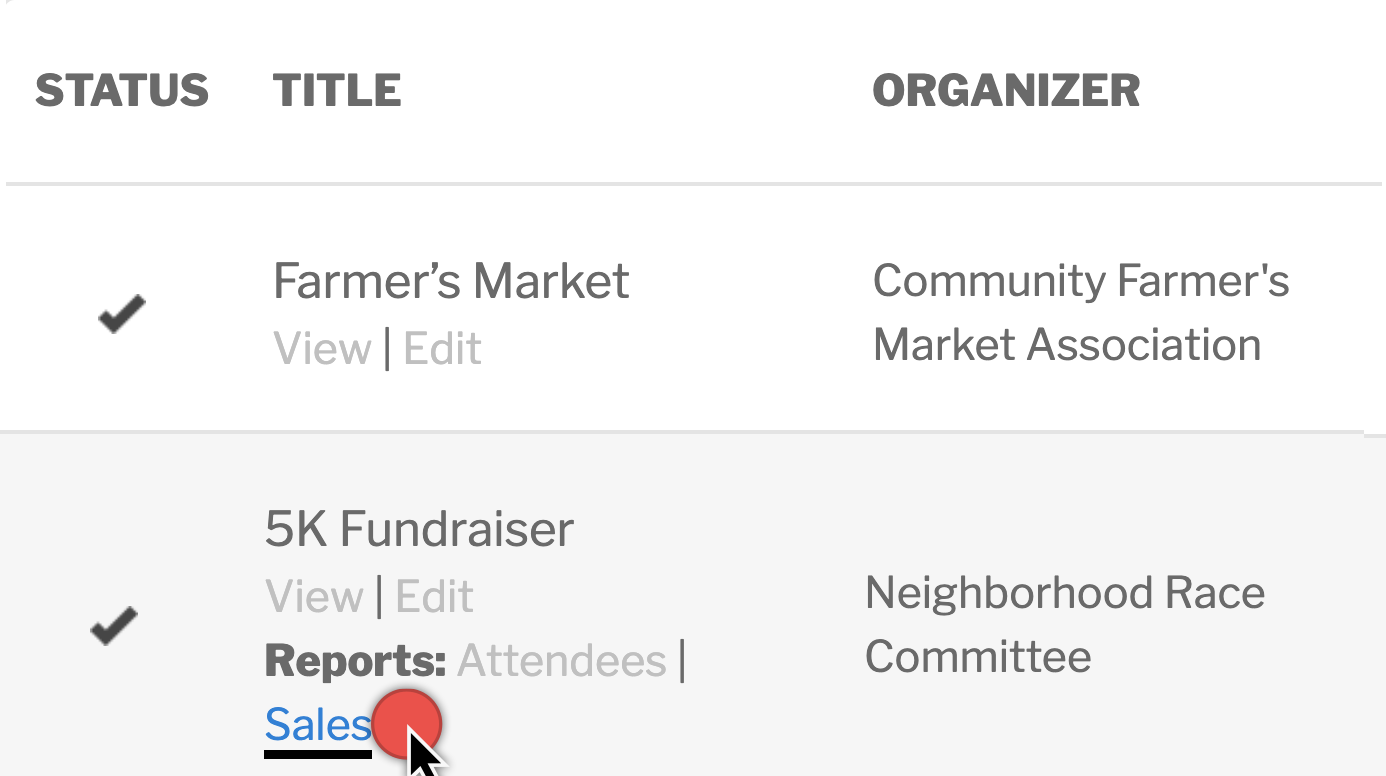
Community organizers can view their own event’s sales by clicking Reports: Sales under the event on their My Events page:
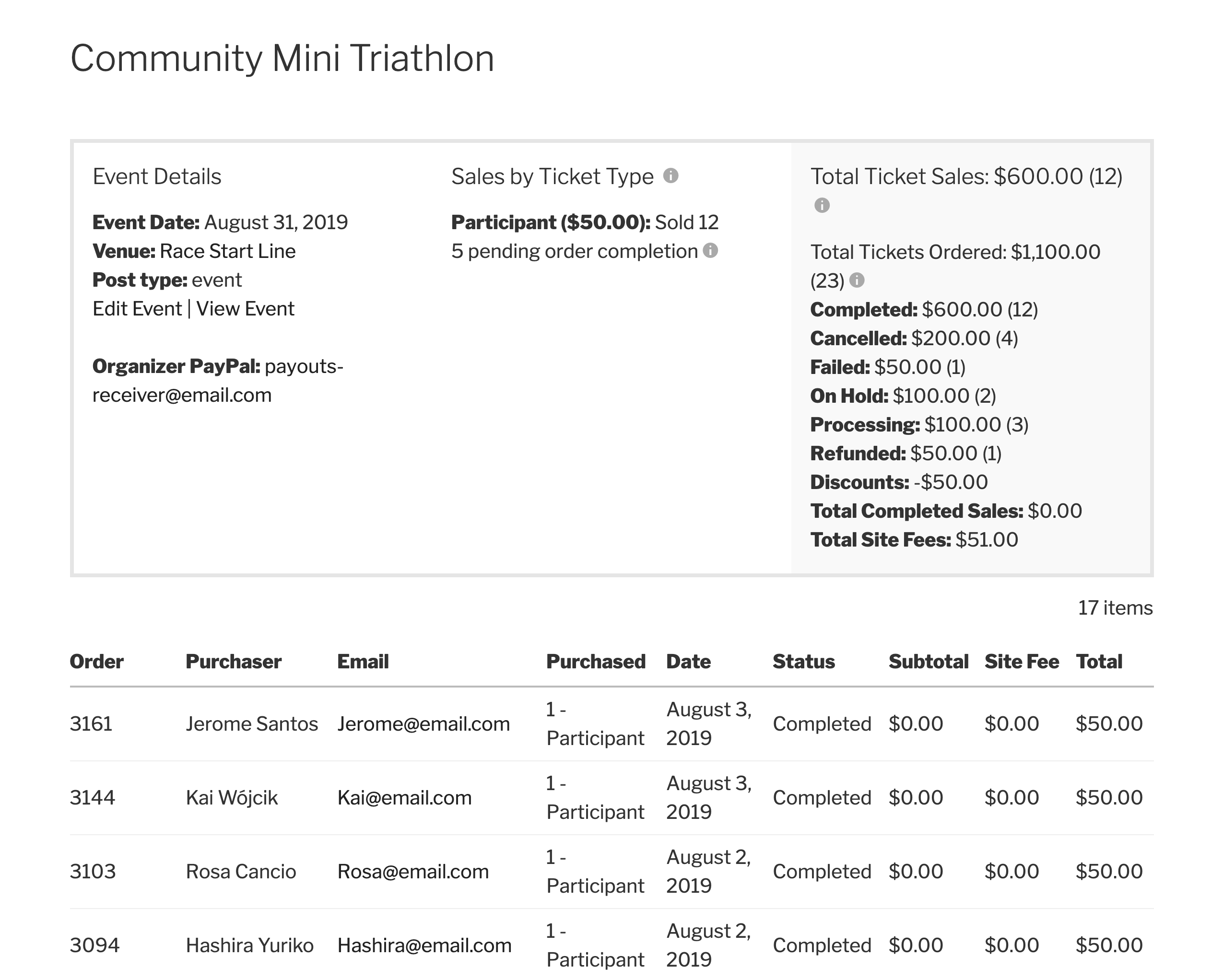
They’ll see the organizer’s version of the sales report:
Payouts
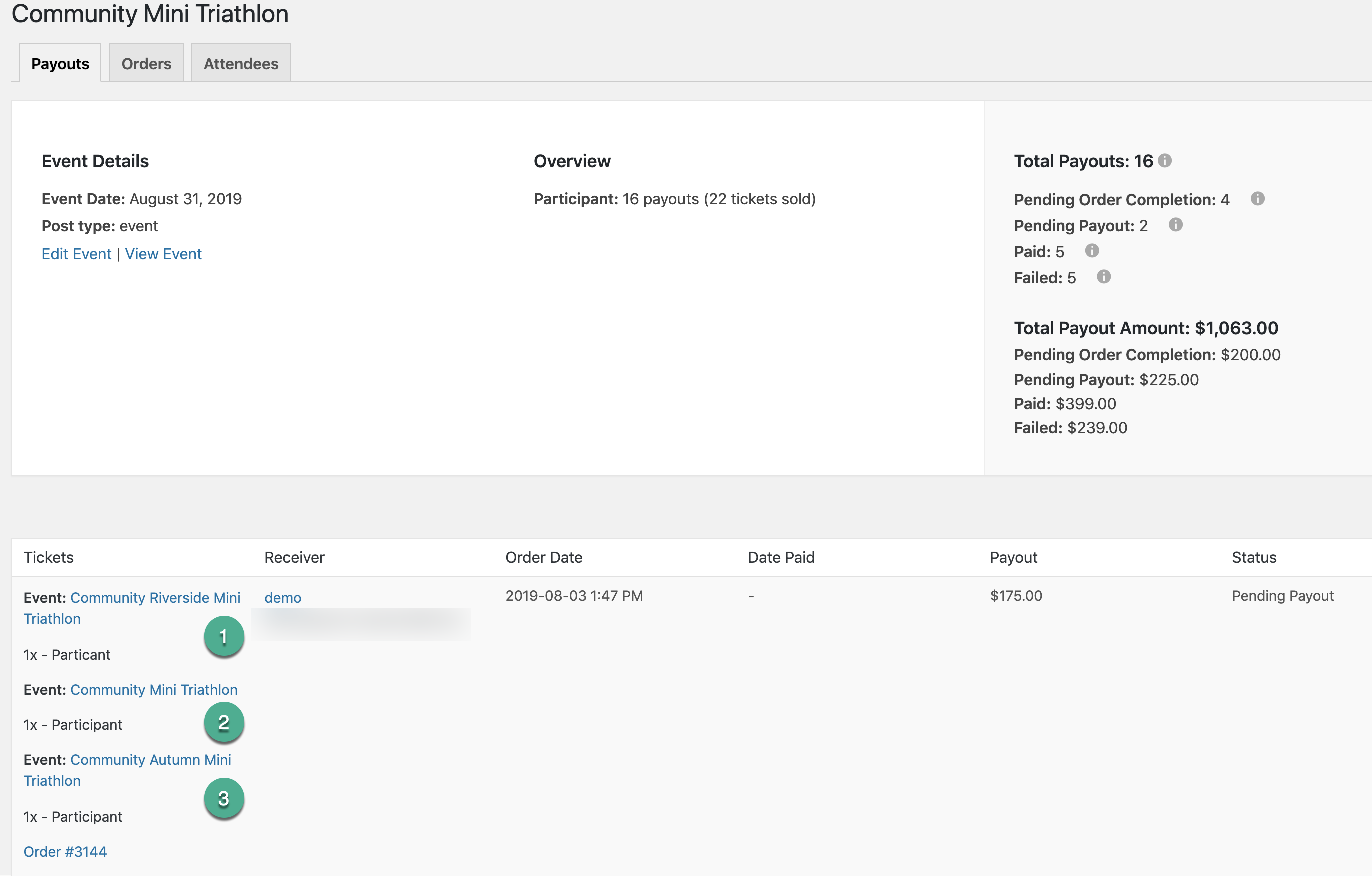
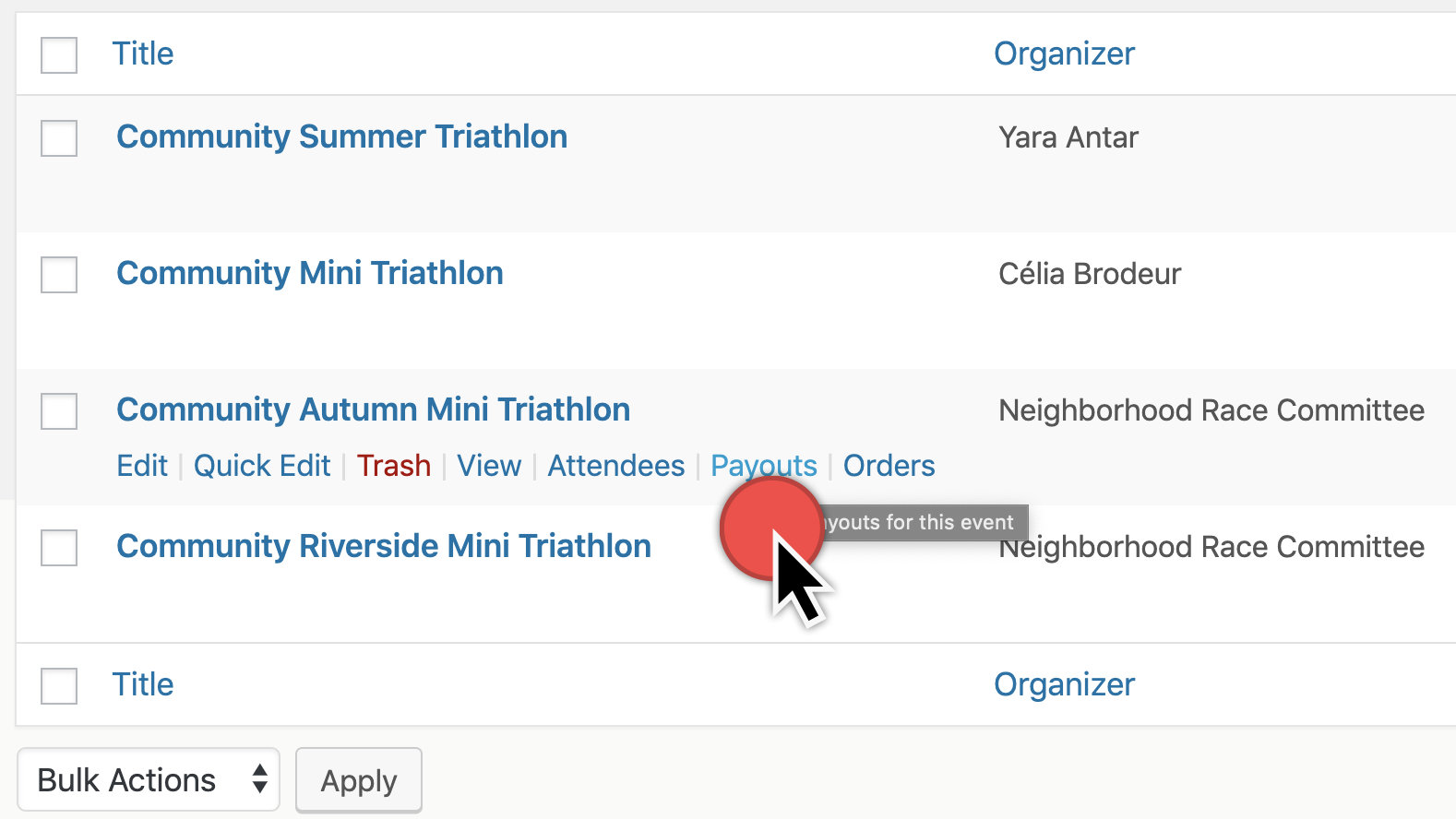
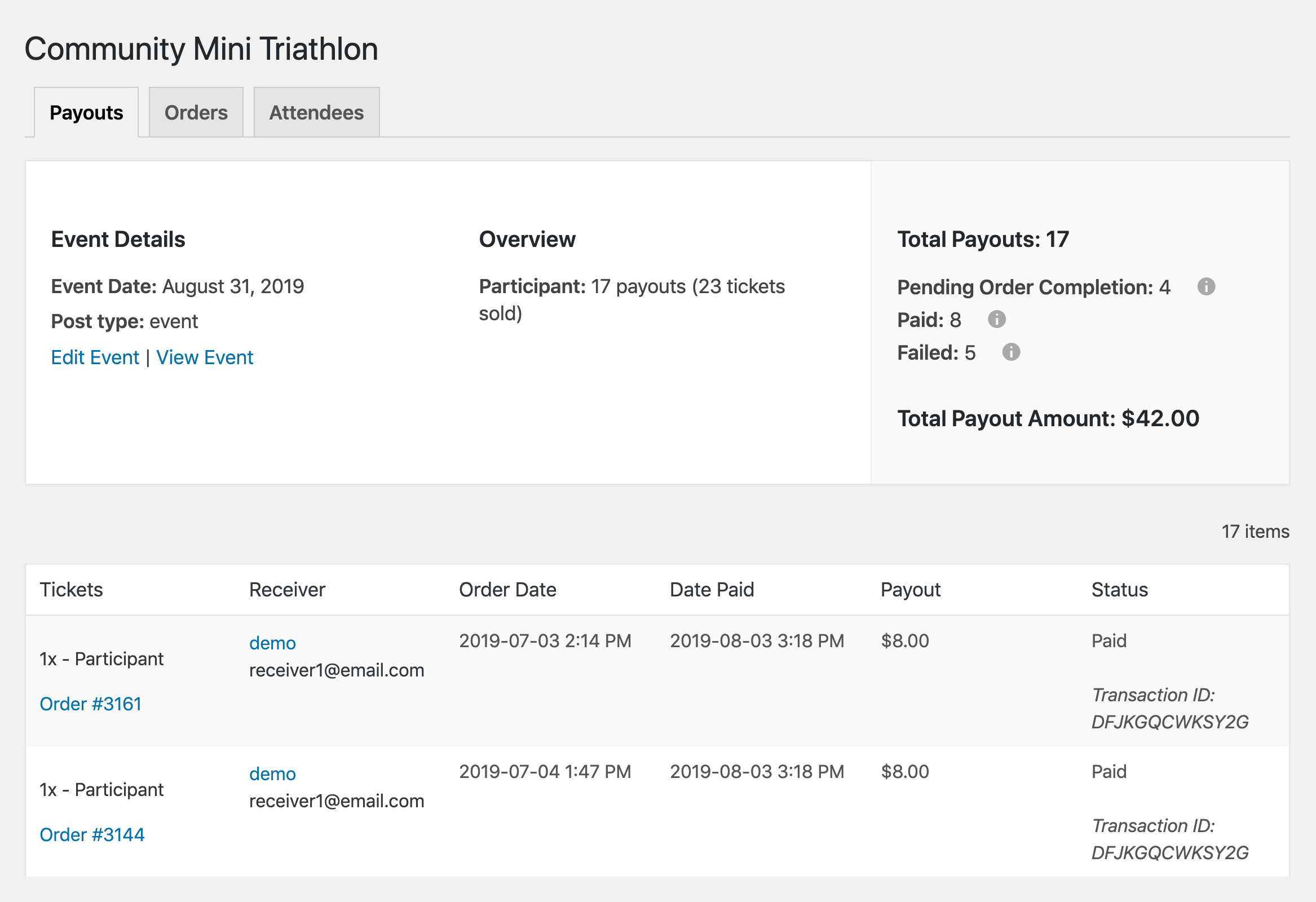
Community Tickets can split payments from ticket sales with event organizers. To view payout details, hover over an event in the admin dashboard and select Payouts:
You’ll find a listing of all payouts from the event:
Multiple Tickets from Different Events with the Same Organizer
If a buyer purchases tickets from several events by the same community organizer in one order, the Payouts tab shows all payouts for the current event, plus any other orders involving that event and other events from the same organizer.
In the example below, a user has purchased tickets for 3 different events hosted by the same organizer. The Payouts tab shows all payouts related to this event, plus the transactions where the buyer purchased 2 other tickets in the same order — all from the same organizer.