
Kadence WP is the maker of the popular Kadence theme and Kadence Blocks. They integrate easily with The Events Calendar, with lots of WordPress Customizer options and easy-to-build custom layouts.
This article will show you how to get set up to make the most out of this integration.
What you need
- The Events Calendar (free): This is the base calendar plugin that allows you to publish event posts and display them in a calendar format.
- Event Tickets (free, optional): This is the base ticketing plugin for The Events Calendar that adds ticket and RSVP functionality to events, pages, and posts.
- Kadence Theme (free): This is the main theme. For more features, you can check out the premium version.
- Kadence Blocks (free): This is a collection of blocks used to create customizable layouts for your event pages.
- Kadence Starter Templates (free): These are pre-built website designs using the WordPress block editor.
Installation
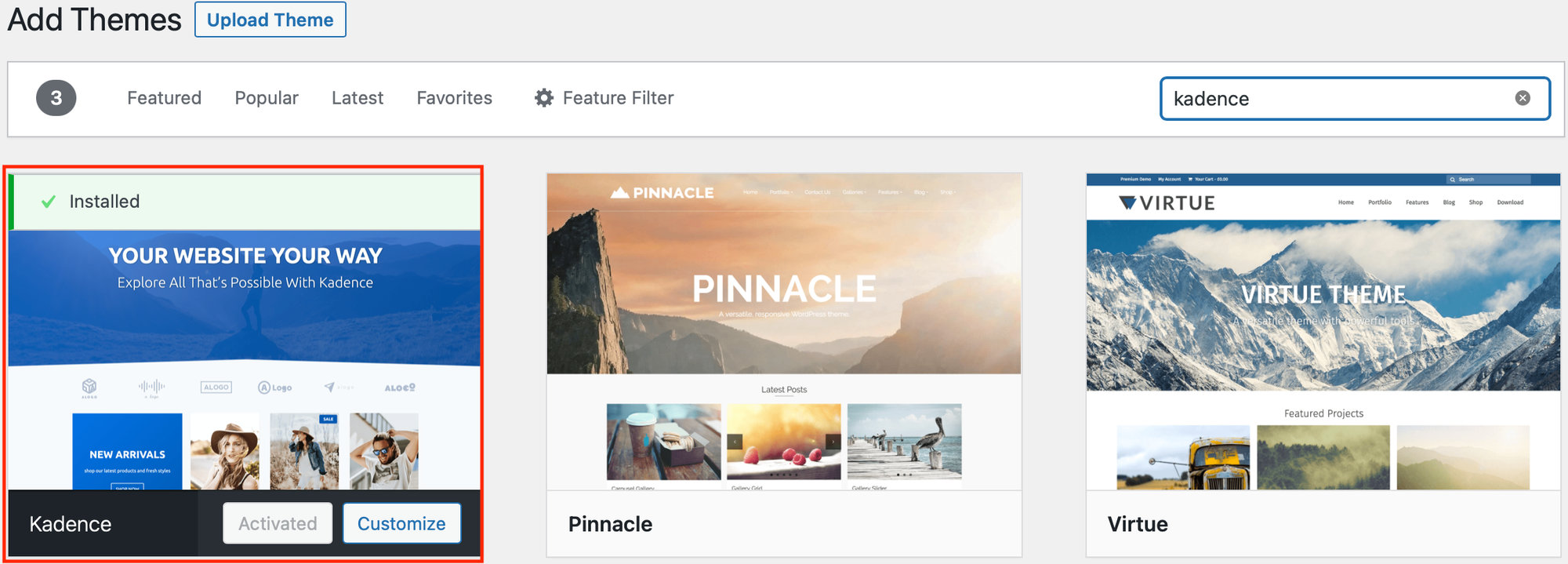
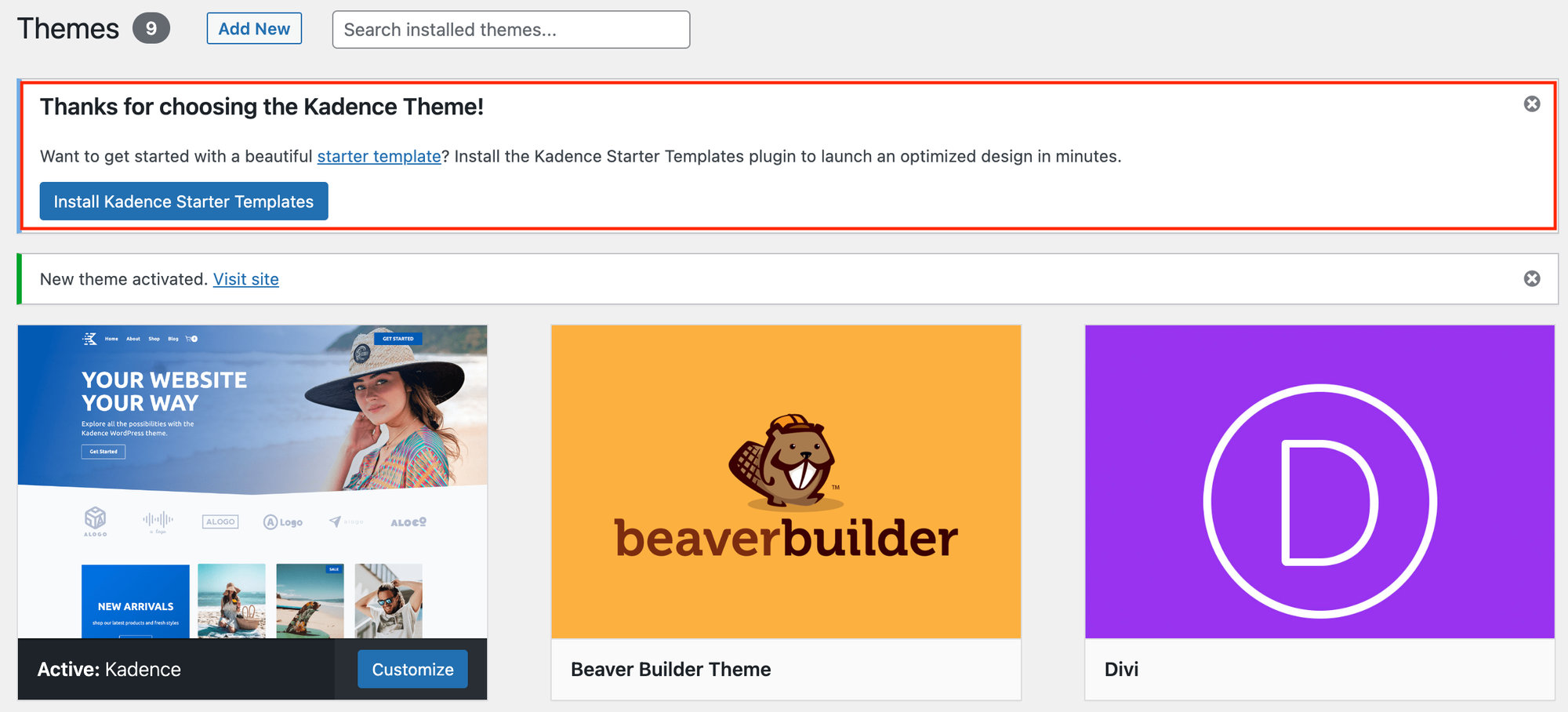
You can search for Kadence under Appearance → Themes → Add New. Once you install and activate the theme, click Install Kadence Starter Templates.
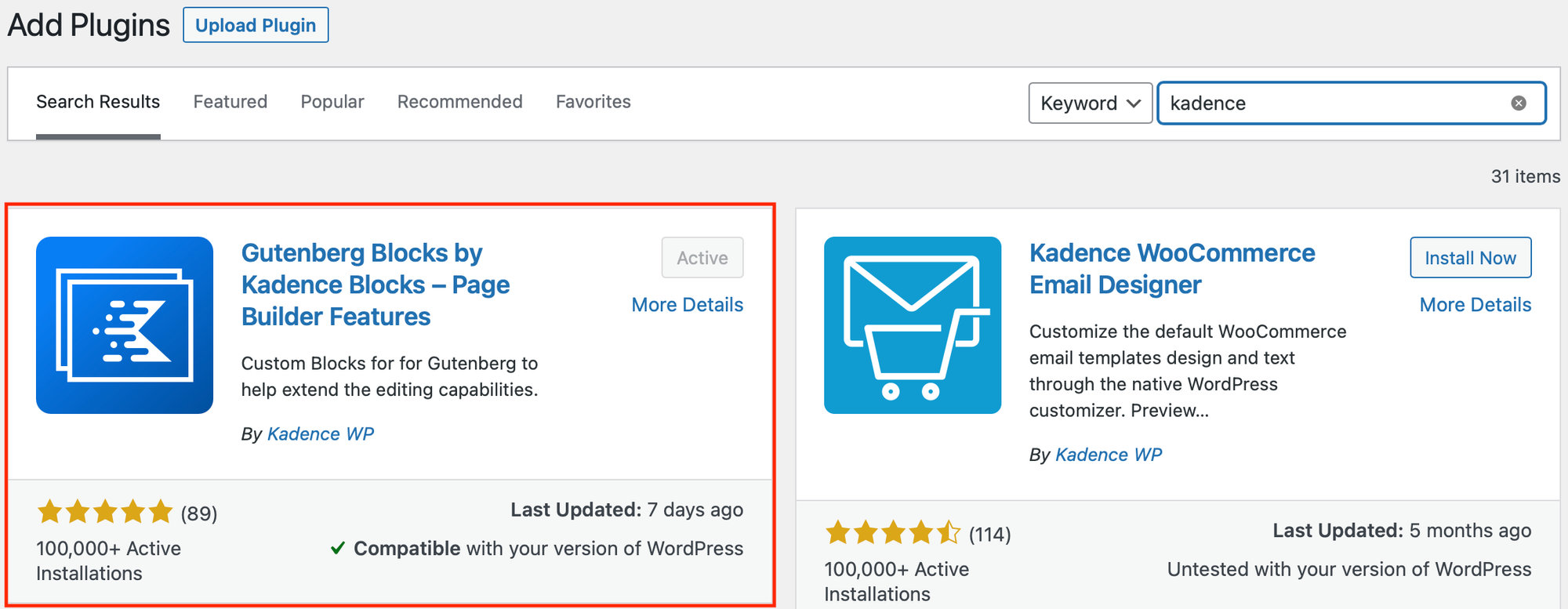
You can then install Kadence Blocks by searching for it under Plugins → Add New.
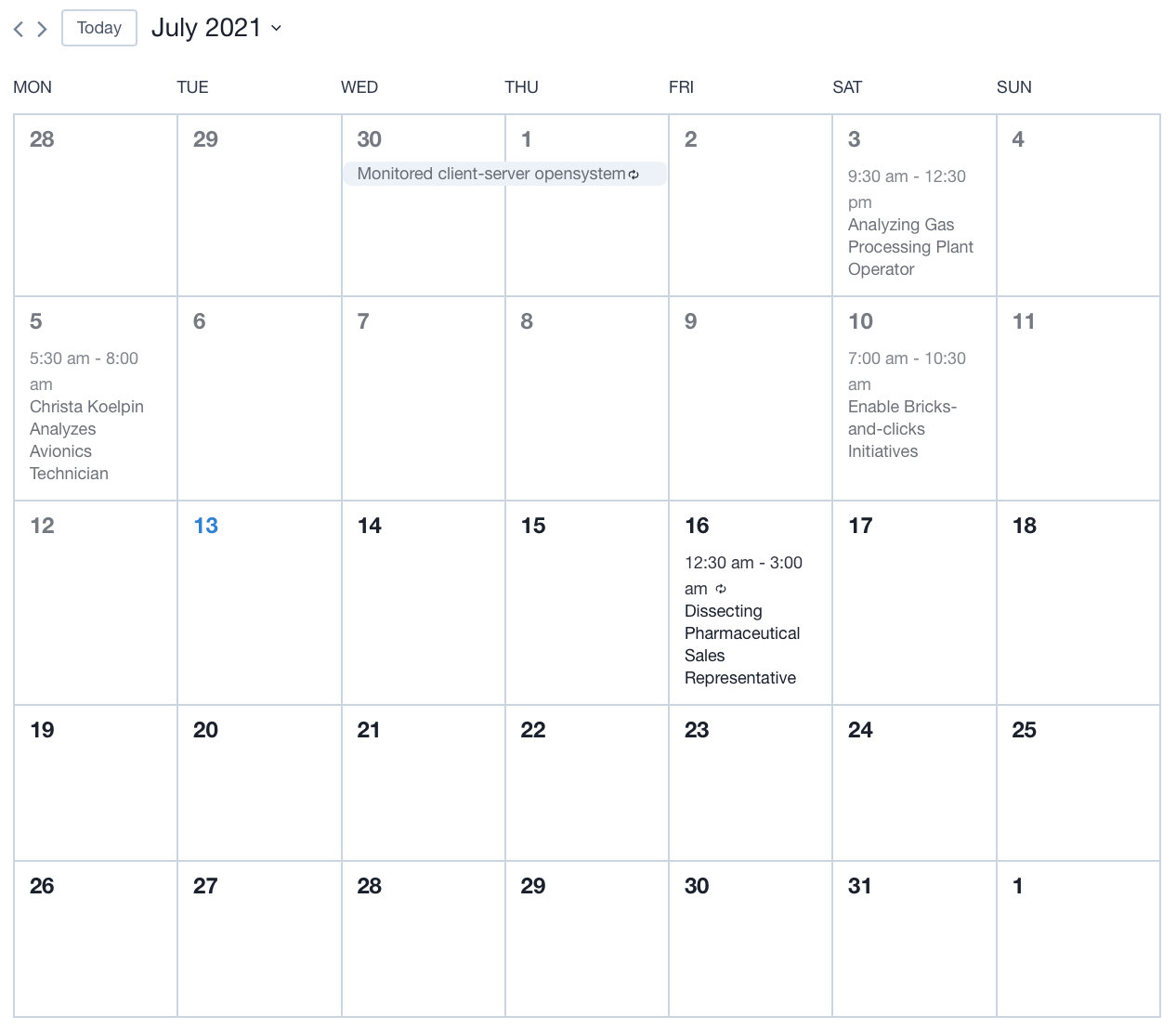
Using Kadence with The Events Calendar is practically the same as integrating The Events Calendar with any other WordPress theme. Install the theme and plugins and you get a nice-looking calendar right out of the box.
Styling event pages
With Kadence, you can customize your calendar pages and your single event pages. Head over to the WordPress Customizer in your admin toolbar at the top of the page (labeled “Customize”) to see all of your options.
In the WordPress Customizer, click The Events Calendar, and you’ll see new options for Single Event Layout and Events Layout.
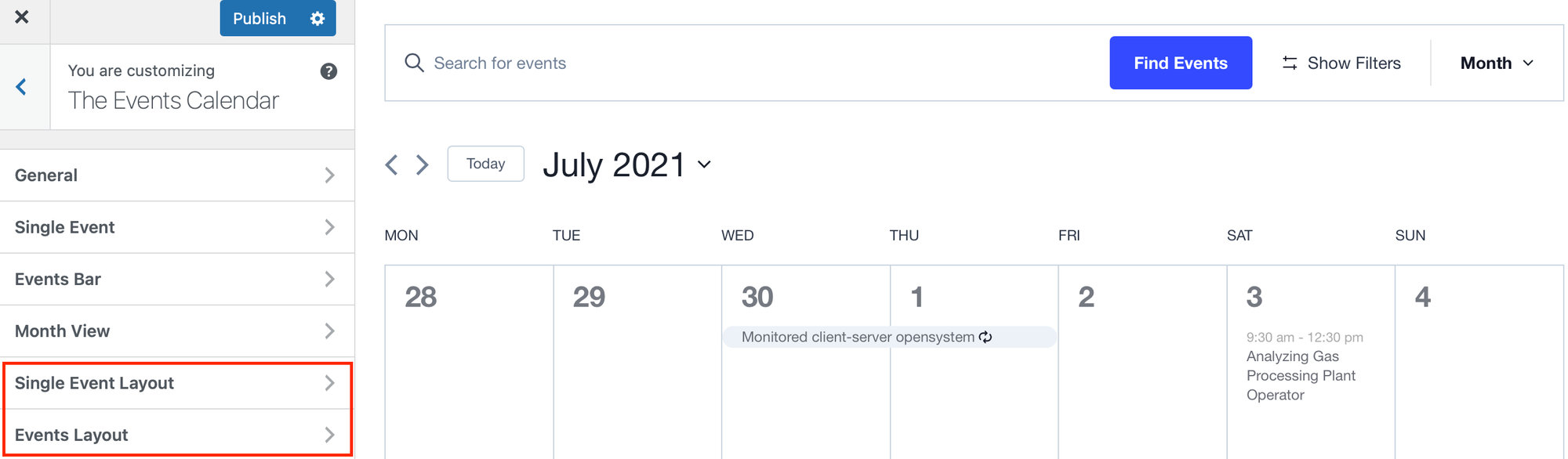
Try out the different layout options and see previews of the changes in real time. Hit Publish when you’re all done.
Using starter templates
Once you install the Kadence theme, you’ll be prompted to install the Kadence starter templates, so go ahead and click that button.
You can select one of Kadence’s starter templates under Appearance → Kadence → Starter Templates. You can choose whether to apply the starter template to a single page or to your whole site.
Now you’ll be able to see all the Kadence starter template options available.
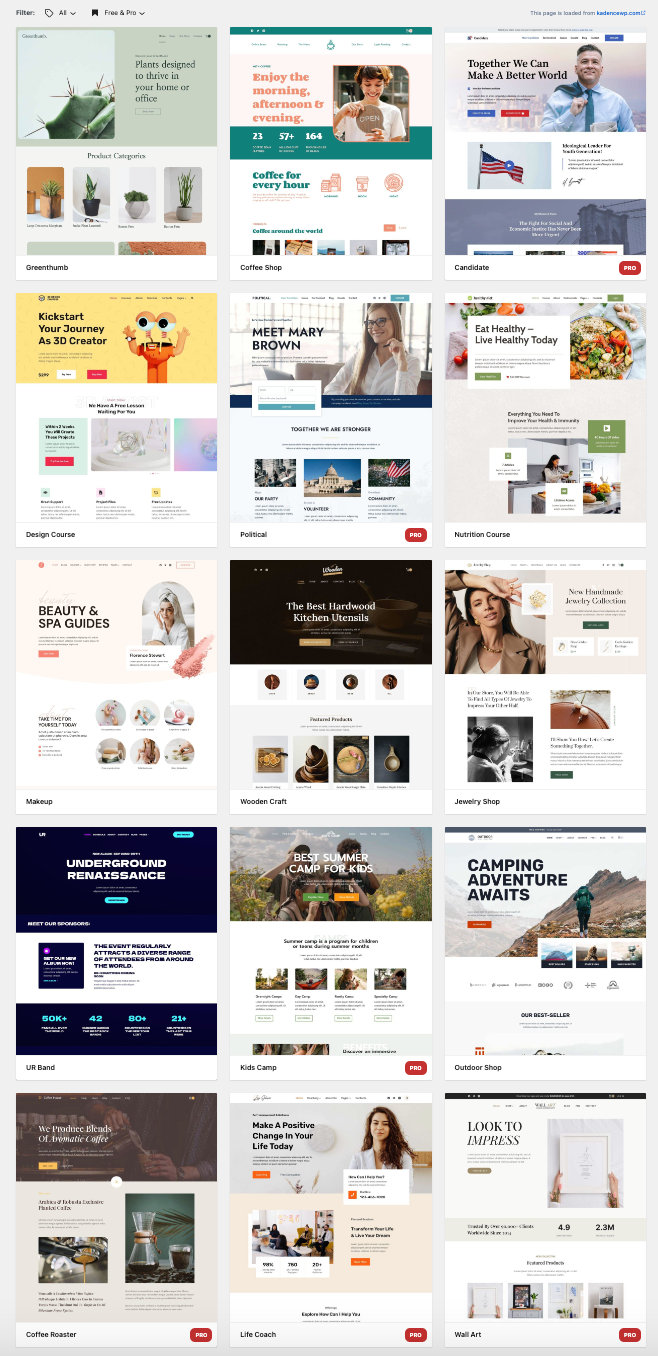
Choose the template that best describes your events website. You can host events on a museum website, conference website, kids camp website, and more! There is also a starter template called Events, which is a great way to showcase your website with The Events Calendar.
Customizing your starter template
Now you can select your color scheme and font styles. Don’t worry, you can always change these later if you’d like. You’ll also see any other required plugins for your chosen starter templates. These will be installed automatically when your starter template is imported.
Lastly, you can choose whether to import your starter template as a single page or as a full site. We recommend the full site option if you’d like to have the styles applied to your entire events website.
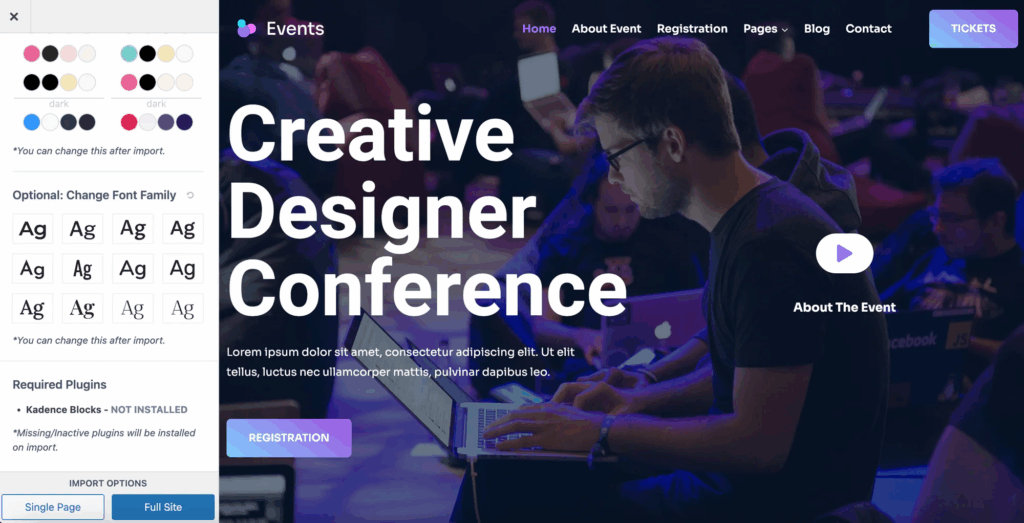
Choose the import option that you’d like and follow the prompts to begin importing.
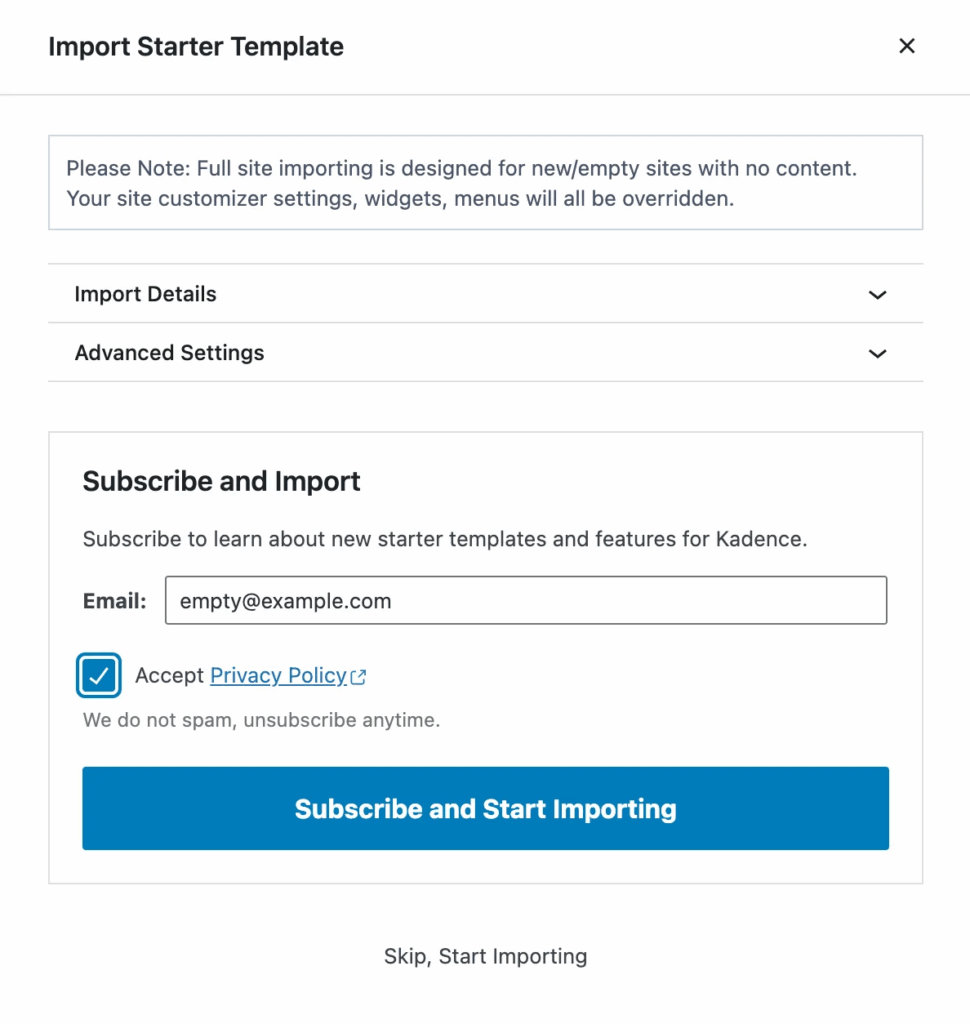
Now you’re ready to view your site!
Creating event pages with Kadence Blocks
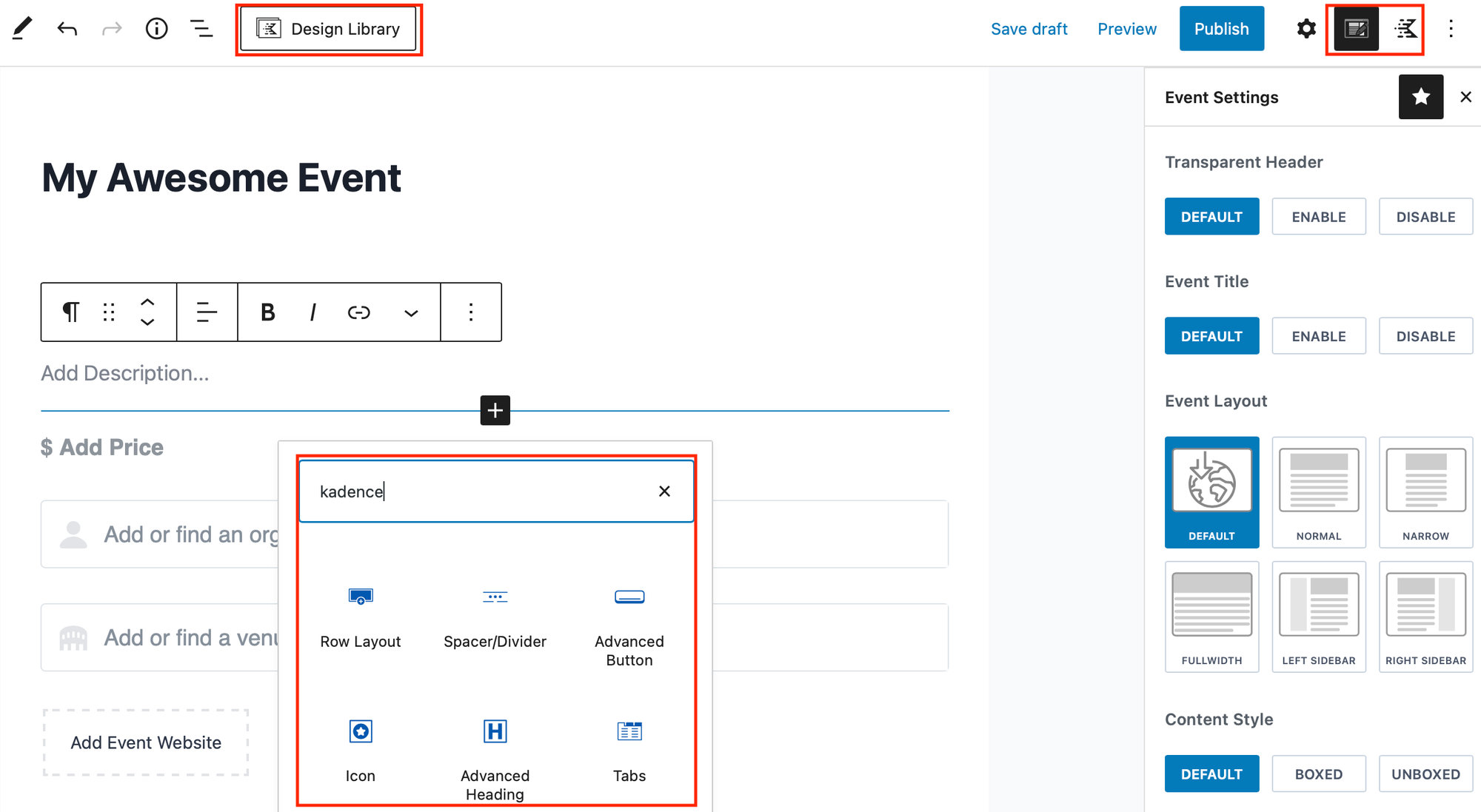
You can customize the layout of your single event page with Kadence. To do this, navigate to Add New Event in the block editor. In addition to standard event options, you’ll also see some new options with Kadence.
You can search for Kadence blocks to add, as you would with any other WordPress block. There is also a design library with prebuilt design blocks to add to your event page. You’ll also see a sidebar on your right with layout and block options.
Looking for something specific? We’ve got a whole host of blog posts to help you create a website with Kadence and The Events Calendar: