
Home › Forums › Calendar Products › Events Calendar PRO › Upload issues
- This topic has 55 replies, 3 voices, and was last updated 8 years, 3 months ago by
8mat.
-
AuthorPosts
-
April 28, 2018 at 12:49 am #1518345
8mat
ParticipantThis reply is private.
April 29, 2018 at 1:49 pm #1518753ParticipantThis reply is private.
April 30, 2018 at 8:54 am #1519254Sky
KeymasterHello,
Our support is available weekdays, and we try to respond to posts within 24 hours. You can read more about our Support Policies here.
We are looking at the image importing issue more in depth. We will let you know as soon as we have more information on that.
As to the Venues. I imported the first CSV file you have uploaded, and it imported 1050 venues. Looking at the file, I see that there are maybe a few hundred more entries than that, but noticed quite a few with multiple per line. I’m wondering if these aren’t able to be processed properly and are being skipped.
Are you saying that when importing this file, it did not import that many? If that is the case, your server may be timing out during the request for some reason. Can you try enabling WP_DEBUG and WP_DEBUG_LOG and see if there are any PHP errors generated during the import process? If so, there should be a file named “debug.log” generated in your “wp-content” directory.
For your issue with your latest CSV Events import: Can you please go ahead and create a new ticket for this? You may get a quicker response this way. We try to limit each ticket to a single issue, and we already have our hands full with the images and venues problems in this thread.
Thanks again for your patience,
SkyApril 30, 2018 at 10:17 am #1519341ParticipantHi Sky,
Ill wait for you to come back on the image issue – thank you.
Venues: Ok – well I didnt get that many uploaded at all, maybe 15 were created and a few updated. Then when I reduced the file again a few more were created and updated and so on! I will look at the WP_DEBUG right now and come back to you. I imagine this could also be the problem with the event upload I just did will hold off raising a new ticket until ive checked it.
Ill come back to you asap.
Thanks
April 30, 2018 at 10:30 am #1519358ParticipantThis reply is private.
May 1, 2018 at 8:27 am #1520170KeymasterHi again,
WP_DEBUG and WP_DEBUG_LOG are WordPress constants that need to be set to allow generating a log file of php errors. They need to be set in the site’s wp-config file. We just want to enable this while we are troubleshooting. Afterwards, these can be removed. With this enabled while you are running the import, we may be able to see what the problem is.
But with such a large import file, it is likely a resource allocation problem with the server settings.
Our dev team looked at the image urls from the import, and said that there seems to be some issues reaching the files due to redirects to localhost? It looks like you are using Cloudflare CDN and this is somehow preventing the images from being recognized as existing locally. Is it possible to temporarily disable Cloudflare while doing the import?
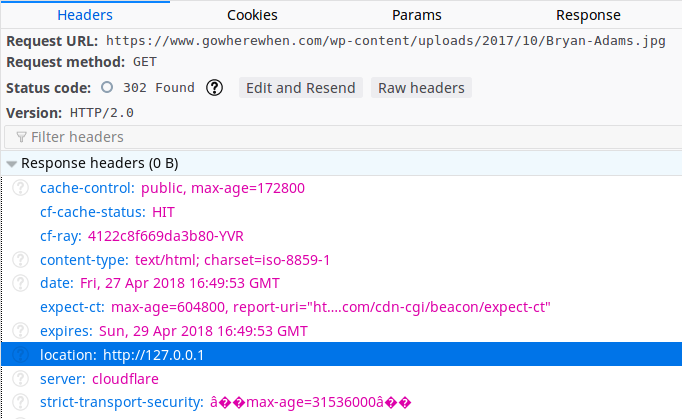
Let me know if the debug thing makes sense.
Thanks,
SkyMay 1, 2018 at 11:27 am #1520457ParticipantHi Sky,
It makes sense and no sense! Ive done some reading and spoke with siteground. The time out is set to 120 seconds. I am going to try an upload later with an extended time out that they are going to temporarily set for me. The WP_DEBUG – is this something you can activate? should it be done on a live site?
Ill go in an disable cloudfare right now and retry another upload also.
Ill come back to you…..
Thank you for all your assistance!
May 1, 2018 at 2:39 pm #1520612ParticipantHI Sky,
I disabled cloudfare and did the upload attached called 13 April A. It only uploaded 35 of the 36 entries and did match with any of the images this time. Also – no greyed out “empty/false” jpg were created. I did the upload again after I had the dynamic timeout increased to 900 seconds from 120 and still the last entry didnt upload for some reason. I checked the image URLs and they are correct.
I also then did a larger event upload of 411 events (I know you said do it on a new ticket, and I will but thought is relevant to this problem I think) and it created 5 and updated 5 and this was after the dynamic timeout increase. THen a gateway time out page came up so i contacted siteground again. This time they increased the import.php timeout to 900 seconds as they missed that previously but still only 5 were created and updated.
thanks
May 1, 2018 at 2:48 pm #1520617ParticipantThis reply is private.
May 2, 2018 at 4:25 am #1520911ParticipantThe WP debug is now enabled.
May 2, 2018 at 8:49 am #1521106KeymasterHi again,
Am I understanding correctly that the import is now handling the images correctly with Cloudflare disabled?
When you enabled WP_DEBUG, did you also enable WP_DEBUG_LOG? This will write any errors to a log file that we can look at. Once enabled, try to run the import on the large file of venues. Let it do it’s thing until it reports that it is complete.
If it timed out or had any problems during the import, hopefully the errors were recorded in the log file. Can you upload the contents of that file here? If it’s small you can just paste it in the editor, but otherwise you may need to save it as a .txt file and upload. The file is named “debug.log” and it should be generated in the site’s wp-content directory.
Thanks,
SkyMay 2, 2018 at 10:46 am #1521262ParticipantThis reply is private.
May 2, 2018 at 3:14 pm #1521488May 3, 2018 at 8:19 am #1522042KeymasterHello,
I am now also having problems with the images being imported in my test install, so it looks like there is a bug going on here. The funny thing is that when we started this thread, I was able successfully import images in the CSV file. I believe the Cloudflare issue was just coincidental, and there are two separate things at play.
I have attached this thread to the bug ticket. We will let you know as soon as we know anything more about it.
Let me know how it goes with the debug errors for the other issue.
Thanks,
SkyMay 4, 2018 at 8:05 am #1522912ParticipantHi Sky,
With cloudfare activated SOME of the images matched but not all of them and as you say now its deactivated none of them have matched but I am not sure these are linked. Ill activate it again and see what happens.
Please do keep me up to date as we are stuck while this problem persists!
Thanks
Amy
-
AuthorPosts
- The topic ‘Upload issues’ is closed to new replies.