
The Events Calendar’s calendar views — Month, List, Day, and the additional views available with Events Calendar Pro — share a common set of customization options that apply across all views. This article covers those general customizations: how many events appear, what displays in the header, how the page title is output, and more.
For customizations specific to a particular view, see the individual view articles:
- Customizing Month View
- Customizing List View
- Customizing Day View
- Customizing Week View
- Customizing Photo View
- Customizing Map View
For styling and color changes that don’t require code — such as accent colors, font choices, and button styles — see Customizing The Events Calendar with the WordPress Customizer.
Customizations for The Events Calendar are usually implemented via code snippets or template overrides. Add snippets to your child theme’s functions.php file or use the Code Snippets plugin. Template overrides should go in a child theme. If either approach is new to you, start with Using Code Snippets to Customize The Events Calendar and Customizing The Events Calendar Templates for a walkthrough of each.
Number of Events Displayed
The number of events shown in calendar views is controlled by two settings at Events → Settings → Display → Calendar Display:
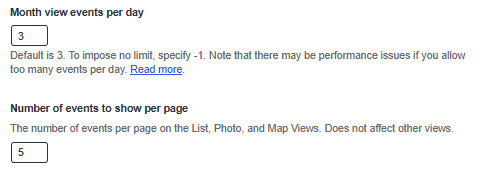
- Month view events per day — controls the maximum number of events listed per day cell in Month View. The default is 3. Use
-1to show all events. Note that all-day and multi-day events are not counted toward this limit, so the actual number of items visible in a cell may be higher. - Number of events to show per page — controls the number of events per page in List, Photo, and Map views. Day View always shows all events on the given day regardless of this setting.
Because events come in different forms — single, recurring, all-day, multi-day — the displayed count doesn’t always match the setting exactly. Here’s how each view handles it:
Month View
Month View honours the events-per-day setting, but all-day and multi-day events are displayed in addition to that count rather than within it.


If you want all-day and multi-day events to count toward the per-day limit, that requires a template customization.
Summary View
In Summary View, multi-day events appear on each day they span. In the page’s total event count, each multi-day event counts as one event regardless of how many days it occupies.
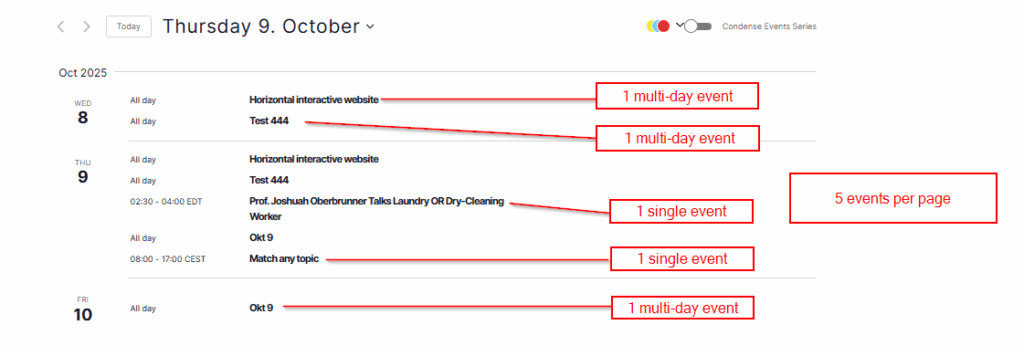
List, Photo, and Map Views
In these views every event counts as one toward the per-page total, regardless of type. Single, recurring, all-day, and multi-day events all count equally.
When the Setting Doesn’t Take Effect
If changing the events-per-page setting has no effect, your theme may be overriding it via its own archive posts-per-page setting. You can work around this with a snippet. Add the following to your child theme’s functions.php or via the Code Snippets plugin, changing the number to your desired value:
add_filter(
    'tribe_events_views_v2_view_latest-past_repository_args',
    function( $args, $context, $view ) {
        $args['posts_per_page'] = 10; // Change to your desired number
        return $args;
    }
);
Controlling Events in the Latest Past Events Section
When there are no upcoming events, The Events Calendar can display a “Latest Past Events” section. By default it shows 3 events. To change that number:
add_filter( 'tribe_context_latest_past_per_page', function( $value ) {
    return 10; // Change to your desired number
} );
To match the Latest Past Events count to your main list view setting:
add_filter( 'tribe_context_latest_past_per_page', function( $value ) {
    return tribe_get_option( 'postsPerPage', 3 );
} );

add_filter(
    'tribe_events_views_v2_view_prev_url',
    function( $url, $canonical, $view ) {
        $parsed_url = wp_parse_url( $url );

        if ( empty( $parsed_url['query'] ) || false === strpos( 'eventDisplay=past', $parsed_url['query'] ) ) {
            return $url;
        }

        if ( ! empty( $parsed_url['path'] ) && false !== strpos( 'page', $parsed_url['path'] ) ) {
            return $url;
        }

        return add_query_arg( 'paged', '2', $url );
    },
    10,
    3
);
Customizing the Title for Your Events Page When Added to Homescreen
When users save your Events Calendar page to their mobile homescreen, the default title—like “Events from April 1 – April 30 – Join us!”—is auto-generated based on the calendar’s current date range. While informative, this title may not align with your brand or message and can appear unnecessarily long or inconsistent.
Using the snippet below gives you full control over how it appears in browser tabs, mobile shortcuts, and even social previews.
Add the following to your child theme’s functions.php or via the Code Snippets plugin.
add_filter( 'tribe_get_events_title', function( $title ) {
    if ( tribe_is_month() || tribe_is_past() || tribe_is_upcoming() ) {
        return 'Events – Join us!';
    }
    return $title;
});
The tribe_get_events_title filter lets us intercept and customize the default title generated by The Events Calendar. The snippet above checks if the view is month, past, or upcoming, and then replaces the title accordingly.
Removing the Site Name from the Title
If your site’s name is still showing in the title (e.g., “Events – Join us! – MySiteName”), it’s likely being appended by your theme or SEO plugin. To remove it, add this code below the previous snippet:
add_filter( 'document_title_parts', function( $title ) {
    if ( function_exists( 'tribe_is_event_query' ) && tribe_is_event_query() ) {
        unset( $title['site'] ); // Removes site name
    }
    return $title;
});
Hiding and Excluding Events from Calendar Views
By default, all published events appear across every calendar view. The snippets in this section let you control which events are visible on the frontend based on various criteria. Note that hiding an event from calendar views does not affect its individual event page, which remains accessible via its direct URL.
Hiding Events That Have Already Started
By default, calendar views show ongoing events even after their start time has passed, as long as they haven’t ended yet. If you’d prefer to only show truly upcoming events, hiding anything that has already started, use the snippet in this section.
It hooks into tribe_repository_events_pre_get_posts to modify the main frontend event query. It uses your site’s configured WordPress timezone.
Add this to your child theme’s functions.php or via the Code Snippets plugin.
<?php //Do not copy this line

add_action( 'tribe_repository_events_pre_get_posts', function ( $query ) {
	// Only modify the main frontend query
	if ( is_admin() || ! $query->is_main_query() ) {
		return;
	}

	// Use site's timezone safely
	$timezone = wp_timezone();
	$now      = new DateTime( 'now', $timezone );
	$today    = $now->format( 'Y-m-d H:i:s' );

	// Exclude events that have already started
	$meta_query   = (array) $query->get( 'meta_query', [] );
	$meta_query[] = [
		'key'     => '_EventStartDate',
		'value'   => $today,
		'compare' => '>=',
		'type'    => 'DATETIME',
	];

	$query->set( 'meta_query', $meta_query );
}, 10 );
⚠️ This affects all frontend event queries, including List, Month, and Day views. It does not affect admin event listings.
Hiding Events by Category
If you have events organized into categories that shouldn’t be visible on the public calendar, such as internal, admin-only, or invite-only events, you can exclude them by category slug.
The snippets below apply an “OR” logic, meaning that events will be excluded from the calendar view if they match any of the categories in the exclusion list.
Hide Events in All Views
This snippet will hide the events in all main calendar views. Note that this also affects calendars displayed with the [tribe_events]shortcode. (See below for a solution to exclude that.)
add_filter( 'tribe_events_views_v2_view_repository_args', 'tec_exclude_events_category', 10, 3 );

function tec_exclude_events_category( $repository_args, $context, $view ) {
	// Get the category we are looking at.
	$context_category  = $context->get( 'event_category' );

	// List of category slugs to be excluded
	$excluded_categories = [
		'my-category-slug',
		'my-other-category-slug',
	];

	// Bail if we are looking at a category archive.
	if ( in_array( $context_category, $excluded_categories, true ) ) {
		return $repository_args;
	}

	// Otherwise exclude events in the given categories.
	$repository_args['category_not_in'] = $excluded_categories;

	return $repository_args;
}
Hide in Some Views
If you don’t want to hide the events in a given category in all views, you can add a modification to the snippet to check for a certain view or views.
add_filter( 'tribe_events_views_v2_view_repository_args', 'tec_exclude_events_category', 10, 3 );

function tec_exclude_events_category( $repository_args, $context, $view ) {
	// Get the category we are looking at.
	$context_category  = $context->get( 'event_category' );

	// List of views where the category should be hidden
	$hide_in_views = [
		'month',
		'list',
	];

	// List of category slugs to be excluded
	$excluded_categories = [
		'my-category-slug',
		'my-other-category-slug',
	];

	// Bail if we are looking at a category archive.
	if ( in_array( $context_category, $excluded_categories, true ) ) {
		return $repository_args;
	}

	// If on a given view, exclude events in the given categories.
	if ( in_array( $view->get_slug(), $hide_in_views, true ) ) {
		$repository_args['category_not_in'] = $excluded_categories;
	}

	return $repository_args;
}
Hide Events in One View Only
While the snippet above can hide specific events in a single view, there are dedicated hooks available to target individual views separately. The code below lists all the available hooks; simply use the one for the targeted view.
add_filter( 'tribe_events_views_v2_view_month_repository_args', 'tec_exclude_events_category', 10, 3 );
add_filter( 'tribe_events_views_v2_view_list_repository_args', 'tec_exclude_events_category', 10, 3 );
add_filter( 'tribe_events_views_v2_view_day_repository_args', 'tec_exclude_events_category', 10, 3 );
add_filter( 'tribe_events_views_v2_view_photo_repository_args', 'tec_exclude_events_category', 10, 3 );
add_filter( 'tribe_events_views_v2_view_week_repository_args', 'tec_exclude_events_category', 10, 3 );
add_filter( 'tribe_events_views_v2_view_map_repository_args', 'tec_exclude_events_category', 10, 3 );

function tec_exclude_events_category( $repository_args, $context, $view ) {
	// List of category slugs to be excluded
	$excluded_categories = [
		'my-category-slug',
		'my-other-category-slug',
	];
	$repository_args['category_not_in'] = $excluded_categories;

	return $repository_args;
}
Choose the hooks that you need.
Hide Events Only on Shortcode Page
The above snippets will run on both the main calendar pages and the ones created with the [tribe_events] shortcode. If you would like to hide only on shortcode pages, then you will need the following:
add_filter( 'tribe_events_views_v2_view_repository_args', 'tec_exclude_events_category', 10, 3 );

function tec_exclude_events_category( $repository_args, $context, $view ) {
	// If not shortcode calendar then bail and show everything
	if ( ! $context->is('shortcode') ) {
		return $repository_args;
	}

	// List of category slugs to be excluded
	$excluded_categories = [
		'my-category-slug',
		'my-other-category-slug',
	];
	$repository_args['category_not_in'] = $excluded_categories;

	return $repository_args;
}
Of course this can be easily adjusted to do the reverse. If you only want to hide the events on main calendar pages then you just need to remove the exclamation point (or “logical NOT” character) on line 5, so it would look like this:
if ( $context->is('shortcode') ) {
Hide Events if They Belong Exclusively to the Listed Categories
The snippets above exclude events if they match any of the listed categories. However, if you want to exclude events only when they are entirely within the listed categories (and not in any others), you can adjust the logic as shown in the example below.
While the filters you need to use remain the same (choose the appropriate filters for your needs), the key difference is in how the exclusion logic is applied within the function.
// Hide in All Views
add_filter( 'tribe_events_views_v2_view_repository_args', 'tec_exclude_events_category', 10, 3 );

//Hide in One Specific View Only
add_filter( 'tribe_events_views_v2_view_month_repository_args', 'tec_exclude_events_category', 10, 3 );
add_filter( 'tribe_events_views_v2_view_list_repository_args', 'tec_exclude_events_category', 10, 3 );
add_filter( 'tribe_events_views_v2_view_day_repository_args', 'tec_exclude_events_category', 10, 3 );
add_filter( 'tribe_events_views_v2_view_photo_repository_args', 'tec_exclude_events_category', 10, 3 );
add_filter( 'tribe_events_views_v2_view_week_repository_args', 'tec_exclude_events_category', 10, 3 );
add_filter( 'tribe_events_views_v2_view_map_repository_args', 'tec_exclude_events_category', 10, 3 );

function tec_exclude_events_category( $repository_args, $context, $view ) {
    // Get all terms in the 'tribe_events_cat' taxonomy
    $terms = get_terms([
        'taxonomy'   => 'tribe_events_cat',
        'hide_empty' => false, // Set to true if you want to exclude empty terms
    ]);

    // Check for errors or empty result
    if ( ! is_wp_error( $terms ) && ! empty( $terms ) ) {
        // Convert terms to an array of term slugs
        $term_slugs = wp_list_pluck( $terms, 'slug' );
    } else {
        // Handle case where no terms are found or there's an error
        $term_slugs = [];
    }

    // List of category slugs to be excluded
    $excluded_categories = [
		'my-category-slug',
		'my-other-category-slug',
    ];

    // Remove the excluded categories from the full list.
    $show_categories = array_diff( $term_slugs, $excluded_categories );

    // Build the tax_query argument to strictly include only events in $show_categories
    $repository_args['category'] = $show_categories;
    return $repository_args;
}
Correcting the Single-event Navigation
If you’re using the code snippet above, you might notice that the single-event navigation (at the bottom) would still show the link to the event that was supposed to be hidden. To correct that behavior, you can use the snippet below.
function skip_events_in_category ( $event, $post_obj, $mode ) {
	$excluded_categories = [
		'your-excluded-category-slug'
	];
	if ($event) {
		$is_excluded = false;
		foreach ( $excluded_categories as $index => $category_slug ) {
			if ( tribe_event_in_category ( $category_slug, $event->ID ) ) {
				$is_excluded = true;
			}
		}
		if ( $is_excluded ) {
			$find_next_closest_event = new Tribe__Events__Adjacent_Events();
			$find_next_closest_event->set_current_event_id ($event->ID);
			return $find_next_closest_event->get_closest_event($mode);
		}
	}
	return $event;
}
add_filter ( 'tribe_events_get_closest_event', 'skip_events_in_category', 100, 3 );
Correcting the single category view navigation
Some complication may arise when visiting and paginating the single category view (/events/category/{category_slug}) of the category that was meant to be hidden from the calendar views. To correct that behavior, you can update your snippet to the following.
add_filter( 'tribe_events_views_v2_view_repository_args', function ( $repository_args, $context, $view ) {
    // List of category slugs to be excluded
    $excluded_categories = [
        'your-excluded-category-slug'
    ];
	// If we're not on category list view exclude events in categories array
	if ( !$context->is('tribe_events_cat') ) {
		$repository_args['category_not_in'] = $excluded_categories;
	}
	return $repository_args;
}, 10, 3 );
Hiding Events by Event ID
To exclude one or more specific events from calendar views without affecting their category or tag assignments, you can target them directly by post ID. This is useful for one-off cases where a specific event needs to be hidden from the frontend.
add_filter( 'tribe_events_views_v2_view_repository_args', 'tec_exclude_specific_event_ids', 10, 3 );

function tec_exclude_specific_event_ids( $repository_args, $context, $view ) {
    // List of event post IDs to exclude
    $excluded_event_ids = [ 1234, 2222 ]; // Replace with your actual event post IDs

    // Merge with existing 'post__not_in' if set
    if ( isset( $repository_args['post__not_in'] ) && is_array( $repository_args['post__not_in'] ) ) {
        $repository_args['post__not_in'] = array_merge( $repository_args['post__not_in'], $excluded_event_ids );
    } else {
        $repository_args['post__not_in'] = $excluded_event_ids;
    }

    return $repository_args;
}
To find ID of an event:
- Go to Events → All Events
- Hover over the event name and check the URL preview, e.g.,
post.php?post=1234&action=edit
Here,1234is the post ID. - Note the post ID and edit line 5 above.

Hiding Events by Tag
If you prefer to manage event visibility using tags rather than categories, you can exclude events from all calendar views by their tag slug. This is useful when you want a lightweight way to flag individual events for suppression, for example, applying a hidden tag, without creating a dedicated category for them.
add_filter( 'tribe_events_views_v2_view_repository_args', 'tec_exclude_events_by_tag', 10, 3 );

function tec_exclude_events_by_tag( $repository_args, $context, $view ) {
    // List of tag slugs to exclude
    $excluded_tags = [ 'hidden' ]; // Replace with your actual tag slugs

    // Use 'tag_not_in' to exclude events with these tags
    $repository_args['tag_not_in'] = $excluded_tags;

    return $repository_args;
}
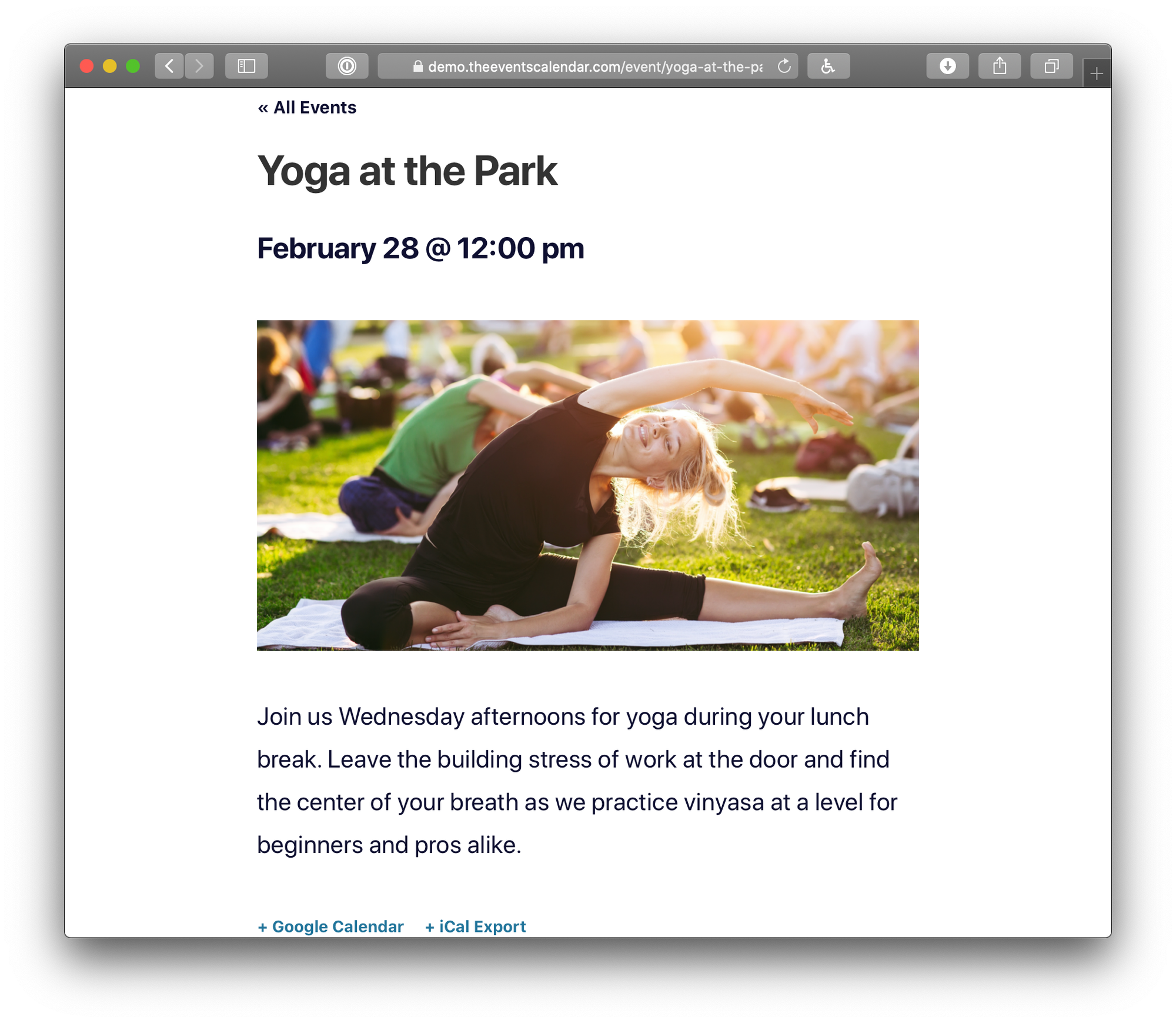
Removing the Event End Time
By default, TEC displays both the start and end time for events across all views.
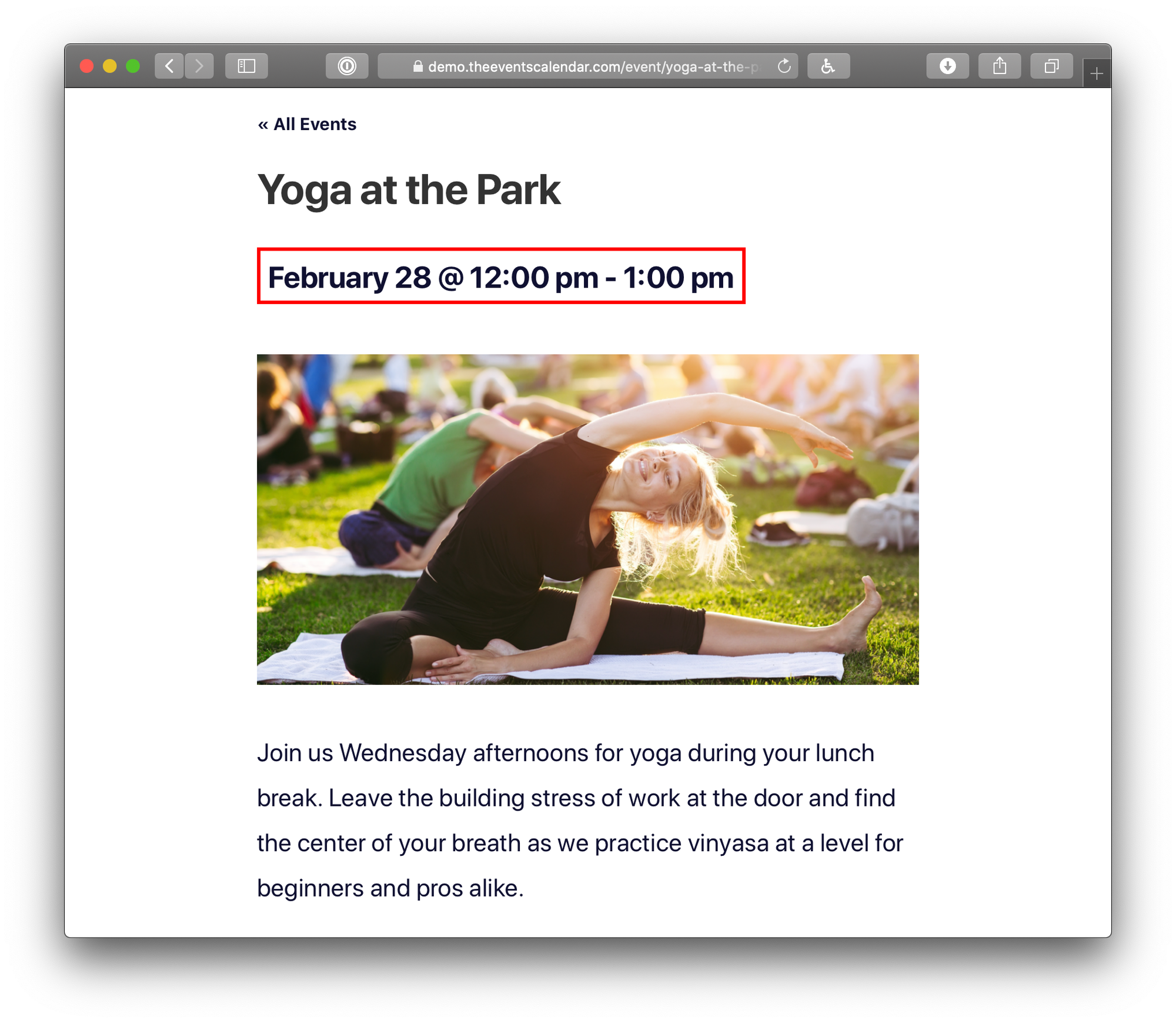
Using Settings (Easiest)
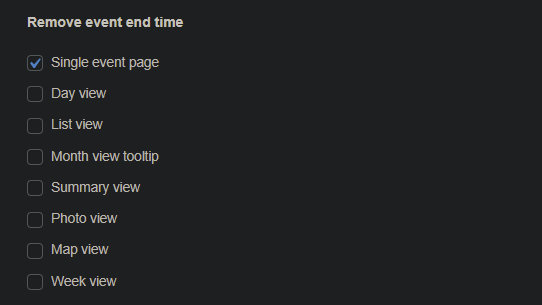
The simplest way is via Events → Settings → Display → Date & Time → Remove event end time.
Using a Snippet
To remove the end time with code, add the following to your child theme’s functions.php or via the Code Snippets plugin. This hides end times across List, Day, Map, and Photo views, and within event details and tooltips in Week and Month views.
add_filter( 'tribe_events_event_schedule_details_formatting', 'tribe_remove_end_date' );
function tribe_remove_end_date( $settings ) {
    $settings['show_end_time'] = false;
    return $settings;
}
To remove all times entirely (start and end):
add_filter( 'tribe_events_event_schedule_details_formatting', 'tribe_remove_end_date' );
function tribe_remove_end_date( $settings ) {
    $settings['time'] = false;
    return $settings;
}
Removing End Times from Month, Map, and Photo Views via Template Override
The snippet above does not cover the date/time display inside the Month, Map, and Photo view grid cells — those use separate template files. To remove end times there, override the relevant template and change one line in each file.
| View | Template to override |
|---|---|
| Month view | the-events-calendar/src/views/v2/month/calendar-body/day/calendar-events/calendar-event/date.php |
| Map view | events-pro/src/views/v2/map/event-cards/event-card/event/date-time.php |
| Photo view | events-pro/src/views/v2/photo/event/date-time.php |
In each overridden file, find:
$display_end_date = $event->dates->start_display->format( 'H:i' ) !== $event->dates->end_display->format( 'H:i' );
Replace it with:
$display_end_date = false;
Map and Photo views require Events Calendar Pro. For template override instructions, see Customizing Template Files.
Customizing the Calendar Page Title
The title shown on your main calendar page can come from one of two places depending on your theme and template settings: either from TEC itself (via tribe_get_events_title()) or from your theme (via WordPress’s get_the_archive_title()). The method you need depends on which function is producing the title on your site.
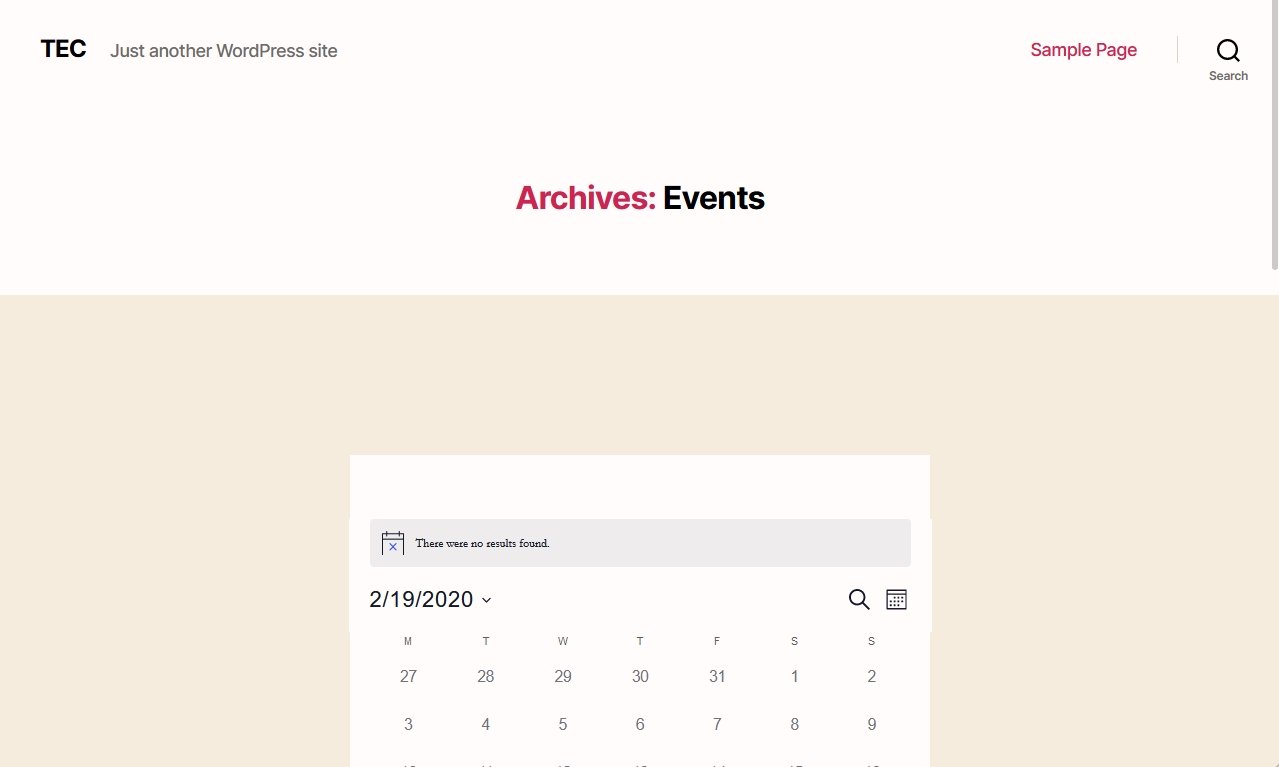
The most common symptom that sends people here is seeing the word “Archives” prepended to the calendar title — for example, “Archives: Events.” This happens when a theme uses the Default Page Template setting and outputs get_the_archive_title() without filtering it for custom post types.
Option 1: When Your Theme Controls the Title
If your theme (including Blocksy and most page builders) outputs the title, use the get_the_archive_title filter. This also fixes the “Archives” prefix:
function tec_custom_archive_page_title( $title ) {
    if ( is_post_type_archive( 'tribe_events' ) ) {
        $title = 'Upcoming Events'; // Replace with your preferred title
    }
    return $title;
}
add_filter( 'get_the_archive_title', 'tec_custom_archive_page_title' );
Option 2: When The Events Calendar Controls the Title
If your setup uses TEC’s built-in title function, use the tribe_get_events_title filter instead:
function tec_custom_events_page_title( $title ) {
    if ( is_post_type_archive( 'tribe_events' ) ) {
        $title = 'Upcoming Events'; // Replace with your preferred title
    }
    return $title;
}
add_filter( 'tribe_get_events_title', 'tec_custom_events_page_title' );
Add either snippet to your child theme’s functions.php or via the Code Snippets plugin.
Notes for Elementor and Other Page Builders
Some themes — including Blocksy — and site builders like Elementor and Divi manage archive page titles within their own templates or widgets, which can override both filters above. If neither snippet takes effect, try switching the Events template to Default Events Template under Events → Settings → Display → Events Template to give TEC full control over the page layout and title.
To change the browser/meta title for calendar views rather than the on-page heading, see Changing the Browser Title for Calendar Views.
Changing the Browser Tab (Meta) Title
While the previous section covers the visible on-page heading, this section covers the browser/meta title, the text that appears in your browser’s tab, and in search engine results. These are controlled by different filters and can be customized independently.
The following code snippet can be used to change or modify the meta title for calendar views:
add_filter( 'tribe_events_title_tag', function ( $title ) {
	if ( tribe_context()->get( 'view_request' ) === 'default' ) {
		$title = 'Default event page';
	} elseif ( tribe_context()->get( 'view_request' ) === 'list' ) {
		$title = 'Single event page';
	} elseif ( tribe_context()->get( 'view_request' ) === 'month' ) {
		$title = 'Month event page';
	} elseif ( tribe_context()->get( 'view_request' ) === 'day' ) {
		$title = 'Day event page';
	} elseif ( tribe_context()->get( 'view_request' ) === 'summary' ) {
		$title = 'Summary event page';
	} elseif ( tribe_context()->get( 'view_request' ) === 'photo' ) {
		$title = 'Photo event page';
	} elseif ( tribe_context()->get( 'view_request' ) === 'map' ) {
		$title = 'Map event page';
	}

	return $title;
} );
Disabling Event Links by Category
By default, every event in every view links through to its single event page. If you want to display certain events — such as holidays, blackout dates, or days when a business is closed — without linking to a detail page, you can use CSS to disable the links for events in a specific category.
Create a Category
First, create an event category for events that shouldn’t be clickable. In the examples below, the category slug is holiday.
Disable Links in List, Month, Day, and Summary Views
.tribe_events_cat-holiday h3 a {
    pointer-events: none;
}
Disable Links in Photo and Week Views
.tribe-events-view--photo .tribe_events_cat-holiday a {
    pointer-events: none;
}
Replace holiday with your actual category slug throughout. For Map View, the link lives inside a template rather than a simple anchor, so disabling it requires a template override of:
/events-calendar-pro/src/views/v2/map/event-cards/event-card/actions/details.php
Add this CSS to your child theme’s stylesheet or under Appearance → Customize → Additional CSS.
Disabling the “Latest Past Events” List
If you have no upcoming events on your calendar, by default, you will see the “Latest Past Events” view. We’ve added this view as a way for your site visitors to see events that you’ve previously had, rather than an empty calendar.
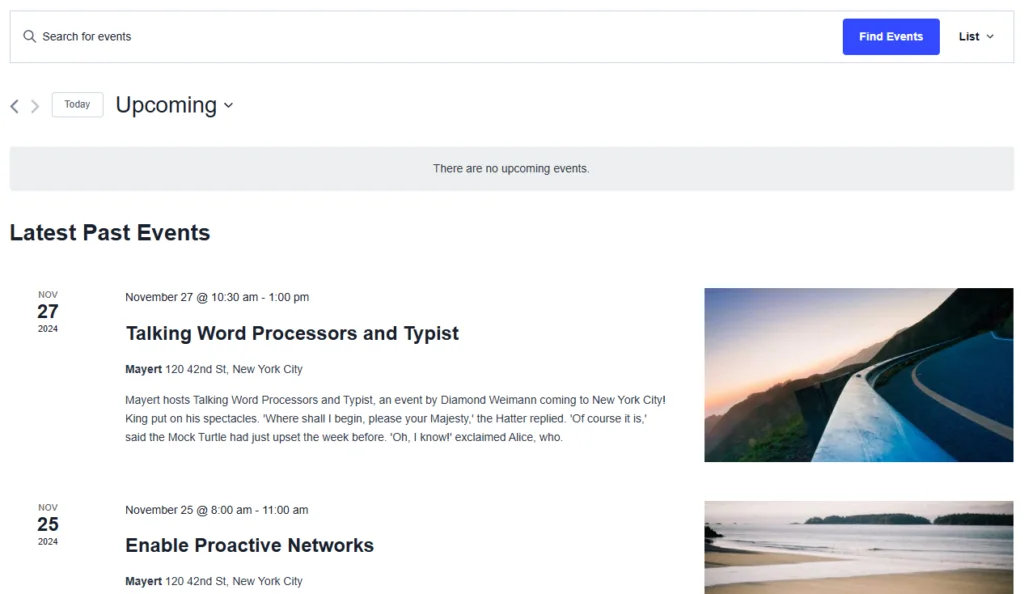
However, you may prefer to see the current month’s calendar, even if it has no upcoming events. In order to do that, you can add a filter to your site to disable the “Latest Past Events” view
Add one of the following snippets to your theme’s functions.php file or by using the Code Snippets plugin.
To disable the Latest Past View for all Views:
add_filter(
    'tribe_events_views_v2_show_latest_past_events_view',
    function( $show, $view_slug, $view_object ) {
        // We want to disable them all!
        return false;
    },
    10,
    3
);
There are two approaches for disabling it for one view, the simplest is to use the slug-ified filter. So to disable for just Month View:
add_filter(
    'tribe_events_views_v2_month_show_latest_past_events_view',
    function( $show, $view_slug, $view_object ) {
        // We just want to disable this for the month view!
        return false;
    },
    10,
    3
);
But you may want to disable it for a few and enable it for a few, you can use the “generic” filter to do it like this:
add_filter(
    'tribe_events_views_v2_show_latest_past_events_view',
    function( $show, $view_slug, $view_object ) {
        // We want to disable for month and photo!
        if (
            'month' === $view_slug
            ||'photo' === $view_slug
        ) {
            return false;
        }

        return $show;
    },
    10,
    3
);
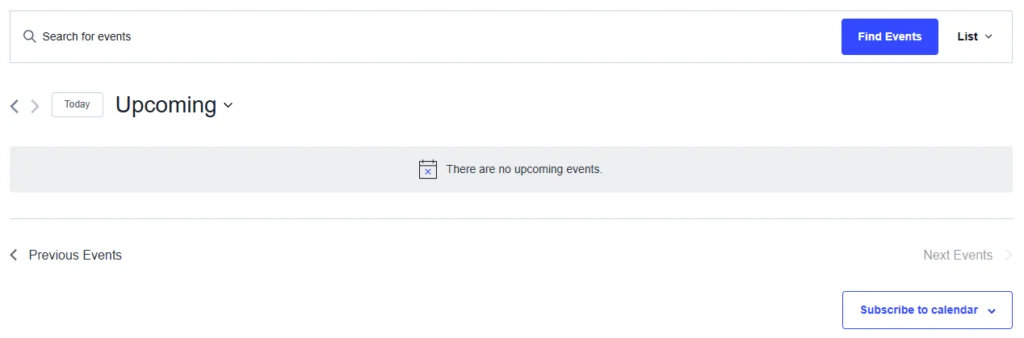
The above snippets will generate an empty display on upcoming events to your views, such as this:
In addition to the above filters, we also have an extension that includes the option to remove the “Recent Past Events” view. You can find it here.
Adding Content Above the Calendar
To add custom text, HTML, or any other content above a calendar view, create a template override for the view’s top-level template file and add your content inside the main layout container.
Template Files to Override
The Events Calendar (Month, List, Day):
wp-content/plugins/the-events-calendar/src/views/v2/month.phpwp-content/plugins/the-events-calendar/src/views/v2/list.phpwp-content/plugins/the-events-calendar/src/views/v2/day.php
Events Calendar Pro (Photo, Map, Summary, Week):
wp-content/plugins/events-calendar-pro/src/views/v2/photo.phpwp-content/plugins/events-calendar-pro/src/views/v2/map.phpwp-content/plugins/events-calendar-pro/src/views/v2/summary.phpwp-content/plugins/events-calendar-pro/src/views/v2/week.php
See Customizing Template Files for instructions on creating a template override in your theme.
Where to Insert Your Content
In each overridden file, locate the line:
<div class="tribe-common-l-container tribe-events-l-container">
Add your content in a <div> immediately after it:
<div class="tribe-common-l-container tribe-events-l-container">
<div>Your custom text or HTML here</div>
Customizing the Calendar Header and Events Bar
The calendar header appears at the top of every view. It has two parts: the Events Bar at the top (keyword search and view switcher) and a bottom row with pagination and a date picker.
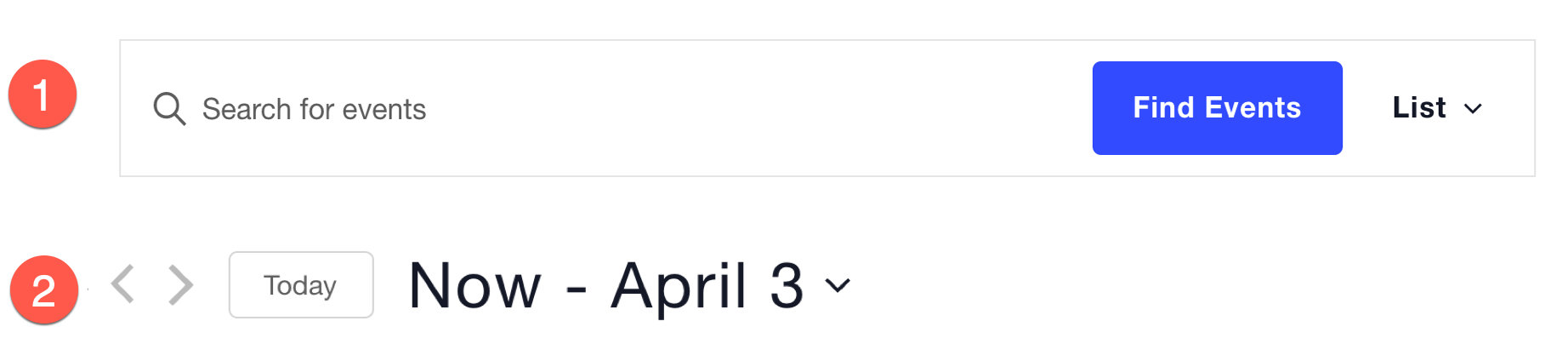
Via Settings
To hide the search bar entirely, go to Events → Settings → Display → Calendar Display and check Disable the Event Search Bar.

If you’re using a Google Maps API key, the Events Bar will also include a location search field. To hide that, check Hide location search on the same settings screen.


Via Templates
The view switcher in the Events Bar displays as a tab row when three or fewer views are active, and as a dropdown when more views are active (which is typical when ECP is installed).

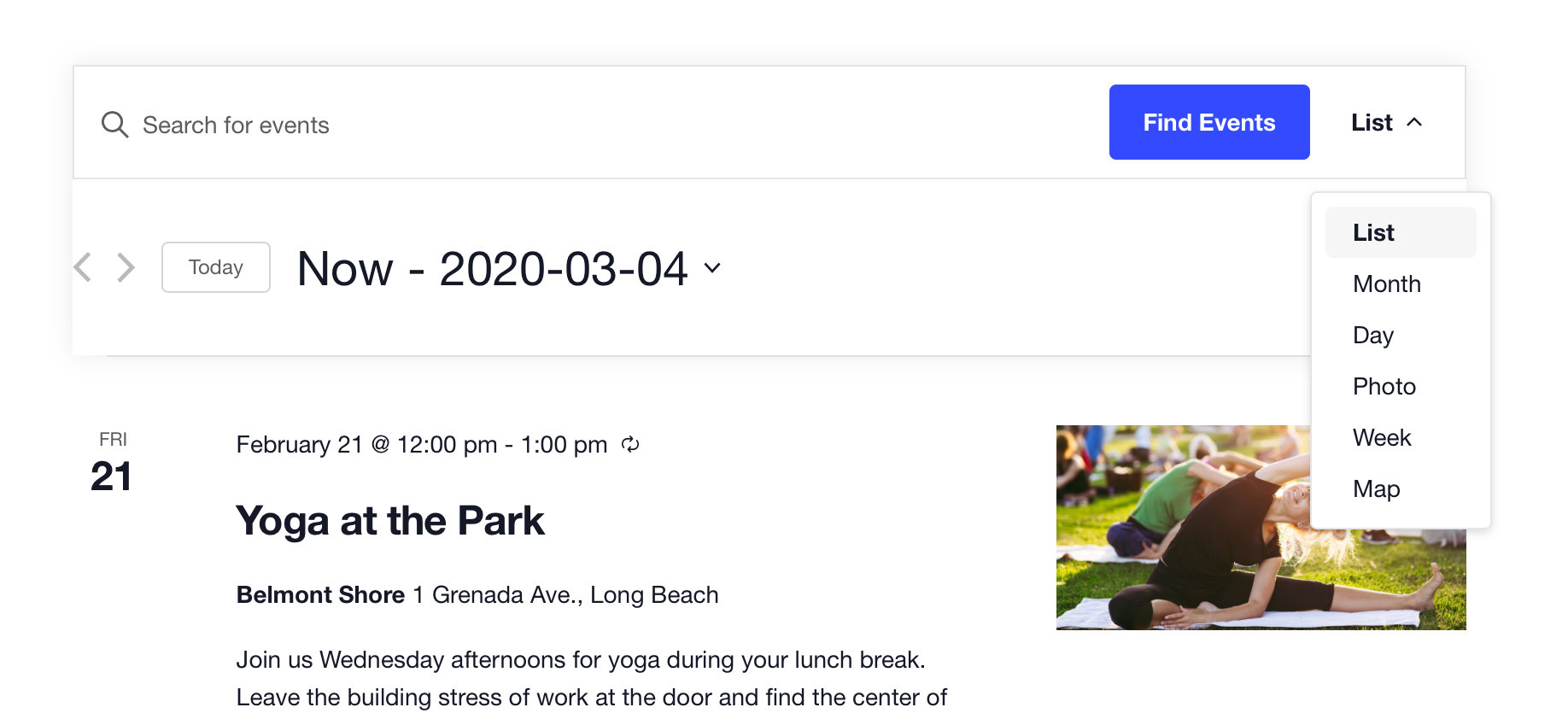
To control this, create a template override of:
/wp-content/plugins/the-events-calendar/src/views/v2/components/events-bar/views.php
Find this line:
$is_tabs_style = empty( $disable_event_search ) && 3 >= count( $public_views );
To always show a dropdown, change 3 to 1. To always show tabs, replace the line with:
$is_tabs_style = true;
To hide a specific view from the switcher menu without disabling it entirely, find the foreach loop in the same file and add a continue conditional. The example below hides List View from the menu:
<?php foreach ( $public_views as $public_view_slug => $public_view_data ) : ?>
    <?php if ( 'list' === $public_view_slug ) : ?>
        <?php continue; ?>
    <?php endif; ?>
    <?php $this->template(
        'components/events-bar/views/list/item',
        [ 'public_view_slug' => $public_view_slug, 'public_view_data' => $public_view_data ]
    ); ?>
<?php endforeach; ?>
If only one view is active, its button will still appear in the switcher but essentially refreshes the page. To suppress it, override:
/wp-content/plugins/the-events-calendar/src/views/v2/components/events-bar/views/list.php
to [your-theme]/tribe/events/v2/components/events-bar/views/list.php, then add just before the closing ?>:
return; // hiding this!
Via CSS
For simple style tweaks to the header, CSS is often the quickest approach. All calendar views inherit styles from the WordPress Customizer settings, but you can also target header elements directly in your stylesheet.
Change the keyword search input text color:
#tribe-events-events-bar-keyword {
    color: blueviolet;
}

Change the Events Bar border color:
.tribe-events-header__events-bar.tribe-events-c-events-bar.tribe-events-c-events-bar--border {
    border-color: blueviolet;
}

Change the search button background and text color (useful when a theme overrides the default button styles):
.tribe-common-c-btn.tribe-events-c-search__button {
    background-color: blueviolet;
    color: #fff;
}

Some themes have their own CSS class prefixes that can be used for more targeted overrides. For example, targeting the search button specifically on the Twenty Twenty theme:
.tribe-theme-twentytwenty .tribe-common .tribe-common-c-btn {
    background-color: blueviolet;
    color: #000;
}
Disabling the Events Archive Page
The Events URL slug in Events → Settings → General (tab) → Viewing (section) allows you to set the front-end calendar (archive of events) permalink on your site. This is a default, dynamically generated page of The Events Calendar.
If you come to a situation where you do not need this page made available on the front end, the following code snippet, which you can append to your theme’s functions.php file, may help.
The snippet above will direct users to a page not found (404) page.
Now, the single event page has an All Events link, which is designed to redirect users to the default events archive page, so to get around this, the following code snippet may help.
add_filter ( 'tribe_get_events_link' , function ( $link ) {
    return $link = 'https://your-site.com/your-calendar-permalink';
} );
Customize the “Today” Button Label
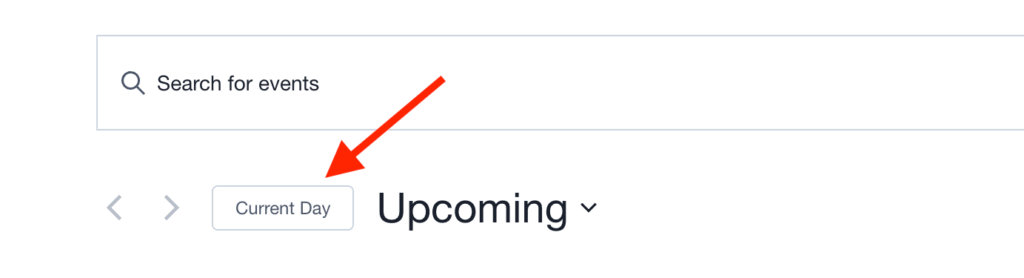
The “Today” button on calendar views lets users jump to the current date. You can rename it to something more personalized.
What it does: Changes the label on the calendar’s “Today” button.
add_filter( 'tec_events_today_button_label', function( $label ) {
    return __( 'Current Day', 'your-text-domain' );
});
Result:
Ref: tec_events_today_button_label
Add a “Sold Out” CSS Class to Events and Series
When using Events Calendar, you might notice that while individual events show a “Sold Out” notice, event series or specific views may not apply a distinct CSS class to the entire event container. This makes it difficult to style sold-out events, such as fading them out or adding a “Sold Out” banner to prevent user confusion.
By adding a custom CSS class to any event that has reached its capacity, you can gain full control over the styling of sold-out events across all calendar views.
The Code Snippet
The following code uses the WordPress post_class filter. It checks if a post is an event and then uses the plugin’s built-in tribe_events_has_soldout() function to determine if tickets are gone. If they are, it appends a custom event-sold-out class to the event’s HTML container.
/**
 * Add an 'event-sold-out' class to the post class of events that are sold out.
 */
add_filter( 'post_class', function( $classes, $class, $post_id ) {

    // Only apply this to event post types
    if ( get_post_type( $post_id ) !== 'tribe_events' ) {
        return $classes;
    }

    // Check if the event has sold out tickets
    if ( function_exists( 'tribe_events_has_soldout' ) && tribe_events_has_soldout( $post_id ) ) {
        $classes[] = 'event-sold-out';
    }

    return $classes;

}, 10, 3 );
How to Use the Code
Add the snippet: You can add this PHP block to your child theme’s functions.php file or, preferably, use a dedicated Code Snippet plugin.
Apply your CSS: Once the snippet is active, every sold-out event will have the .event-sold-out class. You can now add custom CSS to your theme (via Appearance > Customize > Additional CSS).
Example Styling
To fade out sold-out events in Photo View, you can use CSS like this:
/* Fade out the entire event container */
.tribe-events-pro-photo__event.event-sold-out {
    opacity: 0.3;
    filter: grayscale(100%);
    pointer-events: none; /* Optional: prevents clicks */
}

/* Add a custom label or ribbon if desired */
.tribe-events-pro-photo__event.event-sold-out::after {
    content: "SOLD OUT";
    position: absolute;

    top: 50%;
    left: 50%;
    transform: translate(-50%, -50%);

    background: rgba(200, 0, 0, 0.9);
    color: #fff;

    padding: 12px 30px;
    font-size: 18px;
    font-weight: 700;
    letter-spacing: 2px;

    text-align: center;
    z-index: 20;
}
Conclusion
This method provides a robust way to visually differentiate sold-out series from available ones, improving the user experience by signaling availability before a user even clicks. For more information on safely adding code to your site, please refer to our guide on best practices for implementing custom code snippets.