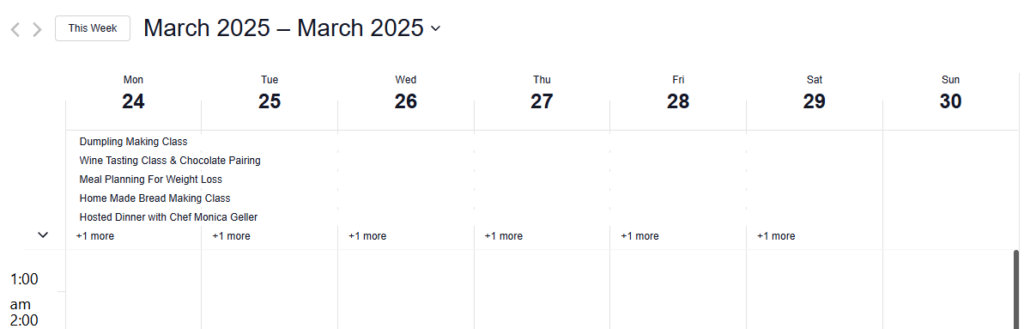
Week View in Events Calendar Pro displays your events in a seven-day schedule layout. You may want to adjust how that schedule looks and behaves to better fit your site. This article collects Week View customizations.
Customizations for The Events Calendar are usually implemented via code snippets or template overrides. Add snippets to your child theme’s functions.php file or use the Code Snippets plugin. Template overrides should go in a child theme. If either approach is new to you, start with Using Code Snippets to Customize The Events Calendar and Customizing The Events Calendar Templates for a walkthrough of each.
Hiding Tooltips in Week View
When hovering over an event in Week View, a small box pops up with more event details. If you prefer not to show that tooltip, the snippets below will disable it. Week View is provided by Events Calendar Pro. Choose either the PHP or CSS approach — you do not need both.
Hiding Tooltips with PHP
php
add_filter(
    'tribe_template_html:events-pro/v2/week/grid-body/events-day/event',
    function( $html ) {
        $html = preg_replace(
            '/data-js="tribe-events-tooltip"|data-tooltip-content=.*;/m',
            '',
            $html
        );
        return $html;
    }
);

add_filter(
    'tribe_template_html:events-pro/v2/week/grid-body/events-day/event/tooltip',
    function( $html ) {
        return '';
    }
);

add_filter(
    'tribe_template_html:events-pro/v2/week/grid-body/multiday-events-day/multiday-event/hidden/link',
    function( $html ) {
        $html = preg_replace(
            '/data-js="tribe-events-tooltip"|data-tooltip-content=.*;/m',
            '',
            $html
        );
        return $html;
    }
);
Three filters are needed for Week View: one for regular events, one to empty the tooltip template itself, and one for multi-day events that span across the week grid.
Hiding Tooltips with CSS
If you prefer a CSS-only approach, add the following to your (child) theme’s style.css file, or under Appearance → Customize → Additional CSS:
css
.tribe-events-view-week .tribe-events-tooltip-theme {
    display: none !important;
}
Changing the Number of Multi-day Events Visible in Week View
By default, the week view will show 3 multi-day events at the top of the grid. If there are more for the given week, those will be hidden and can be revealed with a toggle on the left side of the grid.
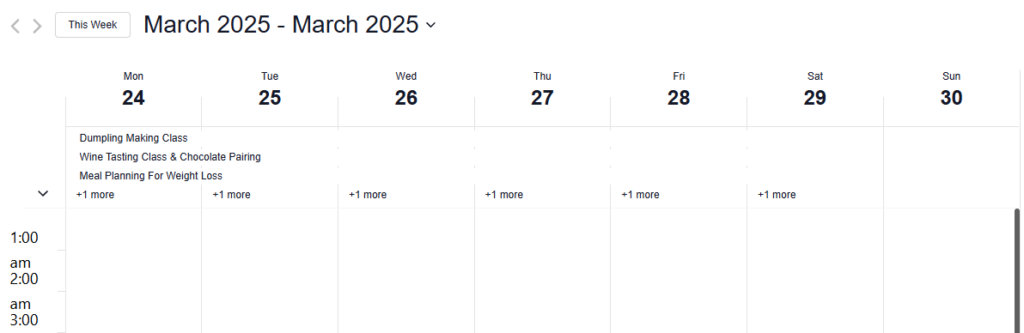
It is possible to change the default number with the help of the filter. The example below will change it to show 5 multi-day events.
add_filter( 'tribe_events_views_v2_week_multiday_toggle', function() { return 5; } );
The snippet above will produce the following outcome: