
This article covers two closely related problems: template overrides that aren’t taking effect, and display or layout issues that appear after a theme or plugin update. Many of the diagnostic steps apply to both, with additional sections for the causes and fixes that are specific to post-update breakage.
Common Symptoms
Here are the most common signs that something is wrong with template rendering in The Events Calendar:
- Template override files in your theme are being ignored — the plugin’s default templates are loading instead.
- The events archive or calendar views appear blank or show “No Upcoming Events” even though events are published.
- Styling is broken: layout, padding, fonts, container widths, or header/footer elements are missing or misaligned.
- Single event pages are missing meta fields, venue information, or other event details.
- Display settings under Events → Settings → Display show fewer options than expected, or selected settings aren’t being applied.
Diagnostic Checklist
Folder Structure and File Paths
The most common reason an override is ignored is a path mismatch. The folder structure in your theme must exactly mirror the plugin’s /src/views/v2/ directory. For example, to override the-events-calendar/src/views/v2/list/event/featured-image.php, the file must be at:
wp-content/themes/your-theme/tribe/events/v2/list/event/featured-image.php
The plugin uses tribe/ as the root override folder for current views. See Customizing Template Files for the full folder reference per plugin. You can also find the correct override path in the header comment at the top of each template file.
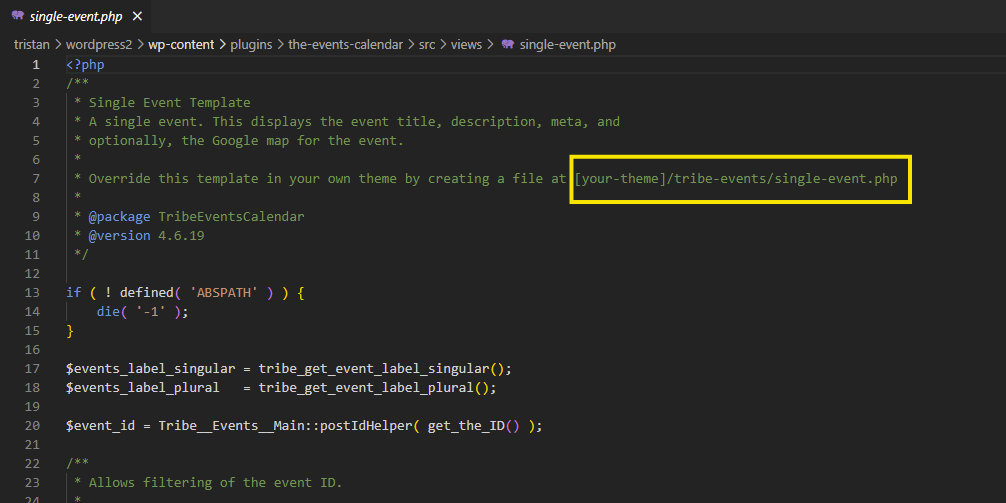
File Naming and Case Sensitivity
A single character difference — including case — will prevent an override from being recognized. The file name in your theme must exactly match the original file name in the plugin, including capitalization. For example, single-event.php is correct; Single-Event.php is not.
Clear All Caches
Cached versions of templates or assets can mask your changes. Clear each layer:
- WordPress caching plugins (WP Super Cache, W3 Total Cache, LiteSpeed Cache, WP Rocket, etc.) — clear the plugin cache completely.
- Server-side caching (Cloudflare, CDN, Varnish, or your host’s built-in cache) — purge the cache at the server or CDN level.
- Permalinks — go to Settings → Permalinks and click Save Changes without making any changes. This flushes WordPress rewrite rules.
- Browser cache — perform a hard refresh with Ctrl+F5 (Windows) or Cmd+Shift+R (Mac).
Check for Plugin Conflicts
Another plugin may be interfering with TEC’s template loading. To test: temporarily deactivate all plugins except The Events Calendar and its add-ons, then check whether your overrides work. If they do, reactivate plugins one at a time — checking after each — until you find the conflict. See Testing for Conflicts for a complete guide.
Check for Theme Conflicts
Some themes override TEC template loading in ways that prevent custom files from being picked up. To isolate: temporarily switch to a default WordPress theme (Twenty Twenty-Three or similar) and copy your overrides into that theme’s directory. If they work there, the issue is with your active theme. Check your theme’s documentation or support for guidance on how it handles template loading.
Always test theme or plugin updates in a staging environment before applying them to production, and keep backups so you can roll back.
Enable Debugging and Check Error Logs
PHP errors caused by missing functions or bad file paths often don’t surface visibly — they silently prevent templates from loading. Enable WordPress debugging to catch them:
- See How to Enable Debugging in WordPress. Once enabled, check
wp-content/debug.logfor errors related to TEC templates. - Check your web server’s error logs via your hosting control panel (cPanel, Plesk, etc.) for PHP errors or file permission issues.
- Open your browser’s developer tools (F12) and check the Console and Network tabs for JavaScript errors or failed CSS/JS requests.
File Permissions
If the web server can’t read your override files, they will be silently skipped. The recommended permissions are:
- Directories:
755(rwxr-xr-x) — owner can read, write, execute; group and others can read and execute. - Files:
644(rw-r–r–) — owner can read and write; group and others can read only.
If your tribe/ directory or any of its files have more restrictive permissions (e.g. 600 for files), the server may not be able to access them. Your hosting control panel’s file manager can show and correct permissions, or contact your host for assistance.
Check the Display Template Setting
Go to Events → Settings → Display → Calendar → Events template. If a theme-specific template is selected and that template has changed or broken, try switching to Default Events Template and saving. This often restores basic layout when a custom or theme-specific template is the cause.
After a Theme or Plugin Update
The diagnostic steps above apply in all cases. When the problem started immediately after a theme or plugin update, the following additional causes are likely and worth checking first.
Why Updates Break Templates
Updates break template overrides and display for a few common reasons:
- Deprecated or removed template functions and hooks. Plugin updates occasionally deprecate functions — and after enough versions, remove them entirely. If your override calls a function that no longer exists, the template fails silently or throws an error. The Events Calendar 6.0, for example, removed and deprecated many legacy template functions. Check the release notes and developer changes documentation when upgrading major versions.
- Theme CSS conflicting with updated plugin styles. Theme updates may introduce new styles that clash with TEC’s markup, or a plugin update may introduce redesigned markup that your theme’s existing CSS no longer targets correctly.
- Display Settings changed by the theme update. Some theme updates alter which page templates are available or override TEC’s display settings. Under Events → Settings → Display, verify that the Events template and stylesheet settings are still set as you intended.
- Version mismatch between theme and plugin. Some themes expect a specific version of TEC. Updating the theme without updating TEC (or vice versa) can break compatibility. Make sure both are on their latest supported versions.
Fixing Broken Template Overrides After an Update
Compare your override files with the current version in the plugin. Look for any function calls in your override that have been deprecated or removed, and replace them with the current equivalents. For example, if your override calls tribe_events_the_notices(), update it to tribe_the_notices().
The safest approach is to start fresh: copy the updated plugin template file into your theme override path, then re-apply your customizations around the new code.
Fixing CSS and Styling Conflicts
Use your browser’s inspector to compare the rendered markup before and after the update — class names, container structure, and element nesting may have changed. Write new CSS targeting the updated markup in a child theme or via the Additional CSS panel. See Customizing CSS in The Events Calendar for more on finding and targeting the right CSS classes.