
A multi-day event is any event that spans more than one day — an all-day event across multiple dates, or a timed event that starts on one day and ends on another. This article covers how to create multi-day events and how to present them clearly so visitors don’t get confused about when the event is actually taking place.
Creating Multi-Day Events
The process for creating a multi-day event differs slightly between the Block Editor and the Classic Editor.
Block Editor
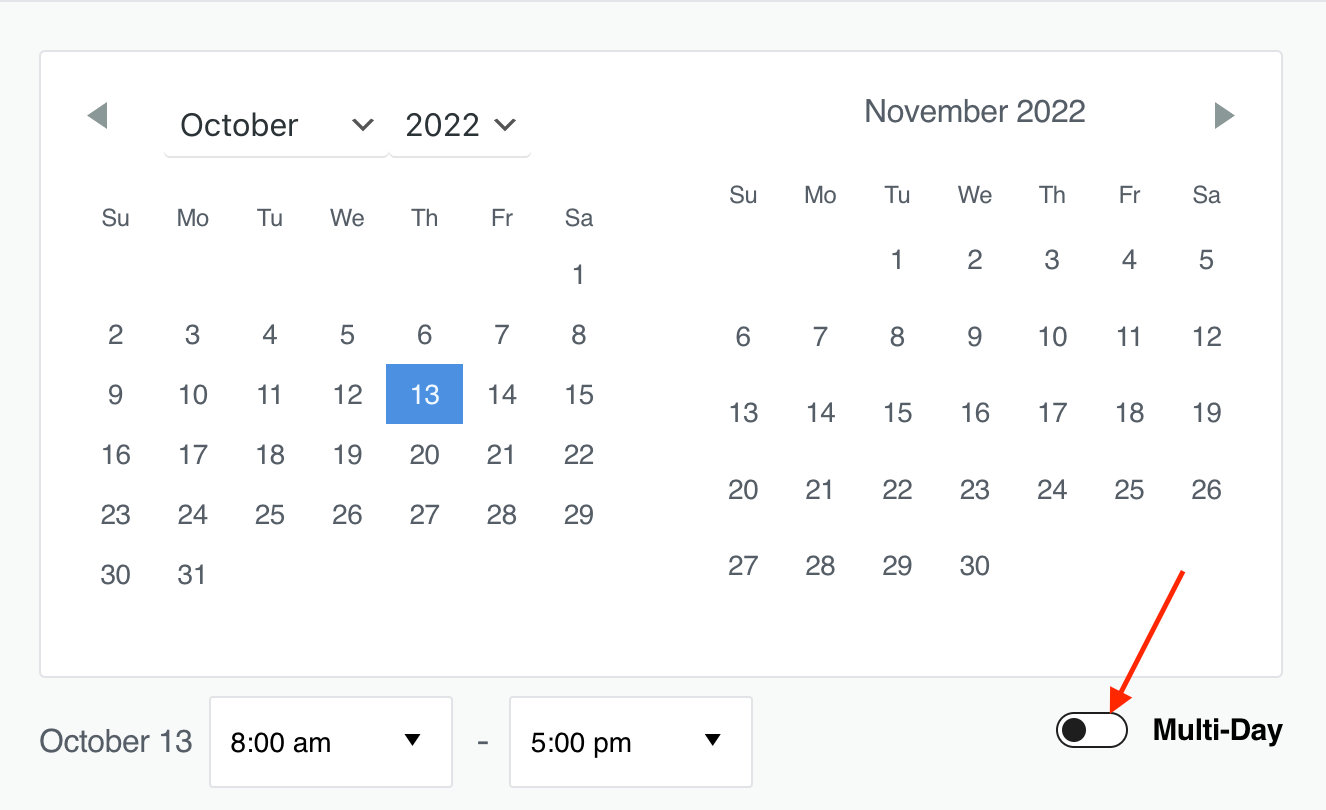
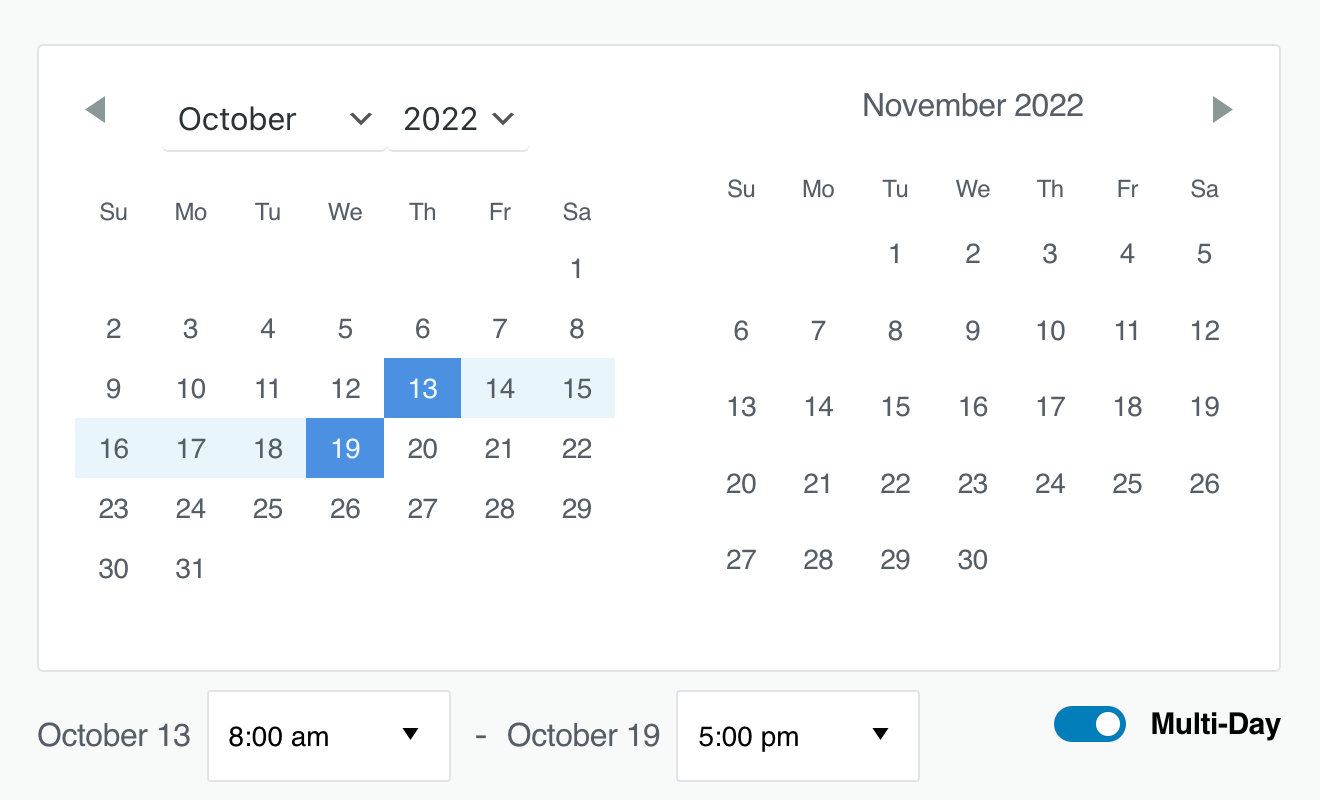
Toggle on the Multi-day event toggle, then select the start and end dates. You can set specific times or mark it as all-day.
Classic Editor
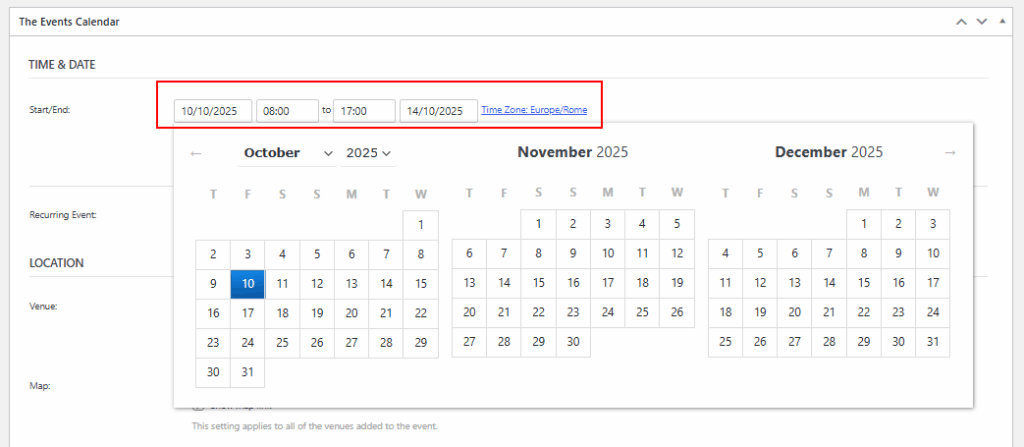
There’s no toggle in the Classic Editor — simply select different start and end dates.

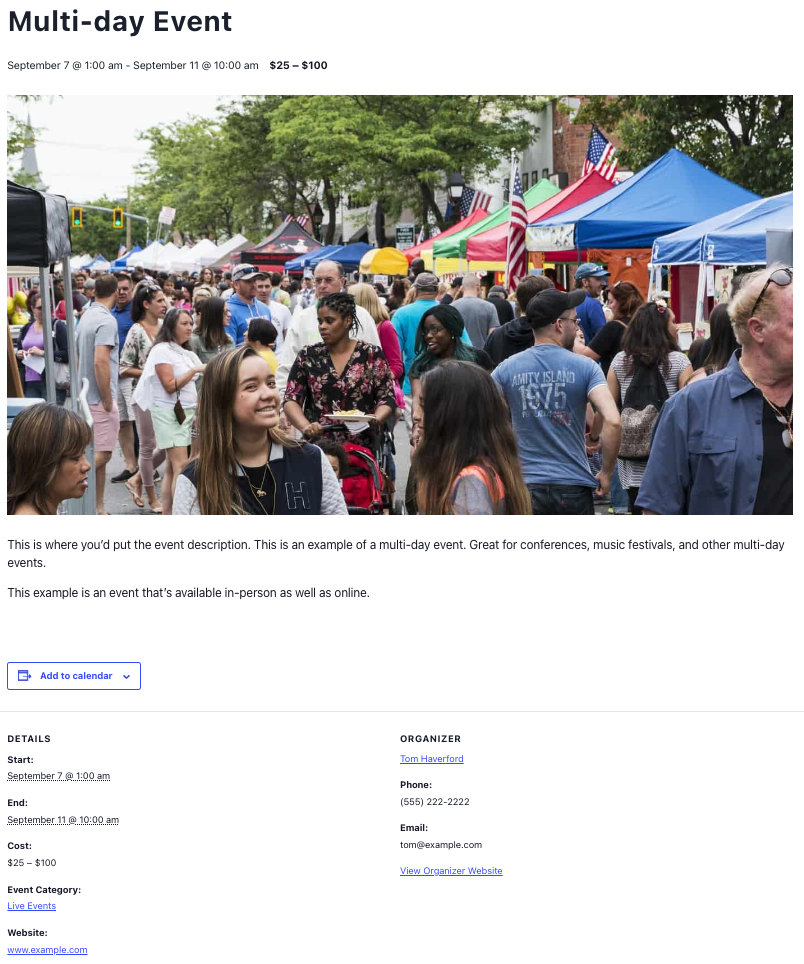
On the front end, your multi-day event will look something like this:
Making Multi-Day Events Clear to Visitors
By default, multi-day events appear on every calendar day between their start and end dates. For events with activities every day (like a week-long festival) that’s ideal. For events with only an opening day or only specific sessions, the default behavior can confuse visitors about when to actually show up. Below are strategies for improving how multi-day events display.
Decide Whether the Event Should Show for All Days or Only the Start Date
If your event only has meaningful activity on the first day, you can suppress it from subsequent days:
- Use a PHP snippet to automatically hide events once they’ve started, so they no longer appear after the first day. See How to Hide Events That Have Already Started.
- Create separate single-day events if your activities happen on specific days only.
Use Clear Event Titles and Descriptions
A small adjustment in wording can prevent a lot of confusion. Instead of just “Summer Workshop”:
- Put the date range in the title: “Summer Workshop (Aug 1–7)”.
- Add a schedule breakdown in the event description (e.g., “Day 1: Orientation, Day 7: Closing Ceremony”).
This ensures visitors know which days have activities without having to infer it from the date range alone.
Use Events Calendar Pro Views
If you’re using Events Calendar Pro, additional views provide more context than Month or List views alone:
- Week View — Shows which days within the week are active.
- Day View — Highlights what’s happening on a specific day.
Add Notices for Ongoing Events
To make it clear when an event has already started rather than starting today:
- Use the Category Colors feature to assign ongoing events to a specific category.
- Add a template banner or notice (e.g., “This event is already in progress”) via a custom template snippet.
Check How Dates Display on Mobile
Mobile visitors often scan headlines quickly and can miss date ranges that only appear in sub-text. Verify that your theme and any customizations clearly display both the start and end dates on smaller screens.
Consider Breaking Events Into Sessions or Recurring Events
If your multi-day event is actually a series of separate sessions or workshops, a single multi-day event may not be the right structure. Consider creating a recurring event or individual single-day events for each session. This gives attendees a clear per-session view of when to show up.