
The Events Calendar and Event Tickets display the cost of your events on the front end in a consistent format. You may want to adjust how that cost appears to better fit your pricing model or your site’s style. This article collects customizations for the event cost display.
Customizations for The Events Calendar are usually implemented via code snippets or template overrides. Add snippets to your child theme’s functions.php file or use the Code Snippets plugin. Template overrides should go in a child theme. If either approach is new to you, start with Using Code Snippets to Customize The Events Calendar and Customizing The Events Calendar Templates for a walkthrough of each.
Renaming the “Free” Label
When an event’s cost is set to zero, the front end displays it as Free. You can rename this to any text you prefer — for example “Complimentary”, “No Charge”, or a numeric 0.
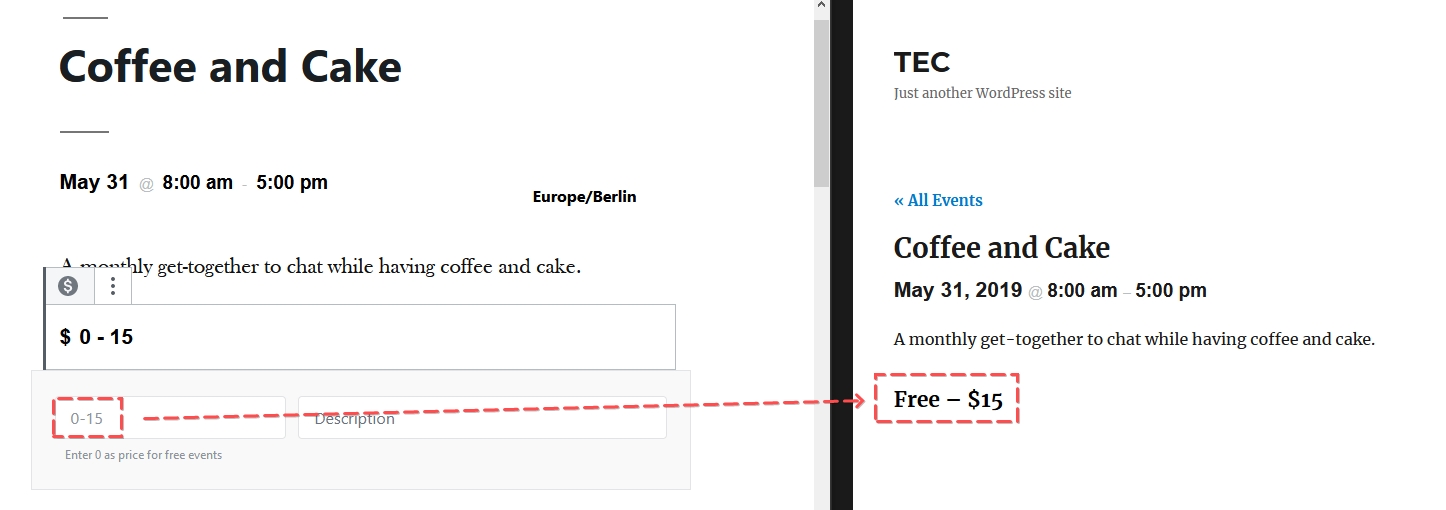
There are two ways to do this.
Option 1: PHP Snippet
Add the following to your functions.php file. Change '0' to whatever you want the label to say — it is case-sensitive.
function tribe_tec_rename_free_label( $translation, $text, $domain ) {
    $custom_text = [ 'Free' => '0' ]; // Replace '0' with your preferred label

    if ( 0 === strpos( $domain, 'the-events-calendar' ) && array_key_exists( $translation, $custom_text ) ) {
        $translation = $custom_text[ $translation ];
    }

    return $translation;
}
add_filter( 'gettext', 'tribe_tec_rename_free_label', 20, 3 );
👋 Note: This uses the gettext filter and applies to The Events Calendar plugin’s text domain. If you are using Event Tickets or Event Tickets Plus and the label is still showing after applying this snippet, the tribe_get_cost approach in the next section may be needed instead.
Option 2: The Say What? Plugin
The Say What? plugin provides a user interface for WordPress string replacements without writing code, and does the same thing as the snippet above.
After installing and activating the plugin, go to Tools → Text Changes and add a new entry:
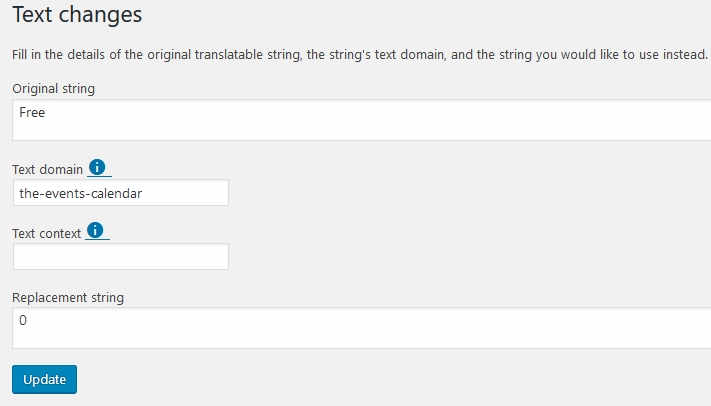
Click Save and the label will update on the front end.
Removing “Free” from a Mixed Cost Range
If your event has both free tickets (or RSVPs) and paid tickets, the cost display defaults to a range — for example, Free – $10. If you would rather not show “Free” in this range at all, the following snippet removes it along with the dash separator, leaving only the paid price.
This uses the tribe_get_cost filter, which works with Event Tickets and Event Tickets Plus.
function tribe_not_show_free( $cost, $post_id, $with_currency_symbol ) {
    $regex = '/Free/';
    $match = preg_match( $regex, $cost );

    if ( $cost == 0 || $cost == 'Free' || $match ) {
        $cost = str_replace( 'Free', ' ', $cost );
        $cost = str_replace( ' – ', ' ', $cost );
    }

    return $cost;
}
add_filter( 'tribe_get_cost', 'tribe_not_show_free', 10, 3 );
Showing Only One End of a Price Range
When multiple tickets exist for an event, the cost displays as a range (e.g. $5 – $50). This can be confusing in cases like early bird pricing, where the lower price is no longer available. The following snippet lets you replace the range with either the lowest price (with optional prefixed text) or the highest price only.
Add the snippet to your functions.php file or via Code Snippets. Before saving, delete the block you do not want — either the lowest-price block or the highest-price block.
function tec_remove_price_range( $cost, $post_id, $with_currency_symbol ) {
    $pieces = explode( ' – ', $cost );

    // If the ticket is free, just display it as-is.
    if ( $cost == 'Free' ) {
        return $cost;
    }

    // DELETE the block below if you want to show only the highest price instead.
    // To show the lowest price with prefix text:
    if ( ! empty( $pieces[0] ) ) {
        return 'Starting from ' . $pieces[0];
    }

    // DELETE the block above if you want to show only the lowest price.
    // To show the highest price with prefix text:
    if ( ! empty( $pieces[1] ) ) {
        return 'Up to ' . $pieces[1];
    }

    // If not a range, return the default value.
    return $cost;
}
add_filter( 'tribe_get_cost', 'tec_remove_price_range', 10, 3 );
Showing the lowest price with “Starting from” prefix:
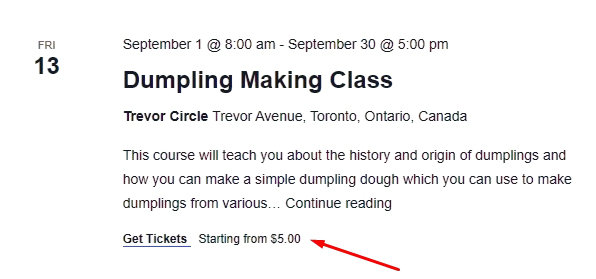
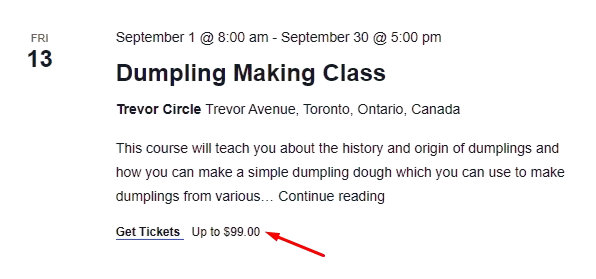
Showing only the highest price with “Up to” prefix (remove lines 9–12 from the snippet above):
Separating the Event Cost and the Currency Symbol
With The Events Calendar, you can easily set a cost for events, define the currency symbol, and decide whether the symbol appears before or after the cost. While this setup works well for common symbols like $ or €, issues can arise if you prefer using currency abbreviations, such as “EUR” or “USD” since the cost and abbreviation will display without a space (e.g., 100EUR).
Thankfully, there are easy ways to fix this formatting issue.
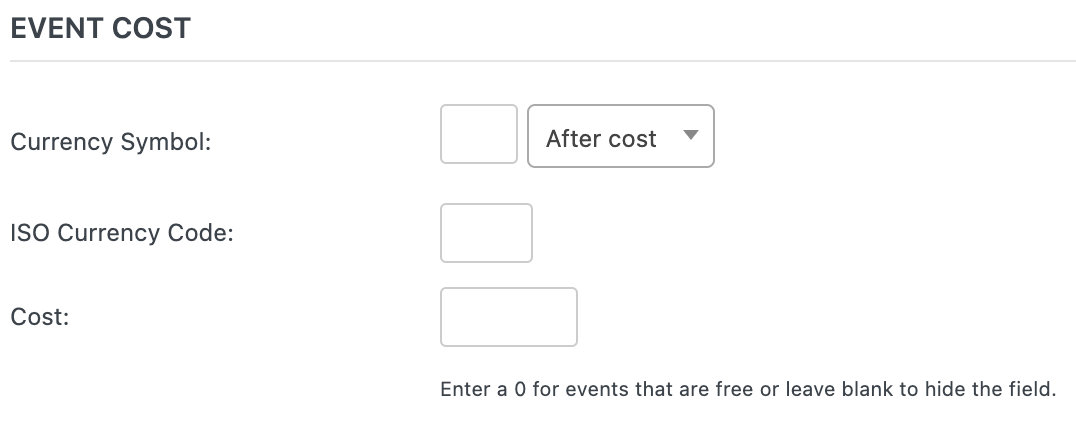
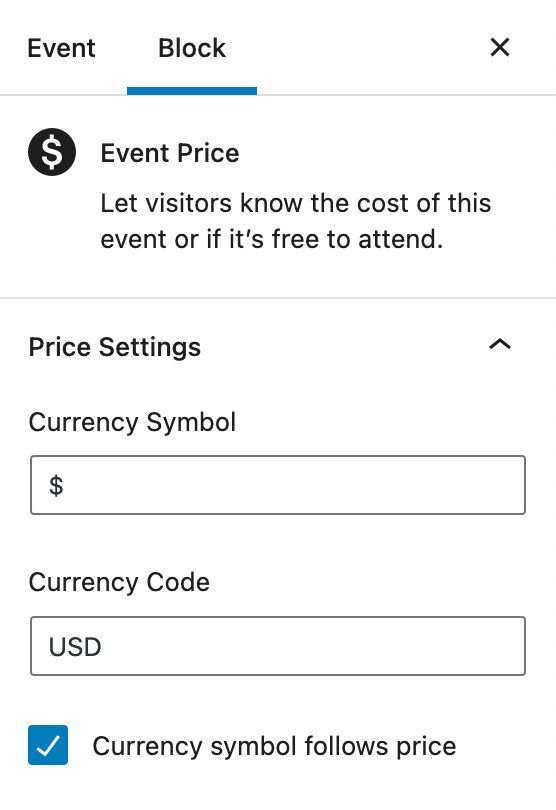
Option 1: Add a Space Manually
To insert a space between the cost and the currency abbreviation:
- Enter the currency abbreviation with a space in the appropriate field.
For example:- Use
_EURorEUR_(underscore added here for clarity; replace it with a space).
- Use
This method ensures that your cost will display as 100 EUR instead of 100EUR.
Option 2: Adjust Settings for Currency Symbols
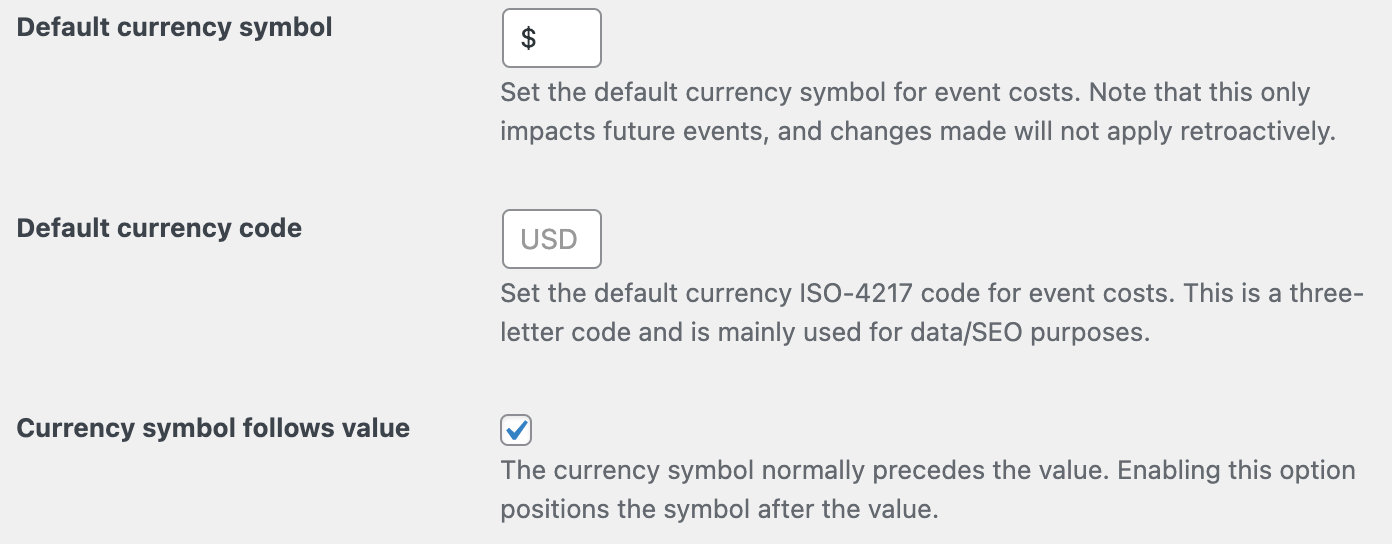
If you want to define a default currency symbol or code, follow these steps:
- Navigate to Events > Settings > Display in your WordPress dashboard.
- Locate the Currency Settings section.
- Add your desired currency symbol or abbreviation here.
You can also define whether the symbol should appear before or after the cost.
Option 3: Use Code Snippets for Greater Control
For more advanced customization, you can use snippets to control the placement and format of the currency symbol or code. Add the appropriate snippet to a custom plugin or your child theme’s functions.php file. For more advanced customization, you can use snippets to control the placement and format of the currency symbol or code. Add the appropriate snippet to a custom plugin or your child theme’s functions.php file.
If the currency symbol (like €) is before the cost:
// Add a space before the Euro symboladd_filter( 'tribe_get_cost', 'add_space_before_euro');functionadd_space_before_euro( $cost) { if( is_admin() ) { return$cost; } $cost= str_replace( '€', ' €', $cost); $cost= str_replace( '€', ' €', $cost); $cost= str_replace( '€', ' €', $cost); return$cost;}
If the currency symbol is after the cost:
add_filter( 'tribe_get_cost', 'add_space_before_dollar');functionadd_space_before_dollar( $cost) { if( is_admin() ) { return$cost; } $cost= str_replace( '$', ' $', $cost); $cost= str_replace( '$', ' $', $cost); return$cost;}
By using one of these methods, you can ensure that your event cost formatting looks clean and professional, whether you’re using symbols or abbreviations. Choose the approach that works best for your setup and design preferences.
Disclaimer
As with all of our snippets, please note that we share these in the hope they will be useful but without any guarantees or commitments. If you wish to use them, it is your responsibility to test them and adapt them to your needs (or find someone who can do so on your behalf). We are unable to provide further support in relation to these snippets.