
Automatically Complete WooCommerce Orders for Tickets
When purchasing tickets with Event Tickets Plus with WooCommerce, emails won’t be sent to attendees until the order has been marked as Complete. By default, this process needs to be done manually by the administrator.
Here, we’ll show you how to make sure that your attendees receive their emails and how you can set this up automatically.
The Order Process
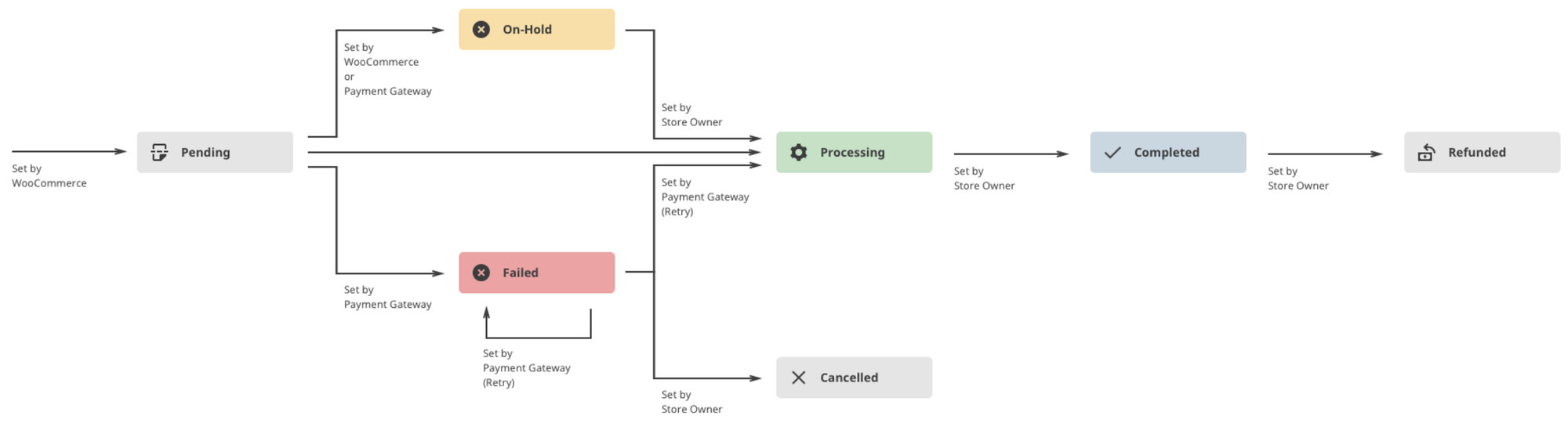
When an attendee purchases a ticket, WooCommerce first sets the order to Pending. The payment gateway then attempts to run the payment method, in which case the order status updates to On-Hold (or Failed if the payment doesn’t go through). Next, WooCommerce automatically sets the status to Processing. And that is where the “automatic” process ends.
As the administrator, you’ll have to set the order to Completed for the email to your attendee to be triggered. The following diagram may be helpful to get a sense of the order process:
You may also want to reference this article from WooCommerce to see some more detailed information about managing WooCommerce orders.
Automatically Set to Complete
If you’d like, you can automatically set the order to Complete so that an email will be sent to your attendees as soon as their payment method is verified. This will require no further action to complete your ticket orders.
To make this happen, add the following snippet to the site:
This code snippet first validates the following:
- The Order contains only Ticket products
- All Ticket products are virtual
- Payment has been processed
If all three conditions are met, the order will be marked complete. This rule only applies to orders created for Tickets products using the Event Tickets Plus plugin.
Make WooCommerce the Default Payment Module
When both payment modules, Tickets Commerce and WooCommerce, are active simultaneously, you have the option to choose between them for each event. However, Tickets Commerce is set as the default ticket provider. This may not always be desirable, especially if WooCommerce is your preferred payment method, and switching between payment modules for each new event becomes cumbersome.
If you have selected WooCommerce as the payment module for your site and want it to be the default for all future events and tickets you create, you can use the following PHP code snippet.
Add the code snippet to the functions.php file of your theme, or use your preferred method for integrating snippets into your WordPress site, such as the free Code Snippets plugin.
By adding this code snippet to your site, WooCommerce will automatically be selected as the default payment module for new events, provided that Event Tickets Plus and WooCommerce are both active.
For Developers
Here are some of the key components used in the code snippet,