
This article covers two related but distinct scenarios: permanently migrating events from one site to another, and setting up an ongoing live feed so one site continuously receives events from another.
Migrating Events to Another Site (One-Time)
If you want to move events from one WordPress site to another as a one-time operation, there are three approaches depending on what tools you have available.
Using Event Aggregator
Event Aggregator can import events from iCalendar and ICS files, as well as directly from other WordPress sites running The Events Calendar. Depending on your source, follow one of these guides:
- Importing Events From an .ics File With Event Aggregator
- Importing Events from Another Calendar Feed or URL
Using WP All Export and WP All Import Pro
This method gives you the most control over which event data is exported and how it’s mapped on import. You’ll need:
- The Events Calendar — for event data
- Event Tickets — for ticket and attendee data
- WP All Export (free) on the source site
- WP All Import Pro (paid) on the destination site
- WP All Import Add-On for The Events Calendar on the destination site
See the WP All Import Add-On documentation for a full walkthrough.
Using CSV Export and Import
The Events Calendar doesn’t have a built-in CSV export feature, but you can use a third-party plugin such as WP All Export to export events as a CSV, then import that file into the destination site using TEC’s built-in CSV importer.
When exporting, customize the file to include the relevant custom fields for event data. When importing, format the data according to the CSV field reference, then follow the CSV import guide.
Import in this order: venues and organizers first, then events, then tickets (if applicable).
💡 Always make a backup before importing, or test the import on a staging site first.
Sharing Events Between Sites (Ongoing)
💡 This section covers sharing events from one calendar to another on an ongoing basis. True two-way sync — where both sites interchange events automatically in both directions — is not a built-in feature and would require advanced custom development.
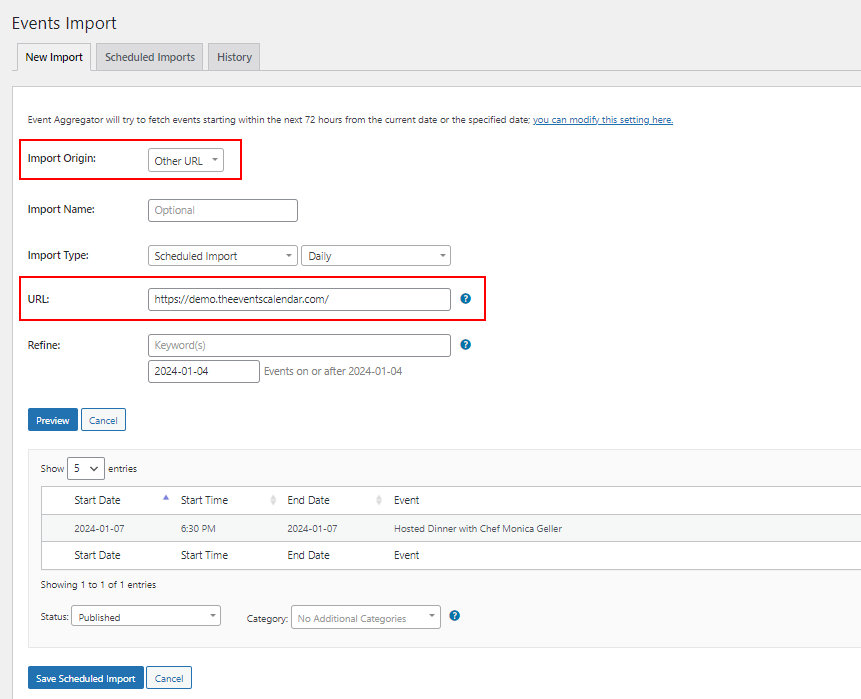
Event Aggregator‘s Other URL import source allows one site to continuously pull events from another WordPress site running The Events Calendar. This can be set up as a manual import or as a scheduled automatic import.
License Requirements
- To import events from another site into your site, only your site needs an Event Aggregator license. The source site only needs to be running The Events Calendar (free).
- To share your calendar events to multiple other sites that each display them independently, each destination site needs its own EA license. (The base-level license covers up to 10 sites.)
💡 Significantly different plugin versions between two sites may cause import problems. Keep The Events Calendar and Events Calendar Pro at matching versions on both sites.
Import Limit
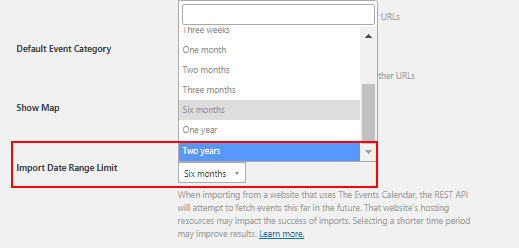
By default, the “Other URL” import can pull events up to three months ahead. You can adjust this under Events → Settings → Imports → Other URL Import Settings.
For a longer horizon, the free Event Aggregator: Additional Options extension extends the “Other URL” import limit to up to 2 years in advance.
Setting up a Hub Site With Event Aggregator
Event Aggregator’s Other URL import is particularly well suited for establishing “hub” sites that host events for a community of smaller sites — for example, a school district might promote events for individual schools in their area, or a local music site may wish to pull info on gigs and promotional events from nearby concert venues.
? When importing events from other The Events Calendar sites using the Other URL option, only single events are able to be imported at this time. Recurring events created using Events Calendar Pro will be omitted from these import tasks, even if Events Calendar Pro is activated on the target site. If one or more of your source sites includes recurring events that need to be imported into a hub site, we recommend creating a scheduled iCalendar import for bringing in these events. This will convert any recurring event instances into single events, allowing them to be imported successfully.
Prerequisites
Before getting started, confirm your hub site meets the following requirements:
- The Events Calendar version 4.5 or higher must be installed and activated. This plugin provides the core calendar functionality and includes Event Aggregator, which must be activated separately.
- An Event Aggregator license key must be purchased and activated to unlock the Other URL import option. Without a license, only the CSV import option is available. If you need help activating your license, check out the New User Primer for a quick walkthrough.
- Events Calendar Pro (optional): If you’ll be importing any events from sites that use Events Calendar Pro and wish to retain venue and organizer details from calendar events, you may wish to have Events Calendar Pro installed and activated on your hub site, as well. If it is not installed, venue and organizer data will still be imported, but venue and organizer pages will not be generated on the front end.
Once your hub site is established, navigate to Events → Settings → Imports to review your settings. The Other URL import settings appear near the bottom of this tab.
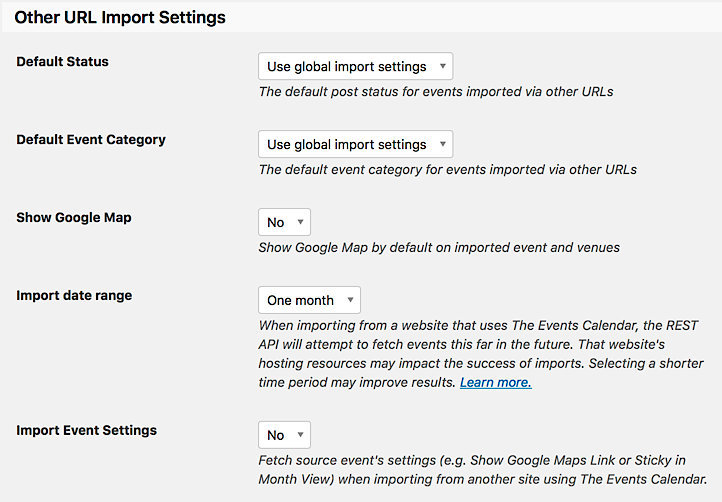
The Import date range option is worth particular attention. It specifies how far ahead Event Aggregator will look for events each time an import runs. For example, selecting “One month” will import all matching events occurring within the next month. When choosing this value, consider your import frequency, your users’ needs, and the hosting resources of your source sites — a longer range imports more events at once, but may cause failures on limited-resource sites.
Lastly, ensure that you’ve collected URLs for any calendars from which you’ll be importing events. URLs for calendars created with The Events Calendar will begin with http:// or https:/ and usually end with /events, though some calendars may follow a different structure. Copying these URLs into a separate text file, one on each line, will make it easier to access them later when they’re needed. Make sure also to copy the entire address for the main calendar page, not a single event or other page.
Setting Up Imports
Now that you’ve confirmed that your hub site is ready to go and you’ve collected the URLs for your sites to be imported, it’s time to put it all together! For the purposes of this demonstration, let’s set up some imports to populate a simple hub calendar. We’ll pull our first selection of events from our Demo Site to start.
Log in to the WordPress backend for your hub site and navigate to Events → Import from your WordPress sidebar. You’ll be presented with the New Import page and prompted to select a type for your new import task.
Select the “Other URL” option for the “Import Origin” field, then select “Scheduled Import” when prompted to choose an “Import Type.” Selecting this option will display the complete selection of fields for scheduling a recurring import task.
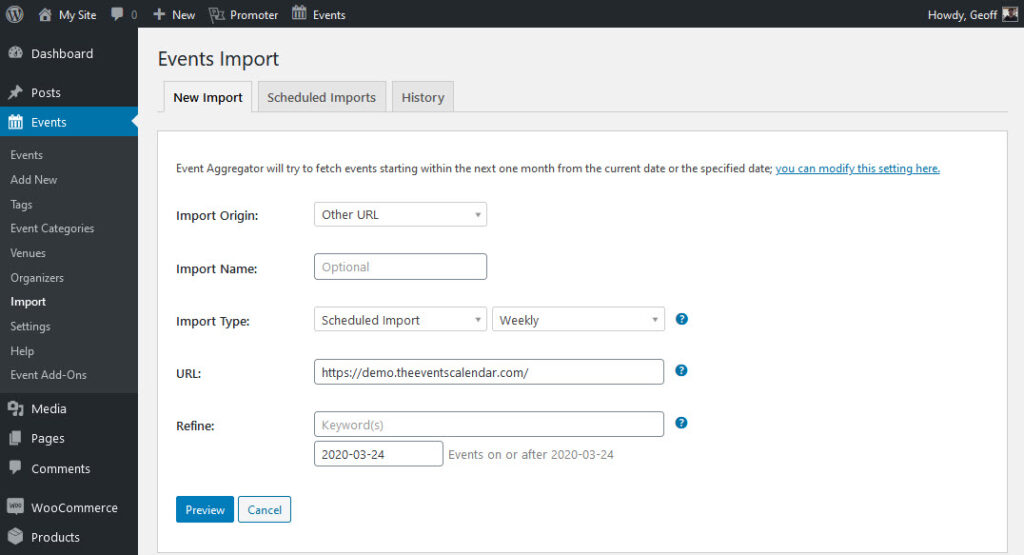
As with any other scheduled import, you can select an interval for your scheduled imports, with options ranging from every 30 minutes to once per month. If you know how often your source sites tend to update with new events, adopting this interval for your imports may make the most sense; if you aren’t sure, a few daily or weekly imports should ensure that your hub remains up to date without using up all of your allotted daily tasks. It’s worth keeping your daily import limit in mind when making your selection here. Read more about import limits for Event Aggregator.
After you’ve chosen the appropriate interval for your import task, enter the calendar URL for your first source site in the “URL” field. You can specify any additional refinements that you’d like in the remaining fields, but typically, these won’t be used for hub sites. Click the “Preview” button once you’re finished, and Event Aggregator will display a sampling of events to be imported based on your criteria.
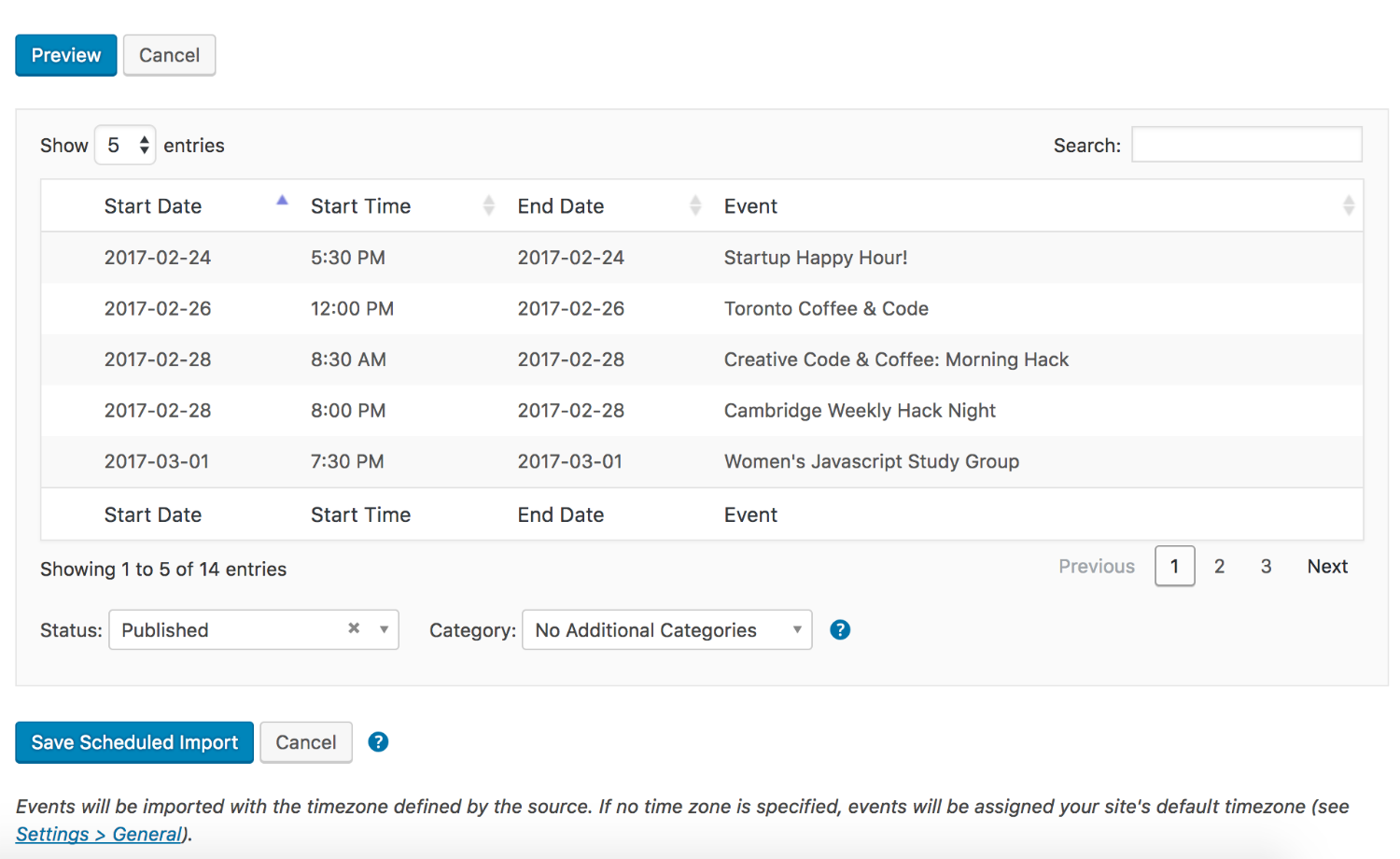
h your list of previewed events, you’ll be presented with just two remaining options: Status and Category. By default, imported events are set to “Published” status and will display immediately on your calendar. If you’d prefer to have your imports set to “Draft” or another status to be reviewed before publishing, select the option that you’d prefer for the Status field.
The Category selector allows you to assign an additional category to events imported by this task. This may be useful if, for instance, you’d like your users to be able to filter events by source, or if you’d like to designate all imported events as distinct from events created on your own site. Select the category or categories that you’d like to add to events imported by this task, or feel free to skip the field entirely if you’d prefer to use only the imported categories.
As soon as you’ve made your final selections, go ahead and click the “Save Scheduled Import” button. Event Aggregator will begin importing your first batch of events, and the import task you’ve set up will be added to your list of scheduled imports. If you’d like to make any changes to this task at a later date, you can view your complete list of scheduled imports at any time by navigating to Events → Imports and clicking the “Scheduled Imports” tab.
Once your first import task is scheduled and completed, all that’s left is to repeat these steps for any remaining source URLs on your list! Any text, images, categories, venues, and organizers from the original events will be imported along with these events and added to your site for future reuse. You can also freely make changes to events after they’ve been imported to your site–if you’d like to ensure that your edits are retained for future imports, make sure that your Event Update Authority settings are configured the way you like them. Read more about this setting and its available options.