
Improving SEO with The Events Calendar
Within The Events Calendar, there are many links that impact SEO positively. Being a calendar, however, there can be situations where links and even whole pages should not be indexed—an example being month view, which has the ability to paginate nearly infinitely.
To improve SEO, The Events Calendar implements sensible defaults that discourage infinite page crawling by search engine bots – all of the ways that we inject meta tags can be overridden with simple filters.
Approaches to Influencing Search Crawlers
In this section, we’ll talk about the various approaches to influencing search engine crawlers (automated inspection and indexing of a site).
An important thing to keep in mind: Your events should all be reachable in your sitemap.xml, which search engines use to index specific pages. So, if an event view is set as noindex and/or nofollow, the events are still findable via the sitemap.xml.
Month and Week Views
Due to the near-infinite nature of these views, we take the stance to add the following noindex, nofollow meta tag to your page’s header.
<meta name="robots" id="tec_noindex" content="noindex, nofollow" />This tells the search engine crawler to avoid indexing the page and to avoid following links on the page.
List-Style View
(Day, List, Map, Photo, Summary)
Due to the nature of these views, we don’t need to be as aggressive with blocking everything. Instead, we only insert a meta tag if there are no events on the page. When inserting the meta tag, we use noindex, follow, and add the following tag to the header:
<meta name="robots" id="tec_noindex" content="noindex, follow" />This tells the search engine crawler to avoid indexing the page, but it can follow links on the page that are not set to nofollow.
Single Event Pages
We do not inject a noindex, nofollow, or follow meta tag on single event pages. If you wish to add a meta tag of your choosing, you will have to do so through some other means.
Note: we do inject meta tags where appropriate on Organizer and Venue pages, but that can be altered with a filter that we talk about below.
We do not inject a noindex, nofollow, or follow meta tag if the main events view is set as the site’s homepage. This approach is non-overridable, so if you wish to add a meta tag of your choosing to your homepage, you will have to do so through some other means.
Pages with Event Shortcodes
Because shortcode usage is meant for extreme flexibility, we do not inject a noindex, nofollow, or follow meta tag onto pages with event views included via shortcodes. If you wish to add a meta tag to a page with a shortcode, you will have to do so through some other means.
Optimizing Event Pages for SEO
Optimizing your event pages for SEO is crucial to increase visibility, attract more attendees, and enhance the overall success of your events. Here’s a comprehensive guide to help you achieve this:
1. Conduct Targeted Keyword Research
Begin by identifying keywords that potential attendees might use when searching for events like yours. Utilize tools such as Google Keyword Planner to discover relevant terms. Focus on long-tail keywords that combine event type, location, and date, such as “art workshop in Brooklyn 2025” or “virtual marketing seminar June 2025.”
2. Craft Compelling and Informative Content
Ensure your event pages contain detailed descriptions that are engaging and informative. Include essential details like the event’s purpose, date, and what attendees can expect. Aim for content that is at least 300 words to provide sufficient information for both users and search engines.
3. Optimize Meta Tags and Headings
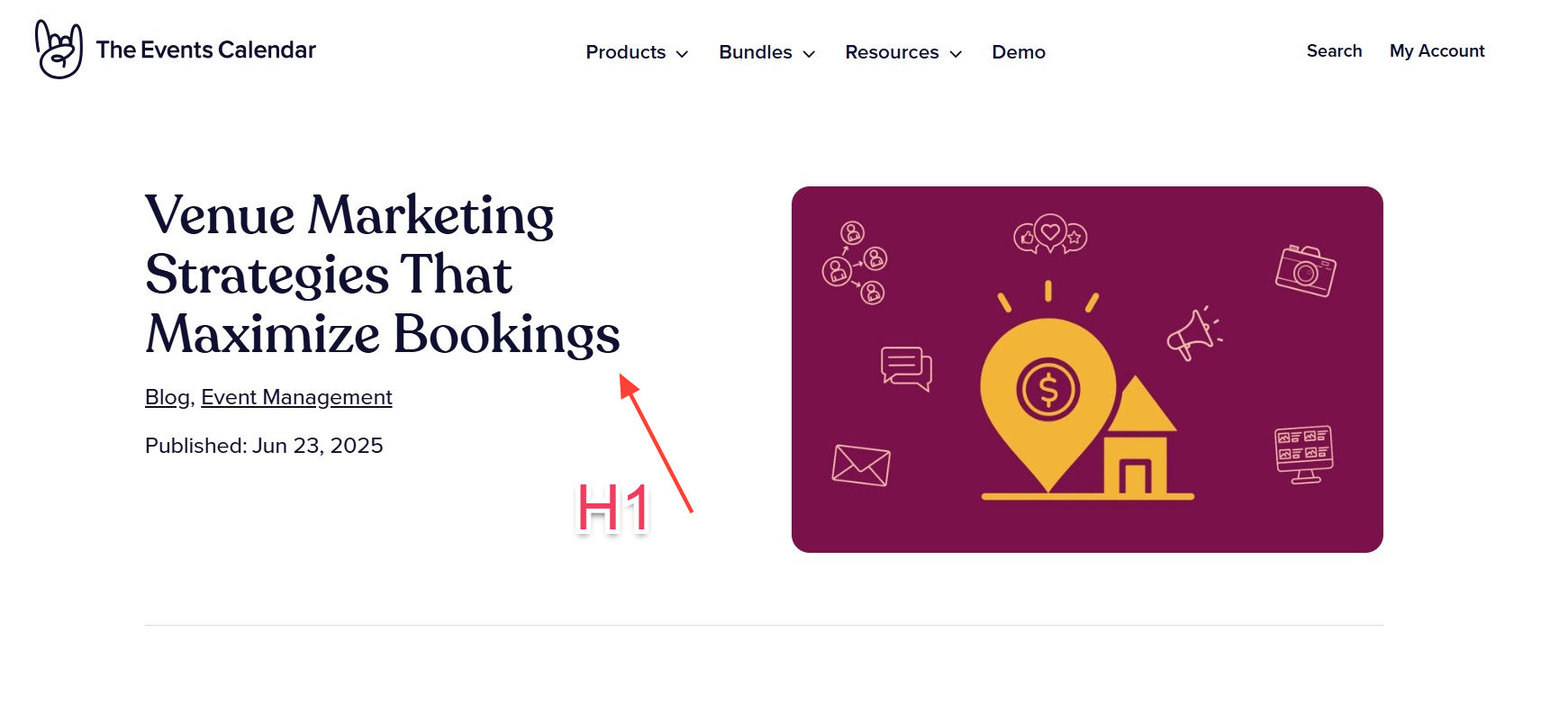
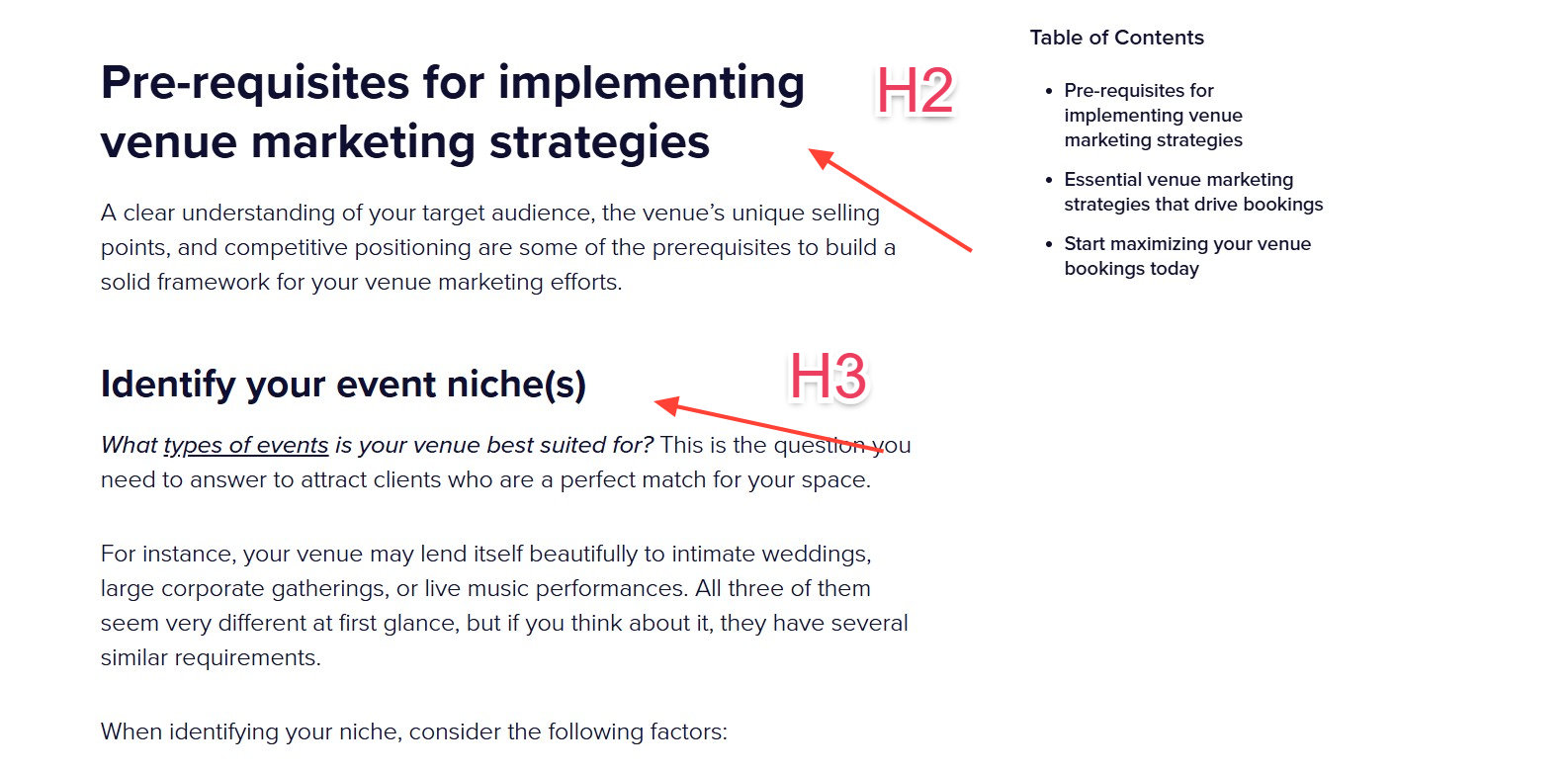
Create unique and descriptive title tags and meta descriptions for each event page. Incorporate primary keywords naturally to improve search engine rankings. Use heading tags (H1, H2, H3) to structure your content, making it easier for search engines to understand the hierarchy and for users to navigate the information.
This blog post shows how we used the heading tags on our site:
4. Implement Event Schema Markup
Utilize structured data (schema markup) to provide search engines with detailed information about your events. This can enhance your listings in search results with rich snippets, displaying details like date, location, and ticket information. Tools like Google’s Structured Data Markup Helper can assist in adding this to your pages. See below to read more about Schema Markup.
5. Build Quality Backlinks
Increase your event page’s authority by obtaining backlinks from reputable websites. Reach out to local blogs, industry influencers, and partners to share your event.
6. Ensure Mobile-Friendliness and Fast Load Times
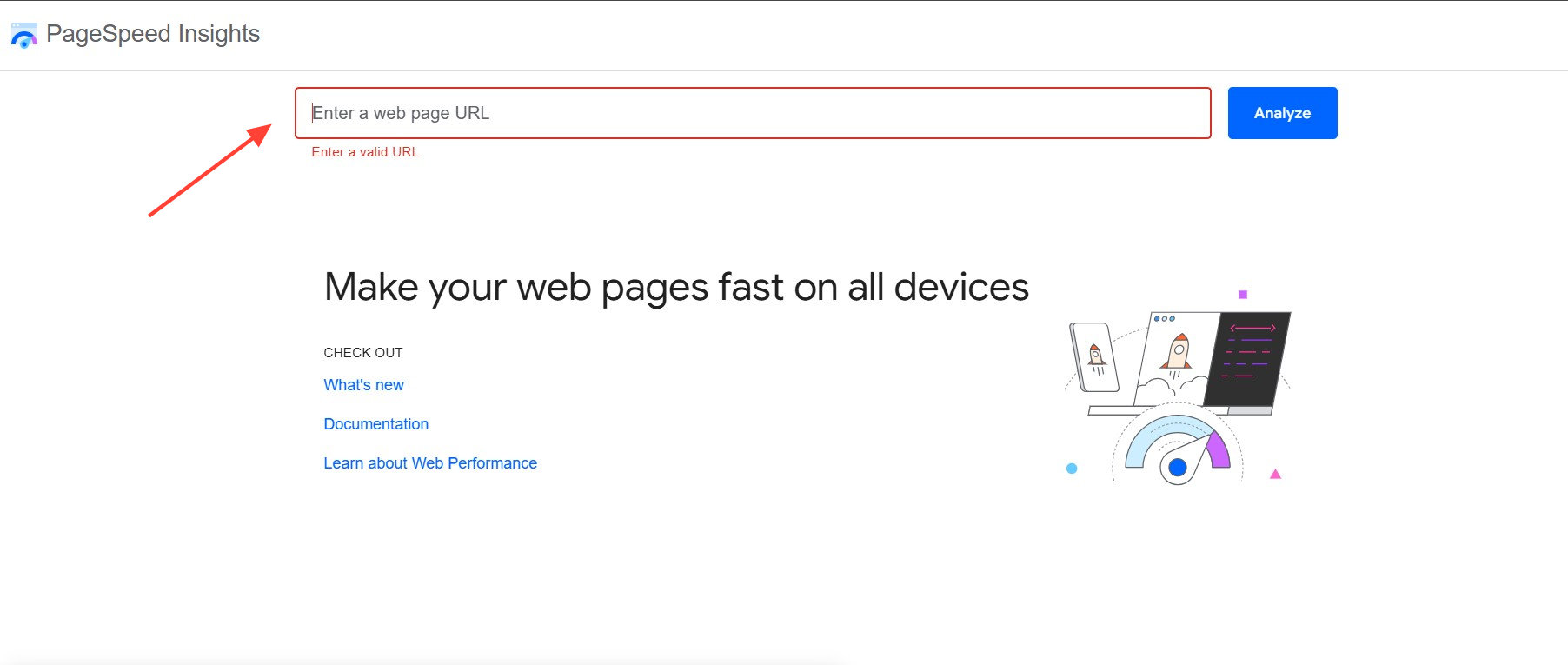
With a significant number of users accessing websites via mobile devices, ensure your event pages are responsive and load quickly. Use tools like Google’s PageSpeed Insights to identify and fix performance issues, enhancing user experience and SEO rankings.
7. Monitor and Analyze Performance
After implementing SEO strategies, regularly monitor your event pages’ performance using tools like Google Analytics and Google Search Console. Track metrics such as organic traffic, bounce rates, and conversion rates to assess the effectiveness of your SEO efforts and make necessary adjustments.
By following these steps, you can enhance the visibility of your event pages, attract a larger audience, and ensure the success of your events.
Schema Markup
In the ever-evolving digital marketing and SEO landscape, staying ahead of the competition requires more than just great content; it demands optimization techniques that make your website more visible and accessible to search engines.
One such technique is Schema markup. This powerful tool significantly enhances your search engine visibility and improves user engagement by leveraging the power of Rich Snippets (enhanced search results provide additional information beyond the standard link, such as review ratings, product details, recipe information, or event details).
For websites using The Events Calendar plugin, the Events schema markup is automatically added to your event pages. This ensures that your events appear in the most informative and eye-catching way.
In this article, we explore the essentials of schema markup, its importance, and how you can effectively implement it to maximize the impact of your events.
Introduction to Schema Markup
Schema markup, also known as structured data, is a microdata format that helps search engines understand the content of your web pages more effectively. Adding schema markup to your pages improves how search engines represent your page in results, leading to better visibility and higher click-through rates.
Note: While schema markup does not directly affect your search rankings, it can improve your click-through rates (CTR) by making your listings more attractive and informative.
As mentioned, The Events Calendar automatically adds schema markup to your event pages. Let’s dive deeper to learn more about this and which markups our main plugins include.
Additional resources
- Event Schema markup – Official markup docs
- Google Search Central – Event structured data
- Google’s Rich Results – Testing tool
- Schema Markup Validator
Schema Markup for The Events Calendar plugin
The event schema markup is automatically added to your calendar view and single event pages using the free Events Calendar plugin.
Let’s look at the required and optional event schema items to understand how it works.
Required Fields
- @context: This is automatically added, always as “https://schema.org“.
- @type: Automatically added as the “Event” type.
- name: The name of the event (Your event post title)
- startDate: The start date and time of the event (in the ISO 8601 date format).
- Location: the event’s location. You can use the Place type for physical locations, which fills in with your Venue data—name and address—so remember to add a venue for your events. Alternatively, use the VirtualLocation type for virtual locations (a feature provided by the Virtual Events plugin).
That said, let’s see an example showing how the JSON-LD schema data appears on your page source code:
<script type="application/ld+json">
[{"@context":"http://schema.org",
"@type":"Event",
   "name":"Hosted Dinner with Chef Monica Geller",
   "description":"Join Chef Moinca Geller for a Hosted Dinner! She will discuss how her weight loss contributed to her wanting to be a chef all while preparing her guests a healthy, balanced meal for you to enjoy.",
   "startDate":"2024-06-15T18:30:00-04:00"
   "location":{
      "@type":"Place",
      "name":"ABC Cooking School Event Center",
      "description":"The ABC Cooking School is the best event center of New York",
      "address":{
         "@type":"PostalAddress",
         "streetAddress":"123 1st Aveune",
         "addressLocality":"New York City",
         "addressRegion":"NY",
         "postalCode":"10036",
         "addressCountry":"United States"
      },
}]
</script>
Optional Fields
- endDate: The end date and time of the event in ISO 8601 date format.
- description: A brief description of the event, automatically filled with your event post content.
- image: URLs of images related to the event. Your Featured Image will be automatically included there.
- eventStatus: The status of your event. When creating your events, the Event Status meta box will automatically set your event as a Scheduled event, but you can change it to “Canceled” or “Postponed” statuses. You can learn more about those statuses on the “Creating Events” article.
- EventAttendanceMode: indicates whether it occurs online, offline, or a mix. All events are automatically set as an Online event. Using the Virtual Events plugin, you can create Online and Mixed events.
- offers: Details about the ticket or entry offer, including price, currency, availability, and URL for purchasing tickets.
The Events Calendar provides a price field where you can set the value and currency. Using the Event Tickets plugin, that field is hidden as that data comes from the tickets created on your event page. - organizer: Information about the organization or person organizing the event, including name and URL. The Events Calendar provides the Organizer post type, where you can create event organizers and select them when creating your events.
Schema Markup for Event Tickets plugin
The Event Tickets plugin enhances your event listings by automatically populating the “offers” field in the Event schema markup. This integration ensures that search engines can display detailed information about ticket availability, prices, and purchasing options directly in search results, improving your event’s visibility and attractiveness to potential attendees.
When you add tickets to an event using the Event Tickets plugin, the plugin automatically generates structured data that includes the following key elements in the “offers” field:
- @type: Specifies the type of offer, automatically set to “Offer”.
- url: Provides the URL where users can purchase the tickets (your event/page URL).
- price: Displays the ticket price.
- priceCurrency: Indicates the currency of the ticket price.
- availability: Shows the availability status of the tickets, such as “InStock” or “SoldOut”.
- validFrom: States the date and time the ticket is available for purchase.
This automated process ensures that your event listings are enriched with accurate and up-to-date information, making it easier for users to find and purchase tickets.
Events Schema with SEO Plugins
The quality of your schema markup implementation plays an important role in optimizing your event-related content for search engines. The Events Calendar and Event Tickets plugins automatically generate and integrate the most effective event schema markup for your events and tickets. This ensures that search engines appropriately index and display your event information, enhancing visibility and user engagement without additional SEO plugins.
While third-party SEO plugins like Yoast SEO or Rank Math offer general schema markup capabilities, they may not be as specialized or comprehensive for events as The Events Calendar. Here’s why:
- General vs. Specific: SEO plugins provide many schema types but may not delve deep into the specifics required for events and tickets.
- Manual Configuration: Configuring event-specific schema markup with SEO plugins often requires additional setup or code customization, whereas The Events Calendar handles this automatically.
- Potential Conflicts: Using multiple plugins to handle schema markup can lead to conflicts and duplicate schema, which may confuse search engines and negatively impact SEO.
Customizing Schema
In this section, you will find custom PHP snippets created to answer some support questions we received.
To use those snippets, you can add the PHP snippet to your theme’s functions.php file or use your preferred method for integrating snippets into your WordPress site, such as the free Code Snippets plugin.
Note that all snippets will now include a “class_exist” PHP function to check if the classes declared by each plugin exist. This function detects whether the Events Calendar and other mentioned plugins are enabled. This check ensures that you only run those snippets if those plugins exist on your website, preventing potential issues from declaring a function for something unavailable on your website.
Disable The Events Calendar Schemas
If you prefer to use a third-party plugin to manage all the schemas, you will need to disable the default schema markup provided by The Events Calendar. For that, you can use the following PHP snippet:
if ( class_exists('Tribe__Events__Main') ) {
  // Remove Schema JSON from Calendar view URLS
  add_filter( 'tribe_events_views_v2_view_json_ld_markup', '__return_empty_string' );

  //Remove Schema JSON from Single Event URLS
  add_filter( 'tribe_json_ld_markup', '__return_empty_string' );
}
Change the “Events” Schema Type to a Custom Schema Type
If all your events are Music events, you may want to change the default event type to use the MusicEvent schema type.
if ( class_exists('Tribe__Events__Main')) {
  add_filter( 'tribe_json_ld_event_object', 'customize_event_json_ld', 10, 3 );

  function customize_event_json_ld( $data, $args, $post ) {
      // Change event type from "Event" to "MusicEvent"
      if ( isset( $data->{'@type'} ) && 'Event' === $data->{'@type'} ) {
          $data->{'@type'} = 'MusicEvent';
      }

      // Remove the default "performer" set as "Organization"
      if ( isset( $data->performer ) ) {
          unset( $data->performer );
      }

      // Change the default "Organizer" to be used as "Performer"
      if ( isset( $data->organizer ) ) {
          $data->performer = $data->organizer;
          unset( $data->organizer );
      }

      // Change the new "performer" type from "Person" to "MusicGroup"
      if ( isset( $data->performer ) && 'Person' === $data->performer->{'@type'} ) {
          $data->performer->{'@type'} = 'MusicGroup';
      }

      return $data;
  }
}
Filter: tribe__tickets__json_ld__order
How to Disable Yoast SEO Schemas for Single Event URLs
if ( class_exists('Tribe__Events__Main') && class_exists ('WPSEO_Frontend') ) {
	function custom_yoast_schema() {
		if ( is_singular('tribe_events')){
			add_filter( 'wpseo_json_ld_output', '__return_false' );
		}
	}

	add_filter( 'template_redirect', 'custom_yoast_schema' );
}
Filter: wpseo_json_ld_output
How to Disable Rank Math Schemas for Single Event URLs
if (class_exists('Tribe__Events__Main') && class_exists('RankMath')) {
   function custom_rankmath_schema($data, $jsonld) {
      if ( is_singular('tribe_events')){
          return [];
      }
      return $data;
  }
 add_filter('rank_math/json_ld','custom_rankmath_schema', 99, 2);
}
Filter: rank_math/json_ld
Disable “All in One SEO”(AIOSEO) Schemas for Single Event URLs
if ( class_exists('Tribe__Events__Main') && class_exists ('AIOSEO') ) {
  function aioseo_disable_schema( $disabled ) {
	  if ( is_singular('tribe_events') ) {
	     return true;
	  }
  }

  add_filter( 'aioseo_schema_disable', 'aioseo_disable_schema' );
}
Filter: aioseo_schema_disable
Troubleshooting Missing Fields in Google Search Console
Users sometimes report warnings in Google Search Console regarding missing fields in the schema markup for their events. After reviewing the issues shared to us by our users, we’ve identified several common errors and their causes. Below, we’ll walk you through the missing fields, explain why they occur, and provide troubleshooting steps to resolve them.
Common Missing Field Errors and Their Causes
1. Missing field “image”
Cause: No featured image has been set for the event.
- Solution: Ensure each event has a featured image. This can be done directly in the event editor in your WordPress dashboard.
2. Missing field “offer”
Cause: This happens when tickets are not available for the event.
- Solution: Make sure that the event has tickets available for purchase. If you’re using Event Tickets/Event Tickets Plus, verify that tickets are properly configured and available for the event.
3. Missing field “eventStatus”
Cause: This field is optional and, if not provided, defaults to “Scheduled.”
- Solution: Our plugin will only set an “eventStatus” for events that are Postponed or Cancelled. For all other events, this field is omitted, as the default status is considered “Scheduled.”
4. Missing field “organizer”
Cause: The event has no organizer set, or only a name is provided without further details.
- Solution: Make sure you include full organizer information for each event, including the organizer’s name, contact details, and URL.
5. Missing field “url” (in “organizer”)
Cause: The event has an organizer set, but no URL is provided for the organizer’s website.
- Solution: Add a URL for the organizer’s website to ensure proper schema markup.
6. Missing field “location”
Cause: No venue has been set for the event.
- Solution: Verify that each event has a correct venue information.
7. Missing field “address” (in “location”)
Cause: The venue is set, but no address is provided.
- Solution: Make sure to include the full address for the venue, including street, city, and postal code.
8. Missing field “eventAttendanceMode”
Cause: This field is not required unless the event is cancelled or postponed.
- Solution: The field will only be added for cancelled or postponed events. For scheduled events, this field is not necessary.
9. Missing field “performer”
Cause: This error typically occurs when using Yoast SEO. The field is disabled in the plugin code (file /the-events-calendar/src/Events/Integrations/Plugins/WordPress_SEO/Events_Schema.php, line 250), but it is provided when Yoast is disabled (file /the-events-calendar/src/Tribe/JSON_LD/Event.php, line 150).
- Solution: If you’re using Yoast SEO and encountering this issue, consider disabling Yoast temporarily to allow the performer field to be included in the schema. Alternatively, we may need to create an enhancement ticket in the future to address this issue and include a default performer to avoid this warning.
Steps to Troubleshoot and Validate Schema Markup
1. Verify Google Search Console Warnings If you receive a Google Search Console warning, please note that we don’t have direct access to your Search Console data. However, you can share your report with us by following the steps outlined in this article.
2. Test Event URL Using Rich Results Tool SEO plugins may sometimes add additional schema markup. To ensure the schema is correct and matches what’s being sent to Google, we recommend testing the URL of an event page using Google’s Rich Results Testing Tool.
This tool will provide a preview of the structured data Google sees on your event page and help identify any missing fields or errors.
Solving the “Discovered – Currently Not Indexed” Notice on Google Search Console
When creating your events with The Events Calendar and Events Calendar Pro, you’ll likely want those events to appear when users search for you on a popular search engine like Google.
However, you may see a message: “Discovered – currently not indexed” in the Google Search Console tool. This indicates that Google has already crawled your URLs but hasn’t indexed them yet. This is completely normal, as crawling and indexing are different phases. For most websites, this URL state is natural and will automatically resolve after Google has processed the URLs and added them to their index.
It is likely only a matter of time before your pages are indexed, which is usually related to Google’s crawl budget. In most cases, if that message is only appearing for a few days or weeks, simply wait for the indexing phase to happen properly—Google will do it eventually.
Next Steps
If you’re still experiencing site-wide issues with Google search, check that your event pages contain enough unique information. This way, Google will be able to identify your events as individual events and create separate entries. If all of your events contain the same title and description, that is not enough information for Google to add your events to the search results.
It’s important to note that Google has quality thresholds that pages must meet, since it cannot possibly crawl and index everything on the web. In other words, the issue may point to a site-wide concern rather than a problem with a few individual events. Google may view some pages on your domain as not worth crawling and skip them, prioritizing other, more valuable content—as a result, these URLs are marked as “Discovered – currently not indexed.”
To start addressing this issue, go through the list of affected URLs and ensure each page contains unique content. The content should satisfy the user’s search intent and solve a specific problem.
You may also want to look into the Quality Rater Guidelines that Google follows when evaluating websites, as they will help you understand what Google is looking for in content found on the web.
To summarize, look into creating unique event content for each of your events, and you’ll be good to go!
Controlling How Google Indexes Your Events
Sometimes The Events Calendar creates multiple links that are indexed by search engines. This may cause some SEO and performance issues on your website. The good news is that our plugin adds a noindex meta tag to your page header if t here’s no events listed on that page, to block this duplicate content.
Block Duplicate Content
If there are no events for a specific URL that you see multiple links created for, TEC adds the following noindex meta tag to your page’s header:
<meta name="robots" content="noindex">
You can also block Google and other search engines from crawling undesired/empty pages by disallowing some URL paths in the robots.txt file.
To achieve that, you can add a robots.txt file to your server’s root folder or manage it using SEO plugins.
The following parameters will help block some WordPress folders and URLs, and also Events Calendar parameters:
## For WordPress

User-agent: *
Disallow: /wp-admin/*
Disallow: /wp-login.php
Disallow: /wp-includes/*
Disallow: /wp-content/*
Disallow: /trackback
Disallow: /feed
Disallow: */comments
Disallow: ?replytocom*
Disallow: */comments-page-*
Disallow: */trackback
Disallow: */feed
Disallow: */comments

Allow: /wp-content/cache/*
Allow: /wp-content/uploads/*
Allow: /wp-content/themes/*
Allow: /wp-content/plugins/*
Allow: /wp-includes/js/*
Allow: /wp-includes/css/*

## For Events Calendar
Disallow: *post_type=tribe_events*
Disallow: *hide_subsequent_recurrences=*
Disallow: *tribe-bar-date=*
Disallow: *tribe-venue=*
Disallow: *eventDisplay=*
Disallow: *eventDate=*
Disallow: *paged=*
Disallow: *pagename=*
Disallow: *shortcode=*
Disallow: *ical=*
Disallow: *outlook-ical=*
Disallow: *related_series=*
Disallow: *tribe_geofence=*
Disallow: *tribe_organizer=*

Allow: /events/*
Allow: /event/*
With the Yoast SEO plugin, you can edit your robots.txt file under wp-admin > Yoast SEO > Tools > File editor. Read more in their documentation here.
Using the Rank Math SEO plugin, you can edit the robots.txt file under wp-admin > Rank Math > General Settings > Edit robots.txt. Documentation here.
Remove Indexing from Recurring Event Occurrences
If you want to prevent recurring event occurrences from being indexed by Google, you can use this snippet to automatically add a noindex tag for all occurrences.
add_action( 'wp_head', 'tec_add_nofollow_to_recurring_events' );

/**
 * Add 'nofollow' to recurring events occurrences
 *
 * @return void
 */
function tec_add_nofollow_to_recurring_events() {
    // Bail if ECP is not active.
    if ( ! class_exists( 'Tribe__Events__Pro__Main' ) ) {
		return;
    }

    // Get the post ID.
    $event_id = get_the_ID();

    // Bail, if it's not an event.
    if ( get_post_type( $event_id ) != "tribe_events" ) {
		return;
    }

    // Bail, if it's not a single event
    if ( ! is_single() ){
        return;
    }
	// If it's a recurring event, add the noindex meta tag
    if ( tribe_is_recurring_event($event_id) ) {
		echo '<meta name="robots" id="tec_noindex" content="noindex, follow" />' . "\n";
    }
}
If you’re looking to have only the first recurrence indexed by Google but not all the subsequent ones, you’ll need to tweak that code not to include the noindex tag for the first event occurrence.
add_action( 'wp_head', 'tec_add_nofollow_to_recurring_events' );

/**
 * Add 'nofollow' to recurring events, except for the first instance.
 *
 * @return void
 */
function tec_add_nofollow_to_recurring_events() {
    // Bail if ECP is not active.
    if ( ! class_exists( 'Tribe__Events__Pro__Main' ) ) {
		return;
    }

    // Get the post ID.
    $event_id = get_the_ID();

    // Bail, if it's not an event.
    if ( get_post_type( $event_id ) != "tribe_events" ) {
		return;
    }

    // Bail, if it's not a single event
    if ( ! is_single() ){
        return;
    }

    if ( tribe_is_recurring_event($event_id) ){
        // Get the post object.
	    $post = get_post( $event_id );

	    // Check if the event is the first in the recurrence.
	    $is_first = \TEC\Events\Custom_Tables\V1\Models\Occurrence::is_first( $post->_tec_occurrence );

	    // If it's not the first recurrence, add the noindex meta tag
	    if ( !$is_first ) {
		    echo '<meta name="robots" id="tec_noindex" content="noindex, follow" />' . "\n";
	    }
    }
}
Add noindex to the Legacy Recurring Events Page
If you’ve been using The Events Calendar for a while, you may have legacy pages for old recurring events (/event/[event-name]/all). That page has been replaced by the Series archive page. The following snippet that adds noindex to this page, since it’s no longer relevant. You can add it to your functions.php file when using Yoast SEO:
if(class_exists('WPSEO_Options')){
add_filter("wpseo_robots", function($robots) {
	global $wp_query;
		if ( $wp_query->tribe_is_recurrence_list && 'all' === $wp_query->get( 'eventDisplay' )) {
        	return "noindex";
    	}
        return $robots;
	});
}
If you are using Rank Math, here is the example snippet using the proper filters for that plugin:
add_filter( 'rank_math/frontend/robots', function ( $robots ) {
    global $wp_query;
    if ( $wp_query->tribe_is_recurrence_list && 'all' === $wp_query->get( 'eventDisplay' )) {
        unset( $robots['index'] );
	    $robots['noindex'] = 'noindex';
    }
    return $robots;
});
Protecting Your Site from Bot Crawl Overload
The Events Calendar generates numerous dynamic URLs—like daily, weekly, or monthly views, plus filtered date links. Even though many of these pages are noindexed, aggressive bots (e.g., SemrushBot, ahrefsBot, curl scrapers) may crawl them extensively, consuming server resources, slowing down user experience, and even triggering higher hosting costs. Below are some tips for controlling bot crawling.
1. Block Aggressive URLs via robots.txt
Add powerful disallow rules to robots.txt to prevent polite bots from crawling dynamic calendar pages:
User-agent: *
Disallow: /*?tribe-bar-date=
Disallow: /*&eventDisplay=
Crawl-delay: 10
While not all bots obey robots.txt, those from major crawlers (e.g., Googlebot, Bingbot) typically do.
2. Implement Crawl-Delay and Selective Blocking
Use Crawl-delay in robots.txt and fine-tune specific crawler settings:
- Add
Crawl-delay: 10to calm polite crawlers. - Use Google Search Console to limit Googlebot if needed, as Google doesn’t honor
robots.txtfor delays.
3. Leverage Web Application Firewalls (WAF) & CDNs
Use Cloudflare, Sucuri, or similar WAF/CDNs to restrict malicious crawler traffic before it hits your site:
- Rate-limit or challenge suspicious user agents via WAF rules.
- Use JavaScript verification (e.g. BotFirewall plugin) to block bots that can’t execute scripts.
- WAF/CDN can block entire IPs, countries, or user-agent patterns at the edge before they reach WordPress.
4. Monitor & Audit Bot Access Regularly
- Review server logs to identify high-volume user agents and IPs.
- Use analytics and tools like Screaming Frog or SEMrush to monitor crawl spikes—then throttle or block offending bots accordingly.
You can protect your site from automated overload without sacrificing valid bot access or user experience. This layered protection ensures your site remains fast, secure, and cost-effective—even when The Events Calendar generates thousands of hidden date-based pages.
Overriding Default SEO Approaches
We provide a handful of filters that allow you to prevent or change the meta tag additions on your views.
tec_events_seo_robots_meta_include
This filter allows you to globally change whether the meta tag gets included on pages.
Here’s an example that prevents meta includes.
add_filter( 'tec_events_seo_robots_meta_include', '__return_false' );
Here’s an example that prevents meta includes for the list and day view:
add_filter( 'tec_events_seo_robots_meta_include', function( $do_include, $view ) {

    if ( in_array( $view, [ 'list', 'day' ] ) ) {

        return false;

    }

    return $do_include;

}, 10, 2 );
tec_events_seo_robots_meta_include_$view
This filter allows you to individually change whether the meta tag gets included on specific views.
Here’s an example that prevents the meta from being included in the month view:
add_filter( 'tec_events_seo_robots_meta_include_month', '__return_false' );
Here’s another example that prevents the meta being included on the photo view from Events Calendar Pro:
add_filter( 'tec_events_seo_robots_meta_include_photo', '__return_false' );
tec_events_filter_wp_robots_meta_directives
This filter allows you to change the content attribute (i.e. noindex, nofollow) of the injected meta tags.
Here’s an example where we change the week view’s content attribute to noindex, follow:
add_filter( 'tec_events_filter_wp_robots_meta_directives', function( $robots ) {

		    $view = tribe_context()->get( 'view' );

		    if ( ! $view ) {

		        return $robots;

		    }

		    if ( $view !== 'week' ) {

		        return $robots;

		    }

			$robots['noindex'] = true;
			$robots['nofollow'] = false;

		    return $robots;

		}, 10 );
tec_events_seo_robots_meta_allowable_post_types
This filter allows you to change the post types that are allowed to have meta tags injected into them.
Here’s an example where we remove Venues from the list of allowable post types:
add_filter( 'tec_events_seo_robots_meta_allowable_post_types', function( $post_types ) {

    return array_filter( (array) $post_types, static function() {

        return $post_type !== \Tribe__Events__Venue::POSTTYPE;

    } );

}, 10, 2 );