
Home › Forums › Calendar Products › Events Calendar PRO › Text Color
- This topic has 14 replies, 4 voices, and was last updated 9 years, 11 months ago by
Henry.
-
AuthorPosts
-
October 27, 2016 at 8:40 pm #1184207
Henry
ParticipantHi,
This CSS stuff is a bit above my knowledge, so I’m hopeful this is an easy question/answer you can help me with.
On this page – http://glitteryourpallet.com/events/?action=tribe_photo&tribe_paged=2&tribe_event_display=photo
I’d like the words “Upcoming Events” and “« Previous Events” and “Next Events »” to all display in color #fcedd9
Is that something you can help with? Thanks!
October 27, 2016 at 10:49 pm #1184265Hunter
ModeratorHello, Henry 🙂
I would be more than happy to help assist. Try adding the following CSS code to your theme option’s CSS section or directly into your theme’s style.css file:
.tribe-events-list h2.tribe-events-page-title {

    margin-bottom: 15px;

    color: #fcedd9;

}
#tribe-events-content a, ul.tribe-events-sub-nav a {
text-decoration: none;
color: #fcedd9!important;
}The best (and easiest) way to change CSS is to right-click on the 'Upcoming Events' text (or whatever else you want to change), then select 'Inspect'. From there, you can identify and make changes in your browser, then copy those changes and paste them where you manage CSS (theme options or the style.css sheet). More info can be found by watching this YouTube Video.
Let me know if this helps and have a great Friday. Cheers!
October 27, 2016 at 11:03 pm #1184270ParticipantHi Hunter,
It worked!
But it worked too good! Hahaha
Now all my titles, including the titles to the event, are the same color. Unfortunately that means the title to the events is the same color as the background.
Any way to adjust that so the event titles don;t get affected by the color change?
Thanks!
October 28, 2016 at 11:23 pm #1184782ModeratorHello,
Thank you for the update. You should be able to use the CSS code I provided for the ‘Upcoming Events‘ text, but if it’s overwriting the single event page title, use the following CSS code:
.tribe-events-single-event-title {
color: #fcedd9!important;
}Learn more about using !important here.
Also, check out the PRO Color Customizer tool. It can help make color adjustments on the fly. Thanks again let me know how things go and have a great weekend. Cheers!
October 30, 2016 at 2:13 am #1185000ParticipantHi,
Looks good so far but the bottom navigation buttons are still not #db7fc6. Any chance we can get “Next Events” and “Previous Events” adjusted? If I use:
#tribe-events-content a, ul.tribe-events-sub-nav a {

    text-decoration: none;

    color: #fcedd9!important;

}It also adjusts the single event title color.
Thanks,
HenryOctober 31, 2016 at 1:43 pm #1185455ModeratorHenry,
Let’s hope this CSS for the Previous Events/Next Events text helps! Let me know how it goes 🙂
ul.tribe-events-sub-nav a {

    color: #fcedd9!important;

}
October 31, 2016 at 2:00 pm #1185467ParticipantLooks great! Thanks Hunter.
I notice if I switch from “photo” view to “month” view I’m back to the default colors in the header. In particular, “Events for October 2016” isn’t #fcedd9.
Got any magic left?
November 1, 2016 at 1:17 pm #1185994ParticipantHi Hunter,
I’m also having problems on the single event pages. I’m using the Pro Color Customizer but it doesn’t seem to have an affect to the view. For instance http://glitteryourpallet.com/event/2109/
I’m trying to get the header to be #fcedd9, the body background to also be #fcedd9, and the footer to be #fcedd9. Additionally, I’m not seeing where I can adjust the button configuration.
Little help?
Thanks!
November 1, 2016 at 5:57 pm #1186106ModeratorHenry,
Welcome back. I would love to continue assisting, but if I could please redirect your attention to my first response as it contains helpful advice on how to make these changes yourself. CSS is one of the most basic tasks and I strongly encourage you to take a little time until you understand the process.
// Body background
.single-tribe_events .tribe-events-content {

    max-width: 100%;

    padding: 0;

    width: 100%;

    background: #fcedd9;

}
Please note, you’ll need to take the reigns from here as this type of support is outside the scope we’re able to provide. Please refer to our What support is provided for license holders? for more info.
November 1, 2016 at 6:19 pm #1186112ParticipantHi Hunter,
While I acknowledge CSS might be easy for some people, it is not easy for me. I’ll also note the code you gave me was wrong and did nothing.
Thanks,
HenryNovember 1, 2016 at 6:34 pm #1186114ModeratorHenry,
While it may not be easy for you, it is ultimately your responsibility when it comes to styling your website and calendar beyond what we include in the plugin. I can assure you by right-clicking your mouse and opening the ‘Inspect‘ tool, it is fairly simple to identify and make changes. You’ll input the CSS code into your theme’s style.css file or if your theme author has included a CSS tab in your WordPress admin theme options, add it there.
You can input code right into the Inspect console to make sure the changes you’re making are correct. This YouTube video is an even better example, so please review it and spend some time until you get the desired results. While we are happy to help where possible, I’m not permitted to spend time customizing customer sites beyond a certain point. It is the first point made on our What support is provided for license holders? Knowledgebase article.
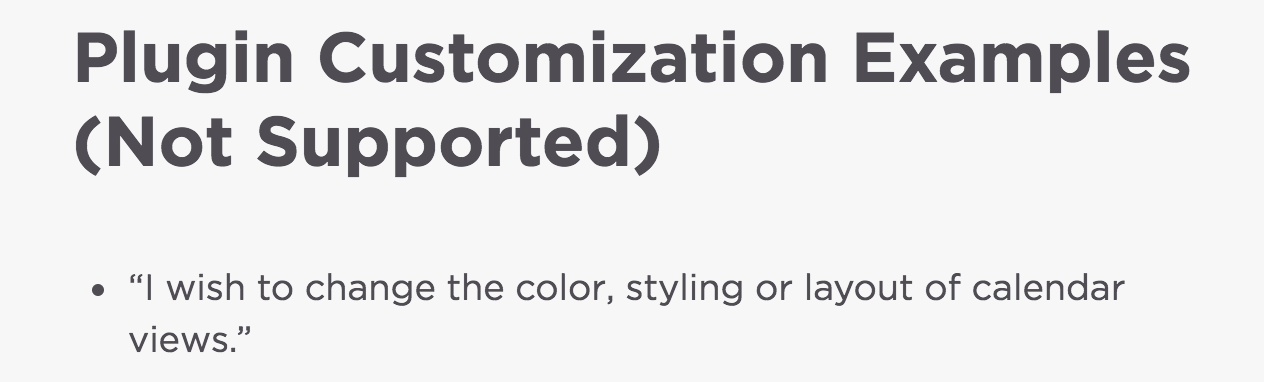
Sorry I can’t do more here. Have a great rest of your night 🙂
November 1, 2016 at 6:47 pm #1186123ParticipantHi Hunter,
I understand.
Can you direct me to an email for refunds? When I spent $90 for this plugin I didn’t realize I would need to teach myself CSS so your product wouldn’t look like shit on my website.
Thanks,
HenryNovember 1, 2016 at 10:10 pm #1186180ModeratorHenry,
I am truly sorry to hear things aren’t working out for you. You can visit our Refunds page and we’d be more than happy to refund your purchase so long it’s within the 30-day timeframe.
Best of luck with your website and take care.
November 23, 2016 at 8:35 am #1196574Support Droid
KeymasterHey there! This thread has been pretty quiet for the last three weeks, so we’re going to go ahead and close it to avoid confusion with other topics. If you’re still looking for help with this, please do open a new thread, reference this one and we’d be more than happy to continue the conversation over there.
Thanks so much!
The Events Calendar Support Team -
AuthorPosts
- The topic ‘Text Color’ is closed to new replies.