
Home › Forums › Ticket Products › Event Tickets Plus › Adding Field sets to Email Template and Order page
- This topic has 17 replies, 4 voices, and was last updated 9 years, 9 months ago by
hotshotcreative.
-
AuthorPosts
-
November 16, 2016 at 1:08 pm #1193438
hotshotcreative
ParticipantHi
I would like to add the fieldsets to the order-received page template and also to the email templates.
If this is already documented somewhere please could you provide a link.
Any help greatly appreciated
Thanks
ChrisNovember 17, 2016 at 2:06 pm #1194137Andras
KeymasterHello Chris,
Thanks for reaching out with your request.
As for the ticket email, we have a small extension plugin that would do this for you. You can download it here and install it like any other plugin. It will give you an extra setting under Events > Settings > Tickets
https://theeventscalendar.com/content/uploads/2016/10/tribe-ext-tickets-email-options-0-3-0.zip
This will add the attendee meta in the ticket email as well as the order details page.
As for the order-received page, I will need to check, please give me some time.
Meanwhile let me know if the above helps.
Thanks and cheers,
AndrasNovember 17, 2016 at 2:16 pm #1194144KeymasterHey Chris,
Sorry, got confused, that plugin does add it to the orders-received page as well.
Please check and let me know if this works for you.
Cheers,
AndrasNovember 18, 2016 at 6:43 am #1194434ParticipantHi
It doesn’t show these fields on the order page, please could you let me have the code for the template so I can check?
Thanks
November 21, 2016 at 1:59 am #1195222KeymasterHello Chris,
All the code needed is in the plugin I linked in above. Once activated you will see 3 extra options under Events > Settings > Tickets tab:
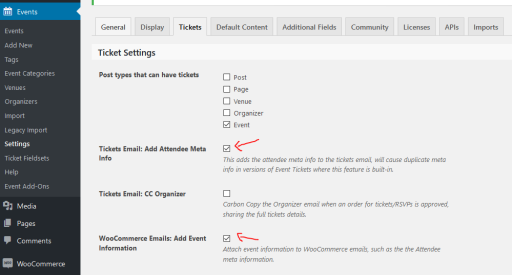
Make sure that the 2 checkboxes marked in the screenshot are checked in. The 1st adds the info to the email, the 3rd adds it to the orders-received page like this:
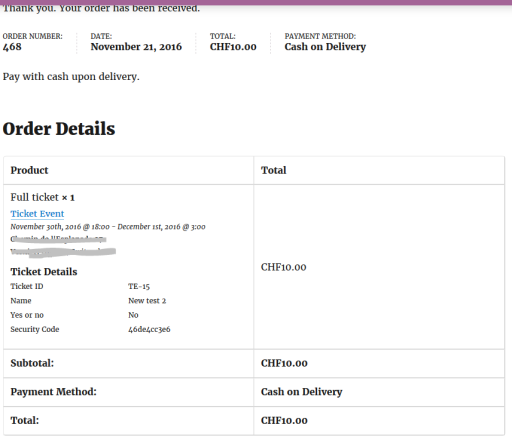
If by any chance you would have the details twice in the email, then simply uncheck the 1st checkbox.
Please test if this solves it for you and let me know. I’ll be waiting.
Cheers,
AndrasNovember 22, 2016 at 2:47 pm #1196198ParticipantFor some reason I can’t see the tick boxes…..see attached.
November 23, 2016 at 5:38 am #1196435KeymasterHi Chris,
That’s curious. Check these:
- Do you have all your plugins up to date?
- Did you activate the plugin which I sent you?
- Could you please share with me your system information so I can check for additional info? (Here’s a guide for this: https://theeventscalendar.com/knowledgebase/sharing-sys-info/)
Thanks and cheers,
AndrasNovember 23, 2016 at 6:08 am #1196447ParticipantHi Andras
Thank you so much! I think this is working now!
Regards
MandyNovember 24, 2016 at 2:05 am #1196916ParticipantHi Andras
Is there anything we can do about this styling? (see attachment)
The ticket details bit is all indented and the heading, date and Ticket details are all bunched up
Regards
MandyNovember 25, 2016 at 2:06 am #1197267KeymasterHey Mandy,
I’m happy to hear it’s working now. Cool!
It is possible to customize the ticket email. Unfortunately we are limited in doing and supporting customization, but I can show you the way.
As a first I recommend you to read these two articles:
https://theeventscalendar.com/knowledgebase/themers-guide/
https://theeventscalendar.com/knowledgebase/template-overview/
Once you’ve done that you should have a basic understanding on how to do template overrides.
For customizing the email you need to override this file:
wp-content\plugins\the-events-calendar\vendor\tickets\src\views\tickets\email.php
You will need to make a copy of it here:
[your-theme]/tribe-events/tickets/email.php
And then you can adjust the formatting of it.
I hope this gets you started. Let me know if you get stuck.
Cheers,
AndrasDecember 5, 2016 at 1:56 pm #1201749ParticipantHi Andras
I have copied the file email.php to my theme but it doesn’t work…I can’t see where I change the column width etc for ticket details. Can you help?
Regards
MandyDecember 6, 2016 at 8:22 am #1202025KeymasterHello Mandy,
Some of the design is set up with css at the beginning, some of it is inline css with the style=”” tag, and some of it is inline HTML.
The width for ticket details is in lines 331, 335, 339, and 343, done with inline css like as well as inline HTML:
<td class=”ticket-details” valign=”top” align=”left” <span style=”text-decoration: underline;”>width=”100″</span> style=”padding: 0; <span style=”text-decoration: underline;”>width:100px</span>; margin:0 !important;”>
When changing one column, do not forget to set both values and to adjust the rest of the columns so that the column widths add up to the same number as before. Unless you change the sizing of the whole of course.
Does this help you get started?
Cheers,
AndrasDecember 12, 2016 at 3:53 am #1204634ParticipantHi Andras
Thank you so much for the information. I will have a go and let you know if it doesn’t work.
I have another question Andras, is there a way to change the heading for the event calendar? (Events Archive) Trainings and Events for December 2016)
Mandy
December 13, 2016 at 8:02 am #1205216KeymasterHeya Mandy,
For changing the heading, this article should be helpful:
https://theeventscalendar.com/knowledgebase/altering-or-removing-titles-on-calendar-views/
Let me know if you get stuck.
Cheers,
AndrasDecember 13, 2016 at 12:00 pm #1205464ParticipantThank you so much Andras 🙂 The title is now updated.
-
AuthorPosts
- The topic ‘Adding Field sets to Email Template and Order page’ is closed to new replies.