
Compressed Event Columns in the Event Admin List
We frequently receive inquiries from customers regarding events displaying strangely in the backend, under the Events section. Text appears vertically, making it challenging to read and access information and links in the table.
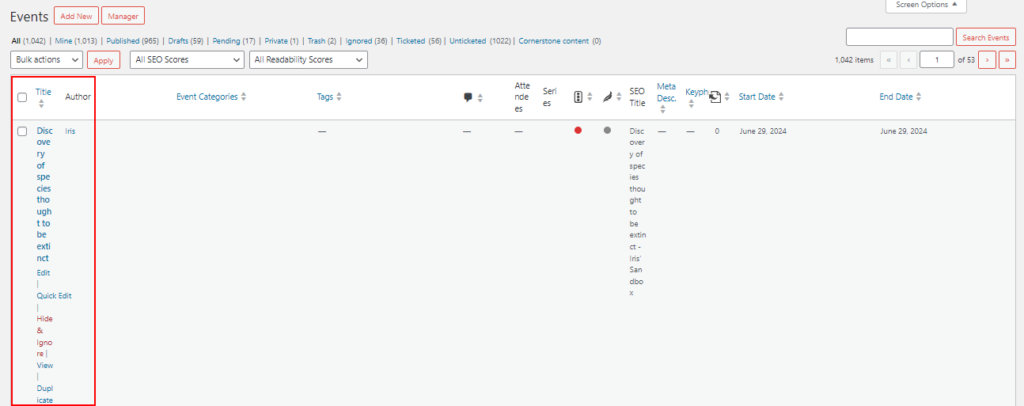
This happens when plugins add additional columns to our default view. Because WordPress tries to automatically adjust the styling based on the number of columns, too many columns or too much content can result in some of the columns appearing squished. We often see this happen with SEO plugins (such as Yoast, All in One SEO, etc.) and other plugins that add features to multiple post types.
One method to resolve this is by disabling any columns that you don’t need from the Screen Options tab in the upper righthand corner of the screen.
If you prefer not to disable specific options, an alternative approach is to adjust the columns using a third-party plugin like Admin Columns. This plugin is freely accessible through the WordPress Plugin Directory.
The Events Calendar Is Missing from the Admin Menu
If you’re unable to find The Events Calendar in your WordPress dashboard menu, don’t worry — this is usually caused by a plugin conflict, user permission issue, or a temporary error after an update.
Here’s how to quickly restore access.
Common Causes
- User role doesn’t have permission to manage events
- Plugin conflict hiding admin menu items
- Corrupt plugin install or incomplete update
- Theme functions affecting menu visibility
Troubleshooting Steps
- Check for Plugin Conflicts
Temporarily deactivate all other plugins except The Events Calendar:
1. Go to Plugins → Installed Plugins
2. Deactivate everything except The Events Calendar
3. Check if the Events menu appears in the admin sidebar
If it does, reactivate your plugins one by one to identify the conflict. For a detailed guide to conflict testing, check out this article:
🔍Testing for Conflicts - Switch to a Default Theme
Your theme may be overriding or hiding admin menus. To test:
1. Go to Appearance → Themes
2. Activate a default theme like Twenty Twenty-Four
3. Refresh your dashboard
If the Events menu appears, the issue lies within your theme’sfunctions.phpor custom admin menu logic. - Confirm User Permissions
Only users with the correct capabilities (like Administrators) can access the Events menu.
✅ If you’re using a role editor plugin (e.g., User Role Editor), make sure your role has theedit_tribe_eventscapability.
✅ Try logging in as an Administrator to check if the menu appears. - Reinstall The Events Calendar
There may have been an incomplete or corrupted plugin update. To safely reinstall:
1. Download the latest version from WordPress.org
2. Go to Plugins → Installed Plugins
3. Deactivate and delete The Events Calendar (your events will be safe)
4. Click Add New → Upload Plugin, then reinstall and activate it - Check for Admin Menu Customization Code
If yourfunctions.phpor a custom plugin contains code like this:remove_menu_page('edit.php?post_type=tribe_events');
…it will hide the Events menu. Search for similar custom code and remove or comment it out.
Still Not Seeing the Menu?
If you’ve followed all the steps above and still don’t see the Events admin menu:
- Clear your browser and site cache
- Check in a private/incognito window
- Try another browser
Disappearing Event Blocks or Editor Panels
Some users encounter a situation where event blocks or editor panels disappear while editing events. This can prevent you from seeing Event Details, Ticket Options, or Custom Fields, making it difficult to manage your calendar effectively.
This guide explains why this happens, how to troubleshoot it, and best practices to prevent it.
Why Event Blocks or Panels Disappear
The disappearing editor panels usually happen due to conflicts between:
- Classic Editor vs Gutenberg Editor settings
- The Events Calendar fully supports both editors, but mixing them can hide certain meta boxes.
- Plugin conflicts
- Other plugins that modify post types, meta boxes, or the WordPress editor can inadvertently disable The Events Calendar panels.
- Theme conflicts
- Some themes override admin CSS or JavaScript, which can hide or break the layout of the event editor.
- Screen Options settings
- WordPress allows panels to be hidden per user via Screen Options in the top right of the editor.
Check Gutenberg / Classic Editor Settings
- Upon initial installation and activation of The Events Calendar, Classic Editor is activated by default. To activate Block Editor, go to Events → Settings → General → Editing.
- Don’t alter the option if you prefer the Classic Editor.
- Save changes and reload the event editor.
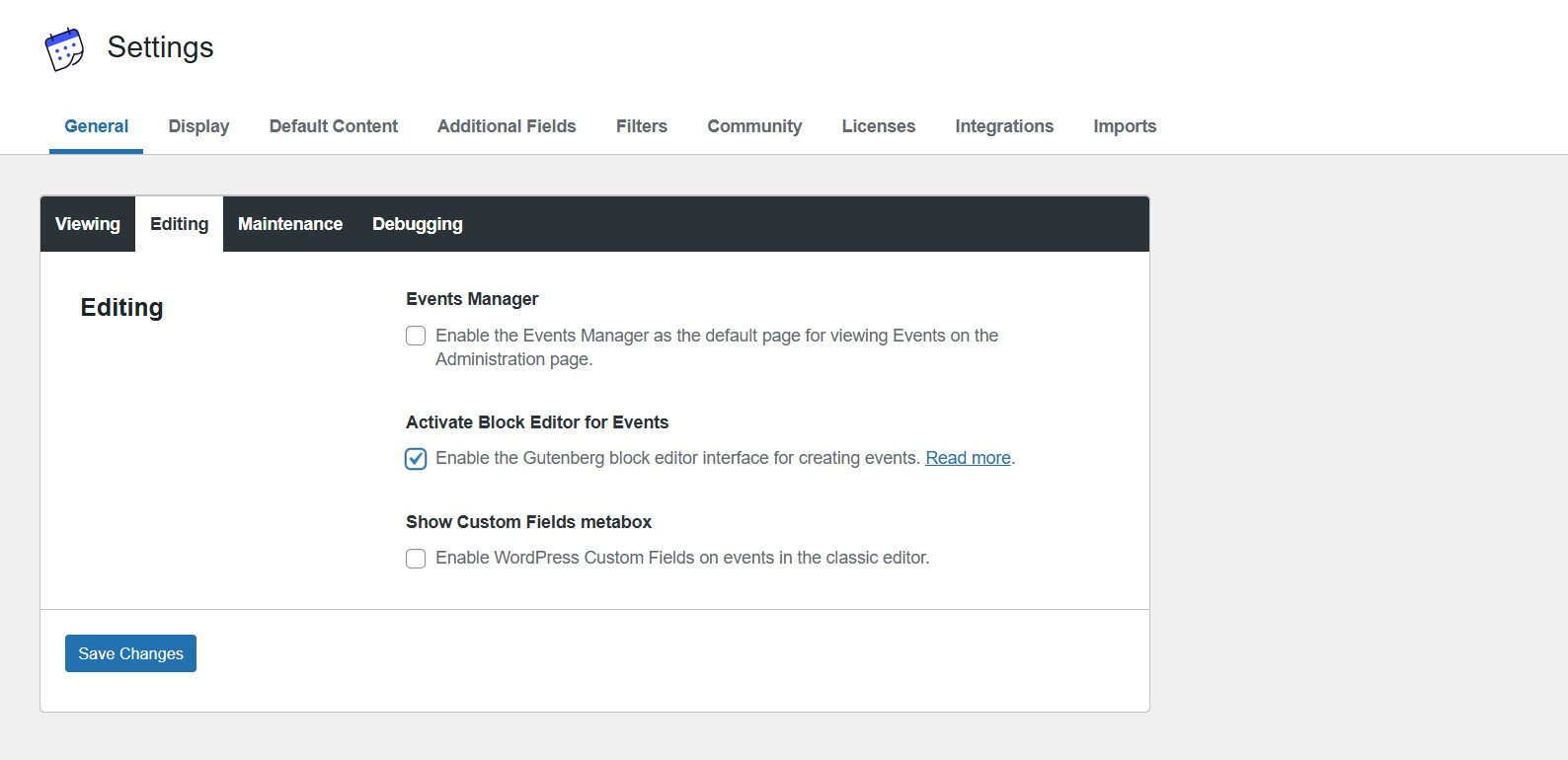
💡 Many users report that switching the editor mode back and forth restores missing panels.
Check Screen Options
- Open an event in the editor.
- Click Screen Options at the top right.
- Ensure that all relevant panels are checked.
- If a panel is unchecked, it will be hidden for your user.
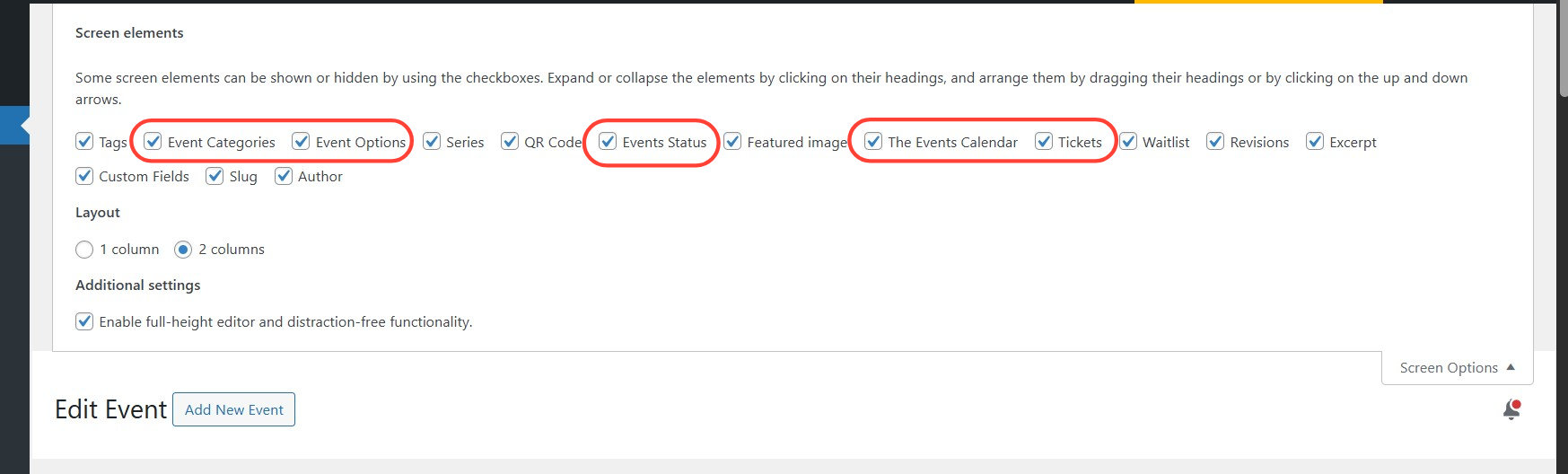
⚠️ Screen Options are user-specific; other admins may see different panels.
Disable Conflicting Plugins
- Temporarily deactivate all plugins except The Events Calendar and its add-ons.
- Reload the event editor.
- If the panels reappear, one of the deactivated plugins is causing the conflict.
- Reactivate plugins one by one, testing the editor each time to identify the culprit.
Common culprits include:
- Admin UI customizers
- Page builder plugins modifying post editing screens
Test Theme Compatibility
- Temporarily switch to a default WordPress theme (Twenty Twenty‑Four, for example).
- Open the event editor.
- If the panels reappear, the original theme is causing the conflict.
- Work with your theme developer to fix admin CSS or JS that hides meta boxes.
Clear Caches
If your site uses admin caching or a page caching plugin, clear all caches and reload the editor. Sometimes stale JS or CSS can prevent panels from displaying properly.
Additional Tips
- Check for JavaScript errors: Open browser console (F12 → Console) while loading the event editor. Errors may indicate the source plugin or theme.
- Check user roles & permissions: Ensure your user role has sufficient access to view and edit events.
- Update TEC & Event Tickets: Always run the latest versions to reduce incompatibilities.
Missing “Publish” Option in the Editor
If you want to publish the event now, but do not see the option to do so, there are a few troubleshooting steps that you can take.
- Check the Scheduled date of the event and modify it to something in the past. Then click Update.
- Make sure that you are logged into your WordPress dashboard as an admin.
- Try creating a new event and see if the Publish option appears as expected for that event.
If none of of those options work, we’d recommend testing for conflicts to see if a plugin or theme is causing the option to disappear.