
Shortcodes are a handy way to display your calendar on different pages of your site. However, after plugin updates or changes to your website, they might stop working and show as plain text instead. In this article, we’ll walk you through a few ways to troubleshoot and fix this issue.
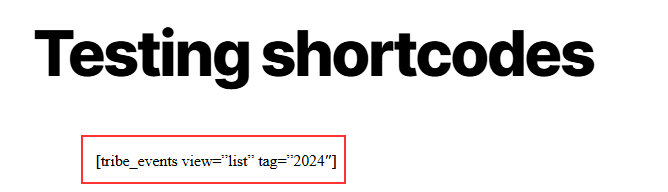
Confirm the Plugin Is Active
Sometimes, although rare, plugins can become deactivated. This can happen due to errors, conflicts, updates, changes on the server, or certain security settings. It’s usually a safeguard triggered by WordPress or your hosting provider.
Head to the Plugins list in the Dashboard and check that the plugin in question is activated. Each plugin has its own set of shortcodes, so be sure to note the corresponding plugins for the shortcodes you need.
Check the shortcode syntax
Even a small typo (like a missing bracket or wrong attribute) can prevent it from rendering. Here are some common shortcode syntax errors on the [tribe_events] shortcode example:
- Missing brackets –
[tribe_events - Typo in shortcode name –
[trib_events] - Wrong quotation marks:
[tribe_events category = 'sport'] - Using unsupported or misspelled attributes –
[tribe_events attribute="value"] - Syntax errors: curly quotes, formatting tags, wrapping tags:
Shortcodes must use straight (ASCII) quotes, not fancy “curly” quotes. Copying from blogs or PDFs may introduce curly quotes that break the shortcode parsing.
Also, sometimes shortcodes are inadvertently wrapped in<pre>,<code>, or other tags (especially if copied from documentation). That wrapping prevents WordPress from interpreting them as active shortcodes.
Use Shortcodes in Supported Areas
Shortcodes only work in parts of WordPress that are built to process them. If you place a shortcode in a section that does not support shortcode output, like some widget areas or post metadata fields, it may just display as plain text instead of working properly.
For example:
- If you’re using a block-based theme (like most modern WordPress themes), use the built-in “Shortcode” block when adding a widget. This block is specifically designed to recognize and execute shortcodes correctly.
- In the Classic Editor, always use the Text tab (not Visual) to prevent formatting issues.
Check Plugin Compatibility
Our plugins are designed to work side by side and should be at their matching versions in order to prevent functionality breaking. We recommend always keeping your plugins and themes updated to the latest versions to ensure you have the newest features, improvements, and fixes.
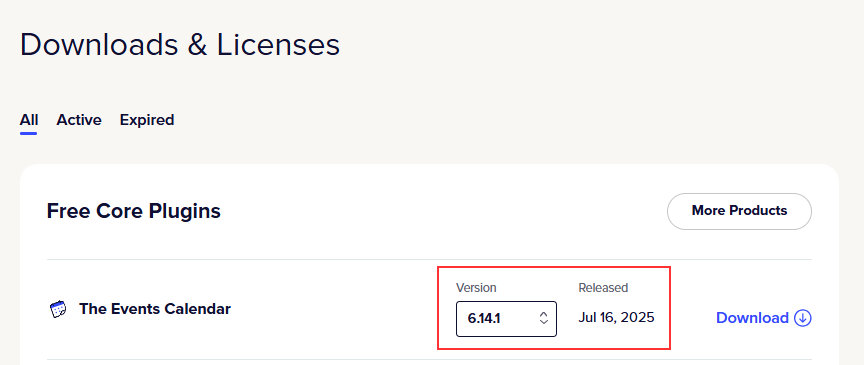
In case you need to find compatible versions or perhaps downgrade the plugins to match, you’ll be able to find version numbers in your Events Calendar account under the Downloads & Licenses tab.
Matching versions typically share the same or very similar release dates. Just select a version from the dropdown, check its release date, and ensure that your premium plugin version aligns with it.
Clear the Cache
Sometimes shortcodes don’t render properly due to caching, either from a caching plugin, your host, or your browser. Caches can serve older, stored versions of a page where the shortcode wasn’t working yet.
To fix this:
- Clear your site’s cache (from your caching plugin or hosting dashboard)
- Clear your browser cache
- If you’re using a CDN (like Cloudflare), purge its cache as well
This helps make sure you’re seeing the most recent version of your page, where the shortcode should now work. We usually recommend excluding our pages from caching.
Test for conflicts
If none of the steps above help, you should test for conflicts, as there could be a theme or another plugin interfering with shortcode rendering. You should switch to a default theme such as Twenty Twenty, disable all plugins except ours, and see if it fixes the issue.
To avoid disrupting your live site, we recommend you either make use of a staging site and test things there or, if that is not possible, consider using a plugin like Plugin Detective and/or Health Check, each of which provides a troubleshooting mode that aims to ensure your site will continue to operate as normal for regular visitors.
Finally, if your shortcode is still not rendering, please reach out to our support team here so they can assist you further.