
The Events Calendar and Event Tickets include a full set of custom blocks for creating and managing events, tickets, and RSVPs in the WordPress block editor. This article covers what each block does, how to enable the block editor for events, and how to customize the default block template that loads when you create a new event.
Enabling the Block Editor for Events
The block editor is WordPress’s default editor for posts and pages. For events, it needs to be enabled separately. Go to Events → Settings → General → Editing and check the box to activate the block editor for events.
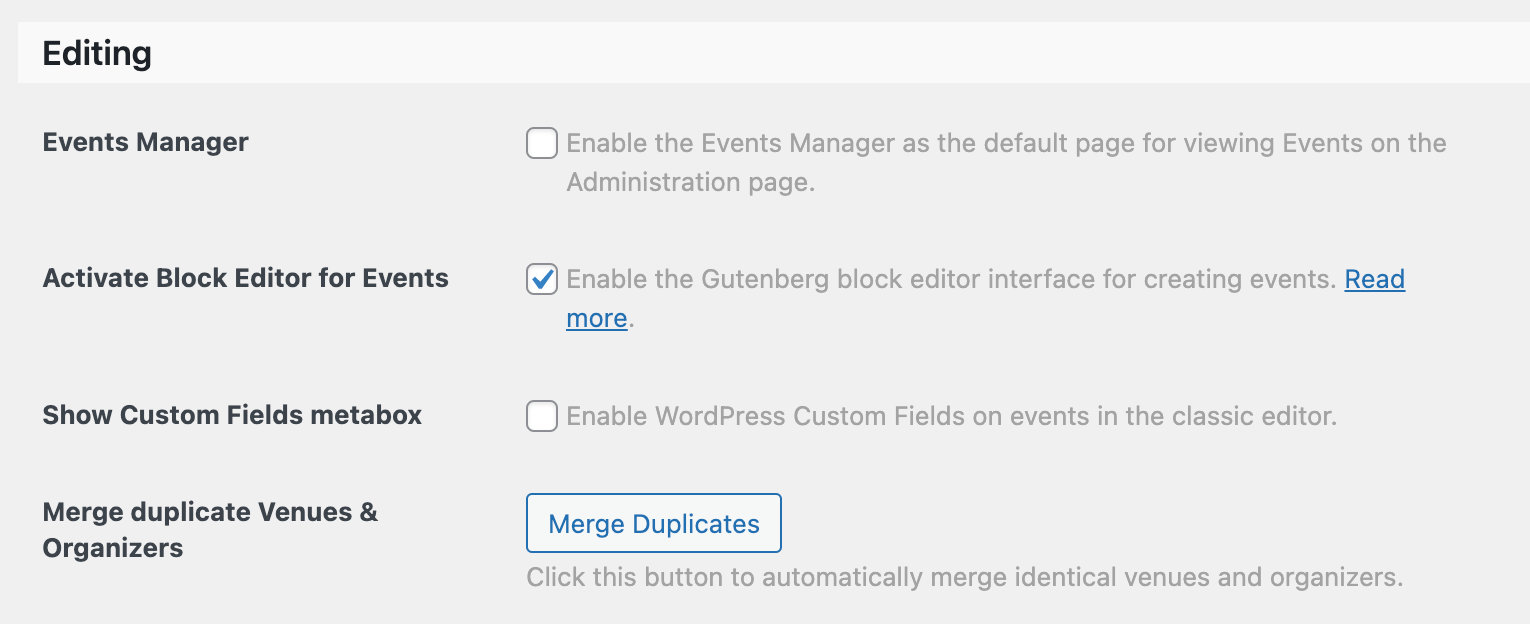
Once enabled, new events will open in the block editor with the default set of Event blocks pre-loaded. Existing events created in the classic editor will open using the Event Details Classic block, which preserves the original layout. You can keep using that, add individual blocks alongside it, or switch entirely to the newer blocks — it’s up to you.
Testing Before Switching
If you’ve been using the classic editor and are switching to the block editor for events, it’s worth testing on a staging site first. A staging site is a copy of your live site where you can verify that your theme and other plugins behave as expected before making the change in production.
The latest versions of The Events Calendar, Events Calendar Pro, Event Tickets, and Event Tickets Plus are all compatible with the block editor. What varies is how your theme and other plugins handle it — particularly page builder themes, which can behave differently. Our Testing for Conflicts guide can help if you run into issues. If you want to keep using the classic editor for events, see Using the Classic Editor to Manage Events.
Event Blocks
The following blocks are added by The Events Calendar and Events Calendar Pro. You’ll find them in the block inserter under the Events section.
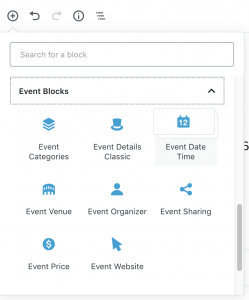
Event Date Time
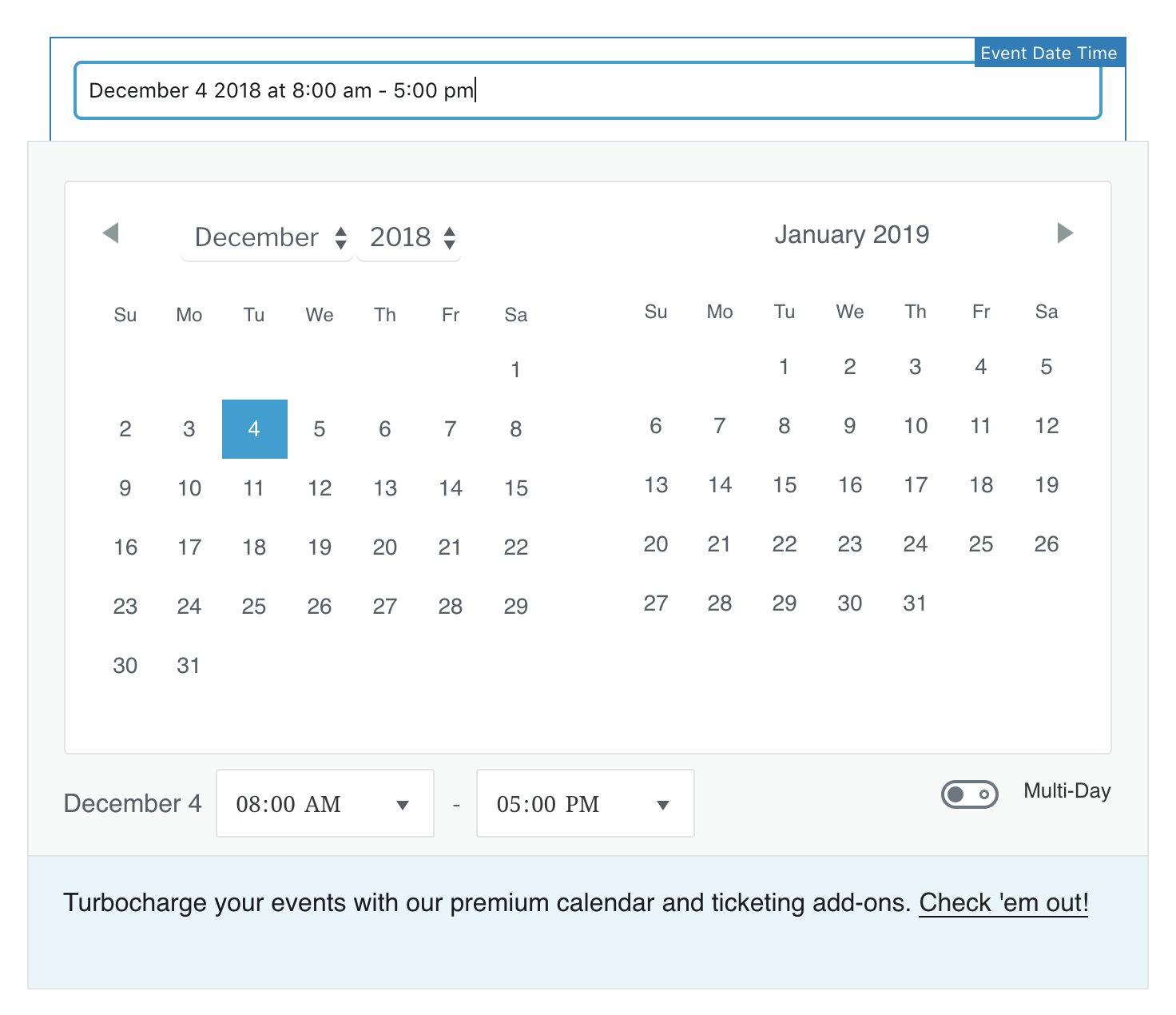
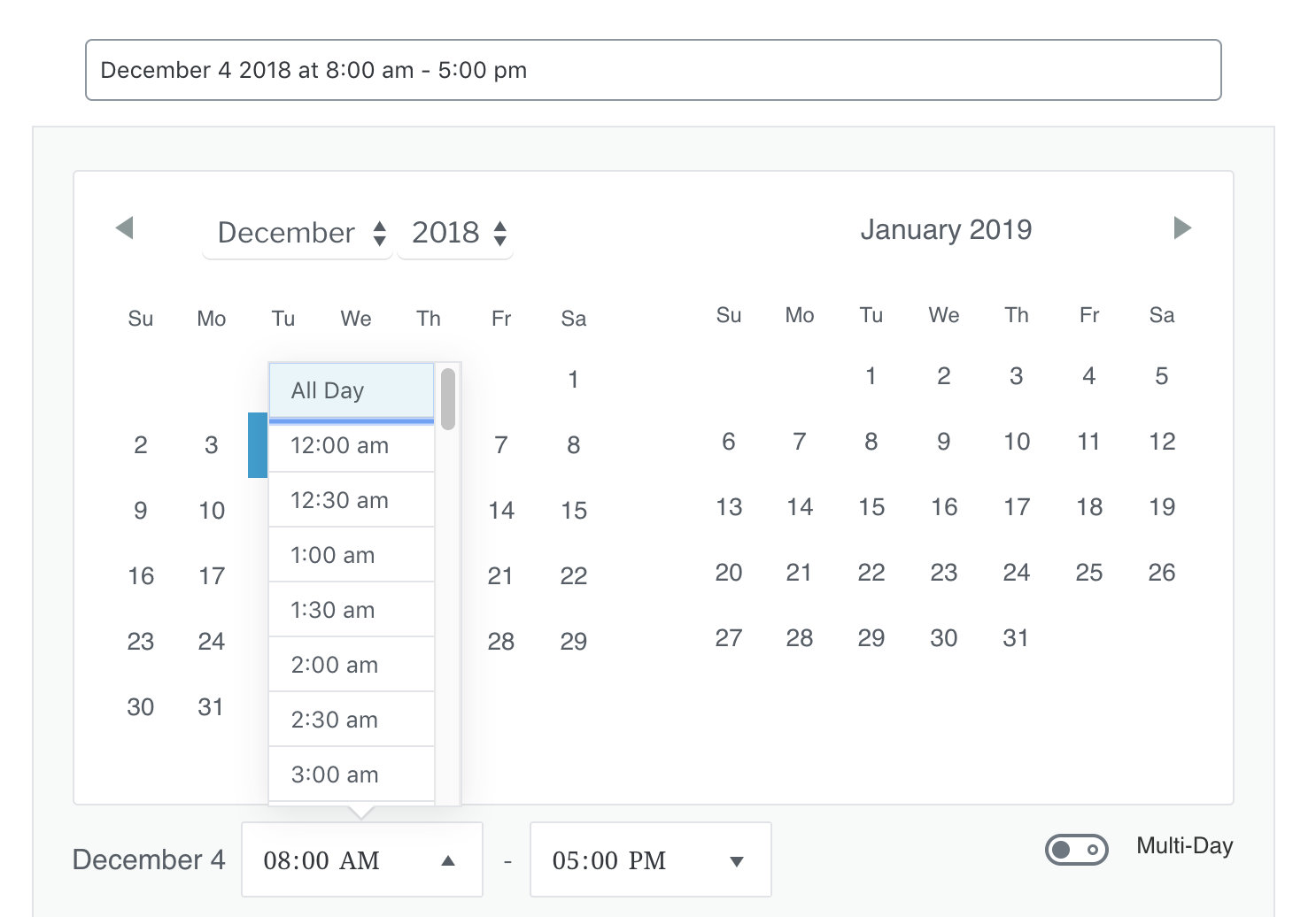
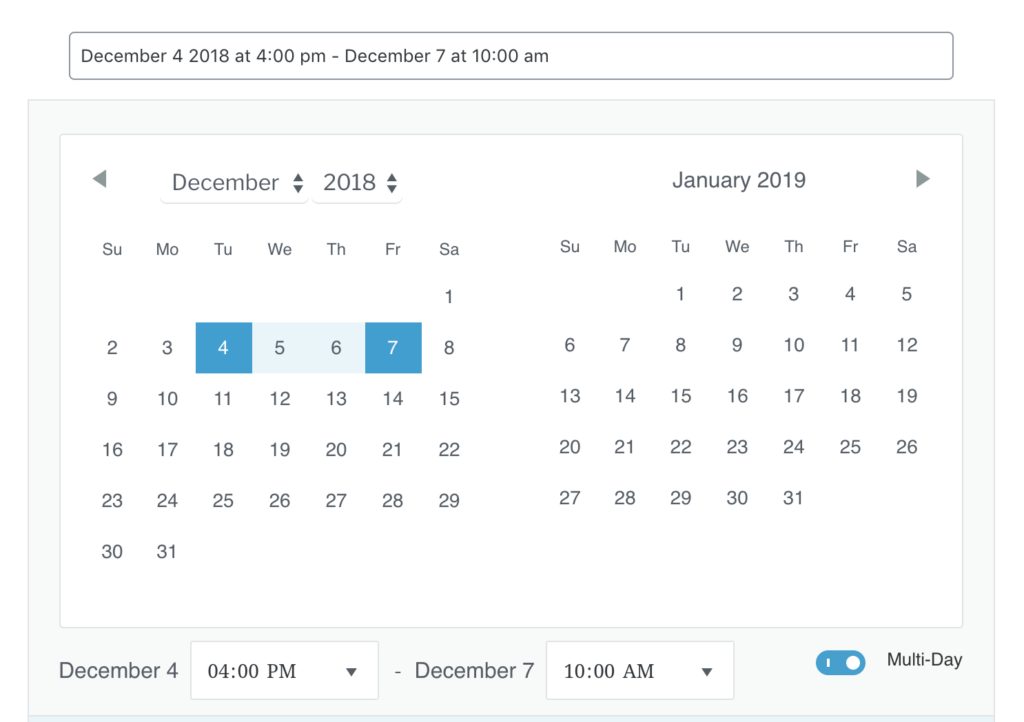
The Event Date Time block is required on every event — it’s where you set the date, time, and duration. Click the calendar to pick a date, use the time dropdowns, or type directly into the field at the top. Select All Day from the start time dropdown for all-day events. Toggle multi-day to set separate start and end dates.
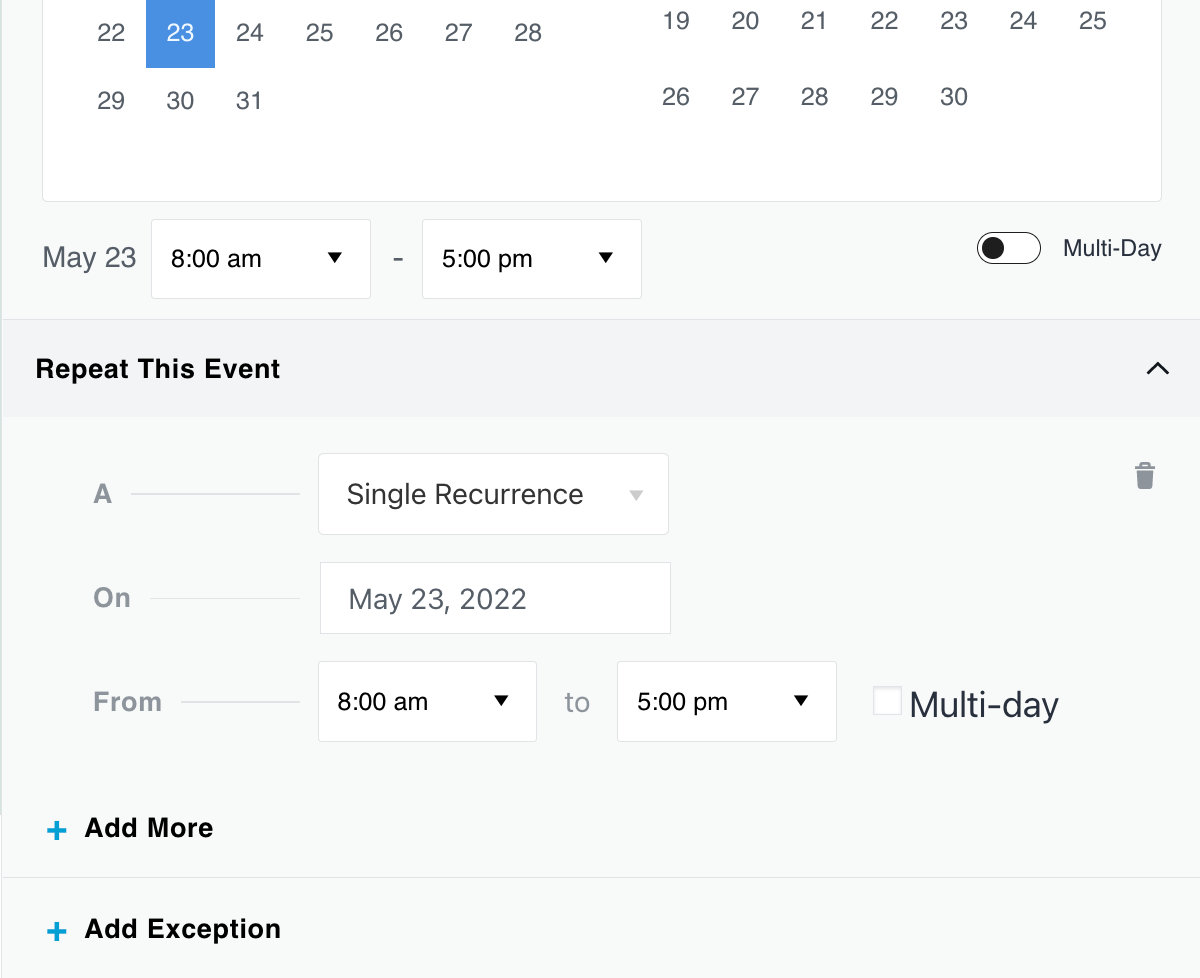
Events Calendar Pro users will see a Repeat This Event option in the block panel, which exposes all recurrence rule and exception settings for creating recurring events.
Event Venue
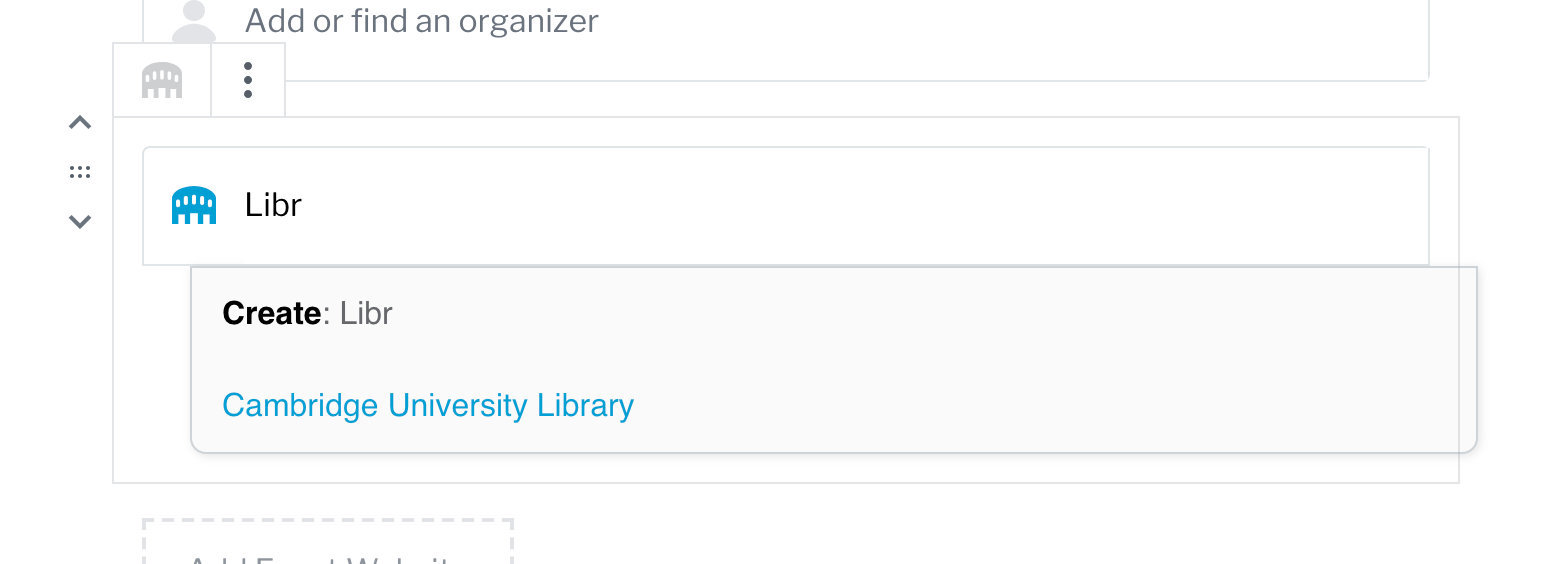
The Event Venue block displays your event’s location. As you start typing, it suggests existing venues or lets you create a new one from within the block. Map display and map link options are available in the block sidebar settings.

Event Organizer
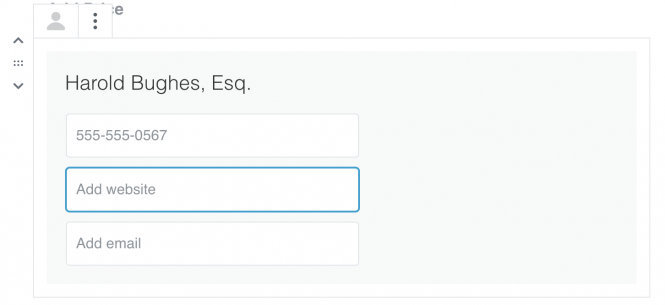
The Event Organizer block sets and displays the organizer for the event. Like the Venue block, you can select from existing organizers or create a new one inline.
Event Price
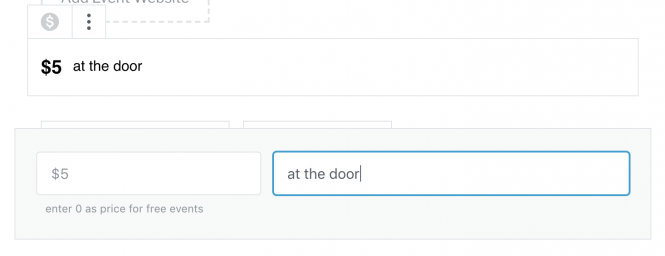
The Event Price block displays the event price and an optional price description. The description field works for non-monetary pricing too — for example, By Donation. The preview updates in real time as you type.
Event Website
The Event Website block creates a linked button pointing to an external event URL. You can customize the button label.

Event Sharing
The Event Sharing block lets you position and customize the Google Calendar and iCal subscribe buttons. You can change the labels, hide one of the options, or remove the block entirely.

Event Categories
Event Categories assigned in the Document Settings sidebar can also be displayed in the event content by adding the Event Categories block.

Tags
Tags added in the Document Settings sidebar can be displayed in the event content using the Tags block.
Related Events (Events Calendar Pro)
The Related Events block displays up to three upcoming events that share the same categories or tags as the current event. If no matching upcoming events exist, nothing is displayed.
Additional Fields Blocks (Events Calendar Pro)
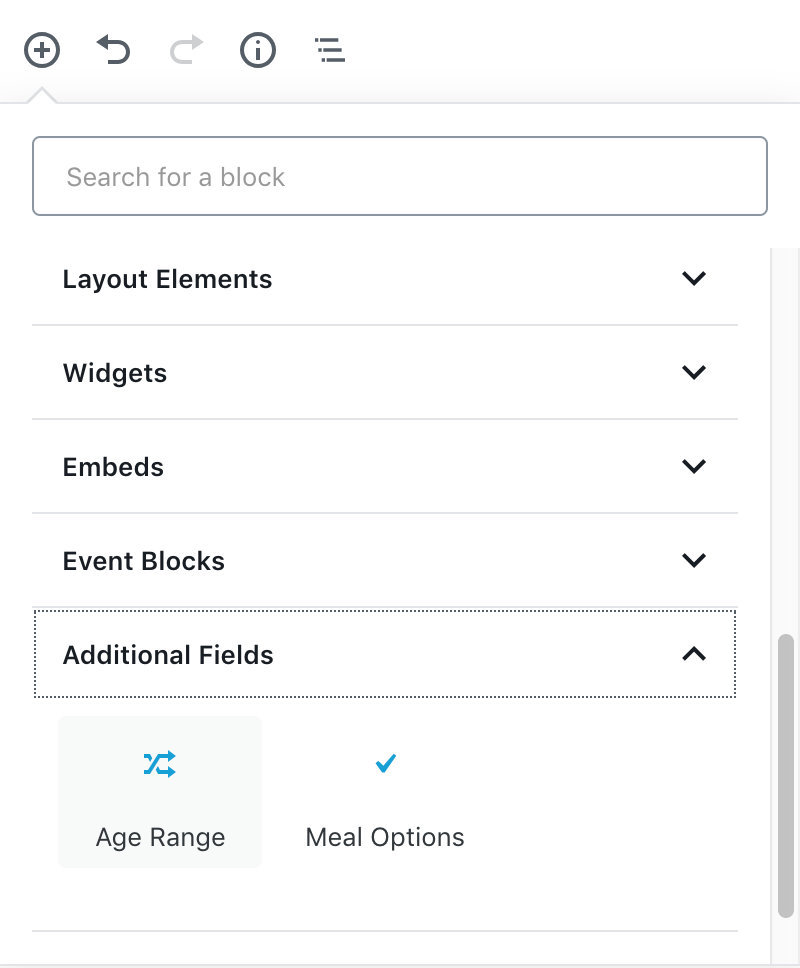
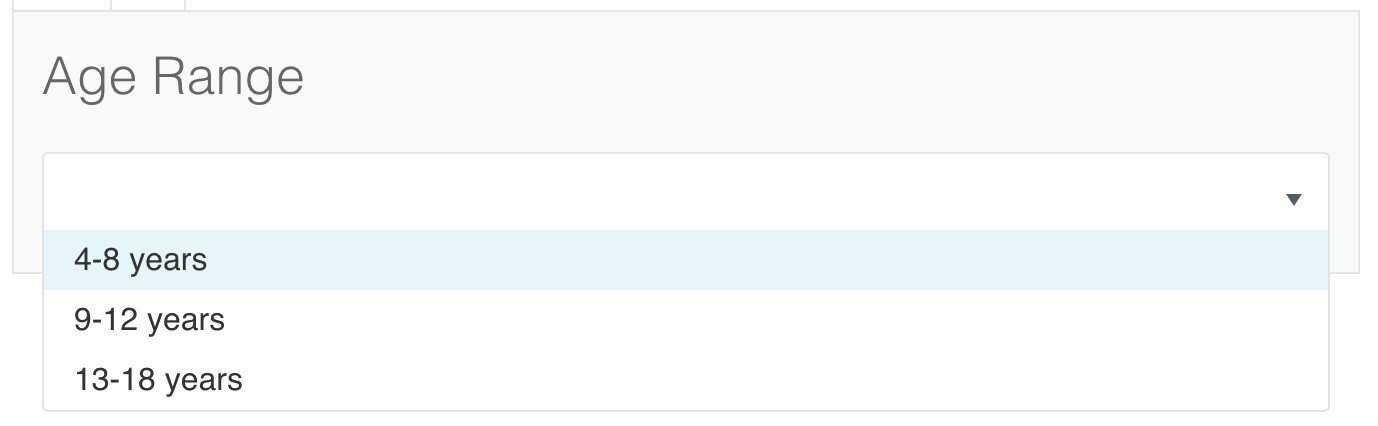
When you create custom Additional Fields under Events → Settings → Additional Fields, a corresponding block is automatically created for each field. The block takes the title you entered and gives event creators the configured input options.
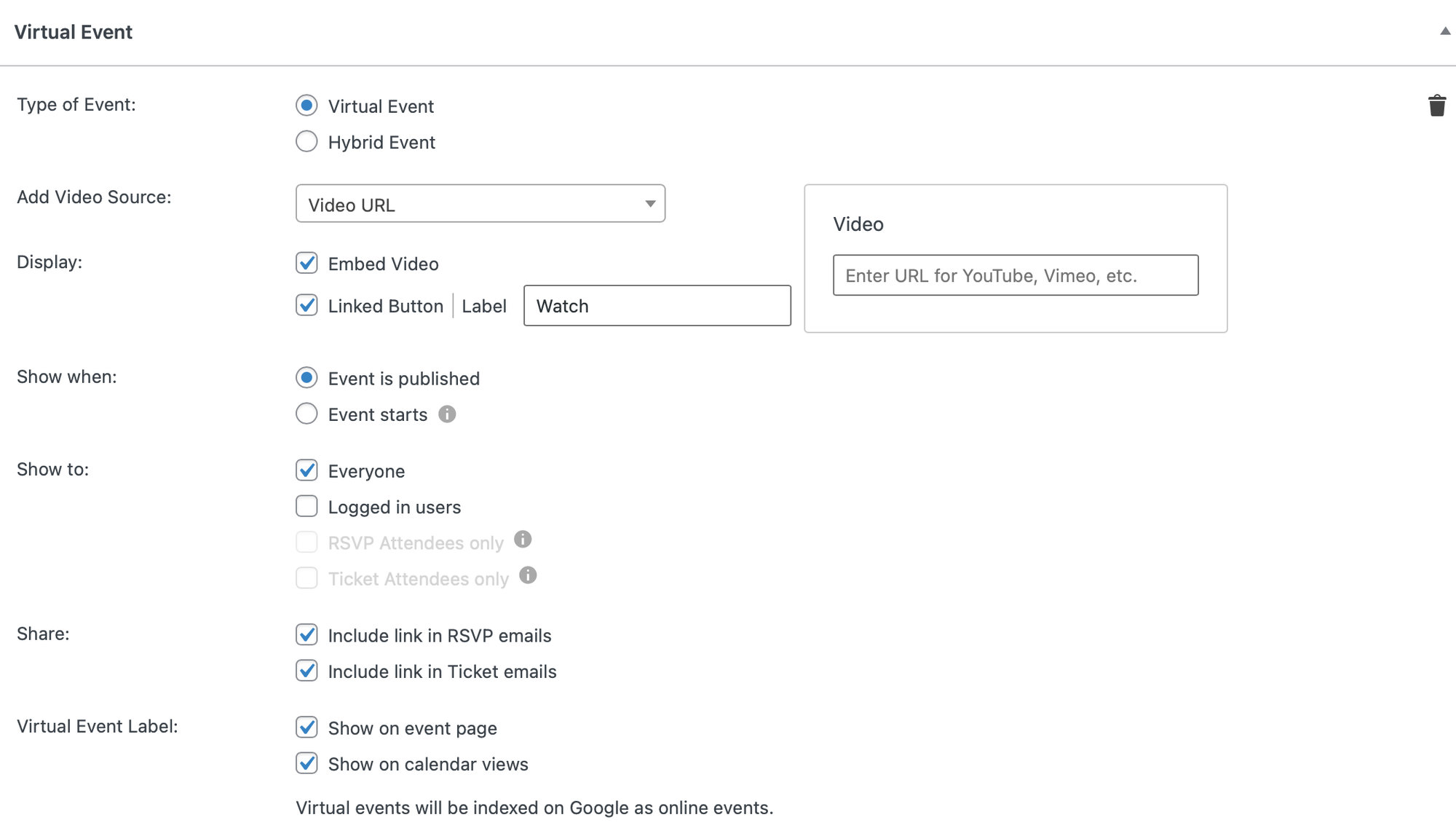
Virtual Event (Events Calendar Pro)
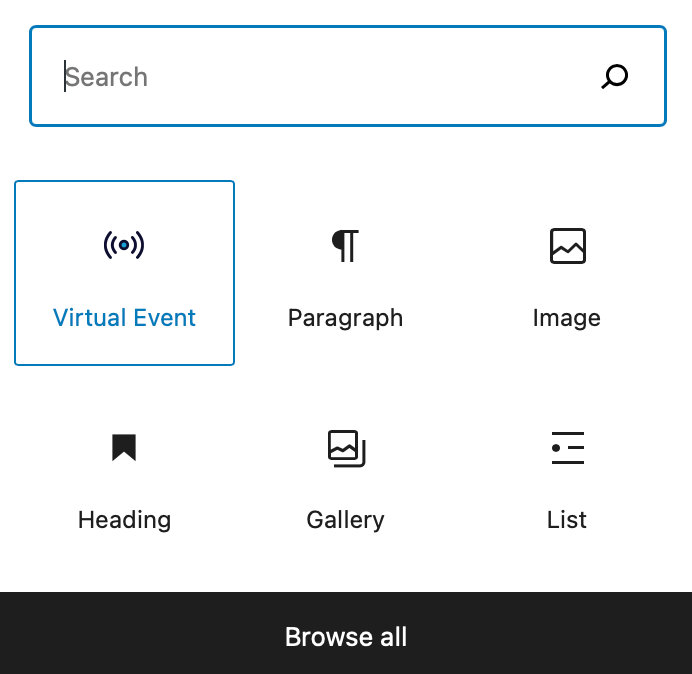
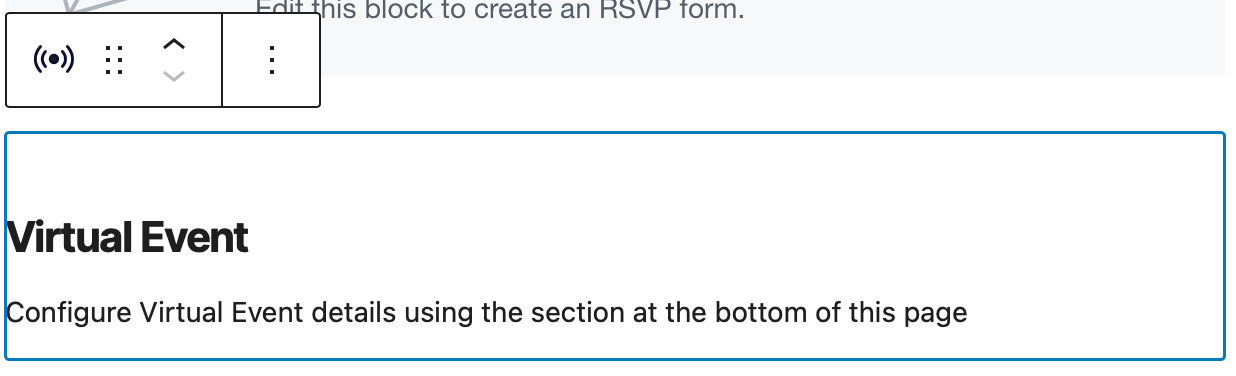
The Virtual Event block acts as a placeholder for virtual event content. Add it to the editor, fill in the virtual event details at the bottom of the page, then move the block to the position you want on the event layout.
Event Details Classic
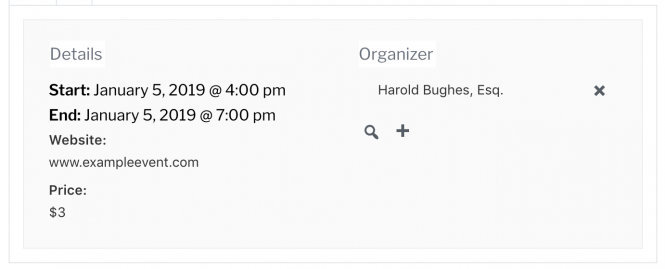
When you open an event that was originally created in the classic editor, it loads with the Event Details Classic block, which preserves the original event information layout. You can save it as-is, add new blocks alongside it, or replace it entirely with the individual blocks described above.
If you use new blocks alongside the Event Details Classic block, content syncs between them. For example, updating the price in the Event Price block also updates the price in the Event Details Classic block.
Ticket and RSVP Blocks
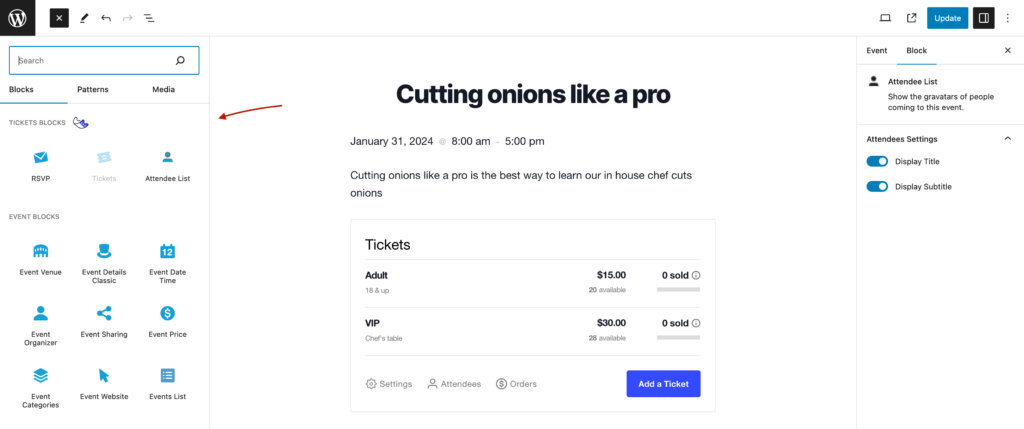
Event Tickets adds its own set of blocks for managing ticket sales and RSVPs. Look for these in the block inserter under the Tickets section.
Tickets
The Tickets block lets you create and manage tickets directly in the editor. You can create and edit individual tickets, reorder them, and monitor sales from the block. On the front end, visitors see a ticket form for purchasing and checkout.
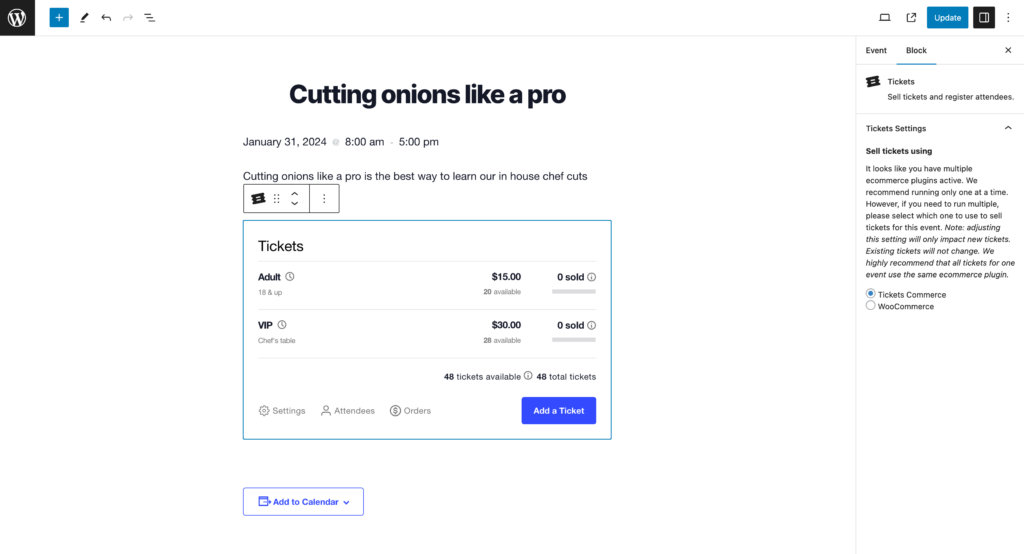
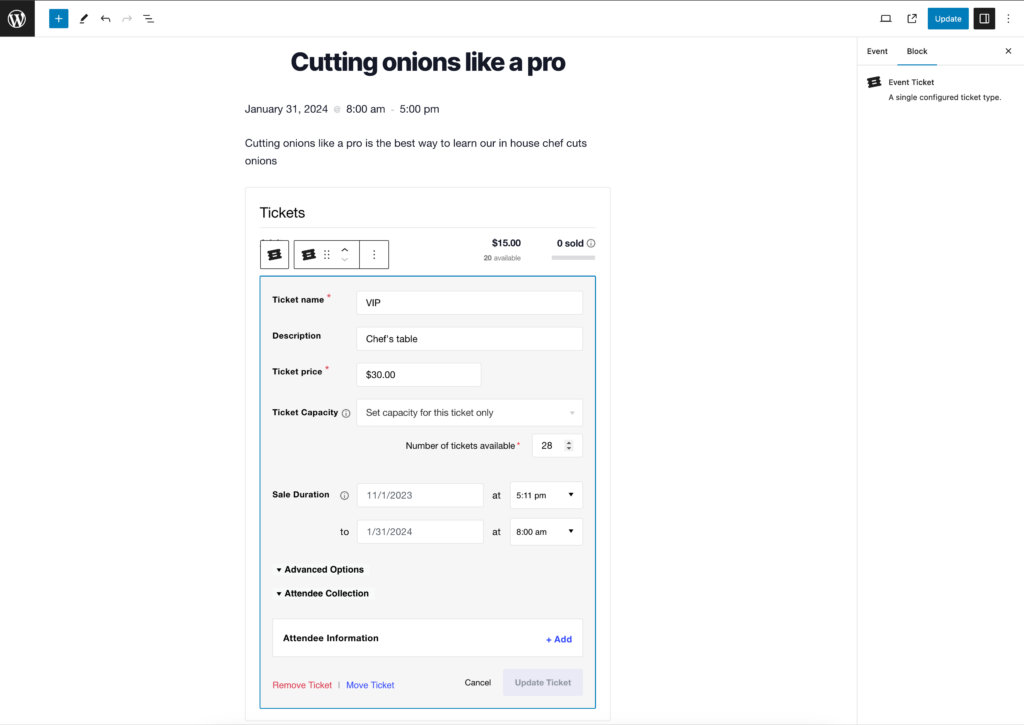
💡 Some features shown in these screenshots require Event Tickets Plus.
RSVP
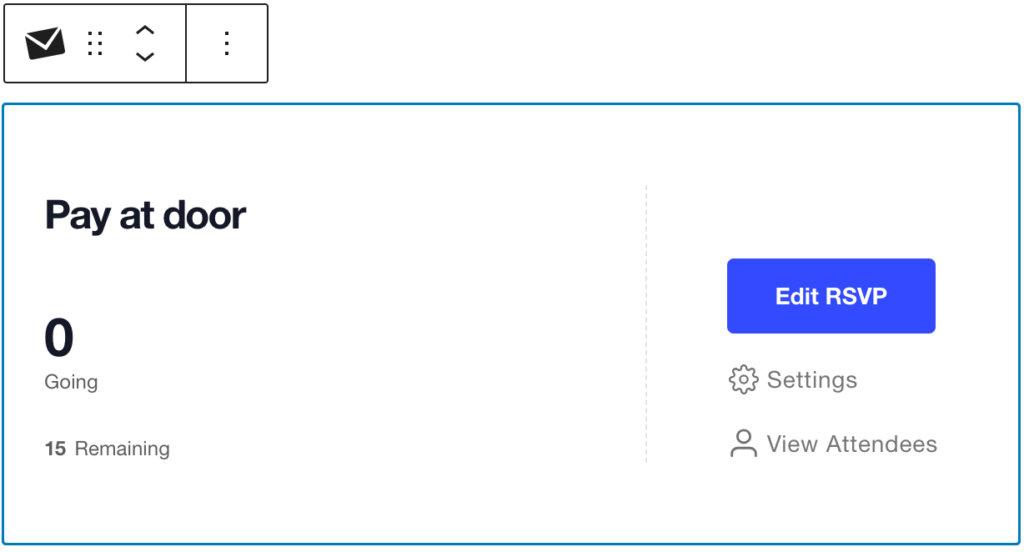
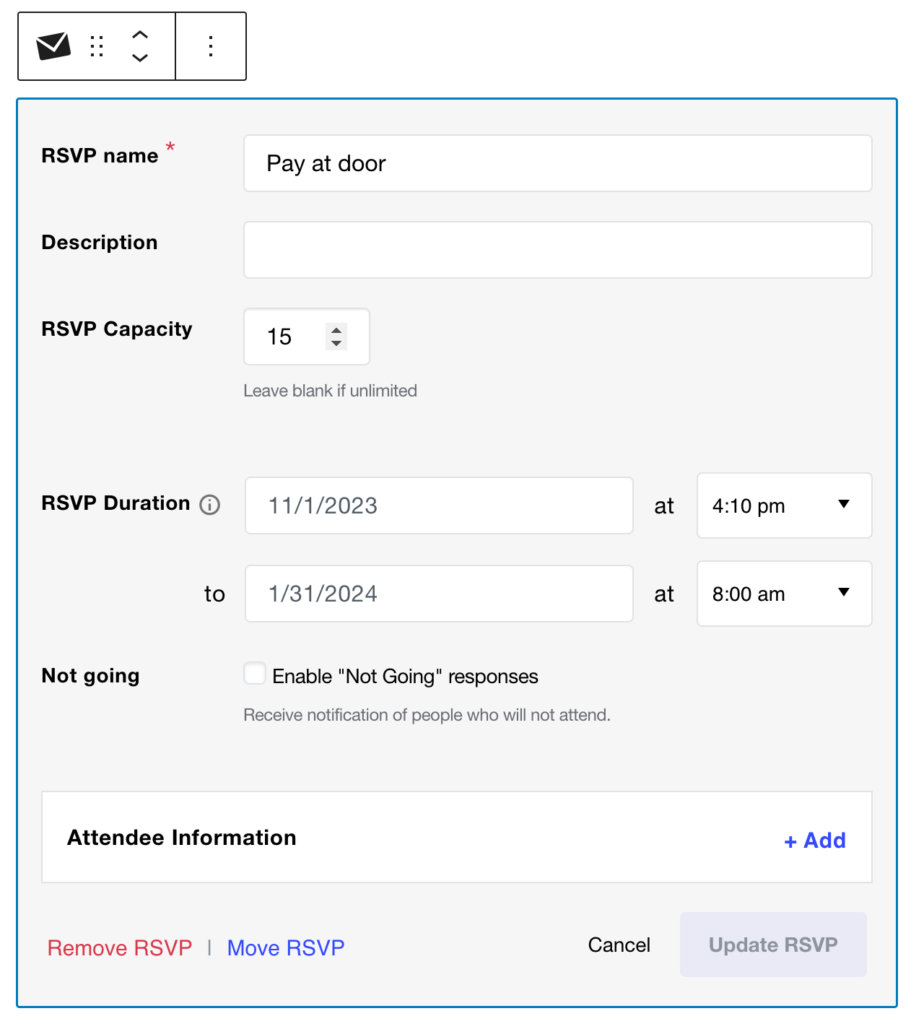
The RSVP block lets attendees indicate whether they’re attending. You set the title, description, capacity, and availability dates. Visitors RSVP directly from the form on the event page.
Attendee List
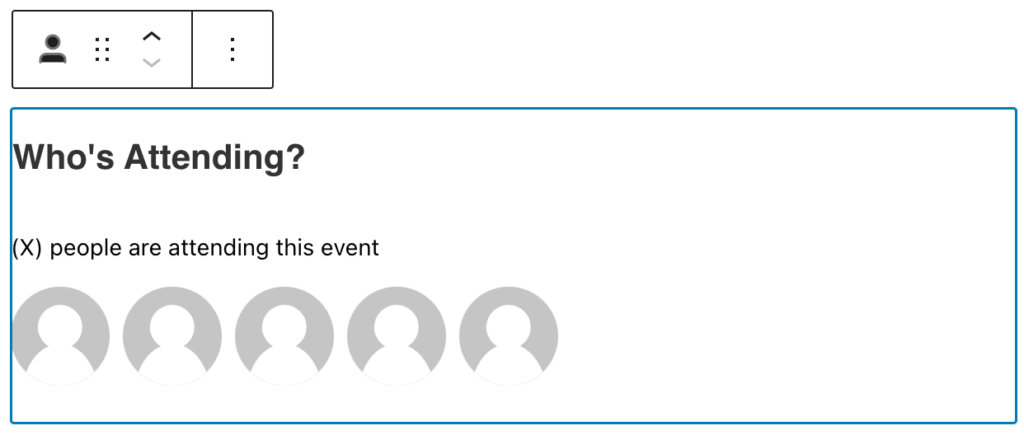
The Attendee List block displays the gravatars of attendees on the front end of your event. It is powered by the Public Attendees List feature and is available when tickets or RSVPs are active on an event.
For more on creating and managing tickets, see Making Tickets.
Customizing the Default Block Template
When you create a new event, the block editor pre-loads a default set of blocks in a specific order. You can customize this template using the tribe_events_editor_default_template filter.
The default block order is:
tribe/event-datetimecore/paragraphtribe/event-pricetribe/event-organizertribe/event-venuetribe/event-websitetribe/event-links
The filter parameters are:
$template— array of template blocks to generate$post_type— string; the post type being edited (defaults totribe_events)$args— array of arguments used to set up the template
Each block in the template array is itself an array where the first key (0) is the block slug. Add these snippets to your child theme’s functions.php file or via a code snippets plugin.
Remove a Single Block
This example removes the Event Price block from the default template:
add_filter( 'tribe_events_editor_default_template', function( $template ) {
    // Collect an array of template block slugs
    $template_search = array_column( $template, 0 );

    // Find the index of tribe/event-price
    $price = array_search( 'tribe/event-price', $template_search );

    // Remove it
    array_splice( $template, $price, 1 );

    return $template;
}, 11, 1 );
Replace the Entire Template
This example replaces the default template with a custom set of blocks:
add_filter( 'tribe_events_editor_default_template', function( $template ) {
    $template = [
        [ 'tribe/event-datetime' ],
        [ 'core/paragraph', [
            'placeholder' => __( 'Add Description...', 'the-events-calendar' ),
        ] ],
        [ 'tribe/event-organizer' ],
        [ 'tribe/event-venue' ],
    ];
    return $template;
}, 11, 1 );
Including WordPress Core Blocks
You can include any standard WordPress block in the template alongside TEC blocks. Use the block’s “Name” value from the WordPress core blocks reference. For example, to add the Featured Image block before the paragraph:
add_filter( 'tribe_events_editor_default_template', function( $template ) {
    $template = [
        [ 'tribe/event-datetime' ],
        [ 'core/post-featured-image' ],
        [ 'core/paragraph', [
            'placeholder' => __( 'Add Description...', 'the-events-calendar' ),
        ] ],
        [ 'tribe/event-organizer' ],
        [ 'tribe/event-venue' ],
    ];
    return $template;
}, 11, 1 );
Remove the Related Events Block
<?php //Do not copy this line

add_filter( 'tribe_events_editor_default_template', function ( $template ) {
	$template_search = array_column( $template, 0 );
	$block_index     = array_search( 'tribe/related-events', $template_search );

	if ( false !== $block_index ) {
		array_splice( $template, $block_index, 1 );
	}

	return $template;
}, 99 );
Remove RSVP, Tickets, and Attendees Blocks
<?php //Do not copy this line

remove_action( 'admin_init', array( tribe( 'tickets.editor' ), 'add_tickets_block_in_editor' ) );