
Changing the Calendar View on the Series Page
By default, the Series page displays events in Summary View on the frontend. If you’d prefer to use a different view, you can do so with a filter. Keep in mind that this filter will change the default view for all Series on your site.
We’ll provide you with the snippet here, so let’s take a look!
To change the default Series view to List, add the following snippet to your theme’s functions.php file or use the Code Snippets plugin . You can adjust the snippet to use a different view by replacing list with a different view name.
add_filter(
	'tec_events_pro_custom_tables_v1_series_event_view_slug',
	function ( $view ) {
		return 'list';
	}
);
If you’d like to use a different template for the Event Series Single, you can use this snippet, making sure to point the call to locate_template() to the template you want to use (/wp-content/themes/your-active-theme/ folder).
/* 1 - Define another template */
add_filter(
	'template_include',
	static function ( $template ) {
		if ( is_singular( 'tribe_event_series' ) ) {
			// Point this to the template you want to use.
			$template = locate_template( 'templates/some-template.php' );
		}

		return $template;
	}
);

/* 2 - Remove the Series Calendar view from being injected into your custom template */

use TEC\Events_Pro\Custom_Tables\V1\Templates\Series_Filters;

add_filter(
	'template_include',
	static function ( $template ) {
		if ( ! has_action( 'tribe_common_loaded', 'tribe_register_pro' ) ) {
			return $template;
		}

		remove_filter( 'the_content', [ tribe( Series_Filters::class ), 'inject_content' ], 10 );

		return $template;
	},
	15
);
Opting Out of Series Content Injection
By default, the Series page displays a list of events related to the series. If you’d prefer to opt out and prevent this list from being displayed, you can use the follwoing filter that allows you to disable the automatic injection of the series content into the_content.
Returning false, the series list will no longer be shown on the series page.
Here’s the snippet:
add_filter( 'tec_events_pro_enable_series_content_injection', '__return_false' );
Just like the other snippets, you can add this to your theme’s functions.php file or use a plugin like Code Snippets.
Link Directly to the Series Page from the Calendar
Normally when a user clicks any event title on a calendar view or widget, the link takes them to that event’s page. With this snippet, you can adjust that behavior so that clicking an event title from a calendar view takes the user right to the Series landing page, where they can view all events in a Series. They can still reach the individual event pages by clicking on the event title on the Series page.
This snippet will change the link for all events on your site that are in a Series. Any event that is not in a Series will link to the event page like usual. If you want to link to the Series page from only some of your events, you can use a redirection plugin as described in this article.
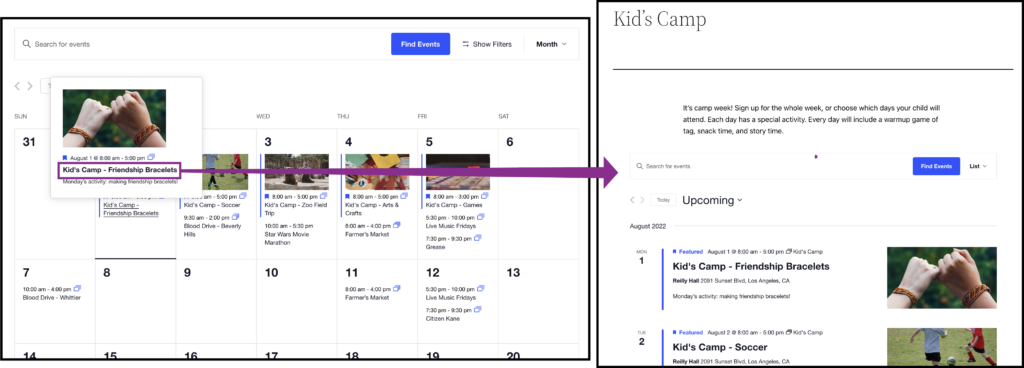
You should add the following snippet using the Code Snippets plugin, rather than placing it in your theme’s functions.php file. This method ensures better compatibility. Note that this will change the behavior for all events in Series on your calendar.
add_filter( 'tec_events_pro_custom_tables_v1_redirect_event_link_to_series', '__return_true' );
Limit Redirection to Specific Events
The snippet above changes the behavior for all events in Series. If you want to use a similar behavior but only for some events, you can do that with a third-party redirect plugin.
The first thing you’ll want to do is install the Redirection plugin. Simply install the plugin as you would any other WordPress plugin. From there, follow the prompts to continue set-up.
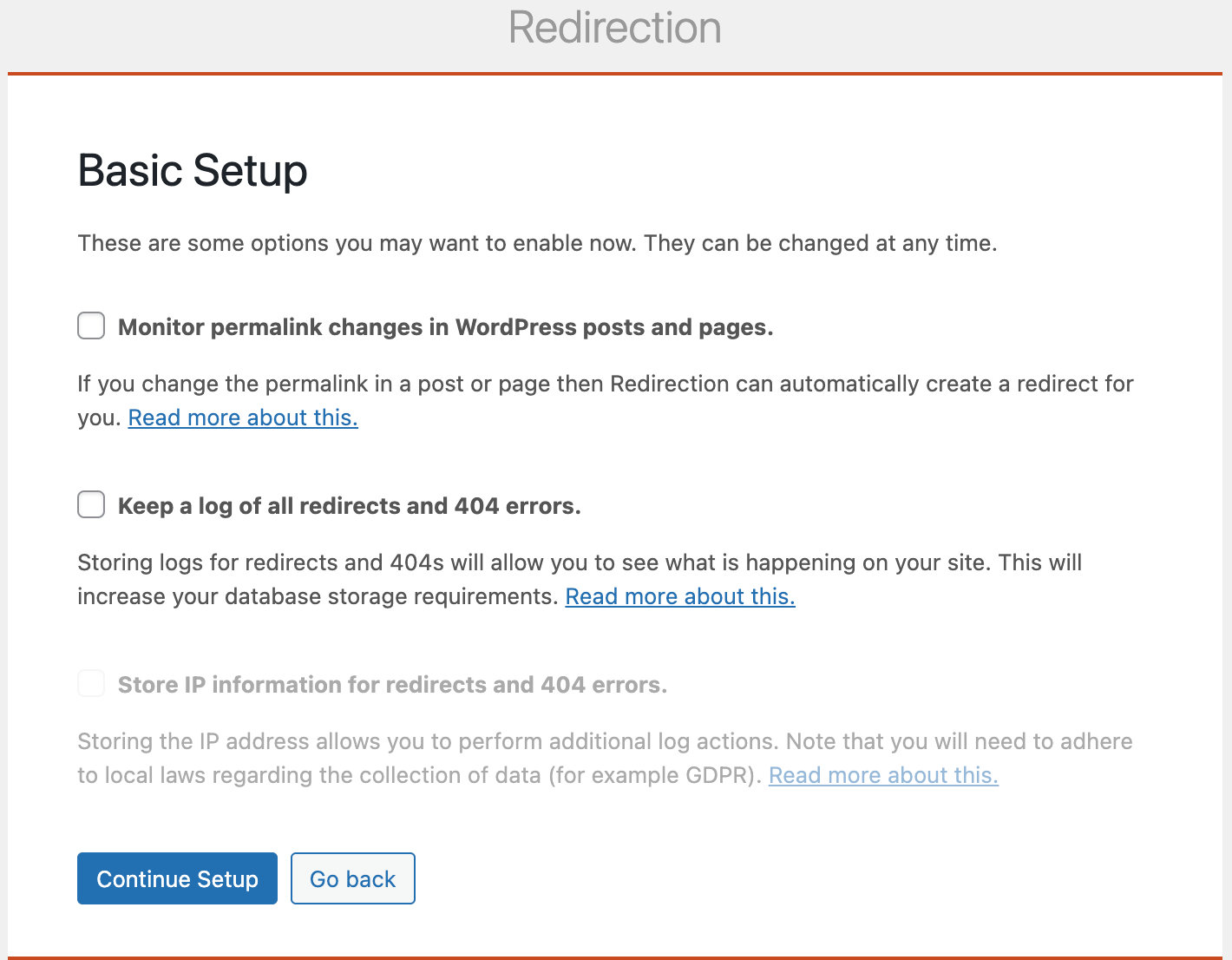
Once the plugin is set up, click Add New to create a new redirect.
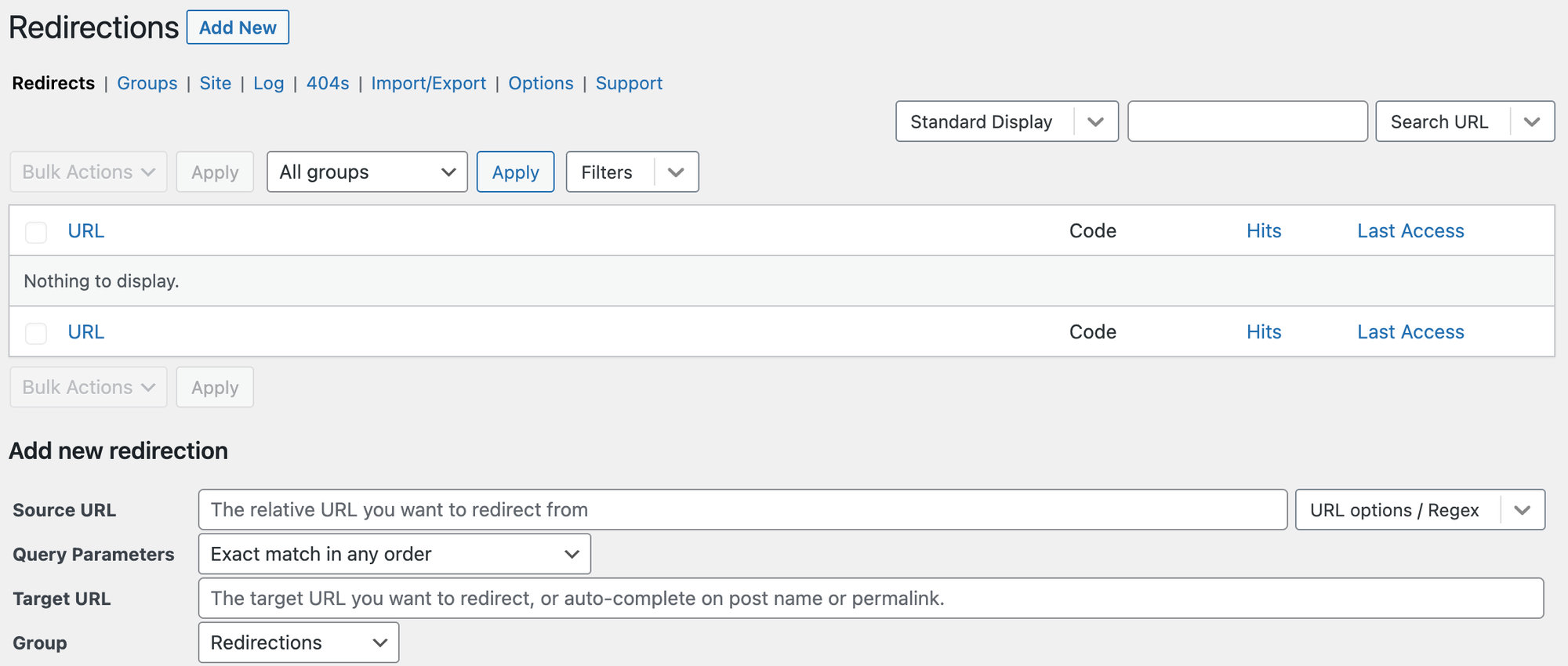
The Source URL is the original location that you’d like to redirect from. In this case, that’s a single event page. Then, add in your Target URL: the Series land page.
In the example below, the Source URL is the single event at example.com/event/kids-camp-friendship-bracelets/ and the Target URL is the Series page at example.com//series/kids-camp/. Now when someone clicks the Friendship Bracelets event from the calendar, they’ll be sent right to the Series page.
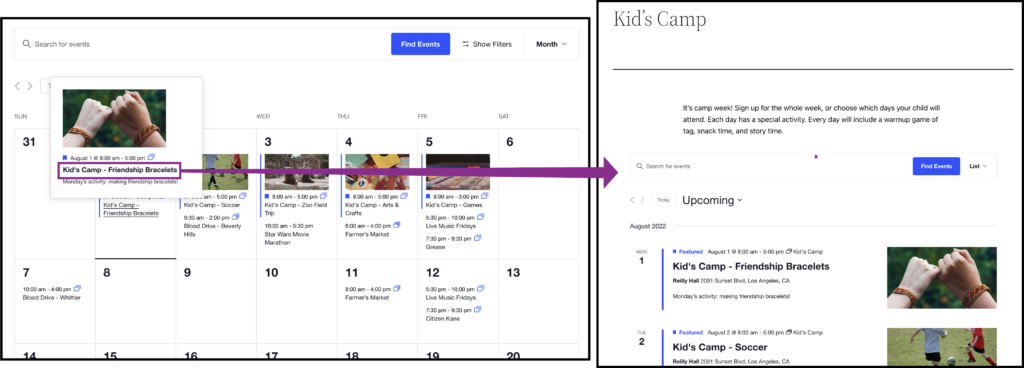
And that’s it! Now you’re all set up to redirect your events.
How to Change the Event Series Page Slug
By default, the URL slug for a Series is simply series, e.g. your site.com/series/series-name. This snippet allows you to change the global slug to match your needs. For example, a theater might want to change the slug to play so that they can show all the times (events) for a particular play on the Series page with a URL like example.com/play/my-fair-lady.
Simply place the following snippet in your theme’s functions.php file and replace new-series-slug with whatever you’d like the slug to be.
		add_filter( 'tribe_events_register_series_type_args',
			function ( $args ) {
				$args['rewrite']         = isset( $args['rewrite'] ) ? $args['rewrite'] : [];
				$args['rewrite']['slug'] = 'new-series-slug';

				return $args;
			}
		);
After applying the PHP snippet, it’s crucial to flush your WordPress permalinks to avoid potential navigation issues.
You can do this by going to your WordPress dashboard (wp-admin) > Settings > Permalinks, and clicking the ‘Save Changes’ button. This action flushes the permalinks, ensuring it’ll be reinterpreted and that your changes are being applied.
How to Add “Series” Title to a Series Page
When creating a new Series page, you may have noticed that Series does not have its own template. Because of this, building customizations onto that page doesn’t come from a template override, as do many of the other customizations with The Events Calendar.
The good news is that you can easily append the word “Series” (or anything else) to the Series page, making it easier for your users to identify the page as part of a Series.
To add the word “Series” to the Series page, simply add the following CSS to your stylesheet or through the WordPress Customizer. For the latter, you can add the CSS under Appearance > Customizer > Additional CSS. Here is the snippet you’ll want to add or modify to suit your needs:
.tribe_event_series-template-default h1.entry-title:after {
    content: " Series";
}