
Creating Custom Views
Tickets Commerce looks good out of the box, but sometimes you may have another look in mind or you need to tweak the plugin to ensure compatibility with your theme. Don’t worry, you can modify the Tickets Commerce templates to your liking. In order to make that happen, simply make a copy of the template and add it to your child theme folder with your desired modifications.
We have a full list of available templates for Tickets Commerce in the Knowledgebase.
Hide the Coupon Code Field
If you’re aren’t planning to offer coupon codes, you might want to simplify the checkout experience by removing the “Add coupon code” field. Event Tickets does not provide a built-in option to disable or hide the coupon code field directly within the Tickets Commerce settings. However, you can easily hide it using a small CSS snippet.
To remove the coupon code field from your checkout page:
- Log in to your WordPress Dashboard
- Go to Appearance → Customize → Additional CSS
- Add the following CSS:
.tec-tickets-commerce-checkout-cart__coupons {
  display: none !important;
}- Click Publish to save changes.
This CSS rule will hide the coupon field for all users during the checkout process.
Custom Success Page Content
By default, the Tickets Commerce success page text is not editable within the settings as it’s being loaded from a template file directly.
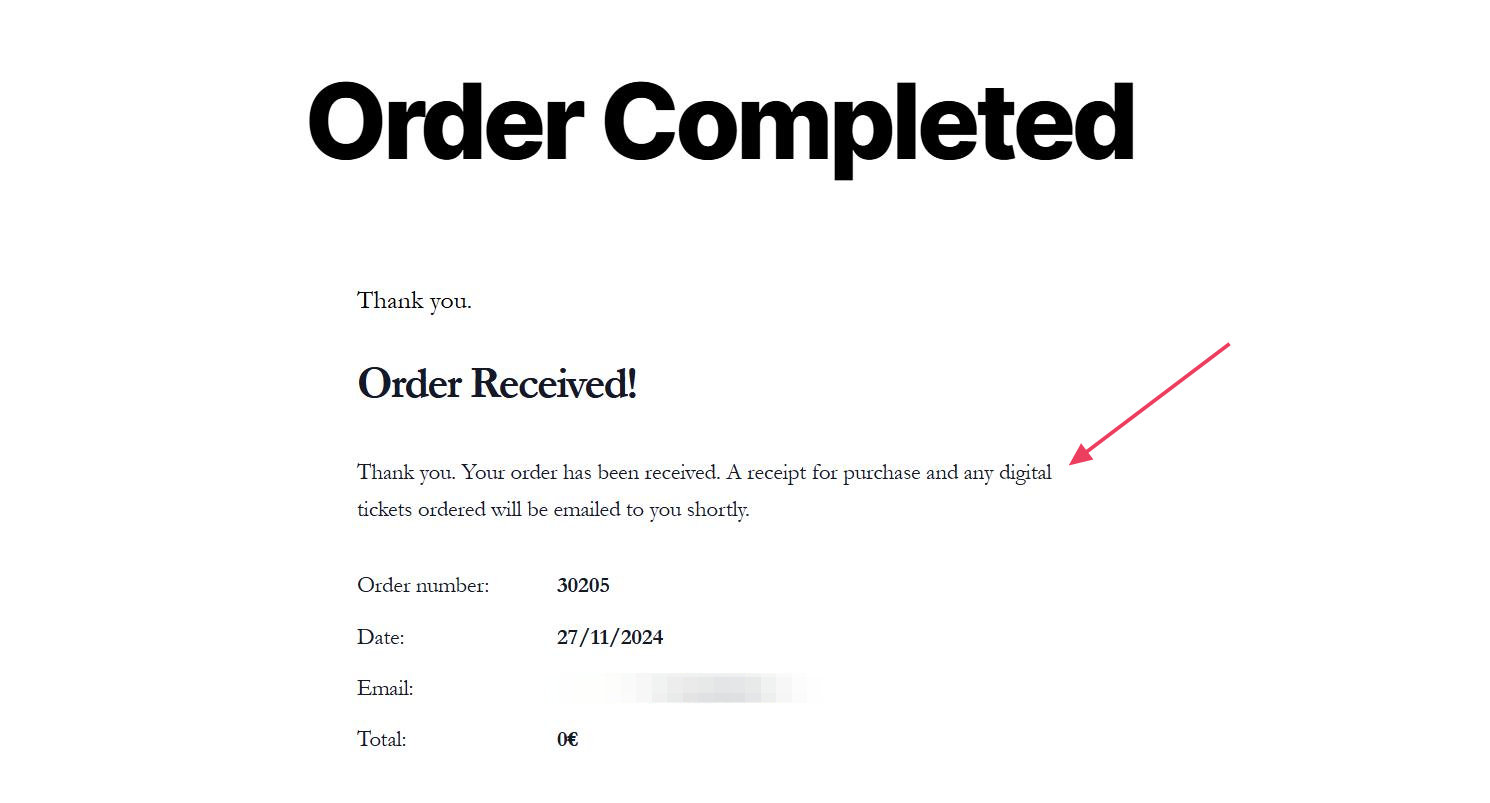
However, modifying the success page content is possible with a bit of customization.
- First, you’ll need to connect to your site directory using FTP or the panel (like cPanel) that your host provider gives you.
- Copy the
order.phpfile fromwp-content/plugins/event-tickets/src/views/v2/commerce/order/descriptionand add it under the following path to prevent your copy from being overwritten during the next plugin update:[your-child-theme]/tribe/tickets/v2/commerce/order/description/ - Open the file in a text editor, customize the text at line 31, and save the file.
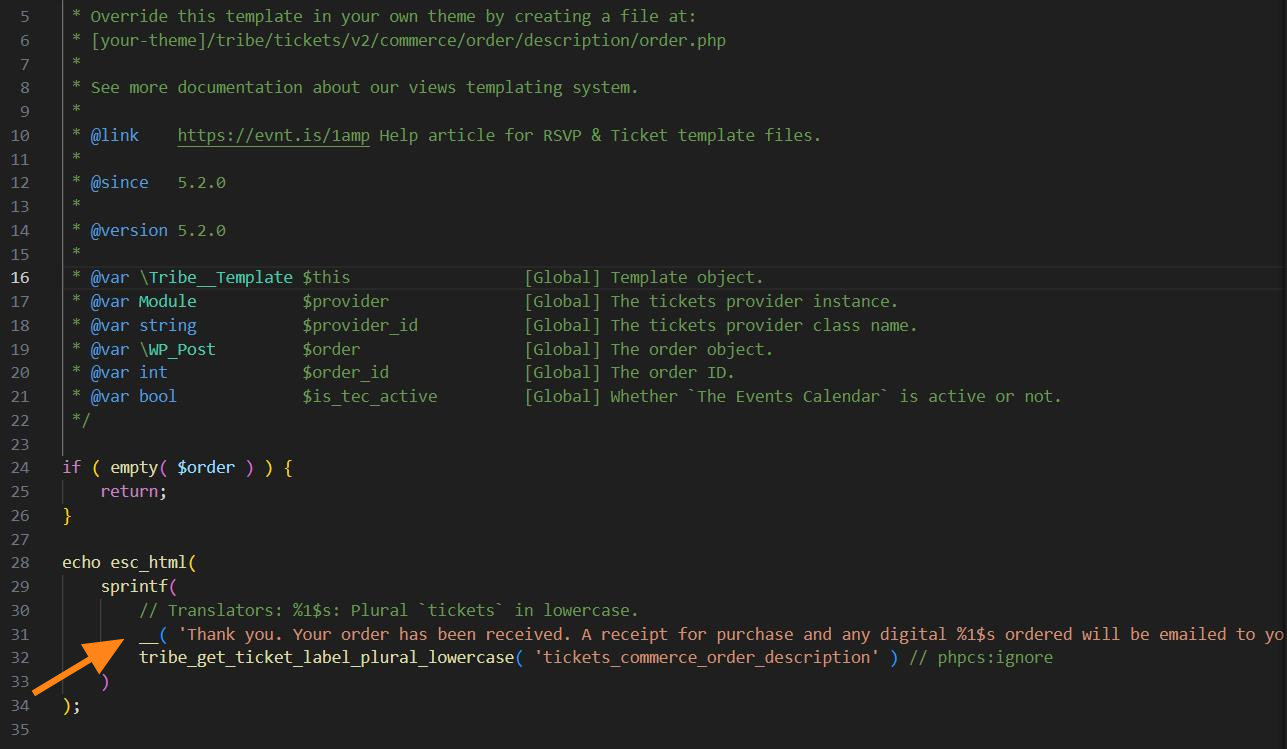
Now make a test purchase and see the changes on the success page after completing the purchase.
Manual Webhook Creation for Stripe
Webhooks are used by Stripe to communicate with your site. It provides information such as the status of the payment and is used to update the ticket orders based on certain events from Stripe’s side of things.
💡 Note: Webhooks might not validate and work on some staging site domains!
Setting up webhooks should be fairly simple. In the Stripe settings area, you’ll find a webhook endpoint URL ready for you to copy and paste into your Stripe dashboard:
- Head to Tickets > Settings > Payments > Stripe > Webhooks and copy the value of the “Webhooks URL” field.
- In your Stripe Dashboard go to Developers > Webhooks and click on “Add endpoint”.
- Paste the “Webhooks URL” value you’ve copied in step one in the “Endpoint URL” field. Add a description if you feel it’s necessary.
- Click the blue + Select Events button and select the following events (at minimum)
- account.updated
- charge.expired
- charge.failed
- charge.succeeded
- charge.refunded
- payment_intent.canceled
- payment_intent.created
- payment_intent.payment_failed
- payment_intent.processing
- payment_intent.requires_action
- payment_intent.succeeded
- Select Latest API version from the Version section, if shown, and then “Add endpoint”.
- From within your newly created Webhook endpoint page, copy the Webhook Signing secret (after clicking Reveal). Your Webhook Signing secret is prefixed with ‘whsec_’.
- Back in Tickets > Settings > Payments > Stripe > Webhooks paste the value from the previous step into the “Signing secret” field.
One important thing to have in mind is that the webhooks validation will not work while Tickets Commerce is in test mode. If you are experiencing issues setting up Stripe, we recommend switching to Pretty Permalinks, which you can find under WordPress Settings > Permalinks.
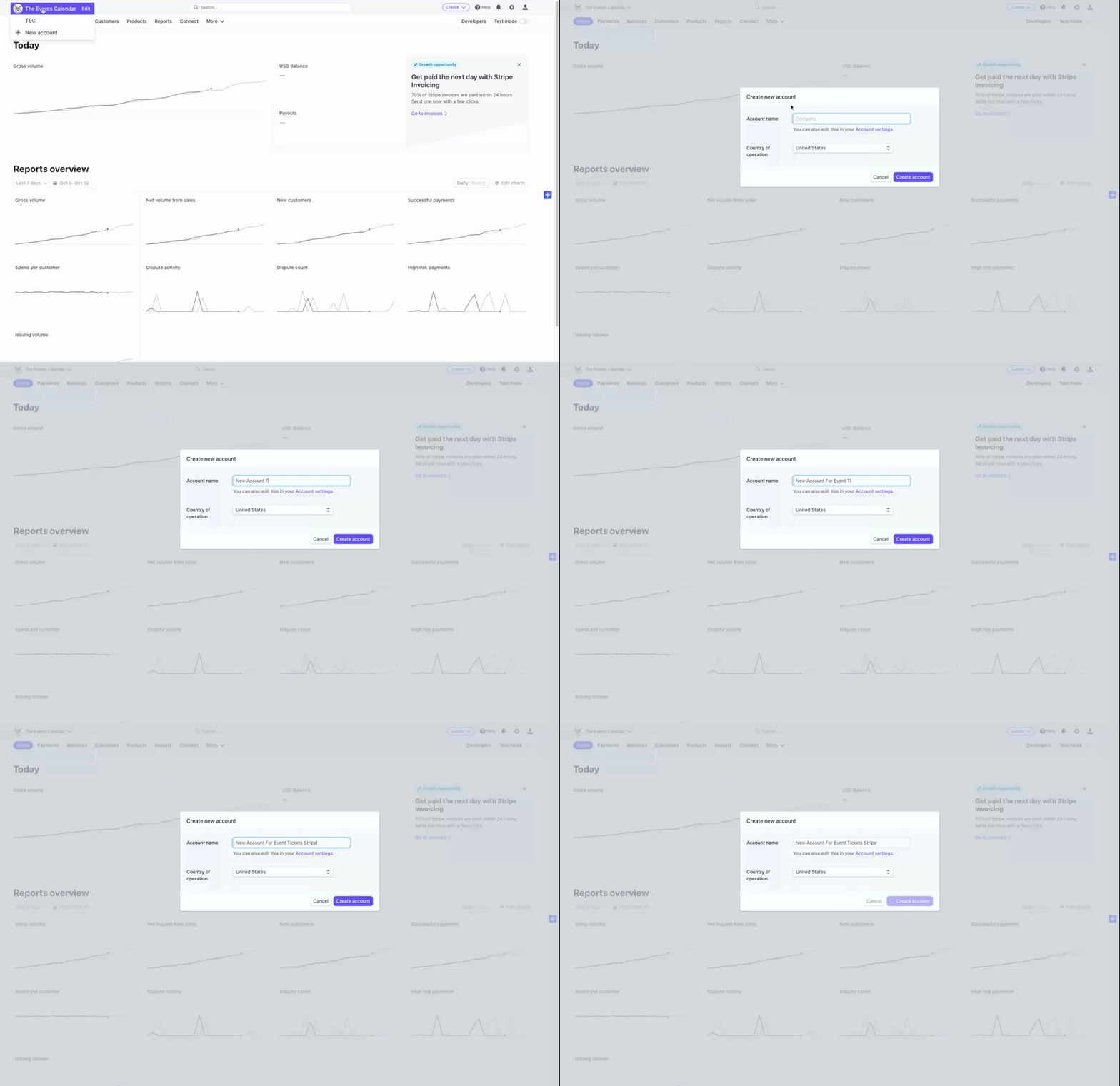
Note: Due to Stripe’s Single Platform Policy, you won’t be able to connect to multiple platforms using the same account at the same time. As a workaround, we recommend you create individual accounts under the same Stripe user login to connect to different platforms.
Customizing Stripe Compact Checkout
If you have Event Tickets set up with Tickets Commerce and Stripe, you can customize the appearance and elements of the Compact Card Element on the checkout page thanks to the filter tec_tickets_commerce_stripe_checkout_localized_data.
This guide will walk you through how to change some of the elements available in Stripe’s documentation. The examples here are non-exhaustive but can be used as a model to customize other option variables provided by Stripe using our filter.
Check out our article about how to best implement custom code snippets on your site.
The Compact Card Element
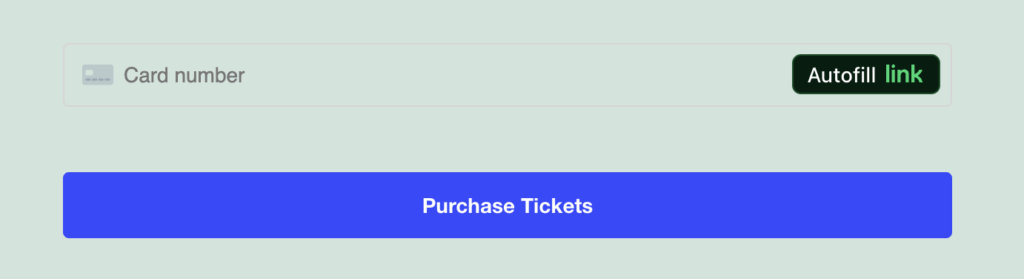
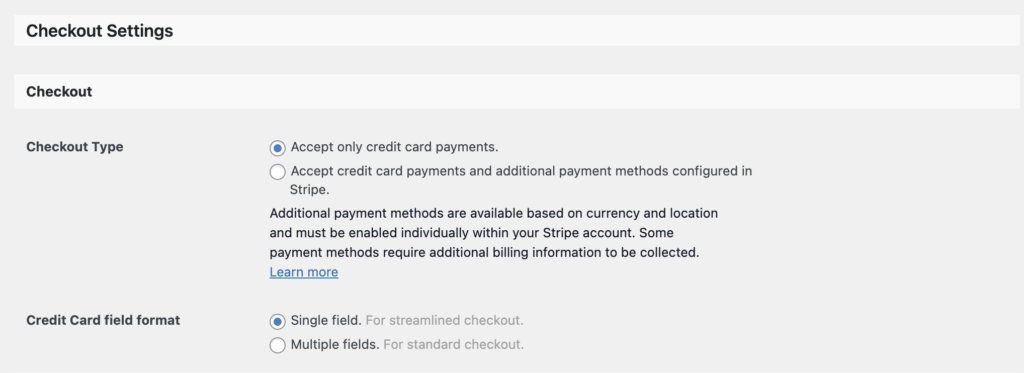
This is Stripe’s compact card element without any modifications. This will show when checking out a ticket if the settings at Tickets > Settings > Payments > Stripe > Checkout Settings are configured to only accept credit cards with the streamlined checkout option:
Change the Font Color
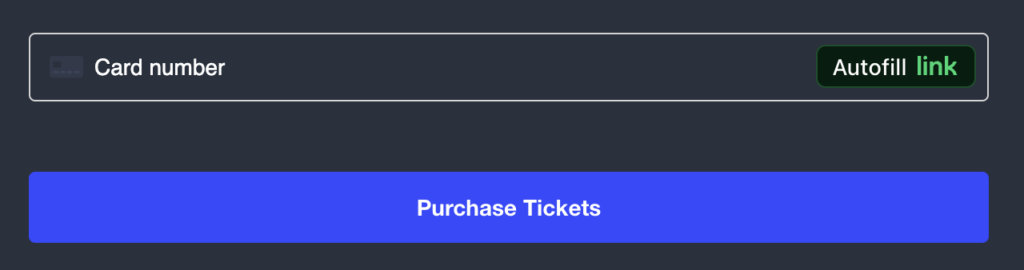
If your site uses a dark background, using a lighter font color is helpful for readability. This snippet will change the font color and the placeholder font color to white, but you can adjust the color as needed by changing the hex code.
function tec_tickets_custom_stripe_checkout_localized_data( $data ) {
	$data['cardElementStyle']['base']['color'] = '#ffffff'; // Change text color to white
	$data['cardElementStyle']['base']['::placeholder']['color'] = '#ffffff'; // Change placeholder color to white
	return $data;
}

add_filter( 'tec_tickets_commerce_stripe_checkout_localized_data', 'tec_tickets_custom_stripe_checkout_localized_data' );
Disable ‘Autofill link’
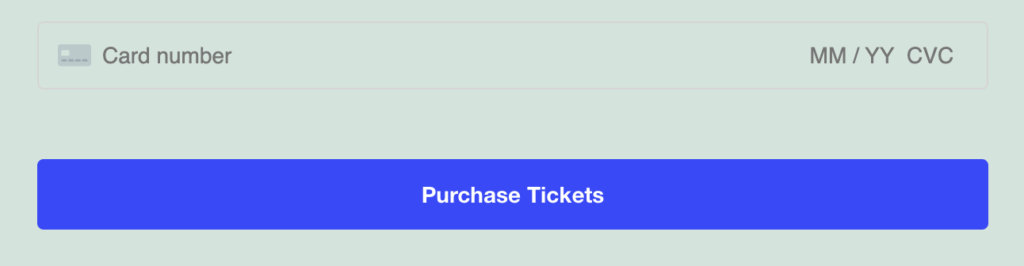
This snippet will disable and hide the ‘Autofill link’ option that by default is set to appear on the right-hand side of the input element:
function tec_tickets_custom_stripe_checkout_localized_data( $data ) {
	$data['cardElementOptions']['disableLink'] = true; // Disable Autofill Link
	return $data;
}

add_filter( 'tec_tickets_commerce_stripe_checkout_localized_data', 'tec_tickets_custom_stripe_checkout_localized_data' );
Remove Postal Code
Before snippet:
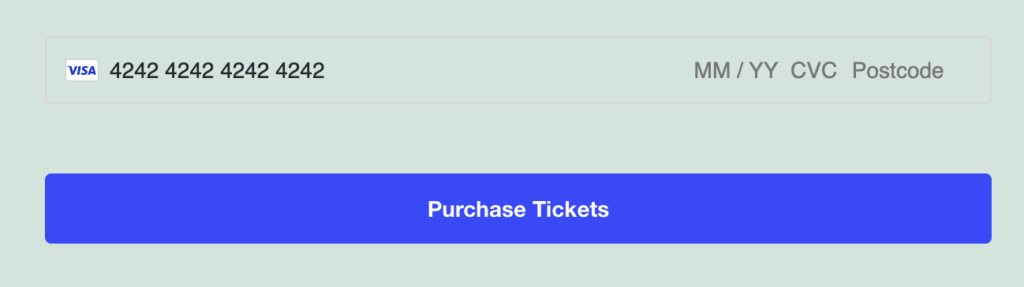
After snippet:
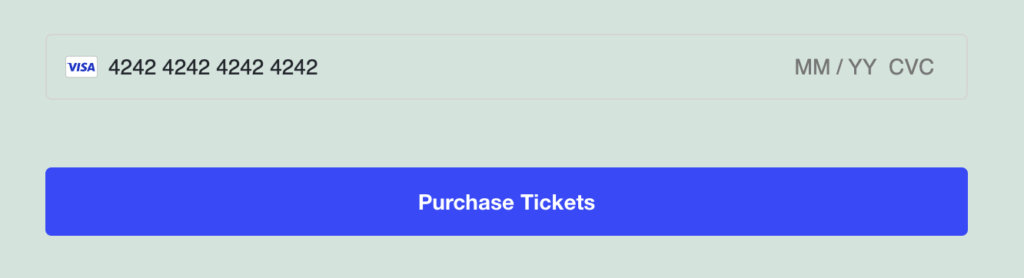
Removing the postal code is necessary if you are in a country that does not have numerical postal codes, such as Ireland. This snippet will remove and hide that field:
function tec_tickets_custom_stripe_checkout_localized_data( $data ) {
	$data['cardElementOptions']['hidePostalCode'] = true; // Hide Postal Code.
	return $data;
}

add_filter( 'tec_tickets_commerce_stripe_checkout_localized_data', 'tec_tickets_custom_stripe_checkout_localized_data' );
There is more…
These were just some options to get you started on customizing your Stripe compact card checkout! There are lots of other possibilities for using the tec_tickets_commerce_stripe_checkout_localized_data filter and the different options in Stripe’s documentation.
You may notice in the snippets above that the first example changes [cardElementStyle] while the other two change [cardElementOptions]. For full context, these are the localized assets available for customizing and their default values:
[
	'elementsAppearance' => [
		'variables' => [
			'borderRadius' => '4px',
			'colorPrimary' => '#334aff',
			'fontFamily'   => 'Helvetica Neue, Helvetica, -apple-system, BlinkMacSystemFont, Roboto, Arial, sans-serif',
		],
		'rules' => [
			'.Tab' => [
				'borderColor' => '#d5d5d5',
				'boxShadow'   => 'none',
			],
			'.Tab--selected' => [
				'borderWidth' => '2px',
			],
			'.TabLabel' => [
				'paddingTop' => '6px',
			],
			'.Input' => [
				'boxShadow' => 'none',
				'fontSize'  => '14px',
			],
			'.Label' => [
				'fontSize'     => '14px',
				'marginBottom' => '4px',
			],
		],
	],
	'cardElementStyle' => [
		'base' => [
			'color' => '#23282d',
		],
	],
	'cardElementOptions' => [
		/**
		 * Allow for filtering of available options from Stripe.
		 *
		 * @link https://docs.stripe.com/js/elements_object/create_element?type=card#elements_create-options
		 */
		'disabled' => false,
	],
]
Add a Custom Currency
Adding a custom currency to Tickets Commerce allows you to support transactions in currencies that are not included in the default list. By default, Tickets Commerce supports a wide range of global currencies (see below).
If your currency is not included, you can register it with a simple code snippet. Below, we’ll show you how to add the Kuwaiti Dinar (KWD) as an example.
Place the following code in your child theme’s functions.php file or via Code Snippets plugin:
add_filter( 'tec_tickets_commerce_currency_code_options', function( $options ) {
	$options['KWD'] = 'Kuwaiti Dinar (KWD)';
	ksort( $options );
	return $options;
} );

add_filter( 'tribe_tickets_commerce_currency_code_options_map', function ( $map ) {
	$map['KWD'] = array(
		'name'          => __( 'Kuwaiti Dinar (KWD)', 'event-tickets' ),
		// Arabic symbol "د.ك". Use HTML entities to match TEC's style.
		'symbol'        => 'د.ك',
		'decimal_point' => '.',   // KWD typically uses 3 decimals.
		'thousands_sep' => ',',
	);

	ksort( $map );

	return $map;
} );
The snippet above will add KWD as a currency option in WP Admin Dashboard → Tickets → Settings → Payments → Tickets Commerce → Currency, as shown below:
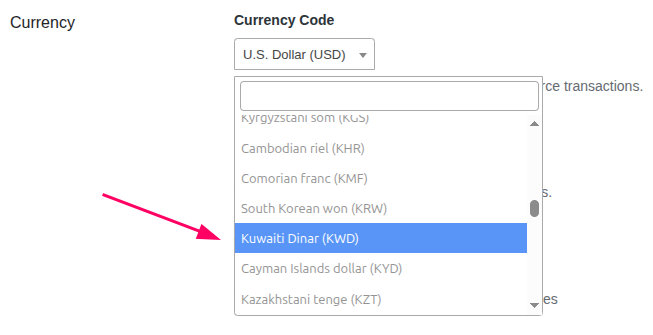
Notes
tec_tickets_commerce_currency_code_options
Adds your new currency option to the dropdown list in Tickets Commerce settings.tribe_tickets_commerce_currency_code_options_map
Defines how your custom currency is displayed and formatted.- Symbol: The Arabic Dinar symbol
د.كis added as an HTML entity so it renders correctly in the frontend. - Decimal Precision: The Kuwaiti Dinar often uses 3 decimal places. You can adjust this in the
decimal_pointand formatting logic if needed. - Sorting:
ksort()is used to keep the currency list in alphabetical order after your custom currency is added. - You can replace
"KWD"with any other custom currency code and adjust the name, symbol, and formatting details. - Always back up your site before making changes to your theme or plugin files.
- It is recommended to test the code snippet first in a staging site to catch any unforeseen issues before applying to it to your live site.
Supported Currencies
- United Arab Emirates dirham (AED)
- Afghan afghani (AFN)
- Albanian lek (ALL)
- Armenian dram (AMD)
- Netherlands Antillean guilder (ANG)
- Angolan kwanza (AOA)
- Argentine peso (ARS)
- Australian Dollar (AUD)
- Aruban florin (AWG)
- Azerbaijani manat (AZN)
- Bosnia and Herzegovina convertible mark (BAM)
- Barbadian dollar (BBD)
- Bangladeshi taka (BDT)
- Bulgarian lev (BGN)
- Burundian franc (BIF)
- Bermudian dollar (BMD)
- Brunei dollar (BND)
- Bolivian boliviano (BOB)
- Brazilian Real (BRL)
- Bahamian dollar (BSD)
- Botswana pula (BWP)
- Belarusian ruble (BYN)
- Belize dollar (BZD)
- Canadian Dollar (CAD)
- Congolese franc (CDF)
- Swiss Franc (CHF)
- Chilean peso (CLP)
- Chinese yuan (CNY)
- Colombian peso (COP)
- Costa Rican colón (CRC)
- Cape Verdean escudo (CVE)
- Czech Koruna (CZK)
- Djiboutian franc (DJF)
- Danish Krone (DKK)
- Dominican peso (DOP)
- Algerian dinar (DZD)
- Egyptian pound (EGP)
- Ethiopian birr (ETB)
- Euro (EUR)
- Fijian dollar (FJD)
- Pound Sterling (GBP)
- Georgian lari (GEL)
- Gibraltar pound (GIP)
- Gambian dalasi (GMD)
- Guinean franc (GNF)
- Guatemalan quetzal (GTQ)
- Guyanese dollar (GYD)
- Hong Kong Dollar (HKD)
- Honduran lempira (HNL)
- Croatian kuna (HRK)
- Haitian gourde (HTG)
- Hungarian Forint (HUF)
- Indonesian rupiah (IDR)
- Israeli New Sheqel (ILS)
- Indian Rupee (INR)
- Icelandic krona (ISK)
- Jamaican dollar (JMD)
- Japanese Yen (JPY)
- Kenyan shilling (KES)
- Kyrgyzstani som (KGS)
- Cambodian riel (KHR)
- Comorian franc (KMF)
- South Korean won (KRW)
- Cayman Islands dollar (KYD)
- Kazakhstani tenge (KZT)
- Lao kip (LAK)
- Lebanese pound (LBP)
- Sri Lankan rupee (LKR)
- Liberian dollar (LRD)
- Lesotho loti (LSL)
- Moroccan dirham (MAD)
- Moldovan leu (MDL)
- Malagasy ariary (MGA)
- Macedonian denar (MKD)
- Burmese kyat (MMK)
- Mongolian tögrög (MNT)
- Macanese pataca (MOP)
- Mauritian rupee (MUR)
- Maldivian rufiyaa (MVR)
- Malawian kwacha (MWK)
- Mexican peso (MXN)
- Malaysian ringgit (MYR)
- Mozambican metical (MZN)
- Namibian dollar (NAD)
- Nigerian naira (NGN)
- Nicaraguan córdoba (NIO)
- Norwegian Krone (NOK)
- Nepalese rupee (NPR)
- New Zealand Dollar (NZD)
- Panamanian balboa (PAB)
- Peruvian sol (PEN)
- Papua New Guinean kina (PGK)
- Philippine peso (PHP)
- Pakistani rupee (PKR)
- Polish Zloty (PLN)
- Paraguayan guaraní (PYG)
- Qatari riyal (QAR)
- Romanian leu (RON)
- Serbian dinar (RSD)
- Russian Ruble (RUB)
- Rwandan franc (RWF)
- Saudi riyal (SAR)
- Solomon Islands dollar (SBD)
- Seychellois rupee (SCR)
- Swedish Krona (SEK)
- Singapore Dollar (SGD)
- Saint Helena pound (SHP)
- Sierra Leonean leone (SLL)
- Somali shilling (SOS)
- Surinamese dollar (SRD)
- Swazi lilangeni (SZL)
- Thai baht (THB)
- Tajikistani somoni (TJS)
- Tongan paʻanga (TOP)
- Turkish lira (TRY)
- Trinidad and Tobago dollar (TTD)
- New Taiwan dollar (TWD)
- Tanzanian shilling (TZS)
- Ukrainian hryvnia (UAH)
- Ugandan shilling (UGX)
- U.S. Dollar (USD)
- Uruguayan peso (UYU)
- Uzbekistani som (UZS)
- Vietnamese dong (VND)
- Vanuatu vatu (VUV)
- Samoan tālā (WST)
- Central African CFA franc (XAF)
- East Caribbean dollar (XCD)
- West African CFA franc (XOF)
- CFP franc (XPF)
- Yemeni rial (YER)
- South African Rand (ZAR)
- Zambian kwacha (ZMW)