
Is your website unable to load Google Maps or do you see events located in the ocean off the coast of Africa? These are a few of the common Google Maps issues that we see. Here are our steps for troubleshooting Google Maps.
The issue may be that you haven’t hit the “Enable Maps” checkbox on the backend, under Events → Settings → Display → Maps.
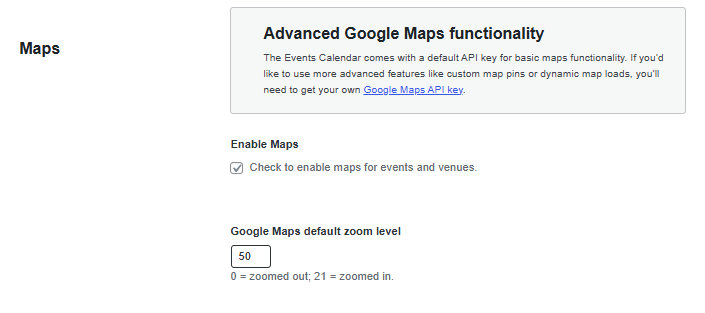
Once enabled, you’ll have the option to embed Google maps in your frontend event listings.
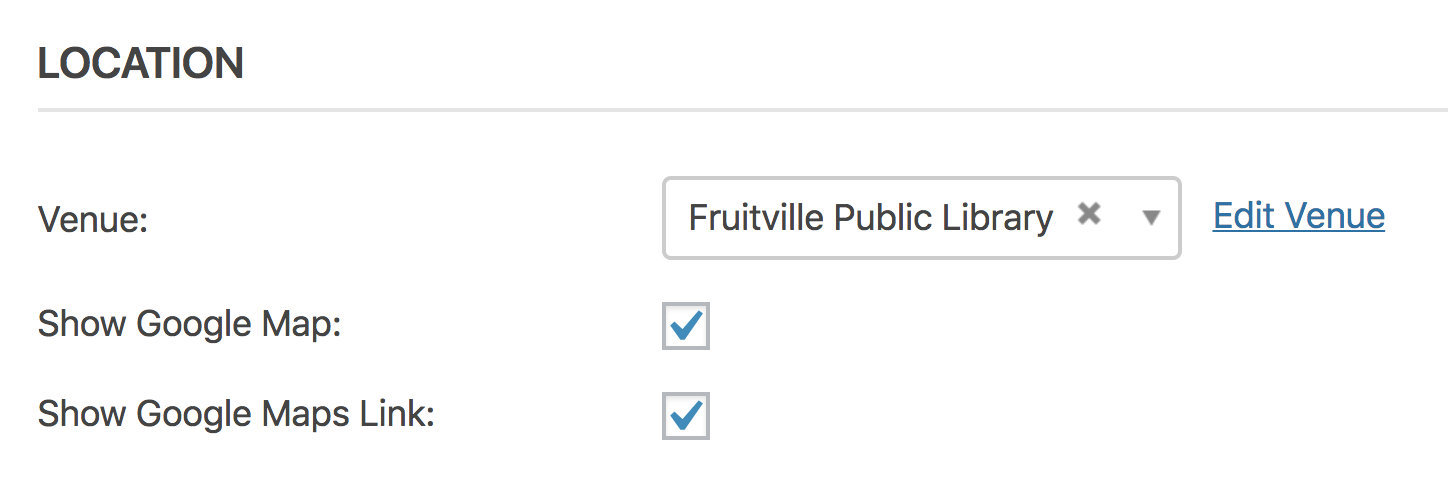
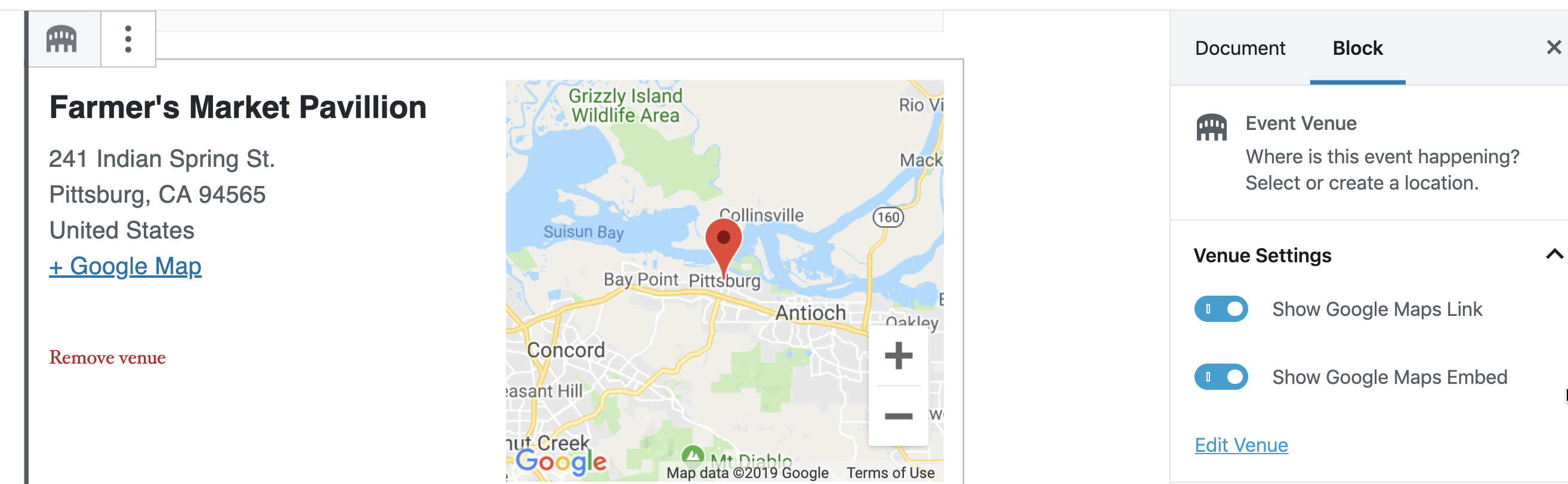
By default, The Events Calendar will try to add a map to single event views as well as an external link to Google Maps. It’s possible to disable either or both these things using the settings provided in the events editor. Here’s what those settings look like:
Add a Google Maps API key
Before you go any further, please ensure you have followed the steps outlined in our article explaining how to add a Google Maps API key. A valid key is required for maps to display correctly. Confirm that you’ve actually entered your full, unedited API key into the correct settings field on the Events → Settings → Integrations screen in WordPress.
Head to your Google Cloud Platform Maps API management page and select the project that your API key belongs to. Confirm that the Geocoding API, Maps JavaScript API, and Maps Embed API show up in the “Enabled APIs” section of the project’s APIs page (screenshot). If any are missing, make a new API key and ensure that the new API key has all 3 APIs enabled for it. If issues persist, contact Google’s support team by clicking the Support tab in the left-hand sidebar—they should be able to help ensure that both of these free APIs are enabled for your API key.
Fix Venue Data
If Events Calendar PRO detects broken or missing venue data, it will let you know via an admin screen notification. This notice will provide a link to a tool, which you can find in the Map Settings section of the Events → Settings screen, that can be used to repair your venue data. Look for a button that says “Fix venues data.” Please click it, refresh your Map View and see if that makes a difference. Fixing Venue Data is a tool only available if broken data is detected.
You may see a message that looks like this:

Let’s look at the notice. It says, “You have venues for which we don’t have geolocation information. Click here to generate it.”
So what is this all about? Well, the geolocation options are only available if you are using Events Calendar Pro and your own Google Maps API key. What it mainly does is enable location search and allow for multiple venues to be shown on map views. Setting that up can be a bit tricky, so do read those articles if you haven’t to be sure you understand the what, why, and how of using your own key.
Resolving the Notice
OK, so now that we have our key set up, we may still have this notice at the top of the admin screen. What it’s trying to tell you is that some of your venues do not have the required information (which we get via the Maps API) to come up in location searches and be mapped properly. That sounds kind of important – so how do we fix it?
The simple answer is “click the link,” – but there is another step, so let’s walk through it.
Upon clicking the link, you will be redirected to the Display > Maps tab (it will be the General tab if you haven’t updated to TEC 6.0 yet):
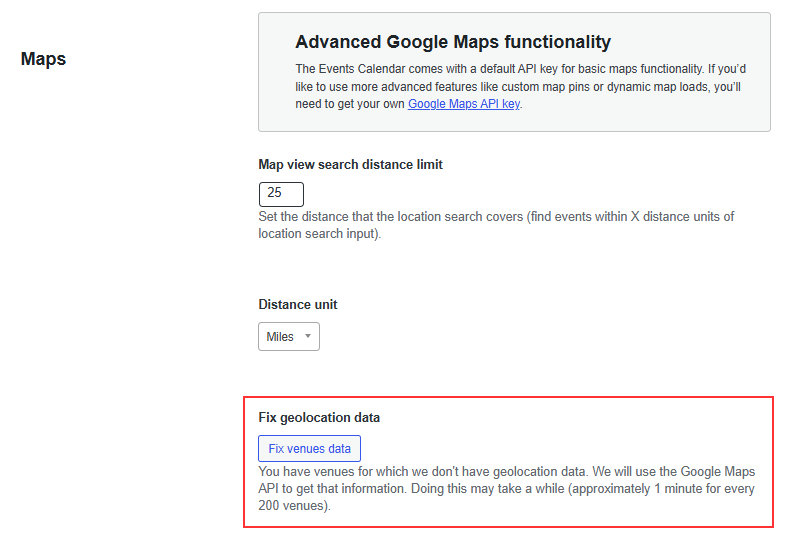
You should be scrolled directly to the Map Settings section of settings. There you’ll see a button that says “Fix Venues Data” – with a bit of a warning that it can take some time if you have a lot of venues.
Click that button, and a background process will start that will run through your venues, find the ones that are missing the data, and generate it for you. That’s all there is to it!
If you haven’t set your API account up correctly, you may get a notice like this:

Just follow the link to Google and correct the issue (in this case, billing wasn’t set up correctly).
If there is a problem with the address or information related to the venue itself, you may get a notice like this:

The first link you see will be to the venue that needs to be corrected, and the second will trigger the”fix venues” action again once you’ve adjusted it.
And that’s it! At this point, you should no longer see the “You have venues for which we don’t have geolocation information” error message.
Use coordinates
If the last step worked, great! If not, there’s another route we can go.
This time, navigate to Events → Venues. If you click Edit on one of the venues, there is an option to use latitude and longitude coordinates. Click on that option for each venue. Confirm the coordinates, save the venue, and then see if that makes a difference in the map’s appearance.
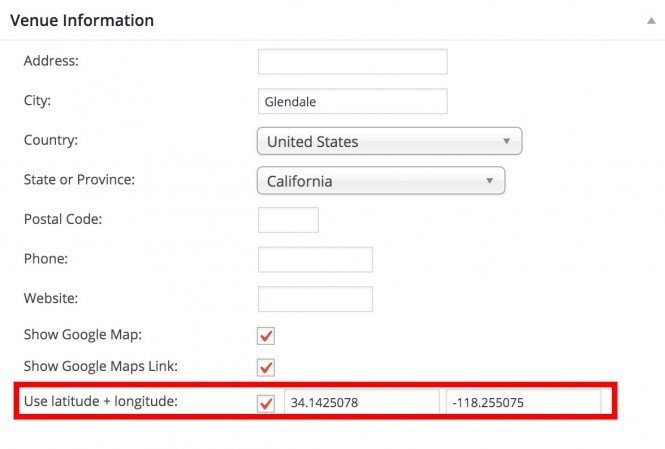
Entering the latitude and longitude of the venue allows The Events Calendar to communicate specific coordinates to the Google Maps API when the API is unable to recognize an address on its own.
Note that the “Use Latitude + Longitude” item is only available with Events Calendar PRO.
Troubleshooting Map View
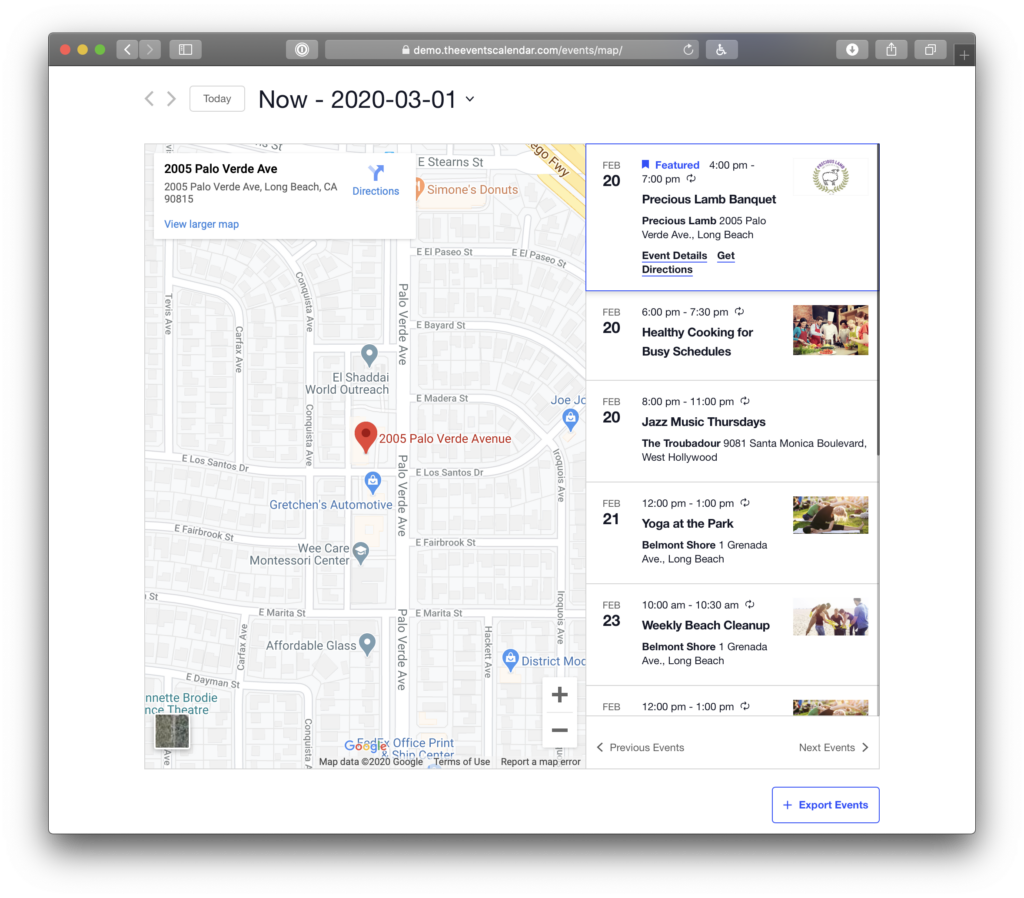
Map view is one of the advanced views available with Events Calendar Pro. When enabled, a giant map displays by the main calendar and displays upcoming events that have venues assigned to them.
Visualizing events on a map is great, but we see an issue every now and then where the map shows no events and is centered off the coast of Africa. That’s enough to make anyone wonder what is wrong, so we have a couple of ways to help troubleshoot and resolve the issue.
Map View Displays Off the Coast of Africa
Events located in the ocean off the coast of Africa are rare, and likely not your desired result. Often this happens if you do not have a venue that Google can recognize, so events get mapped at the default location of latitude-longitude 0, 0. If you’re seeing this issue, please refer to the previous tips on fixing venue data or using latitude and longitude coordinates.
If the above steps haven’t resolved things and you are using a caching plugin, please try clearing your cache. Otherwise, there may be a delay before you see the results of any changes that you have made.
Testing for Conflicts
If the earlier steps didn’t resolve the issue for you, the next step is Testing for Conflicts to determine if another plugin or theme may be contributing to the problem.
It is also worth checking for Javascript errors. See: Using Your Browser to Diagnose JavaScript Errors for help.
You might notice Google Maps has a Javascript error, such as:
You have included the Google Maps API multiple times on this page.
This may cause unexpected errors.
You may be able to resolve this by either deactivating the other plugins or themes that are using Google Maps on your site or by dequeuing the Javascript for Google Maps within Events Calendar Pro by adding the following to your child theme’s functions.php file.
<?php
/**
 * Unregisters the Google Maps API script on Events Calendar PRO.
 */
add_action( 'wp_print_scripts', 'ecp_remove_google_maps_api', 100 );

function ecp_remove_google_maps_api() {
	wp_deregister_script( 'tribe-gmaps' );
}
Wrapping up
We hope this article has helped you to resolve any problems you might have experienced with our Google Maps integration but, if not, please do hit us up at our help desk and we’d be happy to investigate further.