
Home › Forums › Ticket Products › Event Tickets Plus › Multiple Days
- This topic has 5 replies, 4 voices, and was last updated 9 years, 11 months ago by
Lisa.
-
AuthorPosts
-
September 23, 2016 at 8:55 am #1167953
Lisa
ParticipantHi
Great site but need a little help as a newbie to all this!
I am adding an event ‘Tea with Santa’ and this will be held over 6 days throughout December. The event info stays the same.
I would like our customers to be able to read the event details and then select which day they would like to buy a ticket for their child to see Santa on. How and would this be possible?
Many thanks
Lisa
September 23, 2016 at 9:04 am #1167954George
ParticipantHey Lisa!
Thanks for reaching out.
I would like our customers to be able to read the event details and then select which day they would like to buy a ticket for their child to see Santa on. How and would this be possible?
☝️ There are two main ways to achieve this:
1. You could make one single event whose start time is the first day at the starting time of the event, and whose end time is 6 days later on the last day at the ending time of the event. Then, you can add six different ticket options to this single event. One called “day one”, one called “day two”, etc. — then folks can buy the ticket for the day or days they’d like, and you can manage things that way.
2. Alternatively, you could make 6 different events: one for each of the six days. On each event, then, you would just have one ticket option. So to by tickets for Day 2, folks would go to the event for day 2 and but tickets on that event.
I hope this helps!
— George
September 26, 2016 at 2:30 am #1168643ParticipantThank you that is excellent. I have decided option 1 would look better on my website.
One final question – how do I get each ticket (with the different dates to book) displayed under each other on the same event, so that the customer choosing the date picks the right date for them?
Thanks
September 26, 2016 at 8:59 am #1168751ParticipantHey Lisa,
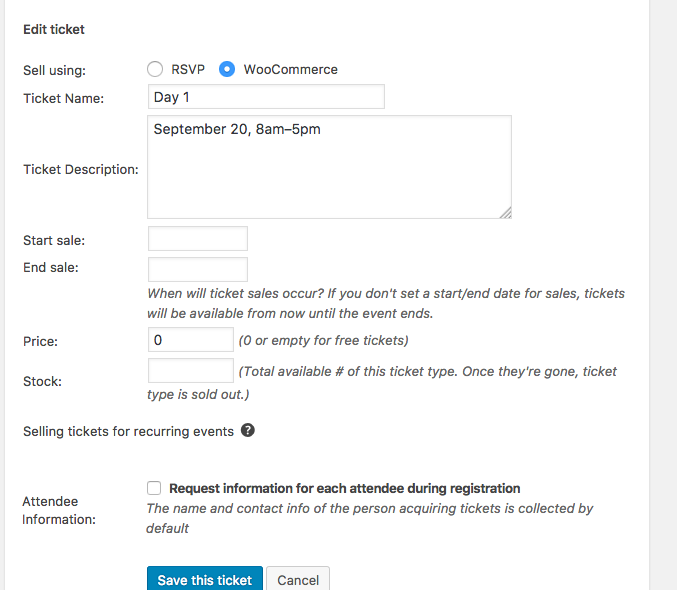
The simplest way to ensure the date information is clear is to add the information in the ticket descriptions.
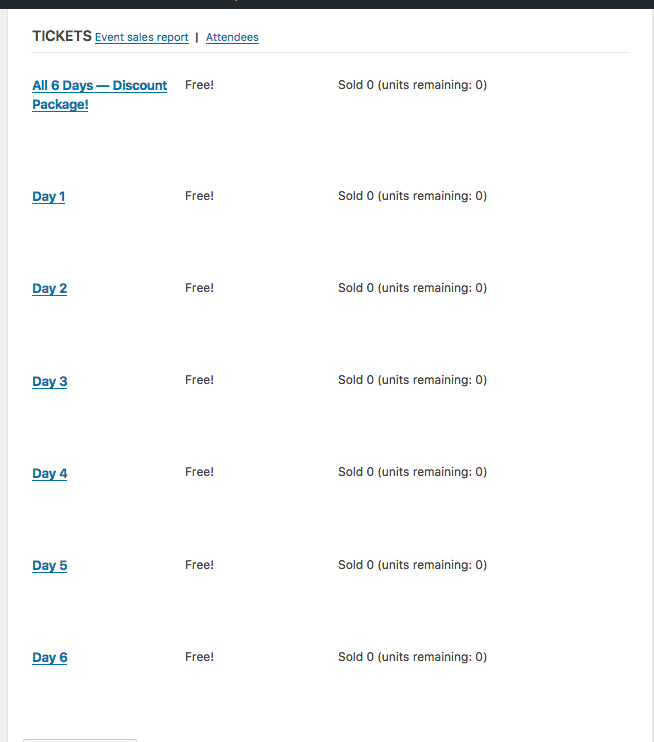
So, in terms of order the tickets, keep in mind that the first ticket you create on an event will be the bottom ticket that displays on the front-end.
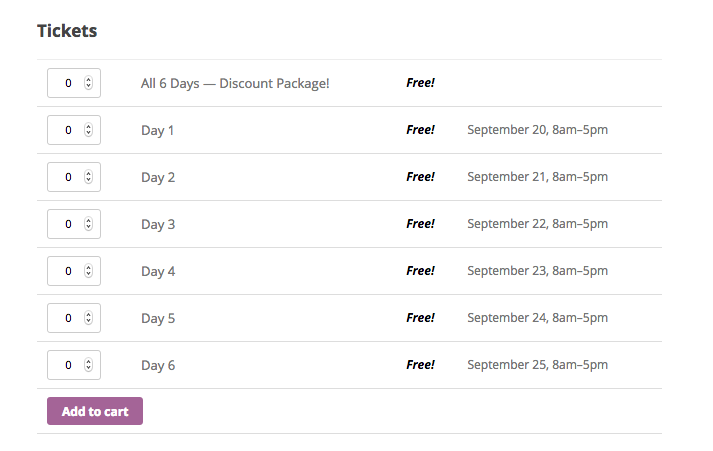
So if you create the ticket for Day 1 first, then Day 2, and end with Day 6, on the front end the ticket for day 6 will be on top.
I recommend creating tickets “backwards”, so create the Day 6 ticket first, then Day 5’s ticket, and so on.
Here is an example of creating these tickets in this order in the wp-admin (click for larger size):
Each individual ticket there has a “description” field when creating it…here is a screenshot showing how I filled out the description field for a ticket (click for larger size):
Finally, when all tickets are added, you publish the event…here is the how the tickets look on the front end at the bottom of the event, where users can select the tickets they want and buy the (click for larger size):
☝️ I hope this helps!
Cheers,
GeorgeOctober 18, 2016 at 9:35 am #1178446Support Droid
KeymasterHey there! This thread has been pretty quiet for the last three weeks, so we’re going to go ahead and close it to avoid confusion with other topics. If you’re still looking for help with this, please do open a new thread, reference this one and we’d be more than happy to continue the conversation over there.
Thanks so much!
The Events Calendar Support Team -
AuthorPosts
- The topic ‘Multiple Days’ is closed to new replies.