
Home › Forums › Calendar Products › Events Calendar PRO › Adjusting thumbnail + changing date/time size
- This topic has 15 replies, 2 voices, and was last updated 9 years, 6 months ago by
Kelly.
-
AuthorPosts
-
February 16, 2017 at 2:07 pm #1239136
Kelly
ParticipantHi, I just purchased this plugin and am trying to replicate some of the showcase examples. The attached screenshot shows the calendar in list view on my homepage, using a shortcode.
Basically, I just want the featured image to be a small thumbnail inside the box, and the date/times to be larger. I have minimal knowledge of code. Thanks!
February 17, 2017 at 3:04 pm #1240438Geoff B.
MemberGood evening Kelly and welcome to the Events Calendar Support forum!
Thank you for reaching out to us.
I would love to help you with this topic.As you might guess, these showcase examples are using a variety of themes with very different CSS rulesets.
With that in mind, I am pretty sure I can help you accomplish what you are looking for.
But, to be able to do that, I would need to be able to view your actual website.From what I gather, your site is currently password protected.
Would it be possible to gain temporary access (using a private reply) ?Have a good weekend,
Geoff B.
February 17, 2017 at 9:24 pm #1240770ParticipantThis reply is private.
February 18, 2017 at 10:42 am #1241189ParticipantI also wanted to note – I’m placing a smaller calendar on the home page (newsite.colonialchurch.org), you can see side by side comparisons of myeventOn (left) vs The Events Calendar (right). I much prefer the look of myeventOn, and am having trouble customizing TEC.
February 20, 2017 at 4:01 pm #1242523MemberGood evening Kelly,
Thank you for writing back and for the credentials.
I can’t really speak for myeventOn, as you can imagine.
But I would absolutely love to help you get closer to your goal while using our plugin.Try adding the following CSS rule to your style.css file or in your Custom CSS metabox:
.tribe-events-list .tribe-events-event-image {

border: 0px !important;

width: 30%;

}
.events-list .tribe-events-loop .tribe-events-event-meta {
font-size: 16px !important;
}Let me know if that helps.
Have a great day!
Geoff B.
March 1, 2017 at 10:26 am #1247844ParticipantThat works great for the list on /events page. Thanks so much!
Ok, I am also wondering if it’s possible to reformat the calendar on the home page to look like the attached image (basically replacing the date box with featured image). Thank you!
March 1, 2017 at 11:31 pm #1248205MemberGood evening Kelly,
I am glad that helped.
The short answer to your other question is yes.
Since I am not sure how you setup your home page in the backend (which shortcode or widget), it’s a little difficult to say for sure. Would it be possible to get a screenshot of your Edit page screen ?
But here are different ways to achieve that:
- Using a Pro widget or Pro widget shortcode (try the Advanced List Widget one if you have not already): https://theeventscalendar.com/knowledgebase/pro-widget-shortcodes/
- Try our full view shortcodes with arguments: https://theeventscalendar.com/knowledgebase/embedding-calendar-views-tribe_events-shortcode/
- Tweak any of these views (structure and elements) using template overrides. You might want to read our Themer’s guide to get a sense of how that works.
- Use some CSS specific to the home page to tweak things to your liking.
Let me know if that helps.
Have a great day!
Geoff B.
March 9, 2017 at 10:13 am #1251906ParticipantThanks so much Geoff. It looks like I was using the wrong list shortcode, so now I have images, but it’s still not quite how I’d like.
Is it possible to mimic either of the attached images from your showcase? (ideally with the image on the left)
(found https://theeventscalendar.com/showcase/chicago-area-yoga/ and https://theeventscalendar.com/showcase/santa-cruz-museum-of-art-history/)I’d prefer the image to be to the left of all of the text.
March 13, 2017 at 9:03 am #1253330MemberGood afternoon Kelly,
Thank you for your answer.
I apologize for the delay answering. As it turns out, we are experiencing a much larger volume of requests than usual.
Is it possible to mimic either of the attached images from your showcase? (ideally with the image on the left)
The showcase examples are actually using the photo view. Not the list view.
So the easy way to get the almost exact same result would be to use the photo view shortcodes.But, the attached images are indeed using the list view.
Normally, the layout should look a lot like that by default.In fact, from what I can see on the home page, http://newsite.colonialchurch.org/, the display is very similar to the attached images (except for your newsletter sidebar).
If you want to remove the sidebar, you can simply experiment with different settings under Events -> Settings -> Display
If you are not talking about the home page, would it be possible to send me a link to the page where you have used the shortcode ?
Best regards,
Geoff B.
March 14, 2017 at 9:41 am #1253946ParticipantThanks Geoff, I am wanting the image to be to the left of everything, so the text would not be above the image, but to the right of it, like the earlier attached example.
Currently on our home page, the event title and date/venue are displayed above the thumbnail image, but we’d like it to show/float to the right of the thumbnail.
March 14, 2017 at 9:59 am #1253961MemberGood afternoon Kelly,
Thank you for writing back and clarifying.
On my end I am seeing the image floating to the left of everything (not to the top – see screenshot)
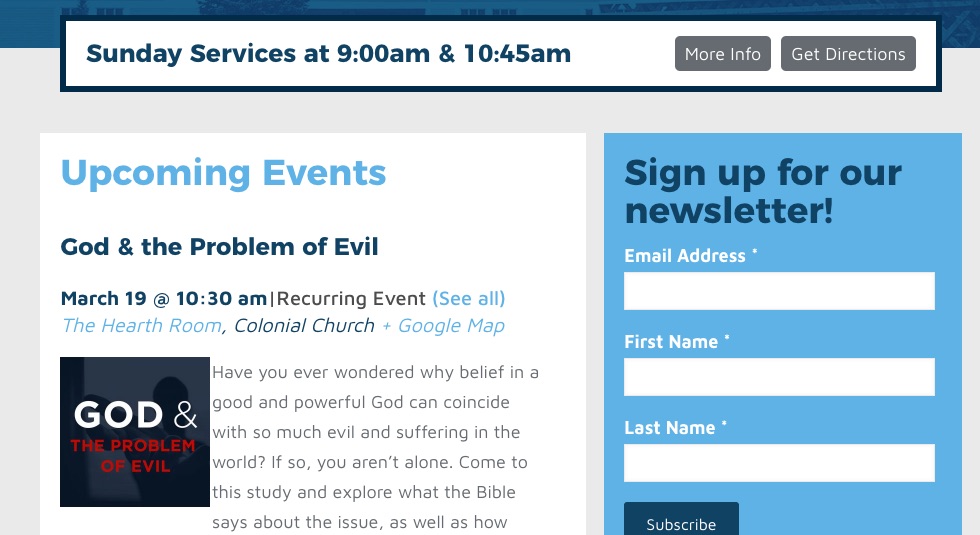
In any case try slightly tweaking the following CSS rule to your style.css file or in your Custom CSS metabox by adding the last line (float: left) to make sure it sticks on all browsers:
.homecal .tribe-events-list .tribe-events-event-image {

border: 0px !important;

width: 30%;

float: left !important;

}
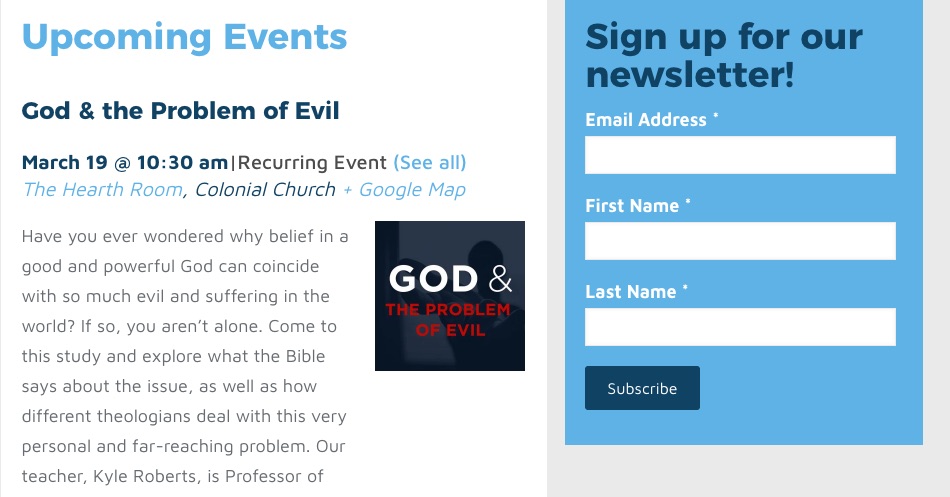
You could also make it float right with the following code
.homecal .tribe-events-list .tribe-events-event-image {

border: 0px !important;

width: 30%;

float: right !important;

}
Let me know how that goes.
Best regards,
Geoff B.March 23, 2017 at 3:48 pm #1259162ParticipantThanks for the response! That didn’t solve it, but I was able to compromise and get a better look with the photo view, which I’m happy with now. However, when the screen is resized to mobile/smaller size, the title text now sits on top of the image (see attached). Is there a way to resolve this?
March 23, 2017 at 3:48 pm #1259163ParticipantThis reply is private.
March 23, 2017 at 10:29 pm #1259360MemberThis reply is private.
April 14, 2017 at 9:35 am #1270183Support Droid
KeymasterHey there! This thread has been pretty quiet for the last three weeks, so we’re going to go ahead and close it to avoid confusion with other topics. If you’re still looking for help with this, please do open a new thread, reference this one and we’d be more than happy to continue the conversation over there.
Thanks so much!
The Events Calendar Support Team -
AuthorPosts
- The topic ‘Adjusting thumbnail + changing date/time size’ is closed to new replies.