The Events Calendar works well alongside most performance, caching, and SEO plugins — but each one requires a few specific settings to avoid conflicts with calendar pages and assets. This article covers the recommended configuration for every supported plugin. The core rule that applies to all caching plugins is the same: exclude The Events Calendar’s CSS and JavaScript files from minification, and set event pages to expire within 12 hours.
Yoast SEO
The Events Calendar works with Yoast SEO, but there is one known compatibility limitation with the main calendar page, and several useful features for customizing event-specific SEO titles.
Known Conflict: Meta Title on the Main Calendar Page
A conflict exists between The Events Calendar and Yoast’s WordPress SEO plugin. In short, Yoast’s meta title settings work correctly throughout The Events Calendar with one exception: the main calendar page.
The meta title is the HTML tag that defines the text shown in the browser tab for a webpage:

It is also what appears in search engine results:

Yoast provides the ability to customize the meta title for pages, posts, and archives, including custom post types like Events. These settings are found under SEO → Titles & Metas.
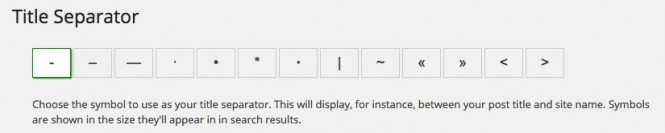
For example, if you configure Yoast to use a dash as the title separator globally, The Events Calendar respects that setting on all pages except the main calendar page. Single event posts, paginated views, and all other calendar pages will use the dash correctly — but the main calendar archive page will continue to show the previous separator.
Main calendar page (incorrect separator):

Subsequent calendar page (correct separator):

This issue also applies to the wording in the meta title, not just the separator. We are actively discussing this with the Yoast team to find a resolution. In the meantime, please contact our support team if you have questions.
Using Custom Event Variables in Yoast SEO Title Templates
When running an events-focused website, you can enhance your event listings by using Yoast SEO’s custom variables to populate title tags with event-specific data automatically. This improves click-through rates in search results and streamlines your SEO workflow across all events.
Prerequisites:
- The Events Calendar installed and active
- Yoast SEO installed and active
- Existing events created under Events → All Events
Available Custom Event Variables
The Events Calendar integrates with Yoast SEO to provide the following dynamic variables:
| Variable | What It Inserts |
|---|---|
%event_start_date% | The event’s start date |
%event_end_date% | The event’s end date |
%venue_title% | The venue name |
%venue_city% | The venue city |
%venue_state% | The venue state |
%organizer_title% | The organizer name |
Configure Site-Wide Event Title Templates
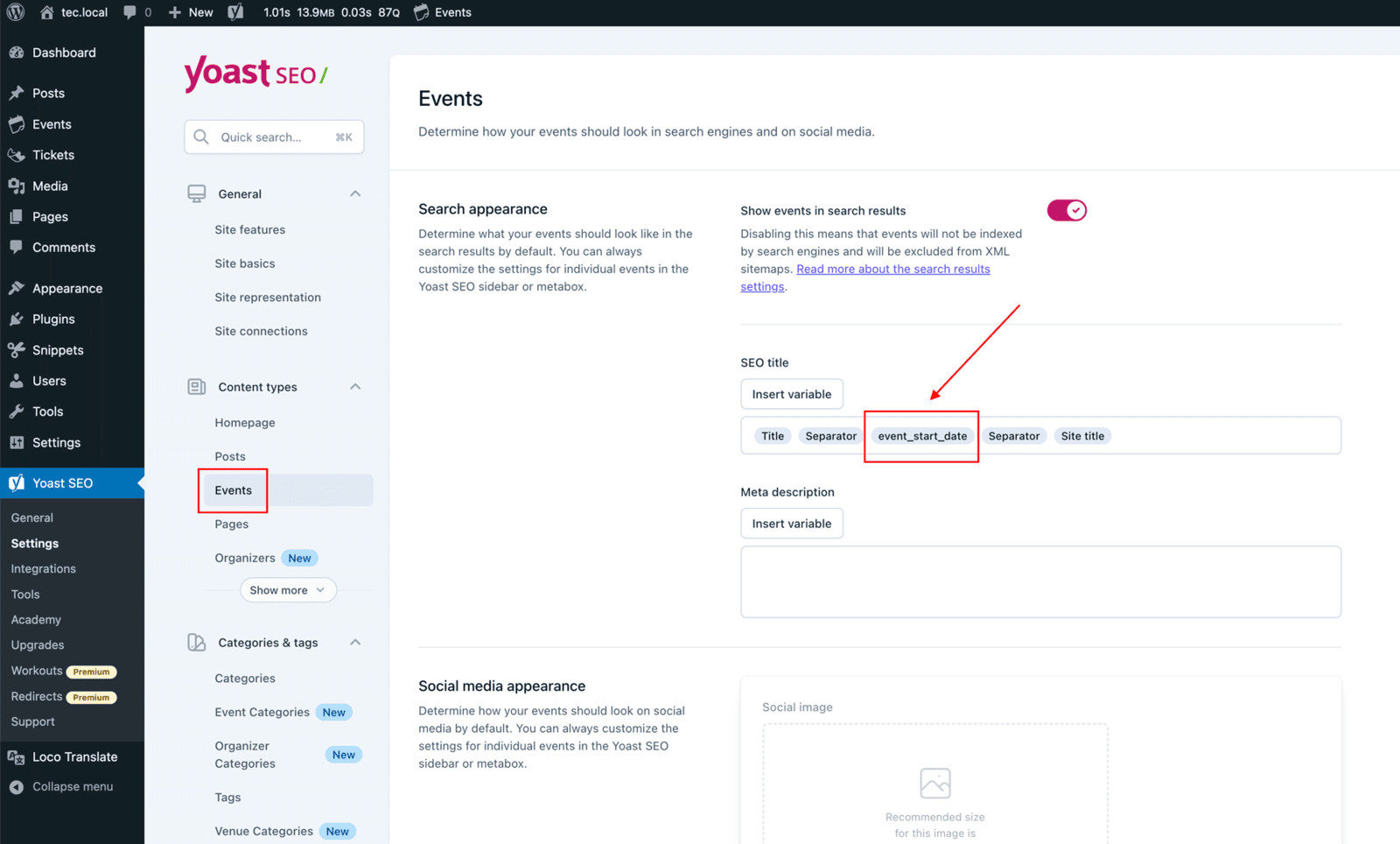
- Go to Yoast SEO → Settings in your WordPress admin.
- Navigate to the Content Types section.
- Locate the Events post type. (This option only appears if The Events Calendar is active.)
- In the SEO Title field, click the “Insert variable” button.
- Start typing your desired variable (e.g.,
%event_start_date%) or choose from the suggestions list. - Select the variable and press Enter.
- Rearrange variables, add separators, or include static text as needed.
Override the Title on a Per-Event Basis
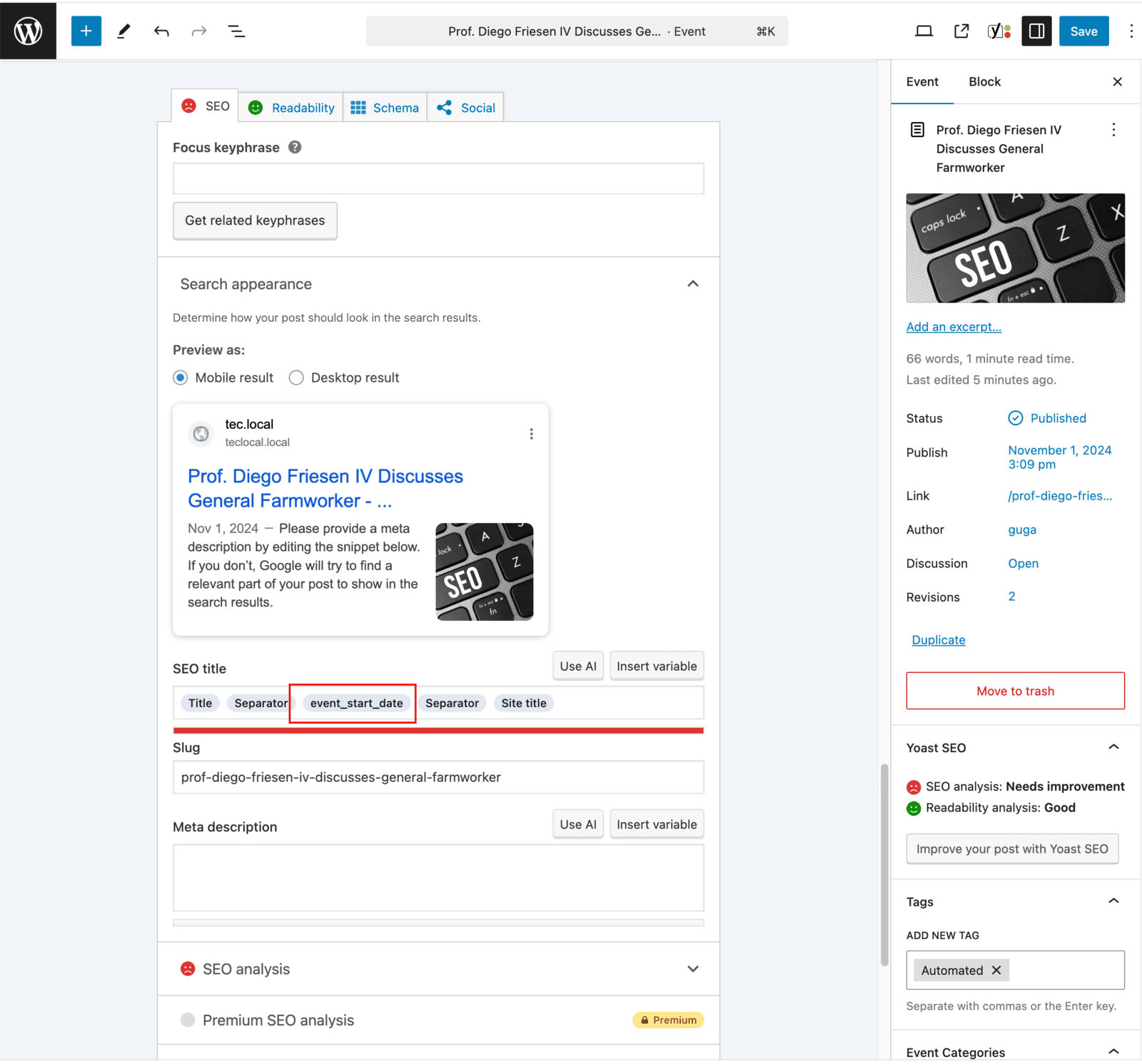
- Go to Events → All Events and click Edit on the desired event.
- Scroll down to the Yoast SEO meta box.
- Click the SEO tab.
- In the SEO Title field, click “Insert variable” and select your desired variable (e.g.,
%event_start_date%).
This overrides the global SEO title pattern for this specific event only.
By using custom event variables in Yoast SEO, you can dynamically populate titles with relevant, event-specific information — improving click-through rates and providing a consistent branding experience across all your event listings.
SiteGround Speed Optimizer
The SiteGround Speed Optimizer is a caching and performance plugin designed to link WordPress to SiteGround’s performance services. It can improve your site performance in just a few clicks. However, some of its default settings are not compatible with The Events Calendar.
Note: The Speed Optimizer plugin is designed for sites hosted on SiteGround servers and will not work properly on other hosts.
What You Need
Minify CSS, HTML, and JavaScript
The best way to keep everything working well together is to exclude The Events Calendar plugin files from the Minify CSS and Minify JavaScript options so they don’t interfere with TEC’s files.
On the Speed Optimizer plugin, use the Exclude from CSS minification, Exclude from JS minification, Exclude from CSS combination, and Exclude from JS combination options to exclude specific scripts from modification.
Note: When clicking the pencil edit icon, the plugin files are not listed there — this appears to be a bug in the Speed Optimizer plugin. As a workaround, you will need to manually exclude them using a filter in your theme’s functions.php. See the SiteGround support forums for the procedure.
Excluding CSS files
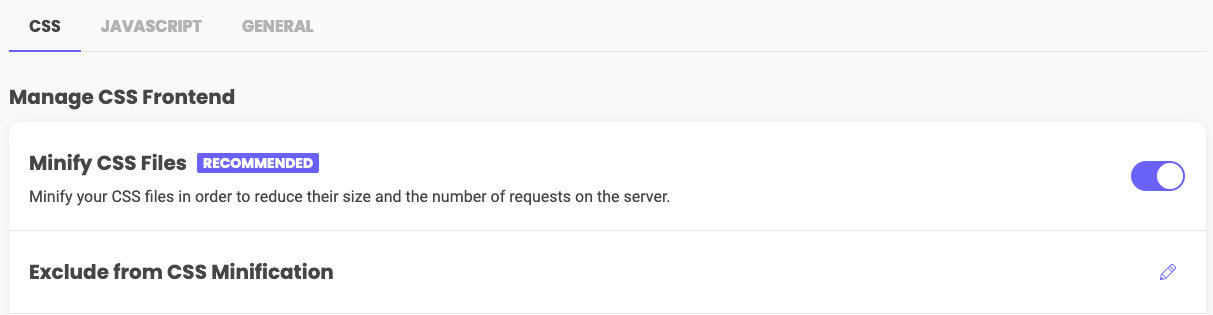
Click the pencil edit icon next to the Exclude from CSS Minification section and add the CSS file paths listed in the Plugin Folders section below.
Excluding JS files
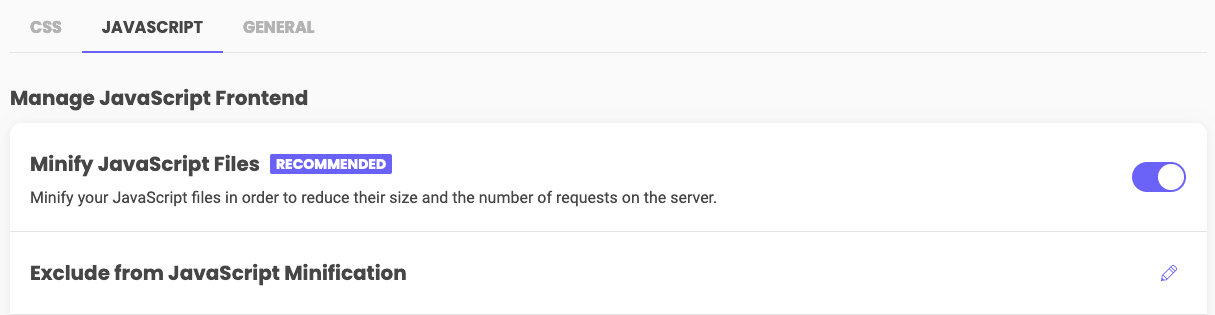
Click the pencil edit icon next to the Exclude from JavaScript Minification section and add the JS file paths listed in the Plugin Folders section below.
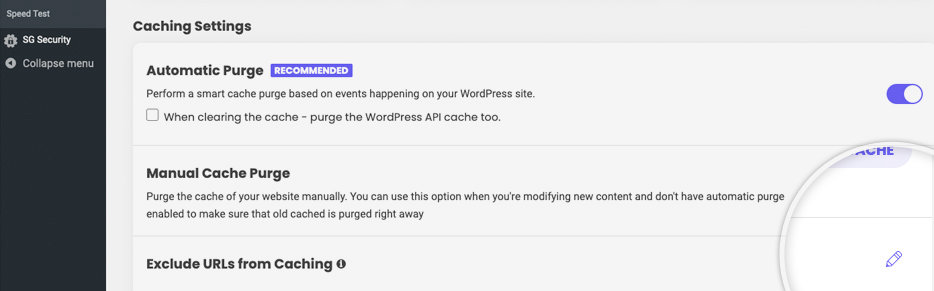
Exclude URLs from Caching
Click the pencil edit icon next to Exclude URLs from Caching and add /events/* and /event/*.
Plugin Folders
Here is a list of the asset folders for each plugin that should be excluded:
| Plugin Name | Assets Folder |
|---|---|
| The Events Calendar | /wp-content/plugins/the-events-calendar/(.*).css/wp-content/plugins/the-events-calendar/(.*).js |
| Events Calendar Pro | /wp-content/plugins/events-calendar-pro/(.*).css/wp-content/plugins/events-calendar-pro/(.*).js |
| Event Tickets | /wp-content/plugins/event-tickets/(.*).css/wp-content/plugins/event-tickets/(.*).js |
| Event Tickets Plus | /wp-content/plugins/event-tickets-plus/(.*).css/wp-content/plugins/event-tickets-plus/(.*).js |
| Filter Bar | /wp-content/plugins/the-events-calendar-filterbar/(.*).css/wp-content/plugins/the-events-calendar-filterbar/(.*).js |
| Community Events | /wp-content/plugins/the-events-calendar-community-events/(.*).css/wp-content/plugins/the-events-calendar-community-events/(.*).js |
| Eventbrite Tickets | /wp-content/plugins/the-events-calendar-eventbrite-tickets/(.*).css/wp-content/plugins/the-events-calendar-eventbrite-tickets/(.*).js |
Copy-Paste Asset Paths
/wp-content/plugins/the-events-calendar/(.*).css
/wp-content/plugins/events-calendar-pro/(.*).css
/wp-content/plugins/event-tickets/(.*).css
/wp-content/plugins/event-tickets-plus/(.*).css
/wp-content/plugins/the-events-calendar-filterbar/(.*).css
/wp-content/plugins/events-virtual/(.*).css
/wp-content/plugins/the-events-calendar-community-events/(.*).css
/wp-content/plugins/the-events-calendar-community-events-tickets/(.*).css
/wp-content/plugins/the-events-calendar-eventbrite-tickets/(.*).css
/wp-content/plugins/the-events-calendar/(.*).js
/wp-content/plugins/events-calendar-pro/(.*).js
/wp-content/plugins/event-tickets/(.*).js
/wp-content/plugins/event-tickets-plus/(.*).js
/wp-content/plugins/the-events-calendar-filterbar/(.*).js
/wp-content/plugins/events-virtual/(.*).js
/wp-content/plugins/the-events-calendar-community-events/(.*).js
/wp-content/plugins/the-events-calendar-community-events-tickets/(.*).js
/wp-content/plugins/the-events-calendar-eventbrite-tickets/(.*).js
Solid Performance
Solid Performance is a powerful WordPress plugin designed to optimize site speed and overall performance. It provides tools to cache pages, minify CSS and JavaScript, and compress images, resulting in faster load times and a smoother user experience.
What You Need
- The Events Calendar (free)
- Solid Performance (free)
Basic Performance Settings
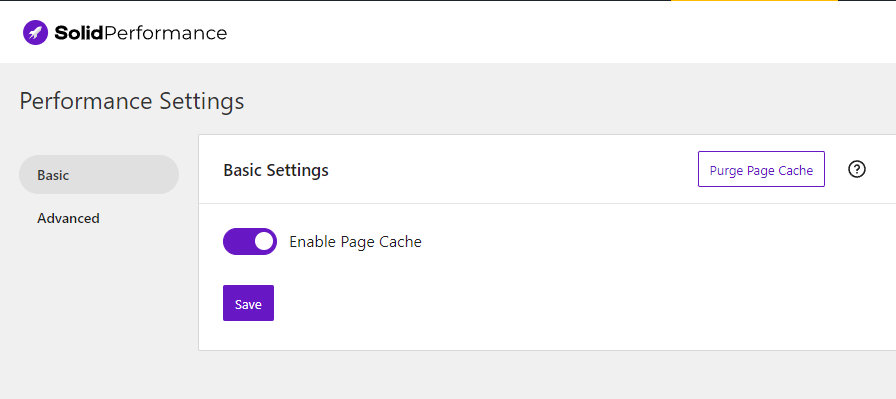
Go to Settings → Solid Performance. There are two key options: Enable/Disable Page Cache and Purge Page Cache. By default, Enable Page Cache is turned on — keep it enabled for optimal performance.
Advanced Performance Settings
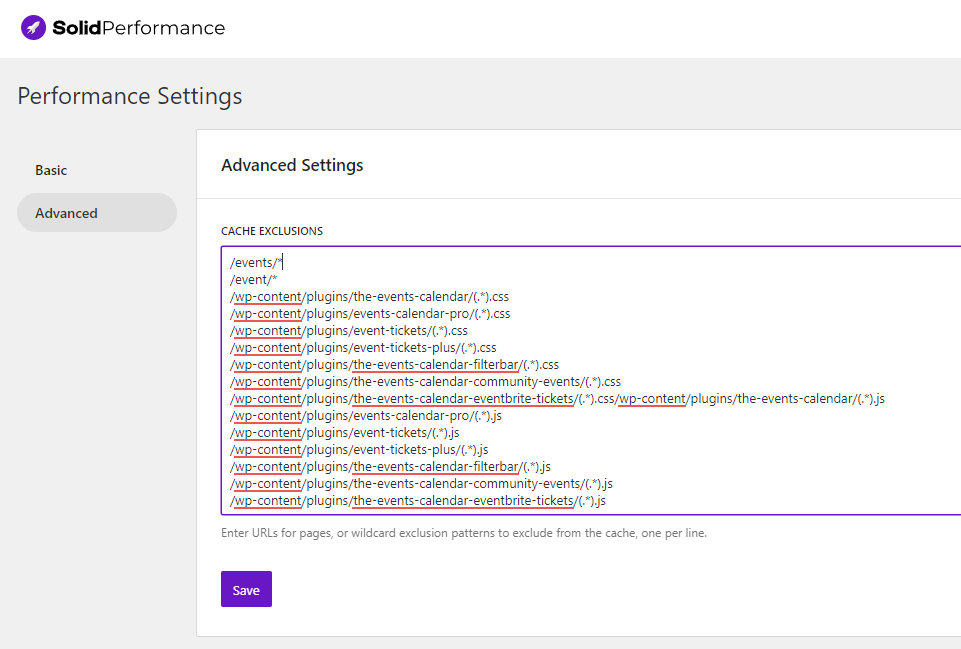
Under Cache Exclusions, add the plugin asset paths below to prevent Solid Performance from re-minifying TEC’s already-minified files.
You can also exclude specific pages from caching here. For example:
- Enter
/event/*to prevent caching on all single event pages. - Enter
/eventsto exclude the event listings page.
Plugin Folders
| Plugin Name | Assets Folder |
|---|---|
| The Events Calendar | /wp-content/plugins/the-events-calendar/(.*).css/wp-content/plugins/the-events-calendar/(.*).js |
| Events Calendar Pro | /wp-content/plugins/events-calendar-pro/(.*).css/wp-content/plugins/events-calendar-pro/(.*).js |
| Event Tickets | /wp-content/plugins/event-tickets/(.*).css/wp-content/plugins/event-tickets/(.*).js |
| Event Tickets Plus | /wp-content/plugins/event-tickets-plus/(.*).css/wp-content/plugins/event-tickets-plus/(.*).js |
| Filter Bar | /wp-content/plugins/the-events-calendar-filterbar/(.*).css/wp-content/plugins/the-events-calendar-filterbar/(.*).js |
| Community Events | /wp-content/plugins/the-events-calendar-community-events/(.*).css/wp-content/plugins/the-events-calendar-community-events/(.*).js |
| Eventbrite Tickets | /wp-content/plugins/the-events-calendar-eventbrite-tickets/(.*).css/wp-content/plugins/the-events-calendar-eventbrite-tickets/(.*).js |
Copy-Paste Asset Paths
/wp-content/plugins/the-events-calendar/(.*).css
/wp-content/plugins/events-calendar-pro/(.*).css
/wp-content/plugins/event-tickets/(.*).css
/wp-content/plugins/event-tickets-plus/(.*).css
/wp-content/plugins/the-events-calendar-filterbar/(.*).css
/wp-content/plugins/the-events-calendar-community-events/(.*).css
/wp-content/plugins/the-events-calendar-eventbrite-tickets/(.*).css
/wp-content/plugins/the-events-calendar/(.*).js
/wp-content/plugins/events-calendar-pro/(.*).js
/wp-content/plugins/event-tickets/(.*).js
/wp-content/plugins/event-tickets-plus/(.*).js
/wp-content/plugins/the-events-calendar-filterbar/(.*).js
/wp-content/plugins/the-events-calendar-community-events/(.*).js
/wp-content/plugins/the-events-calendar-eventbrite-tickets/(.*).js
WP Engine
Current Status: compatible
WP Engine is a popular WordPress hosting solution with powerful built-in caching. Once you host your WordPress site with WP Engine, you gain access to caching features right from the WordPress Dashboard.
What You Need
- The Events Calendar
- WP Engine hosting
WordPress Dashboard Settings
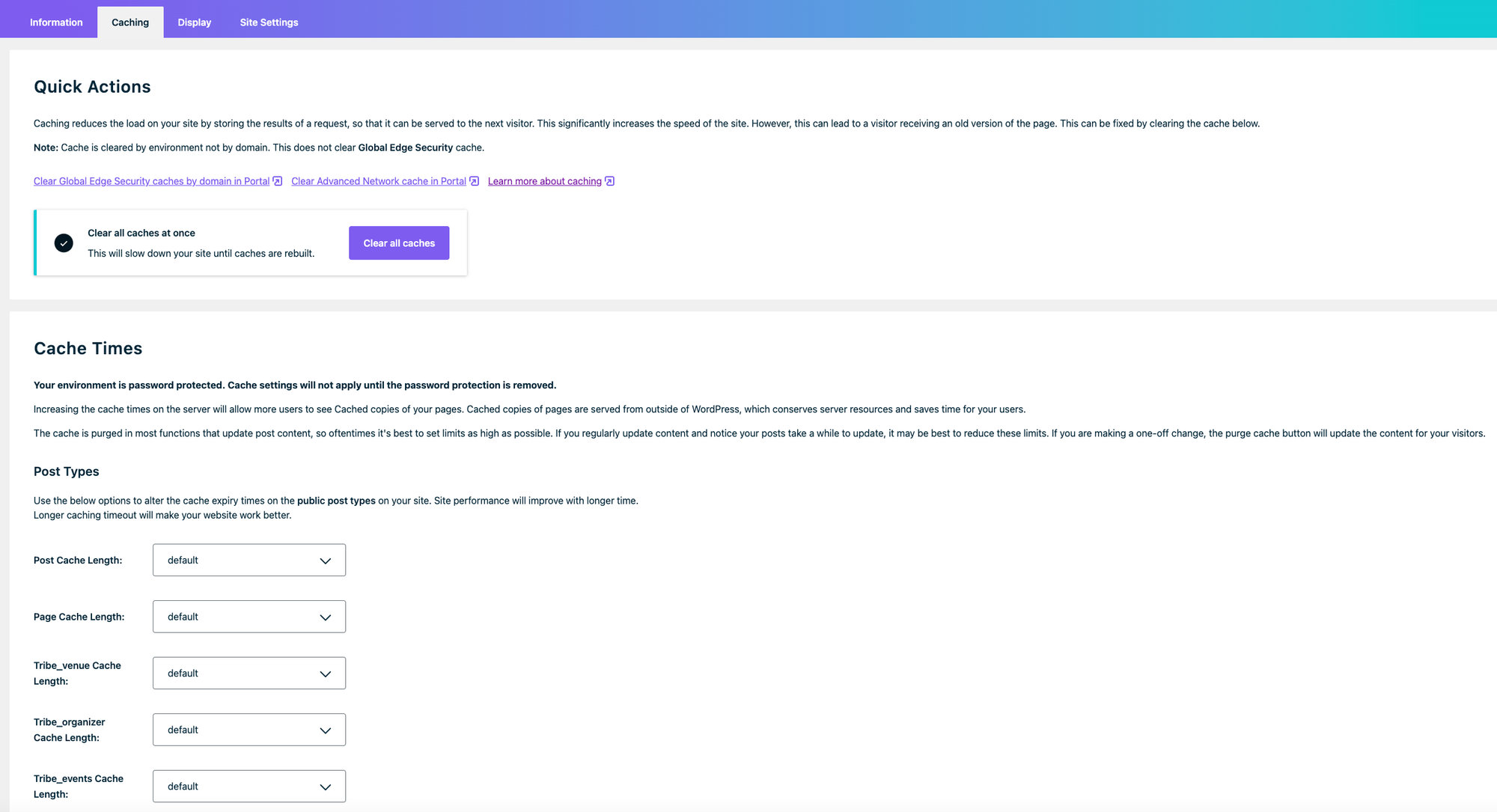
Go to WP Engine → Caching in the WordPress Dashboard. You can clear all caches at once or customize caching per post type.
Set Tribe_events Cache Length to 12 hours.
WP Engine and The Events Calendar
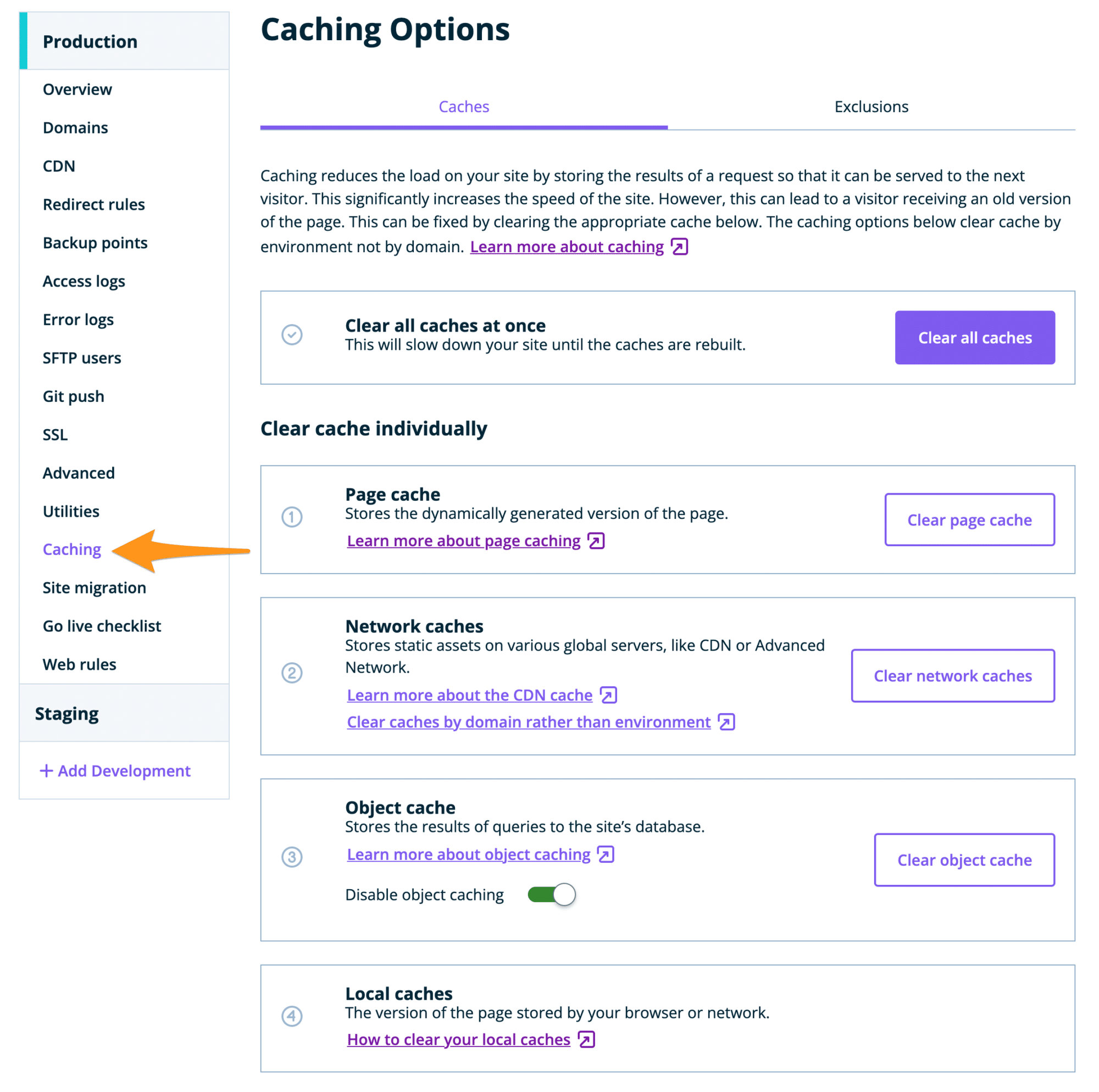
As with other caching plugins, we recommend excluding event pages from caching. This cannot be done from the WordPress Dashboard — follow these steps in the WP Engine User Portal instead:
- Log in to the WP Engine User Portal.
- Select your environment name.
- Click Caching.
- Click Cache Exclusions.
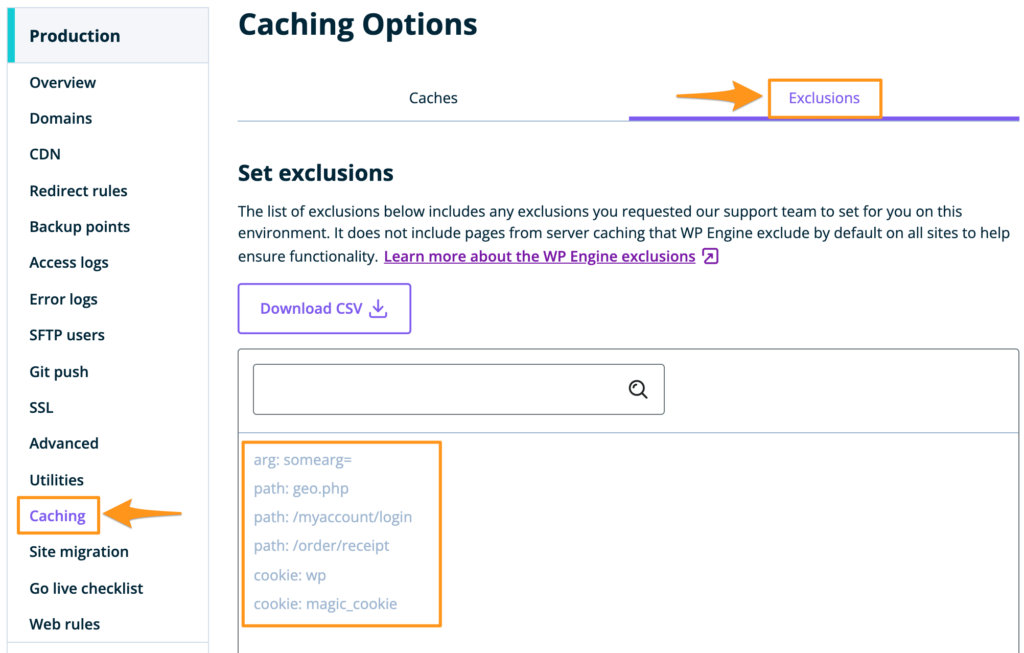
To add additional exclusions beyond what is already listed, contact WP Engine’s support team.
WP Engine and Event Tickets
When using Tickets Commerce (the eCommerce solution built into Event Tickets), the checkout page must also be excluded from caching. Otherwise, some checkout fields may not appear and ticket purchases cannot be completed. Add ^/tickets-checkout/? to the exclusion list.
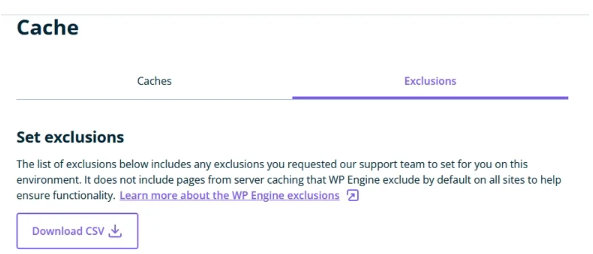
Use these values when contacting WP Engine support to request exclusions:
path: ^/series/?
path: ^/wp-content/plugins/the-events-calendar/(.*).css
path: ^/wp-content/plugins/the-events-calendar/(.*).js
path: ^/wp-content/plugins/events-calendar-pro/(.*).css
path: ^/wp-content/plugins/events-calendar-pro/(.*).js
path: ^/wp-content/plugins/event-tickets/(.*).css
path: ^/wp-content/plugins/event-tickets/(.*).js
path: ^/wp-content/plugins/event-tickets-plus/(.*).css
path: ^/wp-content/plugins/event-tickets-plus/(.*).js
path: ^/wp-content/plugins/the-events-calendar-filterbar/(.*).css
path: ^/wp-content/plugins/the-events-calendar-filterbar/(.*).js
path: ^/wp-content/plugins/the-events-calendar-community-events/(.*).css
path: ^/wp-content/plugins/the-events-calendar-community-events/(.*).js
path: ^/wp-content/plugins/the-events-calendar-eventbrite-tickets/(.*).css
path: ^/wp-content/plugins/the-events-calendar-eventbrite-tickets/(.*).js
path: ^/tickets-checkout/?
Plugin Folders
| Plugin Name | Assets Folder |
|---|---|
| The Events Calendar | /wp-content/plugins/the-events-calendar/(.*).css/wp-content/plugins/the-events-calendar/(.*).js |
| Events Calendar Pro | /wp-content/plugins/events-calendar-pro/(.*).css/wp-content/plugins/events-calendar-pro/(.*).js |
| Event Tickets | /wp-content/plugins/event-tickets/(.*).css/wp-content/plugins/event-tickets/(.*).js |
| Event Tickets Plus | /wp-content/plugins/event-tickets-plus/(.*).css/wp-content/plugins/event-tickets-plus/(.*).js |
| Filter Bar | /wp-content/plugins/the-events-calendar-filterbar/(.*).css/wp-content/plugins/the-events-calendar-filterbar/(.*).js |
| Community Events | /wp-content/plugins/the-events-calendar-community-events/(.*).css/wp-content/plugins/the-events-calendar-community-events/(.*).js |
| Eventbrite Tickets | /wp-content/plugins/the-events-calendar-eventbrite-tickets/(.*).css/wp-content/plugins/the-events-calendar-eventbrite-tickets/(.*).js |
Copy-Paste Asset Paths
/wp-content/plugins/the-events-calendar/(.*).css
/wp-content/plugins/events-calendar-pro/(.*).css
/wp-content/plugins/event-tickets/(.*).css
/wp-content/plugins/event-tickets-plus/(.*).css
/wp-content/plugins/the-events-calendar-filterbar/(.*).css
/wp-content/plugins/the-events-calendar-community-events/(.*).css
/wp-content/plugins/the-events-calendar-eventbrite-tickets/(.*).css
/wp-content/plugins/the-events-calendar/(.*).js
/wp-content/plugins/events-calendar-pro/(.*).js
/wp-content/plugins/event-tickets/(.*).js
/wp-content/plugins/event-tickets-plus/(.*).js
/wp-content/plugins/the-events-calendar-filterbar/(.*).js
/wp-content/plugins/the-events-calendar-community-events/(.*).js
/wp-content/plugins/the-events-calendar-eventbrite-tickets/(.*).js
WP Fastest Cache
Current Status: compatible
WP Fastest Cache helps speed up your site by reducing server load from high traffic. Site speed affects Google Search rankings, so installing a plugin like WP Fastest Cache can improve your SEO.
What You Need
The Settings
Once WP Fastest Cache is installed and activated, go to WP Fastest Cache → Exclude in the WordPress Dashboard.
Exclude the /event page from being cached. Also exclude CSS and JavaScript. See the screenshot below for the exact settings to use.
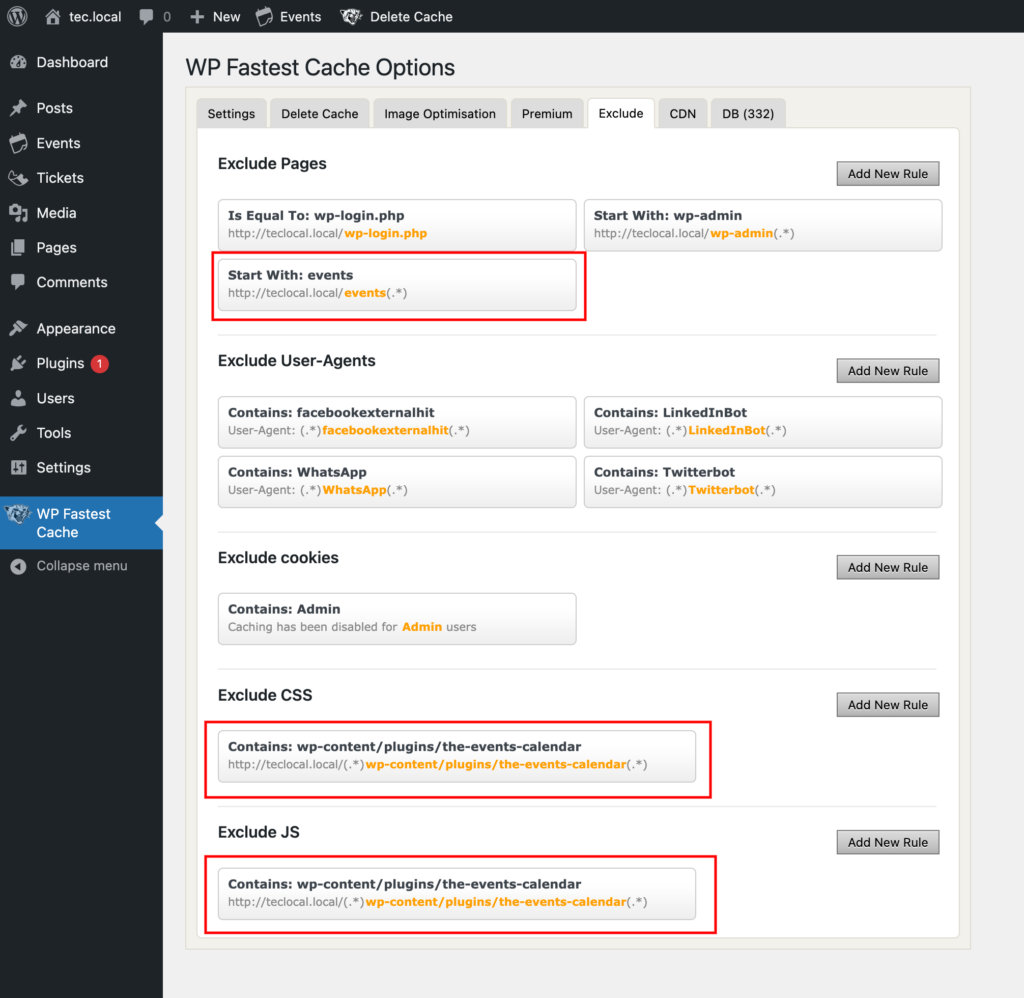
If you are using the Event Tickets plugin, add a rule to exclude pages containing tickets-checkout to avoid caching issues on the checkout page.
Cache Timeout
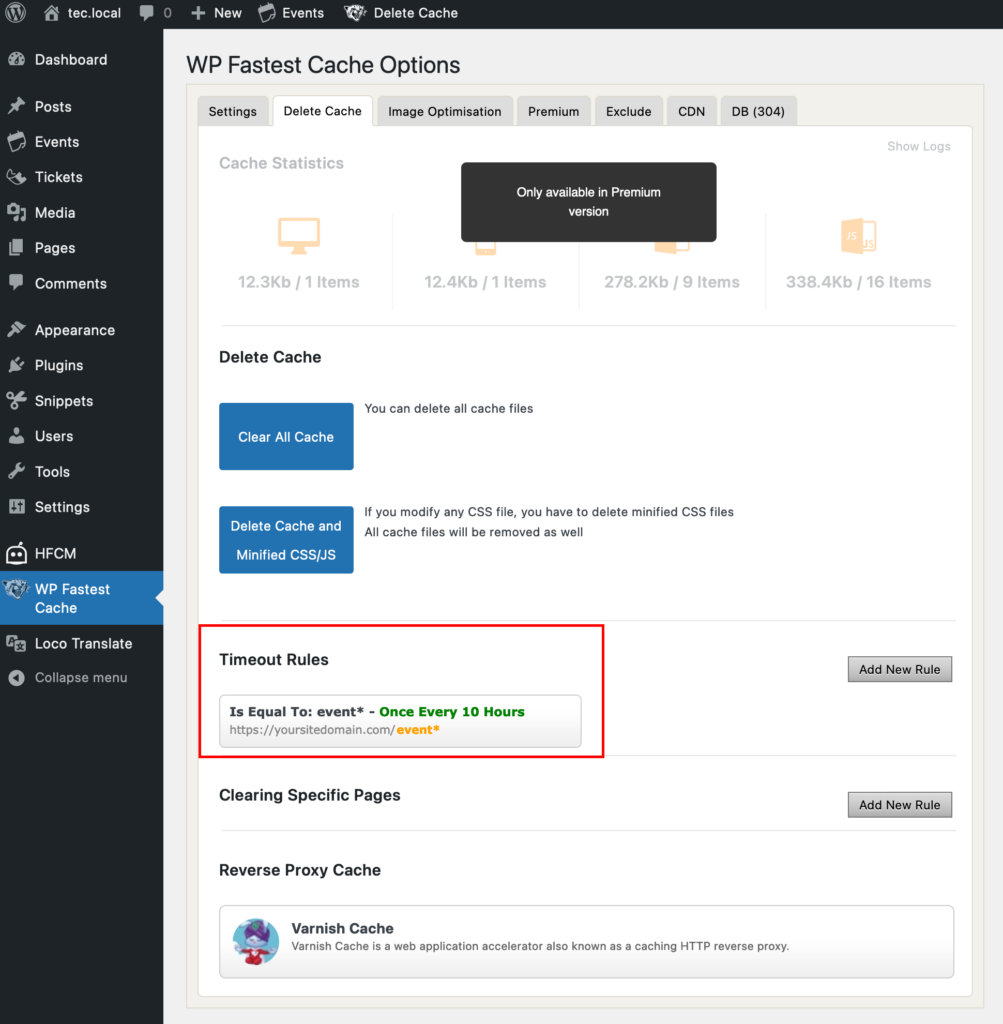
You also need to define a timeout rule to ensure the events page cache is regenerated before WordPress NONCE keys expire.
WordPress NONCEs are security tokens with a 12-hour lifetime that protect URLs and forms from malicious attacks (NONCE stands for “number used once”). If a cached page serves an expired NONCE, calendar pagination will break.
Go to WP Fastest Cache → Delete Cache → Timeout Rules and set a timeout to run at least every 10 hours.
Plugin Folders
| Plugin Name | Assets Folder |
|---|---|
| The Events Calendar | /wp-content/plugins/the-events-calendar/(.*).css/wp-content/plugins/the-events-calendar/(.*).js |
| Events Calendar Pro | /wp-content/plugins/events-calendar-pro/(.*).css/wp-content/plugins/events-calendar-pro/(.*).js |
| Event Tickets | /wp-content/plugins/event-tickets/(.*).css/wp-content/plugins/event-tickets/(.*).js |
| Event Tickets Plus | /wp-content/plugins/event-tickets-plus/(.*).css/wp-content/plugins/event-tickets-plus/(.*).js |
| Filter Bar | /wp-content/plugins/the-events-calendar-filterbar/(.*).css/wp-content/plugins/the-events-calendar-filterbar/(.*).js |
| Community Events | /wp-content/plugins/the-events-calendar-community-events/(.*).css/wp-content/plugins/the-events-calendar-community-events/(.*).js |
| Eventbrite Tickets | /wp-content/plugins/the-events-calendar-eventbrite-tickets/(.*).css/wp-content/plugins/the-events-calendar-eventbrite-tickets/(.*).js |
Copy-Paste Asset Paths
/wp-content/plugins/the-events-calendar/(.*).css
/wp-content/plugins/events-calendar-pro/(.*).css
/wp-content/plugins/event-tickets/(.*).css
/wp-content/plugins/event-tickets-plus/(.*).css
/wp-content/plugins/the-events-calendar-filterbar/(.*).css
/wp-content/plugins/the-events-calendar-community-events/(.*).css
/wp-content/plugins/the-events-calendar-eventbrite-tickets/(.*).css
/wp-content/plugins/the-events-calendar/(.*).js
/wp-content/plugins/events-calendar-pro/(.*).js
/wp-content/plugins/event-tickets/(.*).js
/wp-content/plugins/event-tickets-plus/(.*).js
/wp-content/plugins/the-events-calendar-filterbar/(.*).js
/wp-content/plugins/the-events-calendar-community-events/(.*).js
/wp-content/plugins/the-events-calendar-eventbrite-tickets/(.*).js
W3 Total Cache
Current Status: compatible
W3 Total Cache is one of the most comprehensive cache plugins for WordPress, developed by BoldGrid. It gives you granular control over different caching aspects.
What You Need
- The Events Calendar
- W3 Total Cache
- The slug for your calendar and events (e.g.
/eventsand/event)
👋 Throughout this section, we use /events and /event for the calendar and event single slugs respectively. Yours may differ depending on your plugin settings.
Minify Settings
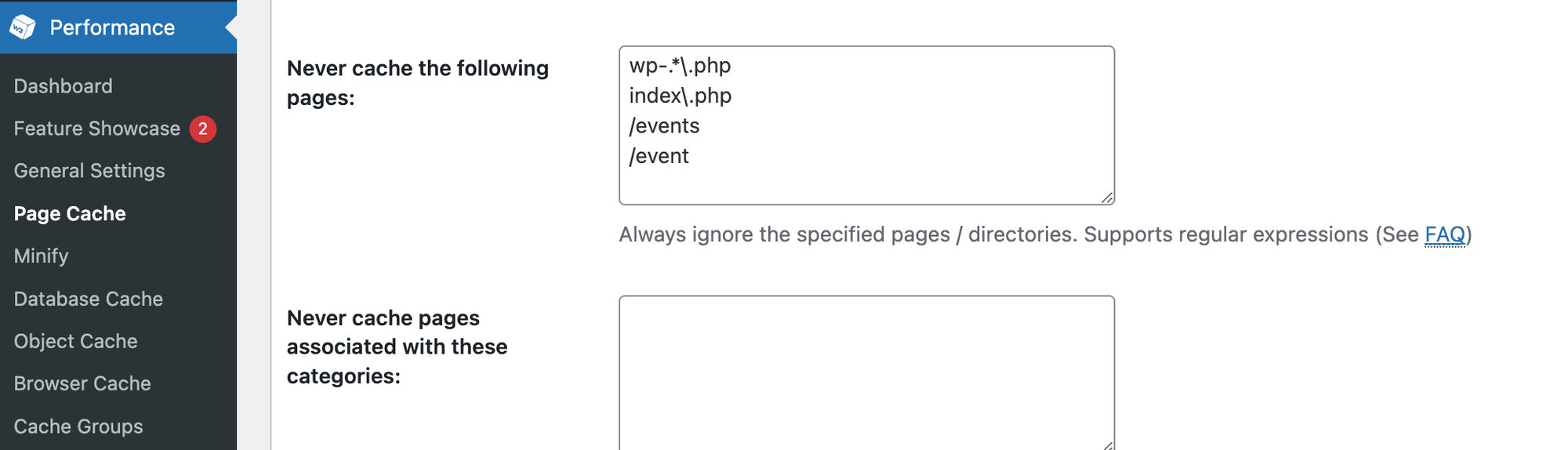
Go to Performance → Minify and find the Advanced option. Use your Events Slug and Single Event Slug for the Never minify the following pages option. Note that you can only use one slug per line. Once your slugs are added, click Save Settings & Purge Caches.
A Note on Minification
There are several minification options within this plugin. We strongly recommend you keep The Events Calendar JS files unminified. You can allow W3 Total Cache to minify Pages and CSS, but check your calendar page carefully afterwards to ensure everything looks correct.
Page Cache Settings
Under Performance → Page Cache, exclude your /event and /events pages from being cached.
Plugin Folders
Use these values in Performance → Minify → Advanced:
| Plugin Name | Assets Folder |
|---|---|
| The Events Calendar | /wp-content/plugins/the-events-calendar/(.*).css/wp-content/plugins/the-events-calendar/(.*).js |
| Events Calendar Pro | /wp-content/plugins/events-calendar-pro/(.*).css/wp-content/plugins/events-calendar-pro/(.*).js |
| Event Tickets | /wp-content/plugins/event-tickets/(.*).css/wp-content/plugins/event-tickets/(.*).js |
| Event Tickets Plus | /wp-content/plugins/event-tickets-plus/(.*).css/wp-content/plugins/event-tickets-plus/(.*).js |
| Filter Bar | /wp-content/plugins/the-events-calendar-filterbar/(.*).css/wp-content/plugins/the-events-calendar-filterbar/(.*).js |
| Eventbrite Tickets | /wp-content/plugins/the-events-calendar-eventbrite-tickets/(.*).css/wp-content/plugins/the-events-calendar-eventbrite-tickets/(.*).js |
Copy-Paste Asset Paths
/wp-content/plugins/the-events-calendar/(.*).css
/wp-content/plugins/events-calendar-pro/(.*).css
/wp-content/plugins/event-tickets/(.*).css
/wp-content/plugins/event-tickets-plus/(.*).css
/wp-content/plugins/the-events-calendar-filterbar/(.*).css
/wp-content/plugins/events-virtual/(.*).css
/wp-content/plugins/the-events-calendar-community-events/(.*).css
/wp-content/plugins/the-events-calendar-community-events-tickets/(.*).css
/wp-content/plugins/the-events-calendar-eventbrite-tickets/(.*).css
/wp-content/plugins/the-events-calendar/(.*).js
/wp-content/plugins/events-calendar-pro/(.*).js
/wp-content/plugins/event-tickets/(.*).js
/wp-content/plugins/event-tickets-plus/(.*).js
/wp-content/plugins/the-events-calendar-filterbar/(.*).js
/wp-content/plugins/events-virtual/(.*).js
/wp-content/plugins/the-events-calendar-community-events/(.*).js
/wp-content/plugins/the-events-calendar-community-events-tickets/(.*).js
/wp-content/plugins/the-events-calendar-eventbrite-tickets/(.*).js
WP Rocket
Current Status: compatible
WP Rocket is one of the easiest caching plugins to use alongside The Events Calendar. It allows you to set up exclusions so that caching operates across your whole site without interfering with the calendar. You simply add the address of the plugin asset folders in WP Rocket’s settings and it handles the rest.
File Optimization
Go to WP Rocket → Settings → File Optimization. Add the plugin asset paths (listed below) to both Excluded CSS Files and Excluded JavaScript Files.
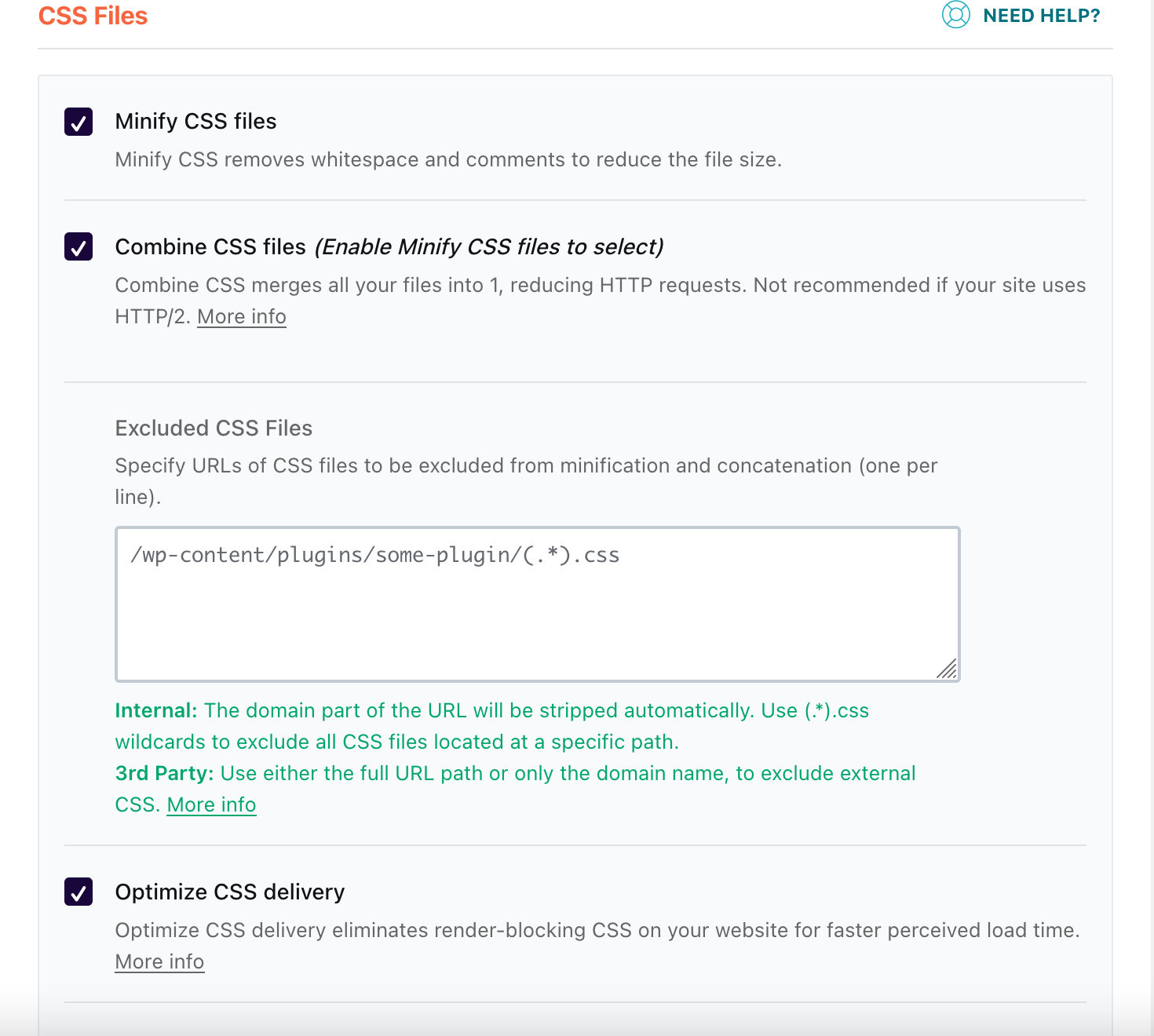
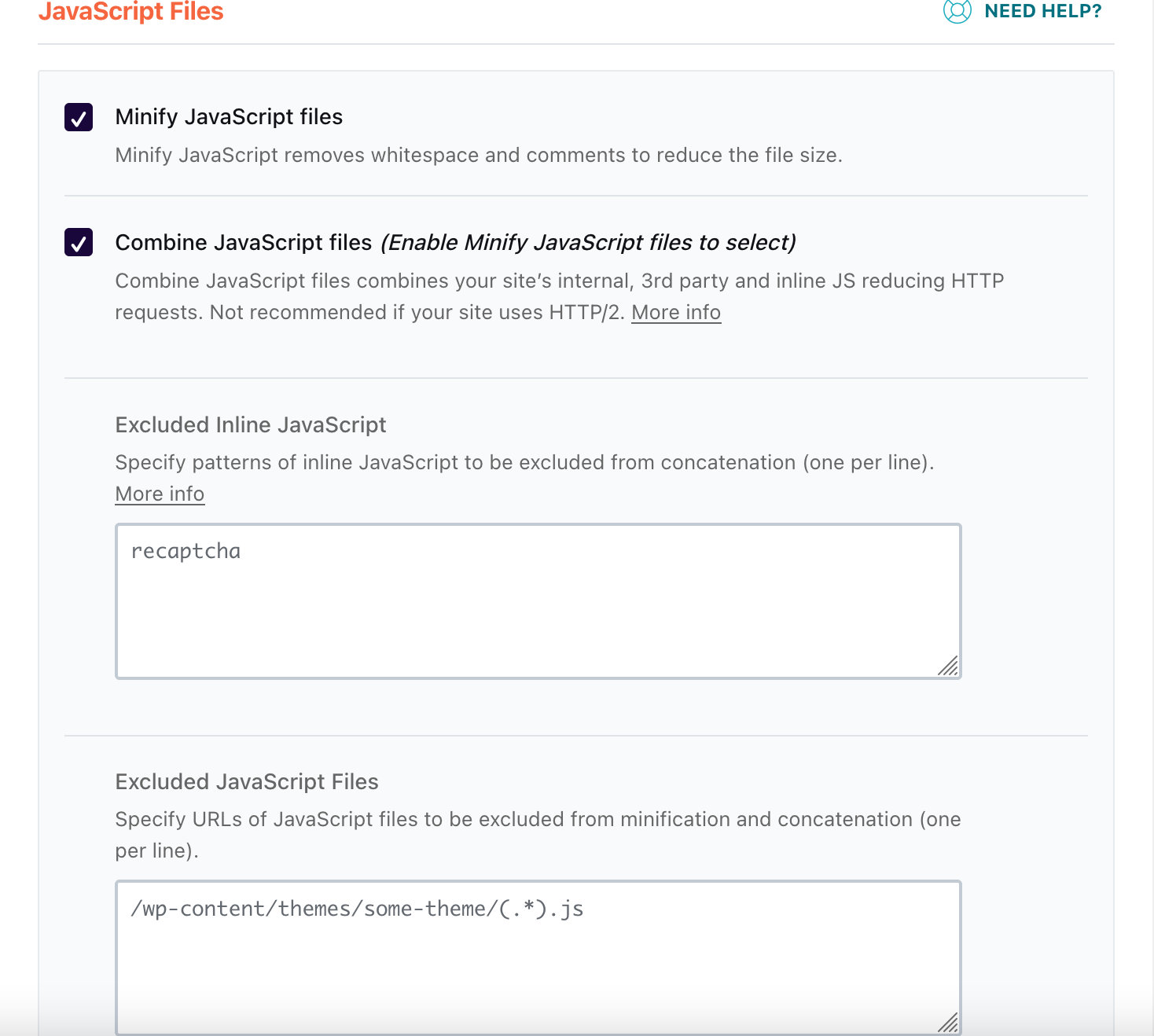
These options prevent WP Rocket from minifying and combining multiple CSS and JavaScript files into one. Our plugins already serve minified assets, and allowing any external source to re-minify them can lead to undesired behaviors on calendar pages.
Plugin Folders
Use these values in both the File Optimization and CDN tabs:
| Plugin Name | Assets Folder |
|---|---|
| The Events Calendar | /wp-content/plugins/the-events-calendar/(.*).css/wp-content/plugins/the-events-calendar/(.*).js |
| Events Calendar Pro | /wp-content/plugins/events-calendar-pro/(.*).css/wp-content/plugins/events-calendar-pro/(.*).js |
| Event Tickets | /wp-content/plugins/event-tickets/(.*).css/wp-content/plugins/event-tickets/(.*).js |
| Event Tickets Plus | /wp-content/plugins/event-tickets-plus/(.*).css/wp-content/plugins/event-tickets-plus/(.*).js |
| Filter Bar | /wp-content/plugins/the-events-calendar-filterbar/(.*).css/wp-content/plugins/the-events-calendar-filterbar/(.*).js |
| Community Events | /wp-content/plugins/the-events-calendar-community-events/(.*).css/wp-content/plugins/the-events-calendar-community-events/(.*).js |
| Eventbrite Tickets | /wp-content/plugins/the-events-calendar-eventbrite-tickets/(.*).css/wp-content/plugins/the-events-calendar-eventbrite-tickets/(.*).js |
Copy-Paste Asset Paths
/wp-content/plugins/the-events-calendar/(.*).css
/wp-content/plugins/events-calendar-pro/(.*).css
/wp-content/plugins/event-tickets/(.*).css
/wp-content/plugins/event-tickets-plus/(.*).css
/wp-content/plugins/the-events-calendar-filterbar/(.*).css
/wp-content/plugins/the-events-calendar-community-events/(.*).css
/wp-content/plugins/the-events-calendar-eventbrite-tickets/(.*).css
/wp-content/plugins/the-events-calendar/(.*).js
/wp-content/plugins/events-calendar-pro/(.*).js
/wp-content/plugins/event-tickets/(.*).js
/wp-content/plugins/event-tickets-plus/(.*).js
/wp-content/plugins/the-events-calendar-filterbar/(.*).js
/wp-content/plugins/the-events-calendar-community-events/(.*).js
/wp-content/plugins/the-events-calendar-eventbrite-tickets/(.*).js
CDN
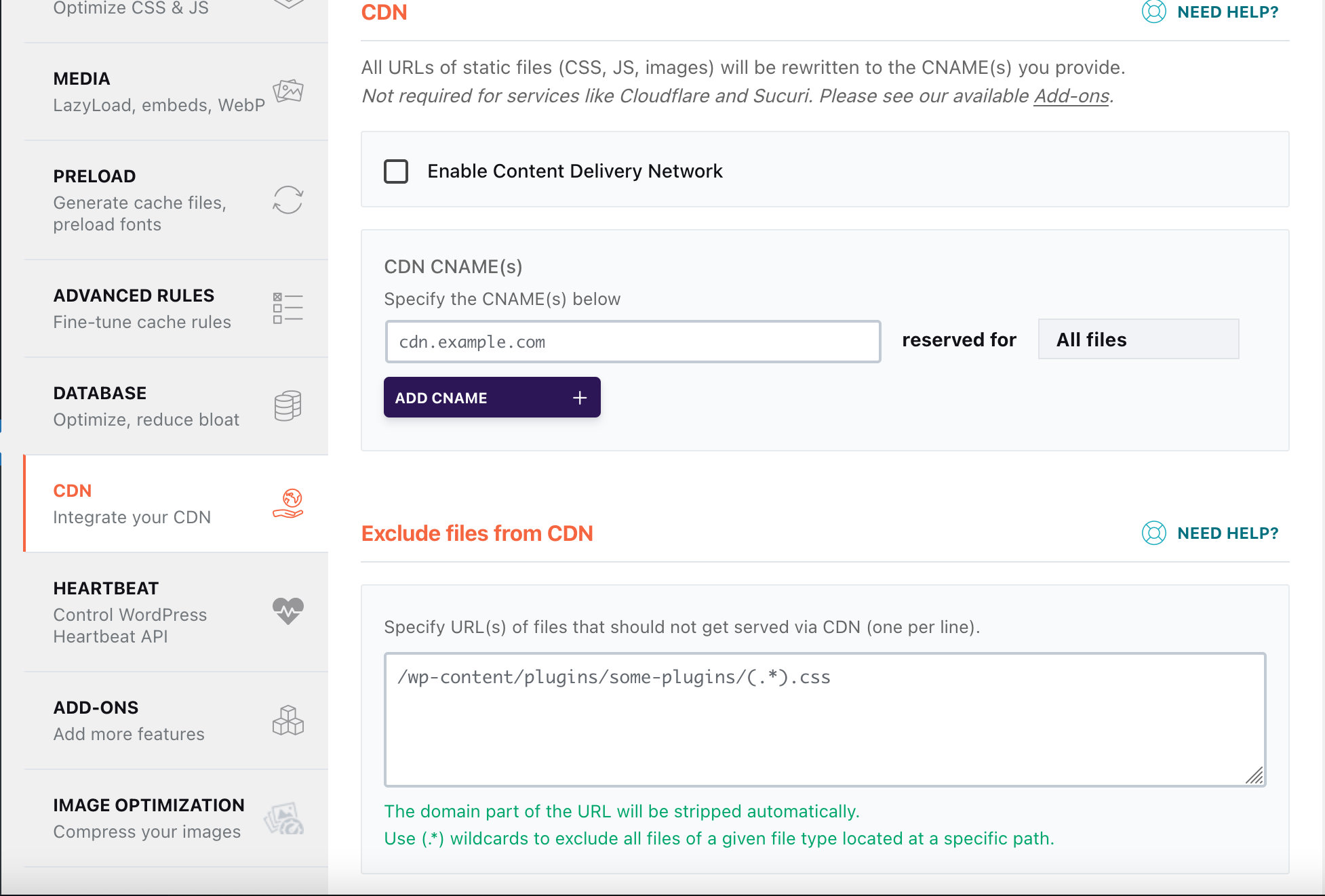
If you are using WP Rocket’s CDN feature, add the same plugin folder paths to Exclude files from CDN. This prevents differences in behavior for logged-in vs. logged-out users.
Advanced Rules
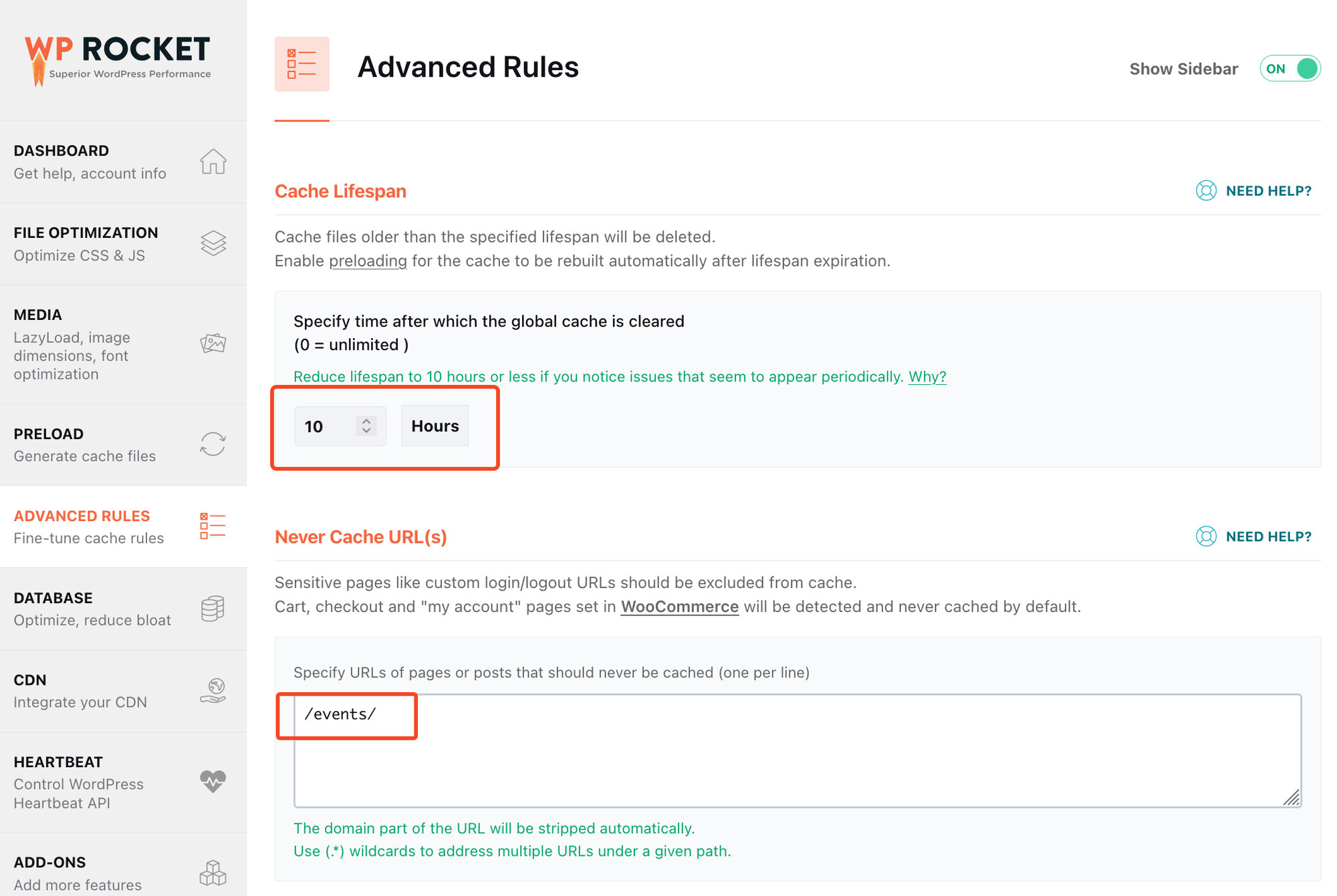
Under WP Rocket → Advanced Rules, set the Cache Lifespan to less than 12 hours. If the cache lifespan exceeds 12 hours, the calendar pagination may stop working as it will eventually request expired WordPress NONCE security keys.
Note: As stated in WP Rocket’s official documentation, the Cache Lifespan feature does not work on hosting platforms where WP Rocket caching is disabled, such as WP Engine, Kinsta, and WordPress.com. On those hosts, you will need to contact your host’s support team instead.
As a final step, ask WP Rocket to never cache the main calendar page. The example below uses the default /events/ slug — if you have changed your slug, use the updated value here. If you use Community Events, consider also adding /community-events/.
WP Super Cache
Current Status: compatible
WP Super Cache is a well-known plugin from the Automattic team focused on improving WordPress site performance. It generates static HTML files from your dynamic WordPress site to serve pages faster.
What You Need
- The Events Calendar
- WP Super Cache
- The slug for your calendar and events (e.g.
/eventsand/event)
👋 Throughout this section, we use /events and /event for the calendar and event single slugs respectively. Yours may differ depending on your plugin settings.
Advanced Settings
Navigate to Settings → WP Super Cache → Advanced. Find the Accepted Filenames & Rejected URIs option.
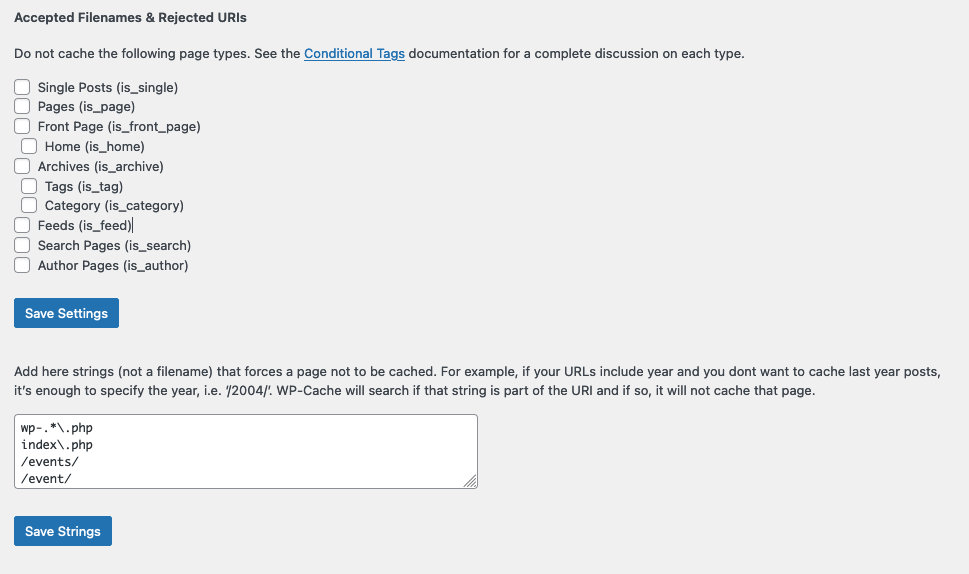
The first part of the page lets you select WordPress conditional tags to dynamically disable caching on matching pages — for example, selecting Single Posts (is_single) disables cache on all posts. This is a convenient way to exclude a set of pages rather than specifying them individually.
Below that is a textarea where you can specify strings that, when matched in a URL, also prevent caching. For example, entering /event/ will exclude all single event pages because they all contain /event/ in the URL. Enter one string per line and save your settings before proceeding.
While in the Advanced settings section, scroll down to Expiry Time & Garbage Collection. Whatever settings are in place there, ensure the cache is refreshed at least every 12 hours.
Contents Settings
After saving Advanced settings, navigate to the Contents tab to purge the cached files so your new settings take effect. Scroll down and click the Delete Expired button. Once that completes, click Delete Cache.
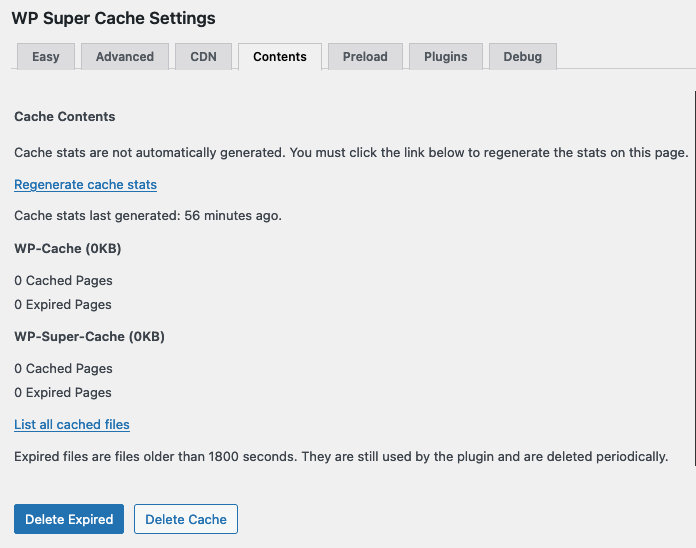
This is everything you need to do to prevent WP Super Cache from conflicting with The Events Calendar.
WP-Optimize
Current Status: compatible
WP-Optimize Cache is a popular all-in-one WordPress performance plugin that caches your site, cleans your database, and compresses images. This article covers the calendar-specific settings.
What You Need
Minify Settings
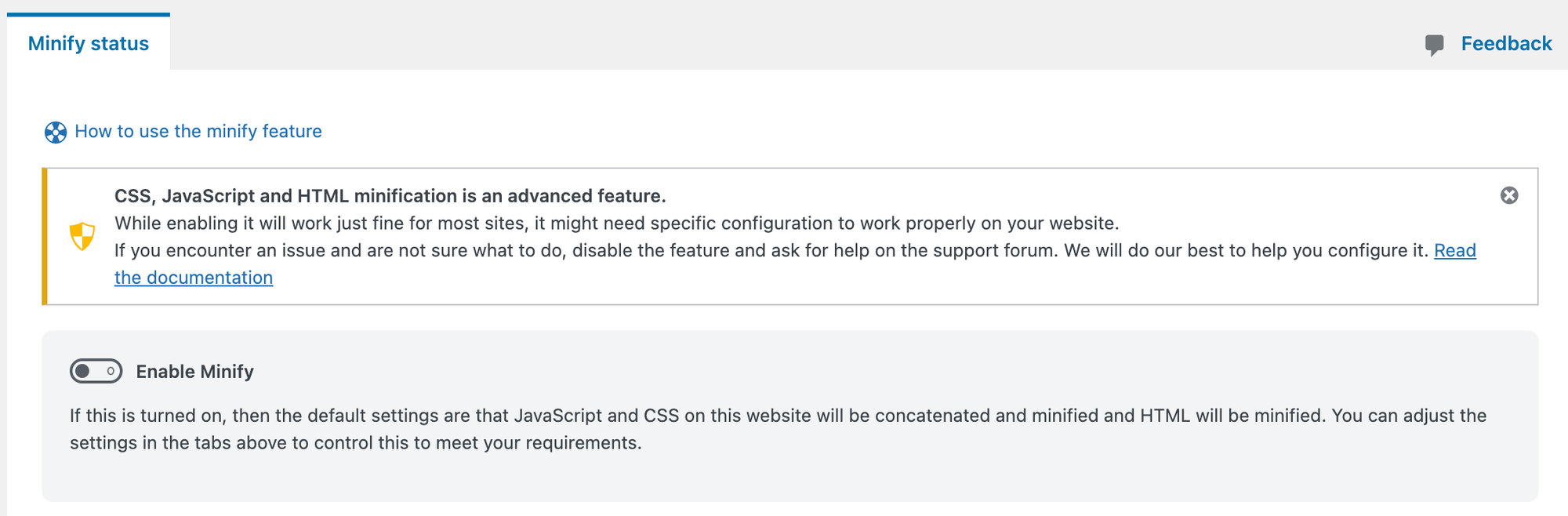
To work properly with The Events Calendar, turn off minification. Go to WP-Optimize → Minify and toggle the Enable Minify button to the off position.
Cache Settings
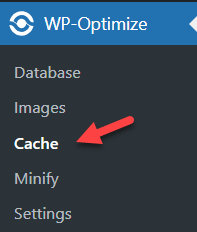
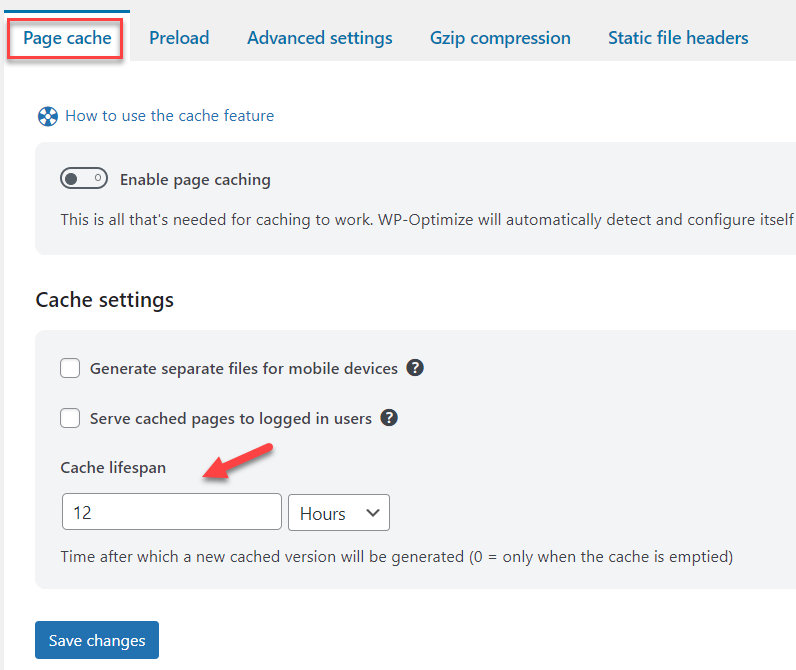
1. Page Cache
Under Cache Settings, set the Cache lifespan to 12 hours.
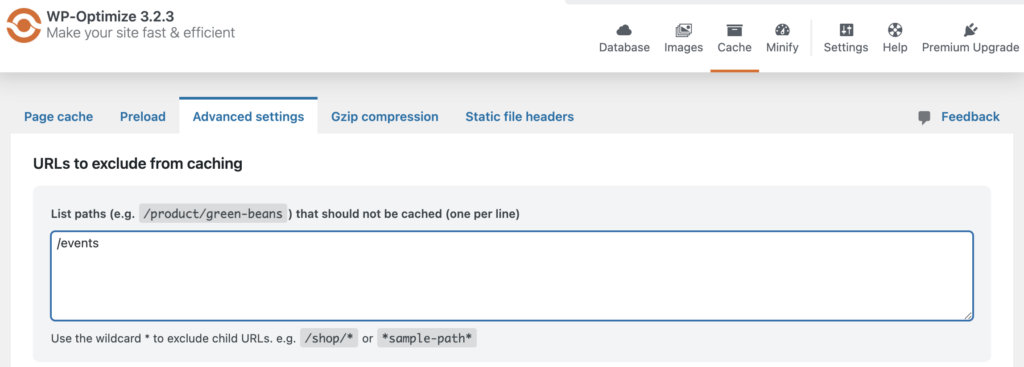
2. Advanced Settings
Under the Advanced settings, exclude your event URLs from being cached.
Plugin Folders
| Plugin Name | Assets Folder |
|---|---|
| The Events Calendar | /wp-content/plugins/the-events-calendar/(.*).css/wp-content/plugins/the-events-calendar/(.*).js |
| Events Calendar Pro | /wp-content/plugins/events-calendar-pro/(.*).css/wp-content/plugins/events-calendar-pro/(.*).js |
| Event Tickets | /wp-content/plugins/event-tickets/(.*).css/wp-content/plugins/event-tickets/(.*).js |
| Event Tickets Plus | /wp-content/plugins/event-tickets-plus/(.*).css/wp-content/plugins/event-tickets-plus/(.*).js |
| Filter Bar | /wp-content/plugins/the-events-calendar-filterbar/(.*).css/wp-content/plugins/the-events-calendar-filterbar/(.*).js |
| Community Events | /wp-content/plugins/the-events-calendar-community-events/(.*).css/wp-content/plugins/the-events-calendar-community-events/(.*).js |
| Eventbrite Tickets | /wp-content/plugins/the-events-calendar-eventbrite-tickets/(.*).css/wp-content/plugins/the-events-calendar-eventbrite-tickets/(.*).js |
Copy-Paste Asset Paths
/wp-content/plugins/the-events-calendar/(.*).css
/wp-content/plugins/events-calendar-pro/(.*).css
/wp-content/plugins/event-tickets/(.*).css
/wp-content/plugins/event-tickets-plus/(.*).css
/wp-content/plugins/the-events-calendar-filterbar/(.*).css
/wp-content/plugins/the-events-calendar-community-events/(.*).css
/wp-content/plugins/the-events-calendar-eventbrite-tickets/(.*).css
/wp-content/plugins/the-events-calendar/(.*).js
/wp-content/plugins/events-calendar-pro/(.*).js
/wp-content/plugins/event-tickets/(.*).js
/wp-content/plugins/event-tickets-plus/(.*).js
/wp-content/plugins/the-events-calendar-filterbar/(.*).js
/wp-content/plugins/the-events-calendar-community-events/(.*).js
/wp-content/plugins/the-events-calendar-eventbrite-tickets/(.*).js
SEO Press
SEO Press is a plugin that helps you optimize the SEO of your WordPress site. When it is active, you may encounter a conflict that prevents Event Category pages from displaying correctly. There is an easy fix.
Fix: Event Category Pages Not Displaying
In the WordPress Dashboard, go to SEO Press → Advanced → Advanced and uncheck Remove /category/ in your permalinks.