
Fixing Misaligned Columns on the WooCommerce Edit Order Screen
Have you noticed that the columns on your WooCommerce order details page are misaligned after installing one of our event plugins? You might see that for regular products (non-tickets), the Price, Quantity, and Total columns have shifted to the left, causing confusion and a messy layout.
This issue typically occurs because our plugins add a new “Event” column to the order items table in the WordPress admin area. For event tickets, this column is correctly populated. However, for standard WooCommerce products, the column is empty, which can cause the browser to render the table incorrectly and shift the subsequent columns to the left.
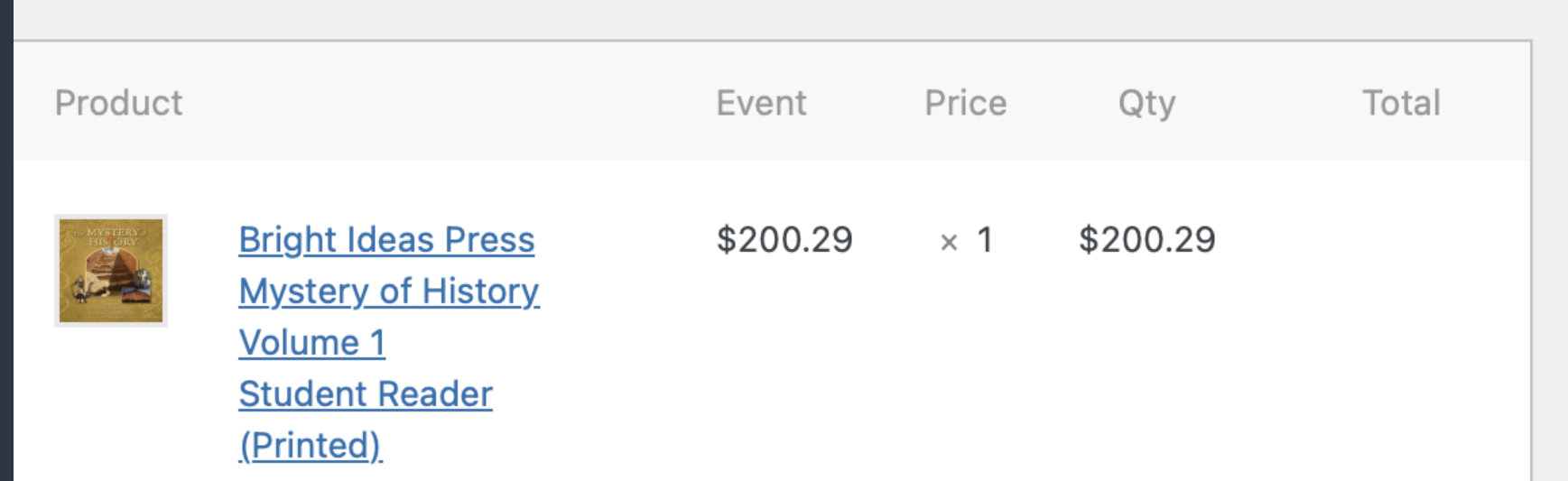
The result is that product details are displayed under the wrong headings:
- The Price appears in the Event column.
- The Quantity appears in the Price column.
- The Total column is left empty.
Fortunately, there is a straightforward fix for this alignment issue.
The Solution
We’ve prepared a code snippet that resolves this visual glitch. This code checks each line item on the WooCommerce order screen. If it finds a standard product that is missing the “Event” data cell, it dynamically inserts an empty cell. This simple addition ensures that all subsequent columns (Price, Quantity, Total) are pushed back into their correct positions, restoring the table’s proper alignment.
You can add the following code to your site to fix the issue:
// Fix WooCommerce admin order items table when Event column is present but empty.
add_action('admin_enqueue_scripts', function ($hook) {
if ($hook !== 'post.php' && $hook !== 'post-new.php') return;
$screen = get_current_screen();
if (!$screen || $screen->post_type !== 'shop_order') return;
// Run after jQuery
wp_add_inline_script('jquery-core', <<<JS
jQuery(function($){
// Only act if the Event header exists
if (!$('.woocommerce_order_items thead th.item_event').length) return;
// For each line item row, if there's no td.item_event, insert an empty one before Price
$('#order_line_items tr.item').each(function(){
var \$row = $(this);
if (!\$row.find('td.item_event').length) {
$('<td class="item_event" width="1%"><div class="view"> </div></td>')
.insertBefore(\$row.find('td.item_cost').first());
}
});
});
JS
);
});
How to Implement the Snippet
To implement this fix, you’ll need to add the code snippet to your site. We strongly recommend using one of the safe methods described in our complete guide: Best Practices for Implementing Custom Code Snippets.
The two most common methods are:
- Adding the code to your child theme’s
functions.phpfile. - Using a dedicated code snippets plugin, which allows you to add snippets without modifying theme files.
Once the snippet is added and activated, the columns on your WooCommerce order screen will be properly aligned for all products, whether they are events or standard store items.