
This article covers the most common issues with Event Tickets and RSVPs not displaying or behaving as expected, as well as explanations for specific error messages and notices you may encounter in the WordPress dashboard or on the front end.
For issues around the emailed tickets, see Troubleshooting Ticket Emails Issues
Tickets or RSVP Fields Not Showing on the Front End
If ticket or RSVP fields are absent from an event page, work through the following checks in order.
Ticket Not Attached to the Event
Tickets must be created and published under the specific event they belong to. Go to Events → Edit Event and scroll to the Tickets or RSVP section. Confirm that at least one ticket is listed and published there.
Ticket Was Created with a Different Commerce Engine
Tickets are tied to the commerce engine that was active when they were created. If you switch between Tickets Commerce and WooCommerce, tickets created under the original engine will no longer appear on the front end.
The fix is to recreate the tickets using the currently active commerce engine. For guidance, see Switching from Tickets Commerce to WooCommerce or Switching from WooCommerce to Tickets Commerce.
Event Date Is in the Past
Once an event date has passed, ticket fields are automatically hidden from the front end. Update the event’s start date to a future date and confirm whether the ticket fields reappear.
Ticket Sale End Date Has Passed
Separately from the event date, each ticket has its own sale window. If the ticket’s Sale End Date is set to a past date or time, the ticket form will not display even if the event itself is upcoming. Edit the ticket and extend the sale end date.
Capacity Set to Zero
If a ticket’s capacity is set to zero, the ticket form is hidden from the front end. Check the Capacity value in the ticket settings and confirm it is greater than zero.
Tickets Block Not Added (Block Editor)
When using the WordPress Block Editor, the RSVP or Tickets block must be explicitly inserted into the event’s content for the form to appear. Edit the event and confirm the relevant block is present in the editor.
Theme Conflict or Template Override
Some themes override Event Tickets templates, which can prevent the ticket form from rendering. To test this, temporarily switch to a default WordPress theme such as Twenty Twenty-Four and reload the event page. If the ticket fields appear, your theme is the cause. Check for custom template overrides in /yourtheme/tribe-events/ and update or remove any files that conflict.
JavaScript or CSS Conflict
A conflict with another plugin’s scripts or styles can prevent the ticket form from rendering. Open your browser’s developer tools, check the Console tab for JavaScript errors, then perform a conflict test by deactivating other plugins one at a time. Clear all caches — including plugin caches and browser caches — between each test.
Plugin Files Missing or Outdated
If Event Tickets or its add-ons are missing files or are running an outdated version, key functionality can break silently. Go to Plugins and confirm that The Events Calendar, Event Tickets, and Event Tickets Plus (if applicable) are all installed, activated, and updated to the latest versions. Reinstall any plugin that appears to have incomplete files.
WooCommerce Misconfiguration
If you are using Event Tickets Plus with WooCommerce and tickets are not appearing, check the following: WooCommerce must be installed and active; the ticket product must be published (not in draft status); and no WooCommerce visibility or catalog settings should be hiding the product on the front end.
“There are 0 other tickets in your cart that do not require attendee information”
After selecting a ticket quantity, some users see the following message in the registration modal instead of the attendee registration fields:
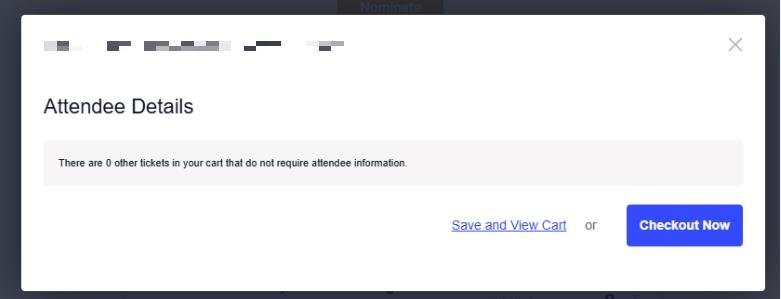
This happens when the Enable Updated Tickets Experience option is disabled. To fix it, go to Tickets → Settings → General and enable that option.
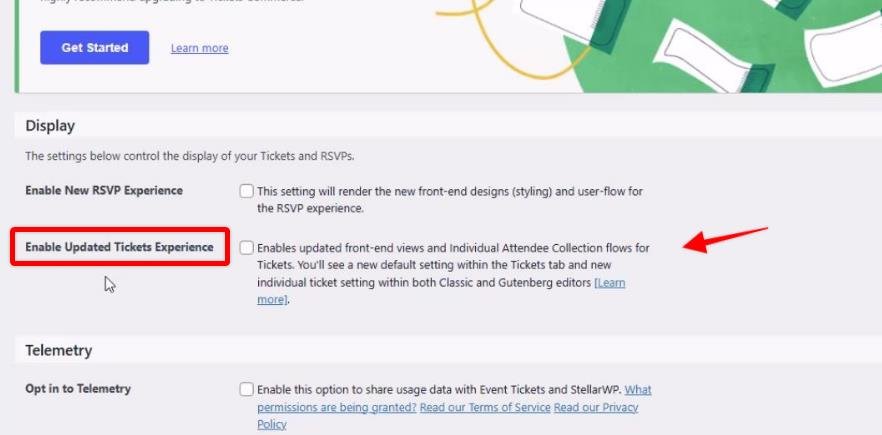
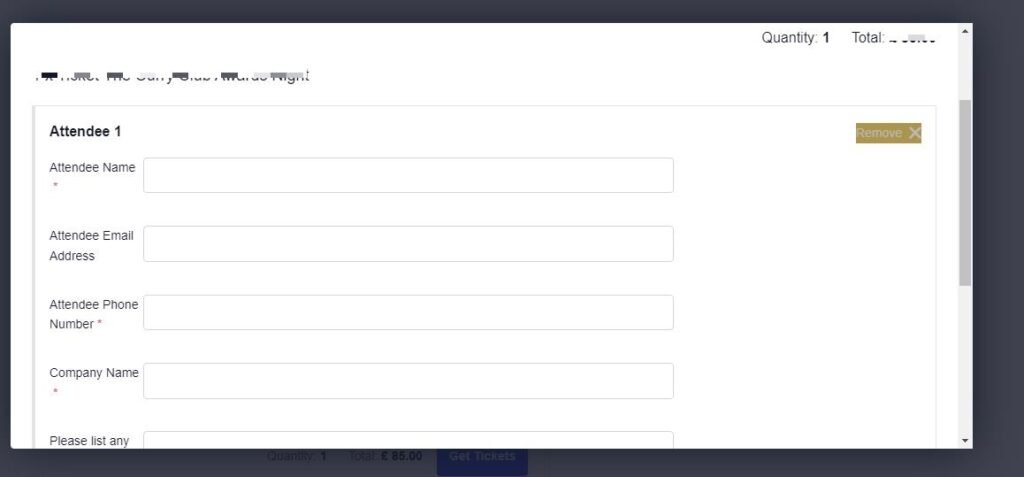
Once enabled, the attendee registration fields will display as expected in the modal.
Ticket Shows “Unlimited” Capacity When It Is Actually Limited
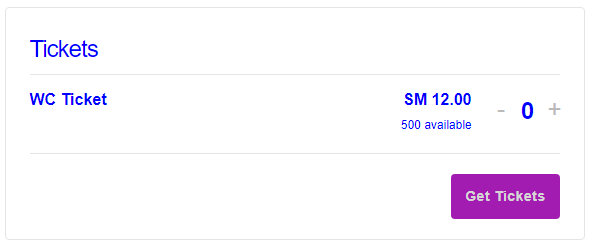
When selling tickets through WooCommerce, you may find that the front-end ticket display shows unlimited capacity even though a specific stock limit has been set in the ticket editor.
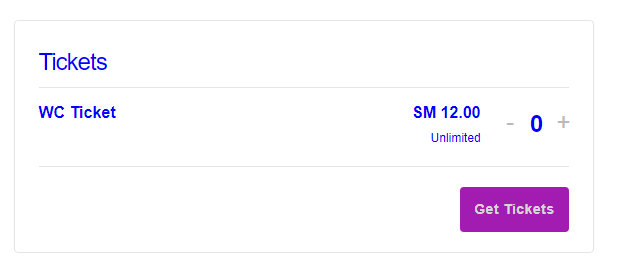
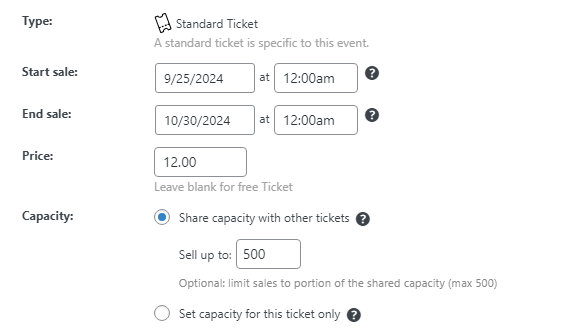
This happens because WooCommerce’s Stock management option is disabled. When stock management is off, WooCommerce doesn’t track or enforce inventory limits, so the ticket reports as unlimited regardless of what is set in the ticket editor.
To fix it, go to WooCommerce → Settings → Products → Inventory and enable Manage stock.
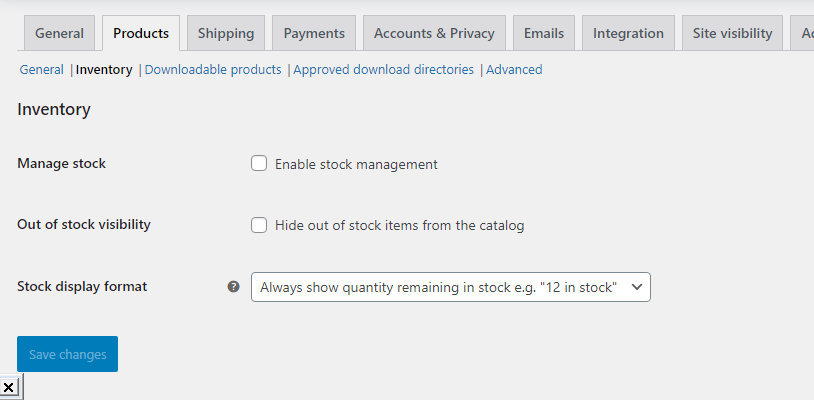
Once stock management is enabled, the correct limited capacity will be shown on the front end.
“Event Tickets does not support ticket sales via third party e-commerce plugins”
If you see the following notice in your WordPress dashboard after activating both Event Tickets and WooCommerce:

This is not an error — it’s an informational notice explaining that the free Event Tickets plugin cannot use WooCommerce (or other third-party e-commerce plugins) as a payment platform. It appears any time Event Tickets and WooCommerce are both active without Event Tickets Plus.
To understand what your options are: Event Tickets includes Tickets Commerce, a lightweight built-in payment system that supports PayPal and Stripe. If you want to use WooCommerce instead — which offers a wider range of payment gateways and more control over order and attendee management — you need Event Tickets Plus.
Event Tickets Plus also adds the ability to collect attendee information and share stock between tickets on the same event.
If you’d like to move from Tickets Commerce to WooCommerce, see Switching from Tickets Commerce to WooCommerce.