
Our plugins provide a handy feature that enables you and your users to subscribe to the calendar with popular services, keeping everyone informed about all your upcoming events. Since these services each have their own default behavior, there are a few things to keep in mind to better understand what to expect.
Understanding the Default Behavior
Before troubleshooting or adjusting settings, it’s important to clarify how the different options within the Subscribe button function by default. Each option follows a specific protocol that determines how the calendar feed is handled by your browser and applications.
Export .ics file uses the https protocol to download a static .ics file. You can manually import it into your calendar, but it won’t update automatically—any changes made after downloading won’t sync.
https://demo.theeventscalendar.com/events/list/?ical=1
iCalendar uses the webcal protocol, which informs the browser to hand it over to the application that handles webcal files.
webcal://demo.theeventscalendar.com/?post_type=tribe_events&ical=1&eventDisplay=list
Google Calendar and Outlook Calendar also support the webcal protocol, recognizing it as a calendar feed. They automatically fetch updates from the URL at regular intervals.
Past Events
By default, the “Subscribe to Calendar” feature only syncs current and future events from your site.
A common misconception is that The Events Calendar actively pushes events to external calendars like Google Calendar or Outlook. However, that’s not how it works. Instead, external calendars pull events from your site at regular intervals using the subscription URL provided.
Including past events in this sync could mean external calendars attempting to fetch large amounts of data, which may lead to sync failures or performance issues. To keep things running smoothly, only current and upcoming events are included by default.
If you need past events in your calendar sync, you might want to explore the Advanced iCal Export v2 extension—just keep in mind that doing so comes with some potential risks.
Link Not Opening in the Expected Program/Service
Our plugin cannot control which program opens a specific file or link on a user’s device — This behavior depends on the device, program, and individual settings. If users are relying on default apps to open those links, they typically shouldn’t encounter any issues. Here’s how you can ensure the correct program is used.
Windows
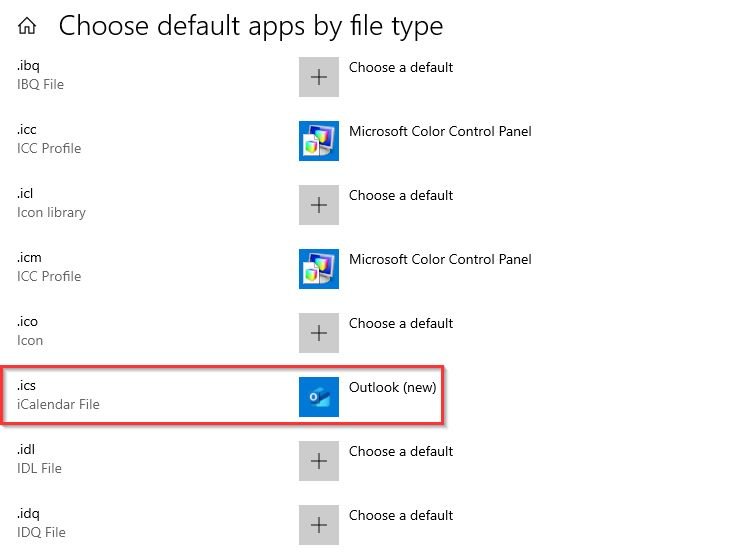
1 – Go to Windows Settings > Apps > Default Apps
2 – Scroll down to the bottom and click on Choose Default Apps by File Type
3 – Scroll down until you see .ics, You will see a list of apps available to handle these files, such as the Outlook app. Set the app of your liking as your default app.
MAC / iOS
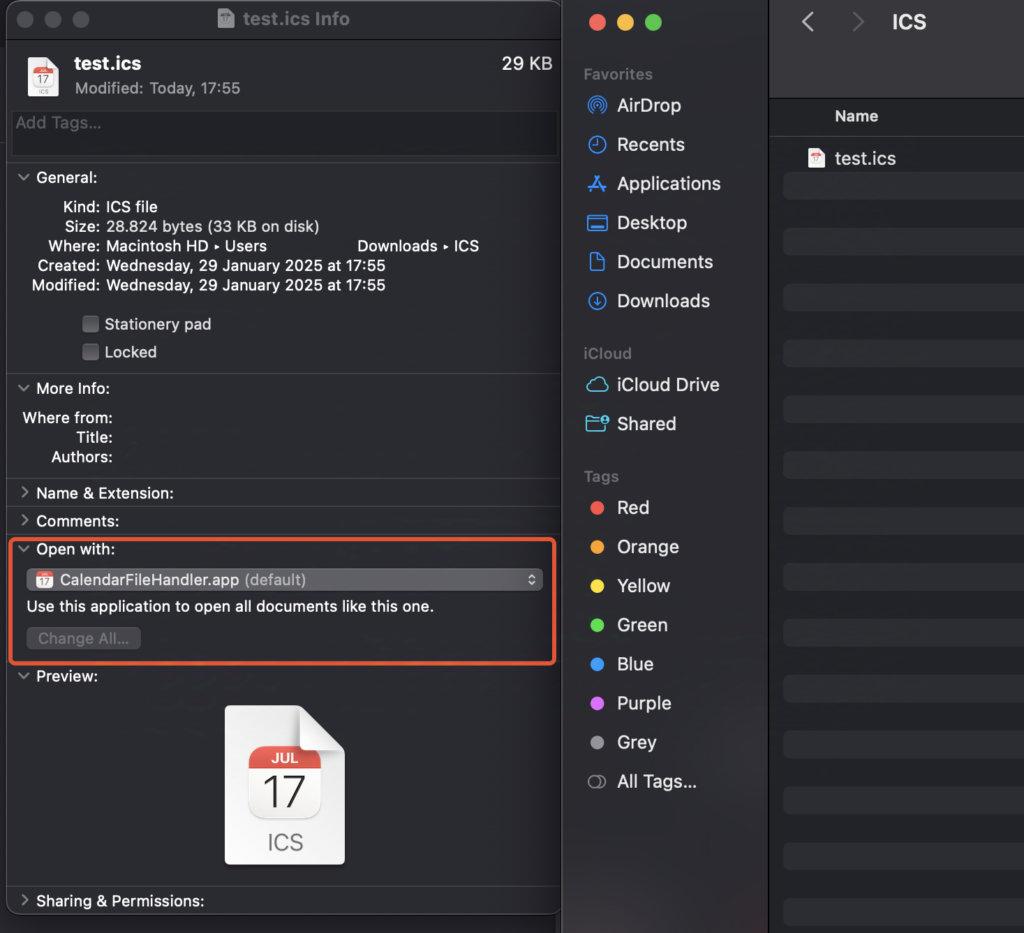
1 – Find or download an .ics file and select that file
2 – Go to the top left corner and click on File > Get Info
3 – Click on Open with, choose the app, and click on Change All
Calendar Subscription Isn’t Updating Immediately
If you’ve made changes to an event and want to see them reflected in your calendar subscription, you might expect the update to appear right away. However, after noticing the changes haven’t taken effect, you delete the calendar and resubscribe—only to find that the old event details are still showing.
In general, this delay happens because of the feed being cached. For example, for Google Calendar, the calendar feed should refresh within 24 hours, at which point the updates will appear. Even if you remove the subscription and add it again, Google continues to use its stored data rather than fetching the latest version immediately.
Calendar Stops Loading Events After Six Months
Some platforms have restrictions on displaying future events. For instance, both Outlook and Google Calendar impose limitations when subscribing to an iCalendar feed, typically syncing events only up to 6 months ahead. This restriction helps reduce data load and ensures efficient syncing. Unfortunately, this is not something we can change on our end.
Over time, new events will continue to load and update your calendar, ensuring you always have a rolling 6-month view of events.
Events Not Showing Up in Google or Outlook
If you have subscribed to your calendar feed with Google Calendar or Outlook, but the events still don’t show up after a day, then probably something is blocking the request coming from Google and Outlook.
Membership Plugin or Login Gate
If you run a membership site or require login from your visitors to be able to see the content of your site, that could also block the calendar subscriptions, since Google or Outlook are not able to provide login details to your site.
To circumvent the blocking of the calendar feed, make sure to put it on a whitelist to allow access to it.
Firewall
A firewall acts as a security barrier that monitors and filters incoming and outgoing network traffic to protect systems/ websites from unauthorized access and cyber threats.
It can happen, that because of a setting, the firewall inadvertently blocks requests for the calendar feed. Disabling the firewall is a quick first step to find out whether that’s the case. (Remember, there are some services, who use a cache. See Why Your Calendar Subscription Isn’t Updating Immediately above.)
Once it’s confirmed that the firewall is blocking the requests, tweaking its settings and whitelist can help with the fine-tuning.
CloudFlare
CloudFlare uses different security measures to protect your site from potential threats. Some of the measures or settings can have an effect on the accessibility of the calendar feed, for example blocking some user agents and bot.
To find out, whether CloudFlare is responsible for the blocking, turn it off and re-test subscribing to the calendar. Again, take the caching aspect of some services into account.
Server Settings
This is somewhat similar to CloudFlare. The request for the feed can be blocked or redirected based on some request parameters. The server logs can be helpful in finding out what is happening, and your hosting provider should be able to help you with this.
Here are some request URLs that can be tested. (Replace domain.com with the URL of your site.)
https://domain.com/?post_type=tribe_events&ical=1&eventDisplay=list
This URL provides a downloadable .ics file with the next 30 events on the site.https://icalendar.org/validator.html?url=https://domain.com/?post_type=tribe_events&ical=1&eventDisplay=list
Visiting this URL will run an iCalendar validator with the feed of your calendar.
Redirect Bots
This setting is designed to intercept well-known crawler bots. When the Google Calendar Importer (specifically the `Google-Calendar-Importer` User Agent) attempts to fetch your calendar feed, this feature may intercept the request and force a 301 Moved Permanently redirect to your homepage. Because of this redirect, Google Calendar is never able to reach the actual `.ics` file to fetch the events. Once disabled, Google Calendar should be able to reach your feed successfully.
Event Times are Wrong
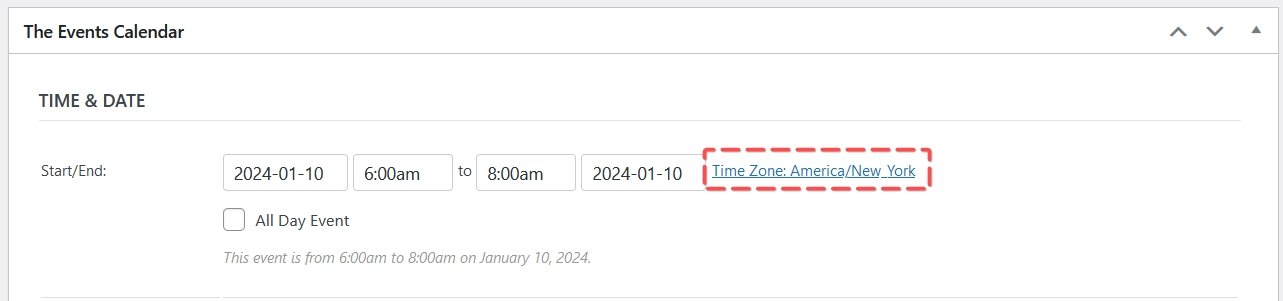
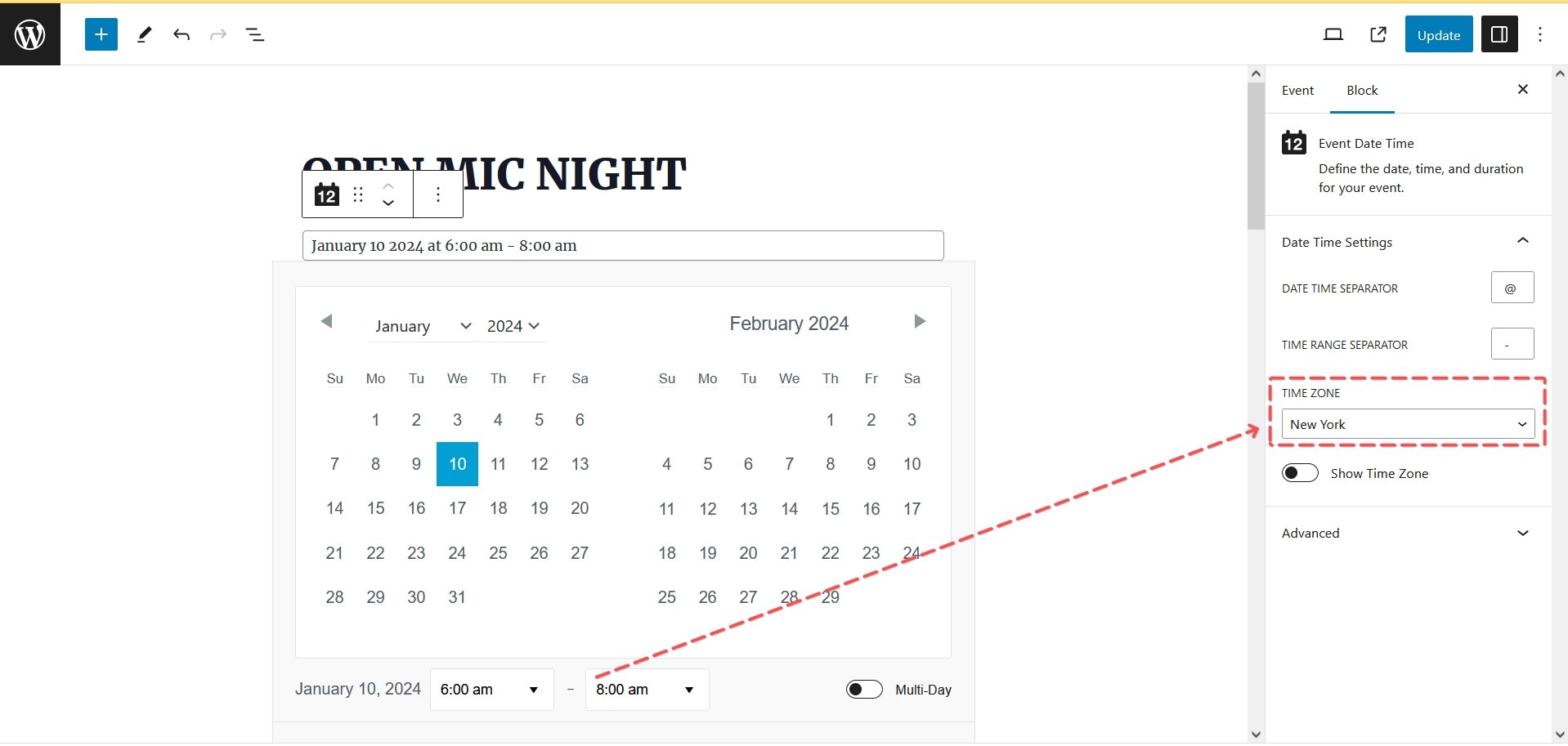
When you experience incorrect event times when you subscribe to the calendar, there are two things you should check: the default PHP time zone of the site and the time zone of the event(s).
The default PHP time zone is a server setting that can be adjusted in several places. For event times and event time calculations to work correctly, this needs to be set to UTC. If this is set to anything else, you might experience weird behavior with event times.
You can check the status of this setting in your system information under Events → Troubleshooting.
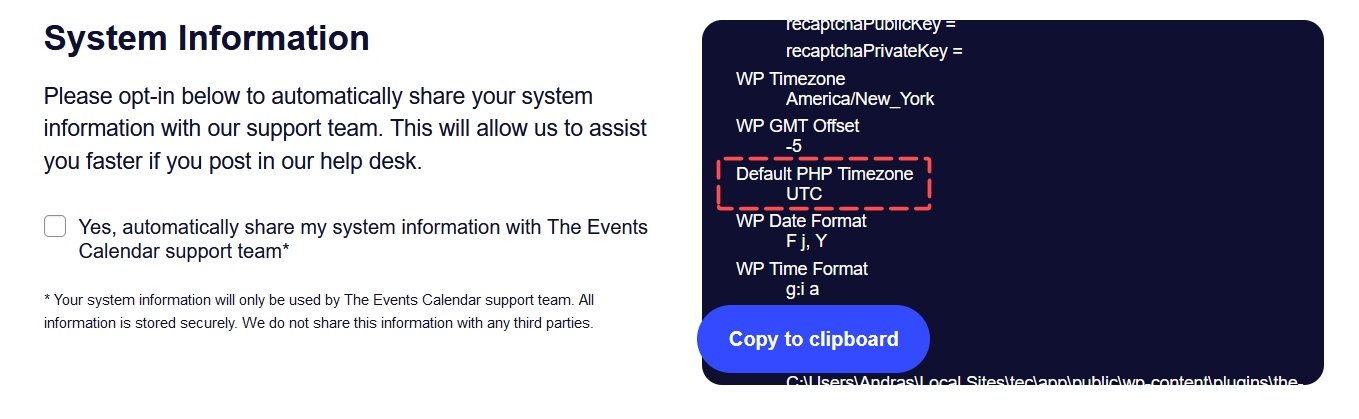
If the Default PHP Time Zone is set to something else than UTC , then reach out to your hosting provider to help you change it.
Next, double-check that the event times and time zones are set up correctly.
Cannot Subscribe with Google Calendar on Android
The reason is very similar to what is outlined in the Link Not Opening in the Expected Program/Service section above.
When opening a link on an Android device that points to Google Calendar, the device will immediately open the Google Calendar app. Unfortunately, due to the limitation of the app itself, it’s not possible to add or subscribe to other calendars within the app.
Handling Redirect Issues
If you see ?tribe_redirected=1 in your calendar or subscription URLs, the most common solution is to enable List view in your calendar settings.
The ?tribe_redirected=1 parameter usually appears when the calendar tries to load a view that has been disabled. A frequent case is when List view is turned off.
- Log in to your WordPress dashboard.
- Go to Events → Settings → Display.
- Under Enable event views, check List view.
- Click Save Changes.
- Re-test your calendar or subscription link.
If the issue persists
- Clear your site and browser cache.
- Test the link in another browser.
- Contact support with the exact URL you’re using so we can take a closer look.