
When using The Events Calendar, you’ll inevitably accrue several past events. Depending on the needs of your website, you may decide to display these past events for your users to see.
The Events Calendar is set up to focus on current and upcoming events, and by default this is what the main calendar page will show, but the good news is that with a bit of thought, you’ll be able to display your past events for your users. (A note: the month view of our main calendar, by default, displays past events when it displays all events in the current month.)
There are a few different ways to do this, and we’ll show you how along with some other essential things to know about using past events with The Events Calendar.
Display your past events
You can find your past events on your site at https://yoursite.com/events/list/?eventDisplay=past
If you’d like to display your past events on your site, you can add a menu item in WordPress and link your site visitors to your past events directly.
If you have Events Calendar Pro, you can use the [tribe_events] shortcode to display your past events using a past date.
Please Note: the past events parameter for shortcodes is only available for Month view, as that article mentions as well.
You can also show past events in reverse order using the snippet provided in this Knowledgebase article.
Importing past events
If you’d like to import past events using our Event Aggregator service, by default, these events won’t import. However, if you specify a date parameter, you will be able to get all of your past events imported onto your WordPress site alongside your other events.
Learn more about importing your events in this Knowledgebase article.
Hiding Past Events
By default, when there are no upcoming events, The Events Calendar displays a “Recent Past Events” view to prevent an empty calendar. This feature showcases the most recent past events to keep your calendar populated.
If you wish to hide past events, you can use one of the methods below:
The Events Calendar Tweaks Extension
The Events Calendar Tweaks extension offers settings to manage past events:
- Disable “Recent Past Events”: Prevents the display of recent past events when no upcoming events are available.
- Hide Past Events in Month View: Removes events from past days in the Month view. Note that this only affects the current month.
After installing the extension, navigate to Events > Settings > Tweaks to configure these options.
Remove Past Events Extension
To automatically trash past events after a certain period, install the Remove Past Events Extension. This extension adds more frequency options for automatically moving past events to the trash. Go to Events > Settings > General > Maintenance and select the desired time frame (e.g., 15 minutes, 1 day, 1 week) for removing past events.
This method helps keep your calendar clean by removing outdated events automatically.
Showing “Sold Out” for Past Events
By default, the ‘Sold out!’ message is not shown for past events. This snippet brings it back.
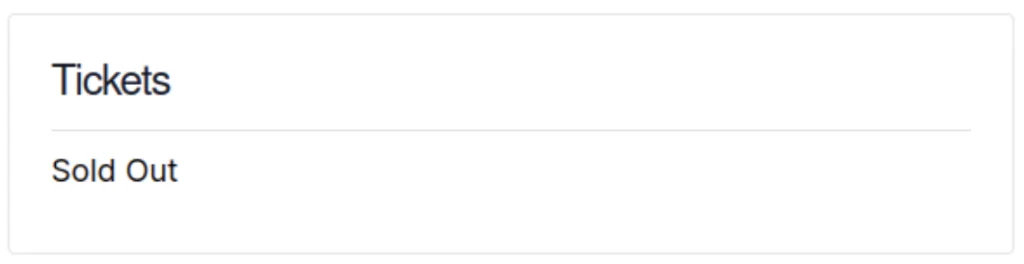
Add this snippet to your child theme’s functions.php file or via a Code snippets plugin.
/**
 * Change the Get Tickets on List View and Single Events
 *
 * @param string $translation The translated text.
 * @param string $text      The text to translate.
 * @param string $domain    The domain slug of the translated text.
 *
 * @return string The translated text or the custom text.
 */

add_filter( 'gettext', 'tribe_change_get_tickets', 20, 4 );
function tribe_change_get_tickets( $translation, $text, $domain) {
  if ( $domain != 'default'
    && strpos( $domain, 'event-' ) !== 0
  ) {
    return $translation;
  }

  $ticket_text = [
    // Get Tickets on List View
    '%s are no longer available'    => 'Sold Out',
  ];

  // If we don't have replacement text, bail.
  if ( empty( $ticket_text[ $text ] ) ) {
    return $translation;
  }

  return $ticket_text[ $text ];
}
Notes
- Originally written in November 2018
- Tested with Event Tickets 4.8.4
- Author: András Guseo
Disclaimer
As with all of our recipes, please note that we share this in the hope it will be useful, but without any guarantees or commitments. If you wish to use it, it is your responsibility to test it first of all and adapt it to your needs (or find someone who can do so on your behalf). We are unable to provide further support in relation to this recipe.