Here’s the situation: your site language is set to some non-English language, say French. You download and install The Events Calendar and see that there are some missing translations in the French translation files.
As a fluent French speaker, you know exactly what needs to be updated. The problem is that you’re not sure which files to update and are afraid of losing your work the next time the plugin updates.
That’s where Loco Translate comes into play. It’s a free WordPress plugin that makes editing translation files a lot easier by allowing you to both edit the files directly in the WordPress admin and preserve your edits should something happen.
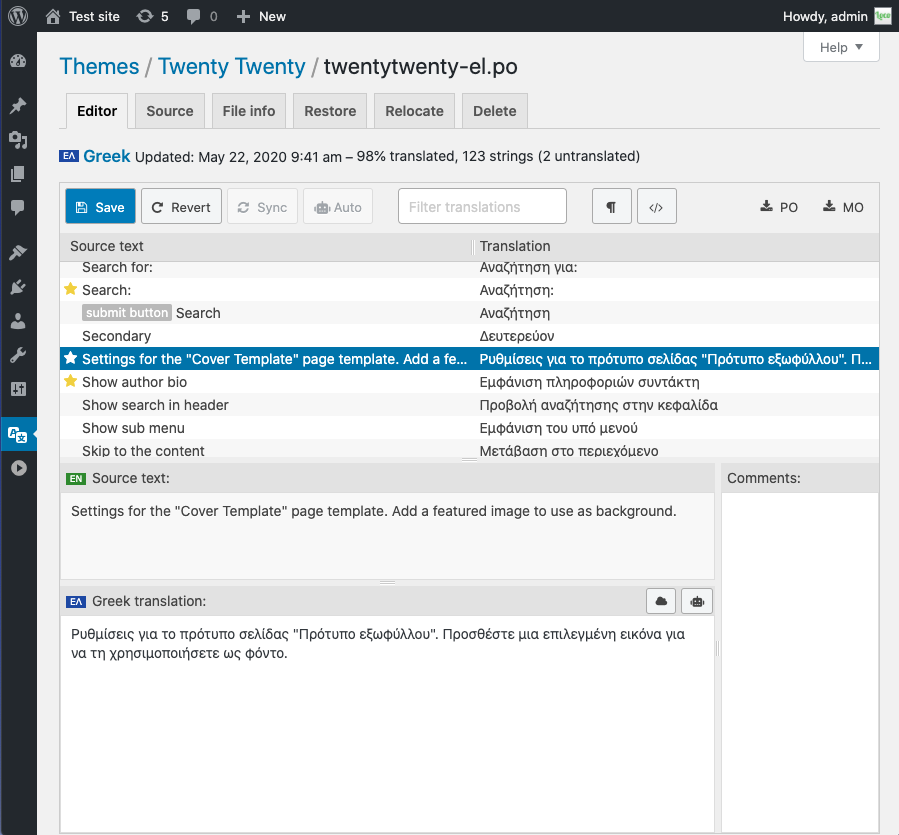
The cool thing about Loco Translate is that it works with translations for themes, plugins, and even WordPress itself.
Here’s how to get started with Loco Translate. Go ahead and install it if you haven’t already, and we’ll walk you through some key features to help you manage and troubleshoot language translations for your WordPress site.
Locating Translations
Assuming that Loco Translate is installed and active, here’s how to get to the translations for The Events Calendar.
If Loco Translate is installed, there will be an item for it in the WordPress admin menu.
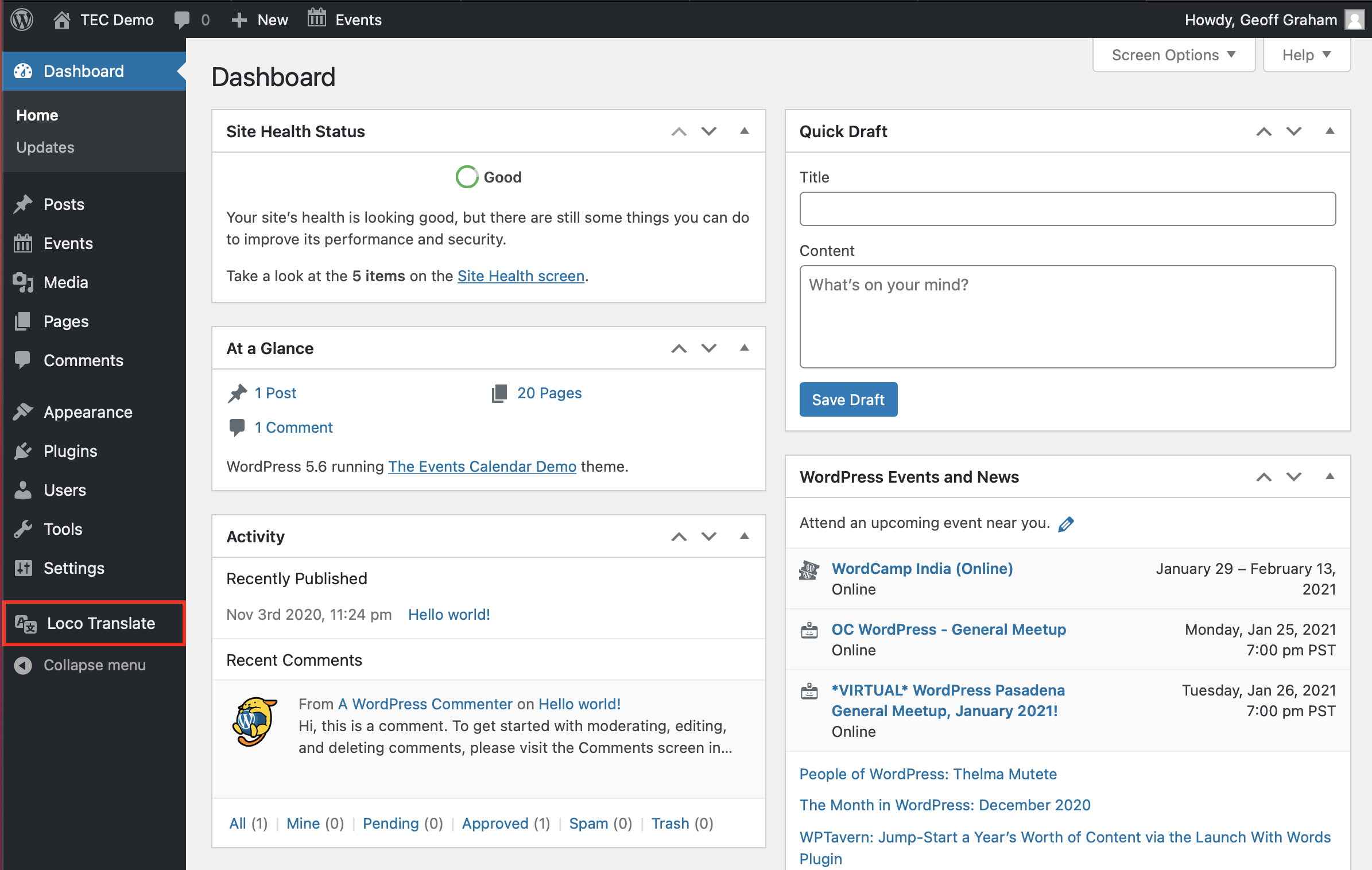
Click that to get to the main plugin screen.
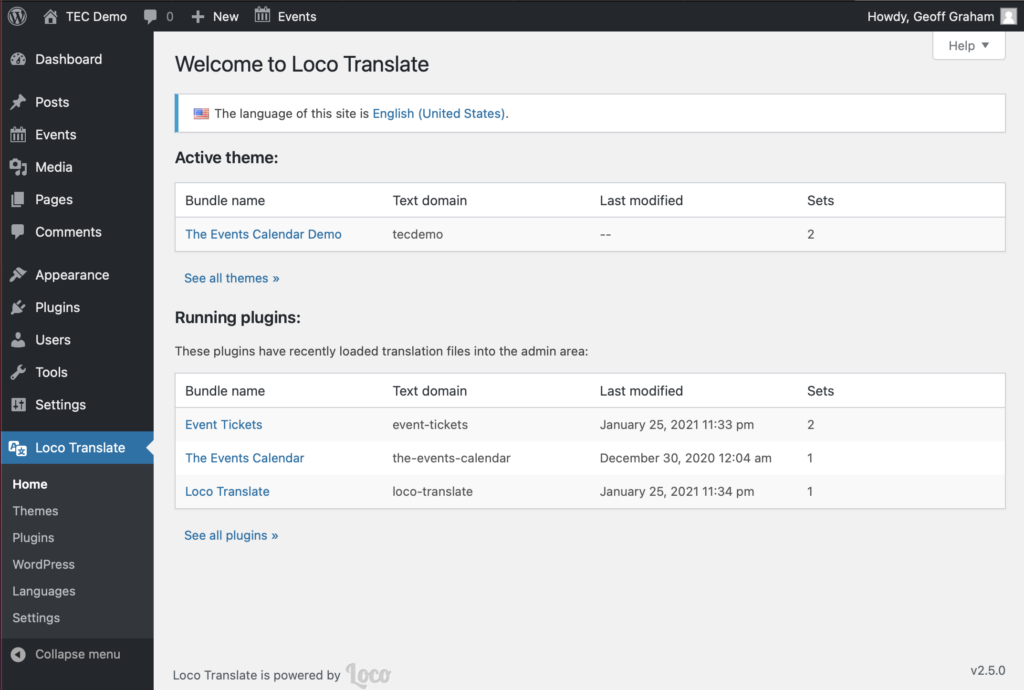
In many cases, you find what you want to edit from right here. But, if not, you can always use the options in the WordPress admin menu to search specifically by themes, plugins, and WordPress.
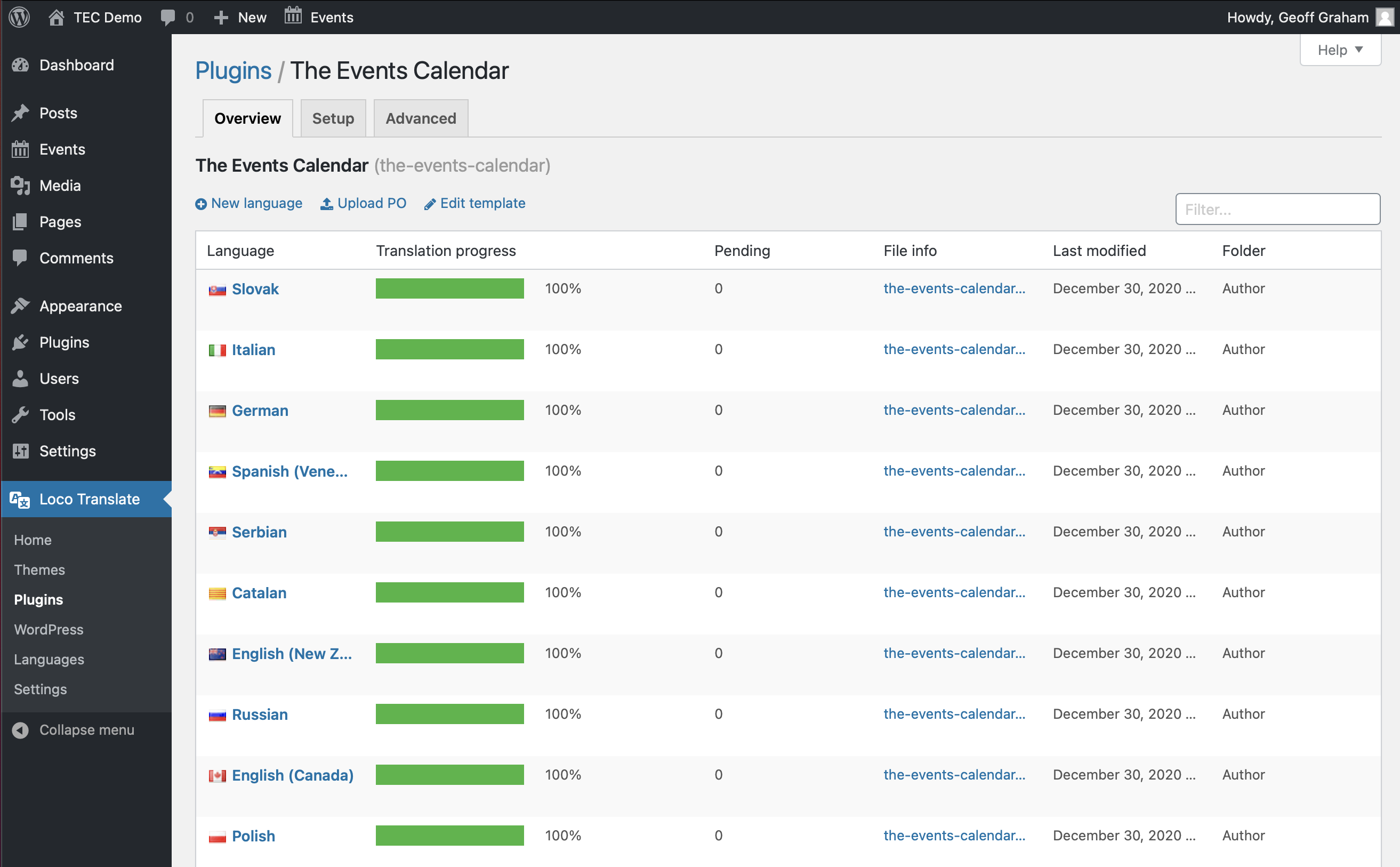
Let’s select “The Events Calendar” from the list of running plugins. That takes us to an overview page where we see the available languages included in the plugin and the level of completeness for each one.
It’s important to note that before searching for the strings, you’ll need to click on the SYNC button to ensure that Loco Translate is getting all of the strings from our .pot file. Every plugin update can include new strings and Loco Translate will not find them automatically, so always click on the SYNC button first when adding new translations.
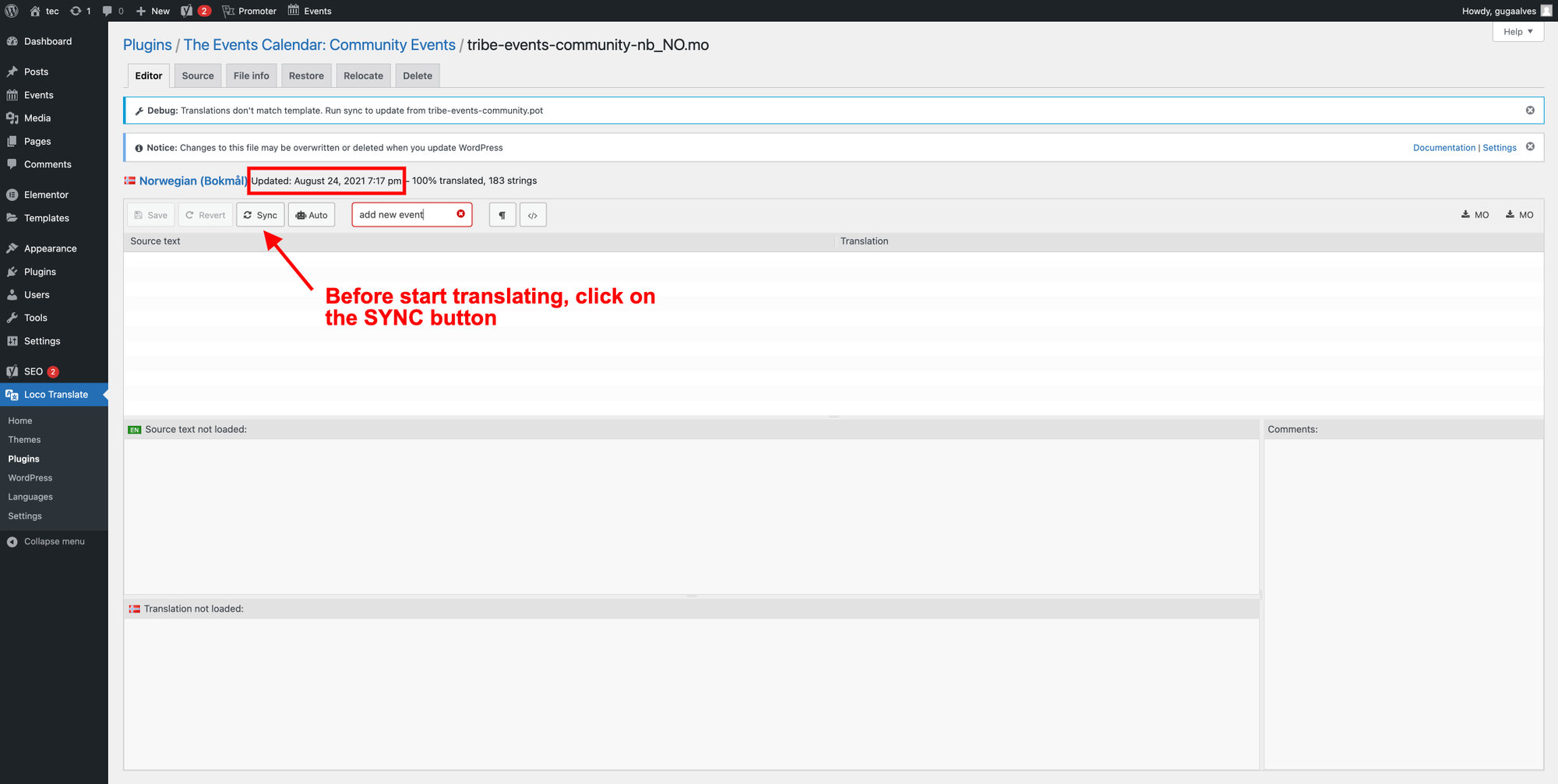
Also, note that some features are shared between our plugins, and our “tribe-common” library provides those to avoid duplicate code in different plugins.
If you can’t find a string inside the plugin files using Loco Translate, after selecting the plugin (at wp-admin > Loco > Plugins > plugin name (Events Calendar, or Event Tickets)), after the plugin languages, you’ll find the “Additional files found” section showing the tribe-common translation files.
Editing Translations
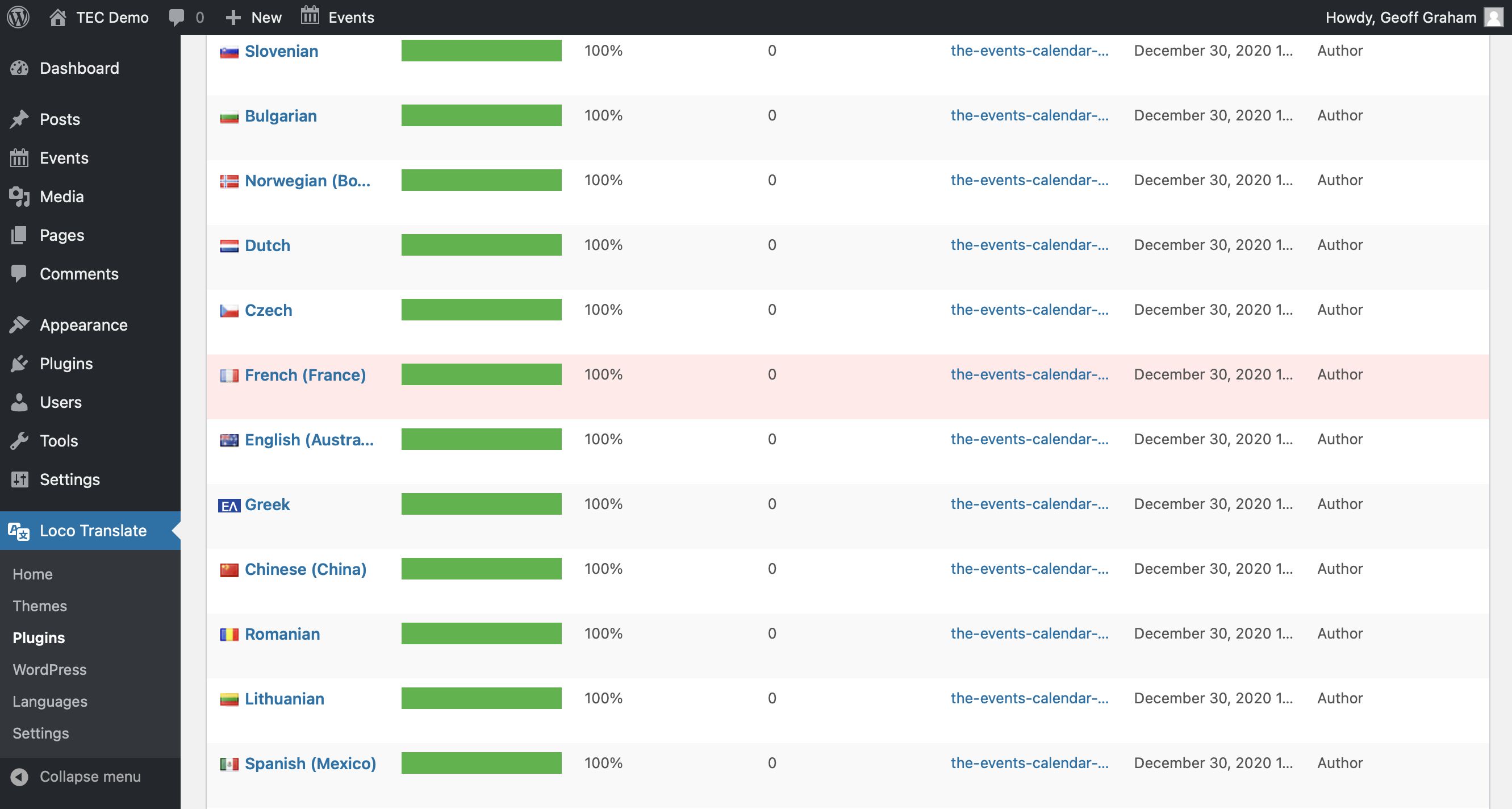
If we want to edit a French translation, we must select it from the list of languages. If there are many to choose from, we can use the search bar.
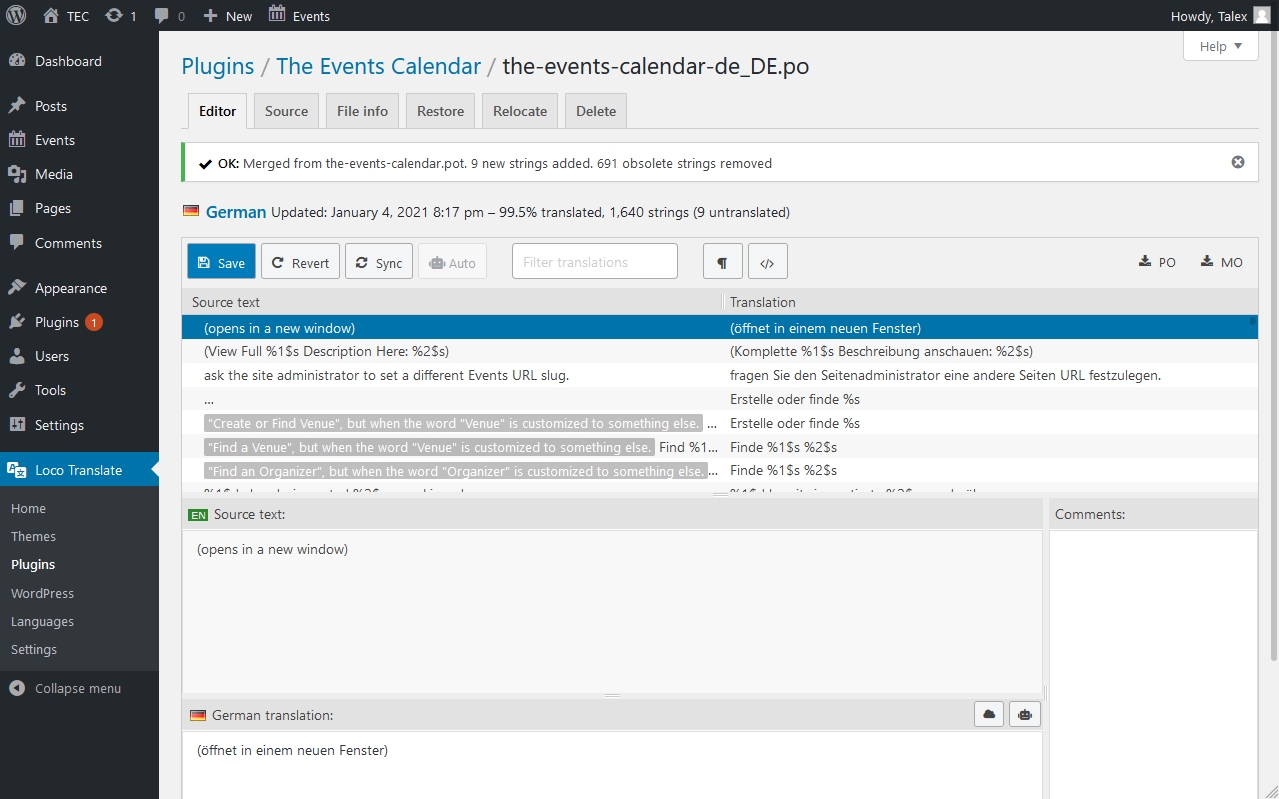
That gets us to a new screen where we can see words and phrases on one side of the screen and the French translations for them on the other side of the screen.
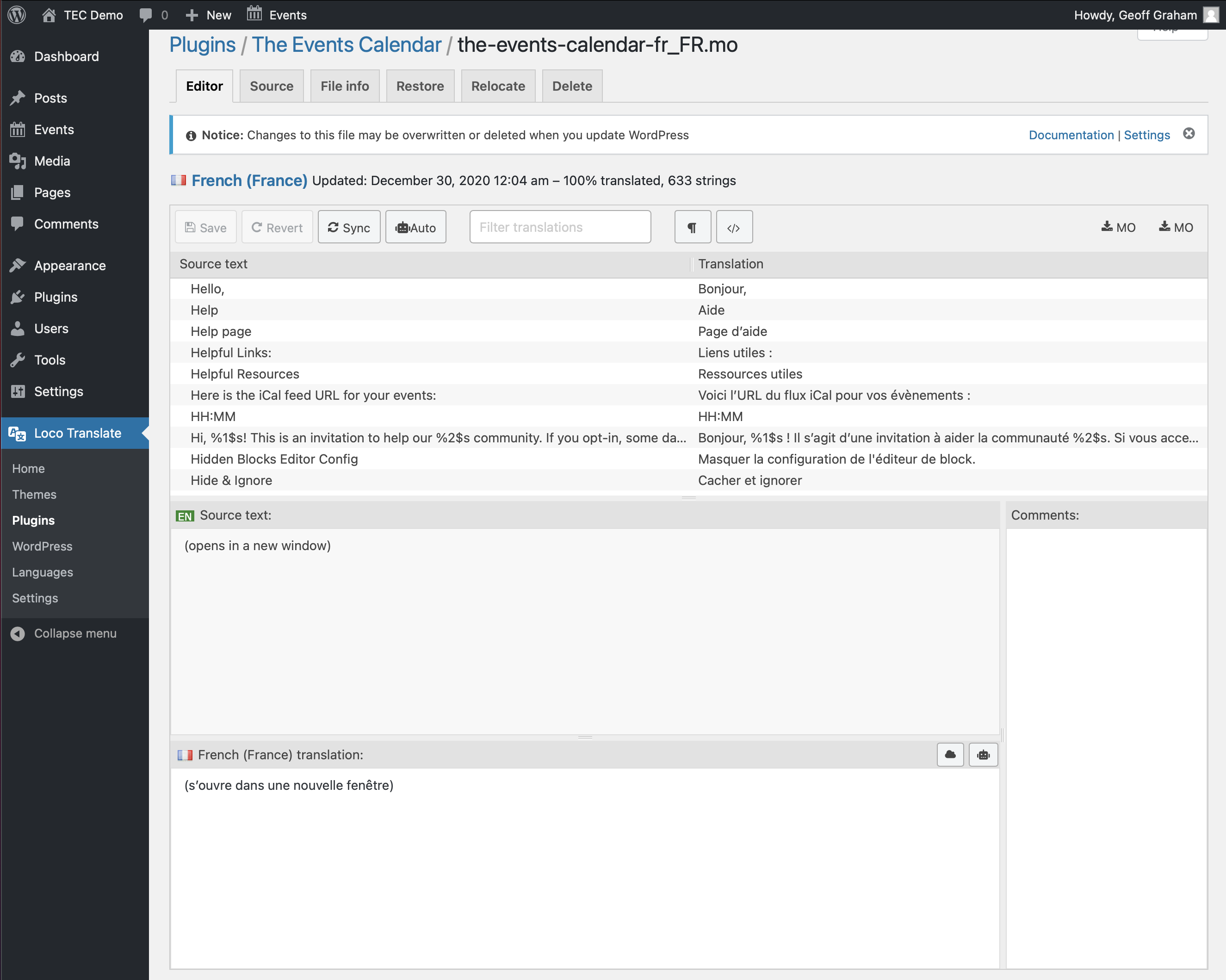
It is recommended to start by clicking on the “Sync” button at the top of the list to make sure that all strings are included.

Need to edit the translation for a particular bit of text? Select it and both the source text and the translated text will be displayed in the panels below the list of terms and phrases.
Change the translated text, then click the “Save” button. This saves your changes your updated translation will be used.
Relocating Translations
Loco Translate might provide a pretty clear notice when editing a translation. It warns that your changes could be lost the next time The Events Calendar is updated on your site.

We release regular updates for all of our plugins, so it is very possible to accidentally lose your work when installing an update.
That’s why the “Relocate” section of Loco Translate’s editor is extremely handy. It creates a copy of the translation file and moves it to another location on your server to prevent it from getting overwritten when the plugin updates.
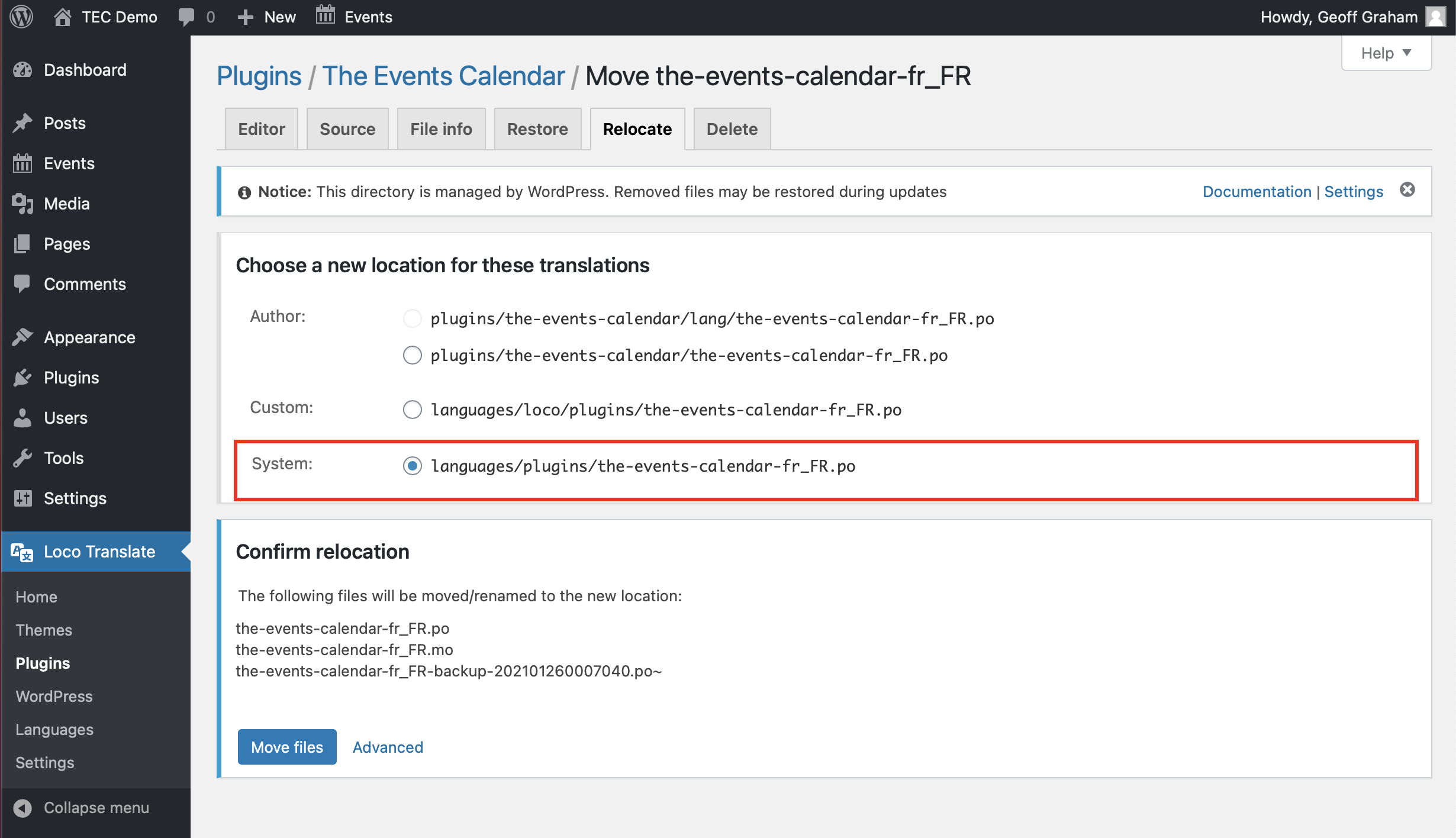
We recommend using the “System” option. This saves your work in a /languages folder that is safe from updates.
Restoring Translations
Note, however, that the /languages folder is managed by WordPress. That means the file containing your work can still be lost when an update to WordPress is installed.
If that happens, navigate to the “Restore” section of the translation, select the backed up translation you want to revert to, then click the “Restore” button to activate it.
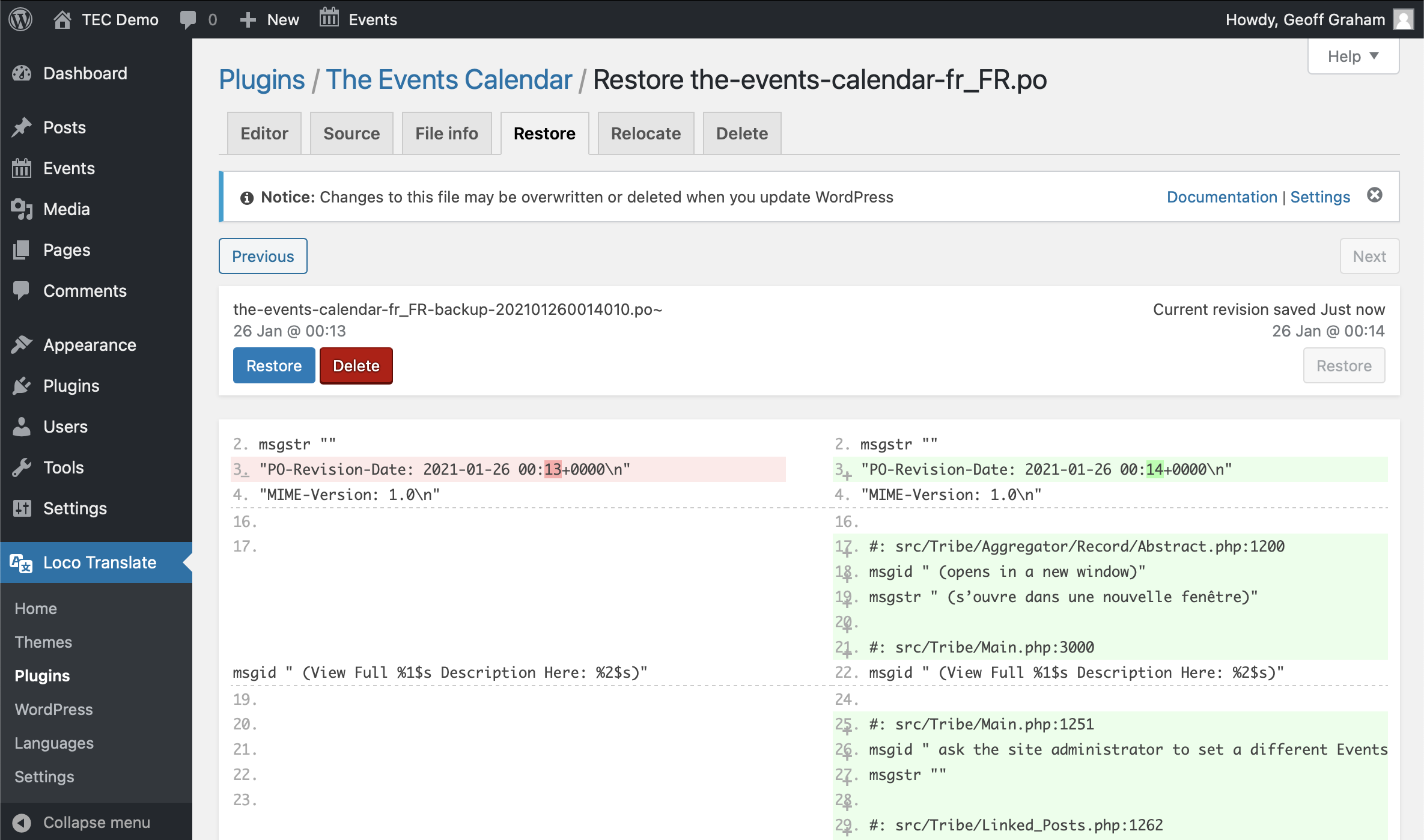
That restores your last saved version of the translation.
Fixing Translations
Strings can change when a plugin (or theme, for that matter) receives an update. That means some of your translations might not work with the latest update because your translation (.po file) is no longer in sync with the blueprint (.pot file).
Loco Translate makes this a pretty simple fix. Open the translations for that language and plugin. Look for the “Sync” button above the list of strings and click it. You should receive a confirmation message that the synchronization was successful. Click on “Save” and, if your strings were translated correctly, they should show up properly on your site.
Translating Calendar Views Labels
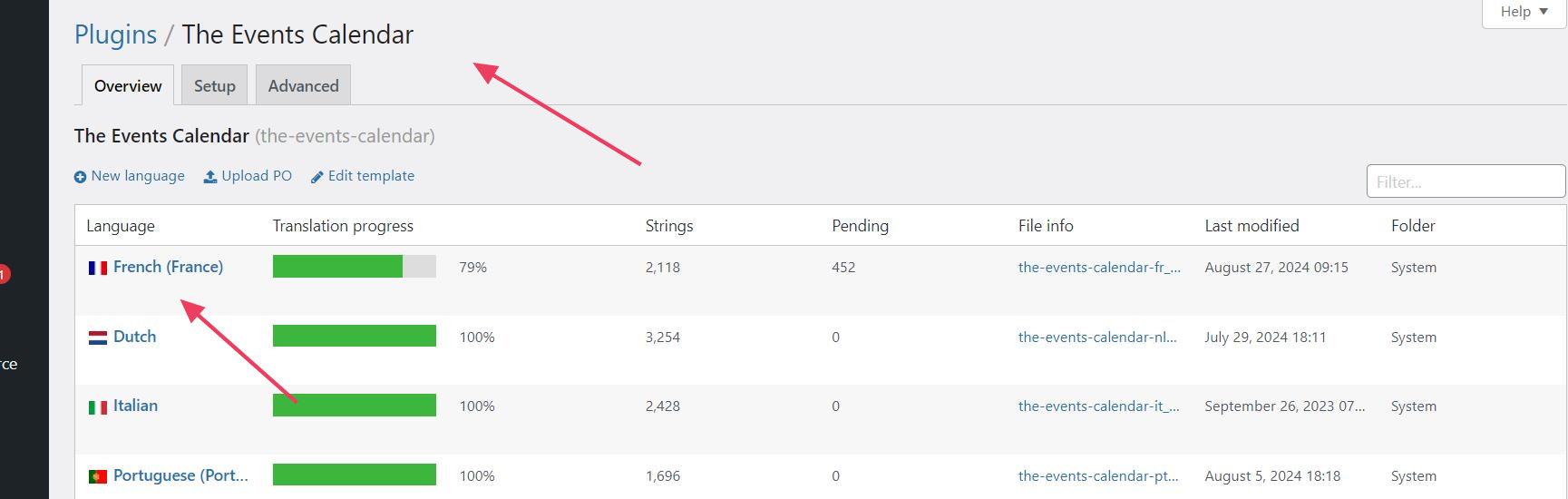
- Go to Loco Translate > Plugins and find The Events Calendar from the list
- Choose the language you’d like to translate The Events Calendar into. In this example, we selected French language.
- After opening the file, before translating it, click the “Sync” button to update it. This will ensure you have all strings ready to translate.
- To translate calendar views labels including “day”, “List”, and “Month”, you should search for “The text label for the” string and translate the corresponding text:
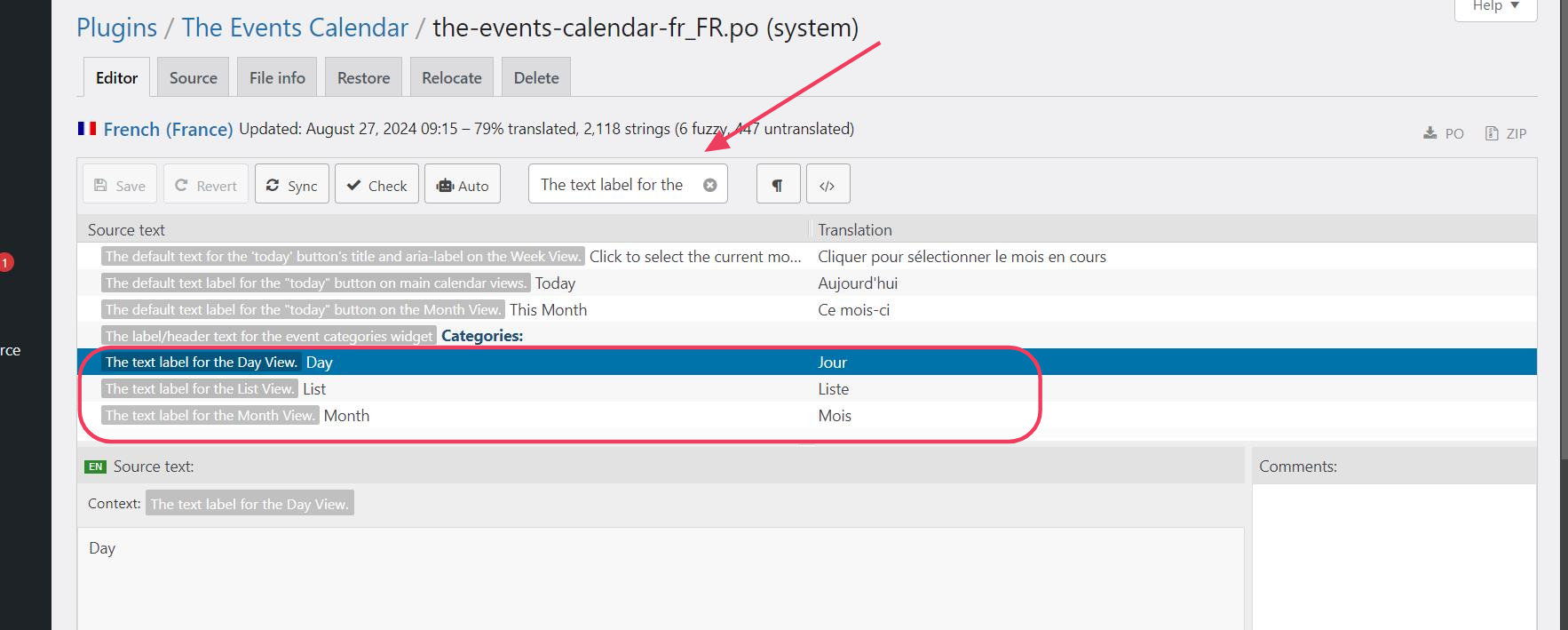
- Once the translation is done, save the file, and you’re good to go.
- Note: in case you’re using a caching plugin, make sure to clear the cache to see the changes.
Use LocoTranslate to Translate Country Names
- Go to https://translations.stellarwp.com/glotpress/projects/tribe-common/ and click to choose your preferred language.
- At the bottom of the page select the option ‘all current’ and ‘Portable Object Message Catalog (.po/.pot)’ then, click the ‘Export’ button.

- Paste the downloaded language files under wp-content\plugins\the-events-calendar\common\lang\ and wp-content\languages\plugins folders.
- Go to WordPress Dashboard > Loco Translate > Plugins, and click to edit The Events Calendar plugin.
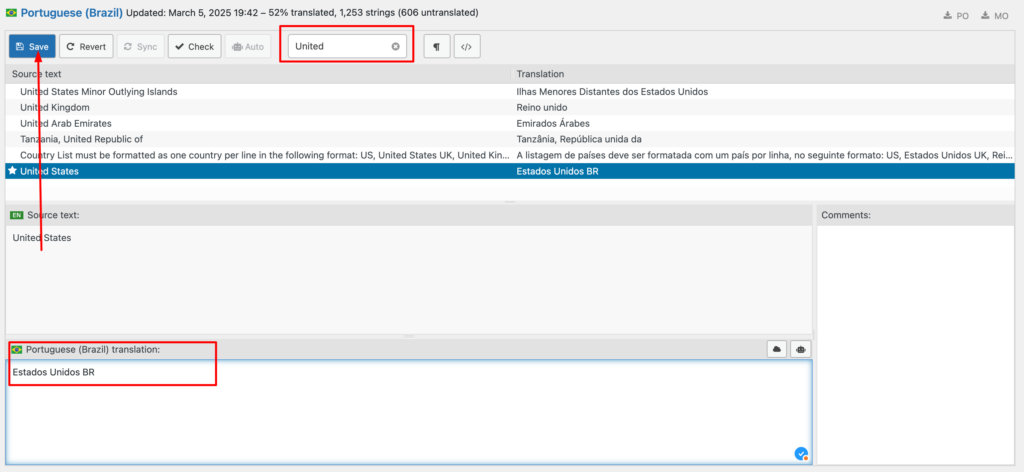
- Scroll to the bottom of the page, and after the ‘Additional files found’ section, you should see your downloaded language files. Click to edit the one under the ‘System’ folder, and search for the desired country name, if it is not yet translated, you can add your own translation.
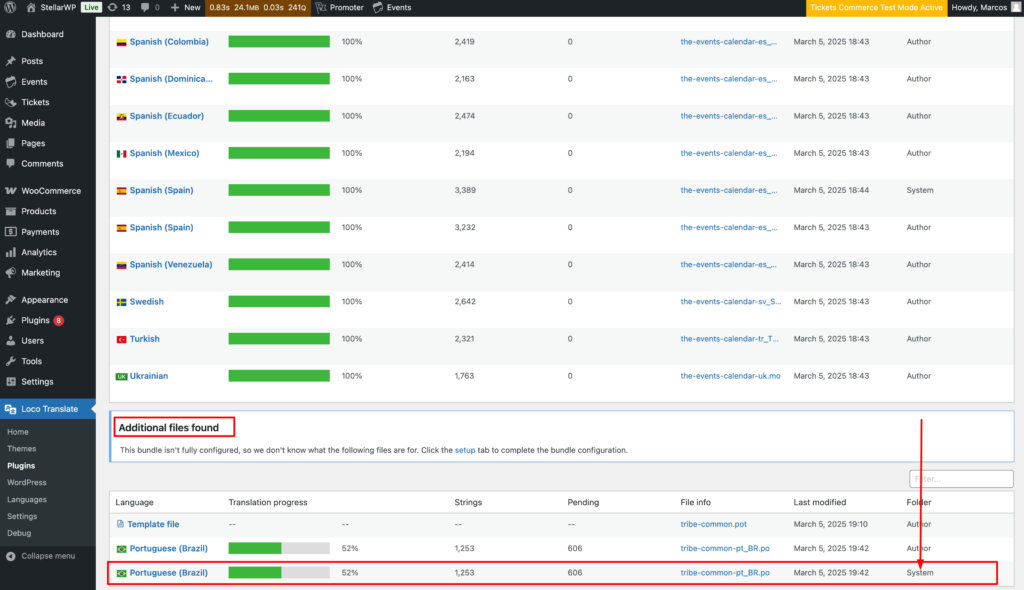
- Save your changes and you should be done.