The Events Calendar and Give integrate together, which opens up your WordPress calendar to accept donations. That means you can do things like:
- Add a donate link to your events
- Create an event with a “pay what you want” cost.
- Host a live music event with the option to support the artist with donations.
Give is super easy to use, and works almost entirely using shortcodes and or blocks in the WordPress editor.
Creating a Donation Form
To create a new form in Give, Navigate to Donations → Add Form from the WordPress dashboard.
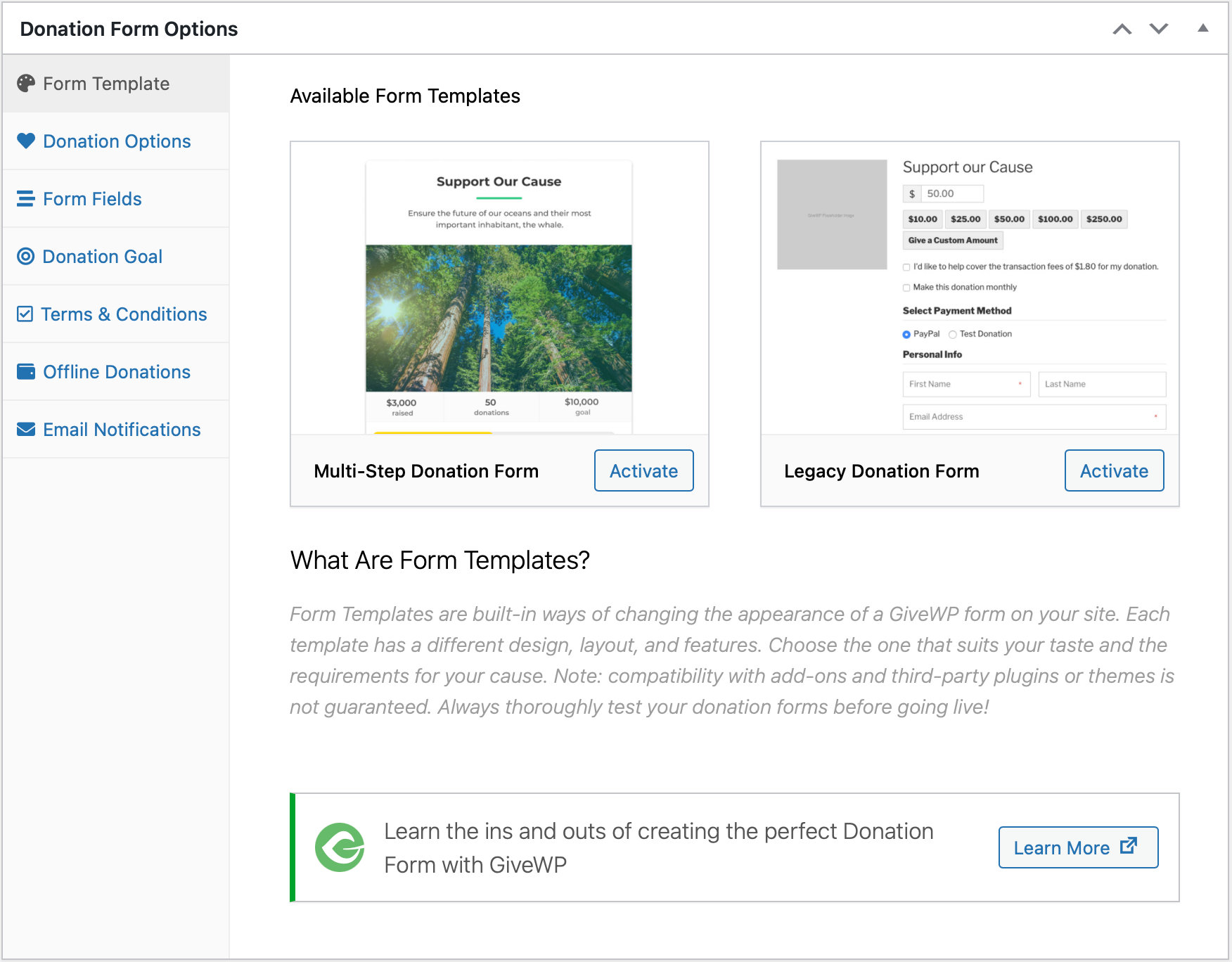
Please visit the Give knowledgebase for detailed instructions to create donation forms.
Adding Donations Forms to Events
After creating a donation form, the next step is to open or create the event where the donation form will be displayed. There are two ways to add a Give donation form to your post, page or event.
Use a Donation Form block
Give provides a Donation Form block to embed forms directly in the Block Editor. Add the block and select the donation form to embed.
Use a Shortcode Block
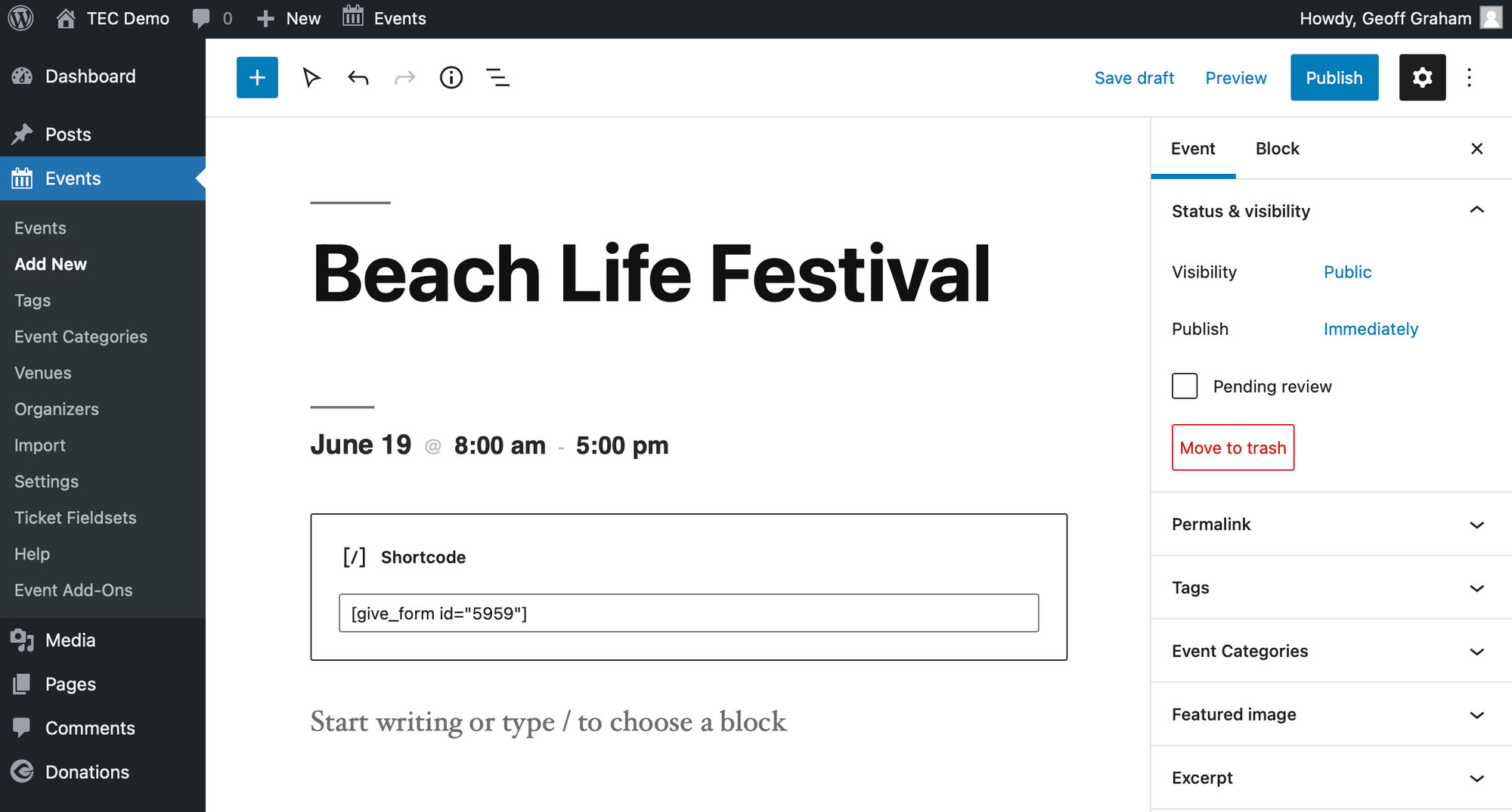
In addition to the Donation Form block, it’s possible to embed a form in an event using the WordPress Shortcode block. Give includes a number of shortcodes for displaying form and donation content and they can be used in the Shortcode block.
Viewing the Form
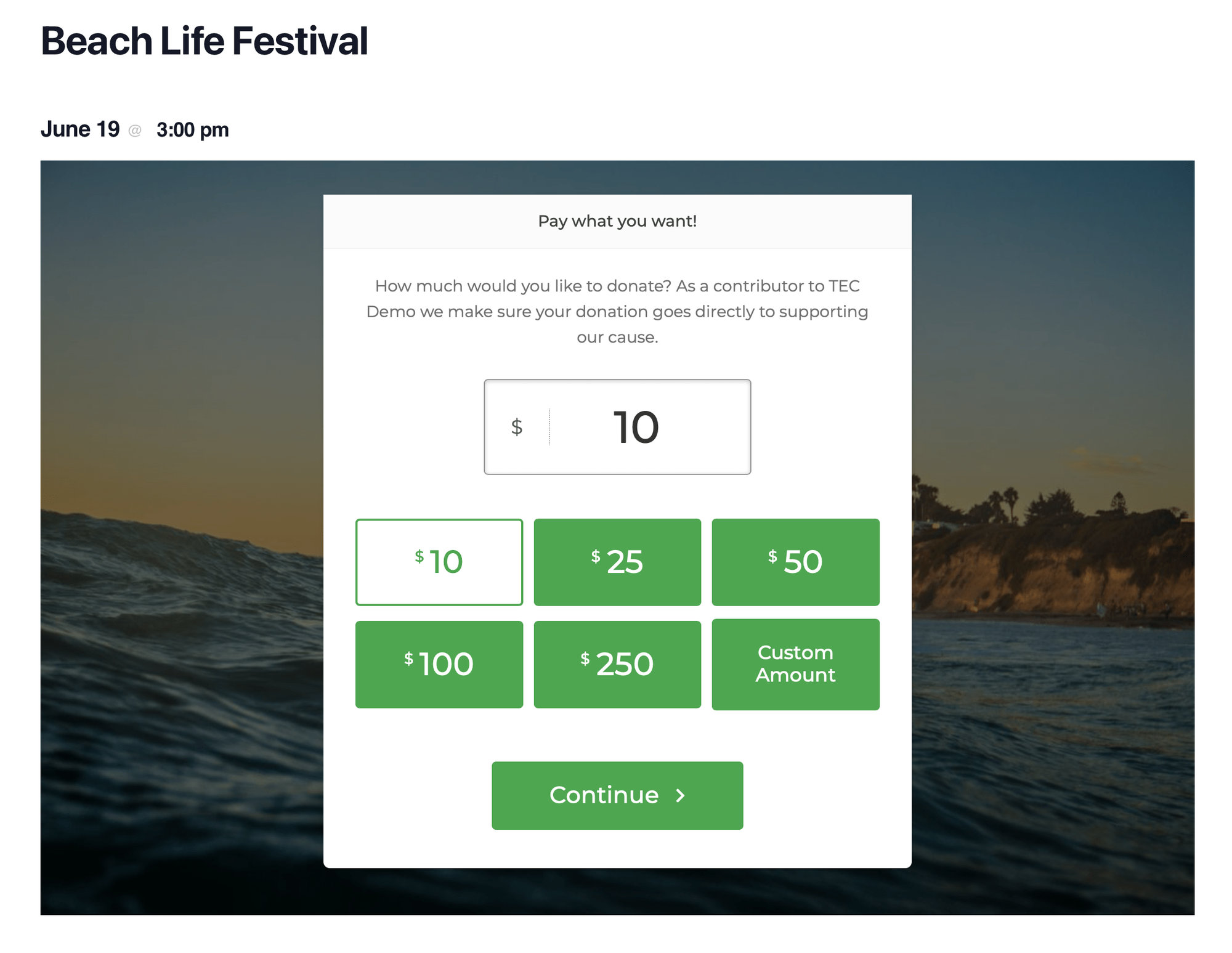
Save the event and visit the front end of the website to view the donation form embedded in the event content.
Ideas
Because the donation form is simply a block — using either the Donation Form block or the Shortcode block — it can be displayed in creative ways just like any other block in WordPress. Here are a few things you can try:
- Use the Columns block to display the form next to event information.
- Use the Cover block to include a background image behind the form.
- Use the Restrict Content plugin to display the form only to logged in members. Or use Restrict Content Pro to show the form to a specific type of member. Or add two forms to the event and display one form to certain members and the other form to everyone else.
- Create an Organizer for the event and display the form next to it as a way to support a specific person. Use our free Custom Event Labeler extension to rename “Organizer” too something else, like “Artist.”
For even more possibilities, consider upgrading to a paid version of Give. This gives you access to the Give add-on library to enhance your donation forms with things like recurring donations, custom form fields, PDF receipts, and more.
Using Event Tickets to Accept Donations
The Event Tickets plugin is in itself a tool to collect money individually. While it is true that it has not been created specifically to accept donations, you can use it to receive money from people for some cause, including fundraising. You can create one or more tickets of different prices to offer options for donation amounts.
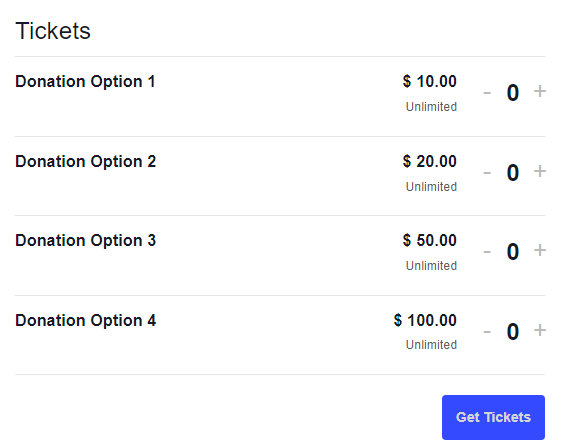
Like any other ticket, you can set the capacity to unlimited, set the start and end date of donations, and make public the list of “donors” using the Public Attendee List feature of Event Tickets.
With the help of the Event Tickets Plus plugin, you can also collect additional information from donors through custom registration fields.
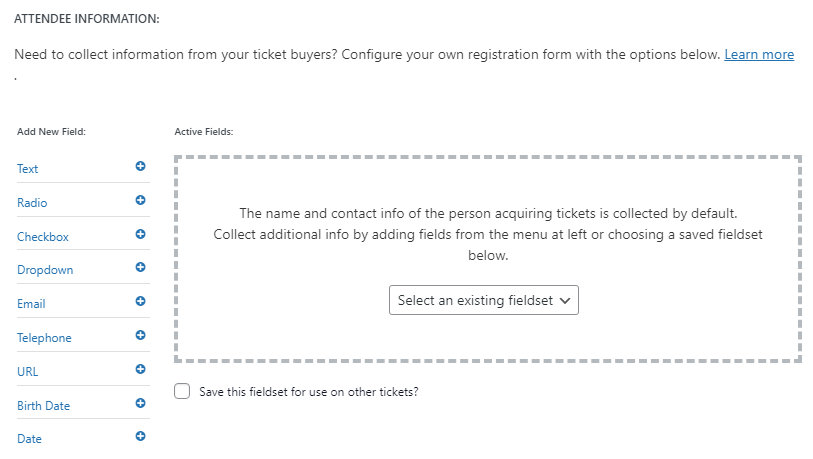
Want to change some wording in the ticket form? Check out our guide, Custom Wording in the Calendar.
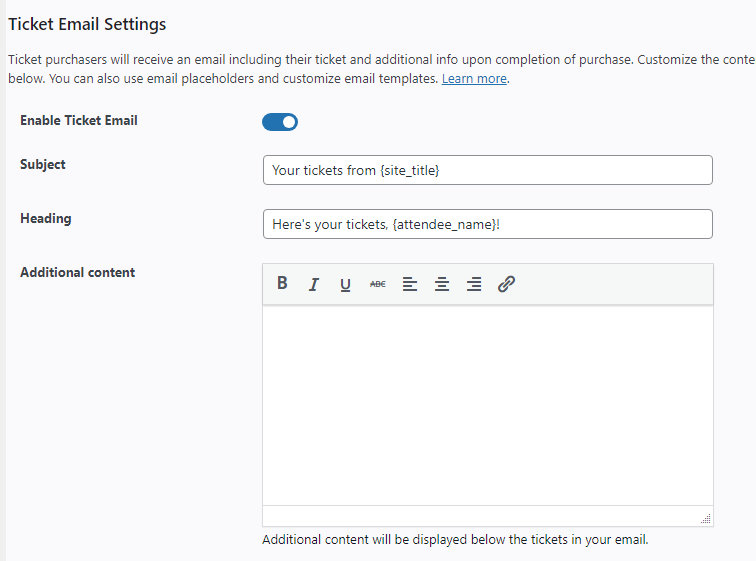
For these donation cases, you may also want to deactivate the sending of Event Tickets Emails or customize the wording of your ticket emails. You can do either from Tickets > Settings > Emails.