
This guide will walk you through how to use the Events QR Code feature, which allows you to easily generate and utilize QR codes for your events. This feature simplifies the process of linking physical marketing materials to your online event details.
Accessing the QR Code Feature
The QR code functionality is seamlessly integrated into The Events Calendar. You can access it from two main areas:
1. Admin Events List: A link to generate or view Event QR Codes will be display if you hover the mouse over an event post item.
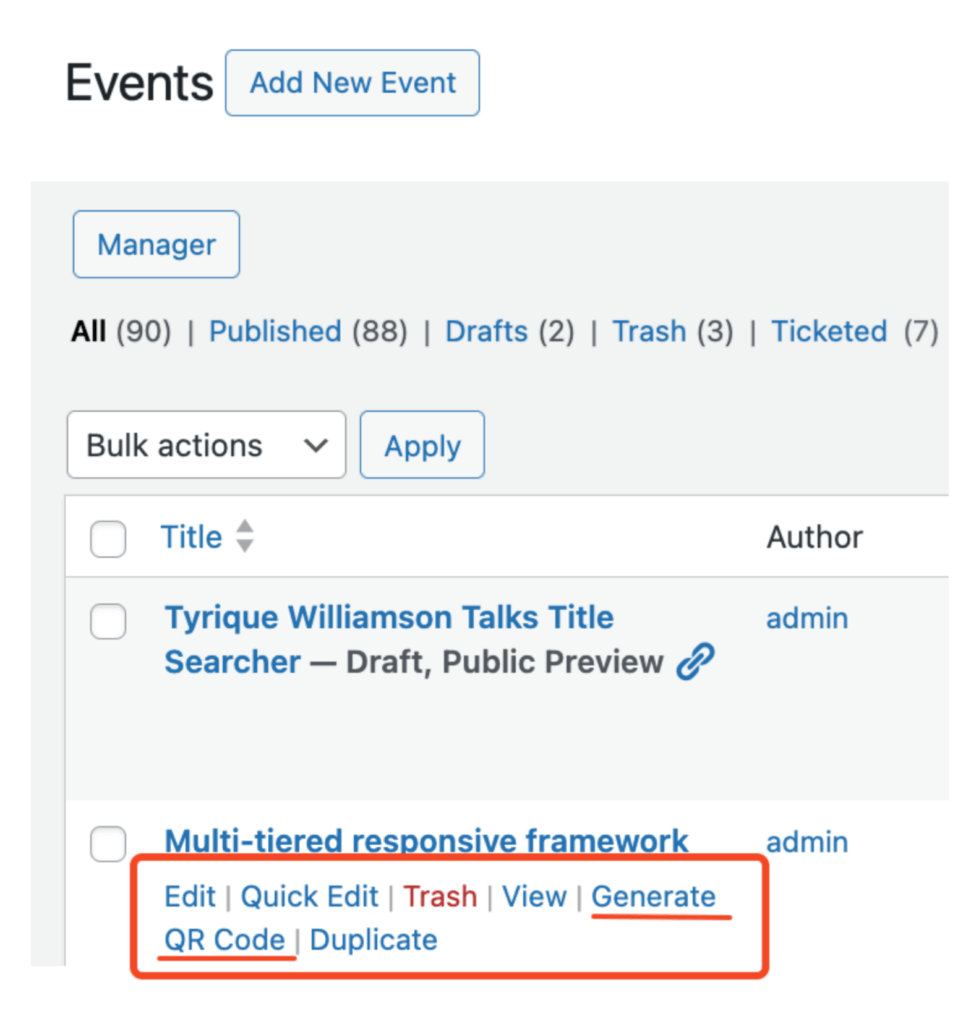
2. Event Editor Metabox: A dedicated metabox to generate and download QR Codes will be available when editing an event post.

Generating QR Codes
Event QR Codes generation are available right after publishing an event. Here’s how we can access and download them:
For Standard Events
- Go to WordPress Dashboard > Events > Events click to edit and event and locate the ‘QR Code’ metabox in the event editor sidebar.
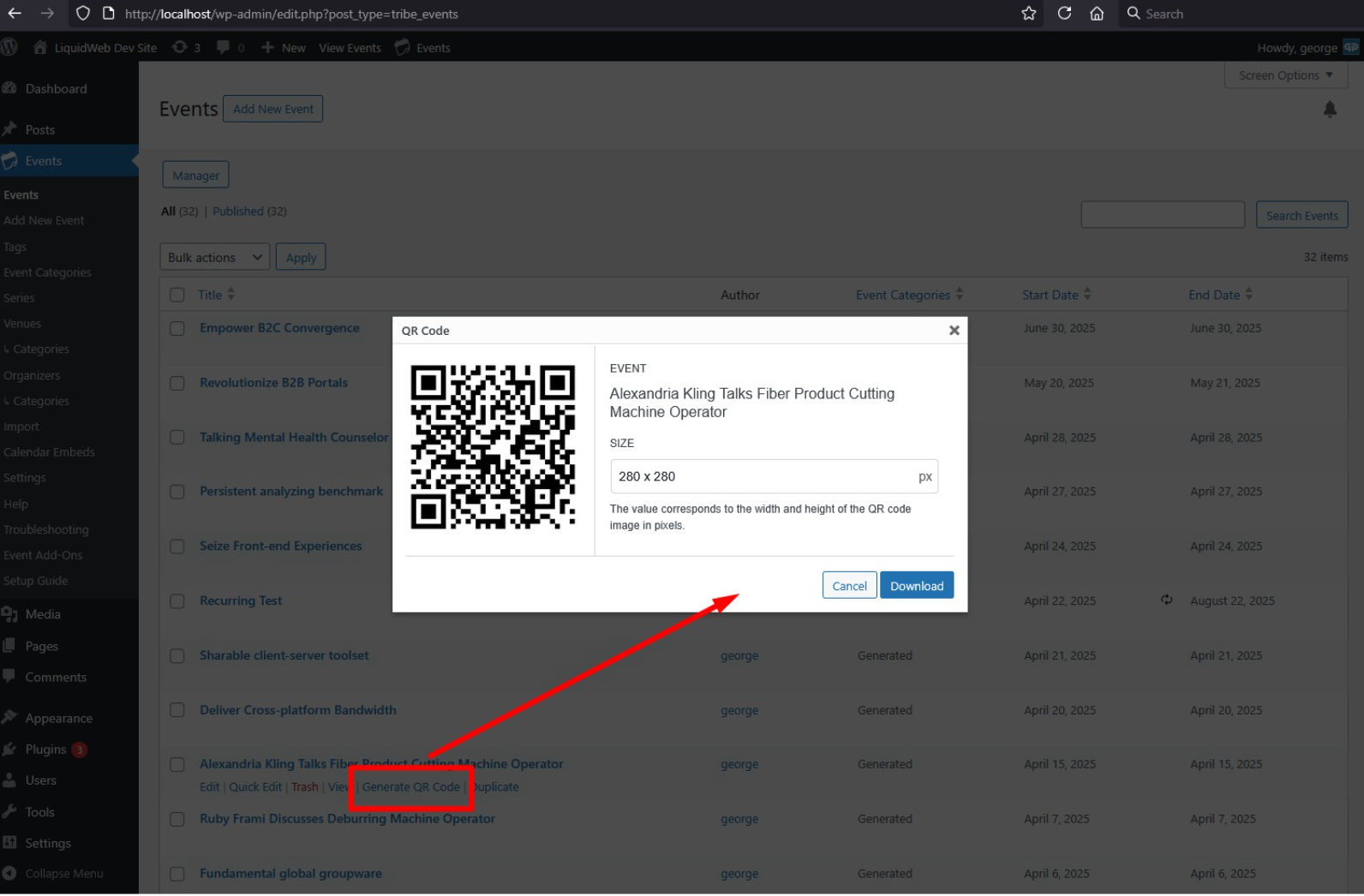
- If the QR code hasn’t been generated yet, click ‘Generate QR Code.’ If it has been generated, click ‘View QR Code’ button.
- You will see a preview of the QR code and options to download it in PNG format.
- Additionally, if you hover over an event post name from the list of events, you can generate it right from the events list table.
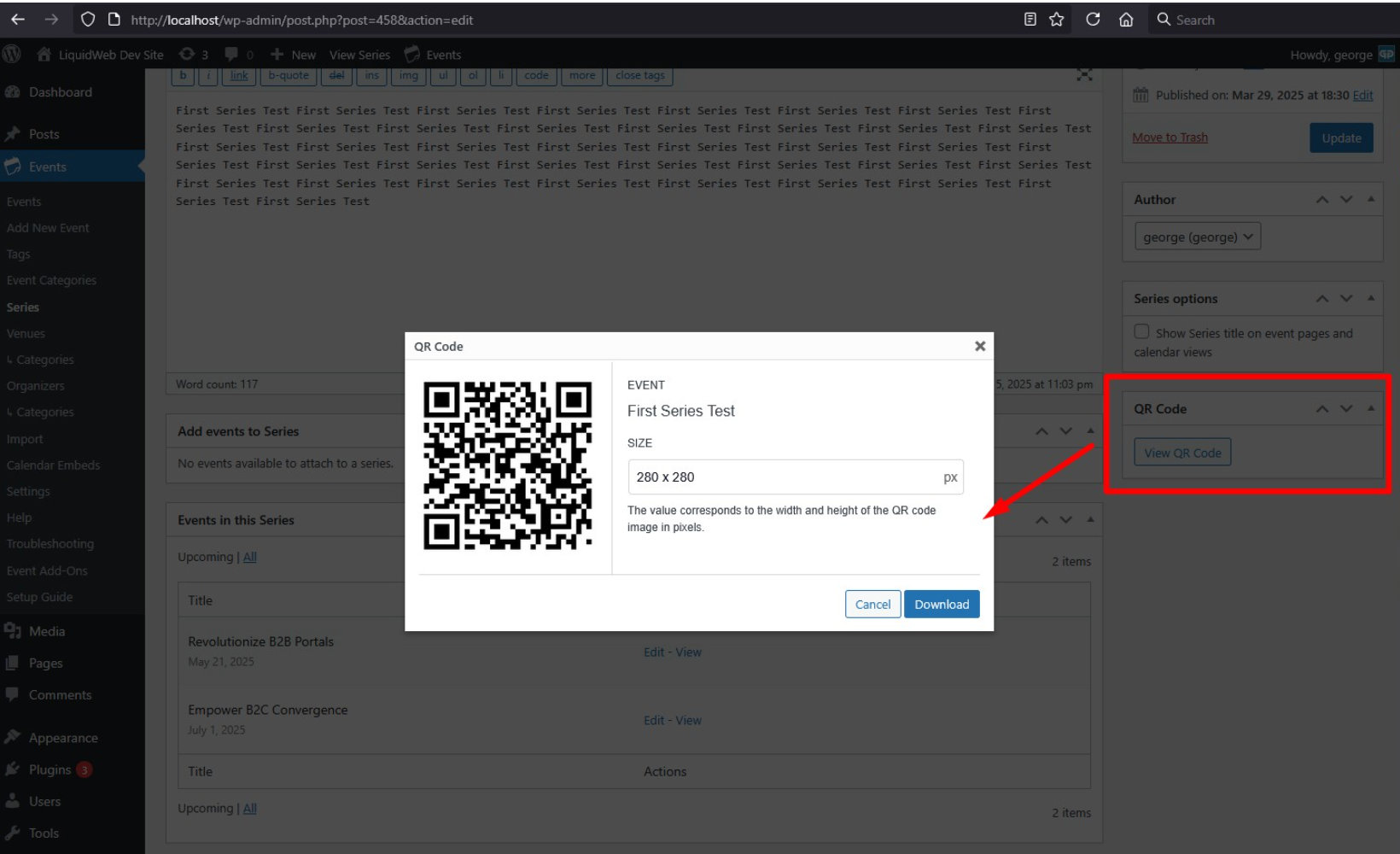
For Series Events (Events Calendar Pro)
- Go to WordPress Dashboard > Events > Series, and follow the same steps as for standard events.
- The QR code generated for series events is dynamic, meaning it will always redirect to the next upcoming event in the series.
Note: when we click the ‘Generate QR‘ link, we create, save and upload the QR images for that event, under the /wp-content/uploads/tec-qr-codes/ path. The filenames would be i.e. qr_1550_700.png and in that example it means for the event with id=1550 and image size=700x700 pixels.
Users can download the images or link to them directly. If the images have already been generated for an event, then the action label changes from ‘Generate QR Code’ to ‘View QR Code’. That means we do not regenerate the images, we do that only once per event. If a user wants to regenerate them, then he can delete them from his /uploads/ directory first.
Using QR Codes
Once generated, you can download the QR codes and use them in various marketing materials
Physical Marketing Materials
- Print advertisements
- Event posters and flyers
- Business cards
- Venue signage
Digital Integration
- Social media posts
- Email marketing campaigns
- Digital signage
- Partner websites
Custom QR Codes
It is possible to create custom QR codes using shortcodes, widgets, and blocks. They share the following settings:
- QR image dimensions.
- QR redirection mode. We have 4 types:
- Current Event: We will send the user to any event that is currently happening and if there is none, we will send him to the next future event.
- Upcoming Event: We will send the user to the next future event.
- Specific Event: Here the user must also select an Event and that’s exactly where we will send the user to.
- Next in Series: This is a new functionality under Series (requires Events Calendar Pro). User selects the Series, and we will redirect to the next Event under that Series/Recurring Event. If all are in the past, then to the last one.
QR Shortcode
Use the following shortcode format: [tec_event_qr mode=specific id=216 size=16]
- mode:
current, upcoming, specific, next - id: Event ID if
specificmode, Series ID ifnextmode - size: Integer from 1 to 28 (steps of 35px)
QR Block
Use the Editor QR Block, which has the same attributes as the shortcode with input fields.
QR Widget
Use the QR Widget, which also has the same attributes as the shortcode with input fields.
Conclusion
We truly believe this addition will help you in your event marketing efforts. This feature not only modernizes event promotion but also provides tangible benefits in terms of efficiency, cost reduction, and improved attendee engagement.